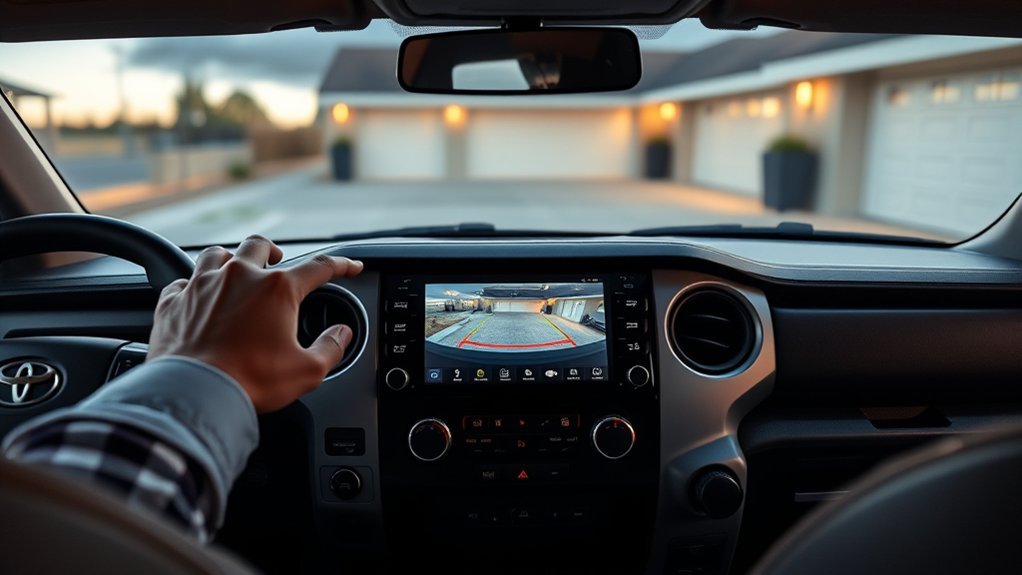
You’ll see the backup camera automatically when you shift into reverse; press the camera button if it doesn’t engage. Enable Auto Camera for continuous view under 10 mph and set your mirror adjuster to L/R for auto-tilt in reverse. Use the colored gridlines—nearest ~2 ft, middle ~4 ft, far ~6 ft—and the side markers and center line to gauge width and hitch alignment. Check infotainment options and the owner’s manual for calibration and troubleshooting to learn more.
Toyota Tundra Backup Camera: How to Activate
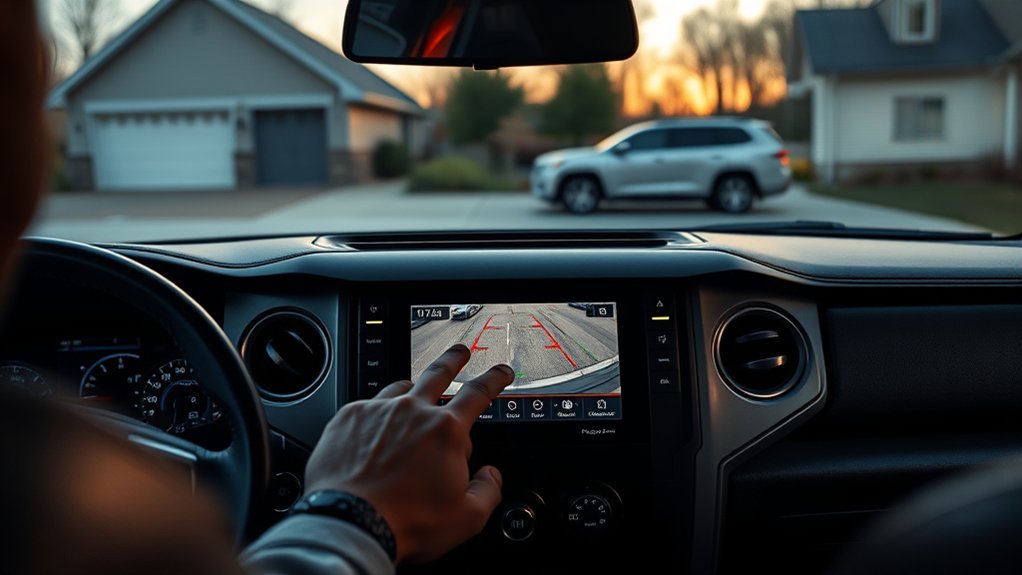
When you put your Toyota Tundra into reverse, the backup camera automatically engages and displays on the infotainment screen; if it doesn’t, press the camera button on the console to enable the auto feature. You’ll see three colored gridlines; the furthest blue line marks roughly six feet behind the truck, giving a clear reference for clearance. Set mirror auto-tilt by moving the mirror adjuster knob left or right while in reverse, following the owner’s manual for the precise procedure. Use camera maintenance tips: clean the lens with a lint-free cloth and mild cleaner, inspect for damage, and check connections if the image is distorted. Consult the owner’s manual for troubleshooting steps and configuration details to keep the system reliable. Follow safety precautions: confirm surroundings visually before backing, don’t rely solely on the display, and combine mirror, camera, and direct observation to maintain freedom of movement and control while minimizing risk.
Enable Auto Camera (Works Under 10 Mph)
You can set the Tundra to activate the backup camera automatically when you shift into reverse and the truck is moving under 10 mph. Press the camera button and switch the feature to Auto so the system engages at the speed threshold without further input. Refer to the owner’s manual for exact menu steps and troubleshooting if the camera doesn’t behave as expected.
Auto Camera Activation
Although it’s a low-speed setting, enabling the Tundra’s auto backup camera so it activates under 10 mph gives you continuous rear visual feedback during tight maneuvers. You’ll confirm the feature via the vehicle display settings and toggle auto activation on; consult the owner’s manual for model-specific steps. Once enabled, the camera feeds in real time to help you avoid obstacles while parking or reversing. Practice with it to build confidence, and share notes with the community to troubleshoot edge cases. For reliable performance, follow camera maintenance and safety tips: keep the lens clean, check wiring connections, and verify software updates. This setting liberates you from guesswork and tight-space anxiety while maintaining control.
Speed Threshold Behavior
If you enable the auto camera setting and press the camera button, the Tundra will also display the rear camera feed while driving at low speeds (under 10 mph), providing extra visibility during tight maneuvers. You’ll gain low speed visibility that helps you free yourself from constrained parking and urban pressure. The system still auto-activates in reverse, but enabling auto extends activation to forward motion below the speed threshold. Verify the setting in your infotainment menu and consult the owner’s manual for troubleshooting. Use camera angle adjustments sparingly; abrupt changes can reduce situational awareness. Community reports confirm utility and request status updates, so check for firmware or software notices from Toyota. Rely on the controls and documentation to maintain predictable behavior.
Read Camera Gridlines to Gauge Distance
Wondering how the gridlines translate to real-world distances? Use gridline interpretation to make precise distance estimation while you reverse. The Tundra displays three colored horizontal lines plus a center line: the furthest blue line≈6 feet, the middle≈4 feet, and the nearest≈2 feet. As you back, align these markers with fixed objects to confirm clearance and avoid surprises during loading, unloading, or tight maneuvers.
Trust the left and right vertical edges to show vehicle width; they let you gauge lateral clearance and keep you clear of obstacles without guessing. Don’t rely on them for exact millimeter placement, but use them to maintain safe lanes and prevent contact. The horizontal center line exists to aid hitch approach—use it in concert with the gridlines for positioning, but focus here on distance estimation and gridline interpretation so you can reverse with confidence and autonomy.
Use the Center Line & Width Markers to Align Trailers
Start by centering the camera’s vertical guideline on the trailer hitch and use the left and right width markers to keep your truck square to the trailer; this gives you a precise visual reference for lateral alignment while the horizontal lines (6 ft, 4 ft, 2 ft) tell you how close you are. You’ll use trailer alignment as a deliberate, repeatable action: lock the center line to the hitch, track the width markers to avoid side obstacles, and watch the 6/4/2 ft lines for clearance.
- Center the vertical gridline on the hitch, advance slowly, and correct steering to maintain lateral precision—this is the core gridline benefits for accurate coupling.
- Use left/right width markers to confirm vehicle footprint clearance when passing posts or ramps; correct before you close distance.
- Monitor the blue 6 ft line, then the 4 ft and 2 ft cues to control final approach speed and guarantee tailgate and load safety.
This method frees you from guesswork and builds confident, efficient hitching.
Set Mirrors to Tilt Automatically When You Reverse
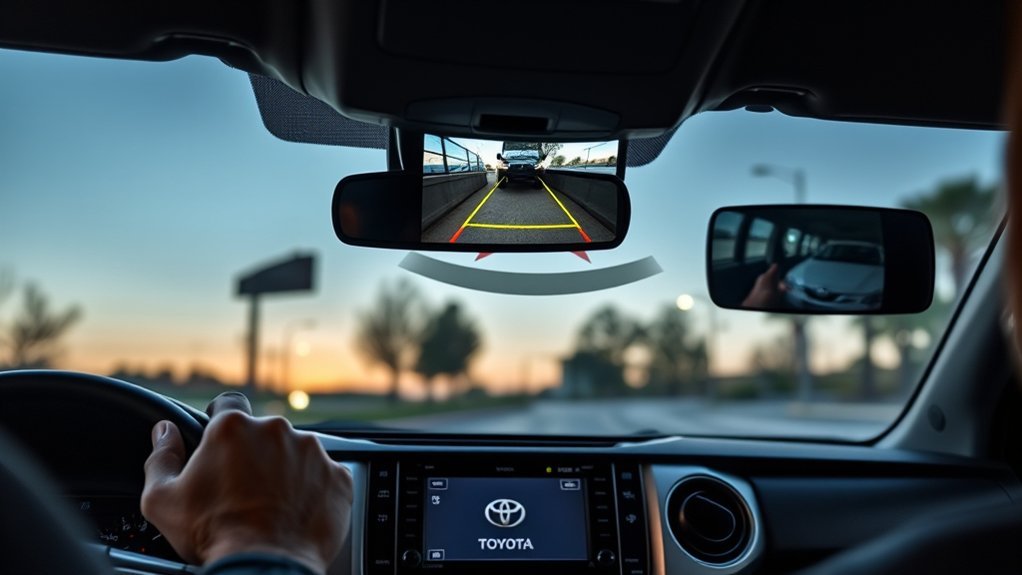
When you put the mirror adjuster knob to left or right before shifting into reverse, the mirrors will tilt automatically to give a better view of the ground and trailer area behind the truck. You control this quick safety aid by positioning the adjuster to the side you’ll use, then engaging reverse; the tilt engages automatically. Use mirror calibration tips: check alignment, confirm tilt range, and repeat adjustments until sightlines are correct. Consult the owner’s manual for model-specific steps. Regular checks keep settings reliable and support reversing safety techniques.
| Action | Purpose |
|---|---|
| Set adjuster L/R | Enable tilt on reverse |
| Engage Reverse | Activate tilt function |
| Visually confirm | Verify ground/trailer view |
| Recalibrate as needed | Maintain accuracy |
| Read owner’s manual | Follow exact steps |
These concise steps free you from uncertainty when backing a trailer. Be deliberate, test often, and insist on configurations that protect you and others.
Configure Camera & Mirror Settings via Infotainment
Access the infotainment’s Camera Settings menu to configure the Tundra’s backup camera and mirror behaviors, enabling or disabling gridlines, choosing auto-activation, and setting mirror tilt-down for reverse. You’ll use camera customization and mirror adjustment options to shape how the system serves your freedom to maneuver and align trailers without restraint. Toggle the auto feature so the camera engages under 10 mph by pressing the camera button on the display. Choose whether to show the three sets of guidance lines plus the horizontal center line for precise spatial cues.
- Enable/disable gridlines: turn on the three-line overlay and center line for trailer alignment and spatial awareness.
- Auto-activation: confirm the camera auto-feature is enabled so the view appears automatically below 10 mph or when selected.
- Mirror adjustment: set mirror tilt-down for reverse via the mirror control knob per the owner’s manual for consistent, liberated rearward visibility.
Troubleshoot: Camera or Mirror Won’t Auto-Enable
If the camera or mirror won’t auto-enable, first confirm the camera auto setting is turned on in the infotainment menu and that you’re moving under 10 mph. For mirror tilt in reverse, verify the mirror adjuster knob is set to the left or right position while the truck is in reverse. If the issue persists, consult your owner’s manual for model-specific steps and troubleshooting.
Check Camera Auto Setting
Because the backup camera and auto-tilt mirrors rely on vehicle settings, check the camera button on the dashboard and confirm the auto setting is enabled in your owner’s manual; the camera should engage when the truck is put in reverse (typically only above certain speeds), and the mirror knob must be set to left or right to auto-tilt. You’ll take control by verifying camera calibration and dashboard settings, not relying on chance. If it won’t auto-enable, follow methodical checks and join peer forums for liberation through shared fixes.
- Confirm the camera auto toggle on the dash and review the owner’s manual for speed-based engagement thresholds.
- Test reverse activation above 10 mph and note any failure patterns for diagnostics.
- Record settings, share with community, and pursue firmware or dealer calibration if needed.
Verify Mirror Knob Position
When troubleshooting a backup camera or mirror that won’t auto-enable, first make sure the mirror adjuster knob is set to the left or right position so the auto-tilt can engage when you shift into reverse. Check the mirror adjustment position physically; if the knob is centered or neutral, the tilt feature won’t activate. Shift into reverse at low speed and observe whether the mirror tilts down automatically to increase rear visibility. If it doesn’t, confirm the vehicle’s camera auto setting and that the camera button is engaged. Community experience shows confirming both mirror adjustment and camera settings resolves most issues. You’re reclaiming control—use precise checks, avoid assumptions, and verify both physical knob position and electronic enablement before escalating.
Consult Owner’s Manual
Having checked the mirror knob and basic settings, consult your owner’s manual to confirm the exact steps and menu options for enabling the backup camera and mirror auto-tilt. The manual gives a clear feature overview and troubleshooting sequence so you can regain control quickly. Use manual navigation to locate camera, mirror, and reverse-gear sections.
- Follow the manual’s step-by-step activation procedure, verifying settings and that the vehicle is in reverse.
- Check the mirror adjuster knob position per the manual to guarantee proper auto-tilt behavior.
- Run the manual’s troubleshooting checklist to identify faults or missed menu toggles and note recommended service steps.
Review the manual regularly to master settings, reinforce safety, and maintain your independence on the road.
Safe Backing and Tailgate Loading With the Camera
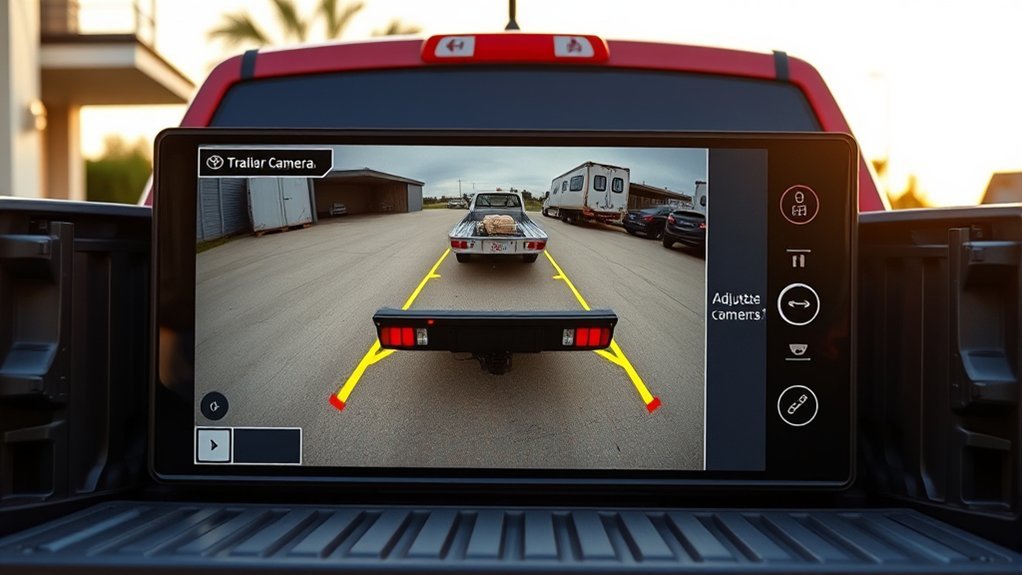
1 simple habit will make tailgate loading and backing far safer: use the Tundra’s camera gridlines as your primary reference. Rely on the left and right lines to verify vehicle width and prevent scrapes; they show your lateral envelope so you can achieve precise trailer alignment without guesswork. Watch the horizontal center line to keep the truck square to the trailer tongue or loading target.
Use the color-coded distance markers deliberately: the furthest blue line equals about six feet—stop here for full tailgate clearance during loading. The four-foot line helps you decide when to open the tailgate or step behind the bed safely; the two-foot line is your minimum buffer for hands-on loading. Move slowly, correct with small steering inputs, and trust the gridlines to refine spatial awareness. Practice these steps until they’re automatic; that routine frees you from hesitation and keeps loading and reversing efficient and safe.
When to Consult the Owner’s Manual or Dealer
If you run into setup questions, unexpected camera behavior, or need to change default activation, consult the owner’s manual first for step‑by‑step instructions on adjusting camera gridline visibility, enabling automatic activation under 10 mph, and configuring mirror‑tilt in reverse. The manual gives concrete procedures, wiring-safe tips, and quick troubleshooting to restore function or change defaults without dealer consultation. Use it to learn menu paths, factory-reset steps, and maintenance checks that preserve autonomy.
- Follow the owner’s manual when you need exact button sequences, calibration steps, or to verify settings before software changes.
- Use dealer consultation for complex failures, hardware replacement, or when you want official software updates and warranty-covered repairs.
- Contact the dealer if troubleshooting from the manual doesn’t resolve issues, or if diagnostics report sensor or camera module faults.
Rely on the manual first to retain control; escalate to dealer consultation only for expert intervention or updates you can’t safely perform yourself.
Frequently Asked Questions
What Do the Lines Mean on a Toyota Backup Camera?
The lines show distance and alignment: blue≈6ft, additional lines≈4ft and ≈2ft, side lines mark vehicle width, center line aids hitch alignment; you’ll use camera calibration and safety features to guarantee accurate, liberating backup control.
Conclusion
You’ve learned how to turn on the Tundra’s camera, enable Auto Camera under 10 mph, read gridlines, use the center line and width markers for trailers, set mirrors to tilt, and tweak settings in the infotainment—yet coincidence makes a difference: the first time you reverse into a tight spot without a scratch, you’ll feel the tech and your skill meet. Trust the system, practice safe backing, and consult the manual or dealer if things don’t behave.