By: Auto Review Nest · Last updated: July 31, 2026 · Reviewed against the Toyota 2026 RAV4 Multimedia Owner’s Manual, Toyota Audio Multimedia pairing guidance, and RAV4 multimedia manuals.
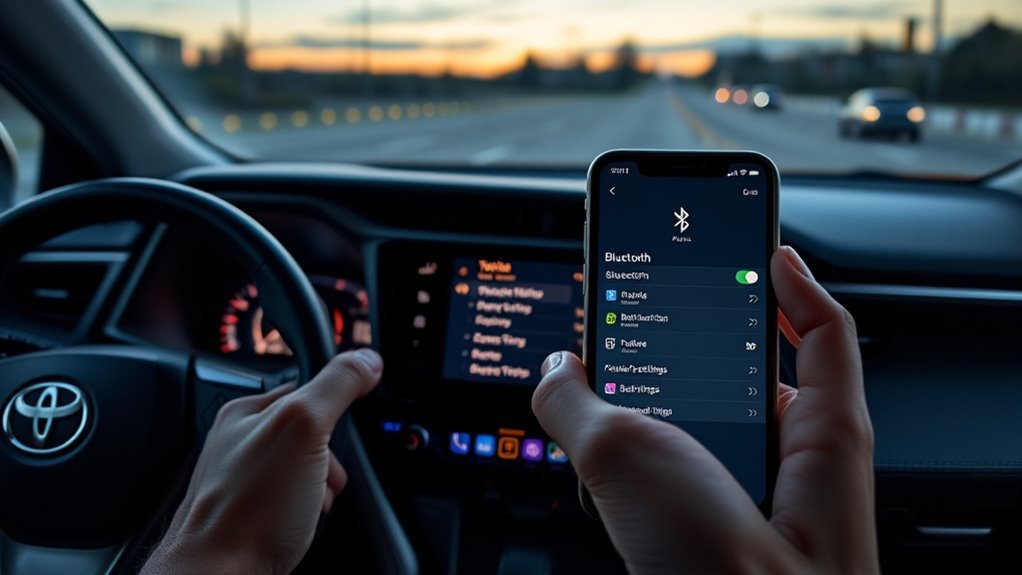
To pair a phone to Toyota RAV4 Bluetooth, park the vehicle, turn on the phone’s Bluetooth, and use the menu that matches the screen. On a 2026 RAV4, open Vehicle & Settings > Bluetooth & Devices > Add a device. On a 2023–2025 RAV4, open Settings > Bluetooth & Devices > Search for devices; choose Add another device first only when a device is already saved. Most U.S.-market 2019–2022 screens use Menu > Setup > Bluetooth > Add New Device. Select the phone, approve the connection only when both passcodes match, then test calls and Bluetooth audio before driving.
Quick Answer
Park the RAV4 and turn on Bluetooth on the phone. Use Vehicle & Settings > Bluetooth & Devices > Add a device on a 2026 RAV4. On a 2023–2025 screen, use Settings > Bluetooth & Devices > Search for devices, or select Add another device first when a phone is already registered. On many 2019–2022 screens, use Menu > Setup > Bluetooth > Add New Device. Select the phone and approve the request only when the passcodes match.
Key Takeaways
- Toyota changed the RAV4 menu labels across multimedia generations, so follow the labels on the screen rather than model year alone.
- The passcode must match on the RAV4 display and phone before you approve the pairing request.
- Bluetooth phone, media, contacts, messages, Apple CarPlay, and Android Auto can have separate permissions.
- If pairing fails repeatedly, delete the saved connection from both devices, restart them, and pair again while parked.
At a Glance
| Typical Time | About 5 minutes |
| Difficulty | Easy |
| Tools Needed | Your phone and the RAV4 multimedia controls |
| Systems Covered | 2026, 2023–2025, 2019–2022, and selected earlier systems |
How to Pair a Phone to Toyota RAV4 Bluetooth by Model Year
Toyota has used several Bluetooth interfaces in the RAV4. Model year is a useful starting point, but the labels visible on your screen are the best guide because equipment can vary by trim, country, and previous software updates.
| RAV4 System | Menu Path | How to Recognize It |
|---|---|---|
| 2026 RAV4 | Vehicle & Settings > Bluetooth & Devices > Add a device | The pairing confirmation button is labeled Confirm |
| 2023–2025 RAV4 | Settings > Bluetooth & Devices > Search for devices; use Add another device first when a device is already saved | Toyota Audio Multimedia interface with a Settings gear |
| Most U.S. 2019–2022 RAV4 models | Menu > Setup > Bluetooth > Add New Device | Entune-style screen, often with a physical Menu button |
| Selected earlier RAV4 systems | Setup or Phone Setup > Pair Phone | Older audio controls or voice-guided prompts instead of the current touchscreen flow |
30-Second Screen Check
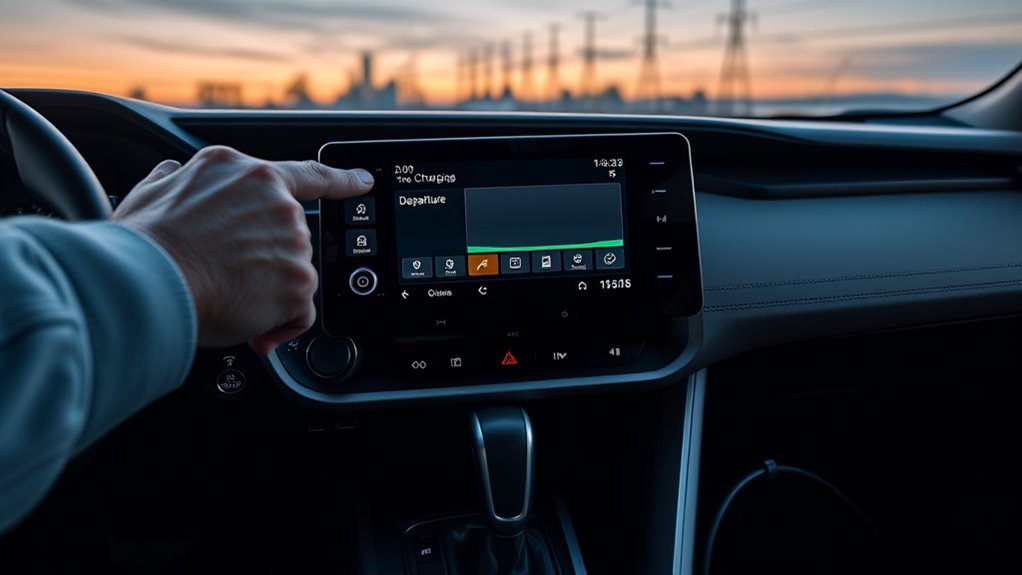
- If the main menu says Vehicle & Settings and the device button says Add a device, use the 2026 steps.
- If you see a Settings gear, Bluetooth & Devices, and Search for devices, use the 2023–2025 steps.
- If the screen or faceplate has a physical Menu button and a Setup tile, use the 2019–2022 steps.
- If the audio unit uses a tuning knob or voice prompts instead of these menus, use the older-system section below or the manual for that exact head unit.
This page covers Bluetooth registration, calls, and audio. For Apple CarPlay, Android Auto, profiles, USB connections, and connected features, see the RAV4 multimedia setup guide.
[Products Worth Considering]

This wireless CarPlay adapter upgrades compatible factory wired CarPlay or Android Auto systems with wireless connectivity and built-in entertainment apps. Enjoy navigation, calls, music, and hands-free control through Apple CarPlay, plus streaming from popular video platforms when connected to a hotspot. It also supports USB media playback and an HD media port for rear-seat entertainment on road trips and daily drives.

The HEYINCAR+ H-Air adapter upgrades compatible factory wired CarPlay and Android Auto systems to wireless convenience with a compact plug-and-play design. It connects automatically after setup, delivering fast startup, stable performance, and support for your car’s original touchscreen, steering wheel controls, and voice commands. Built for broad vehicle compatibility and ongoing firmware updates, it offers a simple way to enjoy cable-free driving with minimal clutter.

This compact adapter converts factory-wired CarPlay and Android Auto systems to wireless for a cleaner, more convenient driving experience. It offers fast auto-connect, stable performance, and plug-and-play setup so you can enjoy navigation, music, calls, and voice control without extra cables. The included USB-to-USB-C converter helps it fit a wide range of vehicle ports.
Prepare Your Phone and RAV4 Before Pairing
Put the RAV4 in Park and keep the phone close to the multimedia screen. Toyota does not allow device registration while driving on current systems, and its legacy pairing instructions also tell drivers to complete the process while parked.
| Connection You Want | What It Provides | What to Approve |
|---|---|---|
| Bluetooth only | Hands-free calls and Bluetooth audio | Phone and media; contacts and messages are optional |
| Wireless Apple CarPlay or Android Auto | Projected apps, maps, messages, calls, and media | Bluetooth pairing plus the CarPlay or Android Auto prompts; Wi-Fi may also be used |
| Wired phone projection | CarPlay or Android Auto through the vehicle’s data connection | Use the correct USB data port and approve the phone-projection prompts |
Warning: Do not pair, delete, or change Bluetooth devices while driving. Complete the setup and test the connection before moving the vehicle.
- Turn on Bluetooth from the phone’s full Settings app.
- Keep the phone unlocked and leave its Bluetooth screen open.
- Turn off Airplane Mode.
- Let the RAV4 multimedia system finish starting.
- Temporarily disconnect earbuds or another car if the phone keeps connecting to them instead.
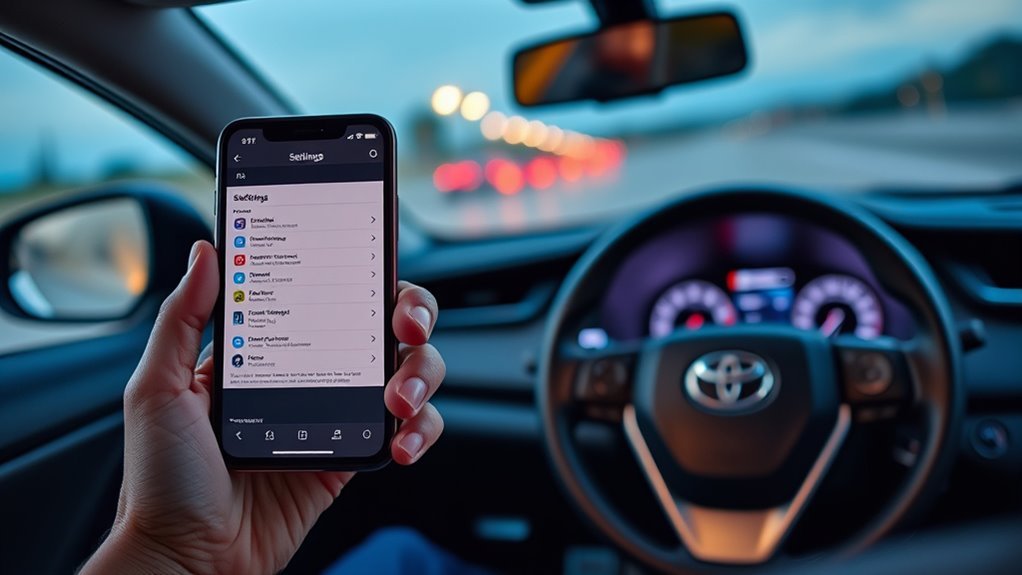
On an iPhone, open Settings > Bluetooth. On most Android phones, open Settings > Connected devices > Pair new device or the equivalent Bluetooth menu provided by the phone manufacturer.
How Do You Pair a Phone to a 2026 Toyota RAV4?
The 2026 RAV4 multimedia manual uses Vehicle & Settings, Bluetooth & Devices, Add a device, and Confirm. These labels differ from the 2023–2025 flow, so do not substitute Add another device unless that label actually appears on your screen.
- Put the RAV4 in Park and turn on the multimedia system.
- Turn on Bluetooth and keep the phone’s Bluetooth settings screen open.
- Open Vehicle & Settings from the RAV4 main menu.
- Select Bluetooth & Devices.
- Choose Add a device.
- Select your phone from the device list.
- Compare the passcode on the RAV4 display with the passcode on the phone.
- If the passcodes match, choose Confirm and approve the request on the phone.
- Approve calls, media, contacts, messages, Apple CarPlay, or Android Auto only as needed.
- Wait for the connection-complete message, then test a call and media playback.
How to Confirm the Pairing Worked
- The phone name appears in Bluetooth & Devices.
- The phone function is enabled and a test call uses the RAV4 microphone and speakers.
- The media function is enabled and Bluetooth audio plays after you select the phone as the audio source.
- Contacts or messages appear only if you approved those permissions and the phone supports them.
If the phone does not appear in the RAV4 list, leave the vehicle’s Bluetooth connection screen open and search for the Toyota multimedia system from the phone instead.
[Products Worth Considering]

This trailer hitch pin lock is designed to secure Class III and IV 2-inch and 2-1/2-inch tow receivers, helping keep hitch-mounted gear protected during travel and storage. Its rotating head, tubular key design, and weather-resistant cap make it easy to use while helping guard against moisture, dust, and rust. Built from solid carbon steel with a zinc alloy lock core, it offers dependable towing security for trailers, cargo carriers, bike racks, and more.

Turn your iPhone, Android device, or Windows PC into a professional-grade diagnostic scan tool with this Bluetooth OBD2 adapter. It is designed for broad vehicle compatibility and supports popular apps for deeper diagnostics, live data, and code clearing. Built-in protections and firmware updates help keep your vehicle and scanner safe while delivering reliable performance.
How Do You Pair a Phone to a 2023–2025 Toyota RAV4?
Toyota made Toyota Audio Multimedia standard across the RAV4 range for the 2023 model year. When no phone is saved, the pairing flow can begin with Search for devices. When another device is already registered, select Add another device and then Search for devices.
- Put the RAV4 in Park and turn on the multimedia display.
- Tap the Settings gear.
- Select Bluetooth & Devices.
- If no phone is registered, choose Search for devices. If another phone is saved, choose Add another device first.
- Approve the disconnection prompt if the system needs to disconnect a current device before registration.
- Select your phone when it appears on the RAV4 display.
- Compare the PIN shown on the vehicle and phone.
- If the numbers match, select OK or Pair on both devices.
- Set the phone as the primary device if the screen offers that option and this is your daily phone.
- Choose whether to enable Apple CarPlay or Android Auto, then approve the desired phone permissions.
Pro Tip: Bluetooth alone handles calls and media. Apple CarPlay and Android Auto add a projected phone interface and may use Wi-Fi for wireless operation. Choose No when prompted if you only want regular Bluetooth.
How Do You Pair a Phone to a 2019–2022 RAV4?
Most U.S.-market 2019–2022 RAV4 models use the Entune 3.0-style menu documented in Toyota’s 2019 quick guide. Some earlier touchscreen systems follow a similar path.
- Put the vehicle in Park and turn on the multimedia system.
- Press Menu on the faceplate or touchscreen.
- Select Setup.
- Select Bluetooth.
- Choose Add New Device or Add Device.
- Select the phone name when it appears on the RAV4 screen.
- Compare the PIN on the phone with the PIN on the vehicle display.
- If the numbers match, choose Pair on the phone and confirm the connection on the vehicle screen.
- Allow contacts and message notifications only if you want those features.
- Wait for the pairing confirmation before closing the menu.
If your 2019–2022 screen opens the Phone page instead of the full Bluetooth settings page, look for Select Device > Add Device. Toyota used both entry points on some systems, but both lead to the same phone-registration process.
If the display remains on Connecting, wait briefly. If it reports a failure, cancel the attempt, restart the phone, and begin again instead of repeatedly tapping the screen.
What If Your Older RAV4 Uses Voice-Guided or Knob-Based Pairing?
Selected older RAV4 audio units use voice prompts or a tuning knob rather than the current touchscreen flow. Voice-guided systems may use Phone Setup and Pair Phone. A documented 2018 knob-based system uses SETUP > Bluetooth > BT pairing. The installed head unit matters more than the model year, so match the controls below to the equipment in the vehicle.
| Step | Command or Action | What Happens |
|---|---|---|
| 1 | Press the talk button | The voice system starts listening |
| 2 | Say “Phone setup” | The system opens the phone setup options |
| 3 | Say “Pair phone” | The system begins phone registration |
| Alternative | Press SETUP, choose Bluetooth, then BT pairing with the TUNE/SCROLL knob | A passkey appears for knob-based systems such as the documented 2018 unit |
Wait for each voice prompt before speaking. If the system does not recognize those commands, stop the voice sequence and use the audio-control knob, Phone menu, or the owner’s manual for the exact head unit. Do not enter a generic passkey unless the RAV4 display or manual for that system instructs you to do so.
How Do You Confirm the Passcode and Choose Permissions?
A matching passcode confirms that you are connecting to the intended vehicle. Compare every digit on the RAV4 display with the code on the phone. Approve the request only when the codes match exactly. Cancel and restart if another nearby device generates a different request.
After pairing, the phone or vehicle may request several permissions:
- Phone or calls: Routes calls through the RAV4 microphone and speakers.
- Media audio: Plays music, podcasts, navigation prompts, and app audio.
- Contacts and call history: Enables caller names, phonebook access, and voice dialing.
- Messages or notifications: Allows supported systems to display or read message alerts.
- Apple CarPlay or Android Auto: Enables the projected smartphone interface where supported.
Privacy Note: You can deny contacts or message access and still use basic calls or media. Delete your phone and call history before selling, returning, or sharing the vehicle.
How Do You Manage Saved Phones in the RAV4?
Open Bluetooth & Devices on newer systems or the registered-device list on legacy screens. On the 2026 system, select the device options, choose Forget this device, and confirm Forget. Other generations may use Forget, Remove Device, or Delete.
- Connect a saved phone: Select the device and choose Connect or enable its phone and media functions.
- Forget an old phone: Select the device, choose Forget or Remove Device, and confirm.
- Rename a device: Change the phone’s Bluetooth name or use the vehicle’s rename option if available.
- Choose a primary phone: Assign your daily phone to the driver profile when the system provides primary-device controls.
- Clear personal data: Remove saved devices, call history, contacts, and profiles before transferring the RAV4.
Can Two Phones Connect to a Toyota RAV4 at the Same Time?
It depends on the multimedia generation and whether a driver profile is configured. Toyota Audio Multimedia can store up to five Bluetooth devices, and the 2023–2025 system supports two connected devices. Toyota’s 2026 multimedia manual says a configured driver can connect up to two hands-free phones and one audio device. Without a configured driver, the 2026 system connects up to one hands-free phone and one audio device.
When two phones are connected, open the device settings and choose which phone handles calls, media, Apple CarPlay, or Android Auto. Set the daily phone as primary when that option is available. A phone that you manually disconnect may not reconnect automatically until you select it again.
What Does Each Toyota RAV4 Bluetooth Option Control?
Bluetooth uses separate functions for phone calls and media. The Bluetooth SIG’s Hands-Free Profile supports vehicle calling functions, while the Advanced Audio Distribution Profile supports higher-quality media audio.
| Setting | What It Controls | Common Symptom When Disabled |
|---|---|---|
| Phone or calls | Calling, vehicle microphone, and hands-free controls | Music works, but calls do not use the vehicle |
| Media audio | Music, podcasts, navigation prompts, and app audio | Calls work, but no music plays through the speakers |
| Contacts | Caller names, phonebook, and supported voice dialing | Phone numbers appear without saved names |
| Messages | Supported text notifications and readout features | Calls work, but message alerts do not appear |
| Apple CarPlay or Android Auto | Projected apps, navigation, voice assistant, and compatible phone functions | Basic Bluetooth works, but the projected interface does not open |
Why Won’t Your Phone Connect to the RAV4?
Most pairing failures come from an old pairing record, the wrong menu path, another saved phone connecting first, or a disabled phone permission.
| Problem | Likely Cause | Fix |
|---|---|---|
| The phone does not appear | The phone’s Bluetooth screen is closed, or the wrong vehicle menu is open | Keep the phone unlocked on its Bluetooth screen and reopen Add a device, Add another device, or Add New Device |
| The passcodes do not match | The wrong nearby device was selected | Cancel both requests and restart the search |
| Calls work but music does not | Media audio is disabled | Open the saved Toyota device on the phone and enable Media audio |
| Music works but calls do not | Phone or call access is disabled | Enable Phone, Calls, or hands-free access for the Toyota device |
| Contacts do not sync | Contact sharing was denied | Allow contacts for the Toyota device, then give the system time to sync |
| The wrong phone connects first | Another phone has priority or connected more recently | Set the daily phone as primary, disconnect the other phone, or remove unused devices |
| A connection that worked before now fails | The saved pairing record is corrupted or permissions changed | Forget the connection on both the phone and RAV4, restart both, and pair again |
| No compatible phone can pair | The problem may be in the multimedia system, its software, or its Bluetooth hardware | Restart the multimedia system, check for an applicable Toyota update, record the software version and error, and contact Toyota support or a dealer if every phone still fails |
Use a Two-Phone Test Before Blaming the RAV4
- Try the original phone after restarting it and confirming Bluetooth is on.
- Try a second compatible phone with no saved Toyota pairing.
- If the second phone connects, focus on the original phone’s pairing record, permissions, or software.
- If neither phone appears or pairs, focus on the RAV4 multimedia system, saved-device list, software, and support options.
This test separates a phone-specific problem from a vehicle-side problem without changing several settings at once.
Reset the Pairing From Both Devices
On the phone, select the saved Toyota entry and choose Forget or Unpair. On the RAV4, open the registered-device list and choose Forget, Remove Device, or the closest available command. Restart the phone and multimedia system, then repeat the correct procedure for your menu generation.
Check Phone and Vehicle Support
Install pending iOS or Android updates. For the RAV4 multimedia system, check Toyota support, the owner’s manual, or a Toyota dealer because update methods vary by system. For a deeper diagnosis, use the RAV4 Bluetooth troubleshooting guide. If Bluetooth works but Android Auto does not, see the separate RAV4 Android Auto troubleshooting guide.
Do You Need the Toyota App for Bluetooth Pairing?
No. A Toyota app account is not required for basic Bluetooth calls and media. Toyota Audio Multimedia may offer an app-download, guest-mode, or profile prompt during setup. Choose Cancel, decline the app prompt, or continue as a regular Bluetooth device when you do not want Toyota Connected Services.
Where Can You Get Help With RAV4 Bluetooth Compatibility?
Start with Toyota’s phone compatibility and Connected Services support pages, then check the owner’s manual for your exact model year and multimedia system. Contact a Toyota dealer if the RAV4 cannot detect any compatible phone after both devices have been restarted and old pairings have been removed.
For phone-specific problems, use Apple or Android Bluetooth support. Confirm that the phone is not sending calls or audio to earbuds, a smartwatch audio profile, or another vehicle during the pairing attempt.
Complete all pairing and infotainment changes while parked. NHTSA advises drivers to avoid activities that divert attention from the road, including phone and entertainment-system interaction.
Frequently Asked Questions
How do I connect my Bluetooth to my Toyota RAV4?
Turn on Bluetooth from your phone and open the RAV4 device menu. A 2026 RAV4 uses Vehicle & Settings, Bluetooth & Devices, then Add a device. A 2023–2025 RAV4 uses Search for devices, or Add another device first when a phone is already saved. Many 2019–2022 systems use Menu, Setup, Bluetooth, then Add New Device. Select the phone and approve the connection when the passcodes match.
How do I put a Toyota RAV4 in pairing mode?
Open Vehicle & Settings, Bluetooth & Devices, and Add a device on a 2026 RAV4. On a 2023–2025 RAV4, choose Search for devices, or Add another device first when a phone is already saved. On many legacy systems, press Menu, choose Setup, select Bluetooth, and choose Add New Device.
Why won’t my phone connect to my RAV4?
Bluetooth may be off, the wrong pairing menu may be open, an old pairing record may be corrupted, or another saved phone may be connecting first. Forget the connection on both the phone and RAV4, restart both devices, and pair again while the phone’s Bluetooth screen remains open.
Can two phones be connected to a Toyota RAV4 at the same time?
Toyota Audio Multimedia in the 2023–2025 RAV4 supports dual Bluetooth phone connectivity. On the 2026 system, a configured driver profile can connect up to two hands-free phones and one audio device. Without a driver profile, the system connects up to one hands-free phone and one audio device.
Do I need the Toyota app to pair Bluetooth?
No. The Toyota app is not normally required for basic Bluetooth calls and media. If the screen offers an app or profile prompt, cancel or decline it to continue as a regular Bluetooth device.
How do I delete a paired phone from my Toyota RAV4?
Open Bluetooth & Devices on a newer RAV4 or the registered-device list on a legacy system. Select the phone, choose Forget, Remove Device, or Delete, and confirm. Forget the Toyota entry from the phone as well if you plan to pair it again from scratch.
Why do calls work but Bluetooth music does not play?
Media audio is probably disabled even though phone-call access is active. Open the saved Toyota device in your phone’s Bluetooth settings and enable Media audio. On the RAV4, also confirm that the device is enabled for media and selected as the current audio source.
How many phones can a Toyota RAV4 save?
Many 2019–2026 RAV4 multimedia systems can store up to five Bluetooth devices. The number that can connect at once depends on the system. A configured driver on the 2026 system can connect up to two hands-free phones and one audio device; without a configured driver, it connects one hands-free phone and one audio device.
Conclusion
Match the instructions to the labels on the RAV4 screen, confirm the same passcode on both devices, and test both a call and Bluetooth audio before driving. If pairing fails, remove the saved connection from the phone and RAV4, restart both, and try again. When a second compatible phone also fails, record the multimedia software version and error message before contacting Toyota support or a dealer.
Sources
- Toyota 2026 Multimedia Owner’s Manual — 2026 device registration, passcode confirmation, device limits, primary devices, and automatic connection behavior.
- Toyota Bluetooth Pairing on Toyota Audio Multimedia Guide — 2023–2025-style pairing, primary devices, regular Bluetooth, projection, and device management.
- 2019 Toyota RAV4 Quick Reference Guide — Entune 3.0 pairing path, PIN confirmation, notifications, and connection steps.
- Toyota Legacy Bluetooth Pairing Guide — Menu, Setup, Bluetooth, and Add New Device procedure.
- Toyota 2023 RAV4 Multimedia Update — Toyota Audio Multimedia rollout across the 2023 RAV4 range.
- Toyota Connected Services and Bluetooth Support — compatibility and pairing resources.
- Apple Support: Pair a Bluetooth Accessory — iPhone Bluetooth menu and pairing guidance.
- Android Help: Find and Set Up Bluetooth Devices — Android Bluetooth menus and Pair new device guidance.
- Android Help: Fix Bluetooth Problems — car pairing, matching PINs, contact access, Phone audio, and Media audio.
- Bluetooth SIG Hands-Free Profile — hands-free phone functions.
- Bluetooth SIG Advanced Audio Distribution Profile — media-audio distribution.
- NHTSA Distracted Driving Guidance — driver-attention safety information.