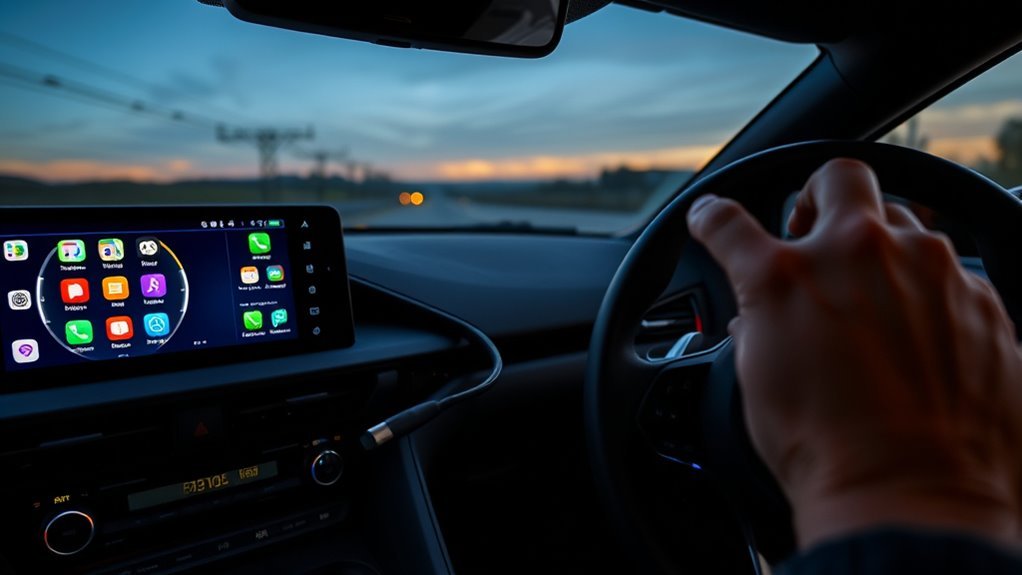
The Toyota GR Supra is a little different from many Toyota models: U.S.-market Supra specs emphasize Toyota Supra Command, Bluetooth, USB connectivity, screen mirroring, and wireless Apple CarPlay, but factory Android Auto is not listed for the GR Supra. That means most Supra owners who want Android Auto use an aftermarket MMI interface or head-unit retrofit that adds a glovebox USB port for wired use and a wireless antenna/Wi-Fi module for wireless use.
Quick Answer
To connect Android Auto to a Toyota Supra, first confirm an Android Auto retrofit is installed. For wired use, plug a supported Android phone into the retrofit’s glovebox USB port with a high-quality data cable, accept the prompts, and grant permissions. For wireless use, pair Bluetooth first, then let the system connect over Wi-Fi.
Key Takeaways
- A factory Supra USB port usually will not launch Android Auto unless an Android Auto-compatible retrofit or replacement head unit has been installed.
- For wired Android Auto, Google requires an Android phone running Android 9.0 or higher, an active data plan, a compatible car or stereo, and a high-quality USB cable.
- For wireless Android Auto, Google lists Android 11.0 or higher, an active data plan, 5 GHz Wi-Fi support, and a compatible car or stereo as core requirements.
- Most connection problems come from the wrong USB port, a charge-only cable, outdated phone software, old Bluetooth pairings, poor antenna placement, or an incorrectly configured aftermarket module.
At a Glance
| Time Required | 5–10 minutes to connect after a retrofit is installed; 1–3+ hours for professional hardware installation |
| Difficulty | Easy for pairing; advanced for retrofit installation |
| Tools Needed | Supported Android phone, active data plan, high-quality USB data cable, and an Android Auto-compatible retrofit/head unit if the car does not already have one |
| Cost | Cable-only setup is low cost if the kit is already installed; retrofit parts and labor vary widely by brand, market, and installer |
Before You Start: Confirm What Your Supra Actually Has
Before you start plugging in cables or deleting phone pairings, confirm whether your Supra has factory multimedia only or an aftermarket Android Auto interface. Toyota’s current GR Supra materials list an 8.8-inch display, Supra Command, USB/Bluetooth connectivity, navigation on equipped trims, and wireless Apple CarPlay, but Android Auto is not presented as a factory Supra feature in U.S. materials. You can verify your exact vehicle through the official Toyota GR Supra specifications and your VIN-specific owner information.
If Android Auto was added later, look for a retrofit module, a new glovebox USB input, a Wi-Fi/Bluetooth antenna, a switchable MMI menu, or installer paperwork. Brands and kits vary, so the exact menu names may be different, but the logic is the same: Android Auto runs through the added interface, not through a standard charge-only USB socket.
Note: Toyota’s general Android Auto setup instructions apply to Toyota vehicles that already support Android Auto. For a GR Supra, Android Auto normally depends on the compatibility and installation quality of the aftermarket interface or replacement head unit.
Connect Android Auto Wired: Supra Glovebox USB Quick Steps
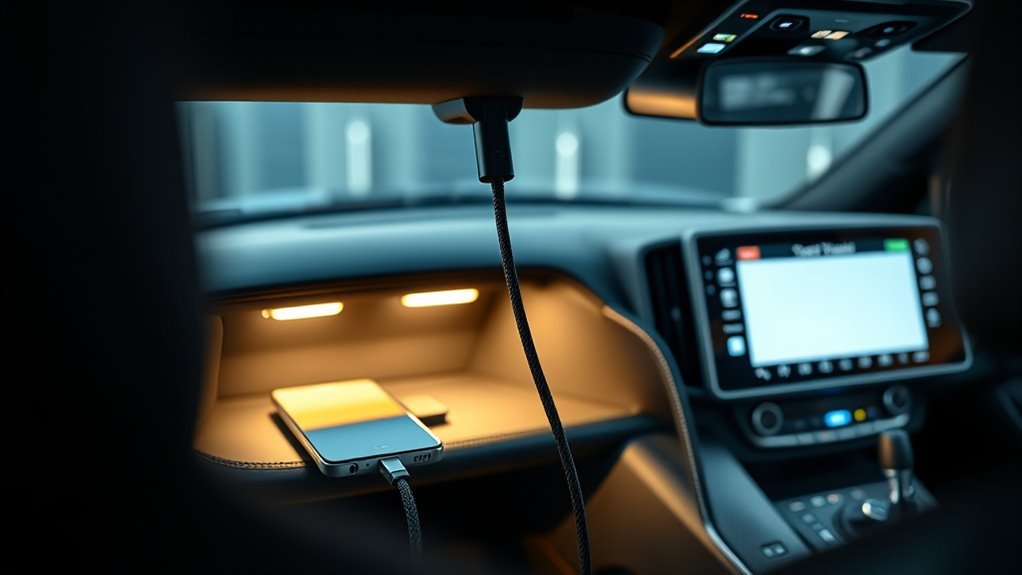
For the most stable connection, use wired Android Auto through the glovebox USB port installed with the retrofit kit. Do not assume every USB socket in the car supports Android Auto; many ports are for charging or media storage only.
- Start the car safely while parked. Put the Supra in Park or neutral with the parking brake set before changing phone or infotainment settings.
- Use a compatible Android phone. Google lists Android 9.0 or higher, an active data plan, a compatible car or stereo, and a high-quality USB cable for Android Auto on a car display.
- Use a real data cable. A short, manufacturer-certified USB cable is best. Many cheap cables charge the phone but cannot pass data reliably.
- Plug into the retrofit USB. Open the glovebox, connect the cable to the Android Auto retrofit USB port, then plug the other end into your phone.
- Accept the prompts. On your phone and the Supra screen, allow Android Auto, Bluetooth, contacts, messages, location, microphone, and notification access when prompted.
- Select the correct input. Some MMI kits require you to switch from the factory Supra interface into the MMI/Android Auto menu before Android Auto appears.
- Test navigation, audio, and voice. Open Google Maps or Waze, play audio, and test Google Assistant before driving.
Pro Tip: If Android Auto does not launch, unplug both ends of the cable, unlock the phone, reconnect to the glovebox USB, and wait 20–30 seconds before switching menus. Fast repeated plugging can cause handshake failures on some retrofit modules.
[Products Worth Considering]

This 2-in-1 wireless adapter converts factory-wired CarPlay into a cable-free experience for compatible vehicles, helping you enjoy seamless phone integration with less clutter. It supports automatic reconnection, stable Bluetooth and Wi-Fi pairing, and broad compatibility with many factory-installed CarPlay systems. Built with a durable metal and acrylic design, it also includes firmware updates and lifetime technical support for continued convenience.

The HEYINCAR+ H-Air adapter upgrades compatible factory wired CarPlay and Android Auto systems to wireless convenience with a compact plug-and-play design. It connects automatically after setup, delivering fast startup, stable performance, and support for your car’s original touchscreen, steering wheel controls, and voice commands. Built for broad vehicle compatibility and ongoing firmware updates, it offers a simple way to enjoy cable-free driving with minimal clutter.

This upgraded wireless CarPlay adapter converts factory wired CarPlay into a wireless experience with a simple one-time setup and automatic reconnection at every startup. Its mini design saves space while the dual-chip wireless technology helps deliver fast, stable performance with low latency. Compatible with most factory-installed wired CarPlay systems and iPhone models with supported iOS versions, it adds convenient hands-free access to navigation, music, calls, Siri, and messaging.
Connect Android Auto Wireless: Pairing, Antenna & Tips
Wireless Android Auto is cleaner because you do not need a cable every time you drive, but it is more sensitive to phone compatibility, Wi-Fi quality, antenna placement, and stored Bluetooth pairings. Google’s Android Auto requirements list Android 11.0 or higher, an active data plan, 5 GHz Wi-Fi support, and a compatible car or stereo for wireless projection.
- Confirm wireless hardware is installed. Your Supra needs an Android Auto-compatible wireless MMI module or head unit, plus the antenna/Wi-Fi hardware required by that kit.
- Turn on Bluetooth and Wi-Fi. Wireless Android Auto usually uses Bluetooth for discovery and call handling, then Wi-Fi for the Android Auto projection session.
- Delete old pairings if needed. On both the phone and the Supra/MMI unit, remove old Bluetooth profiles for the same phone before pairing again.
- Pair from the vehicle menu. Start pairing from the Supra/MMI Bluetooth menu, select the phone, confirm the matching PIN, and allow permissions.
- Allow the Wi-Fi connection. When the phone asks to connect to the car or MMI Wi-Fi network, approve it. Do not manually disconnect from that Wi-Fi network while Android Auto is active.
- Wait for automatic launch. After the first setup, Android Auto should open automatically when the phone is nearby, Bluetooth is on, Wi-Fi is on, and the MMI module is selected.
Wireless Android Auto may show a slight delay compared with wired Android Auto. If you notice audio lag, delayed button response, or random drops, use the wired glovebox USB as a reliable fallback and have the installer check antenna routing and firmware.
[Products Worth Considering]

ROBLOCK low profile car ramps are designed to give low-chassis vehicles safer access for lifting, repairs, and maintenance work. The widened, shortened ramp design helps create room for a jack while the 17-degree slope and curved shape improve vehicle placement and stability. Built from impact-resistant PP with non-slip features and a high load capacity, these ramps are a practical choice for home garages and professional service use.

This USB C to USB A carplay cable is designed to keep compatible iPhone and iPad devices connected and charged while driving. It supports fast charging and data sync for reliable everyday use on road trips and commutes, with broad compatibility across newer iPhone and iPad models. The included cable offers a simple plug-and-play solution for CarPlay and in-car charging needs.

Upgrade to Wireless CarPlay & Android Auto The 2 in 1 Wireless CarPlay and Android Auto Adapter converts your factory wired system into a wireless experience. It’s perfect for families using both iPhone and Android phones, allowing effortless switching without unplugging or swapping cables. This adapter is compatible with over 1,000 vehicle models—supporting 800+ with wired CarPlay and 500+ with wired Android Auto. Works with iPhone 6 or later and Android 11 or above devices.
Check the Aftermarket Install & Hardware in Your Supra
If pairing fails even after you have checked the phone and cable, inspect the retrofit hardware and installation quality. A clean install should feel integrated: the glovebox USB should be firmly mounted, the MMI module should be secure behind the infotainment area, the antenna should not be buried behind heavy shielding, and all connectors should be fully seated.
| Component | What to check | Why it matters |
|---|---|---|
| Head unit or MMI module | Model matched to your Supra year, market, screen, and software | Wrong hardware can cause black screens, missing audio, or no Android Auto menu |
| Glovebox USB port | Solid mounting, data support, no loose pins, no bent connector | A loose or charge-only port can stop wired Android Auto from launching |
| Wireless antenna | Firm connector, clean routing, not trapped behind metal or dense trim | Poor antenna placement can cause wireless lag and dropouts |
| Audio input settings | Correct source, volume level, and any kit-specific audio coding/settings | Some kits display Android Auto but lose sound if the audio path is not configured |
| Installation quality | No pinched harnesses, no rattles, no exposed wiring, documented work | Clean integration protects reliability and makes future troubleshooting easier |
Warning: Do not remove trim panels, disturb wiring near airbags, or splice factory harnesses unless you know the Supra’s electrical layout. A poor retrofit can create electrical faults, rattles, warranty disputes, or safety issues. Use a qualified installer for hardware work.
Troubleshoot Android Auto vs Screen-Mirroring Issues
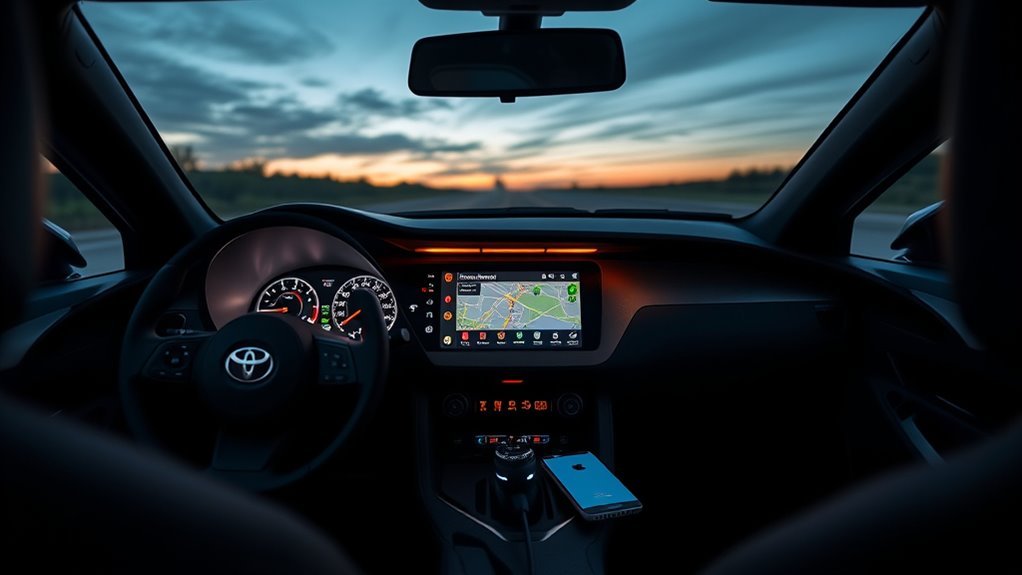
Android Auto and screen mirroring are not the same thing. Android Auto uses a car-friendly app interface for maps, calls, messages, voice control, and media. Screen mirroring reflects or casts the phone screen and may have more lag, fewer vehicle controls, and more restrictions while driving.
| Symptom | Likely cause | Fix |
|---|---|---|
| Maps, calls, and media appear in a simplified car interface | Android Auto is active | Use the Supra controller, steering wheel buttons, or voice commands depending on the kit |
| The display simply copies your phone screen | Screen mirroring is active | Switch to the Android Auto menu/input instead of the mirroring function |
| Touch or controller input is limited | Normal limitation on some MMI kits | Use the iDrive/Supra Command controller, steering wheel buttons, or Google Assistant |
| Video or mirrored apps stop while driving | Safety restriction or kit limitation | Use Android Auto-compatible driving apps and avoid watching video while driving |
The best test is simple: if Google Maps, calls, messages, media, and voice controls appear in a car-optimized interface, you are using Android Auto. If the screen only mirrors your phone, you are not in Android Auto mode.
Phone, Cable & Software Troubleshooting Checklist
Most Android Auto failures are simple connection problems. Work through this checklist before assuming the retrofit module is defective.
- Update your phone. Install Android system updates, Google Play services updates, and Android Auto updates from the Play Store if shown.
- Check Android Auto settings. On the phone, open Android Auto settings and confirm the Supra/MMI connection is allowed.
- Try another cable. Use a short, high-quality USB data cable. Avoid frayed cables, adapters, hubs, and very long cables.
- Clean the phone port gently. Pocket lint in a USB-C port can make the cable feel connected while data pins are not making proper contact.
- Forget and re-pair. Delete the Supra/MMI from the phone’s Bluetooth list, delete the phone from the car/MMI list, restart both, and pair again.
- Test another Android phone. If a second supported phone works, the issue is likely phone settings, cable, or software on the first device.
- Check for vehicle or module updates. Toyota provides an Audio Multimedia System Updates portal for eligible U.S. Toyota vehicles, and retrofit makers may also provide their own firmware updates.
- Ask the installer to verify the module. If both wired and wireless fail, the installer should check power, ground, LVDS/video routing, USB routing, antenna connection, audio configuration, and firmware.
Choose a Trusted Installer, Costs & Future-Proofing Tips
A good installer matters more than the brand name on the box. Choose a shop with documented A90/A91 GR Supra work, clear before-and-after photos, clean harness routing, and support after the sale. Ask whether the kit preserves factory functions such as the backup camera, steering wheel controls, Supra Command controller, factory microphone behavior, and audio quality.
Before approving the work, ask for a written quote that separates parts, labor, software/coding, and warranty terms. Also ask how firmware updates are handled. Some products, such as BimmerTech-style MMI interfaces, advertise wireless Android Auto support and control through existing vehicle controls, but compatibility still depends on the exact vehicle, module version, and installation. BimmerTech itself notes that VIN or module-version checks may be needed for the correct product or update path.
Pro Tip: Before leaving the installer, test wired Android Auto, wireless Android Auto, Google Maps voice guidance, phone calls, music audio, steering wheel controls, reverse camera behavior, and factory radio return. Record a short video of everything working for your own records.
Safe Use While Driving
Android Auto is designed to reduce distraction compared with handling a phone, but it can still take your attention off the road. Toyota’s Supra owner information warns that operating integrated information systems and communication devices while driving can distract from traffic and create accident risk. Set your route, playlist, and messages while parked, then use voice commands whenever possible.
Use Android Auto for navigation, calls, messaging, and audio. Avoid screen mirroring, video playback, typing, or scrolling while driving. If a setting needs more than a quick glance or voice command, pull over safely first.
Frequently Asked Questions
How do you get Android Auto on a Toyota Supra?
On most GR Supras, you get Android Auto by installing an aftermarket Android Auto-compatible MMI interface or replacement head unit. The kit usually adds a USB input for wired Android Auto and wireless hardware for wireless Android Auto. Check compatibility by Supra model year, market, screen type, and VIN before buying.
Can an Android phone connect with a Toyota Supra?
Yes, an Android phone can connect to a Toyota Supra for Bluetooth calling/audio and Supra Connected app features where supported. Full Android Auto on the Supra usually requires a compatible aftermarket interface or head unit because Android Auto is not listed as a factory GR Supra feature in U.S. Toyota materials.
Why will Android Auto not launch from my Supra USB port?
The most common reasons are using the wrong USB port, using a charge-only cable, having an unsupported phone, missing permissions, or not selecting the retrofit MMI input. If your Supra only has the factory multimedia system and no Android Auto retrofit, plugging into the factory USB will not add Android Auto by itself.
Is wired or wireless Android Auto better in a Supra?
Wired Android Auto is usually more stable and has less delay, so it is best for troubleshooting or long drives. Wireless Android Auto is more convenient and keeps the cabin cleaner, but it depends more on Wi-Fi signal quality, antenna placement, phone software, and stored pairings.
Does installing Android Auto affect the Supra warranty?
A retrofit does not automatically void the whole vehicle warranty, but problems caused by aftermarket parts or installation may not be covered. Use a reputable installer, avoid cutting factory wiring when possible, keep invoices, and ask the installer for clear warranty terms on parts and labor.
Conclusion
Getting Android Auto working in a Toyota Supra starts with the right expectation: the factory Supra system is not the same as a Toyota model that includes Android Auto from the factory. If an Android Auto-compatible retrofit is installed, use the glovebox USB and a high-quality cable for the most stable wired setup, or pair Bluetooth and Wi-Fi for wireless use. If it fails, check phone requirements, permissions, cable quality, the correct MMI input, antenna placement, firmware, and installation quality. With the right hardware and a careful installer, your Supra can run Android Auto reliably without losing the clean factory feel.
Sources
- Google Android Auto Help — Android Auto wired and wireless phone, cable, Wi-Fi, and compatibility requirements.
- Toyota Support: How do I setup Android Auto? — Toyota’s general Android Auto setup steps for compatible Toyota vehicles.
- Toyota GR Supra Official Specifications — current U.S. GR Supra feature and specification reference.
- Toyota 2025 GR Supra eBrochure — Supra multimedia feature listing, including Supra Command, USB/Bluetooth connectivity, and wireless Apple CarPlay references.
- Toyota Audio Multimedia System Updates — official Toyota portal for checking eligible U.S. Toyota multimedia updates.
- BimmerTech MMI Camera Module CarPlay & Android Auto Prime Upgrade — example of aftermarket MMI-style Android Auto/CarPlay integration and compatibility checking.