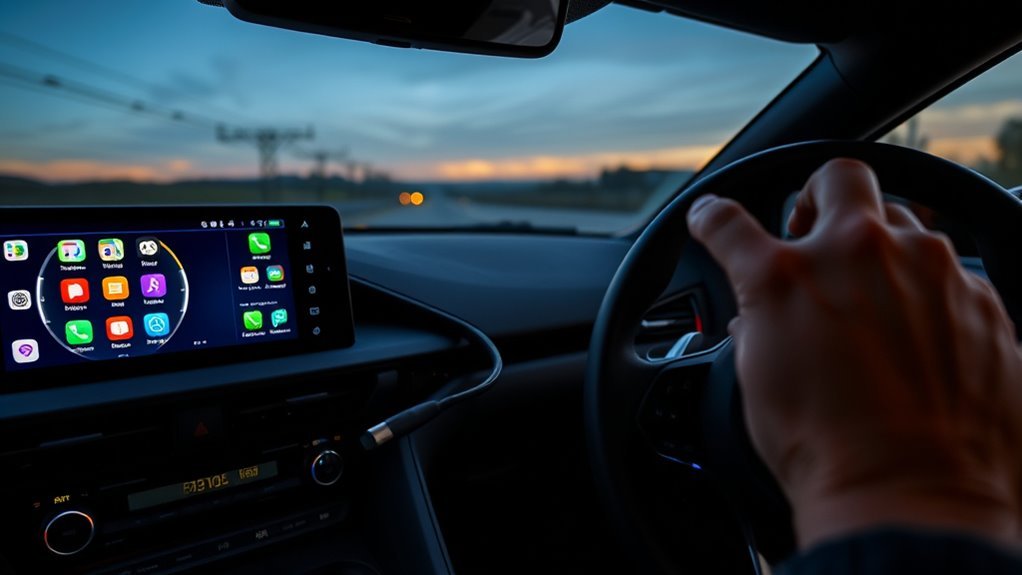
You can connect Android Auto to your Toyota Supra by plugging your phone into the dedicated glovebox USB using a compatible cable, accepting the infotainment prompt, and ensuring Android 5.0+; reseat the cable if it won’t respond. For wireless use, confirm the Supra’s wireless antenna, enable Bluetooth, and pair the phone—expect some latency. Verify any aftermarket head unit, USB mounting, and antenna routing, and follow basic troubleshooting steps; continue for detailed checks and installer tips.
Connect Android Auto (Wired) : Supra Glovebox USB Quick Steps
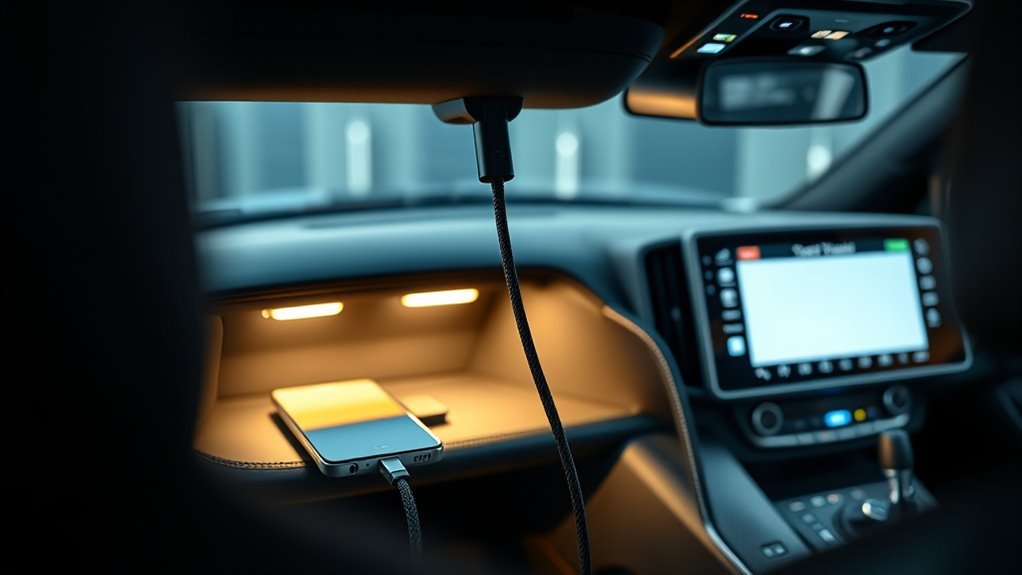
Start by opening the Supra’s glovebox and locating the dedicated USB port installed for wired Android Auto; plug a compatible USB cable into that port and into your phone. You’ll see the infotainment prompt asking to enable Android Auto—accept it and follow onscreen steps to grant permissions. Verify Smartphone Compatibility: your device must run Android 5.0 or higher and use a data-capable cable. If the system doesn’t respond, reseat the USB cable in the glovebox USB Port and reconnect the phone. Watch the Supra display for confirmation and allowed app access. Once set, Android Auto launches automatically when the phone’s connected. These quick steps free your driving experience while keeping control tight and setup predictable.
Connect Android Auto (Wireless) : Pairing, Antenna & Tips
Before attempting a wireless Android Auto connection, confirm your Supra has the wireless antenna installed and enable Bluetooth on your phone; then pair your device to the infotainment system from the vehicle’s Bluetooth menu. Wireless advantages include freedom from cables and cleaner cabin ergonomics; expect occasional latency compared with wired. Verify your phone supports Android Auto and runs a compatible OS version. Use these pairing tips: clear prior Bluetooth pairings on both phone and head unit, restart devices, and initiate pairing from the vehicle menu to force the correct profile. If wireless fails, the new glovebox USB provides a stable wired fallback. Choose a reputable installer for antenna and integration to reduce mirroring issues and secure reliable, liberated connectivity.
Check the Aftermarket Install & Hardware in Your Supra
If you tried wireless pairing and still have issues, inspect the aftermarket hardware and install quality next. You’ll want to confirm the unit (e.g., Bimmertech) and verify installation benefits like a glovebox USB port and wireless antenna. Check behind the infotainment panel for clean integration and secure connectors. Use a qualified installer (Car Code Performance or equivalent) to protect performance and warranty. Confirm compatibility with your 2021 Supra to avoid Android mirroring surprises.
| Component | What to check |
|---|---|
| Head unit module | Model matched to your Supra |
| USB port | Solid mounting, glovebox location |
| Antenna | Proper routing, firm connector |
| Installation | Performed by qualified installer |
Evaluate aftermarket options against OEM goals and demand reliable, liberating control.
Troubleshoot Android Auto vs Screen‑Mirroring Issues
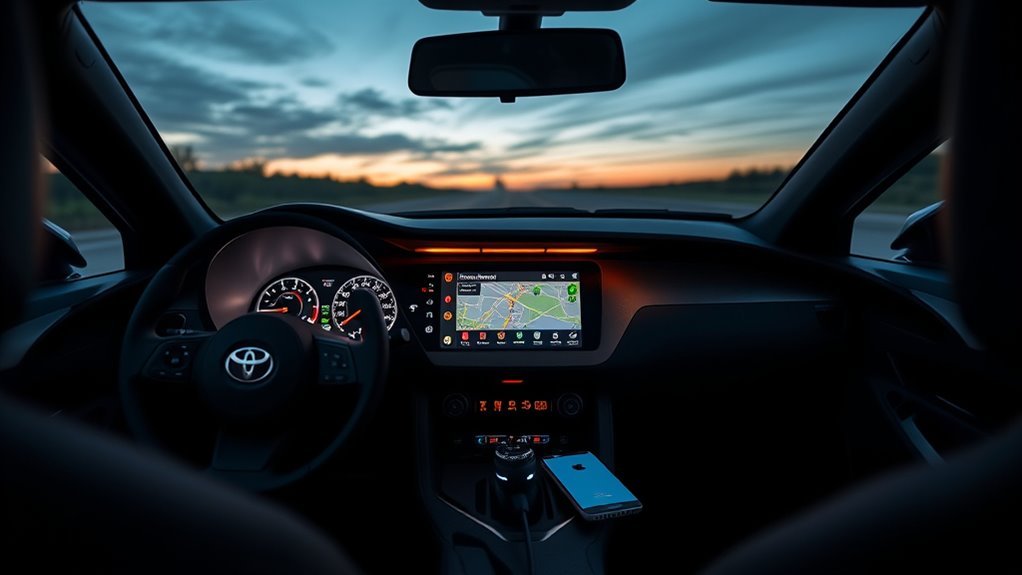
When you’re deciding whether a problem is Android Auto or simple screen‑mirroring, focus on behavior differences and connection points: Android Auto offers a dedicated app interface with navigation, voice, and media controls, while mirroring just reflects your phone’s screen and often lacks responsiveness or vehicle integration. Start by isolating symptoms: if you have vehicle-grade controls, voice, and app compatibility for maps and media, it’s Android Auto; if the display lags or you can’t control apps from the dash, it’s mirroring. Address connectivity issues: confirm glovebox USB or wireless antenna function, update phone and infotainment software, and grant necessary permissions. Test with another phone to rule out device-specific user interface or app compatibility faults and reclaim control of your car tech.
Choose a Trusted Installer, Costs & Future‑Proofing Tips
Choose an installer with proven Supra experience—Car Code Performance in Dubai is a strong example—because a correct fitment (new USB port, wireless antenna) and calibrated software are what deliver reliable Android Auto/Apple CarPlay functionality. You should vet installer recommendations by looking for documented Supra installs, before/after diagnostics, and forum feedback. Expect a cost breakdown around $800 covering parts and labor; get a written quote listing USB hardware, wireless antenna, and software calibration. Ask installers about software update paths and modular hardware that supports future features so your system won’t be obsolete after a single firmware change. Join Supra communities to verify long-term performance and post-install support. Choose liberating control: demand transparency, updateability, and clear warranty terms.
Frequently Asked Questions
How to Get Android Auto on Toyota Supra?
You install Android Auto via an aftermarket kit like BimmerTech; follow installation steps with professional fitment, expect added USB/antenna, verify compatibility issues with your Supra year/model, and choose wired or wireless for liberated connectivity.
Can an Android Phone Connect With a Toyota Supra?
Yes — your Android phone can connect with a Toyota Supra via aftermarket installs (phone compatibility varies); you’ll get wired or wireless Android Auto, but expect occasional connection issues and choose a reputable installer for reliable performance.
Conclusion
You’ve got the steps to get Android Auto working in your Supra—plug into the glovebox USB for wired, set up Bluetooth/Wi‑Fi for wireless, inspect aftermarket hardware, and troubleshoot screen‑mirroring conflicts. Think of the system like a relay race: each component must hand off data cleanly. Follow the wiring, antenna placement, and installer tips to avoid drops. With the right parts and a trusted installer, you’ll keep connectivity reliable and future‑proof.