RAV4 Apple CarPlay Not Working? Fix It Step by Step
What’s in This Article
Apple CarPlay can fail on your RAV4 even when your iPhone still charges through the cable. The cause often comes down to one blocked iPhone setting, one weak data cable, or one old pairing record. This guide walks you through the fixes in the best order, from quick iPhone checks to deeper RAV4 infotainment steps.
Quick Answer
Most RAV4 Apple CarPlay problems trace back to an outdated iOS version, a weak data cable, a blocked Screen Time setting, or a stale Bluetooth pairing. Update your iPhone to the current iOS version, turn on Siri, and use an Apple or certified data cable. For wireless CarPlay, keep Bluetooth and Wi-Fi active on your iPhone at the same time. If CarPlay still fails, restart both devices, forget the old pairing, and check your RAV4 for infotainment firmware updates.
Key Takeaways
- Use an Apple or certified data cable for wired CarPlay, because charge-only cables can stop CarPlay from launching.
- Keep Bluetooth and Wi-Fi active at the same time when you use wireless CarPlay.
- Check Screen Time early, because restrictions can block CarPlay without a clear warning.
- Update your RAV4 infotainment system when Toyota offers a firmware update for your model.
- Collect your Vehicle Identification Number (VIN), iOS version, infotainment build number, and completed steps before you contact support.
Common RAV4 CarPlay Symptoms and Likely Causes
RAV4 CarPlay failures usually show up in a few clear ways. The CarPlay icon may not appear, the phone may charge without launching CarPlay, or wireless pairing may fail after the first setup.
- If your iPhone charges but CarPlay does not launch, test the cable and the USB data port first.
- If the CarPlay icon disappears, check iPhone restrictions, Siri settings, and vehicle permissions.
- If wireless CarPlay drops often, reset the Bluetooth pairing and confirm Wi-Fi Auto-Join for the CarPlay network.
- If the issue starts after an update, restart both systems and check for newer infotainment firmware.
Quick Checklist: Get RAV4 Apple CarPlay Working
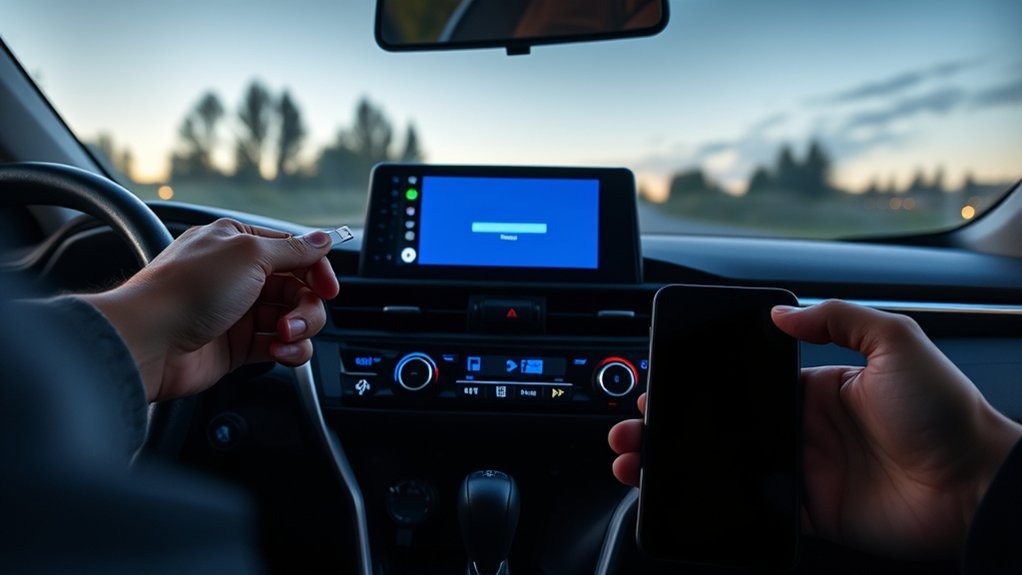
Start with the fastest checks before you change deeper settings. Update your iPhone to the current iOS version, make sure your RAV4 supports CarPlay, and confirm that your vehicle settings allow phone projection. Apple also recommends checking Siri, Screen Time restrictions, USB connections, Bluetooth, Wi-Fi, and stereo firmware when CarPlay does not work as expected.
Open Settings on your iPhone and confirm CarPlay has permission to run. Go to Settings > Screen Time > Content & Privacy Restrictions > Allowed Apps, then make sure CarPlay stays enabled. Restart your iPhone and the RAV4 infotainment system after you change settings, because a fresh restart can clear a failed connection handshake.
Use a cable that supports data, not only charging. For older Lightning iPhones, use an Apple or Made for iPhone (MFi) certified cable. If your iPhone uses USB-C, use a high-quality USB-C data cable or a reliable adapter that works with CarPlay. This step removes one of the most common hidden causes of wired CarPlay failure.
[Products Worth Considering]

These TPE door anti‑kick pads provide durable, water‑resistant protection for Toyota Tundra doors from 2022 to 2026. They fit precisely, are easy to install with double‑sided tape, and can be cleaned simply with water. The pads guard against scuffs and impacts while preserving the door's appearance and smooth operation.

The Pigenius windshield sunshade protects your Tundra's interior from heat and UV damage while keeping the cabin cool. Its accordion design folds easily for storage and quick setup, and the triple‑laminate construction provides durable, reflective protection. Ideal for long trips and daily commutes, it guards dashboards, seats, and steering wheels from sun‑related wear.

Upgrade your vehicle's interior with a stylish boho‑inspired center console cover that adds comfort and a striking visual appeal. Made from premium polyester fiber, anti‑skid cloth, and a plush 5 mm sponge, it provides soft support while reducing hand fatigue during long drives. The anti‑slip adhesive backing keeps it securely in place, and the elastic straps ensure a snug fit on most cars, trucks, SUVs, and vans.
Wired CarPlay Fixes for RAV4 (Cables, Ports and Adapters)
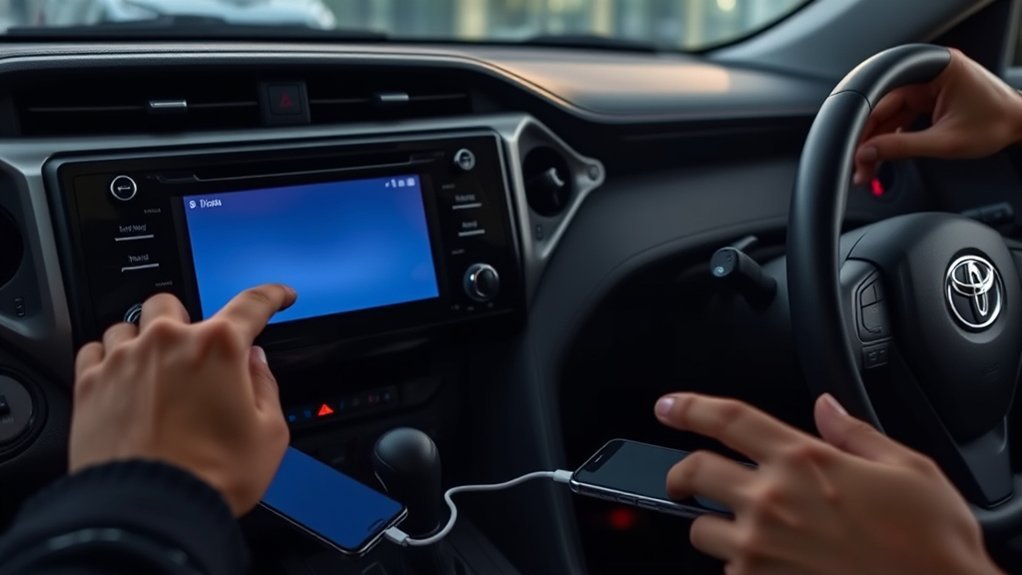
Start wired CarPlay troubleshooting with the physical connection. Use a cable that carries data, try each front USB port, and look for a CarPlay or smartphone icon near the port. Some USB ports only charge devices, so one working charging port may still fail to launch CarPlay.
Pro tip: Start with the main front USB port, because rear and secondary ports may only support charging on some RAV4 trims.
Next, inspect cable quality. Frayed, loose, or charge-only cables can break the data link and cause repeated disconnects. If you use an adapter, test a direct cable when possible, because some adapter and entertainment-system combinations can disrupt wired CarPlay.
After you change the cable or port, restart both your iPhone and the infotainment screen. Then unlock your iPhone and watch for the CarPlay permission prompt. If the prompt appears, approve it and choose the RAV4 from Settings > General > CarPlay.
[Products Worth Considering]

Upgrade your 2026 Toyota RAV4 interior with this soft, breathable armrest cover that offers full protection against scratches, dirt, and wear. Made from eco‑friendly material, it fits the console perfectly and stays securely in place with elastic straps. Installation is tool‑free, providing added comfort and reducing fatigue during long drives.

Protect your Toyota RAV4 interior with this custom‑fit windshield sun shade that blocks 99% of harmful UV rays and reduces cabin heat. The mirror cut‑out ensures a seamless fit without gaps, while durable 240T polyester and bendable wire keep it sturdy through repeated use. Foldable and stored in a convenient pouch, it offers easy installation and removal for everyday comfort.
Fix Wireless CarPlay: Bluetooth, Wi-Fi and Pairing Tips
Enable both Bluetooth and Wi-Fi on your iPhone before you test wireless CarPlay. Apple tells drivers to check Bluetooth and Wi-Fi for wireless CarPlay, and the CarPlay network should allow Auto-Join. Restart both devices to refresh the connection before you delete any pairings.
If a restart does not fix the issue, forget the RAV4 from your iPhone and pair it again. Go to Settings > General > CarPlay, tap your RAV4, and choose Forget This Car. Then remove the iPhone from the RAV4 paired-device list and start the setup again from a clean state.
Note: U.S.-market 2019-2022 RAV4 models came with factory Apple CarPlay compatibility, while Toyota lists wireless Apple CarPlay on newer RAV4 models. Availability can vary by market, trim, and software package.
- Forget the RAV4 in iPhone CarPlay settings, then pair from scratch.
- Remove old iPhone records from the RAV4 paired-device list.
- Confirm Wi-Fi, Bluetooth, and Auto-Join for the CarPlay network.
- Use a wired USB setup once if your RAV4 prompts you to enable wireless use later.
- Update iOS and check the RAV4 infotainment system for available firmware updates.
These steps help you clear radio and pairing conflicts without guessing. If the same failure returns, test another iPhone before you blame the vehicle hardware.
Diagnose Firmware, Screen Time and Paired-Device Conflicts
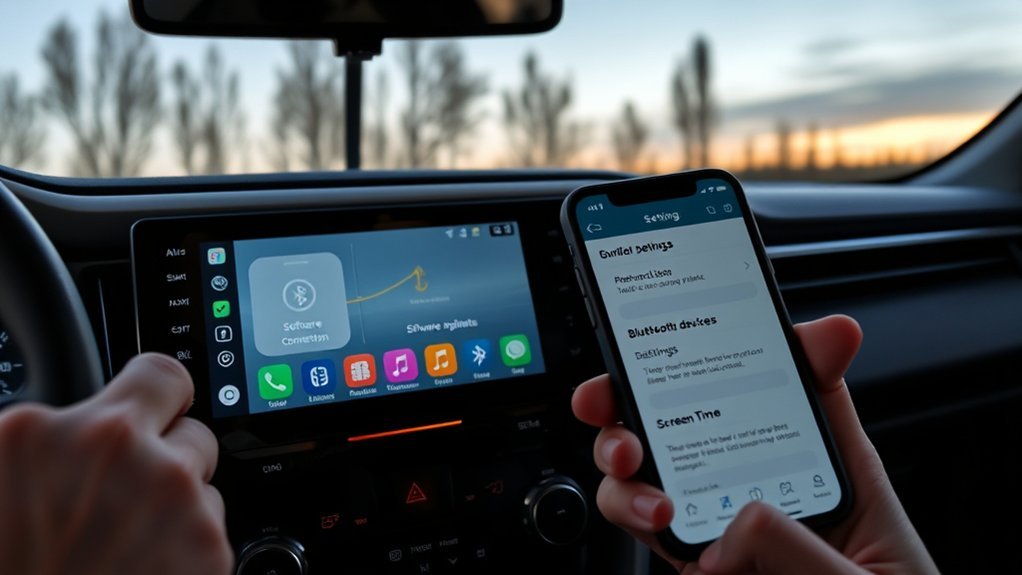
Firmware mismatches, Screen Time restrictions, and leftover paired devices can look like hardware failure. Check each cause in a clear order. Start with your RAV4 infotainment software, then move to iPhone restrictions and paired-device cleanup.
Open your RAV4 multimedia settings and look for system information or software update options. If your model requires dealer tools for an update, write down the current build number before you call Toyota. A build number helps support confirm whether your system needs a firmware update.
Warning: Screen Time restrictions can block CarPlay even when your cable and USB port work. Check Settings > Screen Time > Content & Privacy Restrictions before you assume a hardware problem.
Next, inspect Screen Time on your iPhone. Go to Settings > Screen Time > Content & Privacy Restrictions > Allowed Apps, then confirm CarPlay has permission. If a work, school, or parental profile manages your iPhone, that profile may also limit CarPlay access.
Clear old pairings from both sides after you check restrictions. Remove your iPhone from the RAV4 paired-device list, then forget the RAV4 from iPhone CarPlay settings and Bluetooth settings. Restart both systems before you pair again, so the car and phone create a new connection record.
Finally, check Siri. CarPlay depends on Siri for voice control and some approval prompts. Open your iPhone Siri settings and enable Siri, voice activation if you use it, and Allow Siri When Locked.
Contact Toyota or Apple: What Info to Collect First
Contact Toyota or Apple after you test cables, ports, Screen Time, Siri, pairings, and firmware. Bring exact details so the support rep can move past the basic script quickly. Include your RAV4 model year, trim, VIN, iPhone model, iOS version, and infotainment build number.
Write down the exact symptom before you call. Use clear notes such as “CarPlay icon missing,” “phone charges but CarPlay does not launch,” or “wireless connection drops after 30 seconds.” Also list the cable type, USB port used, Bluetooth reset steps, and any recent iOS or infotainment updates.
Collect key facts, including iPhone settings, cable and port, paired devices, update history, and failure frequency, so support can verify compatibility and escalate the issue.
- RAV4 model year, trim, and VIN
- Infotainment build and version number
- iPhone model and iOS version
- Exact symptoms and steps tried
- USB cable type, USB port, and iPhone settings
Frequently Asked Questions
Why Is My RAV4 CarPlay Not Working?
Your CarPlay may not work because of a cable problem, blocked iPhone setting, old pairing record, or infotainment software issue. Start with the current iOS update, Siri settings, Screen Time restrictions, a data-capable cable, and a restart of both systems.
Why Did My Apple CarPlay Suddenly Stop Working?
A sudden CarPlay failure often follows an iOS update, infotainment update, cable failure, or corrupted pairing record. Check that your iOS is current, confirm the cable and USB port work, verify CarPlay has permission, and reset the Bluetooth pairing.
Does the Toyota RAV4 Support Wireless Apple CarPlay?
Newer RAV4 models support wireless Apple CarPlay from the factory, and Toyota lists wireless Apple CarPlay on current RAV4 models. U.S.-market 2019-2022 RAV4 models had Apple CarPlay compatibility, but many of those earlier systems use wired CarPlay from the factory. Check your owner’s manual or Toyota build details for your exact market and trim.
Why Does My RAV4 CarPlay Keep Disconnecting?
Frequent disconnections usually point to a weak cable, loose USB connection, wireless pairing conflict, or outdated software. Try another data-capable cable, update iOS, clear the RAV4 pairing from your iPhone, and restart both the phone and infotainment system.
Which USB Port on the RAV4 Works for Apple CarPlay?
The correct port depends on your model year and trim. Start with the main front USB port near the center console, especially if it has a CarPlay or smartphone icon. Rear and secondary ports may only charge devices, so check your owner’s manual if CarPlay does not launch.
Conclusion
Most RAV4 CarPlay failures come from a blocked setting, weak cable, stale pairing, or software mismatch. Work through the fixes in order: update iOS, use a data-capable cable, check Screen Time, reset pairings, and confirm firmware status. If you still need help, contact Toyota or Apple with your VIN, iOS version, infotainment build number, and a short list of steps you already tried. That preparation helps you get a clearer answer and a faster fix.
References
- If you need help with CarPlay, Apple Support, 2025
- Use CarPlay with your iPhone, Apple Support, 2025
- How do I setup Apple CarPlay?, Toyota Support
- All-New 2019 Toyota RAV4 Breaks the Mold for the Segment It Created, Toyota USA Newsroom, 2018
- 2026 Toyota RAV4, Toyota
- Three…Two…One: Toyota Debuts Amazing All-New RAV4, Toyota USA Newsroom, 2025