
The MyHyundai owner portal (owners.hyundaiusa.com) is Hyundai USA’s free owner site, and the matching app is MyHyundai with Bluelink. To use it for your Sonata, create an account with your email, add your car by its 17-character VIN, and you can then view owner’s manuals, maintenance schedules, recall notices and service history, and book dealer service. Remote features such as remote start and lock/unlock come through Bluelink and depend on your car’s equipment and an active Bluelink plan.
What You Can Do in the MyHyundai Owner Portal
| Feature | What it’s for | Needs Bluelink? |
|---|---|---|
| Owner’s manuals and how-to resources | Model-year manuals, infotainment guides, indicator explanations | No |
| Maintenance schedule and service history | See what’s due and what dealers have recorded | No |
| Recall and campaign notices | Open recalls tied to your VIN | No |
| Schedule service | Book appointments with a Hyundai dealer | No |
| Warranty information | Coverage details for your vehicle | No |
| Remote start with climate, lock/unlock, horn and lights, car finder | Control the car from your phone | Yes (equipped vehicles) |
| Vehicle status and health reports, diagnostic alerts | Check doors, fuel and maintenance alerts remotely | Yes |
| Send destinations to the car | Plan routes on your phone | Yes (navigation-equipped) |
Feature names and availability change as Hyundai updates the site and app, and they vary by model year and trim. Treat this as an overview and check what appears for your VIN.
How to Set Up Your MyHyundai Account
- Find your VIN on the lower driver’s side of the windshield, the driver’s door jamb or your registration.
- Go to owners.hyundaiusa.com or download MyHyundai with Bluelink from the App Store or Google Play.
- Create an account with your email and a password, and confirm your email when prompted.
- Add your Sonata by entering the VIN and mileage.
- Pick a preferred dealer so service booking and records link correctly.
- Enroll in Bluelink (optional) if your car is equipped. Plan names, trial periods and pricing vary by vehicle, so check the current terms during enrollment.
Tracking Maintenance and Service History
- Check what’s due: compare your mileage with the maintenance schedule for your Sonata’s model year.
- Review dealer records: visits at Hyundai dealers generally show up in your history. Keep your own receipts for independent-shop work, since those may not appear.
- Book service: choose a dealer, pick the services and select a time. Mention any symptoms or warning lights in the notes.
- Keep records for resale and warranty: a complete history helps with warranty claims and buyer confidence.
Routine checks between visits still matter. Our Sonata tire pressure guide covers the monthly check most owners skip.
Checking Recalls Through MyHyundai
Open recalls and service campaigns linked to your VIN appear in your account. You can cross-check any time at nhtsa.gov/recalls, which covers every manufacturer.
If you’re dealing with a recall, see our step-by-step Sonata recall and repair process guide, or our guide to Sonata recall warning signs if your car is showing symptoms.
Using Bluelink for Remote Features
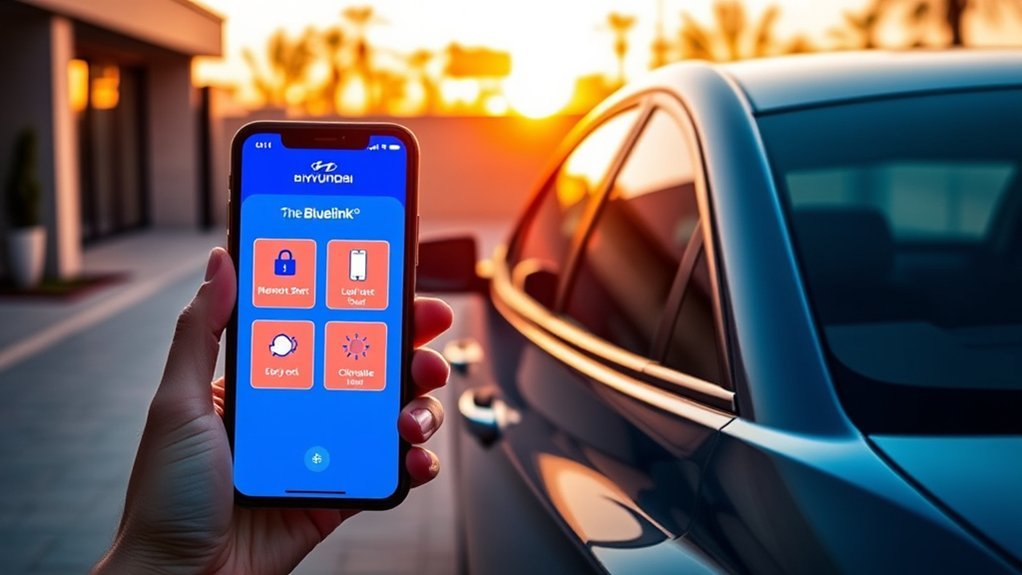
- Sign in to the MyHyundai with Bluelink app with the same account.
- Set up a Bluelink PIN when prompted; remote commands usually ask for it.
- Use remote start to pre-heat or pre-cool the cabin, lock or unlock the doors, or flash the lights and sound the horn to find the car.
- Check vehicle status and alerts before a trip.
Remote start only works when the car is in Park and conditions set by the system are met (for example, doors closed). Some Sonata trims also offer Hyundai Digital Key, which lets a compatible phone act as the key; check whether yours is equipped.
Troubleshooting MyHyundai and Bluelink
| Problem | Try this |
|---|---|
| Can’t add the car | Re-check the VIN (no letters I, O or Q); confirm ownership details match |
| Remote commands fail | Check the Bluelink subscription is active and the car has cellular signal (underground garages often block it) |
| Service history missing visits | Records from non-Hyundai shops may not show; keep receipts |
| Sold or bought a used Sonata | Remove or transfer the vehicle and Bluelink account so the previous owner loses access |
For in-car control without your phone, see our guide to Hyundai Sonata voice commands.
MyHyundai Owner Portal FAQ
What is the MyHyundai owner portal?
It is Hyundai USA's free owner website at owners.hyundaiusa.com, with a companion app called MyHyundai with Bluelink. It gives access to manuals, maintenance schedules, service history, recall notices and service booking.
Is MyHyundai free?
Creating a MyHyundai account is free. Bluelink remote features such as remote start require an equipped vehicle and an active Bluelink plan, whose terms vary by vehicle.
How do I add my Sonata to MyHyundai?
Sign in, choose to add a vehicle, and enter your 17-character VIN and current mileage. The VIN is on the lower windshield, the driver's door jamb and your registration.
Can I check recalls in MyHyundai?
Yes. Open recalls tied to your VIN appear in your account. You can also check at nhtsa.gov/recalls.
Why is my Bluelink remote start not working?
Common causes are an expired Bluelink plan, no cellular signal where the car is parked, or conditions such as an open door or the car not being in Park.
Bottom Line
Add your Sonata to MyHyundai by VIN to keep manuals, maintenance, recalls and service booking in one place. Enroll in Bluelink only if you want remote features, and check the current plan terms first.



[…] Replace the filter at the interval in your Hyundai maintenance schedule, and sooner if you drive in dusty or polluted areas. Your service history and schedule are available in the MyHyundai owner portal. […]