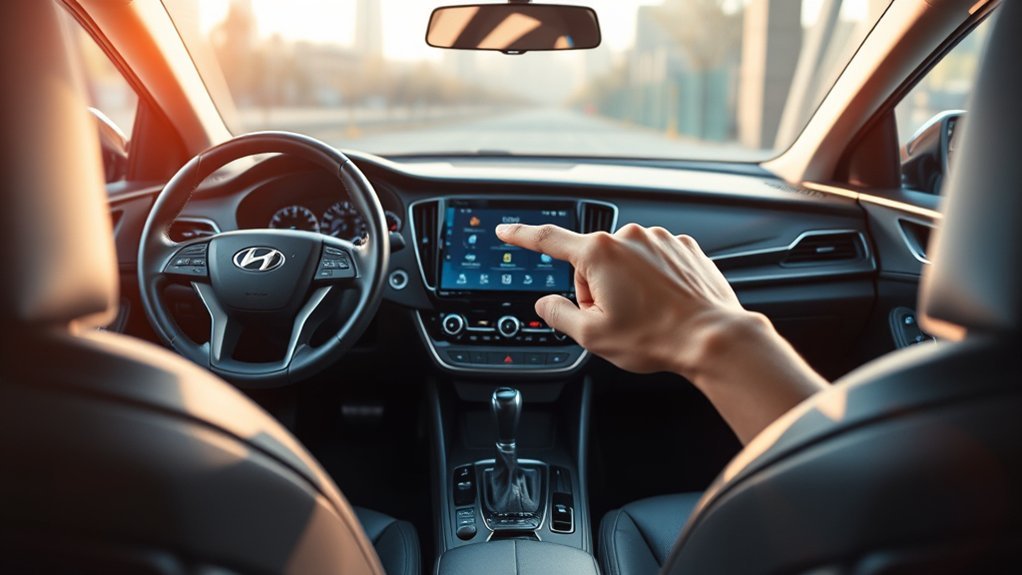
You can easily use voice commands in your Hyundai Sonata to navigate, control audio, and adjust climate settings hands-free. Just press the voice icon on the steering wheel, wait for the beep, and speak clearly. Make sure all windows are closed to reduce background noise for better accuracy. If your commands aren’t recognized, articulate distinctly and check language settings. Want to explore specific commands and tips to enhance your experience? There’s plenty more to discover!
How to Activate Voice Commands in Your Hyundai Sonata

To activate voice commands in your Hyundai Sonata, simply press the voice icon button on the steering wheel. You’ll hear a beep, signaling it’s your turn to speak. For command clarity, state your commands clearly and naturally to enhance recognition accuracy. To improve performance, make sure all windows are closed; background noise can interfere with the system’s ability to understand you.
Familiarizing yourself with global commands gives you immediate access to various functions, while local commands cater to specific modes within the vehicle. If you notice the system struggling with recognition, try speaking more slowly and clearly. Repeating your command can also yield better results. By honing your approach, you empower yourself to navigate your Sonata effortlessly, enjoying the freedom that voice commands provide. Enjoy the liberation of hands-free control, making your driving experience smoother and more enjoyable.
Tips for Using Voice Commands Effectively
While using voice commands in your Hyundai Sonata can greatly enhance your driving experience, there are key strategies to confirm they work effectively. Start by closing all windows and sunroofs to minimize background noise. Activate the system by pressing the voice icon button on the steering wheel, and wait for the beep before speaking clearly. Familiarize yourself with the available commands for navigation, media control, and climate adjustments. If the system doesn’t recognize your commands, don’t hesitate to use manual selection from the screen.
Here’s a quick reference table to optimize your voice command benefits:
| Tip | Benefit |
|---|---|
| Close windows | Reduces background noise |
| Press voice icon | Confirms system readiness |
| Familiarize with commands | Enhances efficiency |
Voice Commands That Make Driving Easier
Enhance your driving experience in the Hyundai Sonata by leveraging a range of voice commands designed for convenience and safety. With intuitive navigation shortcuts, you can effortlessly set destinations or find nearby points of interest without taking your eyes off the road. Just say, “Navigate to [destination]” and let the system guide you.
When it comes to audio control, you can enjoy your favorite tunes with simple commands like “Play Music,” “Pause,” or “Shuffle.” This hands-free functionality keeps your focus where it belongs—on driving.
You can also adjust the climate settings with ease. Commands like “Set temperature to 70 degrees” or “Increase airflow” allow you to create your ideal driving environment instantly.
With global commands available anytime and local commands tailored to specific functions, you’ll find flexibility and accuracy enhance your driving experience, all while keeping your hands on the wheel and your mind at ease.
Troubleshooting Common Voice Command Issues

Sometimes, users encounter challenges with voice commands in the Hyundai Sonata, but troubleshooting these issues can be straightforward. A common problem is background interference; closing windows and the sunroof can greatly enhance command recognition. If the system struggles to understand you, try speaking at a normal pace. Rushing through commands often leads to misinterpretation. Articulate your words clearly—mispronunciations can confuse the voice recognition system.
If it still doesn’t respond, repeat your command more distinctly. This simple adjustment can boost accuracy. Additionally, verify that the voice recognition system’s language setting matches the language you’re using. A mismatch could result in frustrating command failures. By addressing these factors, you can optimize your voice command experience and enjoy the freedom that comes with hands-free driving in your Sonata.
Access Support for Voice Command Features
If you need help with the voice command features in your Hyundai Sonata, reaching out to Earnhardt Hyundai San Tan is a smart move. Their knowledgeable service team is ready to assist you in mastering voice command integration for a smoother driving experience.
Here are a few ways they can support you:
- Schedule personalized appointments for hands-on guidance.
- Access a thorough list of commands to enhance convenience.
- Get troubleshooting assistance for issues like background noise or command recognition.
Frequently Asked Questions
How to Use Voice Commands on Carplay?
To use voice commands on CarPlay, connect your iPhone, then press the voice command button. Speak naturally for best results. Utilize voice activation tips to access features like navigation, music, and messaging hands-free.
Conclusion
Incorporating voice commands in your Hyundai Sonata not only enhances your driving experience but also boosts safety. Studies show that using voice commands can reduce distraction by up to 50%, allowing you to keep your eyes on the road. By mastering these features, you can navigate, control media, and manage calls effortlessly. Embrace this technology to make your drives smoother and more enjoyable, ensuring you stay connected without compromising safety.