Quick Answer: How to Delete a Bluetooth Device From a Hyundai Sonata
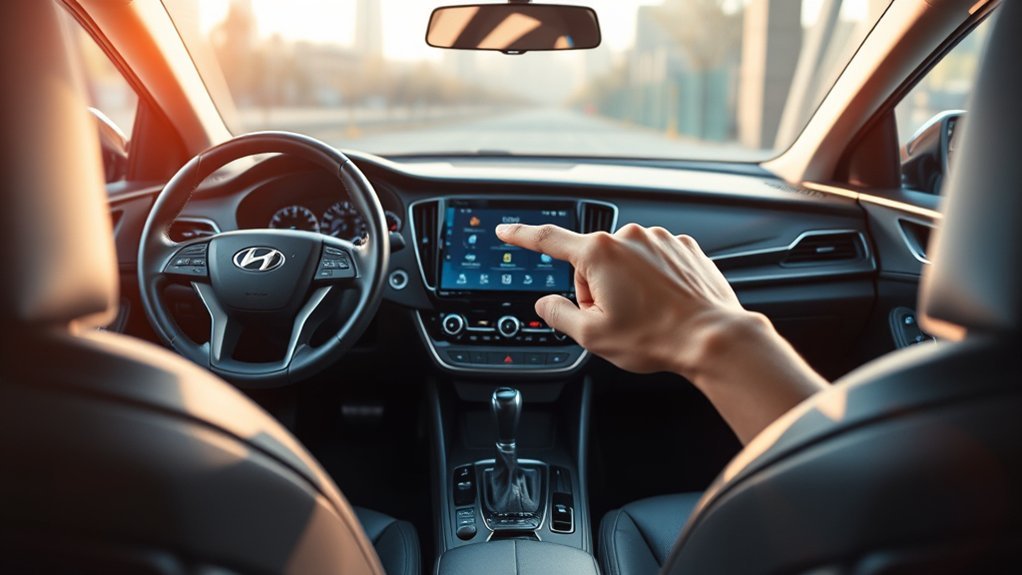
To delete a Bluetooth device from a Hyundai Sonata, park the vehicle and open the infotainment phone or device-connection settings. The exact menu depends on your Sonata’s model year and infotainment system. Newer Hyundai systems commonly use Settings > Device connection > Device connection > Delete devices. Some touchscreen systems use SETUP > Phone > Bluetooth Connection > Delete Devices, while older Sonata audio systems may use SETUP > Phone > Phone List/Paired Phone List > Delete. Select the phone, confirm the deletion, and then forget the Sonata from your phone if you want a completely fresh pairing.
Last updated: August 8, 2026
Important: Menu names can vary by model year, trim, software version, and region. Deleting a paired phone can also remove downloaded contacts, call history, messages, or related phone-projection information stored by the infotainment system. It does not delete the original contacts or call history from your phone.
How Do You Access the Sonata Bluetooth Device List?
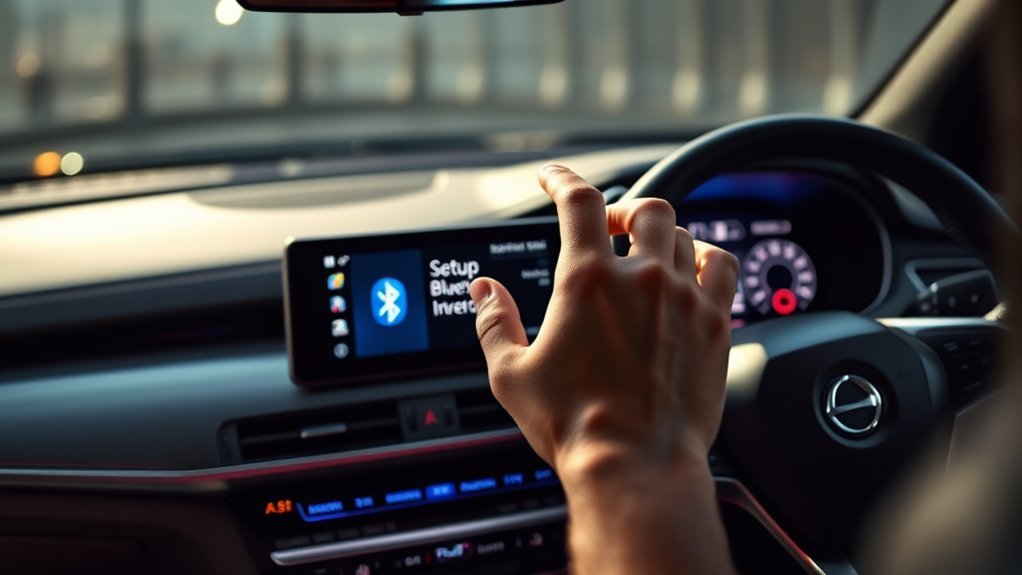
Start with the Sonata parked so you can work through the infotainment menus safely. Hyundai has used several radio and infotainment systems across the Sonata line, so there is no single menu path that applies to every model.
| Infotainment type | Common path to remove a phone |
|---|---|
| Newer Hyundai infotainment systems | Settings > Device connection > Device connection > Delete devices |
| Some touchscreen Sonata systems | SETUP > Phone > Bluetooth Connection > Delete Devices |
| Older Sonata audio systems | SETUP > Phone > Phone List or Paired Phone List > select device > Delete |
If your screen does not use the exact wording above, look for Phone, Bluetooth, Device connection, Paired devices, or Phone connections. Choose the phone you want to remove and select Delete, Delete devices, or the equivalent confirmation option.
Why Remove a Bluetooth Device From a Sonata?
Deleting an old Bluetooth profile is useful when you no longer use the phone, the registered-device list is full, or a connection has become unreliable. It can also help when replacing a phone or starting over after repeated pairing problems.
- Fix a damaged pairing: Removing the stored profile and pairing again can clear configuration problems between the phone and infotainment system.
- Remove an old phone: A sold, lost, or replaced phone does not need to remain in the Sonata’s paired-device list.
- Make room for another device: Hyundai infotainment systems have a limit on how many phones they can keep registered, and the exact limit varies by system.
Do not routinely delete and re-pair a connection that is working normally. Use this procedure when you need to remove a device or when troubleshooting points to the saved Bluetooth profile.
How to Delete the Bluetooth Profile From Your Sonata
Open the appropriate Phone, Bluetooth, or Device connection menu for your infotainment system. Locate the paired-device list, choose Delete Devices or select the individual phone, and confirm Delete or Yes.
If the phone is currently connected, the system may disconnect it before completing the deletion. Hyundai documentation also notes that phone information downloaded to the head unit, such as contacts and call history, can be removed with the pairing. On some newer systems, related message or wireless phone-projection information can be removed as well.
Deleting the vehicle-side pairing does not erase the contacts stored on the phone itself. If your purpose is to correct a connection problem, remove the vehicle from the phone’s Bluetooth settings too before pairing the devices again.
How Do You Forget the Sonata on Your Phone?
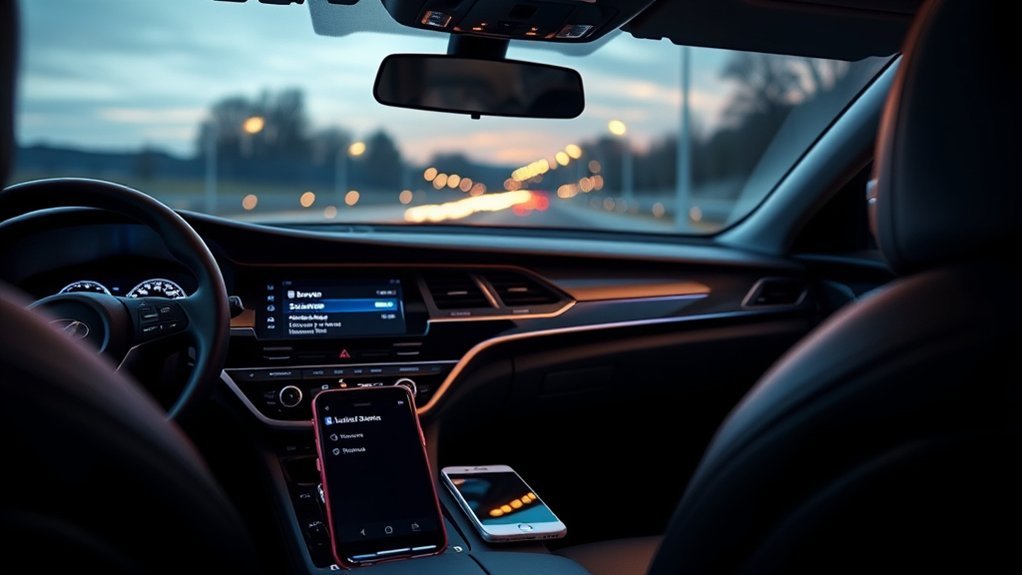
Removing the pairing from both sides is the cleanest approach when you are troubleshooting a connection that will not reconnect correctly.
On an iPhone
- Open Settings and tap Bluetooth.
- Find the Sonata or Hyundai entry under your Bluetooth devices.
- Tap the information button next to it.
- Tap Forget This Device.
- Confirm Forget Device.
On an Android Phone
- Open your phone’s Bluetooth or connected-device settings.
- Find the Hyundai/Sonata entry under saved or previously connected devices.
- Open the settings for that device.
- Select Forget, Unpair, or the equivalent option used by your phone manufacturer.
Android menu wording varies among Samsung, Google Pixel, Motorola, and other manufacturers, but the goal is the same: remove the saved vehicle pairing rather than simply disconnecting it temporarily.
How Do You Re-Pair Your Phone After Removing It?
After deleting the old pairing, make sure Bluetooth is enabled on your phone. On the Sonata, open the Bluetooth or phone-connection menu and choose Add New, Pair Phone, or the equivalent option.
- Keep the Sonata parked and leave the infotainment system on.
- Open the vehicle’s option to add a new Bluetooth device.
- Open Bluetooth settings on your phone and search for available devices.
- Select the Hyundai/Sonata device name shown by the infotainment system.
- Confirm that the pairing code shown on both devices matches, if prompted.
- Approve the contacts, calls, messages, or audio permissions you want the vehicle to use.
- Test a phone call and Bluetooth audio after pairing finishes.
If you use wireless Apple CarPlay or Android Auto, you may also need to approve the phone-projection prompts again. On some Hyundai infotainment systems, deleting the Bluetooth device also removes its related wireless phone-projection registration.
What Should You Do if Sonata Bluetooth Still Will Not Connect?
If a fresh pairing does not work, diagnose the problem in a fixed order rather than repeatedly deleting the device.
- Confirm Bluetooth is enabled: Make sure Bluetooth is active on the phone and the Sonata’s Bluetooth functions have not been disabled.
- Remove the pairing from both sides: Delete the phone from the Sonata and forget the Sonata from the phone.
- Restart the phone: A restart can clear a temporary Bluetooth or operating-system problem.
- Restart the infotainment system normally: Use the vehicle’s documented restart method if the screen or Bluetooth menu appears frozen. Avoid undocumented engineering menus.
- Pair again: Add the phone as a new device and approve the required permissions.
- Test another phone: This helps separate a phone-specific problem from an infotainment-system problem.
- Check for official software updates: If the problem continues, check Hyundai’s official infotainment/update information and your phone’s operating-system updates.
If one phone fails but another phone pairs and works normally, investigate the first phone’s Bluetooth settings, permissions, or software. If multiple known-good phones fail in the same way, the Sonata’s infotainment system becomes the stronger suspect.
[Products Worth Considering]

This compact adapter upgrades compatible factory wired CarPlay or Android Auto systems to wireless convenience for both iPhone and Android users. It uses WiFi 6 and Bluetooth 5.4 for fast, stable connections with quick auto-connect startup and reliable voice, navigation, and music performance. Its mini plug-in design helps keep the dashboard tidy while supporting easy setup and broad vehicle compatibility.

This wireless CarPlay screen adds modern smartphone connectivity to almost any vehicle with easy plug-and-play installation. It supports Apple CarPlay and Android Auto, online maps, voice control, phone mirroring, and multiple audio output options for safer, more convenient driving. The included night vision backup camera and OTA updates help improve visibility, compatibility, and long-term performance.

This wireless adapter upgrades factory wired Apple CarPlay and compatible Android Auto systems into a seamless cordless experience without replacing your original infotainment system. After a quick one-time setup, it reconnects automatically for navigation, music, calls, messages, and voice control, while compact plug-and-play design helps keep your dashboard clean and your driving experience more convenient.
How to Test Your Bluetooth Connection
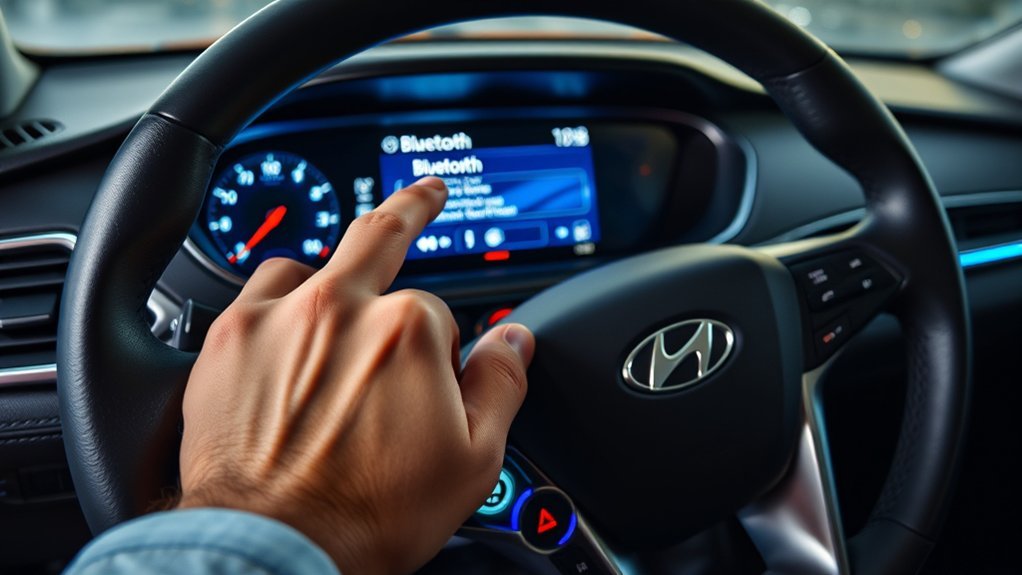
After pairing, test the functions you actually use. Play Bluetooth audio for several minutes, make a hands-free call, stop and restart the vehicle, and confirm that the phone reconnects normally on the next drive. These checks reveal more than simply seeing a Bluetooth icon on the screen.
[Products Worth Considering]

This 2-in-1 wireless adapter converts factory wired CarPlay into a convenient wireless connection for compatible vehicles, making every drive simpler and more flexible. It supports quick auto-connect, easy phone switching, and stable audio and navigation performance for iPhone and Android Auto users. Designed for plug-and-play use, it helps reduce cable clutter while keeping calls, maps, and music running smoothly.

This portable car stereo brings wireless Apple CarPlay and Android Auto to your vehicle for easier access to navigation, music, calls, and messages. The large HD touch screen supports mirror link and multiple audio output options, while voice control adds safer hands-free use on the road. An included backup camera and simple dashboard mount make installation quick and convenient without replacing your original radio.

This portable car stereo adds wireless Apple CarPlay and Android Auto to nearly any vehicle without replacing the factory head unit. The 7-inch HD touchscreen supports voice control, GPS navigation, mirror link, Bluetooth calling, and multiple audio output options for a safer, more connected drive. It also includes backup camera support and flexible mounting for easy installation and removal.
How Do You Check Connection Stability?
A stable pairing should connect without repeated manual intervention. Listen for audio dropouts, watch for unexpected disconnects, and confirm that the phone reconnects after the vehicle is restarted. If failures occur only with one phone, repeat the test with another compatible device before assuming the Sonata has a hardware fault.
How Do You Identify a Phone Compatibility Problem?
Bluetooth features can vary depending on the phone, infotainment system, software version, and permissions granted during pairing. If calls work but Bluetooth audio does not, or audio works but contacts do not appear, review the permissions for the Sonata connection on the phone and reconnect the affected service. Also check for current phone and Hyundai infotainment software updates if the behavior began after an update or continues after re-pairing.
How Do You Troubleshoot Bluetooth Audio Problems?
First confirm that Bluetooth Audio is selected as the vehicle’s media source and that the phone is sending audio to the Sonata rather than another speaker, headset, or USB connection. If sound cuts out or calls are distorted, remove and re-pair the connection. Then test another phone. A second phone that works normally points toward the original phone or its settings; the same failure across several phones points more strongly toward the vehicle system.
Common Hyundai Sonata Bluetooth Problems
Common symptoms include a phone that remains paired but will not reconnect, Bluetooth audio that does not start automatically, missing contacts, intermittent audio, or a device that appears in the saved list but cannot establish an active connection.
A corrupted or outdated saved pairing is one possible cause, which is why deleting the profile from both the Sonata and the phone is a useful troubleshooting step. Phone operating-system changes, permissions, infotainment software, and device-specific compatibility can also affect Bluetooth behavior.
Avoid jumping immediately to a factory reset or undocumented service/engineering menu. Those steps can affect other vehicle settings and are unnecessary for most ordinary pairing problems.
[Products Worth Considering]

This compact adapter converts factory-wired CarPlay and Android Auto systems to wireless for a cleaner, more convenient driving experience. It offers fast auto-connect, stable performance, and plug-and-play setup so you can enjoy navigation, music, calls, and voice control without extra cables. The included USB-to-USB-C converter helps it fit a wide range of vehicle ports.

This activated carbon cabin air filter is designed as a replacement for select Hyundai Sonata gas models and Kia Cadenza vehicles, helping improve in-cabin air quality. It is engineered to capture odors, VOCs, and common pollutants for a fresher driving environment, while matching multiple OE and reference numbers for convenient fitment confirmation.

The HEYINCAR+ H-Air adapter upgrades compatible factory wired CarPlay and Android Auto systems to wireless convenience with a compact plug-and-play design. It connects automatically after setup, delivering fast startup, stable performance, and support for your car’s original touchscreen, steering wheel controls, and voice commands. Built for broad vehicle compatibility and ongoing firmware updates, it offers a simple way to enjoy cable-free driving with minimal clutter.
When Should You Get Professional Help for Sonata Bluetooth Problems?
Consider dealer or qualified infotainment-system diagnosis when ordinary pairing steps no longer isolate the problem. A single phone that will not connect is usually not enough to establish a vehicle fault; repeated failure with multiple compatible phones is much stronger evidence.
Persistent Connection Issues
Professional diagnosis is reasonable if you have deleted the pairings from both sides, restarted the phone and infotainment system, successfully confirmed Bluetooth is enabled, and still cannot establish a reliable connection with more than one phone. Also seek help if the Bluetooth menus repeatedly freeze, disappear, or lose every saved device after a normal restart.
Complex Audio Problems
If several phones show the same severe audio distortion, call failure, microphone problem, or repeated disconnection, the issue may extend beyond the saved Bluetooth profile. Record which phones were tested, which functions fail, and whether the failure happens every time. That information gives a technician a clearer starting point than simply reporting that “Bluetooth does not work.”
Understanding Sonata Bluetooth Connection Limitations
Bluetooth behavior depends on the infotainment generation and connected phone. Keep these limitations in mind:
- Registered-device capacity varies: Hyundai systems can store only a limited number of paired devices. If the list is full, delete an unused phone before adding another one.
- Not every feature is supported by every phone: Hands-free calling, Bluetooth audio, contacts, messages, and phone projection can have different compatibility requirements.
- Disconnecting is not the same as deleting: Disconnecting leaves the pairing saved for later use. Deleting removes the registered device from the infotainment system.
- Deleting vehicle-side data does not erase your phone: Contacts and call records removed from the head unit remain on the phone itself.
- Wireless phone projection may share registration data: On supported Hyundai systems, deleting a Bluetooth device can also remove it from the phone-projection device list.
Frequently Asked Questions
How Do I Delete Unwanted Bluetooth Devices?
Open your Sonata’s Phone, Bluetooth, or Device Connection settings, locate the paired-device list, choose the unwanted phone, and select Delete or Delete Devices. The exact menu wording depends on the infotainment generation.
Why Can’t I Find the Delete Bluetooth Device Option?
Your Sonata may use a different infotainment menu than the one shown in another model-year guide. Look under Phone, Bluetooth Connection, Phone Connections, or Device Connection. If the screen is frozen or a menu is unavailable, restart the infotainment system normally and check the owner’s or infotainment manual for your exact vehicle.
Does Deleting a Paired Phone Erase My Contacts?
It can delete contacts, call history, messages, and similar phone data that were downloaded to the Sonata’s infotainment system. It does not erase the original contacts stored on your phone.
Should I Forget the Sonata on My Phone Too?
If you are troubleshooting a faulty pairing, yes. Delete the phone from the Sonata and forget the Sonata from the phone before pairing again. If you only want to remove an old phone from the vehicle and will not reconnect it, deleting the vehicle-side profile may be enough.
Can Deleting Bluetooth Affect Wireless CarPlay or Android Auto?
Yes, on some Hyundai infotainment systems the Bluetooth and wireless phone-projection registrations are linked. Deleting the Bluetooth device can also remove it from the phone-projection list, so you may need to set up wireless Apple CarPlay or Android Auto again.
How Do I Pair My Phone With the Sonata Again?
Turn on Bluetooth on the phone, open the Sonata’s Bluetooth or phone-connection settings, select Add New or Pair Phone, choose the Hyundai/Sonata entry on your phone, confirm any displayed pairing code, and approve the permissions you want to use.
Authoritative Sources Checked
The procedures and cautions in this guide were checked against current Hyundai infotainment documentation and current phone-platform guidance:
- Hyundai Owner’s Manual — Phone Connection and Bluetooth Settings
- Apple Support — Pairing and Unpairing Bluetooth Accessories
- Android Help — Bluetooth Device Setup and Connections
Conclusion
To remove a Bluetooth device from a Hyundai Sonata, find the paired-device list under the Sonata’s Phone, Bluetooth, or Device Connection settings, select the phone, and delete it. Because Hyundai has used different infotainment systems across Sonata generations, the exact menu path can vary.
If you are fixing a connection problem, also forget the Sonata from the phone, restart the devices, and pair them again from scratch. Test another phone if the problem continues. If multiple compatible phones fail after a clean re-pair, or the infotainment Bluetooth menus repeatedly freeze or lose saved devices, professional diagnosis is the appropriate next step.