If your Toyota Camry navigation is not working, start with the simple fixes first: park safely, reboot the multimedia system, confirm the vehicle or phone has a good signal, and check whether your Camry uses built-in navigation, Drive Connect/Cloud Navigation, or smartphone projection. The right fix depends on the model year, trim, multimedia system, map data, and subscription status.
Quick Answer
To fix Toyota Camry navigation problems, reboot the multimedia screen, verify your Drive Connect or map-update status, check cellular/GPS signal, re-enter the destination carefully, and update the system if an update is available. If GPS location stays wrong or the screen remains frozen after resets, contact a Toyota dealer.
Key Takeaways
- A quick reboot often clears frozen screens, lag, and temporary routing glitches.
- Toyota Camry navigation fixes vary by system: older embedded navigation, newer Drive Connect/Cloud Navigation, and Apple CarPlay or Android Auto do not update the same way.
- Do not assume Wi-Fi fixes every map issue. Toyota multimedia software updates, map updates, and cloud-navigation updates are handled differently.
- Poor GPS signal, weak cellular coverage, expired subscriptions, wrong search region, or outdated map data can all make navigation appear broken.
- Use a factory reset only after easier checks, because it can remove saved phones, favorites, and personalized settings.
At a Glance
| Time Required | 5–30 minutes for basic checks; longer if a dealer update or inspection is needed |
| Difficulty | Easy to moderate |
| Tools Needed | Toyota owner’s manual, Toyota app, phone charging/data cable if using CarPlay or Android Auto, USB drive only if Toyota specifies a USB update for your vehicle |
| Cost | Usually free for rebooting and settings checks; map updates, Drive Connect, or dealer diagnosis may cost extra |
Warning: Do not type addresses, reset the screen, or troubleshoot the navigation system while driving. Pull over and park safely first. Navigation and touchscreen use can distract you from the road.
Identify Your Toyota Camry Navigation System First
Before you update, reset, or inspect anything, confirm which navigation setup your Camry has. Toyota has used different multimedia and navigation systems across model years, trims, and packages, so one set of instructions will not fit every Camry.
- Built-in embedded navigation: Some Camry models have factory navigation with map data stored in the vehicle. These systems may need dealer-supported or Toyota-specified map updates.
- Drive Connect / Cloud Navigation: Select newer Toyota vehicles use cloud-connected navigation through Toyota Connected Services. This may require an active trial or paid subscription and depends on cellular and GPS signal. You can review Toyota’s current connected-services details at Toyota Connected Services.
- Apple CarPlay or Android Auto navigation: Some owners use Google Maps, Apple Maps, Waze, or other phone apps through the Camry screen. In that case, the problem may be the phone, cable, app, Bluetooth, USB connection, or smartphone projection setting rather than Toyota’s built-in navigation.
Note: Check your exact model year in the Toyota owner’s manual or the vehicle’s multimedia settings. Toyota notes that screens and available functions can differ by subscription status, map data, and vehicle equipment.
Immediate Steps to Reboot Your Navigation System
A reboot is the best first step when the map is frozen, the screen is slow, the route will not load, or the touchscreen stops responding. A soft reboot refreshes the multimedia system without jumping straight to a factory reset.
- Park safely. Put the Camry in Park and keep the vehicle in a safe location before touching the screen.
- Turn the vehicle off. Open the driver’s door, wait a few minutes, then restart the vehicle and test navigation again.
- Try the power/volume button reset if your system supports it. On many Toyota multimedia systems, holding the power or volume knob for about 5–15 seconds can restart the screen. If your Camry’s manual gives a different procedure, follow the manual.
- Check the map again. After the screen reloads, wait for the GPS position to settle before entering a destination.
- If you use CarPlay or Android Auto, reconnect the phone. Unplug the cable, reconnect with a data-capable cable, or restart the phone if the map app is the issue.
If the screen responds after the reboot, the issue was likely a temporary software freeze. If the map still shows the wrong location, fails to search, or says navigation is unavailable, continue with the checks below.
[Products Worth Considering]
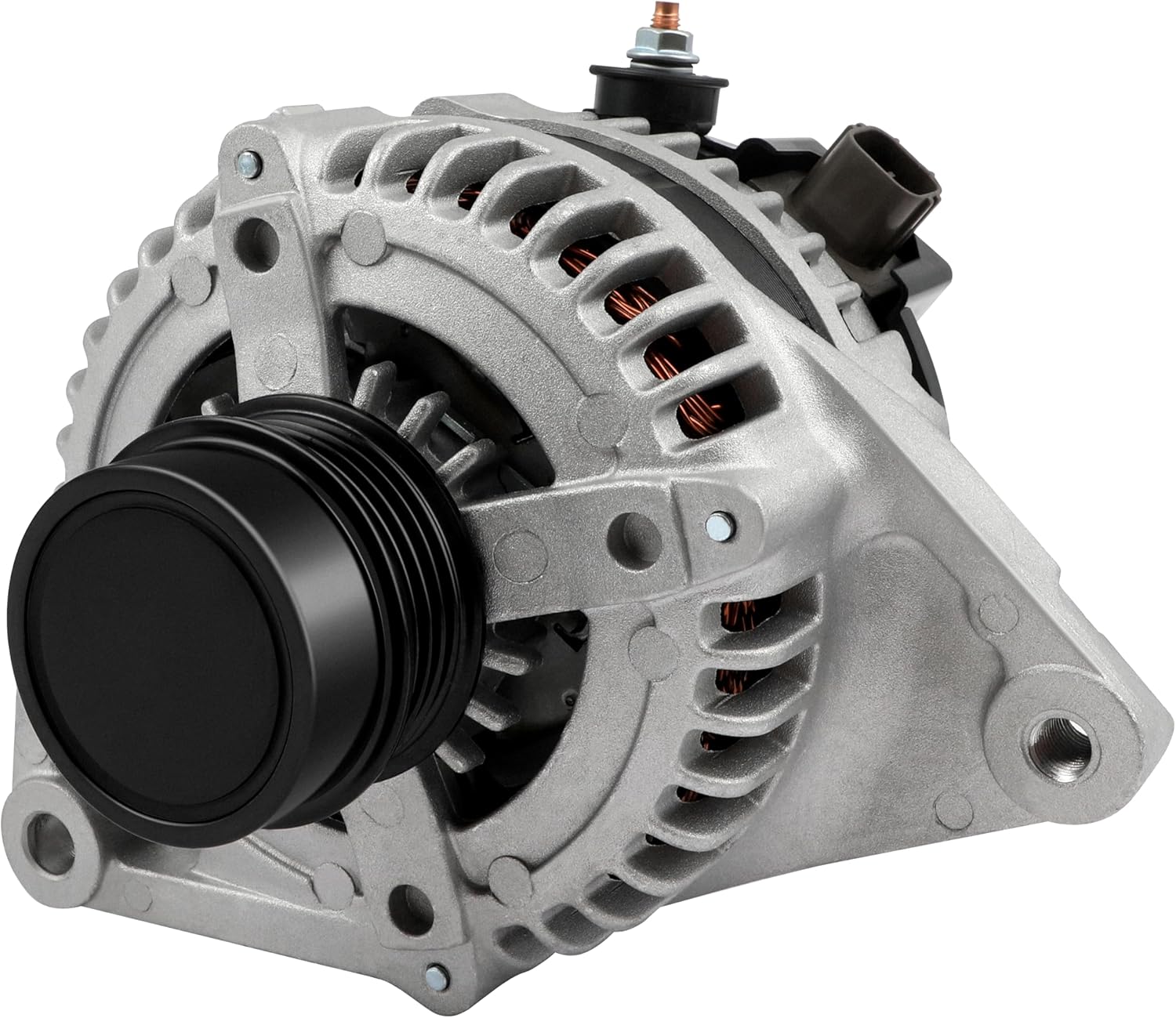
This high output alternator is designed to fit select Toyota, Scion, and RAV4 2.5L applications, delivering reliable charging performance for everyday driving. Built with a 12-volt, 100-amp design and precision-engineered components, it helps support battery recharge, stable electrical output, and consistent operation when your vehicle shows signs of charging issues.

This Toyota navigation SD card provides updated North America maps and points of interest for compatible factory navigation systems. It is preloaded with recent road and location data to help drivers find destinations, services, and routes more easily across the U.S. and Canada. Designed for select Toyota models, it offers a simple plug-and-play replacement for the original navigation card.

Keep your Toyota navigation system current with this SD card map update designed for select factory-installed GPS units. It provides updated coverage for the USA and Canada, including roads, points of interest, and key travel locations for smoother trip planning. Easy plug-and-play installation helps restore accurate guidance without complicated setup.
Common Causes of Toyota Camry Navigation Issues
Toyota Camry navigation problems usually fall into a few predictable categories. Use this table to match your symptom with the most likely fix.
| Symptom | Likely Cause | First Fix |
|---|---|---|
| Frozen or black screen | Temporary multimedia glitch | Soft reboot the system |
| Navigation unavailable | No built-in navigation, inactive Drive Connect, or missing setup | Check trim, Toyota app, and subscription status |
| Map shows the wrong location | Weak GPS signal, blocked antenna, or system needing time to recalibrate | Move to an open area and restart the system |
| Address will not appear | Spelling, search region, new road, or outdated map data | Try city + street, nearby landmarks, or a broader search |
| Live traffic or cloud search missing | Poor cellular connection or inactive connected service | Check signal and Drive Connect status |
| Phone map not displaying | CarPlay/Android Auto connection problem | Reconnect phone, update app, or use another cable |
Check Drive Connect, Cloud Navigation, and Signal
If your Camry uses Toyota Drive Connect or Cloud Navigation, the system depends on more than the touchscreen. It can require Toyota app activation, an active trial or paid subscription, a working vehicle data connection, GPS signal, and service availability in your area.
- Open the Toyota app. Confirm your vehicle is registered and that connected services are active for your Camry.
- Check subscription status. Drive Connect features may require an active trial or paid plan after the trial period.
- Move to a better signal area. Parking garages, tunnels, dense downtown areas, mountains, and weak cellular zones can affect cloud features.
- Wait for GPS lock. After startup, give the system a moment to locate the vehicle, especially after a battery disconnect or long period parked indoors.
- Test a simple destination. Search for a major business, airport, or city center. If that works but a specific address does not, the issue may be address data rather than the whole navigation system.
Pro Tip: Keep a phone-based navigation app ready as a backup. If Toyota navigation fails during a trip, Apple CarPlay or Android Auto can keep you moving while you troubleshoot the built-in system later.
How to Update Your Toyota Camry Navigation Software
Updating a Toyota Camry navigation system depends on what you are updating. Multimedia software, embedded map data, and Cloud Navigation are not always updated the same way.
[Products Worth Considering]

This steering clock spring is designed to restore reliable steering wheel controls across a wide range of Toyota models. It supports audio, cruise control, and other multifunction commands while matching OEM part numbers for confident replacement fitment. Built for dependable signal transfer and straightforward installation, it is an effective solution for repairing steering column control issues.

This auxiliary jack adapter restores a broken or missing AUX connection so you can stream audio from your device through your Toyota stereo system. It is designed for compatible Toyota models and uses an 8-pin connector for a direct plug-and-play replacement. Built for reliable audio transmission, it helps bring back clear in-car sound without complicated installation.

Restore responsive touch control to your Toyota navigation system with this 6.1-inch digitizer replacement designed for select Camry, Corolla, Prius C, and RAV4 models. It helps fix unresponsive, ghost-touch, and cracked-screen issues while matching OEM fitment for a straightforward repair and improved in-car usability.
Multimedia Software Updates
For some Toyota Audio Multimedia systems, Toyota provides software updates through its official Toyota Audio Multimedia System Updates portal. If your vehicle is eligible, Toyota may require a compatible USB drive to download and install the update. Follow the official instructions for your exact vehicle.
Navigation and Map Updates
Do not assume a multimedia software update will update your maps. Toyota’s software update page notes that navigation and map updates are not handled through that software download site and directs owners to online map-update resources or a local Toyota dealer for details.
Cloud Navigation Updates
For eligible Drive Connect or Cloud Navigation vehicles, map and navigation information can be refreshed through Toyota’s connected services. Availability and accuracy still depend on a working vehicle connection, GPS signal, service coverage, and subscription status.
Before any update, write down saved destinations or favorites you cannot afford to lose. If the system warns that settings or saved data may be affected, stop and review the owner’s manual first.
Adjusting Region Settings for Address Accuracy
If the navigation system cannot find an address, the problem may be the search area, country, region, language, or map database rather than the screen itself. This is especially common near borders, in newly built neighborhoods, or when searching for roads with unusual spelling.
Verify Current Region Settings
Open the navigation or multimedia settings and look for region, country, map area, language, or search-area options. The exact menu name varies by year and system. Confirm the system is searching in the correct country and region before assuming the map database is broken.
Change Region Configuration
If the Camry is set to the wrong search area, change it and retry the address. Use the full city and state when searching. If the address is near a city boundary, try the neighboring city name or a nearby point of interest.
Address Database Limitations
Some addresses may not appear because the road is new, the business has changed names, or the local map database has not been refreshed. Try these alternatives:
- Search by business or landmark name instead of the exact street address.
- Enter the street name without abbreviations first, then try common abbreviations.
- Use a nearby intersection.
- Compare the destination in a phone map app to confirm the address is valid.
- Check whether a map update is available for your system.
Inputting Addresses Correctly: Tips for Success
Address entry can fail even when the navigation system is working. Small spelling differences, abbreviations, or incomplete city names can return no results.
- Start broad. Search the city or landmark first, then narrow to the street.
- Use official spelling. Check whether the road uses “Highway,” “Hwy,” “Route,” “County Road,” “North,” “N,” or another format.
- Skip punctuation. If a street has an apostrophe, hyphen, or period, try the name without punctuation.
- Try voice search. If typing fails, the voice assistant may interpret the destination differently.
- Use a nearby point. Search a gas station, school, hotel, or restaurant close to the address, then navigate from there.
Common Address Input Mistakes and How to Avoid Them
Most address-search problems come from search format, spelling, or database limitations. Before resetting the system, check these common mistakes.
Correct Input Order
Some systems respond better when you enter the city first, then the street name, then the street number. Other systems handle one-line search better. If one method fails, try the other before assuming the system has a fault.
Spelling Verification Tips
Double-check names that include directionals, numbers, or local abbreviations. For example, “N Main St,” “North Main Street,” and “Main Street North” may return different results depending on the map database. If the system still cannot find the address, use a phone map app to confirm the official format.
Troubleshooting Unresponsive Touchscreen Problems
If the Toyota Camry touchscreen does not respond, fix the screen issue before focusing on navigation. The navigation app cannot work correctly if the multimedia system is frozen.
- Clean the screen. Use a soft microfiber cloth. Moisture, residue, or a thick screen protector can interfere with touch response.
- Remove gloves. Some screens respond poorly to gloved fingers.
- Restart the multimedia system. Use the power/volume button reset if your system supports it.
- Restart the vehicle. Turn the Camry off, open the driver’s door, wait a few minutes, then restart.
- Disconnect accessories. Remove USB devices and disconnect the phone to rule out a device conflict.
- Check for updates. If the screen repeatedly freezes, check Toyota’s official update resources or ask a dealer to inspect the system.
If the touchscreen is physically cracked, has liquid damage, flickers constantly, or does not respond after a reboot, the issue may be hardware-related.
[Products Worth Considering]

This anti-glare matte tempered glass screen protector is designed for compatible 2026 Toyota RAV4 and RAV4 Hybrid models with a 12.9-inch touchscreen. It helps reduce glare, resists scratches and fingerprints, and maintains responsive touch performance for a clearer, cleaner driving experience.

Replace a cracked or unresponsive navigation screen with this touch screen glass digitizer designed for compatible Toyota infotainment units. It restores touch functionality for supported RAV4, Prius C, Corolla, and Camry models with a precise 12-pin interface and the correct cable position requirements. Built with a slim 1.5mm profile, it is a practical repair solution for keeping your factory navigation system working properly.

This key fob shell is a replacement case and button pad designed to refresh worn or damaged Toyota remote housings. It fits select Camry, Corolla, RAV4, and Highlander models and installs without programming when you transfer your existing electronics and battery. It is a simple way to restore the look and function of your keyless entry remote.
Should You Consider a Factory Reset for Your Navigation System?
A factory reset can help when the navigation system keeps freezing, saved destinations are corrupted, Bluetooth pairing is unstable, or settings are causing repeated errors. It should not be your first step.
Warning: A factory reset may erase paired phones, saved destinations, favorites, audio presets, and personalized settings. Write down important information before resetting.
Use this order before choosing a factory reset:
- Soft reboot the multimedia screen.
- Restart the vehicle.
- Check subscription, signal, and Toyota app status.
- Try a simple destination search.
- Check for available software or map updates.
- Review the owner’s manual for your exact reset procedure.
- Factory reset only if the problem continues.
A factory reset will not fix a damaged antenna, faulty wiring, a failed display, or a subscription problem. If the same symptom returns immediately after a reset, schedule service.
When to Contact a Toyota Dealer
Some Toyota Camry navigation problems are not practical DIY repairs. Contact a Toyota dealer or qualified technician if you notice any of the following:
- The GPS location stays wrong after rebooting and driving in an open area.
- The screen remains frozen, black, or unresponsive after a restart.
- The vehicle repeatedly shows navigation unavailable even though your Camry should have the feature.
- You need an official map update, license, or dealer-supported navigation update.
- The shark-fin antenna area has damage or water intrusion.
- The problem began after battery replacement, collision repair, windshield repair, roof repair, or electrical work.
- The vehicle is still under warranty and the issue may be covered.
Frequently Asked Questions
How do I update my Toyota Camry navigation system?
First, identify your system. Some Toyota multimedia software updates use Toyota’s official software update portal and may require a USB drive. Navigation and map updates may be handled separately online or through a Toyota dealer. Newer Drive Connect or Cloud Navigation systems depend on connected services, signal, and subscription status.
Why does my Camry say navigation is not available?
Your Camry may not have built-in navigation, the connected-service trial may have expired, the Toyota app setup may be incomplete, or the vehicle may not have a strong cellular/GPS signal. Check your trim, owner’s manual, Toyota app, and Drive Connect status before assuming a hardware failure.
Why is my Toyota Camry GPS showing the wrong location?
A wrong location can happen when GPS signal is blocked, the vehicle has been parked indoors, the system recently lost power, or the antenna path is obstructed. Move to an open area, restart the system, and wait for the position to update. If it stays wrong, have the GPS antenna and related hardware inspected.
Can I use Google Maps or Apple Maps instead of Toyota navigation?
Yes, if your Camry supports Apple CarPlay or Android Auto and your phone is connected properly. This is a good backup when Toyota navigation is unavailable, map data is outdated, or you prefer phone-based traffic and search results.
Will a factory reset fix Toyota Camry navigation?
A factory reset may fix software glitches or corrupted settings, but it will not fix expired subscriptions, missing navigation equipment, weak signal, damaged GPS hardware, or outdated map data. Try rebooting, checking connected services, and checking updates before resetting.
Conclusion
Toyota Camry navigation problems are usually easier to solve when you work in the right order. Start with safety, identify the system, reboot the screen, check Drive Connect or map-update status, confirm signal, and re-enter the destination carefully. Save factory reset and dealer diagnosis for problems that keep returning. With the right system-specific fix, you can usually restore navigation without wasting time on steps that do not apply to your Camry.
Sources
- Toyota Audio Multimedia System Updates — multimedia software update process and navigation/map update limitation.
- Toyota Connected Services — Drive Connect, connected-services plans, Apple CarPlay, Android Auto, and Toyota app activation context.
- Toyota Navigation Systems Support — official navigation support topics and Dynamic Navigation context.
- Toyota Drive Connect Support — Drive Connect feature and subscription context.
- Toyota Cloud Navigation Updates and Enhancements — cloud-navigation update and service-availability limitations.
- NHTSA Distracted Driving — safety guidance for avoiding distraction from GPS and in-vehicle controls.