Last updated: September 16, 2026. Source basis: Toyota U.S. app and ownership guidance plus the 2025 Toyota Camry Warranty & Maintenance Guide.
The Toyota app maintenance log for a Camry is the Service History area in the Toyota app or My Toyota. Use it to review recorded Toyota service and add maintenance completed by you or a non-Toyota shop. In Toyota’s published workflow, sign in, select your vehicle, open Service History, and choose Add Record. Menu labels can vary by app version, region, model year, and dealer participation, so use the options shown in your account and keep the final invoice or receipt as your permanent backup.
Quick Answer
To add Camry maintenance in the Toyota app, sign in, choose your vehicle, open Service History, and select Add Record. Complete the fields the app shows, then keep the service date, mileage, work performed, provider, parts or fluids used, invoice number, and repair notes with your original receipt or invoice. The app is useful as a service-history index, but your receipt remains the better backup for warranty, resale, and future maintenance planning.
Key Takeaways
- Use the Toyota app or My Toyota to review service history, maintenance information, manuals, and vehicle resources.
- Toyota’s published workflow for owner or non-Toyota service is: sign in, go to your vehicle, open Service History, then choose Add Record.
- Keep the date, mileage, service performed, parts or fluids used, provider, invoice number, and repair notes in your backup records even if the app does not provide a separate field for every detail.
- Use the Warranty & Maintenance Guide for your exact Camry model year to determine what is actually due; a maintenance checkpoint does not mean every service item is replaced at every visit.
- Online scheduling and transportation options depend on dealer participation, so confirm shuttle, loaner, rideshare, pickup, or drop-off requests directly with the dealership.
At a Glance
| Time Required | Depends on how much detail you record |
| Difficulty | Easy |
| Tools Needed | Toyota app or My Toyota account, odometer reading, receipt or invoice |
| Cost | Recordkeeping is separate from maintenance or repair charges, which vary by service provider |
| What You Need | Best Source | Why |
|---|---|---|
| Past service history | Toyota app or My Toyota | Lets you review available service records and add owner or non-Toyota work when the feature is available. |
| What maintenance is due | Warranty & Maintenance Guide for your exact model year | The model-year schedule controls the service intervals and special operating-condition requirements. |
| Proof of non-dealer or DIY work | Final invoice, receipt, parts receipt, or service document | Preserves the original date, mileage, parts, fluids, provider, and repair details. |
| Next appointment | Participating Toyota dealer scheduler | Shows the dealer’s actual available services, appointment times, and transportation requests. |
Where Is the Camry Maintenance Log in the Toyota App?

For most U.S. owners, start with the Toyota app or the Toyota Owners website. Sign in with your Toyota account, select your Camry, and look for Service History within the vehicle, service, maintenance, or garage area. Toyota’s published support workflow for adding owner or non-Toyota service is to sign in, go to your vehicle, select Service History, and choose Add Record.
Use Service History as an index of your Camry’s maintenance records. It can help you review available Toyota service, add qualifying independent-shop or DIY work, and compare your history against the maintenance schedule in the Warranty & Maintenance Guide. For a broader explanation of subscription-dependent app functions, see the Camry Connected Services guide.
Note: If you do not see Service History, update the Toyota app, confirm the Camry is attached to your Toyota account, check the Toyota Owners website, or contact Toyota support. Toyota’s Service Connect vehicle-health and maintenance-alert features can require a compatible vehicle plus an active trial or paid subscription; menu labels and feature availability can also change by vehicle, region, and app version.
How Do You Add a Camry Service Record in the Toyota App?
After maintenance is completed outside a Toyota dealership, add it manually when the Service History feature gives you that option. This is useful for independent-shop oil changes, tire rotations, brake service, battery replacement, wheel alignment, inspections, fluid service, filters, wipers, and documented DIY maintenance.
- Open the Toyota app or sign in to My Toyota.
- Select your Camry from your vehicle list.
- Open Service History or the closest matching service-history area.
- Choose Add Record, Add Service Record, or the equivalent option shown in your account.
- Complete the fields shown, using the final invoice or receipt to copy the service date, odometer reading, work performed, provider, and other details accurately.
- Save the record and keep the original invoice or receipt as a separate digital or paper backup.
Entering the record soon after the work is completed reduces transcription mistakes. More importantly, copy the mileage and service details from the final document rather than relying on memory.
[Products Worth Considering]
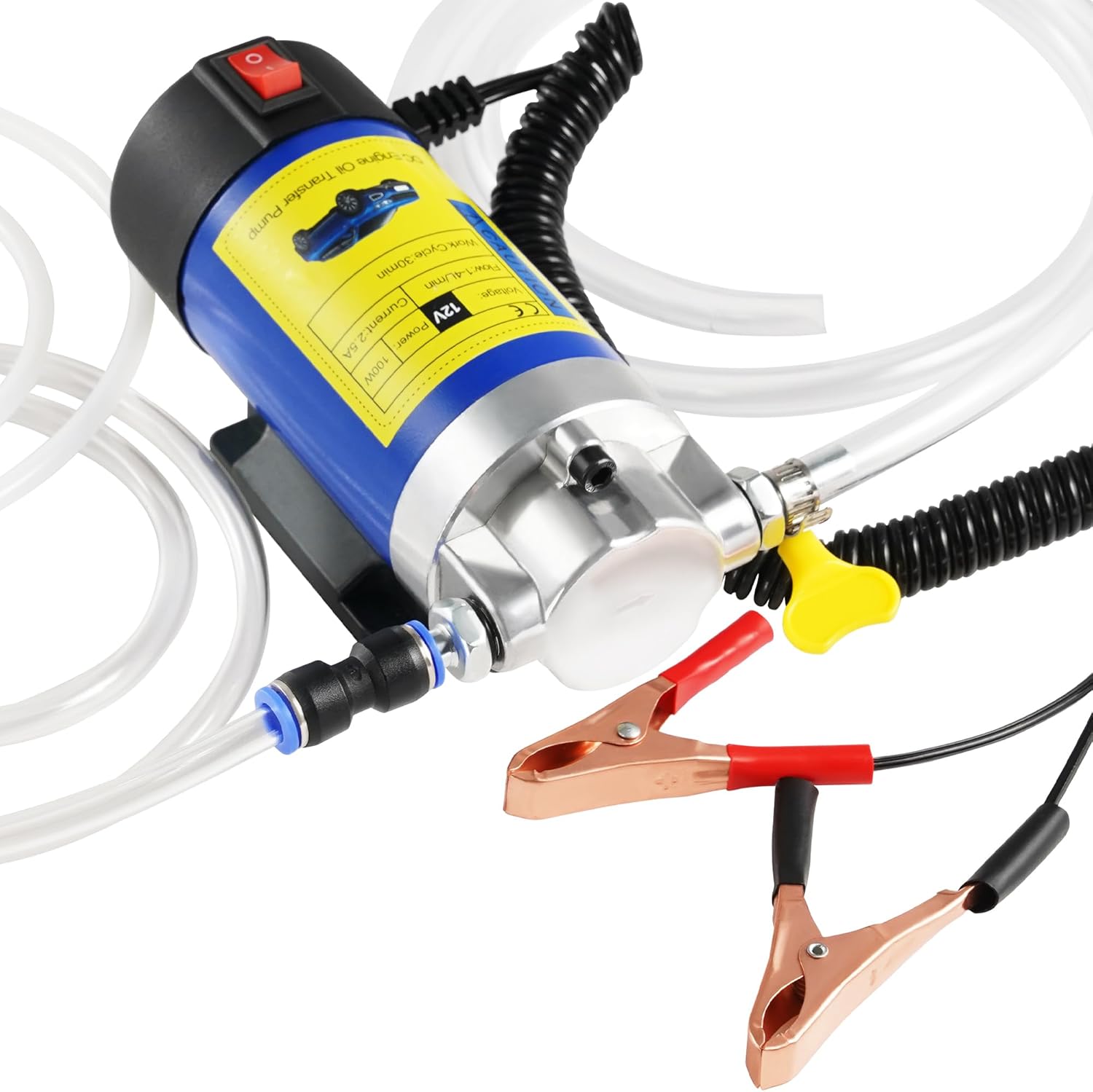
This electric oil extractor pump makes DIY oil changes cleaner and easier by removing old fluid through the dipstick tube, eliminating the need to crawl under the vehicle or deal with messy drain plugs. It is designed for synthetic oil changes and fluid maintenance across cars, motorcycles, lawn mowers, boats, and Jet Skis, while its pure copper motor delivers stable suction and dependable performance. Built for efficient topside oil changes, it supports multiple fluid types and offers continuous operation for longer service tasks.

This flexible oil funnel is designed to make fluid changes cleaner and easier by guiding oil around obstacles like skid plates and crossmembers. Its shape-retaining core and silicone body can be molded for custom positioning, while the heat-resistant, leak-proof design helps prevent spills during draining and filter removal. Reusable and easy to clean, it works well for cars, trucks, motorcycles, and other hard-to-reach fluid fill or drain applications.

KAX CA10171 premium engine air filter is designed as a direct replacement for select Toyota Camry and Venza models, helping maintain clean airflow to protect critical engine components. Its high-performance filter media delivers strong filtration efficiency and long service life for dependable everyday driving. With a precise rectangular fit and easy replacement design, it supports better acceleration, consistent performance, and improved fuel economy.
What Should You Record for Non-Toyota or DIY Service?
Non-Toyota service records should be clear enough that a future technician, warranty reviewer, or buyer can understand what was actually done. A vague note such as “service done” is not useful. A strong record names the service, copies the exact odometer reading from the invoice or your service notes, identifies the parts or fluids actually used, names the provider, includes the invoice or receipt reference, and records any follow-up recommendation.
For every third-party or DIY service, keep:
- Date: Use the service or completion date shown on the final invoice or your own dated DIY record.
- Mileage: Record the odometer reading at the time of service.
- Service performed: Be specific: oil and filter, tire rotation, cabin air filter, brake pads, coolant inspection, battery test, or alignment.
- Parts and fluids: Copy the actual oil viscosity, filter type, tire size, battery model, fluid specification, or part number from the receipt or service documentation when available.
- Shop details: Keep the provider name, contact information, invoice number, and any written repair warranty with the original document.
- Follow-up notes: Save measurable inspection findings or recommendations shown by the shop, such as remaining brake-pad thickness or a recommendation to replace worn tires.
Pro Tip: Photograph or scan the final invoice before it can be lost or damaged. Treat the app entry as a searchable summary and the original invoice, receipt, or parts record as your source document.
How Do You Use the Log to Plan Upcoming Camry Service?
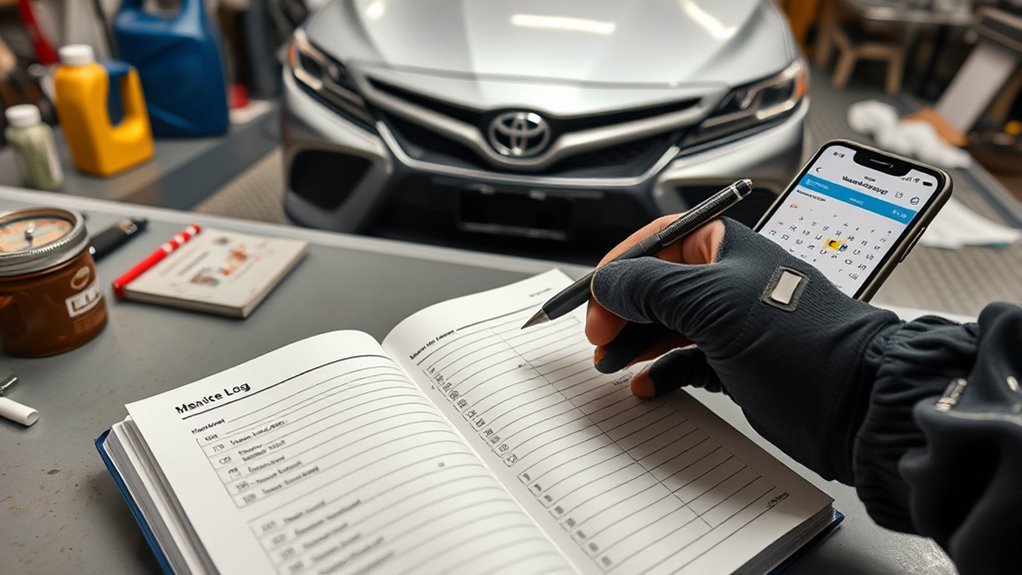
A complete Camry maintenance log does more than store receipts. It helps you avoid duplicated work, identify missing records, prepare for resale, and give a service advisor a clearer history. Toyota’s 2025 Camry Warranty & Maintenance Guide tells owners to keep detailed maintenance records that include the service date, mileage, and a description of the service or parts installed.
- Review the past: Check when the last oil and filter change, tire rotation, brake inspection, filter replacement, and battery service were completed.
- Plan the next visit: Compare those records with the maintenance schedule for your exact Camry model year rather than assuming every service uses the same interval.
- Save proof: Keep receipts, photos, PDFs, and app entries together so you can answer warranty, diagnostic, and resale questions.
- Watch for repeated problems: Multiple repair records for the same symptom can give a technician a more useful diagnostic timeline.
Toyota’s 2025 Camry guide recommends scheduled maintenance every 5,000 miles or six months, whichever comes first. That does not mean every item is replaced at every 5,000-mile checkpoint. On the 2025 standard maintenance chart, engine oil and filter replacement appears at 10,000-mile increments; always use the chart for your exact model year and operating conditions.
Should You Follow the Toyota App or the Camry Maintenance Guide?
Use the app to organize history and reminders, but use your official model-year Warranty & Maintenance Guide to decide what is actually due. Open the guide through Toyota Owners or use the printed booklet that came with the vehicle. Maintenance requirements can vary by model year, powertrain, all-wheel drive equipment, operating conditions, and market.
For example, Toyota’s 2025 Camry guide uses 5,000-mile or six-month maintenance checkpoints, while the standard maintenance chart lists engine oil and filter replacement at 10,000-mile increments. Special operating conditions can change which services are required at a given checkpoint. For a broader model-year overview, see the Camry maintenance schedule guide.
Dealer recommendations can also include services beyond Toyota’s scheduled maintenance log. Toyota’s 2025 guide states that additional dealer-recommended services are not automatically required to maintain warranty coverage. If a dealer recommends more frequent maintenance or an extra service, ask what condition, inspection result, or model-year requirement supports it.
Warning: Do not ignore safety recalls, warning lights, fluid leaks, brake noise, overheating, or tire damage because the app does not show a maintenance reminder. Check open safety recalls with Toyota or the NHTSA recall lookup and arrange diagnosis or repair promptly when a safety issue is present.
How Do You Back Up Camry Maintenance Records?
A well-documented service history can make your Camry easier to service and easier for a future buyer to evaluate. Toyota’s maintenance guide says owners should keep detailed maintenance records and give those records to the new owner when selling the vehicle.
If the app or My Toyota account offers a print, download, or share option in your current account view, use it. Do not rely on that option as your only archive because app features can change. Keep your own backup:
- Save receipts: Keep digital copies in folders organized by year.
- Use consistent file names: Include the service date, odometer mileage, and main work performed so records sort clearly.
- Keep app records current: Add non-dealer services when the Service History feature allows it so your app summary and original documents stay aligned.
- Make a resale packet: Include a service summary, receipts, warranty repairs, recall repairs, tire records, and battery records that apply to the vehicle.
- Protect private data: Before giving records to a buyer, remove payment information, full account numbers, and unrelated personal data.
Can You Schedule Camry Service From the Toyota App?
The Toyota app and Toyota Owners tools can connect owners with online scheduling at participating Toyota dealers. Toyota’s current service-scheduling page says participating dealers can offer online tools to make, edit, or cancel maintenance appointments.
- Open the app’s service or maintenance area.
- Review your upcoming maintenance information, vehicle alerts, or service history.
- Select your preferred dealer or search for a participating dealer.
- Choose the services, date, and time offered by that dealer’s scheduler.
- Add notes about symptoms, noises, warning messages, or special requests.
- Review the appointment summary before confirming.
If the app sends you to the dealership’s own scheduler, follow that dealer’s current steps and save the confirmation. If online scheduling is unavailable for your preferred dealer, contact the dealership directly and keep the appointment confirmation with your maintenance records.
[Products Worth Considering]

This dual filter kit helps keep your vehicle running and riding cleaner by replacing both the engine air filter and cabin air filter at the same time. It is designed for a range of Toyota and Lexus hybrid models, helping support engine performance while reducing odors and airborne particles inside the cabin. Built with high-quality filtration materials, it offers a convenient maintenance solution for routine filter replacement.

These replacement windshield wiper blades are designed for Toyota Camry models from 2018 through 2024, delivering a precise fit for reliable all-weather visibility. Built with durable rubber and a beam-style design, they help resist cracking and ensure even pressure across the windshield for smoother, clearer wiping. The complete front set is made for easy home installation without special tools, making maintenance simple and convenient.
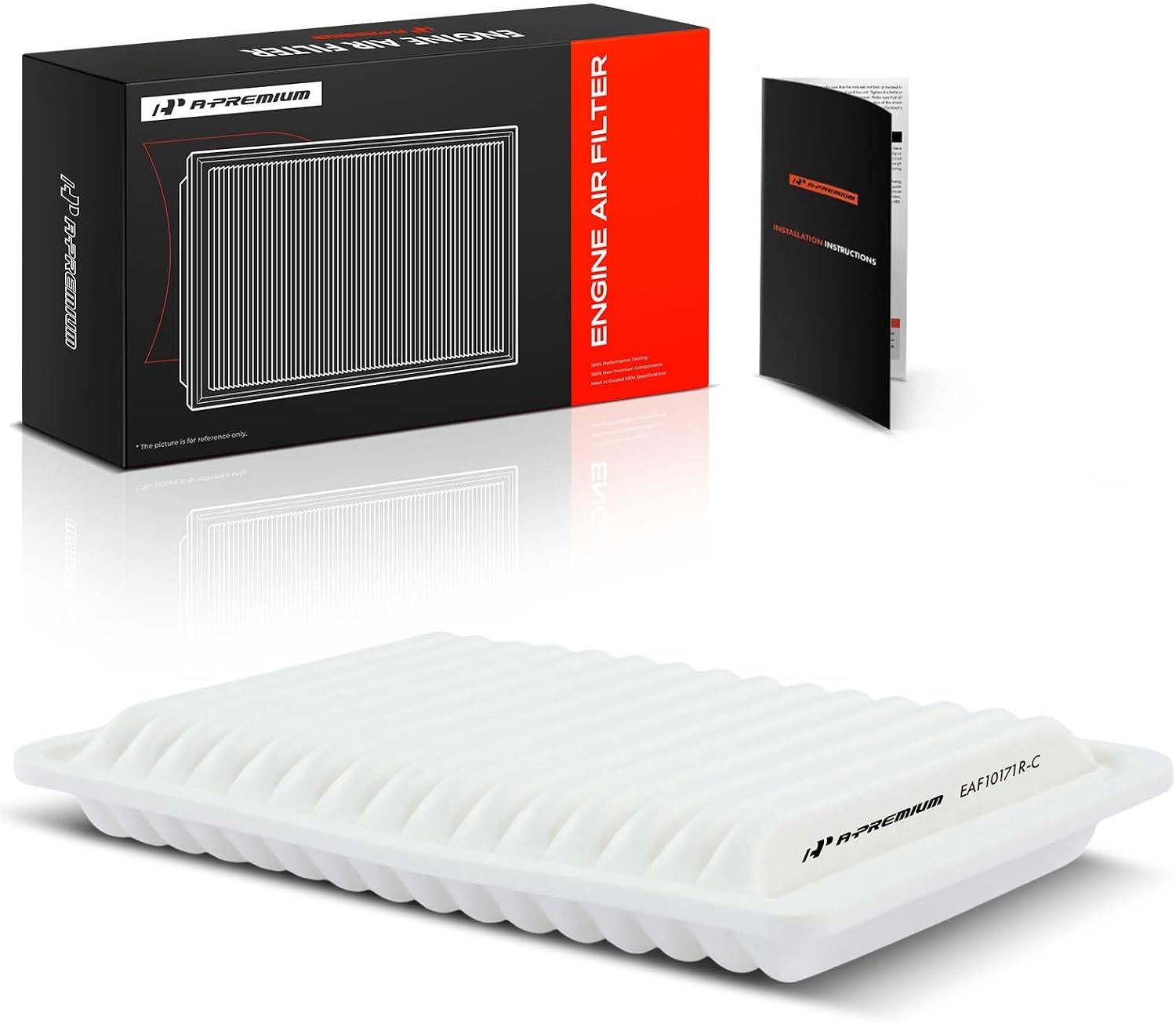
This A-Premium engine air filter is designed to help Toyota Camry and Venza models maintain cleaner airflow and stronger engine performance. Its fine filtration media captures debris while keeping air moving efficiently, and the rectangular, front-mounted design offers a direct replacement fit for select vehicles. Replace it regularly to support engine efficiency and cleaner intake air.
How Do You Change Your Preferred Toyota Dealer?
The preferred dealer setting can affect the dealership shown for service scheduling, contact information, maintenance communication, and dealer-specific offers. Toyota app labels can change, but current Toyota guidance commonly places the option within the service-appointment area. Open Service Appointments or Make an Appointment, open the current or preferred dealer, choose Change Preferred Dealer, search by dealer name, city, or ZIP code, and save the new preferred dealer.
Before changing dealers, compare:
- Distance and hours: Choose a location that fits your schedule.
- Online scheduling: Confirm whether the dealer supports online or in-app appointments.
- Transportation options: Ask whether shuttle, loaner, rideshare, pickup, or drop-off service is offered for your appointment.
- Specialty needs: For hybrid, AWD, warranty, recall, or diagnostic work, confirm the dealer can handle the requested service.
- Communication: Prefer a dealer that provides clear estimates, repair orders, and written service notes.
How Do You Request an Advisor or Transportation?

If your dealer’s scheduler displays a service-advisor selector, transportation field, shuttle request, loaner request, or pickup/drop-off option, use it to state your preference. Treat every transportation selection as a request until the dealership confirms it.
Choosing a Service Advisor
If the scheduler offers a service-advisor list, choose the advisor you normally work with or the advisor available for your preferred appointment time. A consistent point of contact can make it easier to discuss repeat symptoms, previous recommendations, and prior repair orders.
Use the notes field to state the reason for the visit clearly. Include the scheduled maintenance you expect plus any symptom, warning message, vibration, noise, leak, or other concern you want the dealer to inspect.
Requesting Transportation Assistance
If you need transportation, request it during scheduling and confirm it directly with the dealer. Shuttle, dealer loaner, rideshare, pickup/drop-off, and after-hours key-drop availability can depend on dealer policy and appointment type.
Do not confuse a dealer-provided transportation option with Toyota’s formal warranty Transportation Assistance Policy. Toyota’s 2025 warranty guide describes separate eligibility rules for qualifying warranty-covered repairs that require the vehicle to be kept overnight, so confirm coverage before assuming a rental, loaner, or other transportation cost is included.
Scheduling Pickup and Drop-Off
For dealer pickup or drop-off, confirm the address, phone number, service window, key handoff procedure, payment process, and return plan. Save the confirmation email, text, or screenshot with the rest of your service records.
What Should You Check Before Confirming a Toyota Service Appointment?
Before confirming an appointment, review the details against your maintenance guide and the reason for the visit. A wrong date, service item, mileage entry, or transportation request can create delays or unexpected work at check-in.
| Field | What to Check | Why It Matters |
|---|---|---|
| Date & Time | Confirm the appointment slot and time zone. | Prevents missed appointments and scheduling conflicts. |
| Service Items | Match the selected services to your maintenance guide and symptoms. | Helps prevent approving work you did not intend to request. |
| Mileage | Enter or update the odometer reading if the scheduler provides that field. | Helps the service department compare the vehicle with the correct maintenance interval. |
| Service Advisor | Confirm the selected advisor if the dealer offers that option. | Creates a clear point of contact. |
| Transportation | Verify any shuttle, loaner, rideshare, pickup, or drop-off request directly with the dealer. | Avoids assuming a transportation request has already been guaranteed. |
After confirming, save the appointment email, text, or app confirmation. When the service is complete, compare the final invoice with the work you authorized, then add or verify the service record in your Camry maintenance history.
[Products Worth Considering]

This EPAuto engine air filter is designed as an OEM replacement for select Toyota Camry and Venza models with 4-cylinder gas engines. It helps protect the engine by filtering dust, dirt, and debris from incoming air while supporting efficient performance and improved fuel mileage. Built for a precise fit, it is a practical replacement choice for routine maintenance.

This engine and cabin air filter combo is designed to help keep your vehicle’s air cleaner while supporting reliable engine performance. It includes HEPA cabin filtration for finer particle capture, a pre-filter and reinforced mesh for added engine air protection, and a removal tool to make replacement easier in tight spaces. Built for a wide range of Toyota and Lexus hybrid and gas models, it lets you replace both filters at once for added convenience.

This 6-pack engine oil filter set is designed for Toyota applications and compatible cross-reference part numbers, helping support clean oil flow and dependable engine protection. Built from quality materials and featuring 99% multi-pass efficiency, it is made to help extend engine life and maintain performance between service intervals. The included six filters make it a practical choice for routine maintenance and multiple oil changes.
How Do You Fix Missing or Incorrect Maintenance Records?
If your maintenance history looks incomplete, do not assume the service was never performed. App syncing, dealer reporting, previous ownership, regional account systems, and manual records can affect what appears in your account. Use the final invoice or repair order as the source document when reconstructing missing history.
Accurate Date Entry
Use the service or completion date shown on the final invoice. If the vehicle stayed at the shop for several days, use the completion/service date on the final document rather than the date you later entered the record in the app.
Clear Service Descriptions
Use plain, specific descriptions. Instead of only “oil change,” record that the engine oil and filter were changed and copy the actual oil specification from the invoice or your documented DIY materials. For brake work, note whether the service involved pads, rotors, calipers, drums, fluid, inspection, or another specific item.
Regular Record Updates
Review the log after maintenance and before a major trip or upcoming service appointment. Confirm that the latest work appears, original receipts are backed up, and your next maintenance checkpoint agrees with the guide for your exact model year. Time-based maintenance can still become due when annual mileage is low.
When Service History Is Missing
If Toyota dealer service is missing from the app, contact the servicing dealer and request a copy of the repair order. If independent-shop or DIY work is missing, add it manually when the Service History feature allows it and preserve the original receipt. If you recently bought the Camry used, ask the seller for records and confirm that the correct VIN is attached to your Toyota account.
When the App Does Not Match Your Receipt
Use the final invoice or repair order as your source record. Correct a manual app entry if the app permits editing. If a dealer-generated record appears incorrect, contact that dealership’s service department and ask whether its source record can be corrected.
Frequently Asked Questions
How do I figure out what maintenance is required on a Toyota Camry?
Check the Warranty & Maintenance Guide for your exact Camry model year, then compare that schedule with the Toyota app’s maintenance information and your own records. Do not rely only on a generic online schedule because required items can vary by model year, powertrain, drive type, and operating conditions.
Can I add oil changes from an independent shop to the Toyota app?
Toyota’s published Service History workflow allows owners to choose Add Record for owner or non-Toyota service. Complete the fields shown in your account and keep the original invoice or receipt with the service date, mileage, work performed, provider, and parts or fluids used.
Does using a non-Toyota shop void my warranty?
Toyota’s 2025 Camry maintenance guide says maintenance and repairs may be performed by you or by an automotive service provider you choose, and Toyota will not deny a warranty claim solely because you used a provider other than a Toyota dealership. Damage or failure caused by improper maintenance or repairs is not covered.
Why can’t I see my Camry service history in the Toyota app?
The vehicle may not be attached correctly to your account, the app may need an update, the menu labels may have changed, or a dealer record may not have appeared in your account. Check Toyota Owners, confirm the correct VIN is attached, and request the repair order directly from the servicing dealer or shop when a record is missing.
Can I export my Toyota app maintenance records?
Export, print, and share options can vary by app version and account view. Use a download, print, or share option when your account provides one. Either way, keep your own copies of invoices, receipts, PDFs, and service documents so the app is not your only maintenance archive.
How often should I service a Toyota Camry?
For the 2025 Camry, Toyota uses scheduled maintenance checkpoints every 5,000 miles or six months, whichever comes first. The work performed at each checkpoint is not identical, so use the Warranty & Maintenance Guide for your exact model year to see which inspections and replacements are due.
Does 5,000 miles mean my Camry needs an oil change every time?
No. A 5,000-mile maintenance checkpoint does not automatically mean the engine oil and filter are replaced at every visit. In Toyota’s 2025 Camry standard maintenance chart, engine oil and filter replacement appears at 10,000-mile increments. Special operating conditions can change the required work, so follow the chart for your exact model year and driving conditions.
Conclusion
Use the Toyota app or My Toyota to organize your Camry’s service history, but keep the original invoice or receipt as the source record and use the official model-year maintenance guide to decide what is due next. Open Service History now, verify your latest entry against the final service document, then check the exact Camry maintenance schedule before approving the next appointment.
Sources
- Toyota Owners — owner account, service history, manuals, vehicle resources, and service tools.
- Toyota Support: Add a Service Record — Toyota support path for adding owner or non-Toyota service records.
- Toyota App — Service History — Toyota USA demonstration of accessing service history and adding additional records in the app.
- Toyota App — current maintenance reminders, vehicle health, Service Connect, and app information.
- Toyota Support: Change Preferred Dealer — Toyota support guidance for changing a preferred dealer.
- Toyota Support: Schedule a Dealership Appointment Online — online scheduling and dealer participation guidance.
- 2025 Toyota Camry Warranty & Maintenance Guide — maintenance records, service-provider rules, warranty notes, maintenance checkpoints, and scheduled maintenance chart.