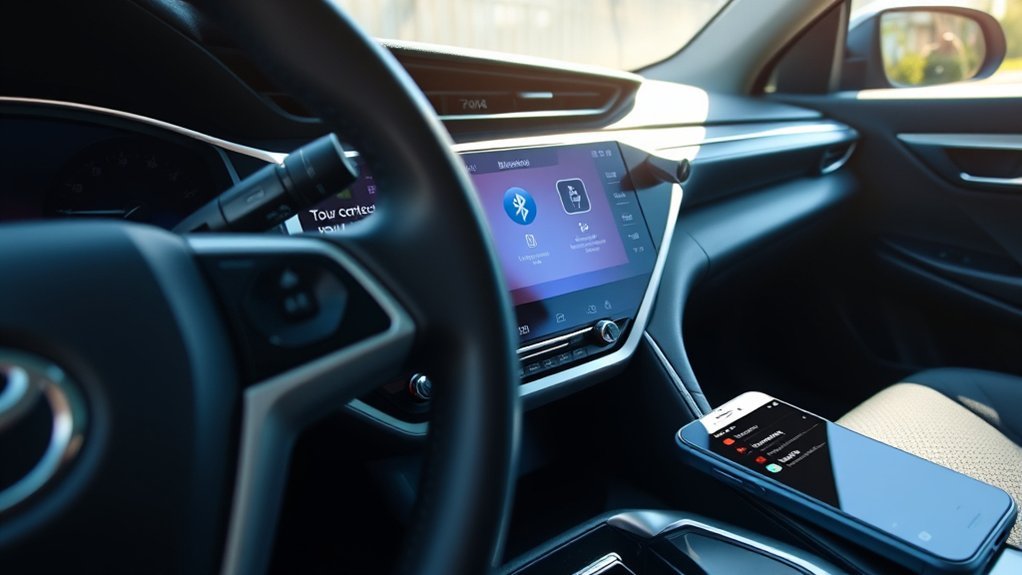
If your Toyota Camry’s Bluetooth isn’t working, start by checking for compatibility and ensuring you’re using the correct pairing procedure. Interference from other devices might disrupt the connection, so try a soft reset of the InTune system by holding the audio button for 5-10 seconds. If problems persist, delete your phone from the car’s system and remove the car from your phone’s Bluetooth settings, then re-pair your devices for a reliable connection. More detailed steps are available to help you troubleshoot further.
Common Bluetooth Problems and How to Fix Them
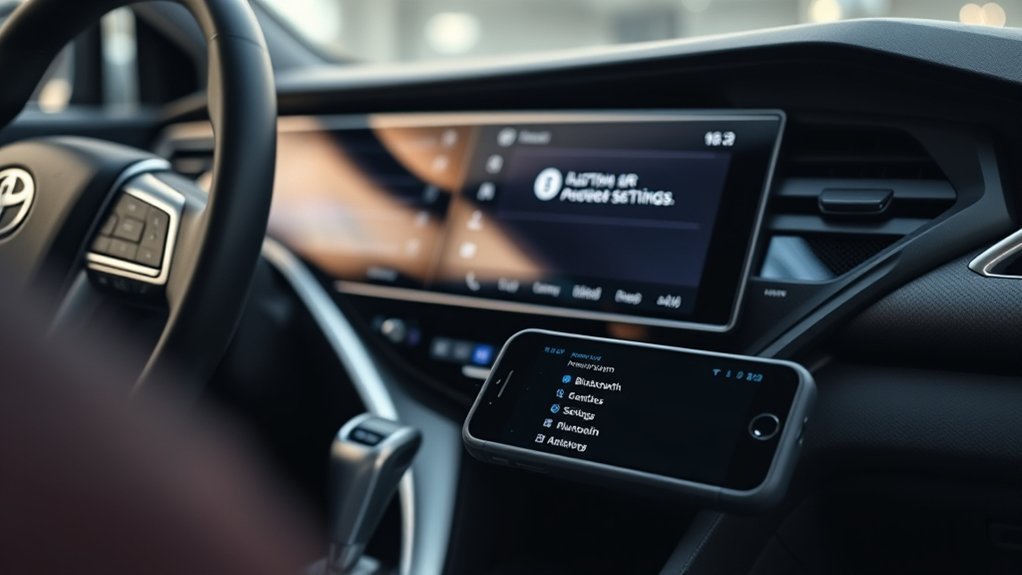
When your Toyota Camry’s Bluetooth isn’t functioning properly, it can often be traced back to incorrect pairing procedures. Begin by checking for Bluetooth interference from other devices, which can disrupt connection stability. Verify that your phone’s device compatibility aligns with your Camry’s system; not all devices support the same features. If you’ve recently updated your phone’s firmware, confirm that your car’s system is also updated to avoid compatibility issues.
If problems persist, perform a soft reset of the InTune system by holding the audio button for 5-10 seconds. This can clear temporary glitches. When re-pairing, make sure notification access is enabled on your phone to fully utilize messaging features through your car’s system. Following these steps can greatly improve your Bluetooth experience, allowing for seamless connectivity and enhanced functionality.
Step-By-Step Guide: Deleting Your Phone From the Car
To delete your phone from the Toyota Camry’s InTune system, start by accessing the setup menu. From there, navigate to the Bluetooth settings to find the list of paired devices. Look for the specific phone you wish to remove, like “Justin’s phone.” When you’ve selected it, confirm the deletion by pressing “Yes.” This action successfully removes your phone from the car’s system.
| Step | Action | Result |
|---|---|---|
| Access Setup Menu | Press the ‘Menu’ button | Opens the setup options |
| Navigate to Bluetooth | Select ‘Bluetooth’ | Displays paired device list |
| Confirm Deletion | Press ‘Yes’ for removal | Deletes the phone from the system |
After deletion, it’s advisable to re-pair your phone if you encounter any further Bluetooth connectivity or device compatibility issues. This process guarantees a smoother experience with your Toyota Camry’s Bluetooth system.
How to Remove Your Car From Your Phone’s Bluetooth?
Removing your Toyota vehicle from your phone’s Bluetooth is a straightforward process that guarantees your device list stays organized. This can help prevent Bluetooth connectivity issues and alleviate device compatibility concerns. Here’s how to do it:
- Open the Bluetooth settings on your phone.
- Locate your Toyota vehicle in the list of paired devices.
- Tap the “I” button next to your vehicle’s name to access its settings.
- Select the “Forget this device” option to delete the car from your phone’s Bluetooth.
After confirming the deletion, exit the Bluetooth settings to complete the process. By removing your car, you’ll streamline your Bluetooth connections and assure smoother syncing with other devices. This simple step can enhance your overall experience, allowing for more efficient management of your Bluetooth connections.
How to Soft Reset Your InTune System
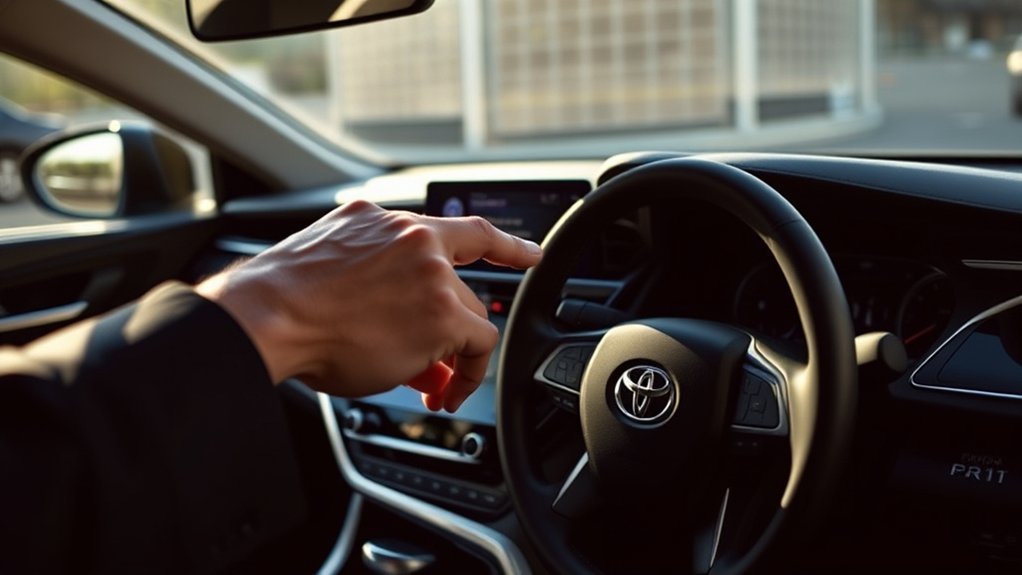
Resetting your Toyota’s InTune system can effectively resolve various issues, including Bluetooth connectivity and speaker malfunctions. To perform a soft reset, simply hold the audio button for 5-10 seconds until the system reboots. This quick process won’t erase any personal settings or data, making it an ideal first step in your troubleshooting tips. A soft reset is particularly useful before re-pairing devices, ensuring a clean start and optimal InTune performance. Regularly soft resetting your system can also help maintain its functionality, preventing minor glitches from becoming larger problems. By incorporating this simple maintenance task into your routine, you’re taking proactive steps to enhance your driving experience. Remember, a well-functioning InTune system contributes considerably to your vehicle’s overall performance, so don’t hesitate to reset when necessary.
Re-Pairing Your Phone With Your Toyota Camry
Re-pairing your phone with your Toyota Camry can resolve connectivity issues and enhance your driving experience. Follow these steps to guarantee the best Bluetooth compatibility:
Re-pairing your phone with your Toyota Camry can improve connectivity and elevate your driving experience.
- Access the setup menu on your Camry’s InTune system and select the Bluetooth option.
- Make sure your phone is in Bluetooth search mode, allowing it to detect the vehicle.
- Confirm the pairing request on both your phone and the Camry to establish a connection.
- Enable notification access on your phone for messaging features to work seamlessly with the car’s system.
If you still face issues, consider performing a soft reset of the InTune system by holding the audio button for 5-10 seconds before attempting to re-pair. With proper device settings adjusted, you’ll enjoy a liberated and connected driving experience.
Frequently Asked Questions
Why Won’t My Toyota Connect to My Phone?
Your Toyota might not connect due to Bluetooth connectivity issues, phone compatibility concerns, or signal interference problems. Confirm your software’s updated, and follow the device pairing process carefully to avoid audio streaming glitches.
Conclusion
To sum up, getting your Toyota Camry’s Bluetooth to work can feel like a puzzle, but with the right steps, you can piece it together. Just when you think you’re stuck, a quick reset or re-pairing can do the trick. Imagine cruising down the road, your favorite playlist streaming seamlessly, all thanks to a few simple fixes. Don’t let tech troubles dim your drive—follow these steps and enjoy the ride with clarity and connectivity.