If your Toyota Camry’s Android Auto isn’t working, start by checking your USB cord for compatibility and quality. Verify both your phone’s software and the Android Auto app are updated. Clear the app cache and make certain you’ve granted all necessary permissions, like contacts and notifications. Reboot your phone and the car’s system to refresh connections. If issues persist, there are more troubleshooting steps you can take to resolve the problem effectively.
Common Reasons Your Toyota Camry’s Android Auto Isn’t Connecting

When your Toyota Camry’s Android Auto isn’t connecting, it can be frustrating, especially if you rely on it for navigation and music. Several common issues could be disrupting your experience. First, verify your phone’s software and the Android Auto app are up-to-date; compatibility is key for maximum performance. User experience feedback often highlights that clearing the app cache or data can resolve temporary glitches.
Additionally, check that you’ve granted all necessary permissions for contacts and notifications; without these, Android Auto features won’t operate smoothly. If you’re still having trouble, consider removing previously connected devices from your car’s Bluetooth settings and re-pairing your phone. This fresh connection can often resolve lingering issues. Finally, explore connectivity alternatives like using a different USB cord, preferably the original or one with a USB symbol, to enhance reliability. Following these troubleshooting tips can greatly improve your app performance metrics.
Check Your USB Cord for Compatibility
A reliable connection is essential for peak performance of Android Auto in your Toyota Camry, and the USB cord plays a significant role in this. To guarantee ideal compatibility, use a USB cord that features the USB symbol, as this indicates it supports the necessary data transfer quality. Avoid low-quality cords from gas stations or dollar stores; they often can’t handle the data load, leading to connectivity issues. Ideally, stick with the original USB cord that came with your phone, designed specifically for effective file transfer. If you’re still experiencing problems, test different USB cord types, as a faulty cord could be the root cause of your Android Auto connectivity failures. A proper USB cord not only stabilizes your connection but also prevents many common issues, allowing you to enjoy your driving experience without interruption.
How to Clear the App Cache
To clear the app cache for Android Auto, start by accessing your phone’s Settings and selecting Apps. Locate Android Auto in the list, tap on it, and proceed to Storage to clear the cache. If issues persist, consider resetting the app data for a fresh start, but remember this will restore default settings.
Access App Settings
How can you resolve issues with Android Auto? Start by accessing your device settings. Go to settings, then navigate to Apps or Applications. Here, you’ll find a list of installed Apps; select Android Auto to manage its settings. Check the app permissions to verify everything’s in order. Next, tap on Storage to view options for clearing the cache. By selecting Clear Cache, you’ll remove temporary data that might be causing connectivity issues. This simple step can enhance performance. If problems persist, consider choosing Clear Data for a more thorough reset, but remember this will restore the app to its original state. Regular maintenance can keep your Android Auto running smoothly.
Clear Cache Steps
Clearing the app cache for Android Auto can greatly improve its performance and resolve connectivity issues. To do this, first, go to your phone’s Settings. Then, navigate to Apps or Application Manager and locate Android Auto in the list. Tap on Storage, where you’ll find the option to Clear Cache. This action removes temporary files that might be causing problems. Regular cache management not only helps in resolving issues but also enhances app performance, preventing glitches that disrupt your experience. If issues persist, consider choosing Clear Data, but be aware that this resets the app and may require reconfiguration afterward. Keeping your cache clear guarantees a smoother interaction with Android Auto.
Reset App Data
If you’re experiencing issues with Android Auto, resetting the app data can often resolve persistent problems. To clear the app cache, head to your phone’s settings, select “Apps,” and find Android Auto. Then, tap on “Storage” and choose “Clear Cache” to eliminate temporary data that may disrupt app performance. If you still face issues, opt for “Clear Data,” which resets the app to its original state, aiding in effective data management.
Here’s a visual guide:
| Step | Action | Purpose |
|---|---|---|
| Open Settings | Navigate to “Apps” | Access app information |
| Select Android Auto | Tap “Storage” | Manage app storage |
| Clear Cache/Data | Confirm action | Resolve connectivity issues |
Reconnect your phone to your car afterward for a fresh start.
How to Update Your Phone’s Software and Apps
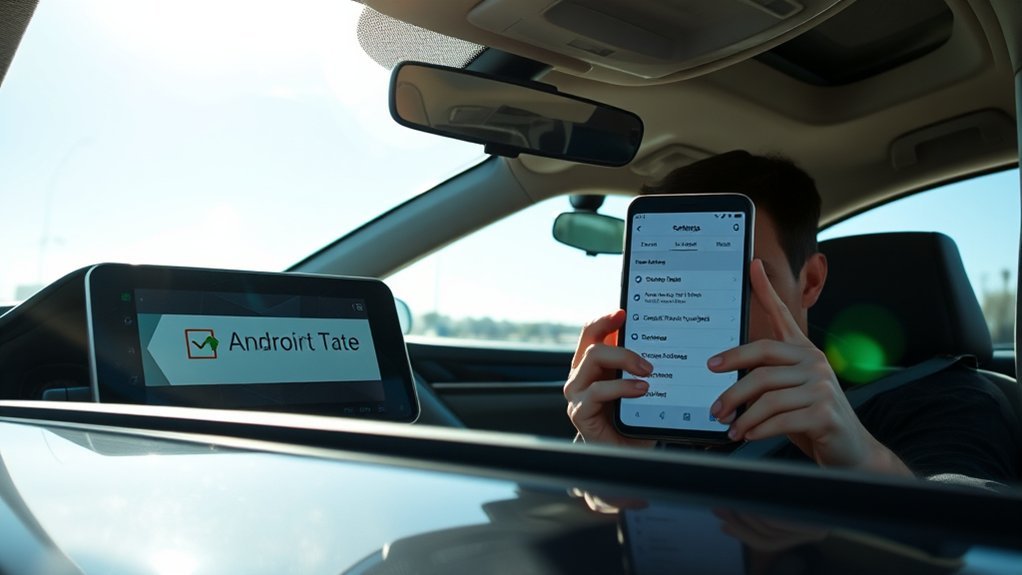
To keep your Android Auto experience smooth, you need to regularly update your phone’s software and apps. Start by checking for system updates in your device’s settings, then head to the Google Play Store to update the Android Auto app. Don’t forget to clear the app cache to resolve any temporary issues that may arise.
Check System Updates
Keeping your phone’s software and apps updated is vital for peak performance with Android Auto. To guarantee smartphone compatibility, navigate to Settings > System > System updates** and check for any available updates. Regularly checking the Google Play Store for updates to the Android Auto app and other essential applications is important to prevent glitches. You can also enhance functionality by confirming your device runs the latest version of Android through Settings > About phone > Software information. If you encounter issues, consider using troubleshooting tips like clearing the app cache by going to Settings > Apps > Android Auto > Storage > Clear Cache. This helps resolve temporary data problems**, promoting a smoother experience with Android Auto.
Update Android Auto App
Updating your Android Auto app is vital for peak functionality and compatibility with your Toyota Camry. To do this, navigate to the Google Play Store, search for “Android Auto,” and tap “Update” if an update is available. It’s also important to verify your phone’s software is current. Go to Settings > System > Software update, and install any updates for maximum performance. Regularly check for updates for other apps, as outdated applications can lead to compatibility issues with Android Auto features. After updating, restart your phone to apply all changes effectively. These troubleshooting tips will help enhance your experience and guarantee everything runs smoothly in your Camry. Stay up-to-date for the best performance!
Clear App Cache
Clearing the app cache can greatly enhance the performance of Android Auto in your Toyota Camry. To start, access your phone’s settings and navigate to the app storage section. Locate the Android Auto app and clear its cache to resolve temporary data issues that can hinder app performance. If problems persist, you might need to clear all data for Android Auto, resetting it to its original state, which can eliminate connectivity problems. After managing your cache, don’t forget to check for the latest software updates for both your device and the app. Finally, restart your phone to guarantee all changes take effect properly. Regular cache management and app updates will help prevent glitches and improve functionality.
Essential Permissions for Seamless Android Auto Functionality
To guarantee a smooth experience with Android Auto, it’s essential that you grant specific permissions that enhance its functionality. Without these, you might face limitations that disrupt your user experience. Regularly managing your device’s permissions can prevent connectivity issues.
Here’s a quick overview of important permissions:
| Permission | Function |
|---|---|
| Calendar | Access to event scheduling |
| Contacts | Syncing contact information |
| Microphone | Voice commands and calls |
| Notifications | Alerts from apps like messaging |
| SMS | Sending and receiving text messages |
You can adjust these permissions in your phone’s settings, specifically under app management for Android Auto. Ensuring all necessary permissions are enabled is vital for seamless operation and effective integration with your vehicle’s system. With proper permission management, you’ll enjoy a more liberated and efficient Android Auto experience.
Troubleshooting Bluetooth Connections in Your Camry
Establishing a reliable Bluetooth connection in your Toyota Camry is essential for enjoying Android Auto’s features. Start by removing any previously connected devices from your car’s Bluetooth settings to eliminate potential interference. Next, guarantee your phone’s Bluetooth is turned on and set to discoverable mode before attempting to pair it with your Camry. In your phone’s Bluetooth settings, search for your Toyota Camry and follow the on-screen prompts to initiate the pairing process.
Once connected, verify that Android Auto is set to launch automatically upon Bluetooth connection for seamless operation. For effective Bluetooth troubleshooting, regularly check and update your phone’s Bluetooth settings to maintain device compatibility. This proactive approach helps prevent connectivity issues and guarantees a smooth experience with Android Auto. If problems persist, consider restarting both your vehicle’s system and your phone, as this can often resolve lingering connection troubles.
Frequent Android Auto Issues and Their Solutions
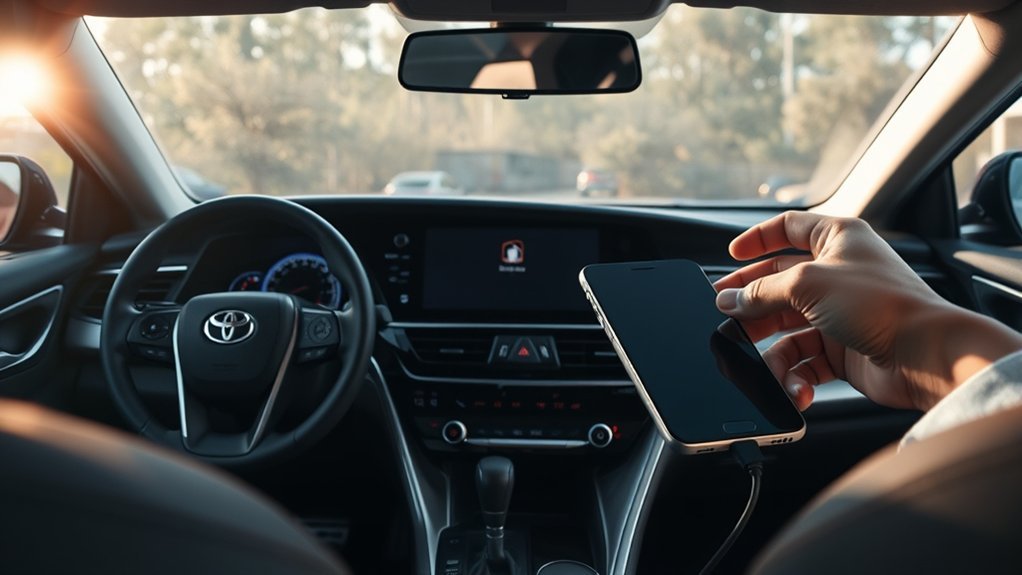
When you encounter issues with Android Auto in your Toyota Camry, the first step is to check your USB cord for compatibility. Make sure your phone’s software and the app are updated, as newer versions fix bugs and improve performance. Additionally, verify that all necessary permissions are granted for seamless functionality.
Cord Compatibility Issues
Cord compatibility issues can often hinder your Android Auto experience in the Toyota Camry. To guarantee peak functionality, always use a high-quality USB cord with a USB symbol, indicating better compatibility. Avoid low-quality cords from gas stations or dollar stores, as they typically fail to support the data transfer necessary for Android Auto. It’s best to stick with the original USB cord that came with your phone, as it assures a stable connection and seamless file transfer. If you’re facing connection problems, testing a different, high-quality USB cord can often resolve the issue. Cord length matters too; overly long cords may cause signal degradation, so opt for a length that suits your setup without compromising quality.
Software Update Importance
Keeping your phone’s software up to date is essential for a seamless Android Auto experience in your Toyota Camry. Regular updates enhance software compatibility, guaranteeing you access the latest features and bug fixes. Here are three key steps to improve your user experience:
- Check for Updates: Regularly update the Android Auto app to avoid glitches and enhance functionality.
- Clear App Cache: Clearing the app cache resolves temporary data issues, boosting performance.
- Update Android Version: Confirm your phone runs the latest Android version to minimize connection problems.
Permissions Verification Process
Having the right software updates is just one part of guaranteeing a smooth Android Auto experience. You also need to focus on permission troubleshooting. Check that all necessary permissions—like access to calendar, call logs, contacts, microphone, notifications, and SMS—are granted. Missing permissions can seriously hinder functionality. Regularly update these settings in your phone to prevent connectivity issues with Android Auto. If permissions were denied, you’ll need to make manual settings adjustments for full access. Reinstalling the Android Auto app can also prompt a fresh permissions request, guaranteeing everything is correctly set. Verifying and adjusting permissions now can help you avoid future issues and guarantee seamless operation when connecting to your Toyota Camry.
The Impact of Phone Settings on Android Auto Performance
When you guarantee that your phone settings are optimized for Android Auto, you’ll likely experience a smoother and more reliable connection in your Toyota Camry. Here are key adjustments to take into account:
- Permissions: Confirm all necessary permissions, like access to contacts and notifications, are granted. This enhances Android Auto’s functionality.
- Software Updates: Keep your phone’s software updated. Outdated software can lead to significant compatibility issues, resulting in frustrating connectivity problems.
- Bluetooth and USB: Regularly check Bluetooth settings by removing old connections and re-pairing. Use a high-quality USB cord, preferably the original, to ensure effective data transfer.
Still Can’t Connect? Here’s What to Try
If you’re still struggling to connect Android Auto in your Toyota Camry, a few troubleshooting steps can often resolve the issue. Start by checking your USB cord; using a high-quality, preferably original, cord is crucial since poor-quality cables can lead to connectivity problems. Next, verify that your phone and the Android Auto app are updated to the latest software versions for peak performance.
Common user mistakes include not granting necessary permissions for Android Auto. Make certain you allow access to contacts and notifications. Additionally, clearing the app cache can fix temporary data issues.
Another tip is to remove any previously connected devices from your car’s Bluetooth settings before trying to reconnect your phone. This fresh pairing can often resolve lingering issues. By following these additional troubleshooting tips, you’ll likely find a solution to your connectivity problems.
When to Seek Professional Help for Android Auto Issues
Despite your best troubleshooting efforts, there are times when seeking professional help for Android Auto issues becomes necessary. If you’ve tried everything without success, consider these scenarios:
- Persistent Connectivity Issues: If you’ve verified permissions and Bluetooth settings are correct but still face problems, deeper compatibility issues might exist that require professional diagnostics.
- Frequent App Crashes: If the Android Auto app crashes often, even after updates and clearing cache, a technician can assess underlying software conflicts.
- Physical Damage or Other Devices Struggling: Any visible damage to your infotainment system or if other devices also have trouble connecting may indicate a hardware issue, necessitating expert repair and evaluation.
In these cases, don’t hesitate to seek professional help. It can save you time and guarantee that your Android Auto functions seamlessly.
Frequently Asked Questions
Why Did Android Auto Suddenly Stop Working?
Android Auto suddenly stops working due to USB issues, outdated software, or insufficient permissions. For troubleshooting, check your USB cord, update the app, clear cache, and verify all necessary permissions are granted for proper functionality.
How to Get Android Auto on Toyota Camry?
To get Android Auto on your Toyota Camry, verify compatibility first. Follow these installation steps: download the app, connect via USB, and grant necessary permissions. This’ll liberate your driving experience from mundane distractions.
Why Is My Phone Suddenly Not Connecting to My Car?
Your phone might not connect due to compatibility issues or incorrect Bluetooth settings. Check the USB cord, update your software, make certain permissions are granted, and remove then re-pair your phone for a fresh connection.
Conclusion
If your Toyota Camry’s Android Auto still isn’t working, don’t throw in the towel just yet. Like a puzzle missing a piece, it often just takes one adjustment to complete the picture. Revisit the steps we’ve outlined, check your settings, and verify everything’s updated. If all else fails, seeking professional help might be your best bet. Stay connected and drive smart—Android Auto’s benefits are just a fix away!