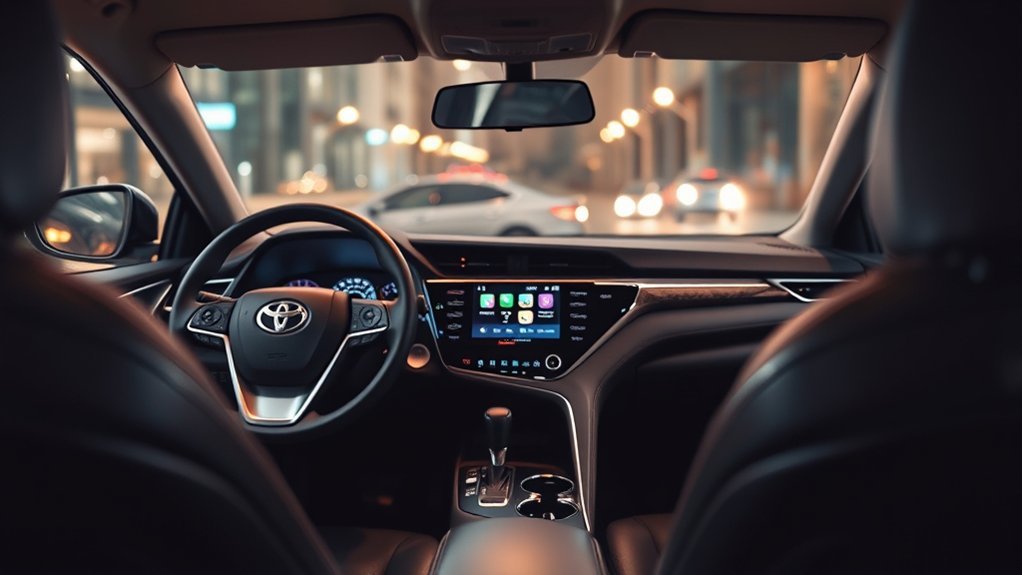
You can easily connect your Android phone to your Toyota Camry using Android Auto, either wired or wirelessly. For a wired connection, just use a certified USB cable while your car’s in Park mode. If you prefer wireless, make sure Bluetooth® is on and follow the prompts on your multimedia screen. Android Auto gives you access to navigation, music, and hands-free calls, making your drive safer and more enjoyable. Stick around to discover tips for troubleshooting and customizing your experience!
How to Connect Your Android Phone to Toyota Camry
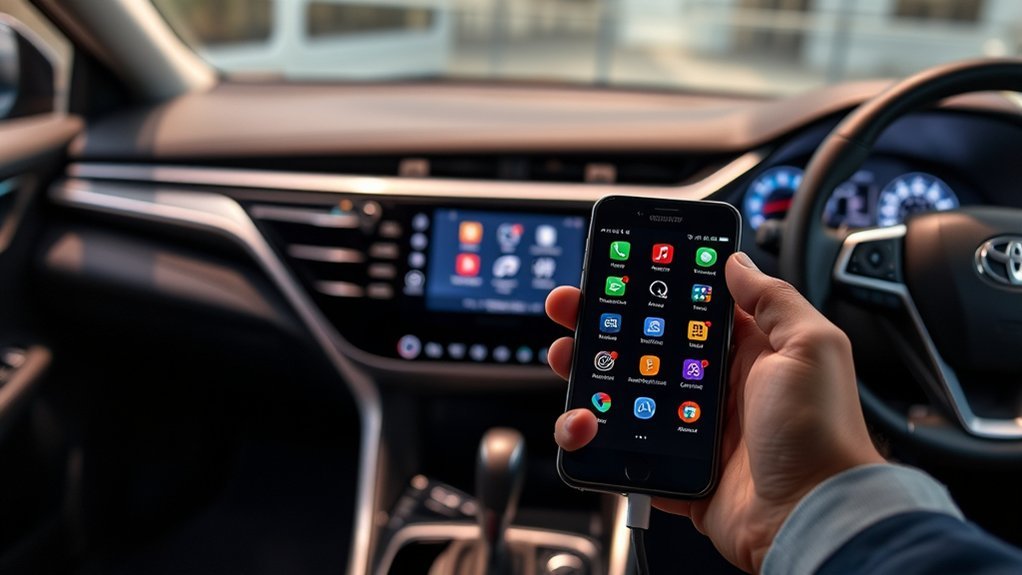
Connecting your Android phone to your Toyota Camry is a straightforward process that can enhance your driving experience. To start, make certain your vehicle is in Park (P) mode. If you prefer a wired connection, grab a manufacturer-certified USB cable and plug your phone into the vehicle. Follow the prompts on the multimedia system to launch Android Auto™, which seamlessly integrates your Android compatibility with various Toyota features.
For a wireless setup, verify Bluetooth® is ON. Head to the multimedia screen, select ‘Bluetooth® & devices,’ and add your phone by following the displayed prompts. Remember, your Android device should have Android™ 9 or earlier with the Android Auto™ app, or Android™ 10 or later with built-in functionality for the best connection. Once connected, you can access navigation, calls, messages, and music apps, making your drive not just easier but also more enjoyable.
Step-by-Step Guide to Setting Up Android Auto
Setting up Android Auto in your Toyota Camry is straightforward, whether you prefer a wired or wireless connection. First, we’ll walk through the wired connection process using a USB cable, then move on to the steps for a seamless wireless setup. Let’s get your phone connected so you can enjoy all the features Android Auto has to offer!
Wired Connection Process
To get Android Auto up and running in your Toyota Camry, you’ll want to follow a few straightforward steps. Enjoy the wired connection benefits, like faster charging and a stable connection. Here’s how to set it up:
- Park your Camry: Confirm your vehicle is in Park (P) mode.
- Connect your phone: Use a manufacturer-certified USB cable to connect your Android device to the car.
- Follow prompts: When prompted, select “Yes” to enable Android Auto™.
Once connected, Android Auto™ will launch automatically, giving you access to navigation, calls, and messages. If your device runs Android™ 9 or earlier, make sure you’ve got the Android Auto™ app installed for seamless compatibility. Enjoy the drive!
Wireless Connection Steps
Getting your Toyota Camry connected to Android Auto wirelessly is a breeze, and you’ll love the convenience it brings. First, make sure Bluetooth® is ON on your Android™ phone. Next, head to your vehicle’s multimedia screen, navigate to Settings, and select ‘Bluetooth® & devices.’ Click on ‘Add another device’ to begin the wireless setup. Your Camry will search for available devices—choose your phone from the list to initiate pairing. Follow the prompts on your phone, and when asked, select “Yes” to enable Android Auto™. Once connected, Android Auto™ will launch automatically, releasing connection benefits like navigation, calls, and messaging right at your fingertips. Enjoy your newfound freedom on the road!
Troubleshooting Common Android Auto Connection Problems
Experiencing issues with Android Auto in your Toyota Camry can be frustrating, but there are several straightforward steps you can take to troubleshoot common connection problems. Here are three key actions to evaluate:
- Check Your Setup: Confirm your Camry’s in Park (P) mode and use a manufacturer-certified USB cable to prevent connection errors.
- Bluetooth® Verification: Verify that Bluetooth® is enabled on your Android™ phone and that it’s properly paired with your car’s multimedia system. This is vital for app compatibility.
- Restart Devices: Sometimes, simply restarting both your phone and the vehicle’s multimedia system can resolve temporary glitches.
If connection fails during wireless setup, switch to a wired connection to pinpoint the issue. By following these steps, you can enhance your Android Auto experience and enjoy the freedom of seamless connectivity.
Wired vs. Wireless: Which Connection Is Right for You?
When deciding between a wired and wireless connection for your Toyota Camry’s Android Auto, think about what matters most to you. A wired setup offers a stable and fast connection, perfect for navigation and streaming, while a wireless option gives you the freedom to move around without cables. Ultimately, your choice should reflect your preferences for convenience versus performance.
Wired Connection Advantages
Wired connections for Android Auto™ offer several significant advantages that can enhance your driving experience. With wired performance, you’ll enjoy a more stable and faster data transfer, minimizing connectivity issues. Here are three key benefits:
- Connection Stability: Wired connections reduce latency, making navigation and communication seamless.
- Charging Capability: You can charge your Android™ phone while using it, ensuring your battery lasts on long drives.
- Access to Features: Some apps and features work better or are only available through a wired connection.
Wireless Connection Flexibility
While both wired and wireless connections for Android Auto™ offer unique advantages, opting for a wireless setup can greatly enhance your driving flexibility. With a Bluetooth setup, you can connect your phone without fumbling for cables, making it a breeze to hop in and go. The wireless advantages include a hands-free experience, allowing you to access navigation, calls, and music seamlessly while keeping your cabin clutter-free. Setting it up is straightforward; just navigate to your vehicle’s multimedia settings, select ‘Bluetooth® & devices’, and pair your phone. For those with Android™ 10 or later, this means instant connectivity without the hassle of a USB cable. So, if you’re looking for a more liberated driving experience, wireless is the way to go!
Choosing Based on Preference
Choosing the right connection method for Android Auto™ often boils down to personal preference and your driving habits. Here’s what to reflect upon:
- Wired Connection: Offers connection reliability and faster charging with a manufacturer-certified USB cable.
- Wireless Connection: Provides flexibility and ease without cables, utilizing Bluetooth for a seamless setup.
- User Interface Design: Both methods grant access to navigation, calls, messaging, and music, enhancing your driving experience.
If you prioritize stability and charging, go wired. If you value convenience and freedom from cables, wireless is your best bet. Ultimately, the choice hinges on what fits your lifestyle and how you want to interact with your vehicle’s technology.
Top Android Auto Features That Enhance Your Driving Experience

When you hit the road in your Toyota Camry, Android Auto™ brings a suite of features designed to elevate your driving experience. With smart navigation tools like Google Maps and Waze, you’ll receive real-time directions that help you reach your destination efficiently. Plus, hands-free calling keeps your focus on the road, letting you make and receive calls without taking your hands off the wheel.
Integrated messaging apps take convenience a step further; you can send and receive texts using voice command features, ensuring you stay connected while driving safely. And let’s not forget about entertainment—access your favorite music and podcast apps like Spotify and YouTube Music seamlessly. Android Auto™ integrates smoothly with your Camry’s multimedia system, launching apps automatically and simplifying navigation. With these features, your drive becomes not just a journey, but an enjoyable experience.
Explore the Android Auto Interface in Your Camry
Exploring the Android Auto interface in your Toyota Camry opens up a world of convenience and connectivity right at your fingertips. With its sleek design, you can enjoy a seamless driving experience that emphasizes safety and ease. Here are some standout features of the interface:
Exploring the Android Auto interface in your Toyota Camry brings unmatched convenience and connectivity, enhancing your driving experience with safety and ease.
- Intuitive Routing: Access Google Maps effortlessly to find your way without distractions.
- Music on Demand: Stream your favorite playlists from Spotify, all while keeping your focus on the road.
- Customizable Layout: Prioritize your go-to apps for quick access, enhancing your driving experience with user interface customization.
The Android Auto benefits extend beyond just connectivity; you can control everything using voice commands, ensuring you stay hands-free while routing. Whether you connect via USB or Bluetooth®, you’ll appreciate the smooth shift into this tech-savvy environment. Your journey just got a whole lot smarter and more enjoyable!
Use Android Auto for Hands-Free Communication
Using Android Auto for hands-free communication transforms how you interact while driving, making it safer and more convenient. With voice commands, you can easily make and receive calls without taking your hands off the wheel. Android Auto also lets you send and receive text messages through compatible apps, so you stay connected without distractions. Plus, message notifications pop up on your vehicle’s screen, allowing you to manage them effortlessly.
You’ll appreciate the contact access feature, which gives you quick access to your contacts and call history directly from the multimedia system. This streamlines your communication and enhances safety features by minimizing phone handling. The system supports various messaging apps, so you can choose the platform that works best for you. Embrace the freedom of hands-free communication; it’s all about keeping you focused on the road while staying connected.
Customizing Your Android Auto Experience
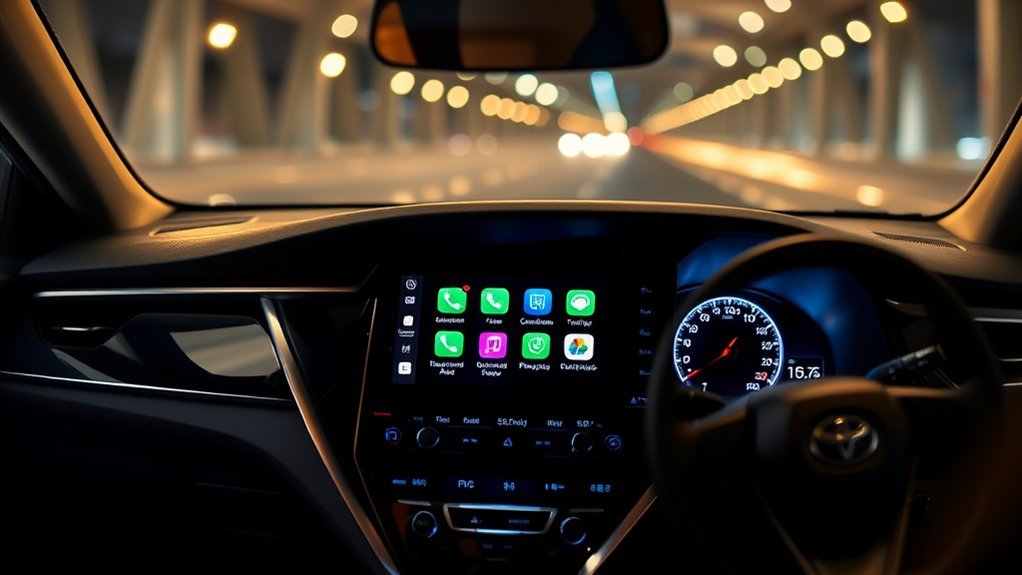
Customizing your Android Auto experience makes it easier to enjoy your favorite apps while staying focused on the road. With a few adjustments, you can create a seamless and personalized interface. Here are some key ways to enhance your setup:
- App Icon Arrangement: Rearrange your app icons for quick access to the apps you use most, making navigation a breeze.
- Voice Command Personalization: Set up custom voice commands to make calls or send messages hands-free, keeping your focus on driving.
- Manage Music Preferences: Link your favorite music apps for easy playback control, ensuring your tunes are just a voice command away.
Best Practices for Safe Android Auto Usage
Staying safe while using Android Auto in your Toyota Camry is a top priority. Always connect your Android device while your car’s in Park (P) mode; this guarantees a secure setup without distractions. Embrace voice commands to make calls, send messages, or navigate—this really assists with distraction reduction, letting you keep your focus on the road.
Make certain you use a manufacturer-certified USB cable for the best connectivity and performance. Regularly updating your Android Auto™ app is essential, too; it keeps you in the loop with the latest features and safety improvements. If you’re going wireless, verify Bluetooth® is ON during setup for a smooth connection between your phone and vehicle. By following these best practices, you’ll enhance your driving experience, allowing you to enjoy the benefits of Android Auto safely and efficiently.
Frequently Asked Questions
How to Use Android Auto on Toyota Camry?
To use Android Auto in your Toyota Camry, connect your smartphone via USB or Bluetooth. You can then access voice commands for navigation, messaging, and music, enhancing your drive with seamless smartphone integration.
What Are the Features of Toyota Android Auto?
Toyota’s Android Auto features voice commands for hands-free control, seamless app integration for navigation, music, and messaging, plus real-time notifications. It keeps you connected and focused while driving, enhancing your overall experience on the road.
What Does Android Auto Actually Do?
Android Auto transforms your drive, letting you navigate with voice commands and access compatible apps seamlessly. Imagine streaming your favorite music, sending messages hands-free, and staying connected—all while keeping your focus on the road.
Conclusion
In summary, connecting your Android phone to your Toyota Camry not only boosts your driving experience but also enhances safety. Did you know that using hands-free technology can reduce the risk of accidents by up to 30%? By leveraging Android Auto’s features, you’ll stay connected without taking your eyes off the road. So, whether you’re steering or chatting, enjoy the convenience and safety that comes with this modern tech integration. Happy driving!