Connecting an Android phone to a Toyota Camry is usually simple, but the exact steps depend on your Camry model year, phone, cable, and whether your vehicle supports wireless Android Auto. This guide walks you through the safest setup, the most common connection fixes, and the best Android Auto features to use once your phone is connected.
Quick Answer
To connect Android Auto in a Toyota Camry, put the car in Park, connect a compatible Android phone with a high-quality USB cable, and follow the prompts on the Camry screen. For wireless Android Auto, pair your phone through Bluetooth & Devices, then approve the Android Auto prompts on both screens.
Key Takeaways
- Toyota added standard Android Auto compatibility to the 2020 Camry in the U.S.; earlier Camry models may not support it from the factory.
- A wired setup is the most reliable option and requires an Android phone with Android 9.0 or higher, an active data plan, a compatible car, and a high-quality USB cable.
- Wireless Android Auto requires a compatible Camry, a compatible Android phone, an active data plan, and 5 GHz Wi-Fi support.
- Most connection problems come from weak USB cables, outdated phone software, old Bluetooth pairings, disabled permissions, or using the wrong USB port.
At a Glance
| Time Required | 3–10 minutes |
| Difficulty | Easy |
| Tools Needed | Compatible Android phone, active data plan, and a high-quality USB cable for wired setup |
| Cost | Free, unless you need a better USB cable or an aftermarket adapter |
Before You Start: Check Camry and Phone Compatibility
Before you try to connect, make sure your Camry and phone support Android Auto. Toyota says the 2020 Toyota Camry added standard Android Auto compatibility in the U.S. If you drive a 2019 or older Camry, check your exact multimedia system, region, and owner’s manual because factory Android Auto may not be available.
For a wired Android Auto connection, Google says you need an Android phone with Android 9.0 or higher, an active data plan, a compatible car, and a high-quality USB cable. For wireless Android Auto, Google says your phone also needs 5 GHz Wi-Fi support, and wireless projection works with Android 11.0 or higher on compatible vehicles and stereos.
You can also check Toyota’s official support pages, the Toyota Owners manuals library, or the Android Auto vehicle compatibility list for your exact model year and trim.
Note: Wireless Android Auto is not available on every Camry. Toyota says wireless Android Auto is available on select 2022 and newer Toyota vehicles, so check your vehicle’s features in the Toyota app or your owner’s manual.
[Products Worth Considering]

This heavy-duty steering wheel cover is made from thick microfiber leather with a natural rubber inner layer for a secure, comfortable grip. Its anti-slip, full-surround design helps improve control and driving safety while staying breathable and odor-free for everyday use. Designed to fit standard steering wheels, it adds a sporty look and lasting protection to your vehicle interior.

This CANBUS wiring harness is designed to connect compatible Android head units to select Toyota models with mid-trim OEM JBL systems, helping simplify installation and reduce cutting or splicing. It supports retained factory features such as steering wheel controls, factory backup camera, original USB, and JBL amplifier functions when the vehicle and radio are compatible. Built for select Toyota fitments, it offers a plug-and-play upgrade path for a smoother stereo replacement.

Upgrade your Toyota interior with this custom-fit steering wheel cover designed for a wide range of compatible models. Made from soft microfiber leather with an anti-slip lining, it enhances grip, adds comfort, and helps protect your steering wheel from everyday wear, dirt, fading, and scratches. The easy-to-install design makes it a practical way to refresh a worn steering wheel and improve your cabin’s look.
How to Connect Your Android Phone to Toyota Camry
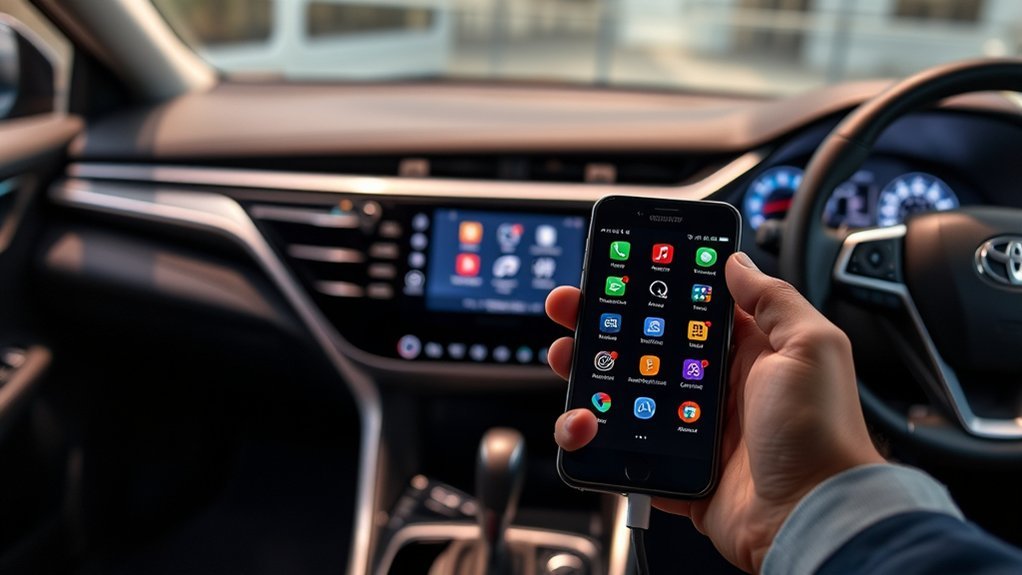
Start with the car safely stopped and shifted into Park. Android Auto setup requires you to approve prompts on your phone and the Camry multimedia screen, so do not try to set it up while driving.
Warning: Complete pairing, permissions, and cable changes while parked. NHTSA warns that any activity that takes attention away from driving, including using a phone or adjusting an infotainment system, can increase crash risk.
Wired Android Auto Setup
- Start your Camry and shift to Park. Keep the vehicle stopped while you complete setup.
- Unlock your Android phone. Make sure mobile data is on and your phone is updated.
- Use a high-quality USB cable. Plug the cable into the Camry’s Android Auto-capable USB port, not just a charge-only port.
- Approve the prompts. Follow the instructions on your phone and the Toyota multimedia screen. Select “Yes” if the car asks whether to use Android Auto.
- Wait for Android Auto to launch. Once connected, the Android Auto interface should appear on the Camry display.
A wired connection is the best first choice if this is your first time setting up Android Auto. It is more stable than wireless, charges your phone at the same time, and makes troubleshooting easier if something goes wrong.
Wireless Android Auto Setup
If your Camry supports wireless Android Auto, you can connect without leaving your phone plugged in.
- Turn on Bluetooth and Wi-Fi on your Android phone.
- Open the Camry multimedia settings. Go to Bluetooth & Devices.
- Select “Add another device.” Your Camry will search for nearby phones.
- Choose your phone from the list on the Camry screen.
- Confirm the PIN on both the phone and the multimedia screen if prompted.
- Approve Android Auto permissions for calls, messages, notifications, and location.
- Let Android Auto launch. After the first setup, your phone should reconnect automatically when you start the vehicle.
Pro Tip: If wireless setup fails, connect once with a USB cable first. After Android Auto works through USB, remove the cable and try wireless pairing again.
Troubleshooting Common Android Auto Connection Problems
If Android Auto will not connect to your Toyota Camry, work through the simple fixes first. Most issues are caused by the cable, phone permissions, Bluetooth pairing, or outdated software.
| Problem | Likely Cause | Fix |
|---|---|---|
| Android Auto does not launch | Bad cable, wrong USB port, or permissions not approved | Try a different high-quality USB cable, use the data USB port, and approve all prompts |
| Phone charges but does not connect | Charge-only cable or charge-only USB port | Use a data-capable USB cable and check the owner’s manual for the correct port |
| Wireless Android Auto keeps dropping | Weak Wi-Fi/Bluetooth connection or old pairing data | Forget the car on your phone, delete the phone from the Camry, then pair again |
| Apps are missing | Apps are hidden from the launcher or not Android Auto-compatible | Open Android Auto settings on your phone and customize the launcher |
| Voice commands do not work | Microphone permission, assistant settings, or app update issue | Check microphone permissions, update Google apps, and restart the phone |
[Products Worth Considering]

This front bumper license plate bracket is designed for Toyota Camry and Camry Hybrid models from 2018 to 2026, offering a secure and street-legal way to mount your plate. Built from durable, rust-proof plastic with included screw bolts and a wrench, it helps protect your bumper paint while making installation straightforward. The bracket fits US and Canada plates and is made to keep your license plate and registration sticker visible.

This auxiliary jack adapter restores a broken or missing AUX connection so you can stream audio from your device through your Toyota stereo system. It is designed for compatible Toyota models and uses an 8-pin connector for a direct plug-and-play replacement. Built for reliable audio transmission, it helps bring back clear in-car sound without complicated installation.

Keep your Toyota navigation system current with this SD card map update designed for select factory-installed GPS units. It provides updated coverage for the USA and Canada, including roads, points of interest, and key travel locations for smoother trip planning. Easy plug-and-play installation helps restore accurate guidance without complicated setup.
Quick Reset Steps
- Restart your Android phone.
- Turn the Camry off, open the driver door, wait a minute, then restart the vehicle.
- Update Android, Google Maps, Messages, and related Google apps.
- Remove old Bluetooth pairings from both the phone and the Camry.
- Try a short, high-quality USB cable for wired setup.
- Check whether Android Auto is disabled for your vehicle in your phone’s Android Auto settings.
Wired vs. Wireless: Which Connection Is Right for You?
Both wired and wireless Android Auto can work well in a Toyota Camry. The right choice depends on what matters most to you: reliability, charging, or convenience.
[Products Worth Considering]

This Yangday steering wheel cover is designed for a custom fit on select Toyota models, helping improve grip, comfort, and control during everyday driving. Its breathable leather construction and non-slip inner lining offer a secure feel, while the sport-inspired design adds a stylish upgrade to the car interior. The cover is easy to install and helps protect the original steering wheel from heat, wear, and seasonal discomfort.

This USB panel mount car charger provides a clean flush-fit extension solution for compatible Toyota dashboards, delivering both charging and data transfer through a male to female USB connection. Designed for plug-and-play installation, it supports a wide range of Toyota models and helps replace broken or outdated USB ports while protecting devices from overcurrent, overheating, and overcharging. Its durable PVC and copper construction supports reliable use for phones, tablets, GPS units, and CarPlay or Android Auto accessories.
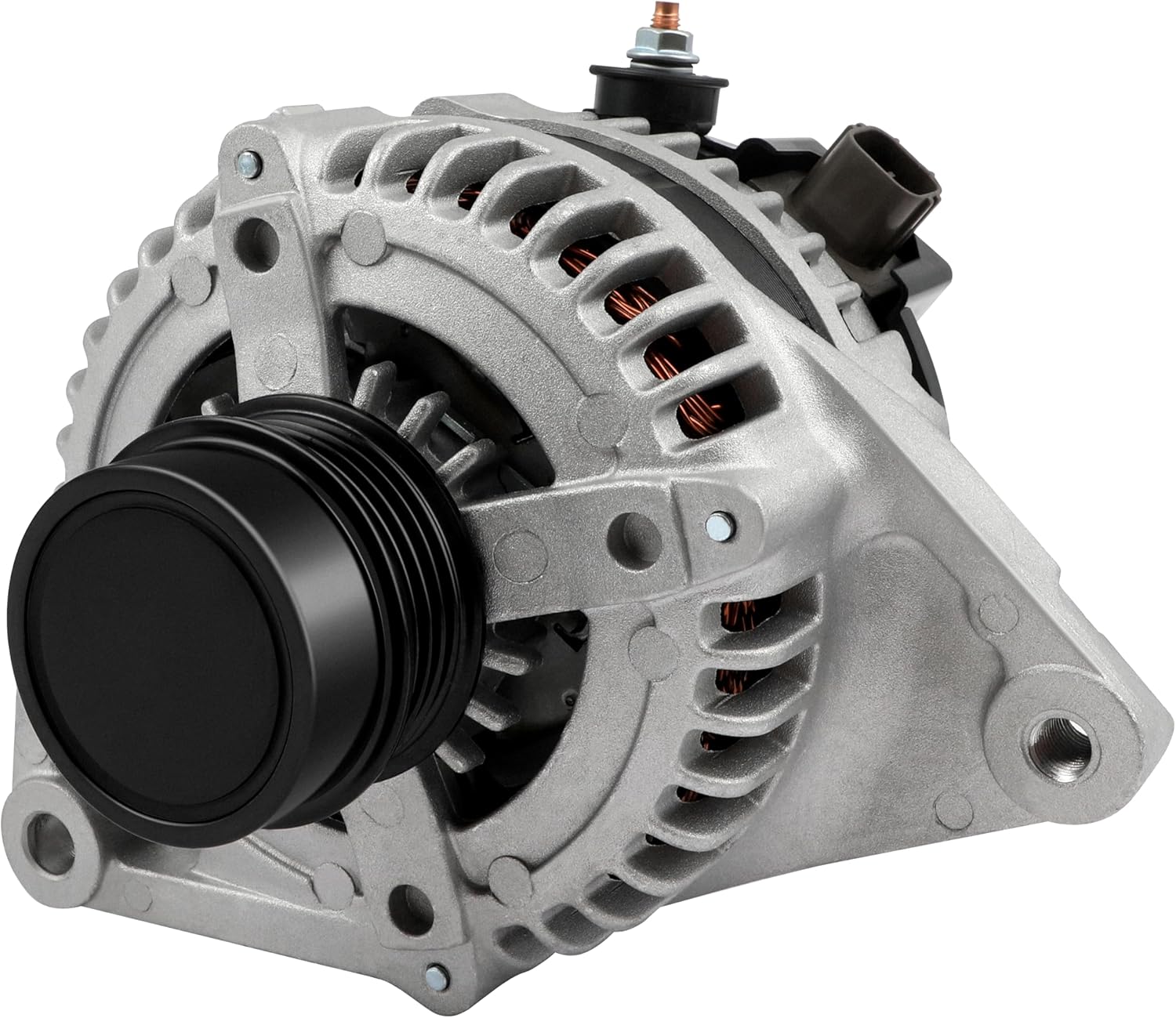
This high output alternator is designed to fit select Toyota, Scion, and RAV4 2.5L applications, delivering reliable charging performance for everyday driving. Built with a 12-volt, 100-amp design and precision-engineered components, it helps support battery recharge, stable electrical output, and consistent operation when your vehicle shows signs of charging issues.
Wired Connection Advantages
A wired Android Auto connection is best if you want the most stable setup. It is also the easiest method to troubleshoot because it does not depend on wireless projection.
- Better reliability: A cable usually gives you fewer random disconnects.
- Phone charging: Your phone can charge while navigation and music are running.
- Simpler troubleshooting: If Android Auto fails, you can quickly test another cable or USB port.
Wireless Connection Advantages
Wireless Android Auto is best for convenience. Once paired, your phone can stay in your pocket or bag, and Android Auto can launch without plugging in a cable.
- Cleaner cabin: No cable clutter around the console.
- Faster daily use: Your phone can reconnect automatically after the first setup.
- Good for short trips: It is convenient when you do not need to charge your phone.
Which One Should You Use?
Use wired Android Auto for long drives, low battery, or the most reliable connection. Use wireless Android Auto for quick trips and a cleaner setup. If your Camry supports wireless but the connection is unstable, wired is the better everyday choice.
Top Android Auto Features That Enhance Your Driving Experience

Android Auto brings phone apps to your Camry display in a simpler, driving-friendly layout. Google says Android Auto can help you use navigation, maps, calls, text messages, and music on a compatible car display.
- Navigation: Use Google Maps or Waze for turn-by-turn directions, traffic, and rerouting.
- Calls: Make and receive calls through the car’s microphone and speakers.
- Messages: Hear messages read aloud and respond by voice through supported messaging apps.
- Music and podcasts: Use compatible apps such as Spotify, YouTube Music, Audible, and podcast apps.
- Voice control: Use the voice button or assistant prompt to keep more attention on the road.
NHTSA says reading or sending a text for 5 seconds at 55 mph is like driving the length of a football field with your eyes closed.
Explore the Android Auto Interface in Your Camry
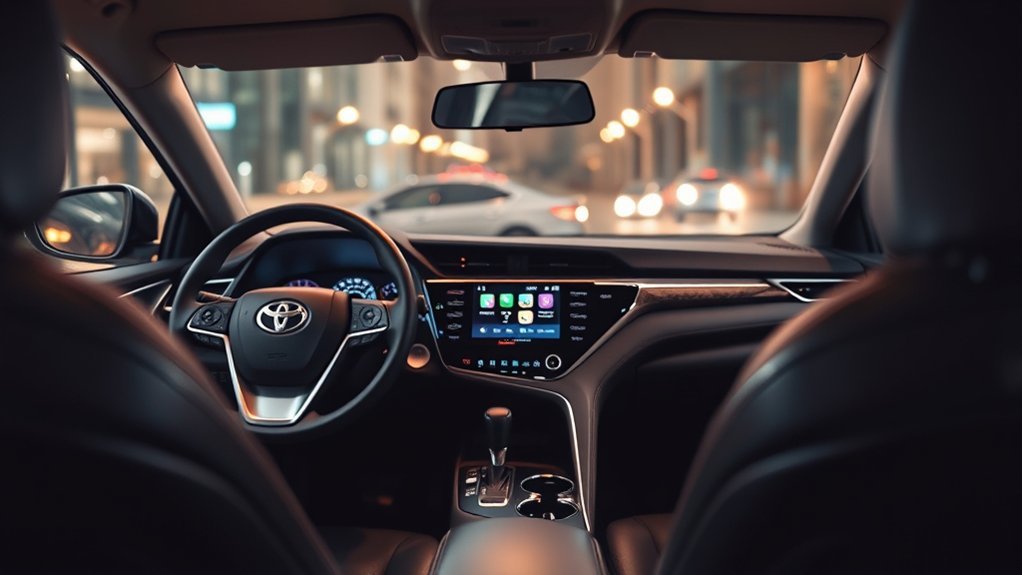
The Android Auto interface is designed to keep common actions easy to reach. Once connected, you can open apps from the launcher, switch between navigation and audio, and return to the Toyota multimedia screen when needed.
In many newer Toyota systems, you can also press and hold the steering wheel voice button to start the phone assistant while Android Auto is connected. That makes it easier to ask for directions, play music, call a contact, or send a message without reaching for your phone.
Use Android Auto for Hands-Free Communication
Android Auto can make communication easier, but it is not a free pass to multitask. Use it for short, necessary calls and simple voice replies. Let longer texts, group chats, and complicated tasks wait until you are parked.
- Calls: Say the contact name or use the on-screen phone app when stopped.
- Texts: Let Android Auto read messages aloud and reply by voice only when safe.
- Notifications: Limit alerts so the screen does not keep pulling your attention away from driving.
Customizing Your Android Auto Experience
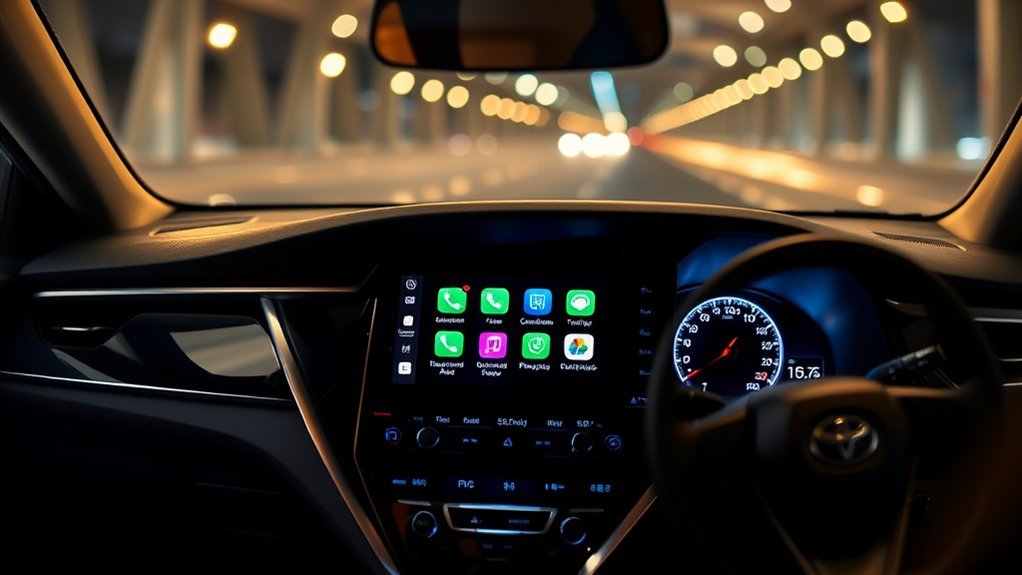
You can customize Android Auto from your phone to make your Camry screen cleaner and easier to use.
- Rearrange app icons: Move your most-used navigation, music, and message apps higher in the launcher.
- Hide apps you do not use: A shorter app list is easier to scan at a glance.
- Set a default navigation app: Use the app you trust most for traffic and routes.
- Choose notification behavior: Reduce pop-ups if they distract you.
- Update apps regularly: App updates often fix connection, audio, and voice-command problems.
Pro Tip: Keep the Android Auto launcher simple. Place maps, phone, messages, and your main audio app first, then hide apps you never use in the car.
Best Practices for Safe Android Auto Usage
Android Auto is most helpful when it reduces phone handling, not when it becomes another distraction. Set it up before you drive and keep your attention on the road.
- Set your route before shifting out of Park.
- Use voice commands for simple actions.
- Do not browse playlists, long messages, or app menus while moving.
- Use Do Not Disturb or limited notifications during longer drives.
- Pull over safely if you need to fix a connection problem.
- Check local hands-free and phone-use laws before relying on in-car calling or messaging.
Frequently Asked Questions
How do I use Android Auto on a Toyota Camry?
Shift the Camry into Park, unlock your Android phone, connect it with a high-quality USB cable, and approve the prompts on your phone and the Toyota multimedia screen. If your Camry supports wireless Android Auto, pair your phone through Bluetooth & Devices and approve the wireless Android Auto prompts.
What year Toyota Camry has Android Auto?
In the U.S., Toyota added standard Android Auto compatibility to the 2020 Camry. Availability can vary by country, trim, and multimedia system, so check the Toyota Owners manual library or your vehicle’s multimedia features if you are unsure.
Can Toyota Camry use Android Auto wirelessly?
Some newer Camry models support wireless Android Auto, but not all do. Toyota says wireless Android Auto is available on select 2022 and newer vehicles. Check your owner’s manual, Toyota app, or multimedia settings to confirm your exact Camry.
Why is Android Auto not working in my Camry?
Common causes include a weak USB cable, the wrong USB port, missing phone permissions, outdated apps, old Bluetooth pairings, or a Camry model that does not support Android Auto. Try a different data-capable cable, update your phone, delete old pairings, and reconnect while parked.
What does Android Auto actually do?
Android Auto displays compatible phone apps on your Camry screen in a driving-friendly layout. It can help with navigation, calls, text messages, music, podcasts, and voice control while reducing the need to handle your phone.
Conclusion
Android Auto can make your Toyota Camry easier to navigate, call from, message through, and enjoy on the road. For the smoothest setup, start with a wired connection, use a high-quality USB cable, approve all permissions, and confirm that your exact Camry supports Android Auto. If your model also supports wireless Android Auto, pair it once and enjoy the cable-free convenience on future drives.
Sources
- Google Android Auto Help: Get started with Android Auto — phone requirements, wired setup needs, wireless requirements, and supported features
- Android Auto vehicle compatibility list — official compatibility reference for vehicles and stereos
- Toyota Support: How do I setup Android Auto? — Toyota’s official wired Android Auto setup guidance
- Toyota Support: Do I need a USB connection to use Android Auto? — Toyota guidance on wired and wireless availability
- Toyota USA Newsroom: 2020 Toyota Camry — Toyota’s announcement of standard Android Auto compatibility for the 2020 Camry
- NHTSA: Distracted Driving — safety guidance and distracted-driving statistics