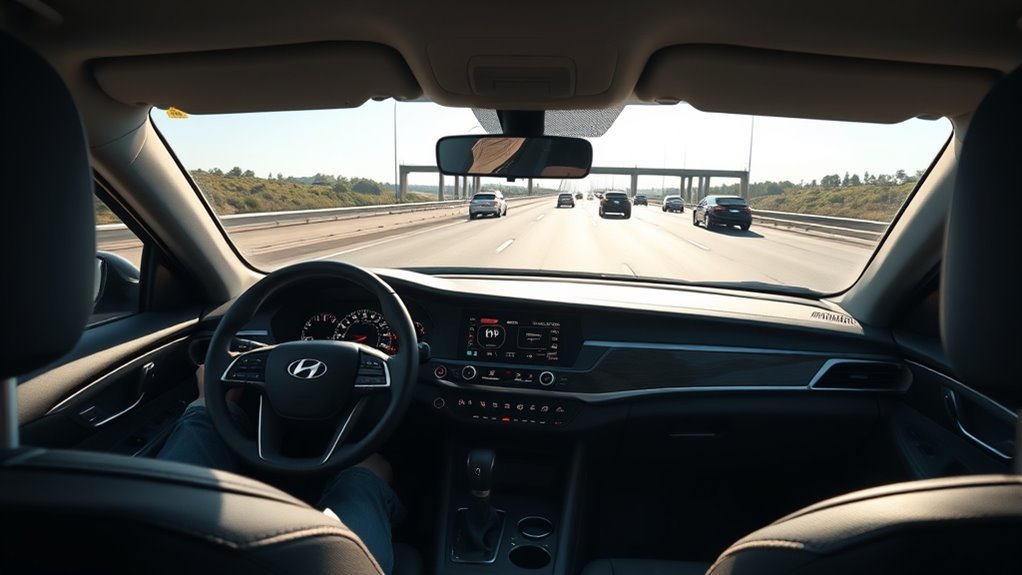
Hyundai Sonata Highway Driving Assist can reduce some of the work involved in steady highway driving by combining Smart Cruise Control with Lane Following Assist. It is still a hands-on driver-assistance system, not self-driving technology. Exact controls, operating conditions, and availability vary by model year, trim, equipment, and market.
Quick Answer
Sonata Highway Driving Assist helps maintain your selected speed, following distance, and lane position on supported highways. Enable HDA in the driver-assistance settings, activate Smart Cruise Control and Lane Following Assist, and confirm the HDA indicator is green. Keep your hands on the wheel and remain ready to brake or steer.
Key Takeaways
- HDA combines speed and distance assistance from Smart Cruise Control with steering support from Lane Following Assist.
- HDA works only on supported controlled-access highways and may become unavailable near interchanges, junctions, toll areas, or poorly marked roads.
- There is no universal 37-mph activation rule for every Sonata. Follow the indicators and instructions in your model-year owner’s manual.
- The current 2026 U.S. Sonata lists standard HDA on the N Line and Limited Hybrid, not HDA II.
- HDA is hands-on assistance. You remain responsible for steering, braking, speed, lane changes, and collision avoidance.
At a Glance
| Time Required | About 2–5 minutes to check the settings and controls |
| Difficulty | Easy, but practice in light traffic before using it on a long trip |
| Tools Needed | No tools; your model-year owner’s manual is recommended |
| Cost | No separate activation cost when the vehicle is equipped with HDA |
Warning: Highway Driving Assist is not autonomous driving. Keep your hands on the steering wheel, watch the road, check surrounding traffic, and be prepared to brake or steer immediately. Do not use HDA when weather, traffic, road markings, or visibility make assisted driving unreliable.
What Sonata Highway Driving Assist Does
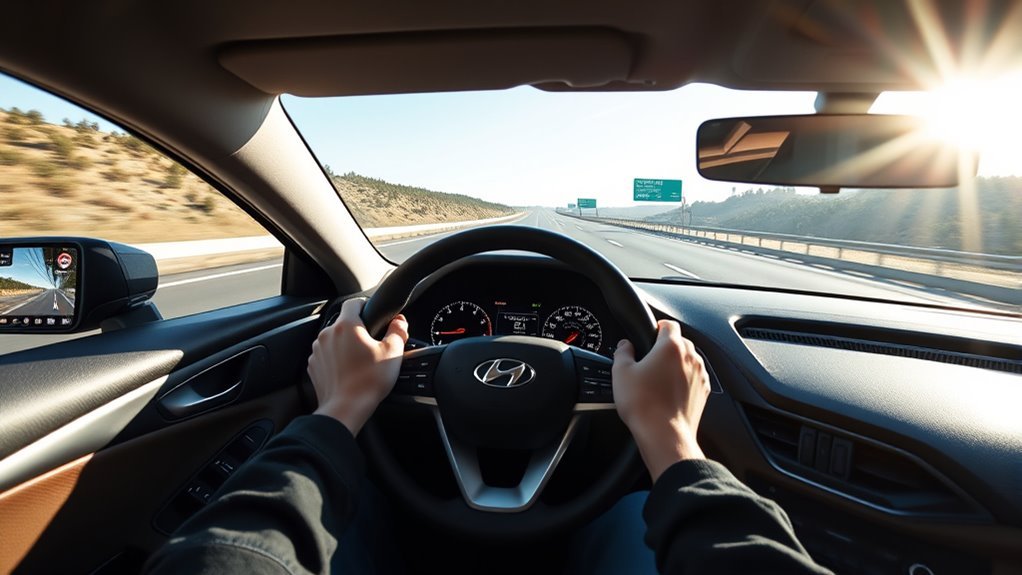
Sonata Highway Driving Assist combines two main driver-assistance features. Smart Cruise Control helps maintain your selected speed and following distance. Lane Following Assist provides steering support to help keep the car near the center of a detected lane.
When the vehicle recognizes a supported highway and the required systems are active, HDA coordinates their operation. It can make small steering, acceleration, and braking adjustments. You still control the vehicle and must supervise every action.
| Feature | What It Helps With | What You Must Do |
|---|---|---|
| Smart Cruise Control | Selected speed, following distance, acceleration, and braking | Watch traffic and brake when the system does not respond safely |
| Lane Following Assist | Steering support near the center of a detected lane | Keep your hands on the wheel and steer through unclear or difficult sections |
| Highway Driving Assist | Coordinates speed, distance, and lane-centering assistance on supported highways | Remain attentive and take full control whenever conditions change |
Lane Keeping Assist is related but different. It mainly helps when the vehicle begins to leave a detected lane without a turn signal. Lane Following Assist provides more continuous lane-centering support when its operating conditions are satisfied.
HDA can assist with steering and speed at the same time, but you still drive and monitor the vehicle.
How to Activate and Use HDA Step by Step
Button names and menu paths can vary slightly by Sonata model year. Before driving, confirm that your car is equipped with HDA and review the Highway Driving Assist section of its owner’s manual.
- Park safely and check the HDA setting. With the vehicle on, open the infotainment system’s vehicle settings. Look under a path such as Vehicle > Driver Assistance > Driving Convenience > Highway Driving Assist. Turn the feature on if your Sonata provides this setting.
- Enter a supported controlled-access highway. HDA generally works on recognized main sections of selected highways. It may remain unavailable on ordinary streets, ramps, interchanges, or junctions.
- Activate Smart Cruise Control. Use the steering-wheel driving-assistance or cruise-control button, then set your desired speed with the appropriate switch.
- Select a following-distance level. Choose enough space for traffic, weather, speed, and road conditions. The displayed setting is not a guarantee of a safe stopping distance.
- Turn on Lane Following Assist. Use the lane-driving-assistance button if LFA is not already active. Confirm that the lane or steering indicator shows that lane guidance is available.
- Check the HDA indicator. A green HDA indicator normally means the system is operating. A gray indicator generally means it is enabled but waiting for one or more conditions.
- Keep both hands available on the wheel. Watch the road, mirrors, surrounding vehicles, lane markings, speed-limit signs, and system messages.
- Take over whenever needed. Brake, steer, cancel cruise control, or switch off the relevant assistance system when HDA does not respond as expected.
Note: Do not press and hold the Smart Cruise Control button in an attempt to force HDA to activate. HDA operates only when the required systems, road recognition, settings, and driving conditions are satisfied.
Activating Smart Cruise Control
Press the appropriate cruise or driving-assistance button on the steering wheel and use the speed-control switch to set your speed. The instrument cluster should show the set speed and selected following-distance level.
Smart Cruise Control can slow the Sonata when it detects a vehicle ahead and can accelerate again when conditions allow. Its detection and response may be limited by sharp curves, motorcycles, stopped vehicles, cut-in traffic, bad weather, dirty sensors, or unusual road layouts.
Engaging Lane Following Assist
Use the lane-driving-assistance control to activate Lane Following Assist when needed. Watch the cluster display. A white or gray steering indicator may show that the system is enabled or waiting, while a green indicator usually shows that steering assistance is active. Indicator designs differ by model year.
LFA may stop providing steering support when lane markings disappear, the camera view is blocked, the road curves sharply, the vehicle enters a construction zone, or you apply a strong steering input. Keep steering even while LFA is active.
Confirming HDA Is Operating
Do not assume HDA is active simply because cruise control is on. Confirm the HDA status on the instrument cluster. If the HDA symbol is gray, check that you are on a supported highway, SCC and LFA are active, the sensors are clear, and the navigation system is working normally.
Canceling HDA and Taking Control
You can normally interrupt or cancel speed assistance by pressing the brake pedal, using the cruise cancel control, or switching off Smart Cruise Control. Steering firmly will override steering assistance. You can also switch off Lane Following Assist or deselect HDA in the settings when parked.
If the cluster displays a hands-on warning, hold the steering wheel securely and resume active control. Continued hands-off driving can cause the system to cancel assistance or limit operation.
When HDA Activates: Road, Speed, and Map Rules
HDA is designed for supported main sections of controlled-access highways. These roads have limited entrances and exits and generally allow uninterrupted traffic flow. The system may not operate on interchanges, junctions, ramps, toll areas, ordinary streets, or unsupported highway sections.
Road Type Requirements
The vehicle uses navigation and road information to determine whether it is on a supported highway. Lane markings must also be clear enough for the forward camera to detect the lane. HDA may move between operating and standby states as road recognition or lane visibility changes.
Do not rely on HDA simply because a road looks like an interstate. Navigation coverage, map data, road classification, construction changes, and your Sonata’s market specification can affect availability.
Speed and Map Limits
There is no single 37-mph HDA activation rule that applies to every Sonata. Basic HDA and optional lane-change systems can have different operating ranges, and Hyundai has changed conditions across vehicles and model years. Use your cluster indicators and owner’s manual rather than assuming a fixed threshold.
Some equipped Hyundai vehicles can use navigation information to assist with highway speed changes, curves, or speed zones. This function may be listed separately as Navigation-based Smart Cruise Control. It does not guarantee that the displayed or selected speed matches every current road sign.
Pro Tip: Treat the posted roadside sign as the controlling speed information. Map data can be delayed, incomplete, or different from temporary construction limits.
How Smart Cruise and Lane Following Work Together in the Sonata
Smart Cruise Control handles longitudinal assistance. This means it can help control forward speed, acceleration, braking, and distance from a detected vehicle. Lane Following Assist handles lateral assistance by applying small steering inputs to help keep the Sonata near the center of the lane.
HDA coordinates these systems on supported highways. One system can become limited while another remains available. For example, SCC may continue controlling speed when lane markings are unclear, but lane-centering assistance may stop. Similarly, LFA may remain active while cruise control is canceled.
You must monitor both the road and the instrument cluster. A system that is switched on is not necessarily providing active assistance at that moment.
Does the Sonata Include HDA II?
Do not assume that a Sonata with Highway Driving Assist also has Highway Driving Assist II. For the 2026 U.S. Sonata lineup, Hyundai lists standard HDA on the N Line and Limited Hybrid. The U.S. feature listing does not identify these trims as having HDA II.
Hyundai has advertised HDA II on Sonata versions in certain other markets. Equipment can therefore differ between U.S., Canadian, European, Korean, and other regional models. A video or article about an overseas Sonata may describe features your car does not have.
[Products Worth Considering]

The WOLFBOX G840S mirror dash cam combines a large 12-inch display with front 4K UHD and rear 1080p recording to improve driving visibility and reduce blind spots. Built-in Wi-Fi, GPS tracking, wide-angle lenses, and enhanced night vision help deliver clear footage, easy playback, and safer everyday driving. It also supports 24-hour parking monitoring for added protection when your vehicle is parked.

The VIOFO A229 Pro delivers sharp front and rear recording with dual STARVIS 2 sensors, capturing vivid 4K and 2K footage for clearer license plates and road details day or night. HDR, voice control, 5GHz Wi‑Fi, and GPS logging make it easy to use and highly dependable for daily driving and parking protection. A built-in supercapacitor, loop recording, and included CPL filter further enhance reliability and video clarity in demanding conditions.

The 70mai A810 Lite delivers ultra-clear front and rear recording with 4K front and 1080P rear capture, helping preserve important driving details for incidents, insurance claims, and everyday commutes. It combines HDR night vision, 4G LTE remote access, Wi-Fi 6 app control, GPS tracking, and 24-hour parking protection in a compact design built for reliable all-day use.
Automatic Lane Change
Standard HDA on the current U.S. Sonata does not mean the vehicle will perform an assisted lane change. You remain responsible for checking mirrors, checking blind spots, signaling, steering, and completing every lane change.
On Hyundai vehicles that are specifically equipped with Highway Lane Change Assist or HDA II, the driver must still supervise the maneuver and keep a hand on the steering wheel. The system may refuse or cancel a lane change when it detects traffic, an unsuitable lane line, a narrow road, a sharp curve, a system warning, or another unsafe condition.
Cut-In Vehicle Response
Smart Cruise Control may adjust speed when it detects a vehicle entering your lane, but its response depends on detection distance, relative speed, road shape, sensor visibility, and surrounding traffic. It may react late or fail to identify the situation as you expect.
Standard Sonata HDA should not be described as performing guaranteed collision-prevention steering maneuvers. Brake or steer immediately when a cut-in vehicle creates a risk.
Sonata HDA Sensors and Supporting Technology
HDA primarily depends on the forward-view camera, front radar, navigation information, vehicle-speed data, and steering and braking systems. Some vehicles with more advanced assistance features may also use front-corner or rear-corner radar.
- Forward camera: Reads lane markings and helps detect vehicles and other objects ahead.
- Front radar: Measures the distance and relative speed of vehicles ahead.
- Navigation and GPS: Help determine whether the vehicle is on a supported highway.
- Corner radar, if equipped: Supports blind-spot and surrounding-vehicle detection for certain assistance features.
- Vehicle control systems: Apply limited steering, braking, and acceleration assistance when operating conditions are met.
Dirt, snow, ice, stickers, damage, windshield tint near the camera, bumper repairs, misalignment, or heavy rain can reduce sensor performance. Do not place objects over the camera or radar areas.
When Not to Use HDA: Weather and Difficult Roads
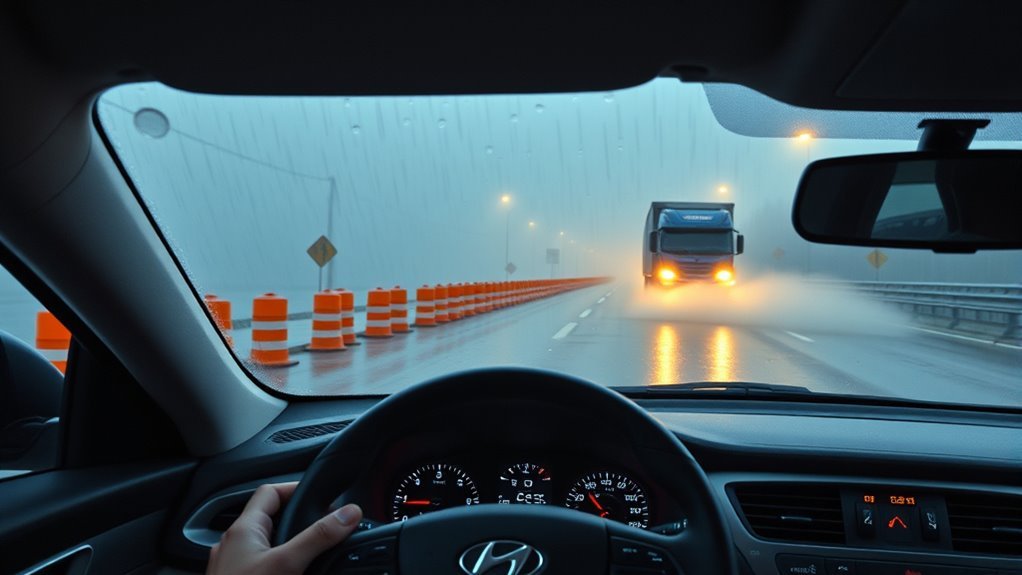
HDA works best when the sensors have a clear view, lane markings are easy to detect, and traffic moves predictably. Turn it off or avoid activating it when those conditions are missing.
Because HDA needs clear lanes and reliable sensors, avoid it in bad weather or unclear road conditions.
- Heavy rain, snow, fog, or blowing dust: The camera may not see lane markings, and radar performance can become less reliable.
- Construction zones: Temporary lines, barriers, cones, and shifted lanes can confuse lane detection.
- Interchanges and junctions: HDA may stop operating where highway lanes divide, merge, or cross.
- Sharp curves or narrow lanes: The car may not remain centered as you expect.
- Heavy or rapidly changing traffic: Frequent cut-ins and sudden braking can exceed the system’s ability to respond smoothly.
- Worn, covered, or conflicting lane markings: LFA may become unavailable or follow the wrong visual cue.
- Slippery roads: Steering or braking assistance cannot overcome limited tire grip.
- Blocked or dirty sensors: Snow, mud, insects, or road salt can prevent normal detection.
- Emergency scenes or unusual traffic control: Police directions, hand signals, temporary signs, and stopped emergency vehicles require direct driver judgment.
- Towing or carrying unusual loads: Follow your model-year manual because some driver-assistance features are limited or disabled when a trailer is detected.
Disengage HDA before the situation becomes difficult. Early manual control gives you more time to judge traffic, choose a lane, and slow safely.
Common Problems, Indicators, and Troubleshooting
When HDA does not operate as expected, first check the cluster status, road type, SCC and LFA settings, and sensor condition. Do not repeatedly attempt to activate the system while driving through a complex area.
| Indicator or Problem | Likely Meaning | What to Do |
|---|---|---|
| HDA indicator is gray | HDA is enabled but waiting for a supported road or another operating condition | Check the road type, SCC, LFA, lane detection, navigation operation, and system settings |
| HDA indicator is green | HDA is providing assistance | Continue holding the wheel and monitoring the road; green does not mean autonomous driving |
| Lane lines or steering indicator turn gray | Lane markings are not being detected or steering assistance is on standby | Steer manually and look for worn lines, glare, rain, construction markings, or a blocked camera |
| “Keep hands on steering wheel” warning | The system has not detected adequate steering-wheel contact or driver input | Grip the wheel securely and resume active steering supervision |
| HDA turns off near a ramp or interchange | The vehicle has left a supported highway main section | Take full control; this can be normal system behavior |
| HDA does not adjust to a speed-limit change | Navigation-based speed assistance may be unavailable, disabled, or using different map data | Follow the posted sign and change the set speed manually |
| “Check Driver Assistance System” or similar warning | A sensor, control unit, calibration, or system fault may be present | Drive manually, clean visible sensor areas, restart only when safely parked, and contact a Hyundai dealer if the warning remains |
| Steering assistance pulls or feels inaccurate | Lane markings, alignment, camera calibration, road crown, tires, or repairs may be affecting operation | Turn off lane assistance and have the vehicle inspected if the behavior continues |
Pro Tip: Before a highway trip, clean the windshield in front of the camera and remove dirt, snow, insects, or road salt from the front radar area. Use only methods approved in your owner’s manual.
[Products Worth Considering]

The VIOFO A229 Plus delivers sharp 2K front and rear recording with dual Sony STARVIS 2 sensors for improved night clarity, reduced noise, and better motion handling. HDR support helps preserve license plate detail and balanced exposure in challenging light, while voice control, quad-mode GPS, and fast 5GHz Wi-Fi make daily use simple. With multiple parking modes and a user-friendly interface, it is built to protect your vehicle on the road and while parked.

The ROVE R2-4K DUAL dash cam captures sharp dual-channel footage from both the front and rear of your vehicle, helping provide clear evidence on the road. Its Sony STARVIS 2 sensor, wide-angle lenses, built-in GPS, and fast dual-band WiFi deliver excellent image quality, easy smartphone access, and reliable driving data. A free microSD card, parking mode options, and included installation accessories make it a practical all-in-one setup for everyday driving and added security.
Which Sonata Trims Include HDA and Available Alternatives
For the 2026 U.S. Sonata lineup, Hyundai identifies Highway Driving Assist as standard on the N Line and Limited Hybrid. Other Sonata trims still include separate features such as Smart Cruise Control and Lane Following Assist, but that does not necessarily mean they include the full HDA function.
Availability has changed across model years. Older U.S. Sonata models offered HDA on different trims or through packages. Cars sold in other countries may have different equipment, including market-specific HDA II availability.
- 2026 Sonata N Line: Current U.S. performance trim with standard HDA.
- 2026 Sonata Limited Hybrid: Current U.S. hybrid trim with standard HDA.
- Other Sonata trims: May include SCC and LFA separately without HDA.
- Older model years: Check the original window sticker, VIN-specific equipment list, and owner’s manual.
- Other Hyundai models: Some IONIQ, Palisade, Santa Fe, NEXO, and other trims may offer HDA or HDA II, but availability must be checked for the exact year and market.
Note: Do not identify your system only by looking at the steering-wheel buttons. Confirm the feature through the vehicle’s settings, instrument-cluster indicators, original equipment information, and model-year manual.
[Products Worth Considering]

Car Driving Positioning Stickers: These car driving positioning stickers (luminous arrow design) help new drivers align their vehicle in lanes, stick to dashboards/mirrors for easy road positioning and centered driving.

Function: This car steering wheel booster ball helps prevent issues such as manual transmission drivers struggling to shift gears while turning, difficulty parking in reverse, and steering wheel crossing during turns, making turns—especially U-turns and S-turns—smoother and more seamless.

【Durable Construction】: High-quality ABS shell is strong and wear-resistant, not easy to wear and tear and break even after long time exposure to the sun, ensuring a durable exterior construction. Sturdy metal ball bearings add to the solidity and stability of this steering wheel spinner.
Practical Tips for Safer, More Comfortable Highway Trips
- Practice in good conditions. Learn the controls during daylight, on a dry and lightly traveled highway.
- Choose a suitable following distance. Add more space at higher speeds or when visibility and grip are reduced.
- Watch the indicator colors. HDA, LFA, and SCC can switch between active and standby states without much delay.
- Keep your feet ready. Be prepared to use the brake or accelerator when traffic changes suddenly.
- Do not fight the steering wheel. If the system’s steering input feels wrong, steer normally and turn the assistance off when safe.
- Make lane changes manually. Unless your exact Sonata is documented as having Highway Lane Change Assist, you must steer every lane change yourself.
- Follow road signs. Do not depend on navigation data for temporary limits, work zones, or recently changed regulations.
- Disengage before difficult sections. Take manual control before construction, severe curves, toll areas, interchanges, or bad weather.
- Never use a phone or become distracted. HDA does not give you permission to stop watching the road.
Frequently Asked Questions
What mode should I use on the highway?
Highway Driving Assist is not a drive mode. You can select Normal, Smart, Eco, Sport, or another available drive mode based on your vehicle and conditions, then use HDA separately on a supported highway. For ordinary cruising, Normal, Smart, or Eco is usually more suitable than Sport, but you remain responsible for choosing the appropriate mode.
Is Hyundai Sonata Highway Driving Assist hands-free?
No. Sonata HDA is supervised, hands-on driver assistance. Keep your hands on the steering wheel, watch the road, and remain ready to control speed and direction. The system may warn you or cancel assistance when it does not detect steering-wheel contact.
Does Sonata HDA change lanes automatically?
The standard HDA listed for the current 2026 U.S. Sonata does not include an advertised assisted lane-change function. You must check mirrors, check blind spots, signal, steer, and complete the lane change. Some Sonata versions in other markets may offer HDA II, so verify the exact vehicle specification.
Why is HDA not turning on?
Common causes include driving on an unsupported road, inactive Smart Cruise Control, inactive Lane Following Assist, unclear lane markings, dirty sensors, bad weather, unavailable navigation data, a disabled HDA setting, or a system fault. A gray HDA indicator usually means the system is waiting for an operating condition.
Can Sonata HDA work in stop-and-go traffic?
Smart Cruise Control with Stop & Go may slow, stop, and restart the vehicle in certain traffic conditions. However, Hyundai advises against relying on HDA in heavy or rapidly changing traffic. Remain ready to brake and steer, especially when vehicles cut in or traffic stops suddenly.
Does every Hyundai Sonata include HDA?
No. Availability depends on the model year, trim, package, powertrain, and market. For the 2026 U.S. lineup, Hyundai lists HDA as standard on the N Line and Limited Hybrid. Other trims may include Smart Cruise Control and Lane Following Assist without full HDA.
What is the difference between Hyundai HDA and Super Cruise?
Hyundai Sonata HDA is a hands-on system that combines adaptive speed control and lane-centering assistance on supported highways. GM Super Cruise is designed to permit hands-free driving on compatible mapped roads when its conditions and driver-attention requirements are met. Both are driver-assistance systems, and neither permits the driver to stop watching the road.
Conclusion
Highway Driving Assist can make a properly equipped Hyundai Sonata easier to manage during steady highway travel. It coordinates Smart Cruise Control and Lane Following Assist to help with speed, following distance, and lane position.
Its value depends on using it within its limits. Confirm that the indicator is active, keep your hands on the wheel, follow posted signs, and take full control before bad weather, construction, interchanges, heavy traffic, or unclear lanes. Do not assume your Sonata has HDA II or assisted lane changes unless the equipment list and owner’s manual specifically say so.
Sources
- Hyundai USA: 2026 Sonata — current U.S. HDA description, safety limitations, and trim availability.
- Hyundai Owner’s Manual: Highway Driving Assist Overview — supported-road rules, system purpose, and sensor information.
- MyHyundai: Sonata SmartSense and HDA — Sonata HDA operation and hands-on driver responsibility.
- Hyundai Worldwide: Sonata Safety Features — market-dependent HDA II availability and lane-change assistance.
- NHTSA: Driver Assistance Technologies — driver responsibility when steering and speed assistance operate together.
- Chevrolet: About Super Cruise — official explanation of hands-free operation on compatible roads.