If your RAV4 Bluetooth keeps disconnecting, start by updating your phone and car infotainment, then delete and re-pair devices. Soft-reset the head unit by holding the volume knob until the screen blanks, and use USB for full features if Bluetooth remains flaky. Clear Bluetooth cache or network settings on your phone, check Entune/firmware versions, and rule out RF interference or battery/antenna issues. Follow these steps first, and further troubleshooting steps and escalation options are available below.
Start Here: Quick Fixes for RAV4 Bluetooth
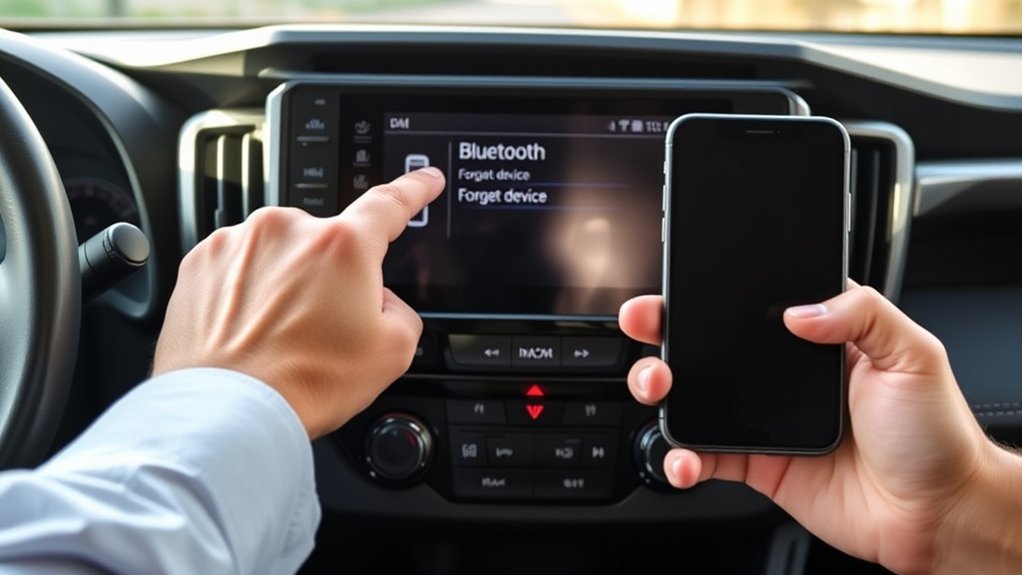
Start with these quick checks to restore RAV4 Bluetooth: update your phone’s OS, delete the vehicle pairing on both devices and re-pair while keeping your phone close to the display, and try resetting the infotainment by holding the volume knob until the screen goes blank; if Bluetooth still acts up, use a USB connection for full functionality. You’ll verify Bluetooth compatibility first, since mismatched profiles cause feature limitations and reduced audio quality. Follow precise troubleshooting steps: remove old device pairing entries, reboot phone, re-initiate device pairing with proximity to the head unit to improve connection stability. Check device settings for conflicting apps and known software conflicts that users report. Scan for interference sources—other Bluetooth devices, Wi‑Fi, or USB hubs—and simplify the environment. Rely on direct user experiences to prioritize fixes that restore freedom from tech friction. If problems persist, document symptoms and escalate to dealer support or firmware updates rather than accepting degraded performance.
Diagnose: Drops, “Connected” Status, or No Features?
When your RAV4 shows “Connected” but calls, music, or navigation controls don’t work—or the link drops every 20–30 seconds—treat it as a signaling or profile mismatch rather than a full pairing failure. Start by isolating symptoms: does the system report “Connected” while only media or only phone features fail? Drops every 20–30 seconds, often with SMS enabled, point to profile negotiation or repeated service handshakes. Use simple diagnostic tools: check signal logs if available, try another phone, and note interference sources (other electronics, location-specific signals). Measure connection stability by timing gaps and reproducing failures with features toggled. If USB fixes functionality, you’ve narrowed it to Bluetooth profiles or RF interference. This approach frees you from endless resets: focus on which Bluetooth profiles (A2DP, HFP, MAP) refuse to bind and whether environmental noise aligns with failures. Record results before re-pairing so fixes are targeted and permanent.
Re-Pair and Reboot: Phone and Car Steps
Begin by deleting your phone from the RAV4’s Bluetooth list, then power-cycle both the phone and the car’s infotainment system before attempting a fresh pairing. Once both devices reboot, enable Bluetooth on the phone and place the vehicle in pairing mode. Use direct pairing techniques: keep the phone near the display, select the RAV4 entry on your device, and confirm any PINs or prompts immediately to avoid timeouts. If pairing fails, repeat the sequence once more, documenting each action and result for clarity. As a troubleshooting tip, try toggling airplane mode briefly on the phone to clear transient radio states. On iPhone, consider resetting network settings only after basic steps fail; this refreshes Bluetooth stacks but erases Wi‑Fi credentials. These pragmatic steps give you control over connectivity and reduce reliance on external help. If problems persist despite methodical troubleshooting tips and logs, contact support or your dealership with your documented steps for efficient escalation.
Reset the RAV4 Infotainment and Radio
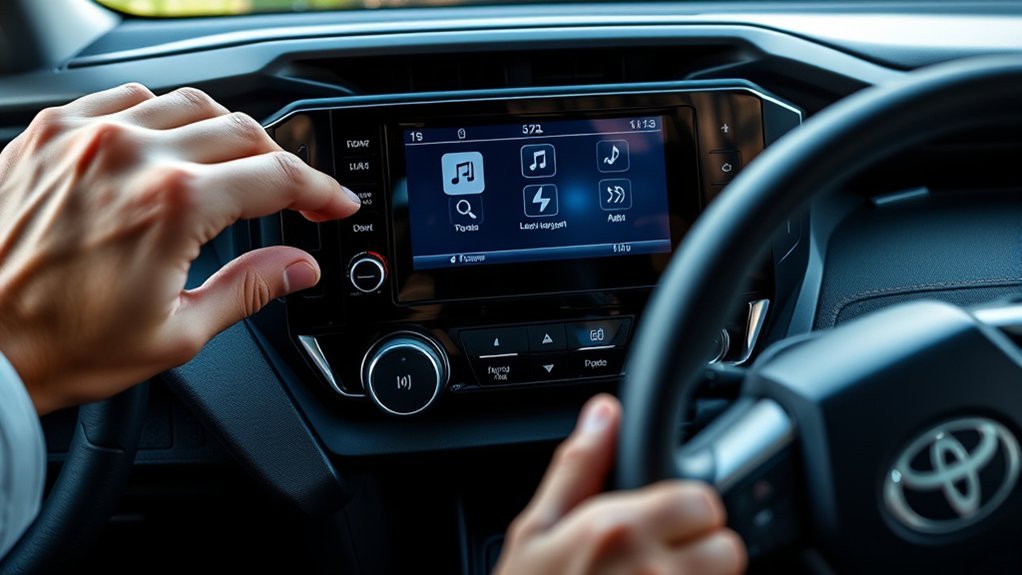
If re-pairing and rebooting your phone and vehicle didn’t fix the issue, reset the RAV4’s infotainment and radio to clear lingering faults: turn the vehicle off, lock the doors, then release and re-enter to refresh system states; if that doesn’t work, press and hold the radio volume knob until the screen goes blank to perform a soft system restart. Use this infotainment reset as the next escalation: it forces modules to reinitialize and often resolves Bluetooth handshake failures. Check that your vehicle software is current before deeper steps; outdated firmware undermines stability. If soft restart fails, disconnect the car battery by removing the negative terminal for a few minutes to clear persistent glitches, then reconnect. After any reset, follow the vehicle prompts to re-pair your phone and verify connection quality. For systematic radio troubleshooting, document each step and test calls and audio after re-pairing. These actions reclaim control over a flaky connection and reduce repeat disconnects without invasive repairs.
Phone Checks: iOS/Android Updates and Settings
Because phone software and settings directly affect Bluetooth stability, start by updating your iPhone or Android to the latest OS and verify Bluetooth settings are correct before troubleshooting the vehicle. Check iPhone settings: Settings > Bluetooth, confirm the RAV4 is connected, enable Bluetooth notifications and Sync contacts so calls and caller ID route properly. If pairing fails, use Network resets (Settings > General > Reset > Reset Network Settings) to clear corrupt entries.
On Android, open Android settings, make sure Bluetooth is enabled, and avoid simultaneous connections to other devices which cause connectivity issues. In software troubleshooting, clear Bluetooth cache (Settings > Apps > Show System Apps > Bluetooth > Storage > Clear Cache) to remove stale profiles. Confirm device compatibility—older phones or custom ROMs can behave unpredictably. After updates and resets, re-pair your phone, test audio and calls, and watch for persistent drops. These targeted checks free you from repeated disconnect cycles and restore reliable hands-free use.
Firmware, Entune, and Software Update Checks
Check your RAV4’s infotainment firmware regularly and install any available updates to fix known Bluetooth bugs. Keep your phone’s OS current—older Android or iOS builds can cause compatibility problems with the head unit. Also verify your Entune app and system versions against Toyota’s compatibility list and reset Bluetooth on both devices after updates to clear cached pairings.
Check Infotainment Firmware
When you keep your RAV4’s infotainment firmware current, you reduce the most common causes of Bluetooth dropouts and pairing failures. Check firmware via Entune or the vehicle settings, then compare versions with the manufacturer’s website. Firmware installation through Entune or USB closes protocol gaps and improves infotainment compatibility with diverse phone models. Apply critical patches promptly; users often eliminate disconnections after updating. Consult the owner’s manual for step-by-step initiation, required files, and rollback precautions. Perform updates on a stable power source and avoid interrupting the process. After installation, reboot the system, then re-pair devices to confirm improvements. Treat firmware updates as routine maintenance that frees you from avoidable connectivity constraints.
Update Phone Software
After you update the infotainment firmware, verify that your phone’s OS and Bluetooth stack are also current—outdated phone software often causes pairing failures or dropouts with the RAV4. Check your phone’s settings for system updates and install them promptly; major OS upgrades have resolved Bluetooth compatibility problems for many users. Enable Update notifications so you don’t miss critical patches. For the vehicle, consult the owner’s manual for Entune update procedures and check for firmware releases that address Bluetooth stability. After updating both devices, reboot the phone and the head unit, then re-pair to confirm reliability. This disciplined approach minimizes intermittent disconnects and frees you from repeated manual resets, restoring consistent hands-free function and safer driving.
Verify Entune Versions
Because firmware and Entune revisions directly affect Bluetooth behavior, verify your RAV4’s infotainment version against the latest Toyota releases and install any updates you’re missing. Check the infotainment settings to note current firmware and Entune version, then compare them to Toyota’s site or app listings. Updates target Entune features and software compatibility, often resolving dropouts and pairing failures. Download and apply available patches promptly; users report measurable stability gains after upgrades. If problems persist post-update, reset the infotainment system and re-pair your device to clear corrupted profiles. Maintain a routine check cadence so you’re not stuck with outdated code. This disciplined approach gives you control over connectivity and frees you from repeated, avoidable disconnections.
Hardware Causes: Antenna, Battery, Interference
If your RAV4 keeps dropping Bluetooth, check three hardware-related areas: the vehicle’s Bluetooth antenna (which can be weak or loose, reducing signal strength), the 12V/battery health (a low or failing battery can underpower the head unit and cause instability), and local interference or obstructions (nearby Wi‑Fi, other Bluetooth devices, dense urban electronic noise, or phone placement can all disrupt the link). Start with antenna issues: a poorly seated or damaged antenna reduces range and creates packet loss; inspect connectors and roof/module mounting, then reseat or replace the antenna if corrosion or looseness appears. Monitor battery health: low voltage under load can cause the head unit to reboot or throttle radios—test resting and cranking voltage, and address slow-draining or aged batteries. Reduce signal interference and physical obstructions by relocating the phone, minimizing nearby active transmitters, and removing metallic or dense barriers between phone and head unit. These steps pin down hardware causes before pursuing software or dealer escalation.
Workarounds and When to Escalate to Dealer
When Bluetooth drops persist despite basic fixes, switch to a wired USB connection for reliable audio and navigation while you troubleshoot further; also keep your phone OS and the RAV4’s infotainment firmware current to reduce compatibility-driven disconnects. Use USB as your primary Bluetooth alternative to maintain hands-free calls, stable media playback, and map guidance without intermittent pairing failures.
If resets, network setting clears, and re-pairing don’t stop disconnects, document each step: timestamps, error behavior, locations, and phone model/OS. Track where drops occur—local RF interference can reveal patterns you can avoid.
Escalate to dealer diagnostics when the problem repeats after consumer-level remedies and documentation. Ask the dealer to run diagnostic logs, antenna and module tests, and firmware-level checks. Insist on recorded test results and recommendations so you can demand repairs or software updates if the system fails specs. Staying organized and persistent frees you from recurring failures and forces technical accountability.
Frequently Asked Questions
How to Fix Bluetooth Randomly Disconnects?
Update firmware, run device compatibility checks, and delete/re-pair devices; use Bluetooth interference solutions like moving away from other transmitters, reset the audio system, or switch to USB if disruptions persist for reliable, liberated connectivity.
Is There a Way to Fix Car Bluetooth Going in and Out Randomly?
Yes — you can fix it: update software, check device compatibility, reset and re-pair devices, eliminate Bluetooth interference, test audio quality, and use USB as a workaround so you’re not chained to unstable wireless connections.
Conclusion
If your RAV4’s Bluetooth keeps ghosting out, don’t panic—start with the simple resets and pairings to clear the fog. Verify phone OS, infotainment firmware and Entune versions, then inspect antenna and battery connections for physical gremlins. Use workarounds like a wired connection or Bluetooth adapter if needed. If drops persist after these technical checks, schedule a dealer visit—let them lift the hood and pinpoint the underlying hardware or software mischief.