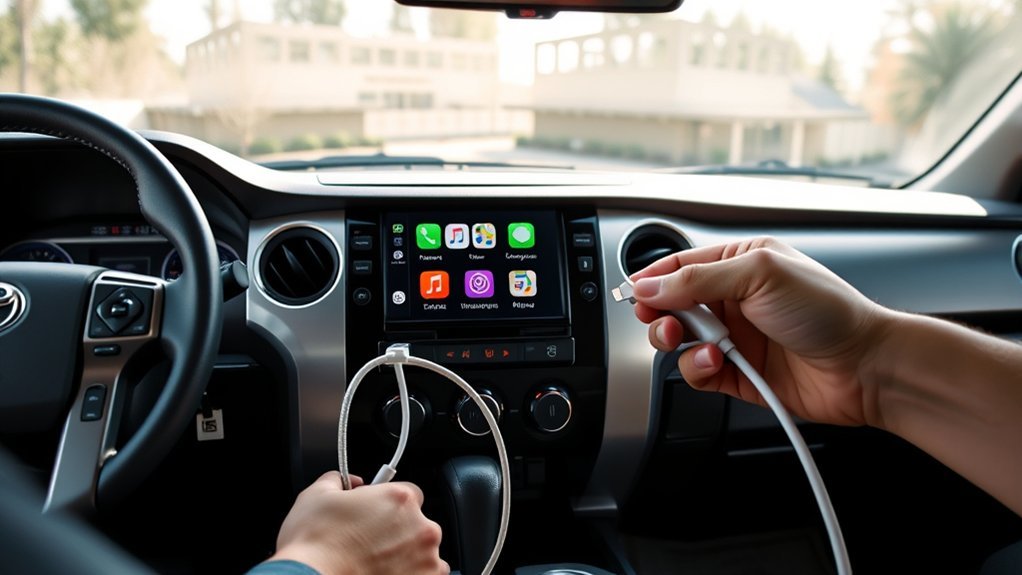
Park the Tundra, put it in Park, and grab an Apple‑certified Lightning cable or make sure Bluetooth is on. Enable CarPlay (Settings > General > CarPlay) and Siri on your iPhone. For wired use the USB port and accept prompts on both screens; for wireless pair via Bluetooth, confirm the passkey and enable CarPlay. Use Siri for navigation and calls. If it won’t connect, try another cable, restart devices, or follow troubleshooting steps below to resolve persistent issues.
What You Need Before Setting Up CarPlay in Your Tundra
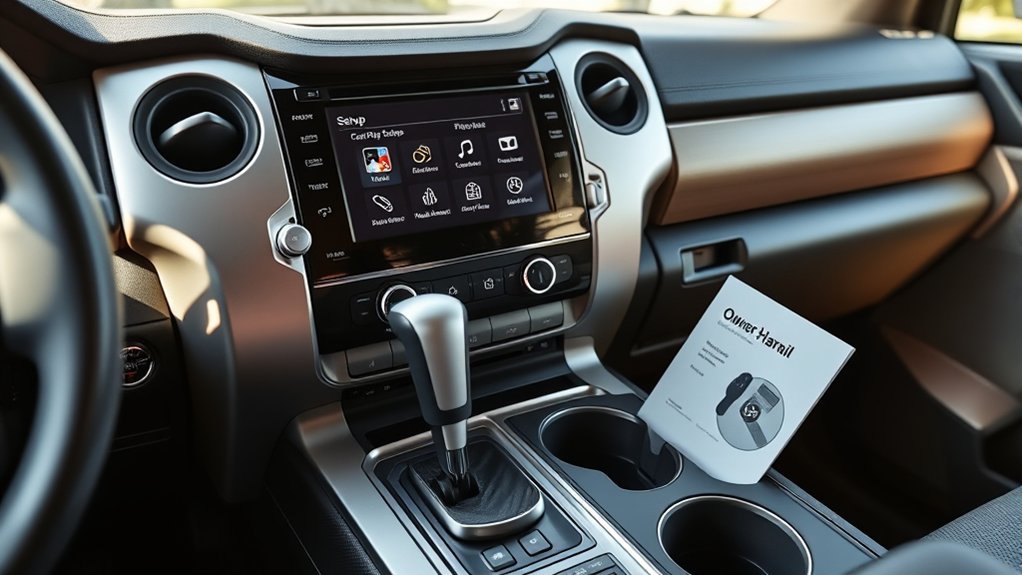
Before you begin, park your Tundra and gather a certified Apple USB cable if you’ll use a wired connection; verify CarPlay is enabled in iPhone Settings > General > CarPlay, Siri is on in Settings > Siri & Search, and Bluetooth is turned on for wireless setup. You’ll also confirm your Tundra features support CarPlay compatibility—consult the owner’s manual or infotainment documentation to avoid surprises. Keep your phone charged and accessible during the initial handshake. If you’re using a wired link, inspect the cable and port for debris; if wireless, make sure Bluetooth and Wi-Fi radios on the iPhone are active. Don’t attempt setup while driving—remain in Park (P) until the system completes configuration. These precautions reduce connection failures and protect your autonomy on the road: you control permissions, app access, and Siri responses. Once prerequisites are validated, you’ll move into pairing and screen layout steps with confidence and minimal friction.
Quick Start: Get Apple CarPlay Working in Two Minutes
With your prerequisites confirmed and the Tundra parked, you can get CarPlay up and running in about two minutes. Put the gear selector in Park, access your iPhone, and confirm CarPlay is enabled in Settings. Plug an Apple-certified USB cable into the truck’s USB port or, for wireless, enable Bluetooth and open the multimedia pairing menu.
When you connect, accept the prompts on both the Tundra’s display and your iPhone to launch CarPlay. The system will present compatible apps for navigation, music, and messaging; use Siri for hands-free control. These CarPlay features streamline interaction and reduce distraction, delivering clear Safety benefits that keep you focused on the road.
If pairing fails, retry the cable or Bluetooth steps, reboot your phone, or consult troubleshooting resources and support. Within two minutes you’ll have a liberating, integrated interface that hands control to voice and simple taps, letting you drive with fewer interruptions and more autonomy.
Wired CarPlay Setup for the Tundra
Start by putting the Tundra in Park and grabbing an Apple‑certified USB cable; plug your iPhone into the truck’s USB port and the multimedia system will prompt you to enable CarPlay. Confirm “Yes” on the vehicle display, then accept the prompt on your iPhone to launch Apple CarPlay. Make sure Siri is enabled on the phone so voice control works immediately.
The wired connection gives robust, low-latency access to navigation, calls, messages, and audio through the Tundra features and factory display. You’ll get full CarPlay benefits: reliable audio routing, real‑time map updates, and hands‑free command execution without fiddling with Bluetooth pairing. If the system doesn’t respond, try a different Apple‑certified cable and reboot the iPhone. For ongoing freedom on the road, keep iOS updated and confirm CarPlay isn’t restricted in Screen Time settings. This setup prioritizes control, safety, and uninterrupted access to the apps that liberate your drive.
Wireless CarPlay: Pair Bluetooth and Connect
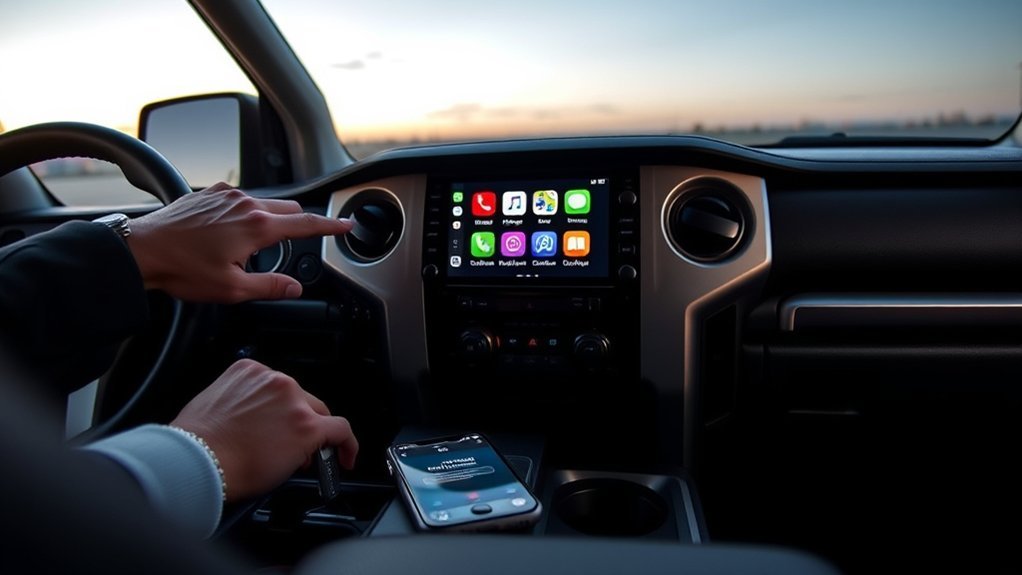
If you want a cable-free setup, enable Bluetooth on your iPhone and open the Tundra’s multimedia settings (tap the gear icon), then go to “Bluetooth® & devices” to begin pairing. Search available devices on the screen, select your iPhone, and confirm the passkey shown on both displays. Accept prompts on the Tundra and the iPhone to finalize pairing and choose “Yes” for Apple CarPlay® usage. Once paired, CarPlay should launch automatically, granting hands-free access to navigation, messaging, and music apps.
If pairing fails, follow Bluetooth Troubleshooting: toggle Bluetooth off/on on both devices, restart the multimedia system, and forget and re-add the iPhone in Bluetooth settings. Verify Device Compatibility—ensure your iPhone model and iOS version support wireless CarPlay. Keep firmware updated on the Tundra. This process frees you from cables while preserving security: only approve trusted devices and confirm prompts to prevent unintended connections.
Enable Siri and Grant CarPlay Permissions
Enable Siri by opening Settings > Siri & Search and turning on Listen for “Hey Siri,” Press Side Button for Siri, and Allow Siri When Locked so voice commands will work hands-free. Then go to Settings > General > CarPlay, select your Tundra, and grant CarPlay access; make sure your iPhone is updated to the latest iOS. After connecting, accept prompts on both the phone and the vehicle’s multimedia system and verify CarPlay is enabled in the vehicle settings.
Enable Siri Settings
Before you connect CarPlay, turn on Siri so your Tundra can access voice controls and apps hands‑free; open Settings > Siri & Search on your iPhone and toggle on “Listen for ‘Hey Siri’” and the other Siri options, then confirm any on‑screen prompts on both the phone and the vehicle’s system. Enable Siri to guarantee voice command effectiveness and to access Siri customization options for hands‑free workflows. Update iOS for compatibility. Restart the truck’s multimedia system if CarPlay doesn’t appear immediately.
- Verify “Hey Siri” and “Press Side Button for Siri” are enabled.
- Update iPhone to the latest iOS for protocol and security parity.
- Confirm prompts on both devices; restart the head unit if needed.
This gives you stable, liberated control of navigation and media.
Allow CarPlay Access
Now that Siri is set up, let’s let your Tundra and iPhone actually talk. Activate Siri (Settings > Siri & Search) then open Settings > General > CarPlay and confirm your Tundra appears. When you connect, accept permission prompts on both the truck’s multimedia unit and your iPhone to grant CarPlay access. Also verify CarPlay is enabled in the vehicle’s multimedia general settings for a seamless link.
| Step | Action |
|---|---|
| 1 | Enable Siri on iPhone |
| 2 | Confirm Tundra in CarPlay list |
| 3 | Accept prompts on both devices |
Granting permissions activates CarPlay benefits and improves User experience. Check app compatibility periodically to keep controls responsive and maintain liberated, efficient driving.
Use Core CarPlay Apps: Maps, Phone, Music
1. You’ll use CarPlay customization options and Voice command features to free yourself from distracting controls and stay focused.
- Maps: Apple Maps gives real-time navigation, traffic updates, and turn-by-turn directions. You’ll set destinations via touch or Siri, monitor ETA, and use lane guidance without diverting attention from driving.
- Phone: The Phone app supports hands-free calling and contact access. You’ll answer, dial, or return missed calls with voice prompts, keeping your hands on the wheel and conversation brief but effective.
- Music: Access Apple Music, Spotify, and compatible apps directly. You’ll browse playlists, switch sources, and control playback with minimal interaction, or let Siri queue tracks for you.
Use third-party app compatibility to extend capabilities, but prioritize apps designed for in-vehicle use. Rely on Voice command features for messaging, calls, and navigation to maintain control and autonomy on the road while leveraging CarPlay’s streamlined interface.
Fix Common CarPlay Connection Errors (No Audio, Drops, Not Detected)
After you’ve set up Maps, Phone, and Music for hands-free use, you’ll need a reliable connection to keep those features working—CarPlay issues like no audio, dropped connections, or a system that doesn’t detect your iPhone are usually caused by software settings, faulty cables, or temporary glitches. First, verify your iPhone is running the latest iOS; updates resolve many protocol mismatches that break CarPlay. Check Siri is enabled and CarPlay is allowed in Settings > General > CarPlay to prevent non-responsiveness and support voice routing for audio troubleshooting. Inspect the USB cable: use an Apple-certified cable and replace any frayed or loose wires to eliminate physical drop causes. If audio cuts out, disconnect and reconnect the phone and verify no nearby Bluetooth devices are conflicting with the head unit. Finally, restart both the Tundra’s multimedia system and your iPhone to clear transient faults. These connectivity solutions restore control quickly so you can drive free of tech interruptions.
Make CarPlay More Stable: iOS, USB, and Head‑Unit Tips
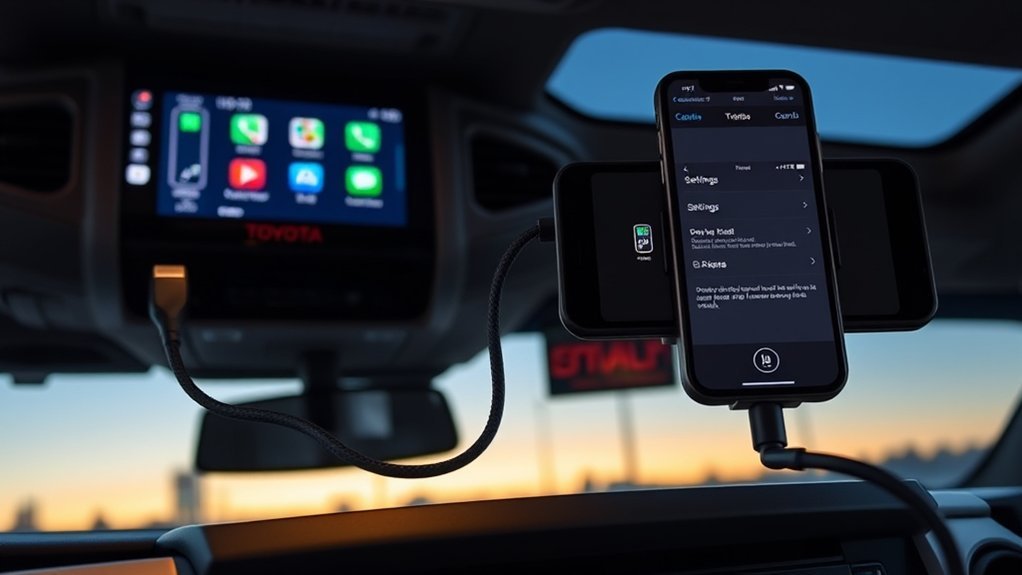
Anyone can improve CarPlay reliability by focusing on three fundamentals: keep your iPhone on the latest iOS, use an Apple‑certified USB cable for wired connections, and verify your Tundra’s head‑unit firmware is current. You want freedom from interruptions, so treat stability as a system: phone software, physical connection, and infotainment software.
- Update iOS and head unit firmware updates: install iOS updates promptly and check your head unit for firmware updates to avoid incompatibilities and software glitches.
- Choose quality USB cables and stable positioning: use Apple‑certified USB cables for wired CarPlay; if you go wireless, mount the phone to prevent movement that breaks the link.
- Restart and test: if you hit drops or no audio, restart both the iPhone and the head unit to clear transient software glitches, then re-test connections.
Follow these steps to reclaim control of your cabin tech—tight software hygiene, reliable USB cables, and solid mounting deliver a consistently stable CarPlay experience.
CarPlay Help: When to Contact Toyota or Visit the Dealer
If your Tundra keeps dropping CarPlay or won’t recognize your iPhone despite trying the basic fixes, contact Toyota support or schedule a dealer visit so technicians can run diagnostics, check firmware versions, and identify hardware faults. You should reach out when you’ve exhausted standard troubleshooting steps—rebooting devices, swapping cables, confirming iOS and head‑unit updates—and you still face pairing failures or intermittent audio and control loss. Toyota can walk you through advanced settings, verify compatibility for specific apps, and confirm whether a firmware patch is available. Dealer visits are warranted if diagnostics point to damaged USB ports, faulty head‑unit hardware, or persistent software mismatches that remote support can’t resolve. Bring your iPhone, lightning cable, and notes on errors or reproduction steps to speed repairs. This approach frees you from repeated trial-and-error and gets you back on the road with reliable CarPlay functionality.
Frequently Asked Questions
Why Is My Toyota Not Connecting to Apple Carplay?
Your Toyota’s Apple CarPlay isn’t connecting because of Apple compatibility issues, Bluetooth connectivity problems, missing software updates, USB port functionality faults, vehicle settings adjustments, device recognition failures, or cable quality concerns—follow troubleshooting steps to regain control and freedom.
Conclusion
You’ve now got everything to get Apple CarPlay running in your Tundra—think of it as tuning an engine: small adjustments make big gains. Start with the basics (cables, iOS update, compatible head unit), choose wired or wireless setup, enable Siri and permissions, and use Maps, Phone, and Music for daily driving. Troubleshoot audio, drops, or detection issues with USB swaps and resets. If problems persist, contact Toyota or visit your dealer for diagnostics.