To customize your 2025 Toyota Camry display, park the car, use the steering-wheel meter controls to open the multi-information display settings, and change the available language, units, meter style, layout, pop-ups, and driver-information options. Use the center touchscreen for audio, phone, navigation, connected services, vehicle settings, and software updates. Menu names vary by trim, 7-inch or 12.3-inch gauge cluster, region, software version, and subscription status.
Last updated: July 14, 2026 ·
Quick Answer
Park safely, then use the steering-wheel arrow and select controls to open the gauge-cluster settings. Adjust the options shown on your car, such as language, units, meter style, display type, pop-ups, and driver information. Use the Toyota Audio Multimedia touchscreen for audio, phone, navigation, connected services, vehicle customization, and software updates.
Key Takeaways
- The 2025 Camry may have a 7-inch or 12.3-inch digital gauge cluster, depending on grade and equipment.
- The multimedia touchscreen is equipment-based: Toyota lists an 8-inch screen as standard and a 12.3-inch screen as available, so you cannot change the physical screen size in settings.
- Language, unit, meter style, display type, pop-up, and driver-information options are usually handled through the multi-information display menu.
- Safety systems can help alert you, but they do not replace mirror checks, safe door opening habits, or full driver attention.
- Some navigation, voice, Digital Key, and connected-service features may require an active trial or paid subscription.
- If the instrument panel is blank at startup, check your VIN for the 2025 Camry instrument-panel recall instead of treating it as a normal customization problem.
At a Glance
| Time Required | 5–10 minutes for basic display settings; longer for software updates |
| Difficulty | Easy |
| Tools Needed | Steering-wheel meter controls, multimedia touchscreen, and your Toyota app login if using connected services |
| Cost | Free for built-in settings; some connected services may require a subscription after trial |
Before You Start: Park Safely
Before changing display settings, stop the vehicle in a safe place and put it in Park. Toyota’s owner information notes that customizable vehicle features may be changed with the multimedia display, the multi-information display, or by a Toyota dealer, depending on the feature.
Warning: Do not customize display or safety settings while driving. If the hybrid system needs to be on while you customize features, keep the vehicle in a well-ventilated area, not a closed garage, and avoid leaving the system on longer than needed.
What You Can Customize on the Camry Display
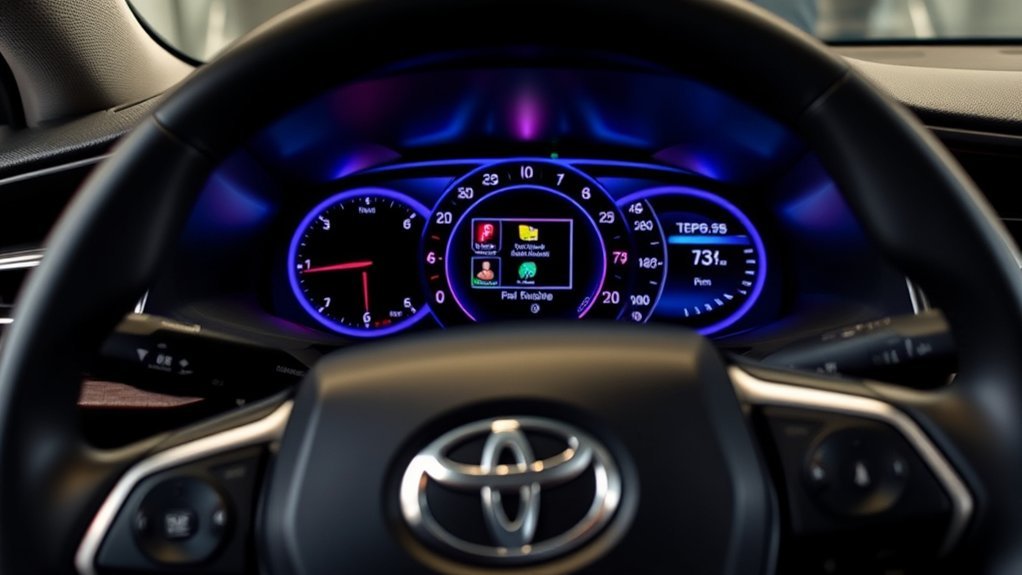
The 2025 Camry has two main places for customization: the multi-information display in the digital gauge cluster and the Toyota Audio Multimedia touchscreen in the center of the dashboard. Toyota’s official 2025 Camry information lists a 7-inch digital gauge cluster on LE and SE models and a 12.3-inch fully digital gauge cluster on XLE and XSE grades. It also lists an 8-inch Toyota Audio Multimedia touchscreen as standard and a 12.3-inch screen as available.
| Setting | Where to Change It | What to Know |
|---|---|---|
| Language | Multi-information display settings | Toyota lists English, French, and Spanish where supported. |
| Units | Multi-information display settings | Options may include miles (MPG), km (km/L), km (L/100 km), and miles (MPG Imperial). |
| Meter style and display type | Multi-information display settings | Styles such as Casual, Smart, Tough, or Sporty vary by display type and equipment. |
| Dial type and widgets | Multi-information display settings | Hybrid System Indicator, tachometer, simple/non-dial, and other items may vary by cluster. |
| Driver-assist alerts | Vehicle settings or MID settings | Some safety alert sensitivity and on/off settings may be adjustable; availability varies. |
| Audio, phone, navigation, and updates | Toyota Audio Multimedia touchscreen | Some features need compatible devices, active trials, subscriptions, or software updates. |
Which Display Does Your 2025 Camry Have?
Identify the screen you are changing before following menu instructions. The gauge cluster sits behind the steering wheel, while the Toyota Audio Multimedia screen sits in the center of the dashboard. Toyota lists the following U.S.-market equipment for the 2025 Camry:
| Camry Grade | Gauge Cluster | Center Touchscreen |
|---|---|---|
| LE | 7-inch digital gauge cluster | 8-inch Toyota Audio Multimedia touchscreen |
| SE | 7-inch digital gauge cluster | 8-inch standard; 12.3-inch available |
| XLE | 12.3-inch fully digital gauge cluster | 12.3-inch touchscreen |
| XSE | 12.3-inch fully digital gauge cluster | 12.3-inch touchscreen |
The physical screen size cannot be changed in a menu. If an instruction or video shows options that do not appear on your Camry, compare the grade, screen size, software version, country, and active driver profile before troubleshooting.
How Do You Access the Multi-Information Display Settings?
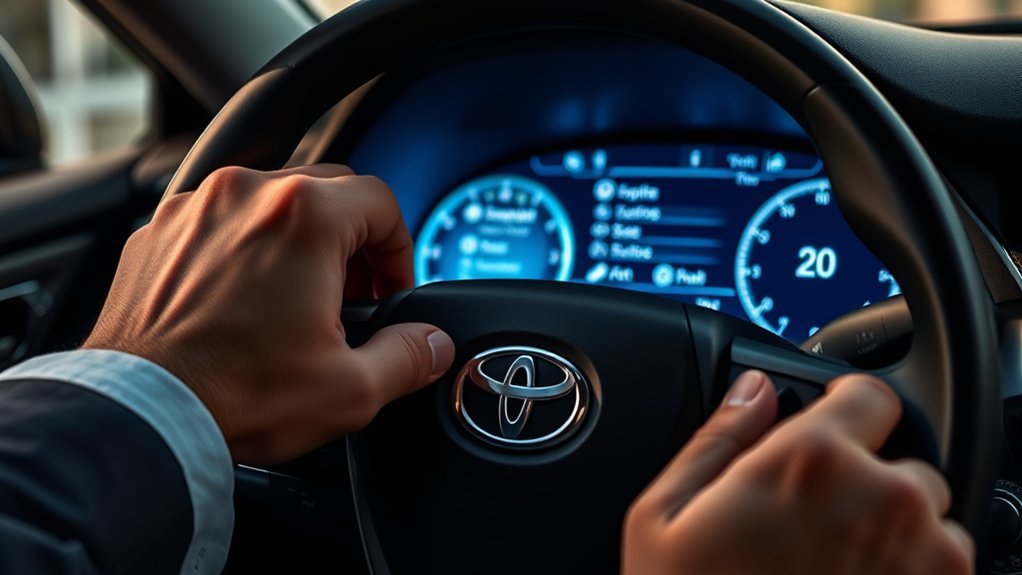
To access your multi-information display settings, use the meter control switches on the steering wheel. These controls let you move through the menu icons in the digital gauge cluster and select the setting you want to change.
- Park safely and keep the vehicle stopped before making changes.
- Use the steering-wheel meter controls to move through the multi-information display menu icons.
- Select the settings icon or the display/settings category shown on your cluster.
- Press the select/OK control to open a setting, then press or press and hold as prompted on the screen.
- Follow the on-screen instructions to confirm the change.
Depending on your Camry’s equipment, you may see options for display type, meter style, dial type, pop-up display, audio-system-linked display, energy monitor, AWD operation status, Eco Accelerator Guidance, and drive-information items. If a color or theme option appears on your specific display, you can choose it there; if it does not appear, that option is not available on your build or software version.
Pro Tip: Change one setting at a time, then return to the main display and confirm it looks the way you want. This makes it much easier to undo a setting if the new view feels cluttered.
How Do You Change the Language and Measurement Units?
Changing the language and measurement units makes the cluster easier to read. Toyota’s customizable feature list includes English, French, and Spanish where supported.
To change these settings, open the multi-information display settings with the steering-wheel meter controls, then look for Language and Units. Unit options may include miles with MPG, kilometers with km/L, kilometers with L/100 km, or miles with MPG Imperial, depending on your market and vehicle settings.
Note: Some settings are linked to Toyota’s “My Settings” behavior. If another driver profile is selected later, your display preferences may change with that profile.
[Products Worth Considering]

EzyShade Waterproof All Weather Car Cover is designed to deliver a secure, custom-like fit with vehicle-specific sizing and a great-fit guarantee. Its multi-layer protective materials help shield your vehicle from rain, wind, UV rays, snow, dust, and scratches while supporting paint protection and long-term durability. Thoughtful details like adjustable straps, reflective strips, a side zipper, mirror pockets, and a storage bag make it practical for everyday outdoor protection.

EcoNour’s foldable windshield sun shade helps keep your vehicle cooler by reflecting heat and blocking harmful UV rays. Its multi-layer construction and reinforced design protect your dashboard, seats, and electronics while fitting most sedans, SUVs, and pickup trucks. It opens quickly, folds down compactly, and stores easily for everyday driving or travel.

This Camecho vehicle backup camera helps improve rear, side, or front visibility with a wide 170° viewing angle and bright LED night vision for safer parking and reversing. Its waterproof, weather-resistant design and adjustable mounting make it a practical choice for many vehicles, while the included cable length supports straightforward installation.
How Do You Choose the Best Panel Layout?
Choose a display layout that puts the information you use most in the easiest place to see. The exact layout names vary by cluster type and equipment.
- Simple view: Keeps the display cleaner for speed, basic driving data, and alerts.
- Information-rich view: Shows more driving metrics, such as fuel economy, trip data, energy monitor, or AWD operation status when equipped.
- Meter style: Lets you choose a visual personality such as Casual, Smart, Tough, or Sporty where supported.
- Dial type: May let you choose between Hybrid System Indicator, tachometer, speedometer, or a simplified non-dial view depending on the cluster.
- Pop-up display: Lets certain warnings, suggestions, or advice appear in the cluster when conditions call for it.
For the best day-to-day setup, start with a simple view, then add only the widgets or driving metrics you actually check. Too much information can make the display harder to scan at a glance.
[Products Worth Considering]

Bosch ICON beam wiper blades are designed to make windshield replacement simple with a vehicle-specific two-blade bundle for driver and passenger sides. The exclusive dual rubber technology helps resist heat and ozone damage for longer-lasting performance, while the beam design and asymmetric spoiler improve windshield contact and visibility in harsh weather. Installation is quick with the included hook adapter, making it a reliable upgrade for compatible vehicles.

This versatile car phone holder offers windshield, dashboard, and air vent mounting options to keep your phone secure and accessible on the road. Its strong suction cup, adjustable telescopic arm, and 360-degree ball joint help you find the ideal viewing angle while maintaining a stable hold. Designed for easy one-handed use and broad compatibility, it supports most smartphones and cases for safer hands-free driving.
Best Display Setup by Driver Type
A useful setup is not the one with the most information. It is the one that answers your most common driving questions with the fewest glances.
| Driver Need | Recommended Focus | What to Reduce |
|---|---|---|
| Daily commuting | Speed, fuel economy, trip data, and essential alerts | Unused widgets and repeated audio information |
| Fuel-efficiency tracking | Hybrid System Indicator, energy monitor, and average fuel economy | Decorative layouts that hide efficiency data |
| Highway driving | Speed, driver-assist status, navigation prompts, and range | Frequent nonessential pop-ups |
| Multiple drivers | A separate driver profile with preferred language, units, and layout | Changing shared settings without confirming the active profile |
After choosing a setup, drive only after the menus are closed. If an item proves distracting, remove it the next time the car is safely parked.
How Do You Adjust Safety Alerts?
Safety-alert settings affect which warnings appear and, where supported, how they behave. Toyota lists Blind Spot Monitor, Rear Cross-Traffic Alert, Safe Exit Alert, and Toyota Safety Sense 3.0 as part of the 2025 Camry’s safety and driver-assist technology.
Depending on your vehicle’s menus, you may be able to adjust or review settings for systems such as Lane Departure Alert with Steering Assist, Pre-Collision System, Road Sign Assist, Blind Spot Monitor, Rear Cross-Traffic Alert, and related warning behavior. Use the vehicle settings menu in the multi-information display or the multimedia touchscreen, then choose the driver-assist or safety category shown on your screen.
Toyota Safety Sense 3.0 and related alerts are designed to help warn or assist under certain conditions, but they are not a substitute for attentive driving, mirror checks, shoulder checks, and safe door-opening habits.
Safe Exit Alert is especially useful for passengers because it can help warn when an approaching vehicle or bicycle may be near the door-opening path. However, you and your passengers should still look before opening any door.
How Do You Personalize Multimedia and Navigation?
Use the center Toyota Audio Multimedia touchscreen to personalize audio, phone, navigation features, connected services, and vehicle settings. The physical screen size is based on your vehicle equipment: Toyota lists a standard 8-inch touchscreen or an available 12.3-inch touchscreen, not a user-selectable 14-inch screen.
- Audio: Set favorite radio stations, balance/fade, volume behavior, and paired audio sources.
- Phone: Pair compatible devices with Bluetooth, Apple CarPlay, or Android Auto where supported.
- Navigation: Save frequent destinations and review route preferences if your vehicle has the required navigation service.
- Voice control: Use available Toyota voice features where equipped; some functions may require Drive Connect or another active trial/subscription.
- Maintenance and vehicle health: Review maintenance alerts, reminders, and connected-service information where available.
For software updates, Toyota says newer Toyota Audio Multimedia systems may support over-the-air updates through the vehicle display where equipped. Eligible vehicles may also use Toyota’s software portal and a compatible USB drive. To check from the multimedia screen, look for Settings, then Software update. If the vehicle prompts you to update, follow the on-screen instructions and do not turn the vehicle off during the update.
Note: Navigation maps, connected services, Wi-Fi, Intelligent Assistant, Digital Key, and remote features can vary by grade, region, subscription status, phone compatibility, and network availability.
How Do You Fix Common Display Customization Problems?
If a setting does not appear or does not behave as expected, use this quick checklist before assuming something is wrong with the vehicle.
Recall check: Certain 2025 Camry vehicles in the U.S. were included in Toyota campaigns 25TB08 and 25TA08 because the instrument panel could fail to show critical information at startup. If the cluster is blank, do not treat it as a normal menu problem. Check your VIN through Toyota’s official recall lookup and arrange dealer service if a campaign is open.
- The option is missing: The feature may not be equipped on your trim, may be unavailable in your region, or may require a subscription or software update.
- The setting will not save: Check whether another driver profile or “My Settings” profile is active, then save the setting again under the correct profile.
- The screen looks too busy: Turn off extra pop-ups, linked audio display, or unused widgets, then keep only the trip and driver-assist information you use often.
- Units or language changed unexpectedly: Recheck the active driver profile and confirm the language/unit setting in the multi-information display menu.
- Navigation features are limited: Confirm your connected-service trial/subscription and phone connection status.
- Software update fails: Keep the vehicle in a safe, ventilated place, maintain power as instructed, and use Toyota’s official update portal or contact a Toyota dealer if the update will not complete.
- The instrument panel is blank: Stop in a safe place, check the vehicle for an open recall by VIN, and contact a Toyota dealer. A blank cluster can hide speed and warning information, so menu resets are not an adequate fix.
Frequently Asked Questions
How do I upgrade a Toyota multimedia system?
For most owners, “upgrade” means updating the Toyota Audio Multimedia software, not replacing the screen. Check the multimedia display under Settings and Software update, or use Toyota’s official software update portal if your vehicle is eligible for a USB update. Hardware screen upgrades are not a normal owner setting and should be discussed with a Toyota dealer.
Can I change my 2025 Camry from the 8-inch screen to the 12.3-inch screen in settings?
No. The touchscreen size is physical equipment, not a software setting. Toyota lists an 8-inch Toyota Audio Multimedia touchscreen as standard and a 12.3-inch touchscreen as available, depending on vehicle grade and equipment.
Why do I not see the same display options shown in another Camry?
Your Camry’s menus can vary by trim, 7-inch or 12.3-inch gauge cluster, country, software version, packages, and active connected-service subscriptions. If a setting does not appear in the multi-information display or multimedia screen, it may not be available on your vehicle.
Can I turn safety alerts off?
Some alert settings may allow on/off or sensitivity changes, depending on the system and market. Before turning anything off, read the owner’s manual section for that feature. Driver-assist systems are designed to help, but you remain responsible for safe driving at all times.
Do display settings reset when another person drives the car?
They can if the vehicle switches to another driver profile or My Settings configuration. If your Camry has multiple drivers, confirm the active profile before changing language, units, display style, and driver-assist preferences.
Why is my 2025 Camry instrument panel blank?
A blank instrument panel may be more than a saved-setting problem. Certain 2025 Camry vehicles were included in U.S. recall campaigns 25TB08 and 25TA08 for an instrument-panel display failure at startup. Park safely, check the VIN through Toyota’s recall lookup, and contact a dealer if the campaign applies to your vehicle.
How do I reset display settings on a 2025 Toyota Camry?
First confirm the active driver profile, then return the changed language, unit, meter-style, widget, or pop-up options to your preferred values. For multimedia problems, restart the vehicle after parking, check for a software update, and review the multimedia settings. Do not disconnect the 12-volt battery only to reset a display preference; ask a Toyota dealer for help if the screen remains unresponsive.
Conclusion
Customize your Camry’s multi-information display while parked, starting with language, units, meter style, and a simple layout that shows only the information you use. Then review safety alerts, multimedia settings, navigation preferences, driver profiles, and software updates. If the instrument panel is blank rather than merely misconfigured, check the VIN for an open recall and contact a Toyota dealer. Driver-assist alerts can help, but they never replace attentive driving.
Sources
- Toyota Owners — 2025 Camry Hybrid Multi-Information Display, 7-Inch Display — supports multi-information display functionality and menu-based display settings.
- Toyota Owners — 2025 Camry Hybrid Multi-Information Display, 12.3-Inch Display — supports 12.3-inch cluster information and display behavior.
- Toyota Owners — 2025 Camry Hybrid Customizable Features — supports language, units, meter style, display type, and customization methods.
- Toyota USA Newsroom — 2025 Camry Technology and Safety Details — supports gauge-cluster sizes, multimedia screen sizes, BSM, RCTA, Safe Exit Alert, and Toyota Safety Sense 3.0 details.
- Toyota Safety Sense — supports descriptions of Toyota Safety Sense 3.0 driver-assist features and limitations.
- Toyota Owners — Over-the-Air Audio Multimedia System Updates — supports OTA and USB multimedia software update guidance.
- Toyota Owners — Safety Recall and Service Campaign Lookup — provides VIN-based recall and campaign checks.
- NHTSA — Check for Recalls — explains VIN recall lookup and safety-recall remedies.
- Associated Press — Toyota Instrument-Panel Recall — reports the affected 2025 Camry and Toyota campaign numbers 25TB08 and 25TA08.