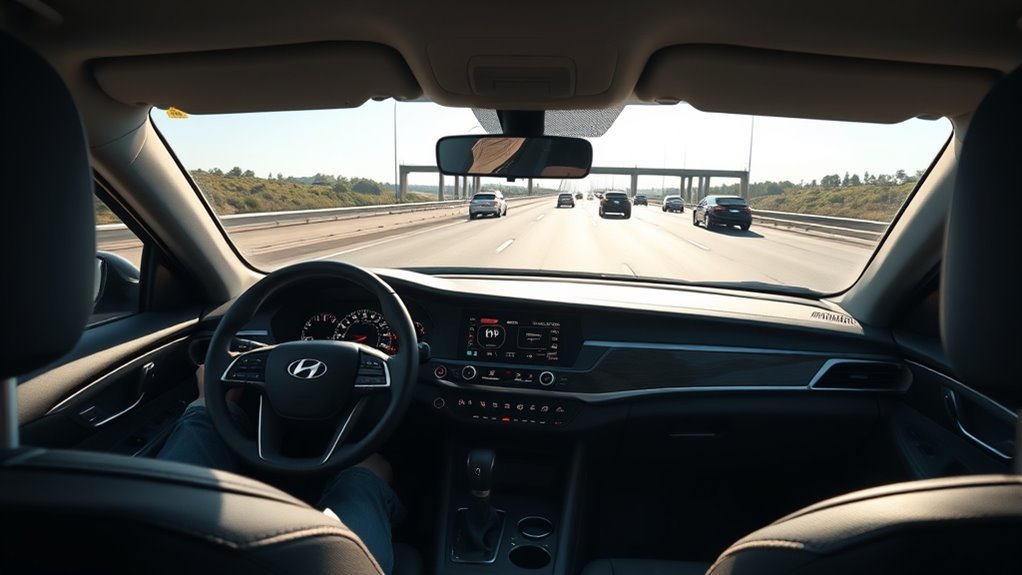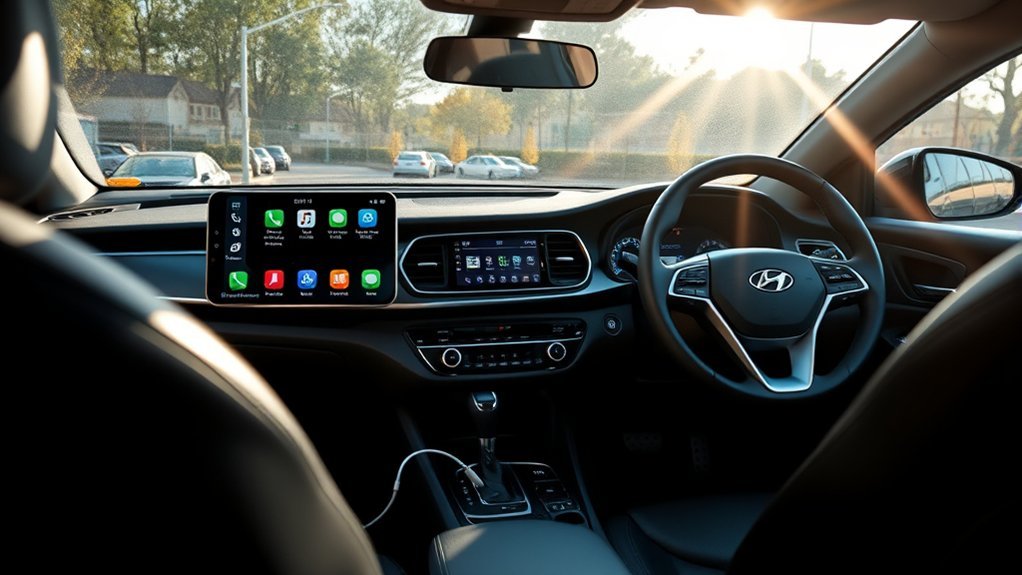
Connecting Android Auto in a Hyundai Sonata is usually simple: confirm your Sonata and Android phone are compatible, park the car, turn on the infotainment system, and connect by USB or wireless phone projection. The exact menu names can vary by model year, trim, region, and Hyundai infotainment system, so use your owner’s manual if your screen labels look slightly different.
Quick Answer
To connect Android Auto in a Hyundai Sonata, use a high-quality USB data cable or pair wirelessly if your Sonata supports wireless Android Auto. Put the car in Park, enable Android Auto in Phone Projection settings, follow the on-screen prompts, and keep Bluetooth, Wi-Fi, and Location on for wireless setup.
Key Takeaways
- Wired Android Auto needs a compatible Sonata, an Android phone running Android 9.0 or higher, an active data plan, and a high-quality USB cable.
- Wireless Android Auto requires a compatible Sonata or stereo, a compatible Android phone, active data, and 5 GHz Wi-Fi support.
- Set up Android Auto while parked, not while driving.
- If Android Auto will not launch, check the cable, phone permissions, USB port, Bluetooth/Wi-Fi settings, and Hyundai phone projection settings.
At a Glance
| Time Required | 5–10 minutes for first setup |
| Difficulty | Easy |
| Tools Needed | Android phone, Hyundai Sonata infotainment system, and a USB data cable if using wired Android Auto |
| Cost | Free, unless you need a replacement USB data cable |
Connecting Android Auto in Your Hyundai Sonata: A Quick Guide
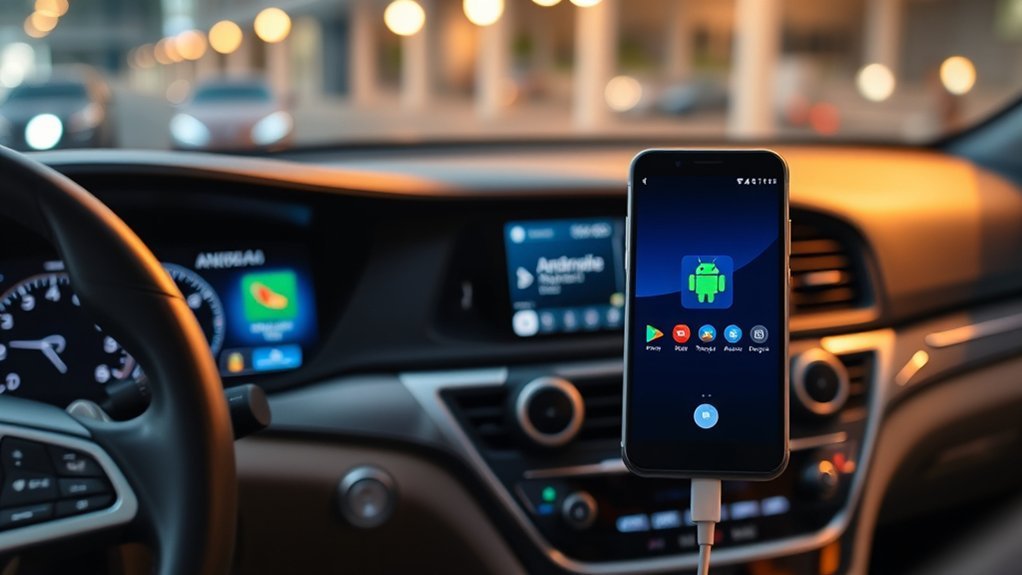
Before you start, confirm that your Hyundai Sonata supports Android Auto. Many Sonata models do, but wired or wireless support depends on the model year, trim, market, and infotainment system. Hyundai also notes that phone projection features can vary by vehicle model and specifications.
For the most accurate answer, check your Sonata owner’s manual, your infotainment system’s Phone Projection menu, or Hyundai’s manuals and warranties resources. Google also recommends checking vehicle compatibility with the manufacturer if you are unsure whether your car supports Android Auto.
Warning: Do the first-time setup while the Sonata is in Park with the infotainment system on. Avoid entering passwords, approving permissions, or changing phone settings while driving.
What You Need Before Connecting Android Auto
For wired Android Auto, Google lists the basic requirements as an Android phone running Android 9.0 or higher, an active data plan, a compatible car, and a high-quality USB cable. Android Auto is integrated into modern Android phones, so you usually do not need to download a separate app, though your phone may ask you to update Android Auto before setup.
For wireless Android Auto, you need a compatible Android phone with an active data plan and 5 GHz Wi-Fi support, plus a compatible car or stereo. Google says wireless projection works with any phone running Android 11.0 or higher, but the vehicle itself must also support wireless Android Auto.
- Phone: Android 9.0 or newer for wired Android Auto; compatible Android phone with 5 GHz Wi-Fi support for wireless Android Auto.
- Vehicle: A Sonata infotainment system that supports Android Auto.
- Cable: A high-quality USB data cable for wired setup. A charge-only cable may not work.
- Settings: Bluetooth, Wi-Fi, and Location turned on for wireless setup.
- Permissions: Approve Android Auto, Bluetooth, contacts, messages, and notification permissions when prompted.
Note: Android Auto is not available on Android Go edition devices. If your phone is very old or heavily customized, update Android and Google apps before troubleshooting the vehicle.
[Products Worth Considering]

This 2-in-1 wireless adapter converts factory-wired CarPlay into a cable-free experience for compatible vehicles, helping you enjoy seamless phone integration with less clutter. It supports automatic reconnection, stable Bluetooth and Wi-Fi pairing, and broad compatibility with many factory-installed CarPlay systems. Built with a durable metal and acrylic design, it also includes firmware updates and lifetime technical support for continued convenience.

This wireless CarPlay adapter upgrades compatible factory wired CarPlay or Android Auto systems with wireless connectivity and built-in entertainment apps. Enjoy navigation, calls, music, and hands-free control through Apple CarPlay, plus streaming from popular video platforms when connected to a hotspot. It also supports USB media playback and an HD media port for rear-seat entertainment on road trips and daily drives.

The HEYINCAR+ H-Air adapter upgrades compatible factory wired CarPlay and Android Auto systems to wireless convenience with a compact plug-and-play design. It connects automatically after setup, delivering fast startup, stable performance, and support for your car’s original touchscreen, steering wheel controls, and voice commands. Built for broad vehicle compatibility and ongoing firmware updates, it offers a simple way to enjoy cable-free driving with minimal clutter.
How to Connect Android Auto via USB
A USB connection is the most reliable way to use Android Auto in a Hyundai Sonata, especially if your model does not support wireless phone projection.
- Park your Sonata. Turn on the vehicle or infotainment system and keep the car in Park.
- Prepare your phone. Unlock your Android phone, make sure mobile data is available, and install any pending Android Auto or Google app updates if prompted.
- Enable Android Auto in the car. On many Hyundai systems, go to Settings or Setup > Device Connections or Phone Connections > Phone Projection > Android Auto, then enable Android Auto.
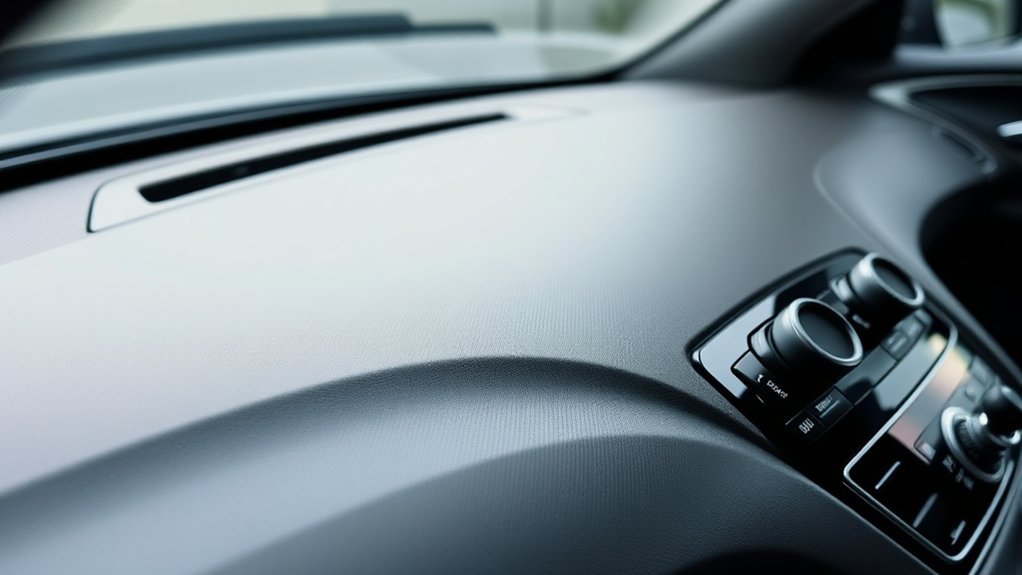
- Use the correct USB port. Plug your phone into the Sonata’s USB data port using a high-quality USB cable. The data port is usually near the center console, but the location can vary.
- Follow the prompts. Accept the permissions on your phone and the infotainment screen. Android Auto should appear on the Hyundai display after setup finishes.
- Launch Android Auto if needed. If it does not open automatically, tap the Android Auto or Phone Projection icon on the Sonata’s screen.
Pro Tip: If your phone only charges and Android Auto does not appear, try another USB cable. Many connection problems come from worn, loose, or charge-only cables.
[Products Worth Considering]

This compact adapter converts factory-wired CarPlay and Android Auto systems to wireless for a cleaner, more convenient driving experience. It offers fast auto-connect, stable performance, and plug-and-play setup so you can enjoy navigation, music, calls, and voice control without extra cables. The included USB-to-USB-C converter helps it fit a wide range of vehicle ports.

Convert factory wired CarPlay to a wireless experience with this compact plug-and-play adapter designed for compatible vehicles. It supports GPS navigation, music, calls, Siri, and messaging while automatically reconnecting for a smoother drive. The slim mini design helps keep your cabin tidy and delivers a stable, responsive connection with preserved audio quality.

10Gbps Data Transfer: SUNGUY USB 3.1 Gen 2 cable supports super speed data transmission up to 10Gbps, transfer HD movies, songs, file or photos in seconds. Backwards compatible to USB 3.0 and 2.0; DOES NOT support video output.
How to Connect Android Auto Wirelessly
Wireless Android Auto is convenient, but it only works if both your phone and your Hyundai Sonata’s infotainment system support it. Hyundai’s phone projection guidance says Wi-Fi and Bluetooth should be enabled on the smartphone for wireless Android Auto.
[Products Worth Considering]

Upgrade to Wireless CarPlay & Android Auto The 2 in 1 Wireless CarPlay and Android Auto Adapter converts your factory wired system into a wireless experience. It’s perfect for families using both iPhone and Android phones, allowing effortless switching without unplugging or swapping cables. This adapter is compatible with over 1,000 vehicle models—supporting 800+ with wired CarPlay and 500+ with wired Android Auto. Works with iPhone 6 or later and Android 11 or above devices.

Keep Your Phone in Your Pocket: Turn factory wired CarPlay or Android Auto into a wireless setup and keep using your car’s original screen. This 2-in-1 wireless adapter is ideal for households with both iPhone and Android phones sharing a vehicle. Connects to one phone at a time; disconnect the current phone before connecting another.
Required Settings Configuration
Before pairing, check these settings on your phone and infotainment system:
- Turn on Bluetooth on your Android phone.
- Turn on Wi-Fi on your Android phone.
- Turn on Location services during setup.
- Confirm that your Sonata has wireless phone projection enabled, if the setting is available.
- Make sure your phone has mobile data service.
Pairing Your Device
Once the required settings are ready, pair your phone with the Sonata:
- Put the Sonata in Park and turn on the infotainment screen.
- Open Phone Projection, Device Connections, or Phone Connections on the Hyundai screen.
- Select Android Auto or Add New, depending on your system.
- On your Android phone, open Bluetooth settings and select your Hyundai system from the available devices list.
- Confirm that the pairing code matches on the phone and the vehicle screen.
- Approve Android Auto permissions and wait for Android Auto to launch.
After the first setup, wireless Android Auto should reconnect automatically when you start the car, as long as Bluetooth and Wi-Fi remain enabled and your phone is nearby.
Key Features of Android Auto in Your Sonata
Android Auto brings phone-friendly apps to your Sonata’s display so you can focus more on driving and less on handling your phone. Google describes Android Auto as a way to control navigation, maps, calls, text messages, and music from your car display.
Navigation and Mapping Features
With Android Auto, you can use apps such as Google Maps and Waze on the Sonata’s screen for turn-by-turn directions, route changes, traffic information, and voice-guided navigation.
- Start a route by voice instead of typing on your phone.
- View route guidance on the larger infotainment display.
- Use traffic-aware navigation apps where supported.
- Hear directions through the vehicle speakers.
Music and Streaming Integration
Android Auto also supports many audio apps, including music, podcast, and audiobook apps. You can browse compatible apps from the Android Auto interface, use steering-wheel controls where supported, or ask Google Assistant to play music hands-free.
- Play music from supported apps such as Spotify or YouTube Music.
- Pause, skip, and change audio without picking up your phone.
- See track information on the Sonata screen.
- Use voice commands to keep your attention on the road.
How to Use Google Assistant While Driving
Google Assistant can help you control Android Auto by voice. In many Sonata models, you can press and hold the voice command button on the steering wheel, then speak your request. You may also be able to say “Hey Google” if voice activation is enabled on your phone.
Useful voice commands include:
- Navigation: “Navigate to the nearest gas station.”
- Calls: “Call Mom.”
- Messages: “Send a text to Alex.”
- Music: “Play my driving playlist.”
- Traffic: “How is traffic to work?”
Note: Voice features depend on your phone, language, Google app settings, mobile data signal, and Android Auto availability in your country.
Troubleshooting Common Issues With Android Auto
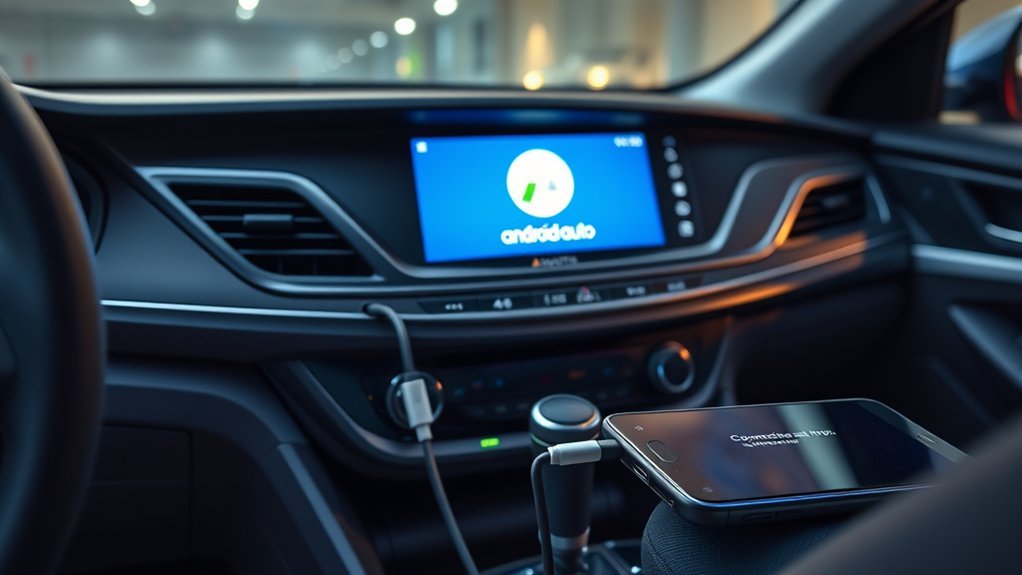
If Android Auto does not connect in your Hyundai Sonata, start with the simple fixes first. Most problems come from cable issues, permissions, outdated phone software, or a disabled phone projection setting.
Android Auto Does Not Launch With USB
- Unlock your phone before connecting.
- Use a high-quality USB data cable, not a charge-only cable.
- Try a different USB port if your Sonata has more than one.
- Check the Hyundai infotainment menu and make sure Android Auto is enabled.
- Restart your phone and the infotainment system.
- Update Android, Google Play services, Google Maps, and Android Auto if prompted.
Wireless Android Auto Will Not Connect
- Confirm your Sonata actually supports wireless Android Auto.
- Turn Bluetooth, Wi-Fi, and Location off and back on.
- Forget the Hyundai connection on your phone and delete the phone from the vehicle’s device list.
- Pair the phone again from the Sonata’s Add New Device or Phone Projection menu.
- Keep the phone close to the infotainment system during setup.
Android Auto Keeps Disconnecting
- Replace the USB cable if using wired Android Auto.
- Clean lint or debris from the phone’s charging port carefully.
- Disable battery saver during Android Auto use.
- Make sure the phone is not overheating in direct sunlight.
- Check for infotainment software updates through Hyundai resources or your dealer.
Apps or Voice Commands Are Not Working
- Check that the app is compatible with Android Auto.
- Confirm microphone permissions are enabled for Google and Android Auto features.
- Make sure your mobile data signal is strong enough.
- Update Google Maps, Google, and your music or messaging apps.
Maximizing Your Experience After Installation
Once Android Auto is working, spend a few minutes customizing it before your next drive. Small settings changes can make the system easier and safer to use.
- Reorder your Android Auto app launcher so your most-used apps are easy to find.
- Set your preferred navigation app before starting a route.
- Turn off unnecessary message notifications if they distract you.
- Save frequent destinations in Google Maps.
- Keep your phone, apps, and Hyundai infotainment software updated.
A stable Android Auto setup depends on three things working together: a compatible Sonata, a compatible Android phone, and a reliable connection method.
Frequently Asked Questions About Android Auto in Hyundai
Can I use Android Auto without a data connection?
Some already-downloaded content may work offline, but Android Auto works best with mobile data. Live traffic, route updates, voice search, messages, calls over data apps, and streaming services usually need an active data connection.
Is Android Auto compatible with all Android phones?
No. For Android Auto on a car display with a USB cable, Google lists Android 9.0 or higher, an active data plan, a compatible car, and a high-quality USB cable. Wireless Android Auto requires a compatible phone with active data and 5 GHz Wi-Fi support, plus a compatible car or stereo.
Do I need to download the Android Auto app?
Usually, no. Google says Android Auto is integrated into phones. However, your phone may still ask you to update Android Auto or related Google apps before setup continues.
How do I update Android Auto on my phone?
Open the Google Play Store, search for Android Auto or Google apps, and install any available updates. Also update Google Maps, Google Play services, and the Google app because Android Auto depends on several Google services.
Will Android Auto drain my phone’s battery quickly?
Wireless Android Auto can use more battery because it relies on Bluetooth, Wi-Fi, mobile data, navigation, and screen activity. Wired Android Auto usually charges the phone while connected, though charging speed depends on the vehicle USB port and cable.
Can I customize the Android Auto interface?
Yes. On your phone, open Android Auto settings to customize the app launcher, notification behavior, start options, and supported app preferences. Available settings can vary by Android version and phone manufacturer.
Conclusion
Connecting Android Auto in your Hyundai Sonata is easiest when you match the right setup method to your car. Use USB if your Sonata is wired-only or if you want the most stable connection. Use wireless Android Auto only if your phone and infotainment system both support it. Once connected, you can use navigation, calls, messages, music, and voice commands from the Sonata’s display while keeping your focus on the road.
Sources
- Google Android Auto Help: Get started with Android Auto — Android Auto requirements, phone compatibility, wireless requirements, and Android Auto availability notes.
- Google Android Auto Help: Set up Android Auto — wired and wireless setup steps, Park safety guidance, Bluetooth pairing, and troubleshooting direction.
- Hyundai Web Manual: Using Android Auto wirelessly — Hyundai wireless Android Auto setup guidance and Wi-Fi/Bluetooth requirements.
- Hyundai Web Manual: Using the phone projection function — Hyundai phone projection behavior, Android Auto controls, and USB disconnection guidance.
- Hyundai USA Manuals & Warranties — official owner manual lookup for model-specific Sonata instructions.