You activate Supra’s Dynamic Radar Cruise Control (DRCC) by engaging the Driving Assist mode select switch above 20 mph, then capture your desired speed with the Driving Assist switch; use the +/− buttons for 1 mph adjustments (hold for larger changes) and set following distance via the multi‑information display. Brake cancels instantly while the cancel switch preserves the last set speed; fully powering off clears memory. Monitor sensor warnings and clear grime or ice for reliable operation—keep going to learn practical tips.
Activate Adaptive Cruise Control (DRCC) in a Supra

Start by engaging the Driving Assist mode select switch while driving above 20 mph to activate Dynamic Radar Cruise Control (DRCC). You’ll feel control shift from constant throttle inputs to system-managed speed, a small liberation from manual pacing. Accelerate to your target velocity then press the Driving Assist switch to capture it; you can nudge that set speed with the plus/minus buttons in 1 mph increments. If you need to cancel, hit the brake or cancel switch—DRCC retains the last set speed in memory so you can resume quickly with the plus/resume control. Turn the Driving Assist switch off to clear that memory. These drcc benefits enhance driving efficiency by smoothing speed changes and reducing cognitive load, letting you steer with clearer intent.
Set Target Speed and Following Distance
Once DRCC is engaged, accelerate to your desired speed and press the Driving Assist switch to set the target. Use the plus/minus switches to fine-tune speed in 1 mph steps (hold for larger changes), and note the system remembers the last set speed after cancellation. Adjust following distance via the multi-information display to match traffic conditions and your comfort.
Setting Target Speed
To set the target speed in your Supra, accelerate to the desired speed and press the Driving Assist switch to engage Dynamic Radar Cruise Control (DRCC); you can then fine-tune the target by tapping the plus or minus switches (hold plus for larger increments). You’ll see the set speed on the multi-information display; use deliberate speed adjustment inputs to lock in the pace you want. If traffic forces you to cancel, press the brake or the cancel switch—DRCC records the last set speed for memory retention. To reclaim that liberated momentum, press the plus resume switch and DRCC will restore the previous target without reprogramming. Operate controls with intent, verify display feedback, and rely on the system’s retained settings for efficient, controlled cruising.
Adjusting Following Distance
You can fine-tune how closely DRCC follows the car ahead by selecting one of the preset distance settings on the multi-information display; the system then uses radar and camera sensors to maintain that gap automatically while holding your set speed. After you set the target speed by accelerating and pressing the Driving Assist switch, make following distance adjustments via the display controls. DRCC will monitor the vehicle ahead and automatically maintain the preset gap while maintaining speed inputs. Use the plus resume switch to increment speed by 1 mph (hold for larger jumps) and the minus switch to reduce speed. Cancel with the brake or cancel switch; your last set speed is retained so you can quickly resume control and reclaim freedom on the road.
Fine‑Tune Speed With the +, −, and Hold Controls
Start by accelerating to your target speed and pressing the Driving Assist switch to engage adaptive cruise control; then use the + and − switches to nudge the set speed in 1 mph steps, or hold either switch for faster adjustments. You’ll perform precise speed adjustment without interrupting flow: tap + to raise 1 mph, tap − to drop 1 mph, or hold for continuous increments. The system remembers the last set speed after cancellation, so your control preferences persist for quick resumption with the resume function. Note that toggling the Driving Assist switch fully powers off DRCC and clears stored speed, so avoid that action if you want memory retained. Use these inputs deliberately to maintain momentum and preserve your autonomy on the road.
Cancel and Pause DRCC (Brake vs. Cancel Switch)
You cancel DRCC instantly by pressing the brake pedal, which deactivates the system while keeping the last set speed in memory. You can also pause DRCC with the cancel switch for a quick stop of control without losing the set speed. Use the Driving Assist switch only when you want to fully turn off DRCC and clear the stored speed.
Brake Pedal Cancellation
When you depress the brake pedal, DRCC immediately cancels and stores the last set speed in memory, allowing a quick resume with the +/RES control; using the dedicated cancel switch also stops DRCC but clears the stored speed, and the Driving Assist switch fully powers down cruise control and wipes the memory. You rely on brake pedal functionality for immediate deactivation: a single press pauses DRCC and preserves the prior speed so you can reclaim cruising authority instantly. This method favors control and freedom—you’re able to interrupt automation without losing momentum. Use the plus/resume control to restore the stored speed; avoid the cancel switch if you want the option to resume, and reserve Driving Assist for full system shutdown.
Cancel Switch Pause
Tap the cancel switch to pause DRCC without erasing the stored set speed, giving you an immediate but temporary handover of control while retaining the ability to resume with +/RES. Use the cancel switch functionality when you want a brief, predictable interruption—traffic or a lane change—without resetting your target. The system pauses; the brake pedal cancels and returns full control instantly while still keeping the last speed in memory. Avoid the Driving Assist switch for short interruptions, since it powers down DRCC and clears memory retention of the set speed. You’ll appreciate the cancel switch when you crave autonomy with safety: it preserves your programmed speed, simplifies resumption, and lets you reclaim flow without relearning settings.
Resume Previous Speed and When Memory Clears
If you cancel Adaptive Cruise Control temporarily—by hitting the brake or the cancel switch—the system keeps the last set speed in memory so you can resume it by pressing the +/resume switch. You’ll regain your resume speed immediately; brief interruptions don’t force re-setting. That memory lets you reclaim momentum without friction.
| Action | Result |
|---|---|
| Brake or Cancel | Deactivates, retains speed |
| +/Resume | Restores previous speed |
| Driving Assist Off | Clears memory |
Be aware: using the Driving Assist switch to turn cruise fully off performs memory clearing. That’s the only usual method to erase the stored setpoint. Use the feature to assert control quickly, or switch off deliberately when you want the system to forget and let you choose a new target.
Switch Between DRCC and Standard Cruise Control
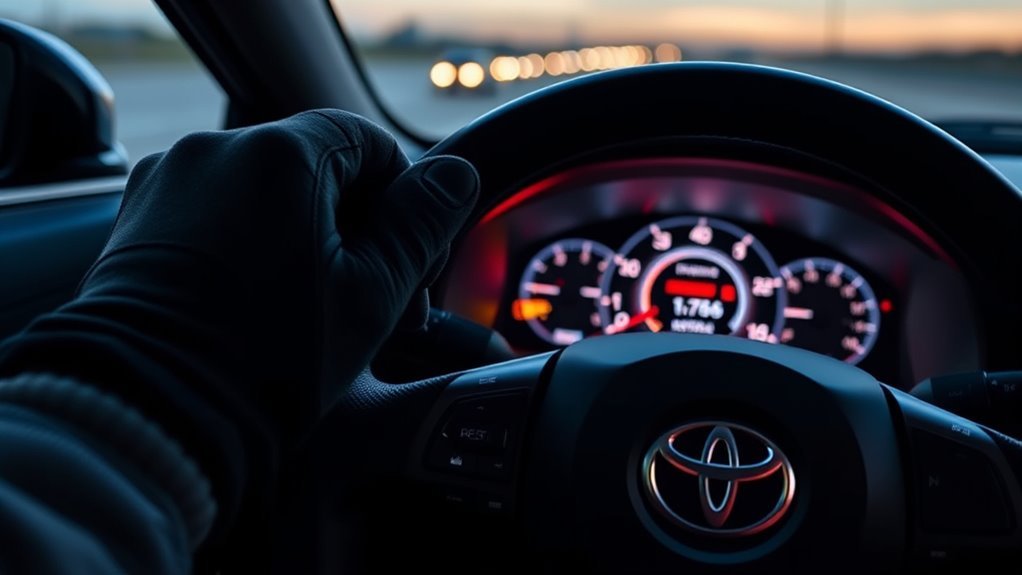
Because the Supra gives you both Dynamic Radar Cruise Control (DRCC) and standard cruise, you can pick the mode that matches your route by pressing the Driving Assist mode select switch on the steering wheel until the display shows your choice. Use that switch to cycle between DRCC and standard cruise; the toggle is immediate and clear on the instrument display. DRCC maintains a preset distance to the vehicle ahead and engages above 20 mph, so you’ll favor it for steady highway runs. Standard cruise holds a constant speed without distance monitoring and can be useful at lower speeds or when you want direct speed control. When switching modes remember you lose adaptive features if you select standard cruise, so match your mode to prevailing driving conditions.
How DRCC Behaves in Traffic, Hills, and Cut‑Ins
When you engage DRCC it actively manages speed to keep a safe gap: it will slow and accelerate in stop‑and‑go traffic, reduce speed promptly when a car cuts in, and modulate throttle and braking on hills to hold your preset speed and distance above about 20 mph.
You’ll notice traffic behavior is predictive: DRCC decelerates smoothly as vehicles ahead slow, pauses in jams, then accelerates back to set speed when clear. Hill performance maintains momentum by adjusting engine output and regenerative braking feel, minimizing manual throttle inputs. If a vehicle cuts in, the system immediately closes the gap by reducing speed within your configured distance, prioritizing safety and comfort. You remain in control; DRCC liberates you from constant speed corrections while requiring attentiveness to complex or abrupt scenarios.
Troubleshoot DRCC Warnings and Sensor Limits
Although DRCC usually runs transparently, a dashboard warning means the system has detected a sensor obstruction or malfunction and needs attention. You’ll assess warning light causes quickly: check for dirt, ice, or debris on the front grille radar and follow sensor maintenance tips—wipe gently, avoid high‑pressure sprays, and clear ice before driving. If cleaning doesn’t help, reset the system by toggling Driving Assist off and on after a few seconds. Consult the owner’s manual for sensor location and model-specific steps. Maintain an uncompromised sensor field to preserve autonomous-like freedom; you’re reclaiming control by ensuring systems function. Visualize inspection zones:
| Front grille | Lower bumper | Surroundings |
|---|---|---|
| Radar face | Acoustic vents | Road spray |
| Ice buildup | Mud splatter | Snow drift |
Safe, Legal Use of DRCC and Further Resources
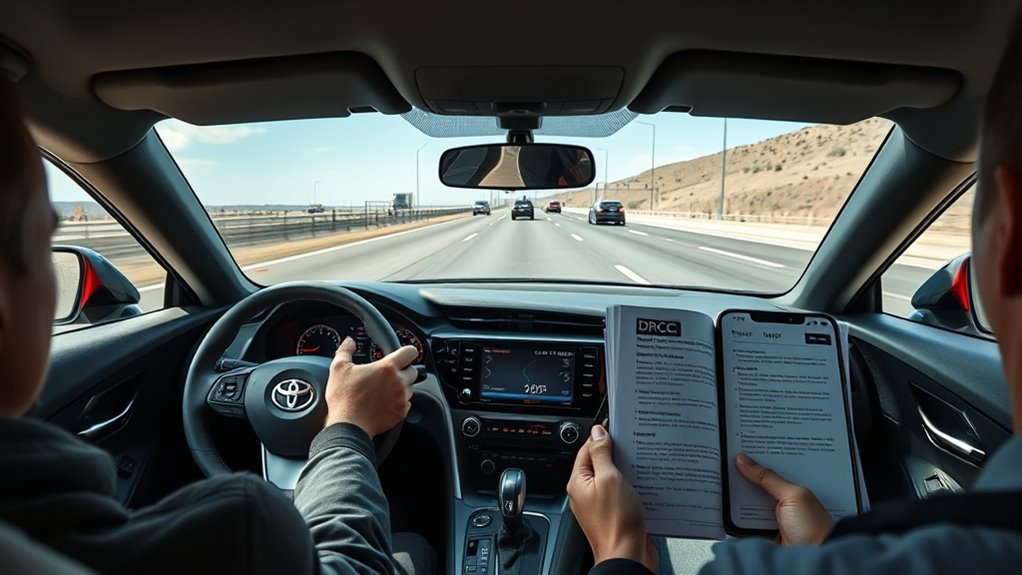
After you’ve confirmed sensors are clear and the system reads normal, use DRCC only where laws and road conditions allow and where its sensors can function reliably. You’ll engage DRCC by accelerating to your desired speed and pressing the Driving Assist switch; it maintains a safe following distance with camera and radar adjustments. Adjust set speed in 1 mph increments with the plus/resume switch or hold for larger changes. Cancel with the brake or cancel switch; DRCC remembers your last set speed. Observe legal guidelines: local regulations may restrict automated assistance, and you remain responsible for vehicle control. Combine technical understanding with user experiences to judge limits. For feature specifics and safety details, consult the Owner’s Manual or toyota.com/safety-sense.
Frequently Asked Questions
How to Use Super Cruise Adaptive Cruise?
You engage Super Cruise above 20 mph using Driving Assist; you’ll set cruise settings, adjust speed with the plus/resume, and rely on safety features like radar and camera sensing to maintain distance—cancel with brake or the cancel switch.
Does Supra Have ACC?
You’re right — the Supra has ACC; as they say, “fortune favors the bold.” You’ll appreciate Supra features and ACC benefits: precise radar-camera control, maintained following distance, speed memory, and effortless, liberating highway cruising for confident, autonomous-feeling travel.
Conclusion
You’ve now got the essentials to use Supra’s DRCC: activate it, set speed and following gap, tweak with +/– or hold, and pause or cancel as needed. Remember “trust, but verify”—never rely on DRCC alone; keep hands on the wheel and eyes on the road. Expect sensible behavior in traffic, on hills, and during cut‑ins, but watch for warnings and sensor limits. Use it legally and as a driving aid, not a substitute for attention.