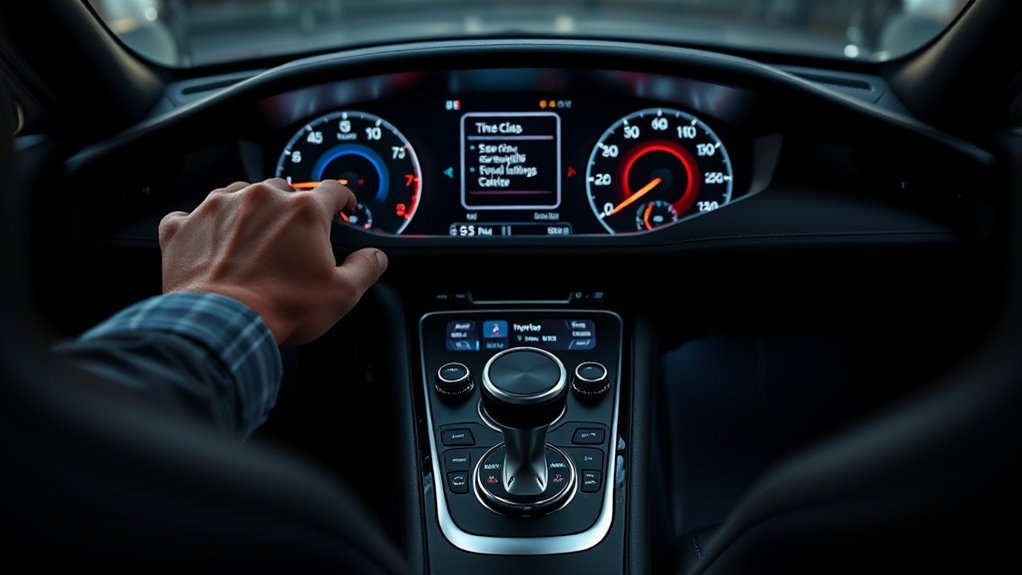
You can set your Toyota Supra clock from the touchscreen or by voice in seconds: go to My Vehicle > System settings > Date and time (or Settings > General > Clock > Time Setting), choose Manual to enter hour and minute or pick Sync with Phone/GPS to auto-update, confirm changes, and guarantee your phone’s Bluetooth is paired for phone sync. Toggle 12/24‑hour and time zone in the same menu; follow troubleshooting steps if sync fails for more detailed guidance.
Set the Clock Now: Quick Steps for Toyota Supra
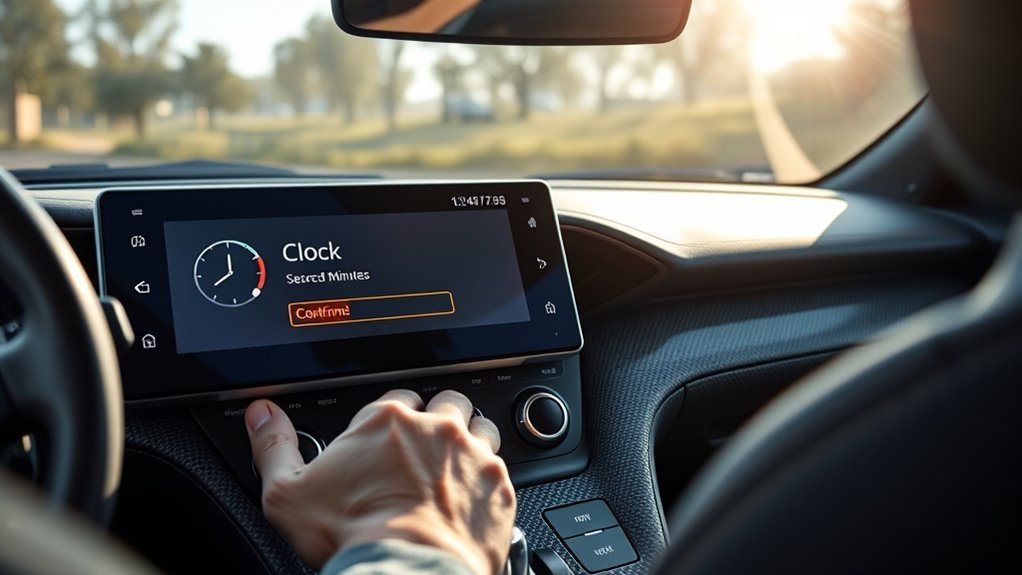
Start by accessing the clock controls: say “My Vehicle,” then “System settings,” and “Date and time” to open the clock menu; from there you can choose Settings > General > Clock > Time Setting and pick “Manual” to set the time directly, or select “Sync with Phone” to have the clock update automatically—either method will also sync the instrument cluster and multimedia system. You’ll then pick Manual to set time precisely or choose Sync with Phone if you want automatic updates. Use voice commands to state the exact hour and minute once Date and time is open. Check available clock styles and time formats to match your preference. Finish by confirming changes; both displays update together immediately.
Use Automatic Sync: Enable GPS or Phone Time on Supra
To enable automatic time, go to the home screen and tap the Settings cog. Under General > Clock, choose “Sync with Phone” or select GPS time and turn on Auto Time Zone. You can also use voice commands: say “My Vehicle,” then “System settings,” then “Date and time.”
Sync With Phone
1 quick step will keep your Supra’s clock accurate: enable automatic sync so the system pulls time from your phone or GPS. To sync with your phone, tap the Settings cog on the home screen, go to General > Clock > Time Setting, and choose the phone sync option. Make sure your phone’s Bluetooth connectivity is active and paired with the car so automatic updates flow. Confirm your phone shows the car as connected, then check the clock updates to match your device. If you prefer a specific Time format, toggle 12/24-hour in the same Clock menu after syncing. You can still choose Manual if you need control, or use voice commands via “My Vehicle” > “System settings” > “Date and time.”
Use GPS Time
When you enable automatic sync, the Supra will pull precise time from GPS (or your paired phone) so the clock stays accurate without manual adjustments. To use GPS time, go to Settings > General > Clock > Time Setting and choose Sync with Phone; the system will prefer GPS accuracy when available. Make sure your phone is connected via Bluetooth so the vehicle can use network-assisted time if GPS signal is weak. If you want hands-free, say “My Vehicle” then “Date and time” to enable or check sync. You retain control: select Manual in the same menu for Time adjustments when you need them. This frees you from constant tweaking and keeps your Supra aligned with real-world time.
Auto Time Zone
If you want the Supra to update the clock automatically as you cross time zones, enable Auto Time Zone in the clock settings so GPS- or phone-based location data adjusts the time for you. To set it, tap Home > Settings > General > Clock > Time Setting. Choose Sync with GPS for reliable auto time adjustment using GPS functionality. If you prefer your phone as the master clock, select Sync with Phone instead; the Supra will mirror your mobile’s time. You can still switch off syncing and set the time manually if you want full control. While in Clock settings you’ll also pick 12- or 24-hour display. Enable Auto Time Zone to free yourself from manual resets and keep the clock accurate.
Manually Set Date & Time (Step‑by‑Step)
Start at the home screen, tap the Settings (cog) icon, choose General, then Clock to access the manual date and time controls. You can also say “My Vehicle,” then “System settings,” and “Date and time” to reach this menu hands‑free. Choose Time Setting, pick Manual, and enter the desired date and time directly. Use the on‑screen fields to set hours, minutes, month, day, and year precisely. Confirm each entry and save changes so your digital dashboard features reflect the update and your time display customization stays active. Don’t forget to verify the clock on the dash after saving. This gives you control and freedom from automatic overrides.
Change Time Zone and 12/24‑Hour Format on Supra
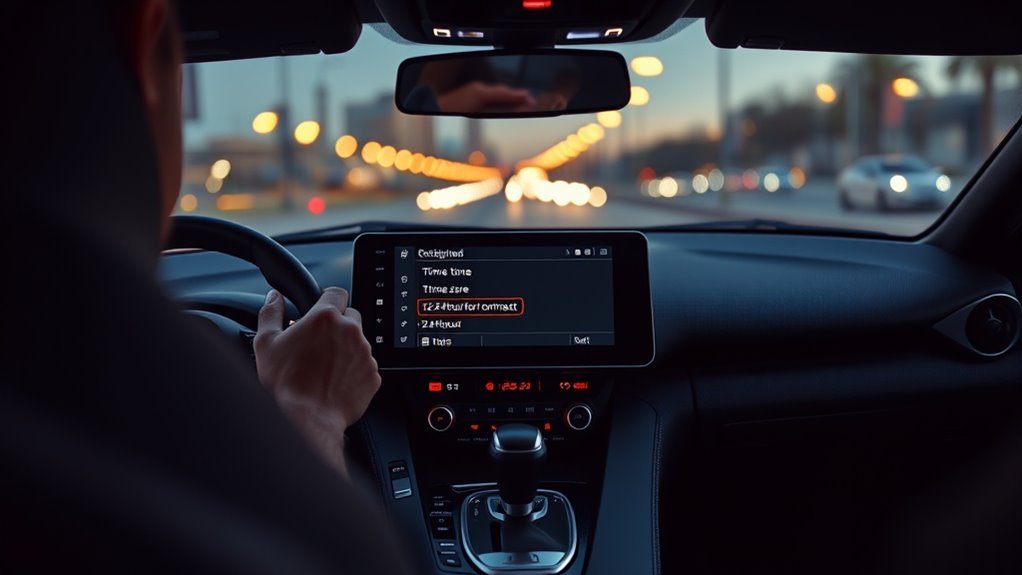
Although you can let GPS set the time automatically, you can also change the Supra’s time zone and toggle between 12‑ and 24‑hour formats manually via the infotainment: Park the vehicle, then open My Vehicle → System settings → Date and time. Turn off automatic GPS if you want manual control; this frees you to make time zone adjustments that match your intent rather than the system’s assumptions. Select your desired time zone from the list, confirm, and watch the clock update. In the same Date and time menu, choose your format preferences—either 12‑hour or 24‑hour—and apply them. If you prefer automatic accuracy while retaining control, sync your mobile phone with the Supra so updates stay precise without sacrificing autonomy.
Use Voice Commands to Update the Clock in a Supra
Tap into the Supra’s voice system by saying “My Vehicle,” then speak “System settings” and “Date and time” to reach the clock controls; once there, state the hour and minute you want and the system will update the clock—perform this in a quiet environment for best recognition. You’ll move quickly through menus and reclaim control of your time.
- Choose a quiet environment to reduce misrecognition.
- Speak clearly and state digits: “10 30” for 10:30.
- Pause between commands if the system misses a prompt.
- Use steady, confident tones aligned with voice recognition tips.
- Confirm the displayed time before driving.
You’ll liberate yourself from manual buttons. Follow commands precisely, and the Supra updates immediately when it hears you.
Troubleshooting: Clock Won’t Change After Recall or Sync
If the clock won’t change after a recall or phone sync, check for conflicts between the car’s auto-sync and the recalled update. Go to Settings > General > Clock > Time Setting, confirm “Sync with Phone” is enabled, then try toggling auto-set off and back on or switch to Manual to enter the correct time. If the display stays unresponsive, perform a factory reset or contact your dealer for a deeper system reset.
Sync And Recall Conflicts
When your Supra’s clock won’t update after a recall or sync, first confirm your phone is connected so the vehicle can receive automatic time data. You’ll check System settings > Date and time to verify the sync option is enabled; this addresses common sync issues and diminishes recall effects. If the auto-set time appears enabled but the clock stays wrong, toggle auto-set off then on to force a fresh sync. If that fails, switch to Manual in the same menu only to verify the system accepts changes (this is diagnostic, not the manual reset procedure). If problems persist, contact a Toyota service center for deeper diagnostics.
- Confirm phone connection
- Verify sync enabled
- Toggle auto-set
- Test manual entry
- Contact service center
Manual Reset Procedures
Start by accessing the clock controls through the voice menu: say “My Vehicle,” then “System settings,” and select “Date and time” to choose Manual mode and enter the correct time. If the clock won’t change after a recall or phone sync, confirm your phone connection and retry syncing; sometimes a reconnection restores digital display settings. When automatic syncing fails, switch to Manual and input the time directly using the available clock customization options. Verify software is current—updates often fix sync bugs. After updating, retry both auto and manual adjustments. If the issue persists despite correct settings, software currency, and a solid phone link, consult your dealer for deeper diagnostics or hardware replacement. Take control and insist on reliable timekeeping.
When to Reset the Clock and Update Supra Software
Although you rarely need to touch the clock, reset it after daylight saving changes, after a battery disconnect, or whenever the display shows the wrong time. You should also check for software enhancements regularly to keep time features accurate. When to act:
Although seldom needed, reset your clock after daylight saving, battery disconnects, or when the display shows the wrong time.
- After daylight saving shifts or obvious time errors
- After battery replacement or a disconnected battery
- When GPS or phone fails to auto-sync the clock
- Following a visible infotainment update prompt
- If voice commands like “My Vehicle” → “Date and time” don’t work
Procedure: verify GPS and phone settings, try voice-set time, then run software update from Settings → System if available. Consult the owner’s manual for model-specific steps. Reset and update promptly so your Supra stays reliable and free.
Older Supra/Analog Clocks: Fixes and Replacement Options
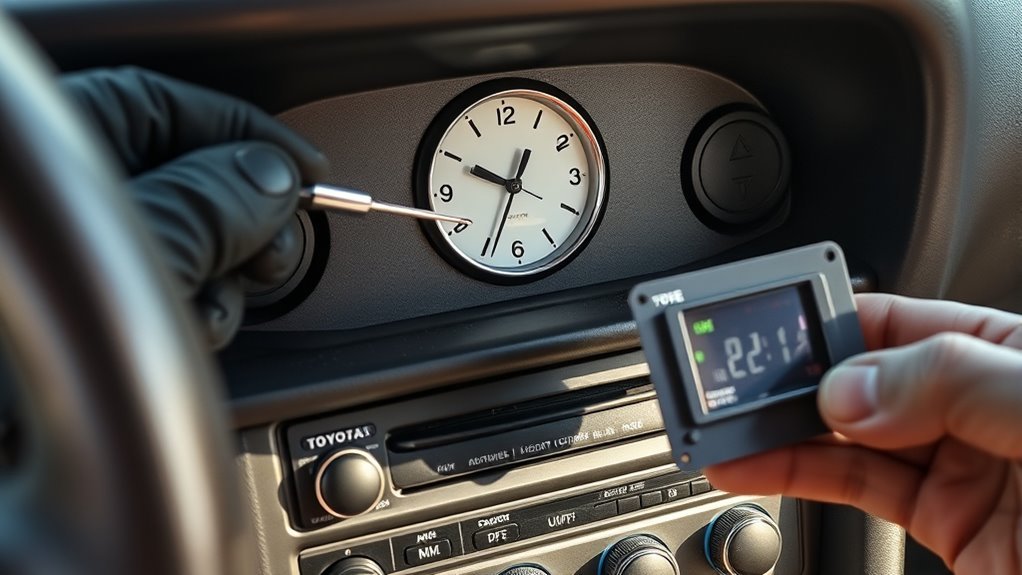
If your older Supra’s analog clock won’t keep time or the adjustment knob is missing or recessed, first inspect the dash for a small clock adjuster and try twisting it gently; if that doesn’t work, remove the dash trim to check wiring connections behind the clock for loose plugs or corrosion. Accessing the unit frees you to diagnose Dashboard issues: confirm power and ground with a multimeter, reseat connectors, and clean corroded terminals. If the knob is recessed, you can carefully pry or replace the trim clip to restore access. For persistent faults, pursue Replacement options: source a donor clock, search eBay or specialist suppliers, or consult a mechanic familiar with Toyota parts. Choose the repair that restores control and independence.
Frequently Asked Questions
How Do I Adjust My Clock Settings?
You adjust your clock settings via the home screen: tap Settings, General, Clock, then Time Setting to choose Manual or sync with your phone. Use voice commands too. Perform clock adjustments until the digital display shows freedom.
Conclusion
You’ve got the clock set, but don’t stop yet — a tiny misstep can send time slipping. Before you drive off, glance at the screen, listen for the confirmation chime, and picture sunrise aligning with your dash. If sync fails, a software update or a quick reset will pull time back into line. Do that now, and you’ll leave with certainty instead of a clock that keeps counting down unknown minutes.