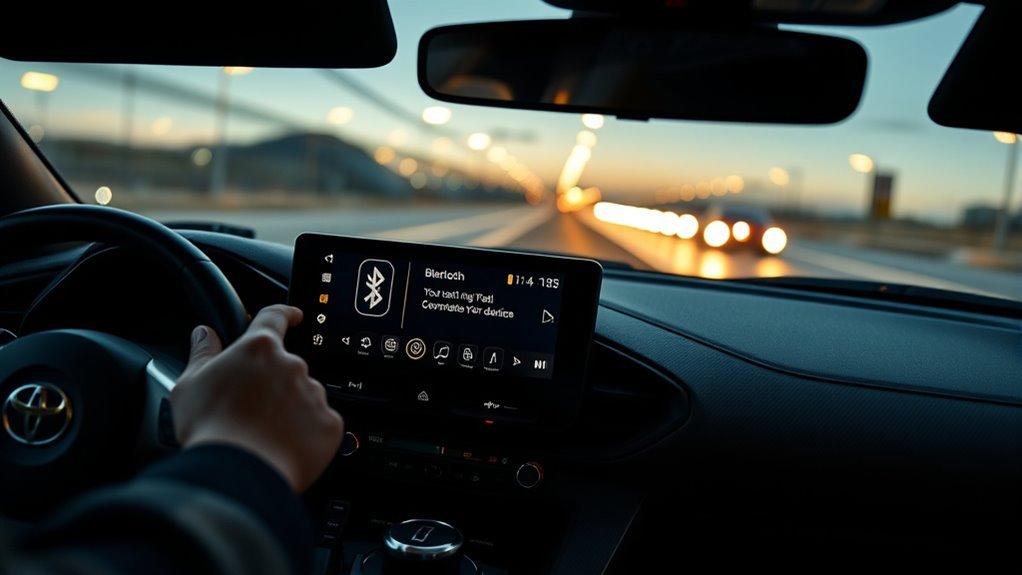
Make sure Bluetooth is on and your phone’s discoverable, install pending OS updates, and keep the phone near the Supra’s Entune. On the car display go to Menu > Setup > Bluetooth > Add Device, then open your phone’s Bluetooth list and select the Toyota Entune entry. Confirm matching PINs and grant permissions on both screens. Test music, calls, and navigation, and if you get drops restart devices or re‑pair; continue for troubleshooting tips and CarPlay comparisons.
Get Your Phone and Supra Ready (Pre‑Pairing Checks)
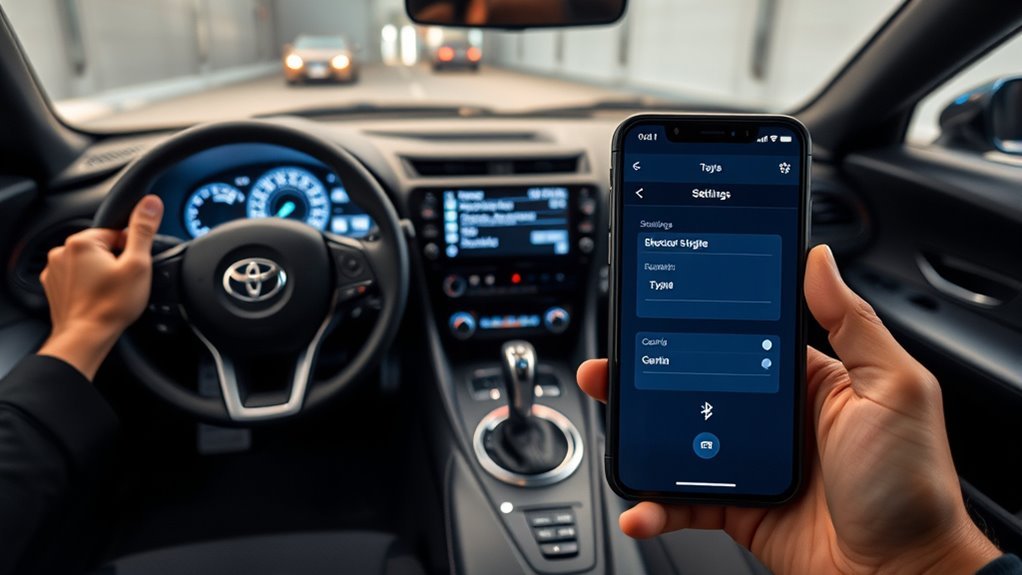
Want a trouble‑free Bluetooth connection? You’ll confirm a few pre‑pairing items so your smartphone settings and the Supra’s multimedia system cooperate. First, enable Bluetooth and set your phone to discoverable; visibility is mandatory for initial handshaking. Check for and install any pending OS or Bluetooth stack updates on your device—outdated software often breaks profiles. Keep the phone within close range of the Entune hardware and terminate other active Bluetooth links that can cause interference. If pairing fails or behaves erratically, reboot both your smartphone and the multimedia system to clear transient faults. These checks minimize friction, respect your time, and put you in control—liberating you from avoidable connectivity hassles before you begin the actual pairing sequence.
Pair Bluetooth in a Toyota Supra (Step‑By‑Step via Entune)
With your phone and Supra prepped, you’ll begin pairing via the Entune system by pressing the multimedia “Menu,” selecting “Setup,” then “Bluetooth.” Choose “Add Device” on the screen while keeping your smartphone discoverable, then open Bluetooth settings on your phone and pick the Toyota Entune entry when it appears. Follow on-screen prompts on both units to confirm PINs or permissions; accept access to contacts and media as needed. Watch for pairing confirmation on the Supra display. Consider Bluetooth security: only pair in safe locations, remove old or unknown devices, and disable discoverable mode after setup. Check Device compatibility if pairing fails—ensure your phone’s Bluetooth version and OS are supported, then retry the sequence.
Test the Connection: Audio, Calls, and Navigation
Now that your phone is paired, verify the connection by testing audio, calls, and navigation so you can confirm everything routes correctly through the Supra’s system. Play music to assess audio quality via the car speakers; listen for clarity, channel balance, and consistent volume. Place a hands-free call and confirm voice pickup and speaker output on both ends. Start turn-by-turn navigation on your phone and ascertain navigation reliability by checking that prompts are heard through the Supra without delay. Watch for unexpected disconnects while switching apps or driving; stability matters.
- Play a music track and note speaker balance and latency.
- Make a call to test microphone pickup and speaker clarity.
- Launch navigation and verify audible prompts and prompt timing.
Why Bluetooth Drops and Quick Fixes (Restart, Re‑Pair, Updates)
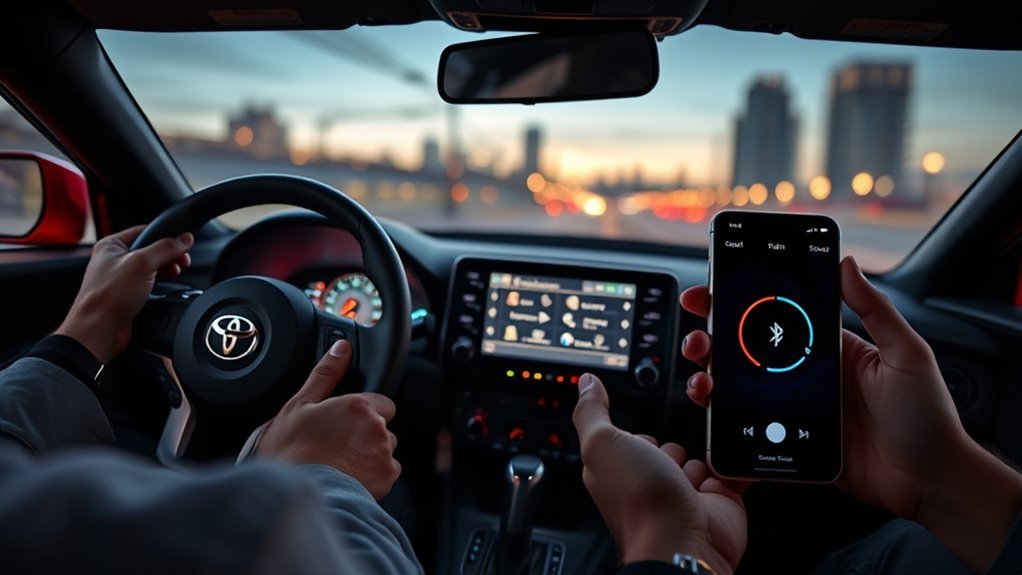
If your audio, calls, or navigation start cutting out after you’ve confirmed everything works, Bluetooth drops are usually caused by software mismatches, range issues, or temporary glitches; iOS updates like iOS 17 have introduced incompatibilities with older Toyota infotainment firmware that can trigger disconnects. Start with Bluetooth troubleshooting: restart your phone and the Supra’s infotainment to clear transient faults and restore connection stability. If that fails, remove the device and re‑pair—this forces a fresh handshake and often fixes cached profile conflicts. Check device discoverability and keep the phone within range; interference and hidden modes cause many disconnects. Finally, install updates on your mobile device and monitor Toyota firmware advisories to improve software compatibility and maintain reliable, liberated use of in‑car connectivity.
CarPlay vs Bluetooth on the Supra : What Works and Compatibility
Although both CarPlay and Bluetooth let you connect a phone to the Supra, CarPlay typically gives a more stable, feature-complete experience—especially for navigation and media—while Bluetooth is more limited and prone to intermittent pairing issues (notably after iOS 17 updates). You’ll find CarPlay advantages in consistent navigation routing, reliable media control, and fewer reconnects. Bluetooth limitations include discoverability requirements, range constraints, and repeated pairing attempts on the Entune system.
- Use CarPlay for long trips and mission-critical navigation to avoid drops.
- Keep Bluetooth as a backup for quick calls or when CarPlay isn’t available.
- If Bluetooth fails after iOS updates, re-pair or prioritize wired CarPlay for uninterrupted use.
Choose the path that maximizes freedom and control.
Frequently Asked Questions
How to Put Toyota in Pairing Mode?
Press Menu, choose Setup, then Bluetooth and Add Device to put your Toyota in pairing mode. You’ll follow on-screen prompts, enable your phone’s discoverable Bluetooth setup, and use connection troubleshooting if pairing doesn’t complete.
Can an Android Phone Connect With a Toyota Supra?
Yes — over 90% of modern Android phones support Bluetooth compatibility with Toyota systems. You’ll enable Android settings, make the phone discoverable, and follow the Supra’s prompts to confirm pairing, freeing your hands and preserving autonomy.
Conclusion
You’re set to connect and go. 88% of drivers say seamless Bluetooth boosts driving satisfaction, so getting your Supra paired matters. Start with phone and Entune ready, follow the step‑by‑step pairing sequence, then test audio, calls, and navigation. If drops happen, restart devices, re‑pair, or check software updates. Remember: CarPlay offers tighter integration but Bluetooth still handles media and calls across most Supra trims. Stay current and you’ll stay connected.