Toyota Camry’s Apple CarPlay lets you connect your iPhone with ease, giving you access to navigation, music, and messaging apps directly from your car’s infotainment system. Just pair your phone via Bluetooth, allow necessary permissions, and you’re set! You can control everything using Siri’s voice commands, ensuring safer driving. Plus, customizing your app layout makes it even more convenient. Discover how to troubleshoot connection issues and maximize your CarPlay experience for even better driving.
Connect Your iPhone to Toyota Camry Apple CarPlay
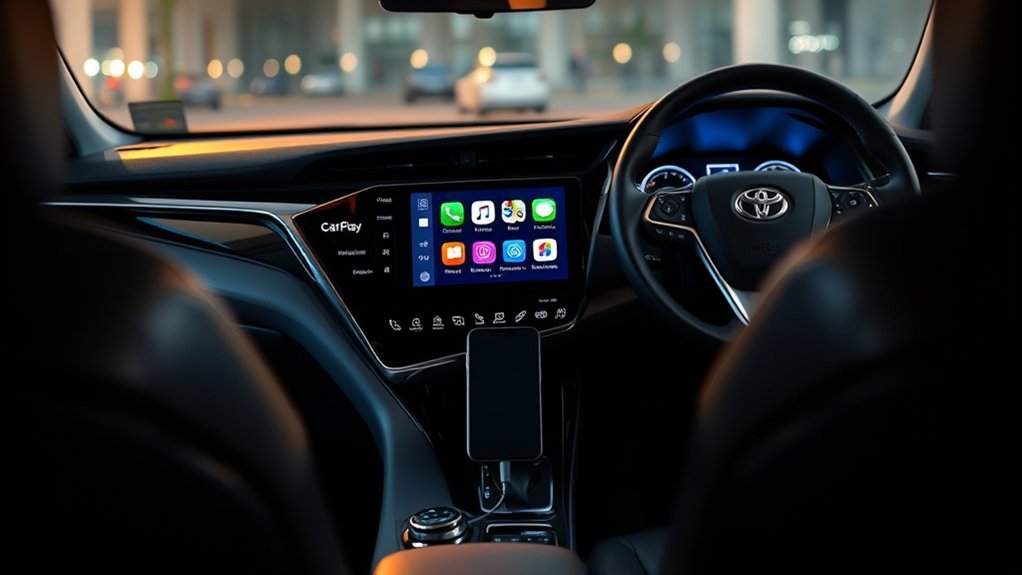
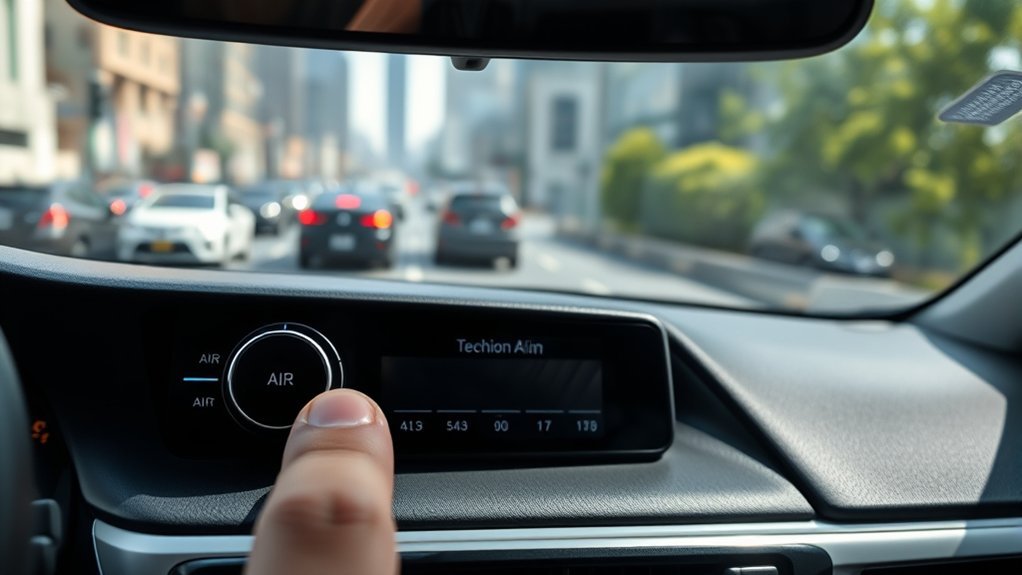
Connecting your iPhone to the Toyota Camry’s Apple CarPlay is a straightforward process that can greatly enhance your driving experience. First, hit the phone button on the screen and select “Connect a device.” This initiates the Bluetooth setup you’ll need for seamless iPhone compatibility. Next, access your iPhone’s Bluetooth settings and search for the Camry’s Bluetooth option. Once you find it, select it to start pairing.
After pairing, check the connection status on the screen to confirm your iPhone’s linked. This guarantees you can utilize voice commands to access guidance and media apps hands-free, liberating you from distractions while driving. Embracing this technology not only simplifies your journey but also keeps you connected to what matters most. Enjoy the freedom of steering through your favorite apps without taking your eyes off the road!
Grant Necessary Permissions for Pairing
To guarantee a successful connection between your iPhone and the 2025 Toyota Camry, granting the necessary permissions is vital. During the pairing process, you’ll encounter prompts that ask you to click “Allow” for various permissions. This step is essential for enabling wireless Apple CarPlay and guarantees your phone integrates smoothly with the vehicle’s system.
After selecting “Connect,” you may need to grant access for specific apps to function correctly within the Apple CarPlay interface. Follow the on-screen prompts to confirm permissions for navigation and media playback; this not only enhances your driving experience but also liberates you from distractions.
It’s wise to regularly check your permission settings on your phone to maintain seamless connectivity with your Camry. By confirming these permissions are granted, you’re setting yourself up for a hassle-free, enjoyable drive with your favorite apps right at your fingertips.
Troubleshoot Your Toyota Camry Apple CarPlay Connection
Even with the right permissions set up, you might still face challenges when trying to connect your iPhone to the 2025 Toyota Camry’s Apple CarPlay. First, make sure Bluetooth is enabled on your phone and that it’s set to be discoverable. This simple step can often resolve connection issues. If you still can’t connect, try restarting both your phone and the vehicle’s infotainment system to eliminate any temporary glitches.
Next, check for software updates on both devices. Outdated software can impede functionality, so keeping everything up-to-date is vital. If problems persist, consider resetting the Bluetooth settings on your phone and reattempting the pairing process. Finally, don’t hesitate to consult your vehicle’s manual for specific troubleshooting steps tailored to your model. By following these tips, you can liberate your driving experience and enjoy the seamless connectivity that Apple CarPlay offers.
Accessing and Using CarPlay Apps
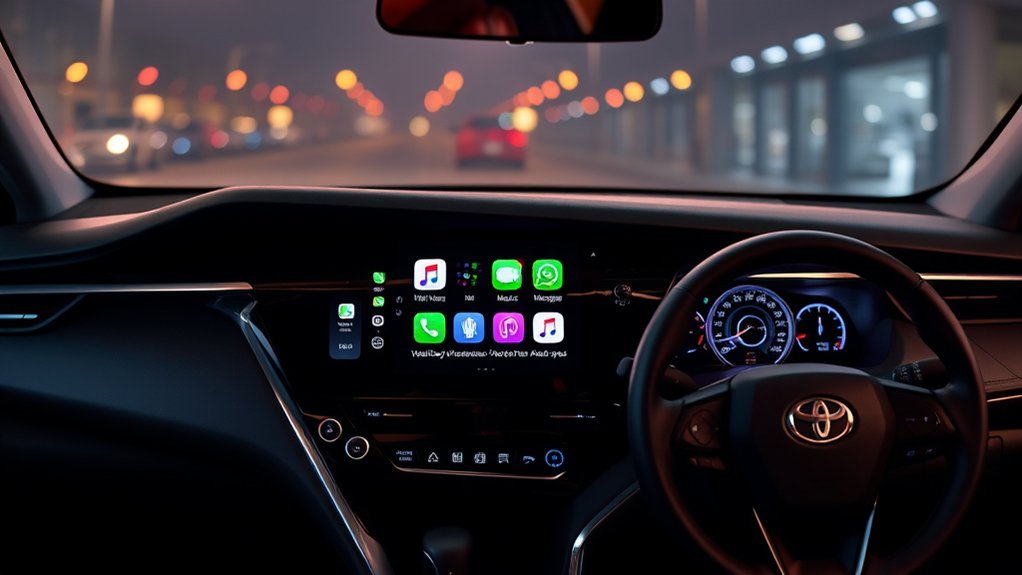
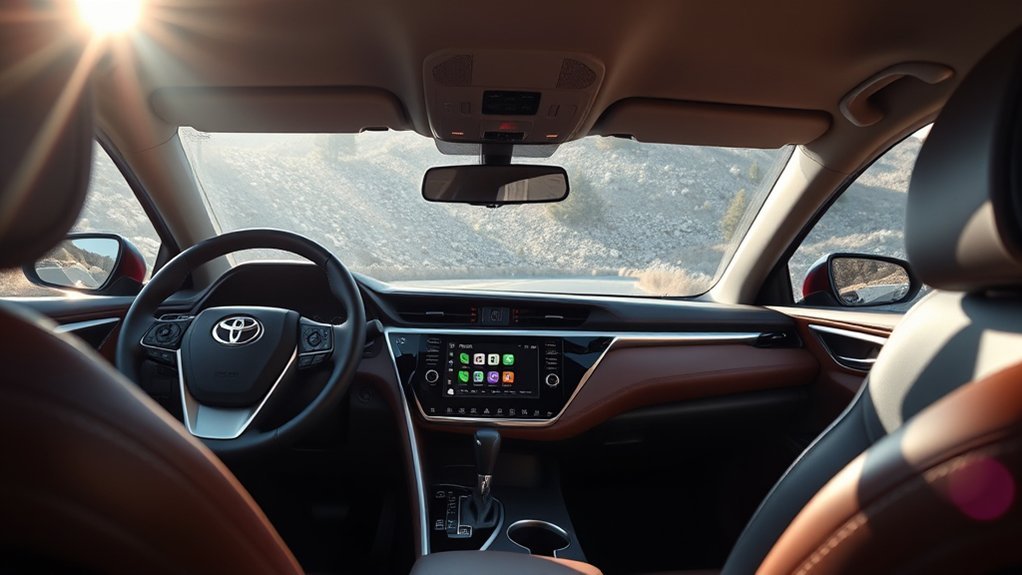
Once you’ve established a connection, accessing and using CarPlay apps in your 2025 Toyota Camry transforms your driving experience. With a streamlined interface, you can quickly navigate through compatible apps that enhance your journey.
- Navigation: Use apps like Apple Maps or Google Maps for real-time directions.
- Music: Stream your favorite playlists from Spotify or Apple Music effortlessly.
- Messaging: Send and receive texts using Siri voice commands, keeping your hands on the wheel.
CarPlay syncs your phone’s content automatically, allowing for easy access while driving. Plus, you can rearrange the app layout to suit your preferences through your iPhone’s settings. Always verify you check for updates on both your iPhone and your Camry’s infotainment system. Staying up-to-date guarantees peak performance and app compatibility, letting you enjoy the road without distractions.
Top Tips to Maximize Your Toyota Camry’s Apple CarPlay Functionality
Optimizing your Toyota Camry’s Apple CarPlay experience can greatly enhance your daily drives. Here are some top tips to access its full potential:
| Tip | Benefit |
|---|---|
| Update iOS | Guarantees compatibility and new features |
| Use Siri’s voice commands | Hands-free control for guidance and music |
| Customize app layout | Quick access to your most-used apps |
Start by keeping your iPhone updated for the latest enhancements. Embrace custom voice commands with Siri to maintain focus on the road while guiding or playing music. Organizing your apps means you can streamline your experience, prioritizing what you use most. Don’t forget to regularly check for software updates for both your vehicle and iPhone. Enable wireless Apple CarPlay to ditch the clutter of cables, creating a clean, efficient setup in your Camry. Enjoy your liberated driving!
Frequently Asked Questions
Do Toyota Camrys Have Wireless Apple Carplay?
Yes, Toyota Camrys offer wireless Apple CarPlay, ensuring seamless connectivity. Just enable Bluetooth on your iPhone and follow the pairing instructions. Regular updates can help avoid compatibility issues, enhancing your driving experience and freedom.
Is There a Monthly Fee for Carplay?
No, there’s no monthly subscription for Apple CarPlay itself. It’s included with compatible vehicles, like the Camry. Just consider any potential data costs for apps you use—those could vary based on your plan.
Conclusion
In summary, mastering Apple CarPlay in your Toyota Camry can greatly enhance your driving experience. By connecting your iPhone and granting permissions, you’re all set to access a world of apps right at your fingertips. If you encounter any bumps in the road, troubleshooting is just a few steps away. So, don’t just scratch the surface; dive deep into the features and make the most of this tech-savvy ride. Enjoy the journey!