How to Update Toyota Camry Infotainment Software
What’s in This Article
- What You’ll Need Before You Update
- Determine Your Toyota Camry Model Year
- Check Which Update Method Your Camry Supports
- How to Establish a Reliable Wi-Fi Connection
- Step-by-Step Guide for Over-the-Air Updates
- How to Download Update Files From Toyota’s Portal
- Preparing a USB Drive for Software Updates
- Installing Software Updates Using USB
- Dealer Services for Toyota Camry Software Updates
- Common Issues and Troubleshooting Tips
- Tips for Post-Update Vehicle Maintenance
- Frequently Asked Questions
A slow or frozen Camry screen can turn a simple drive into a frustrating one. A software update may fix bugs, improve system stability, and add available multimedia improvements. This guide shows you how to check your update method, use Wi-Fi when supported, prepare a USB drive when needed, and know when a dealer should handle the job.
Quick Answer
To update your Toyota Camry infotainment software, check your model year, head unit, and software version first. Compatible Toyota Audio Multimedia systems may update through the Data Communication Module (DCM), Wi-Fi, or a USB flash drive. If no update appears or the install fails, use Toyota’s owner portal or contact a Toyota dealer with your Vehicle Identification Number (VIN).
Key Takeaways
- Check your VIN and software version before you download any update file.
- Use OTA updates only if your Camry’s multimedia system supports them.
- Use a USB flash drive only when Toyota’s portal or dealer instructions call for it.
- Keep the vehicle parked and follow the on-screen prompts during the update.
- Contact a Toyota dealer if the update fails, freezes, or involves safety-related firmware.
Estimated total time: about 30 minutes, depending on download speed and update method.
What You’ll Need Before You Update
Plan for at least 30 minutes, since download time depends on your connection. Many installations take about 10 to 15 minutes after the update files finish downloading. Some USB updates may take about 15 minutes per file.
- Your Toyota Camry’s Vehicle Identification Number (VIN)
- A stable Wi-Fi network or cellular data connection, if your system supports OTA updates
- A blank USB flash drive that meets Toyota’s portal or owner manual requirements
- A computer with internet access for USB downloads
- Enough vehicle power to complete the update without interruption
Warning: Do not start a software update while driving, and do not remove the USB drive or shut off the vehicle until the screen says the update has finished.
Determine Your Toyota Camry Model Year
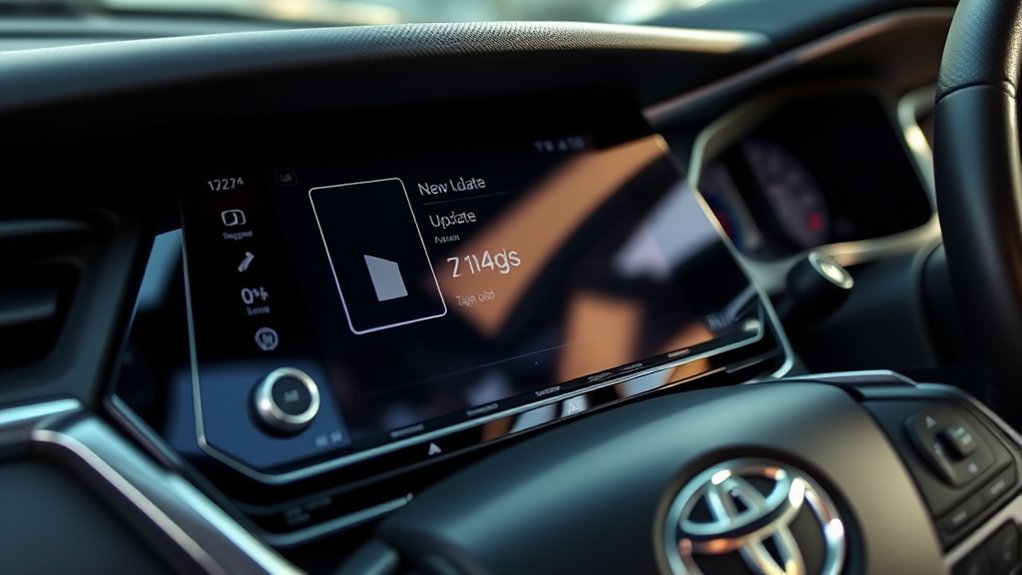
To find your Toyota Camry’s model year, start with the Vehicle Identification Number (VIN). You can usually find it on the driver-side dashboard near the windshield, inside the driver-side doorjamb, on your registration, or on your insurance card.
Your VIN helps Toyota match the right software information to your exact vehicle. It can show the model year, equipment, and other details that affect update support.
Do not rely on model year alone. Over-the-air (OTA), USB, and dealer update support can change by trim, region, head unit, and connected services status.
Check Which Update Method Your Camry Supports
Check your Camry’s infotainment settings before you download anything. Toyota says eligible Audio Multimedia systems can update through the DCM, Wi-Fi, or a USB flash drive, but support depends on your vehicle and region.
Toyota’s 2022 Camry information also notes that available Premium Audio with Dynamic Navigation included over-the-air updates with a trial period. That does not mean every 2022 or newer Camry supports the same update path.
Vehicle Model Year
Your model year gives you a starting point, but it should not be your only check. Later Toyota multimedia systems may support OTA updates, while older or non-compatible systems may need USB service or dealer help.
- Check your VIN in Toyota’s owner tools or update portal.
- Open the software update screen on the infotainment display.
- Review your current software version and model information.
- Read any update message before you accept the terms.
- Ask a dealer if your system does not show clear update options.
Wi-Fi or DCM Connection Required
For supported OTA updates, your Camry needs a working connection through DCM or Wi-Fi. If you use Wi-Fi, park close enough to your router or phone hotspot for a strong signal.
Avoid public Wi-Fi networks that require a browser login page. Toyota service guidance states that some update procedures will not work with networks that require a separate browser username or password.
Check the Current Software Version
Check your software version before you update. This helps you avoid downloading the wrong file or repeating an update you already installed.
- Open the infotainment system settings.
- Choose the software update or system information menu.
- Write down the current software version.
- Check if the screen shows updates available.
- Use Toyota’s portal or dealer support if the screen gives no clear answer.
How to Establish a Reliable Wi-Fi Connection
Park your Camry within range of your home router or phone hotspot. Confirm that the network has internet access before you connect the vehicle.
Open the infotainment settings menu, choose Wi-Fi, and turn Wi-Fi on. Select your network, enter the password carefully, and wait for the system to confirm the connection.
Keep Bluetooth and wireless phone projection in mind if the connection acts unstable. Some Toyota systems use 2.4 GHz Wi-Fi, and nearby wireless devices may affect signal quality.
Step-by-Step Guide for Over-the-Air Updates
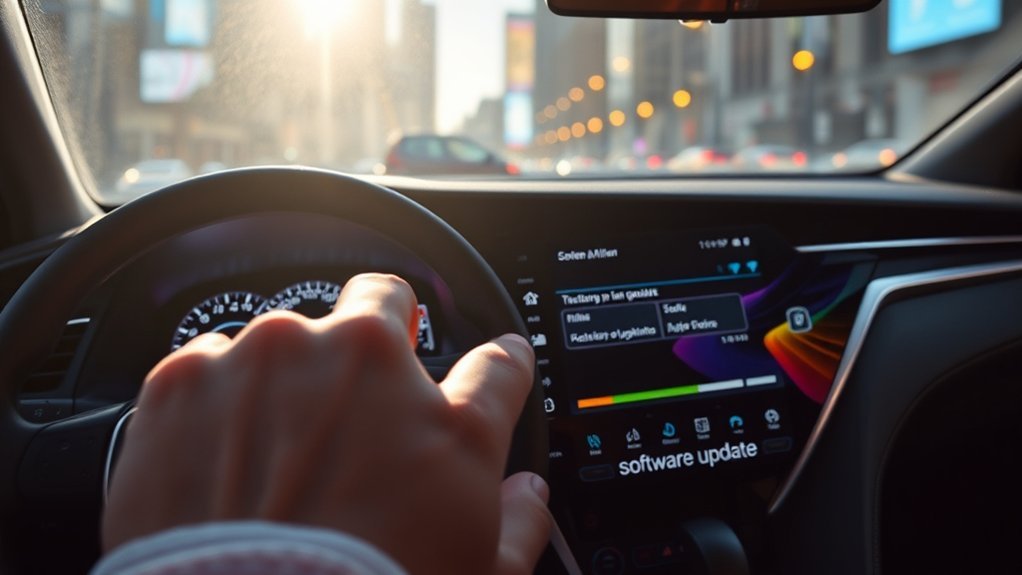
Use these steps if your Camry shows an OTA update option through DCM or Wi-Fi. Keep the vehicle parked and follow the screen prompts exactly.
- Open the settings menu on the infotainment display.
- Select the software update option.
- Review the update details, terms, and any warning messages.
- Accept the update only if the vehicle has enough power and a stable connection.
- Wait while the system downloads and installs the update.
- Restart the system only when the screen asks you to do so.
- Check the software version after the update finishes.
Note: Toyota multimedia software updates do not update map data through this same service on some systems.
How to Download Update Files From Toyota’s Portal
Use Toyota’s official software update portal when your system needs a USB update. Enter your vehicle details or follow the portal flow so Toyota can match the update to your multimedia system.
Do not use update files from forums, file-sharing sites, or unrelated models. The wrong file can fail to install or cause system problems.
Verify USB Drive Compatibility
Check your owner manual, Toyota portal instructions, or dealer bulletin before you choose a USB drive. Toyota instructions can vary by system and update type.
- Use a blank USB flash drive when Toyota instructions call for one.
- Use a drive with enough free space for the update file.
- Use the format required by Toyota’s portal or your owner manual.
- Save update files in the root directory when Toyota instructs you to do that.
- Keep only the required update file on the drive if the bulletin says so.
Enter Vehicle Identification Number
Your VIN helps Toyota identify your exact Camry. Enter it carefully if the portal asks for it, and check each character before you submit.
Some Toyota update flows may ask you to copy vehicle information from the car to a USB drive first. Follow the screen prompts and do not delete that vehicle information until the update ends.
Download Update Files Safely
Download update files only from Toyota’s official portal or a dealer-provided source. Save the files exactly as Toyota instructs, and do not unzip or rename files unless the instructions tell you to do so.
- Confirm the update matches your vehicle or model code.
- Save the file directly to the correct USB location.
- Keep the file name unchanged unless Toyota tells you otherwise.
- Safely eject the USB drive from your computer.
- Keep the update instructions open until the install finishes.
Preparing a USB Drive for Software Updates
Prepare the USB drive before you sit in the car. A clean drive reduces the chance that the infotainment system will miss the update file.
Format the USB drive only in the format Toyota requires for your system. Some Toyota manuals mention more than 4 GB of available space, while some portal or bulletin instructions may ask for a larger blank drive.
Copy the update file to the root directory if Toyota asks for it. Do not place the file inside a new folder unless the official instructions require that folder.
Installing Software Updates Using USB
Use USB only when your Camry’s system or Toyota instructions call for it. Park in a safe place, keep the vehicle powered as instructed, and do not remove the USB drive early.
USB Drive Requirements
Your USB drive must match the instructions for your exact update. If the infotainment screen does not detect the file, the drive format, folder location, or file name may not match Toyota’s requirements.
- Use a compatible USB flash drive with enough free space.
- Keep only the required update files on the drive when Toyota says so.
- Place files in the root directory when instructed.
- Insert the USB drive into the vehicle’s data USB port.
- Leave the USB connected until the system tells you to remove it.
Update Installation Steps
After you prepare the drive, install the update through the infotainment screen. The exact wording can vary, but the process usually follows this pattern.
- Park the vehicle in a safe location.
- Turn on the ignition or Ready mode as Toyota instructs.
- Insert the USB drive into the correct USB port.
- Open Settings and select Software Update.
- Choose Update Software when the option appears.
- Accept the terms and wait while the system installs the file.
- Restart the head unit or vehicle only when the screen asks.
- Verify the software version after the update finishes.
Dealer Services for Toyota Camry Software Updates
A Toyota dealer can check your VIN, software version, service bulletins, and update path. This helps when the update involves firmware, repeated failures, or unclear instructions.
Dealer service can also help when the infotainment screen freezes, loses connection, or shows a “software could not be updated” message. Bring your VIN, current software version, and a short note about what happened.
- Ask the dealer to check open service bulletins for your Camry.
- Request help if your system does not show an update menu.
- Use dealer support if a USB update fails more than once.
- Ask about safety-related firmware or recall-related software work.
- Keep the repair order for your records after service.
Common Issues and Troubleshooting Tips
Most update problems come from weak Wi-Fi, wrong USB formatting, incorrect files, or interrupted power. Start with the easiest checks before you schedule service.
- No update appears: Check your software version, VIN, region, and connected services status.
- Wi-Fi will not connect: Move closer to the router or use a phone hotspot with a simple password.
- USB file does not show: Check the file name, drive format, and root directory placement.
- Update freezes: Wait before you touch anything, since some steps can take several minutes.
- Update fails again: Contact a Toyota dealer and share the exact message on the screen.
When to Contact a Toyota Dealer
Contact a Toyota dealer if the screen stays frozen, the same error returns, or the system loses key functions after the update. You should also get dealer help if the update relates to a service bulletin, recall, camera display, navigation fault, or safety feature.
Do not keep repeating the same failed USB update. Repeated attempts with the wrong file or drive can waste time and may make troubleshooting harder.
Tips for Post-Update Vehicle Maintenance
After the update, test the features you use most. Check Bluetooth pairing, Apple CarPlay, Android Auto, navigation, backup camera display, audio settings, and voice commands.
- Confirm the new software version in the settings menu.
- Reconnect your phone if Bluetooth or phone projection acts unstable.
- Reset personal audio or display settings if the update changed them.
- Watch for error messages during your next few drives.
- Report ongoing issues to your Toyota dealer with the update date and software version.
Frequently Asked Questions
How Do I Update My Toyota Camry Software?
Open the infotainment settings menu and look for the software update screen. If your system supports OTA updates, follow the on-screen prompts. If it needs USB support, use Toyota’s official portal or ask a dealer to confirm the correct file.
How Do I Update a 2019 Toyota Camry Infotainment System?
A 2019 Camry may need a USB update or dealer service, depending on its head unit and region. Check Toyota’s software update portal with your VIN, then follow the USB instructions only if Toyota shows an update for your system.
Can I Update Camry Maps With an Infotainment Software Update?
Not always. Some Toyota multimedia manuals state that this software update service does not update map data. Check your navigation subscription, map update instructions, or dealer support.
What If My Camry Does Not Show Any Update?
Your system may already have the current software, or your vehicle may not support that update method. Check the software version, VIN, Toyota owner portal, and dealer service information before you try a manual USB update.
Can I Turn Off My Camry During a Software Update?
Avoid shutting off the vehicle while the update installs. Some OTA updates may resume after a restart, but USB updates can fail if you remove the drive or cut power too early. Follow the screen prompts until the update completion message appears.
Safety Disclaimer: This article gives general information only and does not replace Toyota owner manual instructions, dealer guidance, or help from a qualified technician. Always follow Toyota’s official instructions for your exact vehicle before you update vehicle software.
Conclusion
The safest way to update your Toyota Camry infotainment software starts with your VIN, software version, and supported update method. Use OTA updates when your system supports them, and use USB only when Toyota’s instructions call for it. If the update fails or the instructions do not match your screen, stop and contact a Toyota dealer. A careful update helps keep your Camry’s multimedia system stable, useful, and ready for your next drive.
References
- Find Vehicle Specifications by VIN – Toyota, accessed May 2026
- Toyota Software Updates – Toyota, accessed May 2026
- Over-the-Air: Audio Multimedia System Updates – Toyota, accessed May 2026
- Over-the-Air Software Updates – Toyota Support, accessed May 2026
- 2026 Multimedia Owner’s Manual – Toyota, 2026
- Camry Adds Hybrid Nightshade, New Colors for 2022 – Toyota USA Newsroom, 2022