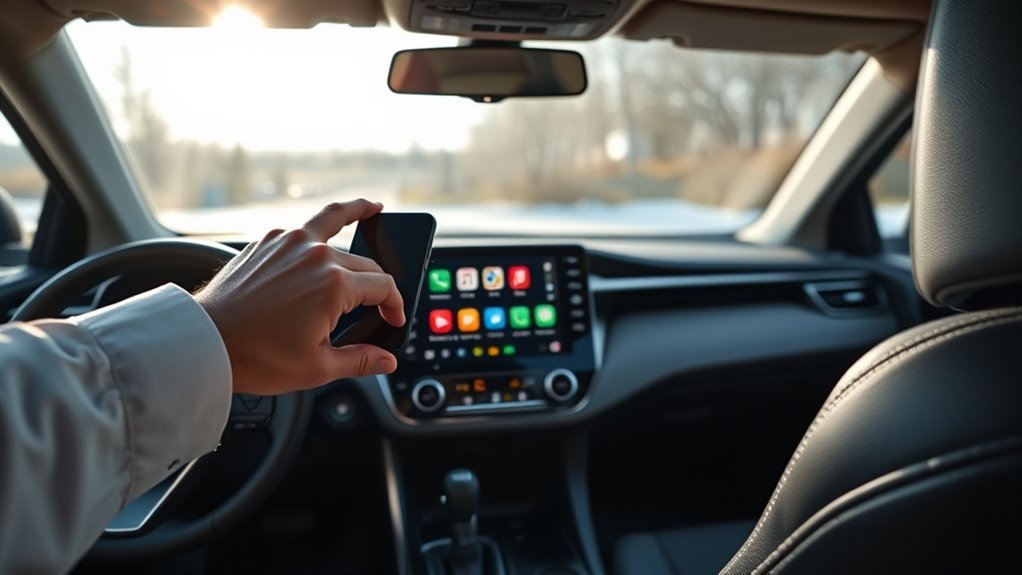
You’ll pair your phone to the RAV4 multimedia system via Bluetooth for wireless Apple CarPlay or Android Auto, or plug a compatible USB cable for a wired connection and follow on‑screen prompts. Update your phone OS, enable Bluetooth, allow prompts, and use a data‑capable cable for USB setups. Toggle interfaces with the upper‑left icon and accept device permissions. If you hit issues, restart devices, re‑pair the Bluetooth profile, or swap cables — more setup and troubleshooting tips follow.
Quick Connect: Pair Your Phone to the Toyota RAV4 Multimedia System
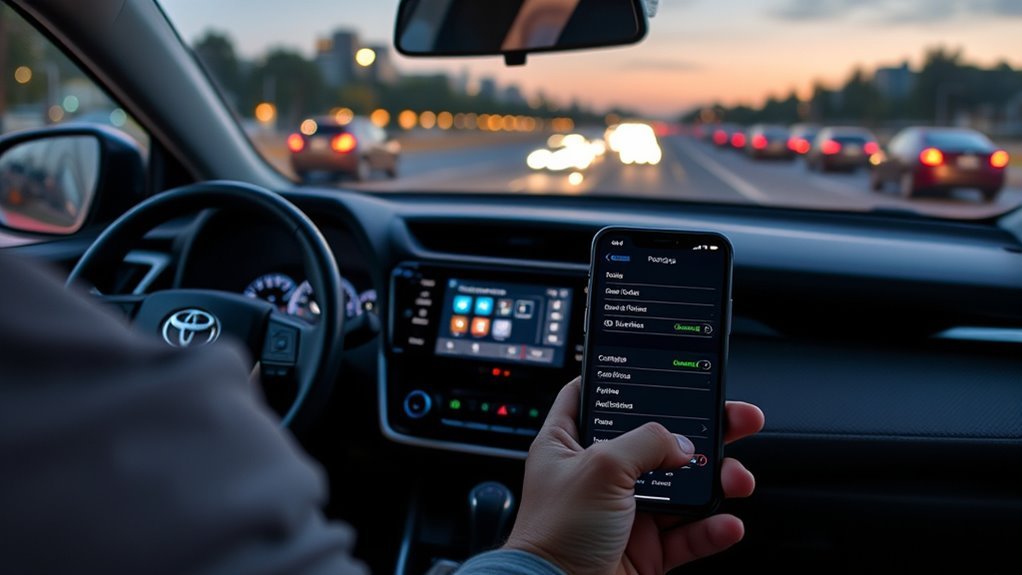
Start by deciding whether you want a wireless or wired connection: for wireless Apple CarPlay, pair your iPhone via Bluetooth and tap “Yes” when prompted; for Android, enable “Use for Android Auto” in the Bluetooth settings; or plug either device into the RAV4’s USB port and follow the on‑screen prompts for a wired connection. You’ll confirm Bluetooth Compatibility quickly—ensure your phone’s Bluetooth is discoverable and the RAV4 detects the device. Use the on‑screen prompts to accept permissions and set audio/notification access. Once connected, switch interfaces via the upper‑left icon to toggle between the native system and CarPlay/Android Auto. If multiple phones are present, configure Device Prioritization so your device connects automatically; set the main phone as primary in the multimedia Bluetooth menu. Manage notifications and audio routing from the car’s settings to maintain focused driving and liberated control over calls, media, and messages without unnecessary system friction.
[Products Worth Considering]

The Autovir windscreen shade offers full windshield coverage for Toyota RAV4 models from 2019 to 2026, blocking up to 99.95% of UV rays and reducing interior heat. Its multi‑layer reflective material provides SPF 100 and UPF 80+ protection while keeping the dashboard, seats, and steering wheel cooler. The foldable design installs quickly and stores conveniently in the glove box, and reinforced stitching ensures long‑lasting durability for daily use.

Upgrade your RAV4 interior with a sleek, retractable 4‑port USB hub that adds vibrant RGB lighting and fast charging for phones, tablets, and accessories. The intelligent retractable cables keep the console tidy while the snap‑in design ensures easy installation. Compatible with 2020‑2025 RAV4 models, it blends modern tech with a clean aesthetic.
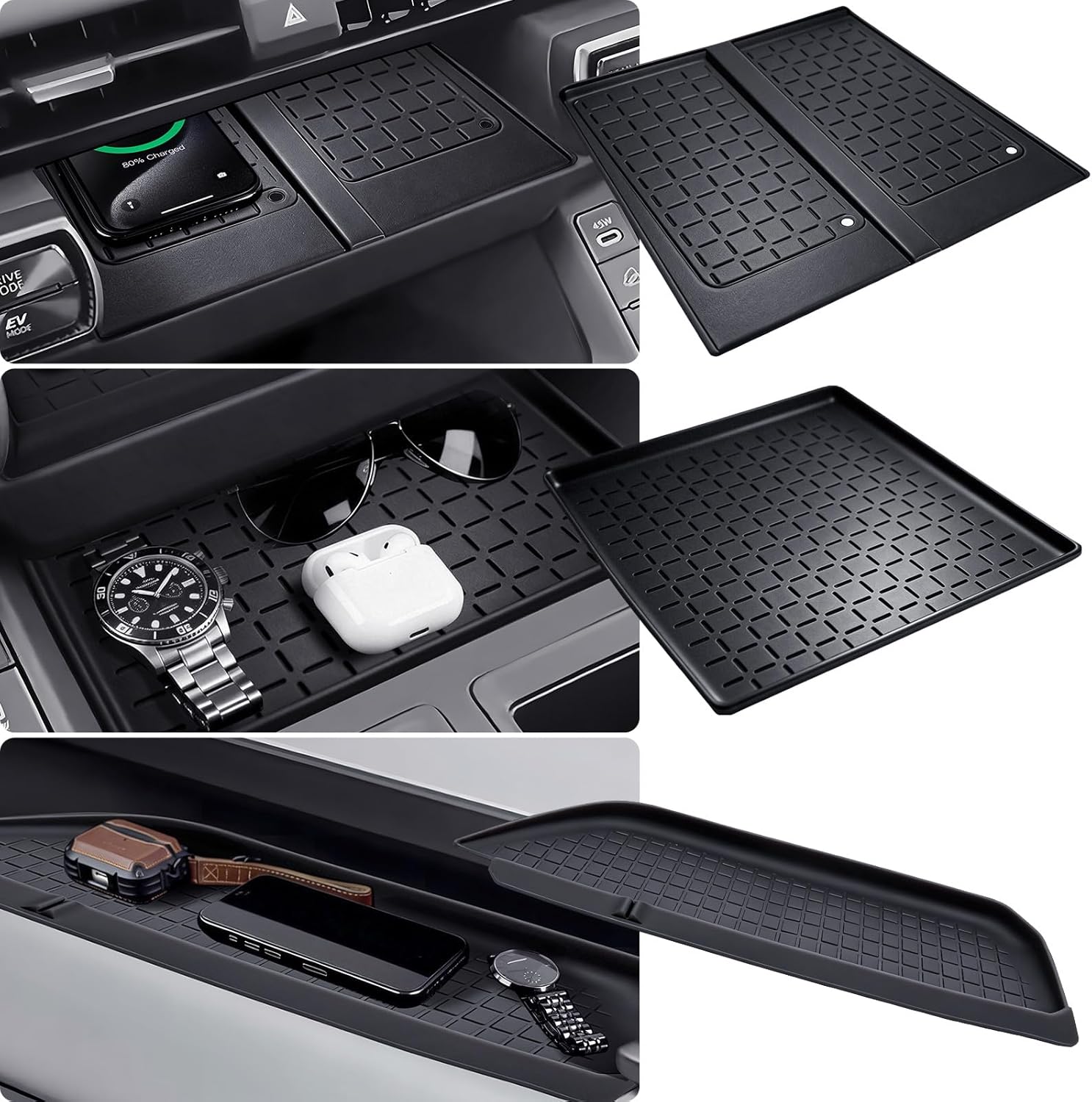
This high-quality silicone mat offers a custom‑fit, anti‑slip protective layer for the wireless charging area and center console of a 2026 Toyota RAV4. It resists scratches, water, and noise while enhancing interior style, and installs easily without tools. The mat does not include a charger but works with existing wireless charging configurations, and includes a 30‑day refund and lifetime replacement service.
Prep Checklist: iPhone/Android Settings, Cables, and Car Bluetooth
Checklist: update your iPhone or Android to the latest OS, enable Bluetooth and make the device discoverable, and have a USB cable on hand if you prefer a wired CarPlay/Android Auto connection. You’ll prepare device updates, verify USB compatibility, and clear potential connectivity issues before you sit in the driver’s seat. This reduces friction and keeps control in your hands.
- Verify Bluetooth settings on your phone: Bluetooth on, device visible, and previous RAV4 pairings removed if troubleshooting.
- Confirm OS version and install pending updates to avoid compatibility gaps.
- Inspect your USB cable for data lines (not charge-only) to guarantee USB compatibility with Android Auto or wired CarPlay.
- On Android, enable “Use for Android Auto” when prompted; on iPhone, be ready to accept wireless CarPlay pairing requests.
- Review the vehicle’s Bluetooth & Devices menu to manage pairings, prioritize connections, and resolve connectivity issues.
These steps give you technical autonomy and predictable multimedia behavior.
[Products Worth Considering]

This compact power adapter plugs directly into the rearview mirror wiring, providing a stable 5V/2A (10W) output for USB dash cams. It includes three short USB cables (Mini, Micro, Type‑C) for versatile compatibility with popular dash cam brands. The design features pry tools for easy installation and a sturdy cable that resists wobbling, ensuring reliable power on the road.

The TOPINSTALL dash console tray adds convenient storage to your Toyota Rav4 without obstructing the view. Made from solid, heat‑resisting plastic with a matte black finish, it holds tissues, sunglasses, keys and cards securely using rubber liners and strong adhesive tape. Its OEM‑matching shape enhances interior appearance while providing quick access to essential items while driving.
Connect Your iPhone: Wireless Apple CarPlay or USB
You can connect your iPhone to the RAV4 either wirelessly via Apple CarPlay or with a USB cable—enable Bluetooth and accept the prompt to activate wireless CarPlay during pairing, or plug into the USB port and follow the on-screen prompts for a wired connection. For wireless setup, confirm iPhone compatibility, turn on Bluetooth, and pair with the vehicle; when the iPhone asks, choose to enable wireless CarPlay for future automatic connections. For wired setup, use a quality Lightning cable and follow the multimedia prompts to grant CarPlay access. Once connected, use the CarPlay icon in the upper-left corner to switch between Toyota’s system and CarPlay instantly. Notifications and audio from both sources run concurrently, so you’ll keep calls, navigation, and system alerts active without losing control. This gives you CarPlay benefits—hands-free control, app access, and streamlined media—while preserving the RAV4’s native features, freeing you to drive focused and connected.
Set Up Android Auto: Wireless or USB Connection
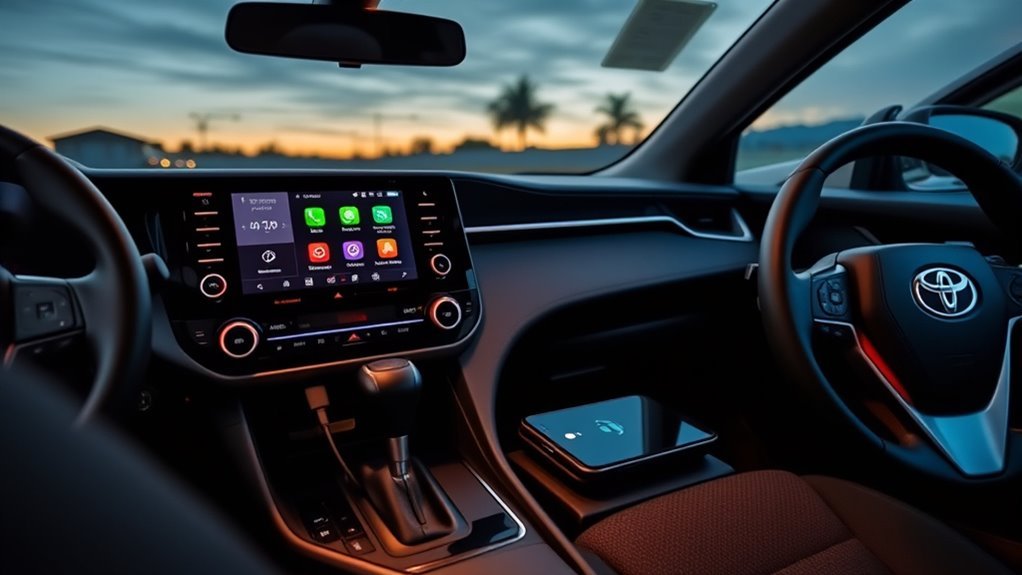
Make sure your Android device is compatible and has the Android Auto app installed before you begin. For wireless setup, pair via Bluetooth and accept the prompt to enable wireless Android Auto; for USB, plug into the RAV4’s USB port and follow on-screen prompts. Toggle “Use for Android Auto” in settings to switch between wireless and wired modes and to enable automatic launch.
Wireless Connection Setup
1 clear step to get Android Auto running is deciding between a wireless or USB connection and preparing your phone accordingly. For wireless setup, you’ll exploit wireless benefits and confirm device compatibility: enable Bluetooth, pair with the RAV4 multimedia system, then authorize Android Auto on your phone. After pairing, choose “Use for Android Auto” and follow on-screen prompts to activate the wireless link. Android Auto launches automatically once active, letting you access apps and notifications through the screen; switch back anytime via the upper-left icon.
- Enable Bluetooth on your Android device
- Pair with the vehicle’s multimedia system
- Select “Use for Android Auto”
- Accept prompts on phone and vehicle
- Verify Android Auto launches and control access
USB Connection Steps
For a reliable wired connection, plug your Android device into the RAV4’s USB port with a compatible cable and accept the prompts that appear on both the phone and the multimedia display. Toggle “Use for Android Auto” on your phone so the system launches automatically. The multimedia interface will show Android Auto, letting you access apps and navigation. Watch for USB compatibility issues—try a certified cable if the system won’t connect. Check Data usage settings on your phone to control mobile data while using apps. If needed, switch cable ports or reboot devices to restore connection. You retain control and freedom when you resolve minor faults quickly.
| Action | Purpose |
|---|---|
| Connect cable | Start Android Auto |
| Accept prompts | Authorize connection |
| Toggle setting | Auto-launch system |
| Check data | Manage Data usage settings |
Switch Between Modes
You can set up Android Auto either wirelessly or over USB and switch between modes quickly: enable Bluetooth and pair your Android device, choosing “Yes” for wireless Android Auto or use a USB cable for wired. Make sure “Use for Android Auto” is toggled on so the system launches automatically. Use the upper-left icon to toggle back to the Toyota multimedia system. Use voice commands for hands-free control and apply screen customization to prioritize navigation or media. Practical steps:
- Pair device via Bluetooth; accept prompts and enable wireless when asked.
- Connect with USB; accept on-device prompts and enable Android Auto toggle.
- Tap upper-left icon to switch modes instantly.
- Use voice commands to resume control without touching the screen.
- Adjust screen customization to free up the interface you want.
Switch Between Toyota Multimedia and CarPlay/Android Auto
Tap the CarPlay icon in the upper-left corner to switch instantly between Toyota’s interface and Apple CarPlay/Android Auto. The system supports Navigation Handoff, so active directions can move seamlessly from the head unit to CarPlay without reconnecting your device. Notifications and controls work across both platforms, letting you toggle back and forth while keeping navigation and alerts uninterrupted.
Quick Access Icon
One quick press on the upper-left quick access icon switches you between the Toyota multimedia interface and CarPlay/Android Auto, streamlining changes without diving through menus. You get direct icon functionality that prioritizes user convenience and keeps your focus on the road. Use it to toggle cleanly, access notifications, or resume audio without interruption.
- Located upper-left for immediate reach and minimal distraction
- Toggles between systems while preserving active media and notifications
- Intuitive design reduces menu hunting and cognitive load
- Promotes safer driving by shortening interaction time
- Works alongside integrated audio and notification handling for seamless control
You’ll feel liberated from complex menus; this single control accelerates workflow and maintains situational awareness.
Navigation Handoff
When you need to change navigation sources on the fly, the RAV4’s Navigation Handoff keeps guidance continuous by switching between the Toyota multimedia system and CarPlay/Android Auto without interrupting active routing. You’ll maintain route guidance as the system prompts returns to CarPlay or Android Auto when needed. Tap the icon in the upper-left while in CarPlay/Android Auto to switch back to Toyota’s native maps instantly. Notifications and audio run concurrently across interfaces, so you won’t miss alerts or directions during the exchange. For liberation-focused drivers, this gives control: choose the best app for the moment without sacrificing safety. Practical navigation tips: rely on the on-screen icon for seamless changes and confirm audio focus after each handoff.
Troubleshoot Common Setup Problems on the RAV4
Connection issues on the RAV4 usually stem from Bluetooth pairing, USB cable problems, or notification permissions, so start by confirming your phone’s Bluetooth is on and paired correctly and that you’re using a compatible USB cable for wired CarPlay/Android Auto. Troubleshoot methodically: verify device compatibility, check app permissions, and use restart system steps to clear transient faults. If wireless setup fails, re-pair in Bluetooth & Devices and confirm your phone supports wireless CarPlay/Android Auto.
- Inspect Bluetooth issues: remove and re-add the RAV4 profile.
- Test USB cable: swap to a certified data cable, not charge-only.
- Review Notification settings and App permissions on both phone and multimedia unit.
- Perform Restart system and smartphone reboot for glitch resolution.
- Confirm Device compatibility in manufacturer specs and OS updates.
You’re reclaiming control: systematic checks and concise fixes free you from persistent setup blockers and get your multimedia functioning reliably.
Keep CarPlay and Android Auto Running Smoothly While Driving
After you’ve resolved pairing and USB faults, keep CarPlay and Android Auto running smoothly by staying proactive about software, power, and settings. Keep your phone updated to the latest OS so CarPlay and Android Auto stay compatible; updates fix bugs that interrupt app integration and voice commands. If you prefer wireless, accept the “Yes” prompt during Bluetooth pairing to enable wireless CarPlay/Android Auto and reduce cable wear. For wired reliability, use a high-quality USB cable and keep your device charged to prevent disconnects on long drives. Open the multimedia icon at the upper left to toggle back to CarPlay/Android Auto quickly when multitasking. In Settings > Bluetooth & Devices, verify automatic service launch is enabled so audio and notifications resume without manual relaunch. Periodically reboot your phone and the RAV4 system after updates to clear caches. These steps free you from avoidable interruptions and keep your in-car experience responsive and under your control.
Safety Tips and Best Practices for Using CarPlay and Android Auto
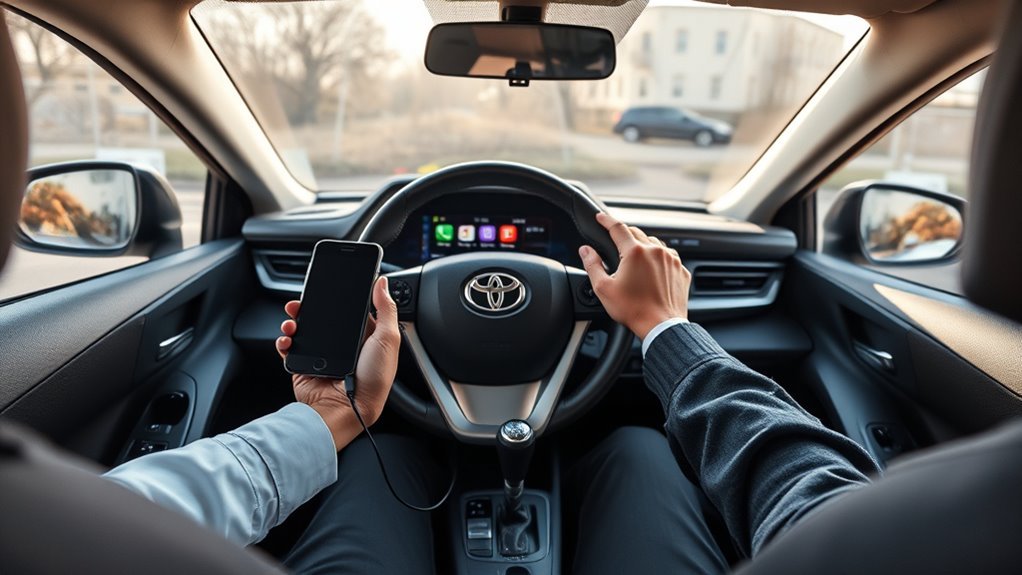
Because staying focused is critical, set up and use Apple CarPlay or Android Auto to minimize distractions: make sure your phone’s paired via Bluetooth or connected with a quality USB cable, enable the “Use for Android Auto” toggle on Android devices, and keep your phone’s OS updated so voice commands, navigation, and alerts work reliably.
Adopt these safety practices to retain control and autonomy while driving:
- Configure notification and audio priorities so only essential alerts interrupt you, reducing distraction management load.
- Use voice command for calls, messages, and routing; train yourself on concise phrases to avoid repeated prompts.
- Preload destinations and playlists before departure to limit menu interactions while moving.
- Keep cables and mounts secured; test connections before you drive to prevent fumbling that breaks focus.
- Update device and infotainment firmware regularly to maintain compatibility, security, and predictable behavior.
You’ll drive freer and safer by minimizing manual inputs, enforcing simple routines, and relying on vetted voice-driven workflows.
Frequently Asked Questions
How Do I Connect to Toyota Multimedia?
You connect by enabling Bluetooth pairing on your phone, selecting the vehicle, or using USB connectivity for wired CarPlay/Android Auto; enable App integration, then use Voice commands to control apps hands‑free and stay liberated while driving.
Conclusion
Setting up CarPlay or Android Auto on your RAV4 is quick and reliable, and you’ll actually use it once you see how simple it is. If you worry about constant reconnections, enable wireless CarPlay/Android Auto only if your phone and trim support it; otherwise use a quality USB cable for a rock-solid link. Keep Bluetooth on, apps updated, and follow the checklist—this minimizes drops and keeps navigation, calls, and media working seamlessly while you drive.