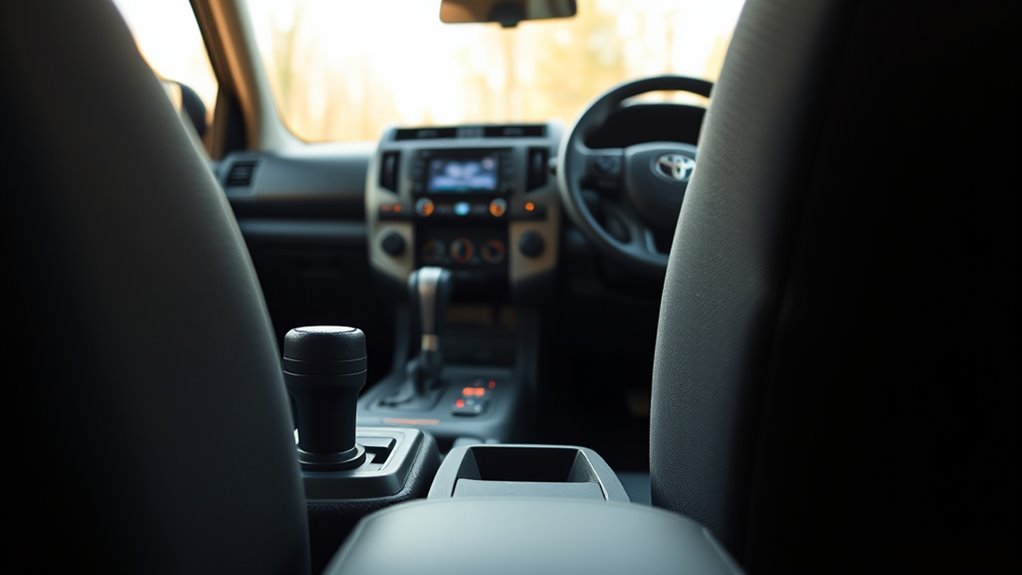
Toyota 4Runner Dynamic Radar Cruise Control (DRCC) automatically maintains a preset speed and distance from preceding vehicles using front-mounted camera and radar sensors. To activate DRCC, turn on the system using steering wheel controls (Driving Assist switch on 2025–2026 models; Cruise Main button on 2020–2024 models), reach your desired speed, and press set. Operational capability varies by generation: 2025–2026 models feature Toyota Safety Sense 3.0 with Full-Speed Range capability, while 2020–2024 models feature High-Speed Range DRCC under Toyota Safety Sense P.
Last Updated: July 2026 | Verified against official Toyota Owner’s Manuals
Quick Answer
On a 2025 or 2026 Toyota 4Runner, select DRCC using the Driving Assist mode switch on the steering wheel, drive above approximately 20 mph, and press the Driving Assist switch to set your speed. Adjust speed with +/RES and –, and choose from four vehicle gap levels with the distance switch. On older 2020–2024 models, turn the system on using the cruise main switch and press –SET to engage.
Key Takeaways
- Confirm your model year first: 2025–2026 (6th Gen) and 2020–2024 (5th Gen) 4Runners use entirely different steering wheel layouts and DRCC system capabilities.
- Current models feature Full-Speed Range DRCC: You can set the system above 20 mph, and TSS 3.0 will track preceding vehicles down to 0 mph in stop-and-go traffic.
- Following distance is time-based: Distance settings correlate to approximate gap times (~1.0 to ~2.5 seconds), not fixed distances in feet.
- Radar sensitivity is fixed: The driver adjusts following gap distance, not radar sensor sensitivity or calibration.
- DRCC is an assist tool, not autopilot: Always monitor surrounding traffic and remain prepared to brake or steer manually.
At a Glance
| Time Required | About 1–2 minutes |
| Difficulty | Easy after identifying correct steering controls |
| Tools Needed | Your model-year owner’s manual |
| Cost | $0 |
Warning: DRCC is a driver-assistance feature, not an autonomous driving system. You remain responsible for braking, steering, choosing a safe speed, and maintaining enough space for traffic, weather, road conditions, and your vehicle’s load.
Activate and Use DRCC in a 4Runner
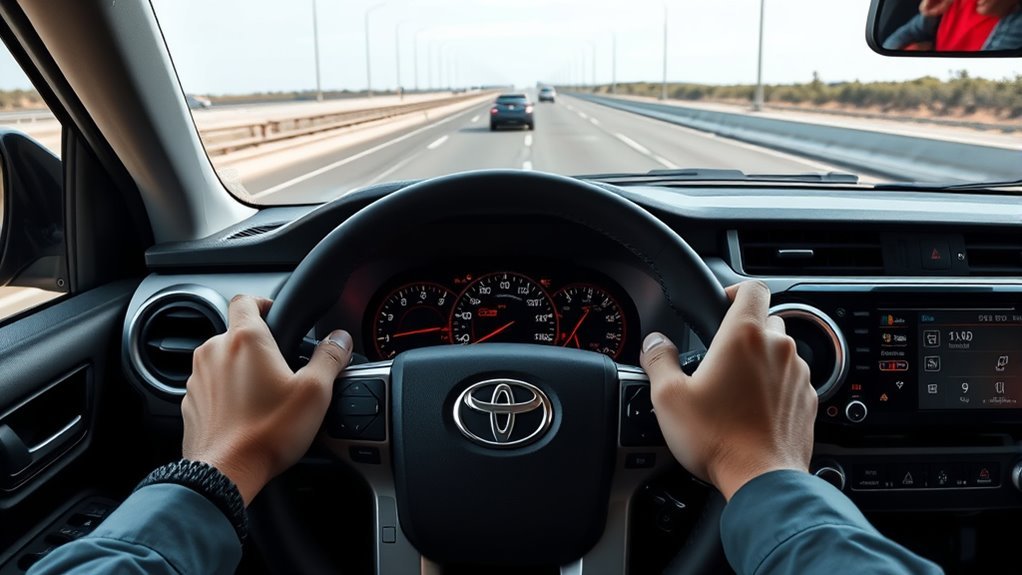
Before activating DRCC, confirm which generation your 4Runner uses. Toyota made High-Speed Dynamic Radar Cruise Control standard with Toyota Safety Sense P (TSS-P) on the 2020 4Runner. The redesigned 2025 and 2026 models use Toyota Safety Sense 3.0 (TSS 3.0) with Full-Speed Range DRCC and a updated steering wheel control layout.
| Model years | DRCC type | Operational Range | Main controls | Distance levels |
|---|---|---|---|---|
| 2025–2026 | Full-Speed Range DRCC (TSS 3.0) | 0–110 mph (Set above ~20 mph; tracks to 0 mph) | Driving Assist mode select, Driving Assist switch, +/RES, –, cancel, distance control | Four displayed levels |
| 2020–2024 | High-Speed DRCC (TSS-P) | ~28–110 mph (Cancels below ~22 mph) | Cruise control main switch/stalk, +RES, –SET, cancel, vehicle-distance switch | Long, medium, and short |
[Products Worth Considering]

[Seamless fit]Applicable to the original car data mold design, original car feel, seamless fit

for Toyota 4runner/Lexus GX470 2003-2009 Microfiber Leather Steering Wheel Replacement.
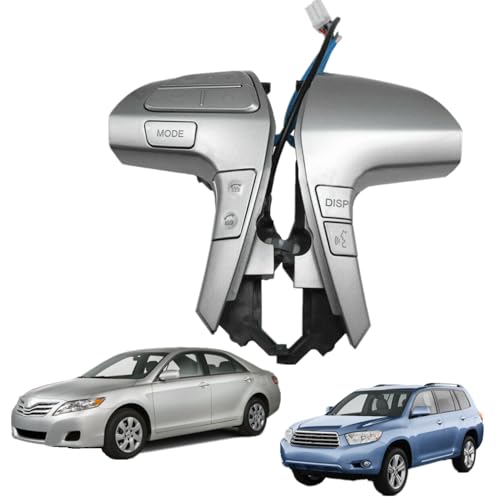
☛【Fitment】Compatible with Toyota Camry 2006-2011; Highlander 2009-2014; Corolla; Hilux
Steps for a 2025–2026 4Runner
- Choose an appropriate road. Use DRCC on a highway or expressway with predictable traffic, clear visibility, and a dry road surface.
- Select DRCC mode. Press the Driving Assist mode select switch until the Dynamic Radar Cruise Control indicator appears on the multi-information display.
- Reach your target speed. Drive at approximately 20 mph or faster and choose a legal speed suitable for traffic.
- Set the cruise speed. Press the Driving Assist switch. Confirm that the set speed numerical indicator and active DRCC icon illuminate on the dash.
- Select a following distance level. Press the vehicle-distance button to cycle through the four displayed gap levels.
- Keep monitoring traffic. DRCC automatically adjusts throttle and brakes to follow leading vehicles, but you must intervene manually whenever necessary.
Steps for a 2020–2024 4Runner
- Press the cruise control main switch (on the stalk or wheel) to turn the system on.
- Accelerate to your desired highway speed (must be above approximately 28 mph).
- Press the –SET control down to save the current speed.
- Use the vehicle-to-vehicle distance switch to choose between Long, Medium, or Short spacing.
- Confirm that the radar cruise icon and green SET indicator appear on the instrument cluster.
Note: Button names, icons, and display layouts can differ slightly by trim level and region. The exact procedure in your vehicle’s physical owner’s manual always takes priority over online guides.
Set and Change Your Target Speed
Once DRCC is active, use the steering-wheel controls to adjust the saved cruising speed without turning the system off.
- Increase speed: Press the + control. On current 2025–2026 models, this control is labeled + or RES depending on its state.
- Decrease speed: Press the – control. Older models label this control –SET.
- Small speed adjustments: Tap the control briefly to increment or decrement speed by 1 mph (or 1 km/h).
- Large speed adjustments: Press and hold the control to adjust speed in 5 mph increments while watching the instrument display.
- Set current speed after accelerating: Depress the accelerator pedal manually, reach your new speed, then press the set control once.
Pressing the accelerator pedal allows temporary manual acceleration without clearing the saved set speed. When you release the gas pedal, DRCC will resume maintaining your stored target speed or distance gap. Always verify the set speed indicator on the instrument cluster.
Pro Tip: Check your cluster after holding a button. Holding the switch changes stored speed significantly faster than single taps, and increment values vary depending on whether your display is set to mph or km/h.
Change Following Distance and Understand Sensor Settings
The vehicle-distance control changes the time gap DRCC maintains behind a leading vehicle. It does not alter physical sensor sensitivity or radar range calibration.
Adjusting Following Distance
Press the vehicle-distance control button while DRCC is active. The cluster display will cycle through visual distance bars representing approximate time gaps.
| Gap Level | Approx. Time Gap | Best Use Case | Limitations |
|---|---|---|---|
| Longest Gap (4 bars / Long) | ~2.5 seconds | Higher speeds, night driving, heavy vehicle loads, or when desiring earlier braking intervention | Other vehicles may frequently merge into the space ahead of you in dense traffic. |
| Middle Gap (2–3 bars / Medium) | ~1.5 to ~2.0 seconds | Standard highway cruising under normal dry road conditions | Requires driver alertness if surrounding vehicles change lanes suddenly. |
| Shortest Gap (1 bar / Short) | ~1.0 second | Light-to-moderate traffic where vehicles cut in continuously | Provides less reaction time; not recommended on wet or icy pavement. |
Because these settings represent time intervals, the physical distance in feet behind the lead car expands automatically as your driving speed increases.
Sensor Sensitivity Settings
Your 4Runner does not feature a driver menu setting to recalibrate radar hardware sensitivity. The front radar sensor and forward camera are factory-calibrated safety hardware. While vehicle settings menus allow altering driver alert volumes and pre-collision warning timing, sensor range hardware cannot be re-aimed through software switches.
If warning messages persist after cleaning external surfaces, schedule dealer service. Inspection is required after windshield replacements, front grille or bumper repairs, suspension lifts/leveling kit installations, or front-end collisions.
Cancel, Resume, and Turn Off Cruise Control
Canceling DRCC disengages speed control immediately without clearing your stored target speed.
- Cancel with the brake pedal: Pressing the brake pedal disengages DRCC instantly.
- Cancel with the steering control: Press the CANCEL button on the wheel. On 2025–2026 models, pressing the Driving Assist button also disengages active control.
- Resume cruise speed: Press the RES (or +RES) button when the road ahead is clear and vehicle speed meets operating thresholds.
- Switch cruise modes: On 2025–2026 models, toggle between DRCC and conventional constant-speed cruise control using the Driving Assist mode select switch.
- Turn system off completely: Press the main cruise power button; confirm the cruise indicator light turns off completely on the dashboard.
Do not attempt to resume saved speed after driving on icy roads, changing driving modes, or experiencing an automatic system error disengagement.
Common Reasons DRCC Cancels Automatically
DRCC may disengage automatically under the following conditions:
- Brake pedal is applied or electronic parking brake engages.
- Driver seat belt is unbuckled or driver door opens.
- Vehicle Stability Control (VSC), Traction Control (TRAC), or Pre-Collision Braking activates.
- Forward camera or radar sensor is obstructed by dirt, ice, mud, heavy rain, or fog.
- Vehicle speed drops below the minimum operating threshold (2020–2024 models drop out below ~22 mph).
- System detects sensor misalignment or mechanical malfunction.
When to Use DRCC vs. Regular Cruise Control
While both systems hold speed, only DRCC adjusts speed dynamically using forward distance sensors.
- Use DRCC on open highways, expressways, and moderate traffic corridors where vehicle speeds fluctuate smoothly.
- Use conventional fixed-speed cruise control on open, empty roads if sensor covers are dirty or when radar tracking is undesirable (e.g., towing heavy loads on flat straights).
- Do not use either system in heavy urban congestion, severe weather, winding roads, or slippery off-road surfaces.
On 2025–2026 4Runners, toggle modes using the Driving Assist mode button. On 2020–2024 models, switch to constant-speed cruise control by pressing and holding the cruise main switch button for approximately two seconds while turning the system on.
Note: Lane Tracing Assist (LTA) is a separate steering assistance feature. On 2025–2026 models, LTA can operate alongside DRCC, but requires driver hands to remain on the steering wheel.
[Products Worth Considering]

[Vehicle Fitment]: Compatible with Toyota Yaris 2007-2009, Venza 2009 & 2014-2015, Tundra 2005-2010 & 2014-2021, Tacoma 2005-2009 & 2014-2023, Solara 2004-2008, Sienna 2004-2010 & 2013-2015, RAV4 2004-2009, Prius 2004-2022, Matrix 2009-2010, Land Cruiser 2003-2009 & 2014-2021, Highlander 2005-2009, FJ Cruiser 2007-2009, Corolla 2009-2010 & 2014-2016, Camry 2005-2010 & 2014-2017, Avalon 2005-2013, 4Runner 2003-2009 & 2014-2019 --- without Adaptive Cruise Control & Collision Mitigation Braking
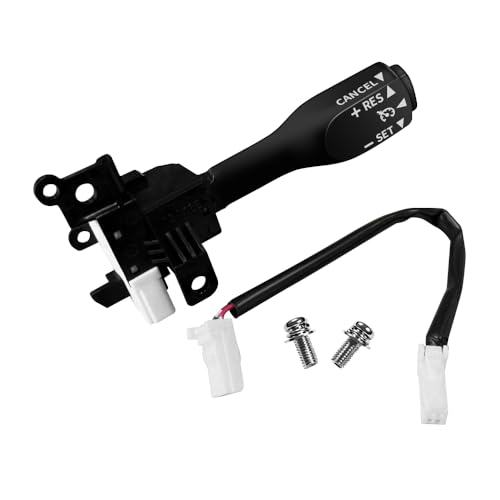
Note: This cruise control is for replacement only and Do Not fit 1.6L Toyota Corolla and Do Not fit all manual transmission cars!!!. Please make sure your original car has cruise control function and check your original part number, Reference Part Number: 84632-34017, 84632-08020, 84632-08021, 84632-0F010, 84632-34010, 84632-34011. If your original car is a hybrid, you need to use the original car wiring harness!!!
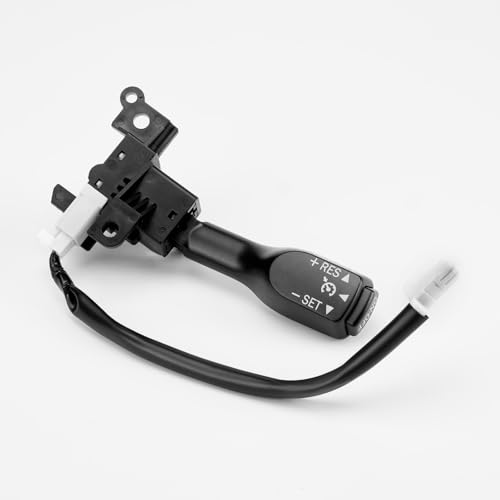
For Lexus: 2014-2017 Lexus CT200H; 2005-2006 ES330; 2007-2010 ES350 GS350 GS450H; 2006 GS300; 2005-2007 GS430; 2008-2010 GS460; 2003-2009 GX470; 2008-2009 IS F, LX570; 2006-2010 IS250 IS350; 2001-2007 LX470; 2004-2006 RX330; 2007-2015 RX350; 2006-2008 RX400H; 2010 RX450H
How DRCC Works
DRCC combines a windshield-mounted forward camera with a millimeter-wave radar sensor mounted behind the front grille emblem. When no leading vehicle is present, it maintains your stored cruising speed. When a slower vehicle is detected in your lane, DRCC eases off the throttle and applies the service brakes automatically to match the lead vehicle’s pace while maintaining your chosen time gap.
Generational capability differences:
- 2025–2026 Full-Speed Range DRCC (TSS 3.0): Operates down to a complete standstill. If lead traffic stops, TSS 3.0 brings the 4Runner to a complete stop and holds the vehicle stationary. If stopped for longer than approximately 3 seconds, tap the accelerator pedal or press the +RES switch to resume tracking.
- 2020–2024 High-Speed DRCC (TSS-P): Designed exclusively for highway speeds. Operating speed range is roughly 28 mph to 110 mph. If preceding traffic slows below ~22 mph, an alert sounds and the system disengages, requiring immediate manual braking.
Full-Speed Range DRCC on 6th Gen 4Runners tracks traffic down to 0 mph, but requires initial activation above ~20 mph. High-Speed DRCC on 5th Gen models will disengage automatically at lower speeds.
Troubleshoot Common 4Runner DRCC Problems
[Products Worth Considering]

OEM Factory Look – Hidden Design, No Wires Exposed:Purpose-built for Toyota 4Runner 2020-2024,TRD Sport Limited Pro Off-Road Venture SR5 Premium,this KBSYNT 4K dash cam integrates seamlessly into your vehicle's interior with an OEM factory-style housing. No cables hang down, nothing blocks the windshield — it looks like it came from the factory. Plug and play installation, no hardwiring required. Please confirm your Toyota 4Runner 2020-2024 trim and year before ordering.
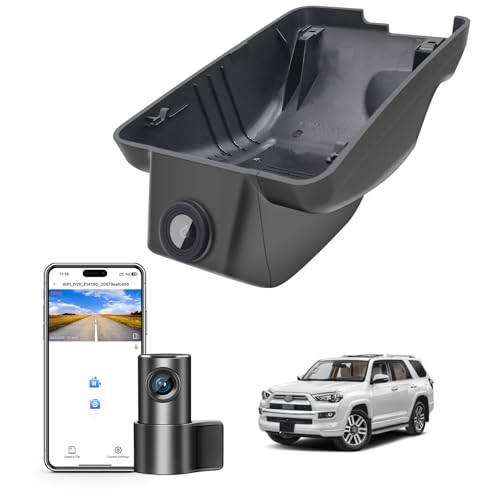
【Custom fit for Toyota 4Runner】Mangoal 4K and Rear 1080P dash cam can fit perfectly behind the rear view mirror like original.No messy wiring exposed, no complicated rewire at all. Perfectly intergrated with Toyota 4Runner 2020-2024 Gen5 N280(Model A), TRD Sport Limited Pro Off-Road Venture SR5 Premium

*Check the Model Before Ordering! To confirm whether you ordered the correct model, please provide FITCAMX with the following info--Vehicle style and year of manufacture, e.g. 2025 Toyota 4Runner. * This model only for 2025-2026 4Runner , NOT FIT 2020-2024 4Runner
DRCC Will Not Set
- Confirm DRCC mode is selected on the instrument display, not conventional constant-speed mode.
- Verify vehicle speed meets activation requirements (above 20 mph for 2025–2026; above ~28 mph for 2020–2024).
- Check that driver seat belt is buckled and all vehicle doors are closed securely.
- Ensure Traction Control or VSC indicator lights are not illuminated on the dash.
- Review display error messages on the multi-information cluster before re-engaging.
DRCC Cancels Unexpectedly
Unintended disengagement usually occurs when the driver touches the brake pedal, road conditions become slippery, or sensors lose sight of lane lines/vehicles on sharp turns. Treat automatic cancellation as a prompt to resume immediate manual vehicle control.
Camera Visibility Warning
This error indicates the forward optical camera located behind the top center of the windshield is blinded. Turn on windshield wipers and defoggers to clear condensation, rain, ice, or dirt build-up from the upper glass area. Do not place dark tint bands across the camera’s field of view.
Radar Blocked Warning
This warning indicates the millimeter-wave radar sensor located behind the front grille Toyota emblem is obstructed. Park safely and clean away mud, snow, ice, or bug build-up from the front emblem using a soft microfiber cloth. Avoid installing aftermarket grille guards, metal emblems, or thick protective films directly over the radar emblem.
The Warning Returns After Cleaning
If radar warnings persist after thorough cleaning, the sensor may be undergoing self-calibration following extreme temperature changes, or requires professional dealer recalibration following a front bumper impact or suspension alteration.
Safety Tips and Legal Considerations for Using DRCC
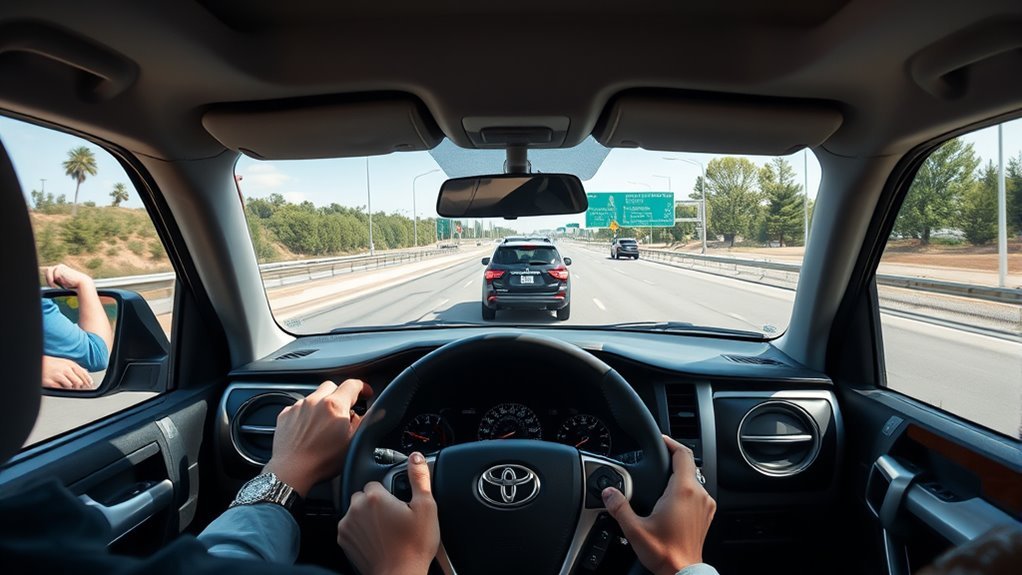
Always maintain visual oversight of the road while DRCC is active. Keep both hands on the steering wheel and rest your right foot near the brake pedal.
Avoid engaging DRCC under the following driving conditions:
- Sharp highway curves, interchange ramps, or winding mountain passes.
- Rain, snow, ice, slush, or standing water that impairs traction.
- Heavy fog, blowing snow, extreme sun glare, or torrential rain.
- Steep downhill grades where engine braking and heavy manual pedal braking are required.
- Active highway construction zones with narrow shifting lanes or temporary cones.
- Stop-and-go city streets with frequent pedestrian crossings and traffic lights.
DRCC radar may fail to detect narrow motorcycles, vehicles offset in your lane, stationary objects, or cars cutting in abruptly at close range. Always intervene manually if stopping distance appears insufficient.
Warning: Never attempt to test DRCC limits by approaching obstacles or vehicles deliberately. Sensor range limits cannot prevent collisions in all scenarios.
Drive within legal speed limits. Automated driver-assist technologies do not absolve the driver of legal responsibility for vehicle control or accident liability. Check for safety recall notices on Toyota safety systems periodically.
Find 4Runner-Specific DRCC Settings and the Owner’s Manual
Access official Toyota documentation to verify exact switch diagrams and cluster display symbols for your specific vehicle trim.
- Visit the official Toyota Manuals and Warranties Portal.
- Select your exact 4Runner model year (2020 through 2026).
- Filter by engine type (gas engine or i-FORCE MAX hybrid).
- Navigate to “Driving Support Systems” > “Dynamic Radar Cruise Control”.
- Review specific switch diagrams, display icons, and system override steps.
For additional system overviews, consult Toyota Safety Sense Technology Guides. Your vehicle’s physical manual remains the primary authority for safe operation.
Frequently Asked Questions
How do I switch between DRCC and regular cruise control?
On a 2025–2026 4Runner, use the Driving Assist mode select switch and confirm the DRCC or conventional cruise indicator on the display. On a 2020–2024 model, switch to constant-speed mode by pressing and holding the main cruise power switch for two seconds when turning the system on.
Does the 2025 or 2026 4Runner DRCC work in stop-and-go traffic?
Yes. 2025–2026 4Runners feature Full-Speed Range DRCC under TSS 3.0. Once engaged at speed, it can track vehicles down to 0 mph and bring your 4Runner to a complete stop. If stopped for over 3 seconds, tap the gas pedal or press +RES to move off again.
Can I change the radar sensitivity?
No driver menu setting alters radar sensor sensitivity. Drivers can adjust the vehicle-to-vehicle time gap (distance bars), but hardware detection sensitivity is factory-calibrated.
Why does DRCC brake when the road ahead looks clear?
DRCC may brake unexpectedly if sensors detect a vehicle in an adjacent lane along a sharp curve, a car cutting closely across your path, or severe optical glare/radar reflection. Press the gas pedal or cancel cruise control if braking intervention is unnecessary.
Can I use DRCC in rain or snow?
Do not use DRCC during heavy rain, snow, fog, or on icy roads. Moisture and road spray blind optical cameras and radar sensors, while slippery pavement increases the risk of loss of traction during automatic braking.
Sources
- Toyota Pressroom: The 2026 Toyota 4Runner — Details TSS 3.0, Full-Speed Range DRCC, and distance settings.
- Toyota Pressroom: 2025 Toyota 4Runner Overview — Confirms 6th Gen safety architecture updates.
- Toyota Pressroom: 2024 Toyota 4Runner Specifications — Verifies 5th Gen TSS-P equipment.
- Toyota Pressroom: 2020 4Runner Safety Update — Documents introduction of standard High-Speed DRCC.
- Toyota Safety Sense Official Hub — Explains system operational parameters and limitations.
- Toyota Owner’s Manual & Warranty Portal — Official model-year driver operating manuals.
Conclusion
Operating Dynamic Radar Cruise Control safely starts with understanding your 4Runner’s generation. The 2025–2026 6th Gen 4Runner features TSS 3.0 with Full-Speed Range tracking down to a stop and four distance gaps. The 2020–2024 5th Gen 4Runner uses High-Speed DRCC designed for speeds above ~28 mph with three distance gaps. Always select appropriate distance settings for traffic conditions, monitor forward sensors for obstructions, and remain prepared to take full manual control at all times.