If your Sonata’s Apple CarPlay isn’t working, start by checking that your model supports it and that your iPhone’s iOS is updated. Make sure Siri is activated, and use an Apple-certified USB-C to Lightning cable for a stable connection. Confirm Bluetooth and Wi-Fi are enabled on your iPhone. If issues persist, cleaning the USB ports and restarting both devices can help. There are more steps to troubleshoot effectively, so keep exploring for solutions.
Common Reasons Your Sonata’s CarPlay Isn’t Connecting
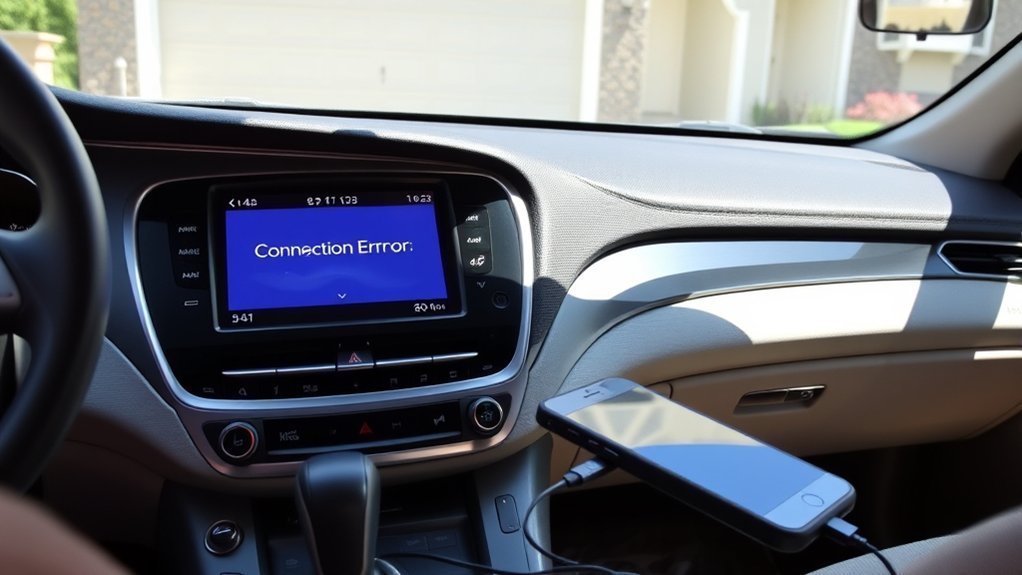
When your Sonata’s CarPlay isn’t connecting, it can be frustrating. Understanding the common reasons behind this issue can help you get back to enjoying Apple CarPlay benefits seamlessly. First, check that your Sonata’s USB port supports data transfer; older models may only provide charging. Next, confirm your infotainment system and iPhone are running the latest software, as outdated versions can hinder connectivity.
Using an Apple-certified USB-C cable is vital; non-certified cables can fail up to 92% of the time in newer Hyundai models. Additionally, verify that Bluetooth and Wi-Fi are enabled on your iPhone, as both are essential for proper CarPlay functionality. Finally, make sure Siri is activated, since CarPlay relies on it for effective operation. By addressing these areas, you can maximize the standout features of your Hyundai Sonata and enjoy a liberated driving experience with CarPlay.
Quick Checks to Ensure CarPlay Functionality
Before troubleshooting CarPlay issues, check that your Hyundai Sonata supports the feature by consulting the manual or contacting the manufacturer. Next, make certain your iPhone’s iOS is up to date and that Siri is enabled for best performance. Finally, confirm you’re using an Apple-certified USB-C cable to guarantee a reliable connection.
Check Car Compatibility First
To guarantee your Hyundai Sonata supports Apple CarPlay, start by checking the model year; compatibility typically begins with 2016 models. If you own a compatible model, verify your Sonata’s infotainment system is updated to the latest software version to avoid any connectivity issues. Additionally, check your iPhone’s region settings, as CarPlay features might not be supported in all locations. When connecting, use an Apple-certified USB-C to Lightning cable, since non-certified cables can disrupt your connection. Finally, make certain Siri is enabled on your iPhone, as it’s essential for the proper functionality of CarPlay. Following these steps will help you maximize your Sonata’s CarPlay experience and eliminate potential barriers.
Update iOS Version
Verifying your iPhone’s iOS version is up to date is essential for seamless Apple CarPlay functionality in your Hyundai Sonata. Compatibility issues often arise with outdated software, so follow these quick checks to access the full potential of your iOS features and CarPlay updates:
- Check for available iOS updates in Settings > General > Software Update.
- Update your Sonata’s infotainment system to resolve known CarPlay problems.
- Restart your iPhone post-update to refresh system settings.
- Review CarPlay settings to confirm it’s enabled and not restricted under Screen Time.
Verify Cable Connections
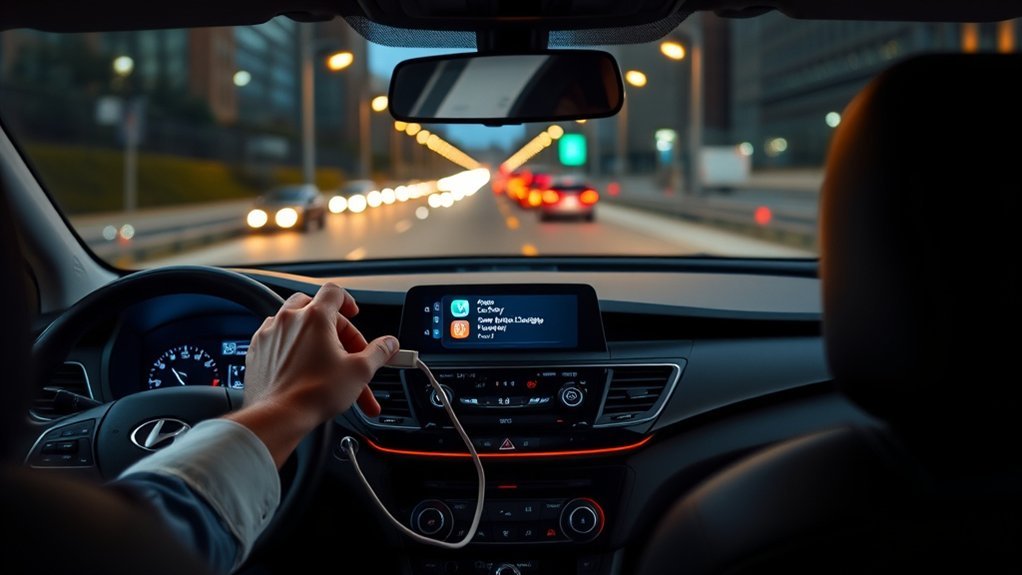
Proper cable connections are essential for a smooth Apple CarPlay experience in your Hyundai Sonata. Always use Apple-certified USB-C cables; non-certified options fail to connect 92% of the time with newer models. Verify that the USB port you’re using is data-capable, as older Sonata models may lack this feature, impacting functionality. Check for physical obstructions or debris in the USB port, and clean it if necessary to enhance connection reliability. If you’re using a USB-C to Lightning Adapter, make sure it’s also Apple-certified to prevent disruptions. Finally, test different USB ports in your vehicle, as their capabilities may vary and influence performance. These connection troubleshooting steps can help restore your CarPlay experience.
Updating Your iPhone and Sonata for Optimal Performance
Keeping your iPhone and Sonata updated is crucial for peak Apple CarPlay performance. Compatibility issues often arise from outdated software, so follow these steps to guarantee everything runs smoothly:
- Update your iPhone: Go to iPhone settings and check for the latest iOS version.
- Check Sonata software: Regularly look for updates, especially for models from 2022-2024, to enhance CarPlay features.
- Use Apple-certified cables: Stick to certified USB-C cables for wired connections; non-data cables can disrupt performance.
- Enable Bluetooth and Wi-Fi: These connections are essential for both wired and wireless CarPlay functionality in your Sonata.
How to Reset Network Settings for Better Connectivity
If you’re experiencing connectivity issues with Apple CarPlay in your Sonata, resetting your iPhone’s network settings can often resolve the problem. To perform a network reset, navigate to Settings > General > Transfer or Reset iPhone > Reset > Reset Network Settings**. This action clears any glitches affecting the connection between your iPhone and the Sonata’s infotainment system, often a quick fix for persistent issues**.
Be aware that this reset erases all saved Wi-Fi networks, Bluetooth pairings, and VPN settings, so you’ll need to re-enter your Wi-Fi passwords and reconnect Bluetooth devices afterward. After the reset, verify that both Bluetooth and Wi-Fi are re-enabled to restore CarPlay functionality. It’s advisable to perform this network reset following major iOS updates, as doing so can help eliminate new connectivity issues that may arise during changes.
Fixing USB and Bluetooth Connection Problems With Carplay
To fix USB and Bluetooth connection issues with CarPlay, start by checking the quality of your USB-C cable; using an Apple-certified one is vital. Next, verify Bluetooth and Wi-Fi are enabled on your iPhone, as both are essential for wireless connections. These steps can greatly enhance your CarPlay experience in the Sonata.
Check USB Cable Quality
When troubleshooting connection issues with Apple CarPlay in your Hyundai Sonata, checking the quality of your USB cable is essential. Using only Apple-certified USB-C cables is vital; non-certified ones fail 92% of the time. Here’s what you should do:
- Verify your cable has USB C certification for reliability.
- Regularly inspect your USB ports for dirt or debris—clean connections matter.
- Test different USB ports; some may not support data transfer.
- Confirm your cable supports data transfer, not just charging.
Prioritizing cable durability and quality can free you from frustrating disconnections. By taking these steps, you’ll enhance your CarPlay experience and enjoy seamless connectivity on the road.
Ensure Bluetooth Is Enabled
Ensuring Bluetooth is enabled on both your iPhone and Hyundai Sonata is essential for establishing a reliable connection with Apple CarPlay. Start by checking your iPhone settings to confirm it’s paired with your Sonata. If it’s not, follow the vehicle’s instructions to pair again. For Bluetooth troubleshooting, you might need to forget the Sonata in your iPhone’s Bluetooth settings and re-pair it. Additionally, disable “Personal Hotspot Auto-Join” to reduce interference. Regularly restarting your iPhone and Sonata’s infotainment system can also refresh connections and fix glitches.
| Step | Action | Outcome |
|---|---|---|
| Check Bluetooth | Enable on iPhone & Sonata | Establish connection |
| Re-pair | Follow pairing instructions | Resolve connection issues |
| Restart Devices | Refresh Bluetooth connections | Fix temporary glitches |
Quick Fixes for CarPlay Disconnections
If you’re experiencing frequent disconnections with Apple CarPlay in your Hyundai Sonata, several quick fixes can help restore a stable connection. Addressing these issues can free you from the frustration of software glitches and unreliable wireless connectivity.
- Restart your devices: Power off both your iPhone and Sonata’s infotainment system. This can resolve about 30% of temporary disconnection issues.
- Use a certified cable: Confirm you’re using an Apple-certified USB-C cable; non-certified ones fail 92% of the time.
- Enable Bluetooth and Wi-Fi: Check that both are turned on. They’re essential for a stable CarPlay connection, especially for wireless setups.
- Update software: Regularly update your Sonata’s infotainment software to fix known disconnection problems.
Implementing these fixes can greatly enhance your CarPlay experience, letting you enjoy seamless connectivity without interruptions.
How to Solve CarPlay Problems in Specific Sonata Models
To solve CarPlay problems specific to your Hyundai Sonata, start by identifying model-specific issues that may be affecting connectivity. For 2020-2022 Sonata models, verify your USB port supports data transfer; some ports only charge, which can lead to Apple Maps issues. Regularly check for Hyundai software updates, as these often resolve known CarPlay connectivity problems. If you’re facing voice control glitches or audio playback interruptions, resetting your iPhone’s network settings can often help. Always use Apple-certified USB-C cables; non-certified ones can cause frequent connectivity failures. If issues persist, delete the Sonata from your iPhone’s Bluetooth settings and re-pair it to refresh the connection. This simple step can enhance Hyundai app integration and restore functionality. By following these guidelines, you can effectively tackle CarPlay problems and enjoy a seamless driving experience.
When to Call for Help With Carplay Troubles?
Wondering when it’s time to seek professional help for your CarPlay troubles? Here are some signs that indicate you should consider expert consultations:
- Persistent disconnections: If you’ve reset your network settings and re-paired your device, but disconnections continue, reach out to Hyundai support.
- Software compatibility issues: Frequent problems after iOS updates, especially if your model’s firmware isn’t updated, signal the need for advanced troubleshooting.
- “Device Not Supported” messages: If certified cables fail to resolve this, contacting warranty service may be your best option.
- Audio or functionality limits: When basic troubleshooting doesn’t fix audio problems, visiting a Hyundai service center can provide essential insights.
Don’t hesitate to seek help if your CarPlay features remain restricted. Identifying underlying issues with your infotainment system is key to restoring functionality.
Frequently Asked Questions
Why Is Apple Carplay Not Working All of a Sudden?
If Apple CarPlay isn’t working suddenly, check for connection problems, use certified cables, and review your Bluetooth settings. Troubleshooting tips include resetting network settings and ensuring CarPlay isn’t restricted in Screen Time. User experiences vary.
Conclusion
If your Sonata’s CarPlay isn’t working, don’t let frustration cloud your drive. Picture yourself gliding down the road, seamlessly connected to your favorite apps. By following these quick fixes—checking connections, updating software, and resetting network settings—you can reclaim that smooth, tech-savvy experience. Remember, if issues persist, reaching out for professional help can be your guiding light, ensuring you get back to enjoying every mile with the perfect soundtrack. Safe travels ahead!