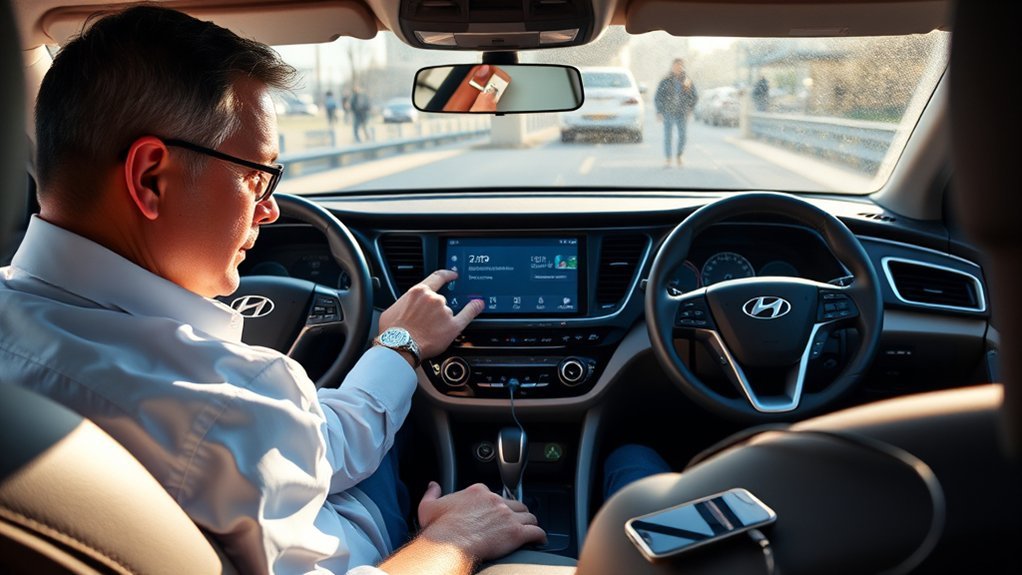
If your Sonata’s Android Auto isn’t working, start by checking your USB cord—make sure it’s high-quality and undamaged. Next, update your phone’s software and the Android Auto app, while ensuring all necessary permissions for contacts and messages are granted. Remove old Bluetooth connections, restart both devices, and troubleshoot common issues like cache clearing. If problems persist, there are more detailed steps you can take to restore connectivity effectively.
Why Your USB Cord Matters for Android Auto
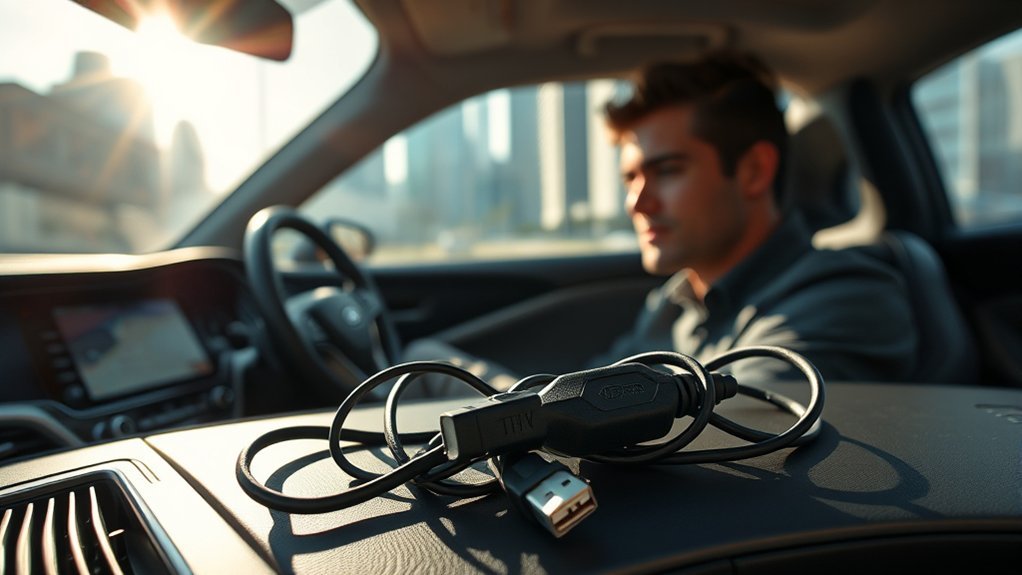
When it comes to using Android Auto, the USB cord you choose can greatly impact your experience. USB cord quality is essential; low-cost options from gas stations may lead to connectivity issues and poor data transfer. Always opt for a cord with a USB symbol to guarantee compatibility and peak performance. Additionally, consider cord length; excessively long cables can introduce signal degradation. Durability issues also matter—cheap cords often fray or break, leaving you stranded without a reliable connection.
Using the original USB cord that came with your phone is highly recommended, as it ensures effective file transfer for wired Android Auto. Upgrading to a high-quality USB cord can resolve many common issues, guaranteeing your system functions smoothly. Prioritizing these factors not only enhances your Android Auto experience but also liberates you from frustrating connectivity problems.
Checking for Software Updates on Your Phone
To guarantee your Sonata’s Android Auto runs smoothly, regularly check for software updates on your phone. Head to “Settings,” then “System,” and tap “Software Update” to confirm you’re on the latest Android version. Don’t forget to update the Android Auto app and clear its cache to fix any temporary issues.
Check Android Version
How often do you check for software updates on your phone? Keeping your Android version up-to-date is vital for maintaining compatibility with Android Auto. Navigate to Settings > System > Software Update to see if any updates are available. Regular software updates not only enhance performance but also guarantee your device meets the latest Android system requirements, reducing potential glitches when connecting to your Sonata. After updating, consider clearing the app cache to eliminate temporary data issues that could interfere with functionality. Staying current with your software is essential for seamless connectivity between your phone and your car’s Android Auto system, empowering you to enjoy a smoother, more efficient driving experience.
Update Android Auto App
Updating the Android Auto app is essential for ensuring peak performance and compatibility with your Sonata’s system. Regularly check the Google Play Store for update notifications and install any available updates. This step is important because outdated software can lead to app compatibility issues, hindering your connectivity experience. It’s also critical to keep your phone’s operating system up-to-date, as both the Android Auto app and your OS should be on the latest versions to function properly. To simplify this process, enable automatic updates for your apps, including Android Auto. By staying current, you can minimize potential disruptions and enjoy seamless integration with your Sonata, ensuring a smoother driving experience.
Clear Cache Regularly
After confirming your Android Auto app is updated, the next step is to regularly clear the app’s cache. Effective cache management can considerably enhance app performance and resolve temporary data conflicts that might disrupt functionality. To clear the cache, access your phone’s settings and navigate to app storage. This process not only improves responsiveness but also minimizes glitches and connectivity issues with Android Auto. Regularly checking for software updates on your phone is equally crucial, as it guarantees compatibility and ideal performance. By combining both cache clearing and software updates, you empower your Android Auto experience, making it smoother and more reliable. Don’t overlook these essential steps to keep everything running seamlessly.
How to Clear the Cache for Android Auto
If issues persist after this step, consider selecting Clear Data for a fresh start. Just keep in mind that this will reset the app’s settings and you’ll need to set it up again. Regular cache clearing not only resolves current issues but also helps prevent future connectivity problems, ensuring smoother operation of Android Auto. By taking these simple steps, you empower yourself to maintain peak performance for your system on the road.
Check Permissions for Android Auto?
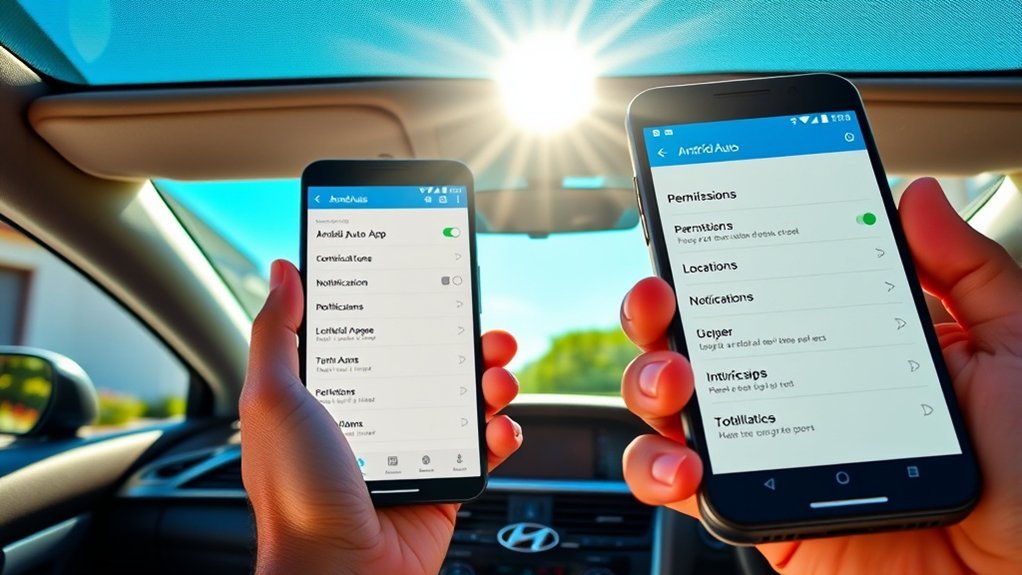
To guarantee Android Auto works seamlessly, you need to grant all necessary permissions, like access to your calendar and contacts. If these permissions aren’t enabled, Android Auto may struggle with basic functions like reading messages or navigation. You can easily check and adjust these settings in your device’s app permissions.
Necessary Permissions Overview
Ensuring Android Auto functions seamlessly hinges on granting specific permissions. You’ll need to allow access to your calendar, call logs, contacts, microphone, notifications, and SMS. Without these permissions, the app can’t connect effectively with your vehicle, leading to frustrating experiences. To tackle permission troubleshooting, head to your phone’s settings and find the Android Auto app in the apps section. Regularly reviewing your permission management helps prevent connectivity issues, empowering you to make the most of Android Auto’s features. By enabling all necessary permissions, you facilitate a smoother integration, ensuring you stay connected and liberated while driving. Don’t overlook these essential permissions; they’re key to an ideal Android Auto experience.
Adjusting Permission Settings
While using Android Auto, it’s crucial to confirm that all necessary permissions are properly adjusted. To guarantee peak functionality, check that permissions for calendar, contacts, and SMS are granted in the app settings. Without these permissions, Android Auto can’t access essential features, leading to connectivity and functionality issues. Regularly reviewing and adjusting your permission management helps maintain seamless operation of the app. If permissions aren’t set correctly, Android Auto may struggle to retrieve data or connect with your car, causing frustrating interruptions. Access your phone’s settings menu to easily verify and manage permissions for Android Auto. Taking these steps will liberate your experience, allowing you to enjoy the full benefits of this powerful tool.
Troubleshooting Bluetooth Connection Issues With Android Auto
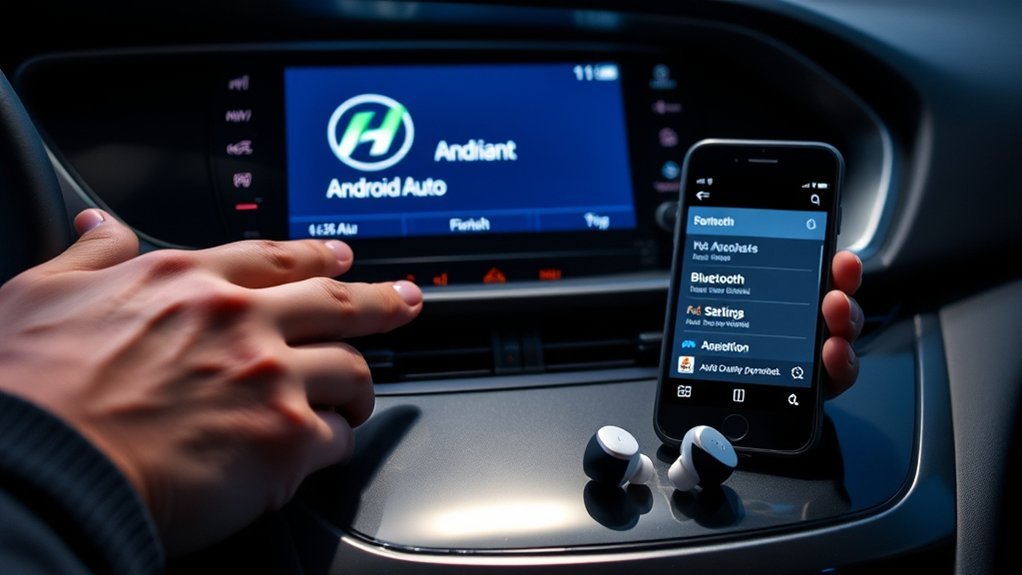
When Bluetooth connection issues arise with Android Auto, troubleshooting can often resolve the problem quickly. Start by removing any previously connected phones from your car’s Bluetooth settings. This guarantees a fresh connection, minimizing potential Bluetooth interference. Next, perform device compatibility checks by verifying that your phone’s software is updated to the latest version, as outdated systems can disrupt connectivity.
Reconnect your phone by searching for your car in the Bluetooth settings and following the pairing prompts. Make sure you’ve enabled all necessary permissions for Android Auto, including contacts and notifications. If pairing fails, try restarting both your phone and the car’s infotainment system to reset the Bluetooth connection. These steps can help streamline your experience and enhance connectivity, allowing you to enjoy Android Auto seamlessly.
Step-by-Step Troubleshooting for Android Auto Issues
To resolve Android Auto issues effectively, follow these step-by-step troubleshooting methods. Start by checking the USB cord you’re using; verify it’s a high-quality cable with a USB symbol, ideally the original from your phone. Next, keep your phone’s software updated. Verify you have the latest Android version and that the Android Auto app is up to date, as outdated software can lead to common connectivity issues.
Clear the Android Auto app’s cache through your app settings to eliminate temporary data that could cause problems. Don’t forget to confirm that all necessary permissions—like access to contacts, call logs, and notifications—are granted in your phone’s settings. Finally, remove any previously connected devices from your car’s Bluetooth settings, then re-establish the connection with your phone. These troubleshooting tips should help you regain a smooth Android Auto experience.
Tips for Maintaining Your Android Auto Setup
Maintaining your Android Auto setup is essential for guaranteeing a seamless driving experience. By taking a few proactive steps, you can enhance performance and avoid issues.
Maintaining your Android Auto setup is vital for a smooth driving experience; proactive steps can significantly enhance performance and minimize issues.
- Always use a high-quality USB cord with a USB symbol to guarantee effective connectivity and file transfer.
- Regularly check and update your phone’s software and the Android Auto app to prevent performance issues and glitches.
- Clear the app cache for Android Auto through your phone’s settings to resolve temporary data conflicts.
- Guarantee all necessary permissions, like access to contacts, calendar, and SMS, are granted for seamless operation.
- Regularly remove previously connected devices from your car’s Bluetooth settings to establish a fresh connection.
When to Seek Professional Help for Android Auto Problems
If troubleshooting steps like checking your USB cord and updating software haven’t resolved your Android Auto issues, seeking professional help may be your best option. Persistent connectivity problems, especially after clearing the app cache and resetting permissions, often signal hardware issues that need expert diagnostics. If Android Auto fails to recognize your device despite following pairing instructions, a technician can pinpoint compatibility issues between your device and the car’s system.
Frequent disconnections during use, even with a reliable cord and updated software, suggest potential faults in the car’s infotainment system. In these cases, professional diagnostic tools can provide insights that DIY fixes can’t. If you’re unsure about the proper settings and configurations for Android Auto, a professional can offer tailored guidance to optimize your setup. Don’t hesitate to consult an expert; it could save you time and frustration in the long run.
Frequently Asked Questions
Can I Use Wireless Android Auto in My Sonata?
Yes, you can use wireless Android Auto in your Sonata, provided your car supports wireless connectivity. Check your model’s compatibility and verify your phone also meets the necessary requirements for seamless connection.
What Android Phone Models Are Compatible With Android Auto?
Most Android phones running Android 5.0 (Lollipop) or higher are compatible with Android Auto. However, check for compatibility issues with specific features, as some models may limit certain Android features based on manufacturer restrictions.
How Do I Reset My Sonata’s Infotainment System?
Like a phoenix rising, you can reset your Sonata’s infotainment system by accessing system settings. Find the “Reboot” option, select it, and your infotainment will restart, restoring functionality and freedom to your driving experience.
Will Using a Different USB Port Affect Android Auto?
Yes, using a different USB port can affect Android Auto. It may lead to USB compatibility issues or port functionality concerns, impacting your connection and performance. Always choose a reliable port for best functionality.
Can I Use Android Auto Without a Data Connection?
You can’t use Android Auto without a data connection for full functionality. Offline navigation works, but app limitations apply. Bluetooth connectivity helps, though user experiences may vary based on your specific apps and settings.
Conclusion
To summarize, if your Sonata’s Android Auto isn’t working, remember that troubleshooting often leads to quick fixes. From checking your USB cord to updating software and managing permissions, these steps can resolve most issues. Notably, many users overlook the importance of a good USB connection, which can greatly impact performance. If you’ve tried everything and still face problems, seeking professional help may be your best bet. Keeping your setup updated will also enhance reliability and performance.