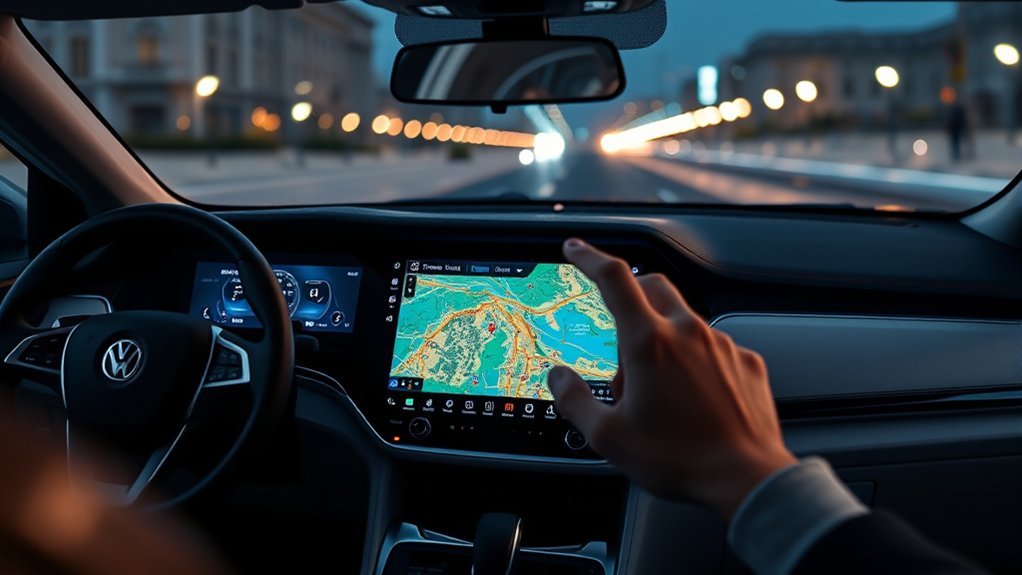
If your Hyundai Sonata has Smart Cruise Control (SCC), use the Vehicle Distance button to change the gap to the vehicle ahead. On newer Sonatas, the + and – switches change the set speed, not following distance. Control labels differ on older model years, so match the steps below to your steering-wheel layout before you use SCC.
Quick Answer
On newer Hyundai Sonatas with the Driving Assist button, short-press that button to turn on Smart Cruise Control, then press the Vehicle Distance button repeatedly to cycle through Distance 4, 3, 2, 1, and back to 4. On older SCC-equipped Sonatas, the cruise buttons may be labeled CRUISE, RES+, and SET-. In either layout, use the dedicated distance button to change the following gap.
Last updated: September 16, 2026
Key Takeaways
- Use the Vehicle Distance button to change following distance.
- On newer control layouts, use the + and – switches to raise or lower the Smart Cruise set speed; older layouts may use RES+ and SET-.
- Distance 4 gives the longest gap; Distance 1 gives the shortest gap.
- Smart Cruise Control is driver assistance only. You must still steer, brake, watch traffic, and turn SCC off when conditions are unsuitable.
At a Glance
| Time Required | Less than 1 minute |
| Difficulty | Easy |
| Tools Needed | No tools; use the steering wheel controls |
| Cost | Free |
Before You Use Smart Cruise Control
Smart Cruise Control, often shortened to SCC, helps maintain a set speed and a selected gap from the vehicle ahead. Hyundai changed steering-wheel controls across Sonata generations, so the activation steps are not identical for every model year. Treat the owner’s manual for your exact Sonata as the final authority.
Before using SCC, make sure the vehicle is in Drive, the road is suitable, and the front camera/radar area is not blocked. Hyundai notes that SCC operating conditions include the transmission being in Drive and the required stability/braking systems being available. Review the exact requirements in the Hyundai Smart Cruise Control operation guide.
Warning: Smart Cruise Control does not make the Sonata self-driving. Keep your hands on the wheel, watch traffic, and be ready to brake or steer at any time.
How to Activate Smart Cruise Control in the Sonata
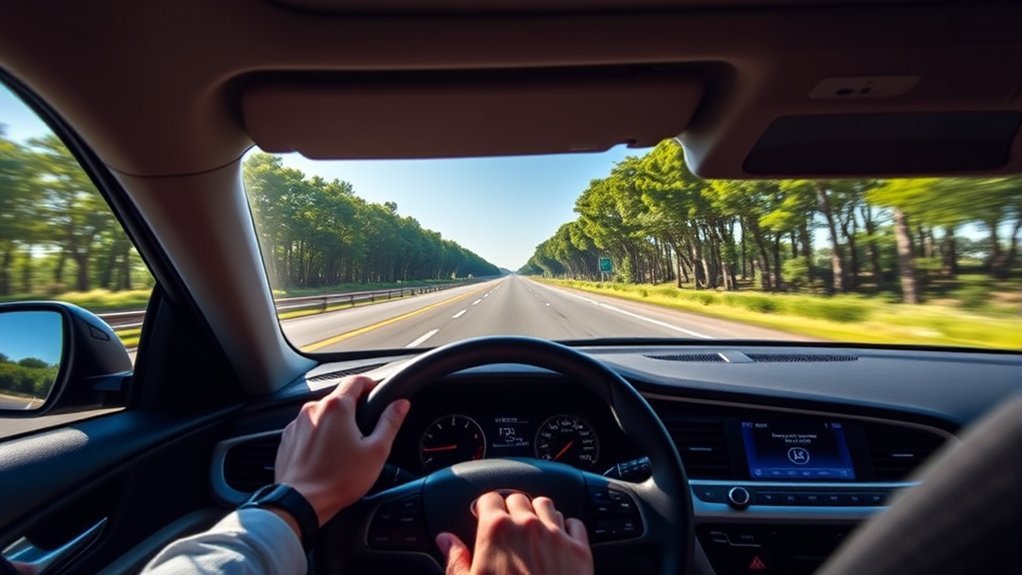
First identify which steering-wheel layout your Sonata uses. Newer Sonatas use a Driving Assist button plus separate Vehicle Distance and + / – controls. Older SCC-equipped Sonatas can use CRUISE, RES+, and SET- controls with a separate vehicle-distance button.
| Control Layout | Turn SCC On / Set Speed | Change Following Distance |
|---|---|---|
| Newer Sonata layout | Short-press Driving Assist; use + / – for set-speed changes | Press Vehicle Distance |
| Older SCC layout, including manuals that use CRUISE / RES+ / SET- | Turn cruise on, then use SET- / RES+ as directed by the model-year manual | Press Vehicle-to-Vehicle Distance |
- Use SCC only on a road and in traffic conditions allowed by your owner’s manual.
- Turn SCC on with the control used by your model year.
- Check the instrument cluster to confirm SCC status and the stored set speed.
- Press the dedicated Vehicle Distance button to select the headway level.
- If a vehicle is ahead, SCC may reduce speed to help maintain the selected gap; if the lane ahead is clear, it works toward the set speed.
On newer Sonata manuals, turning SCC on below about 20 mph (30 km/h) may set the cruise speed to 20 mph (30 km/h). Older layouts use different set/resume controls. Stop-and-go behavior also varies by model year and equipment, so confirm the exact procedure in your Sonata manual.
Setting Your Initial Speed for Smart Cruise Control
After Smart Cruise Control is active, the stored set speed appears in the instrument cluster. This is the maximum cruising target SCC works toward when traffic ahead allows it. The switch used to change that speed depends on the control layout.
Using the + and – Speed Switches
On newer Sonata control layouts, the + and – switches are for speed adjustment, not following-distance adjustment. Push + to raise the set speed and – to lower it. On older SCC layouts, the equivalent controls may be labeled RES+ and SET-. Use the dedicated Vehicle Distance button—not a speed switch—to change the following gap.
Note: On newer layouts, pressing + or – after SCC is temporarily canceled can set the current vehicle speed, while the dedicated resume control can return to the stored speed. Older layouts can behave differently. Check the cluster before resuming and use the exact instructions for your model year.
When the Set Speed May Change Automatically
Smart Cruise Control may slow the car when it detects a slower vehicle ahead, then return toward the set speed when the lane clears. On hills, the actual vehicle speed may vary slightly. The system may also cancel if its operating conditions are not met.
How to Set Smart Cruise Following Distance in a Hyundai Sonata
With SCC active, press the Vehicle Distance button on the steering wheel. On current Sonata-style SCC controls, each press cycles through the headway settings in this order:
Distance 4 → Distance 3 → Distance 2 → Distance 1 → Distance 4
Distance 4 is the longest following gap and Distance 1 is the shortest. A conservative way to learn the system is to begin with the longest gap in clear, suitable conditions, then adjust only after you understand how your Sonata slows and resumes.
| Setting | Relative Gap | Approximate Gap at 56 mph (90 km/h) | What the Setting Means |
|---|---|---|---|
| Distance 4 | Longest | About 52.5 m | Longest programmed gap; leaves the most space of the four settings |
| Distance 3 | Long | About 40 m | Second-longest programmed gap |
| Distance 2 | Medium | About 32.5 m | Medium programmed gap |
| Distance 1 | Shortest | About 25 m | Shortest programmed gap; gives the least headway of the four settings |
These 56 mph (90 km/h) figures match current Sonata manual examples; the actual target distance changes with vehicle speed, and exact behavior can vary by model year. Hyundai also notes on newer systems that the last selected distance is retained after a restart or temporary SCC cancellation.
Pro Tip: Learn SCC in clear weather on a road where your owner’s manual permits its use. Begin with the longest gap so you can observe how the Sonata slows, resumes, and reacts to a vehicle ahead.
[Products Worth Considering]

【Compatible With】: Compatible with Hyundai Sonata 2011 2012 2013 2014 2015.

FENHEWANCruise Control Button For Hyundai For Sonata LF 2016 2017 2018 Car Steering Wheel Control Button Cruise Control Switch Audio Volume Switch Button(Set)
Why Following Distance Matters in Smart Cruise Control
Following distance matters because SCC needs space to respond when traffic ahead slows, stops, or changes lanes. Hyundai warns that an overly short headway at high speed can increase collision risk. A longer setting gives more programmed gap; a shorter setting gives less room for sudden changes and does not reduce the driver’s responsibility to brake when needed.
| Benefit | What It Does | Driver Reminder |
|---|---|---|
| More reaction time | Leaves more space if traffic slows | Still watch the road and brake if needed |
| Smoother cruising | Can reduce abrupt speed changes | If weather, traffic, or road conditions make SCC unsuitable, turn it off and drive manually |
| Less fatigue | Helps manage speed and gap on longer drives | Do not become dependent on the system |
The safest Smart Cruise distance is not always the closest one. Choose the gap that matches your speed, visibility, traffic, road surface, and comfort level.
How to Make Temporary Speed Adjustments
You can temporarily accelerate while Smart Cruise Control is active by pressing the accelerator pedal. This can help when passing or merging. When you release the pedal, SCC returns toward the previous set speed if the system is still active and traffic conditions allow.
Temporary Acceleration Without Changing Set Speed
Press the accelerator to speed up briefly. The set speed remains stored on newer systems, but Hyundai warns that while you are accelerating manually, SCC may not automatically control speed and distance even when a vehicle is ahead. Stay ready to release the accelerator and brake.
Changing the Set Speed
On newer control layouts, use + or – for a lasting speed change. On older layouts, use the model-year-specific RES+ or SET- control. Watch the instrument cluster so you know exactly what speed is stored.
Returning to Your Set Speed
If Smart Cruise Control was temporarily canceled, use the resume control only when the stored speed is safe for current traffic. On newer layouts, + or – can set the current speed instead of restoring the previous one; older RES+/SET- layouts follow different model-year instructions.
Warning: Do not resume Smart Cruise Control into slow, stopped, merging, or unpredictable traffic unless you are ready to brake immediately.
Pausing and Resuming Smart Cruise Control
Smart Cruise Control can be paused or canceled by the driver or by the vehicle when operating conditions are not met.
- Pressing the brake pedal temporarily cancels SCC.
- Pressing the cancel control temporarily cancels SCC.
- SCC may cancel if the vehicle stops for a certain time.
- SCC may not operate if the driver’s door is open, the parking brake is applied, ESC or ABS is actively controlling the vehicle, or another safety system is braking.
- If SCC cancels, the Sonata no longer maintains the selected distance from the vehicle ahead.
In traffic, if the Sonata stops behind another vehicle and the vehicle ahead moves again, SCC may restart or may ask you to use a switch or the accelerator pedal to move. Follow the instrument cluster message and keep your foot ready for the brake.
Safety Precautions for Smart Cruise Control Use
Smart Cruise Control is helpful, but it has limits. It may not react the way you expect when another vehicle cuts in, when a vehicle ahead changes lanes, on steep hills, in poor weather, near stopped traffic, or when sensors are blocked.
- Stay responsible: SCC assists with speed and distance, but you are still driving.
- Use a safe distance: Choose a headway that matches speed and road conditions; do not treat the shortest setting as a substitute for manual braking.
- Watch for cut-ins: A car entering your lane suddenly may not give SCC enough time to respond smoothly.
- Turn SCC off when inappropriate: Some Sonata manuals specifically warn against SCC use in poor weather, heavy or varying traffic, winding roads, or slippery conditions. Follow the restrictions for your exact model year.
- Keep sensors clean: Dirt, snow, heavy rain, or damage near the front camera or radar area can affect performance.
The National Highway Traffic Safety Administration explains that adaptive cruise control is driver assistance: the driver remains responsible for steering, braking, accelerating, and monitoring the road. Treat SCC as a convenience feature, not a replacement for judgment.
[Products Worth Considering]


Authentic Original Equipment Manufacturer (OEM) part
Practical Tips for Smart Cruise Control Use

The easiest way to get comfortable with SCC is to practice on a clear highway in good weather. Turn it on, check the set speed, then press the Vehicle Distance button a few times so you can see the distance indicator change in the cluster.
- Use Distance 4 when learning the system.
- If rain, fog, snow, construction, heavy traffic, or a winding/slippery road makes SCC unsuitable under your owner’s manual, turn SCC off and drive manually.
- Use + and – for speed changes on newer layouts; use the model-year RES+/SET- procedure on older layouts.
- Do not press several cruise buttons at the same time.
- Cancel SCC before exits, sharp curves, confusing lane splits, or unpredictable traffic.
Some newer Sonata configurations also expose Smart Cruise settings in the infotainment system. Depending on model year, market, and equipment, a path similar to Setup or Settings > Vehicle > Driver Assistance > Driving Convenience > Smart Cruise Control may offer Distance, Acceleration, or Reaction Speed settings. If that menu is absent, do not assume your car has the same software options.
Common Issues and Solutions for Smart Cruise Control
If Smart Cruise Control does not behave as expected, check the simple causes first.
| Issue | Likely Cause | What to Do |
|---|---|---|
| Following distance is not changing | You may be pressing a speed-control switch instead of the Vehicle Distance button | Press the Vehicle Distance button repeatedly and watch the cluster indicator |
| Speed changes instead of distance | A speed-control switch was used instead of the Vehicle Distance button | Use the dedicated Vehicle Distance button for headway; use the model-year speed controls only for set speed |
| “Conditions not met” message appears | SCC operating requirements are not satisfied | Check speed, gear, parking brake, door status, ESC/ABS activity, and traffic conditions |
| SCC cancels in traffic | The vehicle stopped for a certain time or another condition changed | Follow the cluster prompt and use the switch or accelerator only when safe |
| SCC reacts late or oddly | Vehicle cut-in, curve, hill, bad weather, or sensor obstruction | Brake manually, increase distance, or turn SCC off |
[Products Worth Considering]


Applicable for Honda Civic 2006-2011;Fit 2009-2011

[Vehicle Fitment] The steering wheel cruise control button is for Hyundai Tucson 2016 2017 2018.
Frequently Asked Questions
How do I set the Smart Cruise following distance in a Hyundai Sonata?
On newer Sonatas, short-press the Driving Assist button to turn on SCC, then press the Vehicle Distance button to cycle through Distance 4, 3, 2, 1, and back to 4. Older SCC-equipped Sonatas may use CRUISE, RES+, and SET- controls, but the dedicated distance button still changes the following gap.
Do the + and – buttons change the following distance?
On newer Sonatas, no. The + and – switches change Smart Cruise set speed, while the Vehicle Distance button changes headway. Older Sonatas may label the speed controls RES+ and SET-.
Which Sonata Smart Cruise distance should I use?
There is no single setting for every situation. Distance 4 gives the longest programmed gap and Distance 1 the shortest. Choose a gap that matches speed and road conditions, and turn SCC off when weather, traffic, or road conditions are outside the limits in your owner’s manual.
Can Smart Cruise Control stop the Sonata in traffic?
On models equipped with stop-and-go capability, Smart Cruise Control may stop behind a vehicle ahead and may restart when traffic moves. If the vehicle has been stopped for a certain time, the cluster may ask you to use a switch or the accelerator pedal to move again.
Why doesn’t my Sonata have a Driving Assist or + / – cruise layout?
Hyundai changed Sonata steering-wheel controls across model years. Older SCC-equipped cars can use CRUISE, RES+, and SET- labels instead of the newer Driving Assist and + / – layout. Follow the owner’s manual for your exact year and trim.
Why does my Sonata say Smart Cruise Control conditions are not met?
The message can appear when SCC operating conditions are not satisfied. Common causes include unsuitable speed, the vehicle not being in Drive, the parking brake being applied, the driver’s door being open, ESC or ABS intervention, Forward Collision-Avoidance Assist braking, or sensor limitations.
Conclusion
To change Smart Cruise following distance in a Hyundai Sonata, use the dedicated Vehicle Distance button and watch the cluster as the headway level changes. On newer layouts, + and – adjust set speed; older layouts may use RES+ and SET-. Match the instructions to your model year, use SCC only in appropriate conditions, and stay ready to brake or steer because it is driver assistance rather than automated driving.
Sources
- 2025 Hyundai Sonata owner’s manual — model-specific Smart Cruise Control reference for the newer Sonata control layout
- Hyundai Smart Cruise Control operation — activation, headway levels, speed adjustment, resume behavior, and precautions
- Hyundai 2020 Sonata SmartSense guide — SCC availability and model-specific cautions for the 2020 Sonata
- Hyundai steering wheel controls — Driving Assist and Vehicle Distance control placement on newer layouts
- Hyundai Smart Cruise Control settings — infotainment settings that can vary by model and equipment
- NHTSA Driver Assistance Technologies — driver responsibility and driver-assistance safety context
- IIHS Advanced Driver Assistance — adaptive cruise control and driver-assistance background