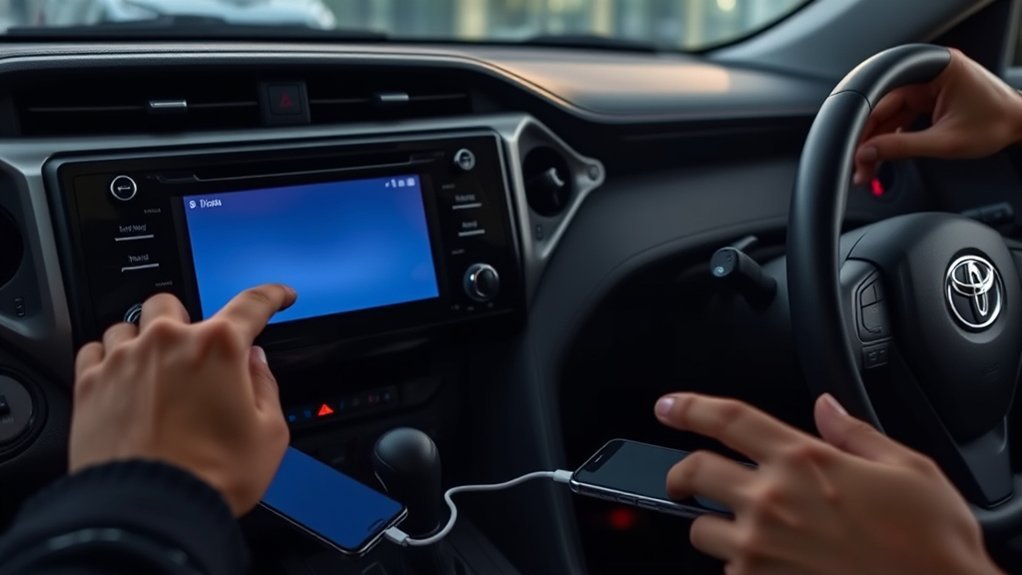
If your RAV4’s Apple CarPlay won’t connect, update iOS and the vehicle’s infotainment, enable Siri, and confirm CarPlay is allowed in the RAV4 settings. For wired use an Apple‑certified Lightning cable and try each USB port; inspect for damage. For wireless verify Bluetooth and Wi‑Fi are on, forget and re‑pair the car, or set up wired first then switch. Also check Screen Time, remove stale pairings, and collect model, VIN and build info if you need support—more troubleshooting follows.
Quick Checklist: Get RAV4 Apple CarPlay Working Now
Start by updating your iPhone to the latest iOS and confirming CarPlay is enabled in your RAV4’s settings and Siri is on. You’ll then run a tight checklist: verify iOS compatibility, enable CarPlay and Siri, and confirm Screen Time isn’t blocking CarPlay under Content & Privacy Restrictions. Restart both your iPhone and the RAV4’s infotainment system to clear transient faults and refresh the connection handshake. Use a certified Apple Lightning cable when you connect; uncertified cables often disrupt the protocol and degrade CarPlay features. Focus on measurable steps: software version, settings toggles, reboot sequence, and cable integrity. This approach puts control back in your hands, improving the User experience and reducing dependence on dealer visits. If these items pass and CarPlay still fails, you’ll have eliminated common variables and be ready for targeted diagnostics or advanced fixes without wasting time.
Wired CarPlay Fixes for RAV4 (Cables, Ports & Adapters)
1 clear step to fix wired CarPlay is to verify the physical connection: use an Apple-certified Lightning cable (and Apple-certified adapters if needed), try each USB port in the RAV4 since not all ports support CarPlay, and reboot both your iPhone and the infotainment system after connecting to force a fresh handshake. Next, inspect cable quality — frayed or cheap third-party cables often break the digital link and reduce connection stability. Swap ports to test port compatibility; some center-console or rear ports are charge-only and won’t carry CarPlay data. If you need an adapter (for USB-C phones or upgraded docks), confirm adapter certification to avoid negotiation failures. After making hardware changes, check vehicle settings for CarPlay permissions and disable Screen Time or privacy locks that can block the feature. These targeted checks free you from guesswork: prioritize certified components, validate ports, and reboot to re-establish a stable, responsive wired CarPlay connection.
Fix Wireless CarPlay: Bluetooth, Wi‑Fi & Pairing Tips
Enable both Bluetooth and Wi‑Fi on your iPhone and confirm the RAV4’s infotainment is set to allow wireless CarPlay, then restart both devices to refresh connections and clear transient glitches. You’ll re-establish clean wireless settings and improve connection stability. If a restart doesn’t free you, forget the RAV4 from your iPhone’s Bluetooth list and re-pair to remove cached pairing errors. As a controlled fallback, plug in via USB to complete initial CarPlay setup, then switch to wireless to verify behavior.
- Forget the car in iPhone Bluetooth, then re-pair from scratch
- Verify infotainment “Allow Wireless CarPlay” or equivalent toggle
- Toggle iPhone Airplane Mode briefly to reset radios
- Use wired USB setup once, then test wireless handoff
- Confirm iPhone iOS and car infotainment are on compatible versions
These steps give you practical, technical control over pairing and radios so you can reclaim seamless, liberated in‑car connectivity without unnecessary frustration.
Diagnose Firmware, Screen Time & Paired‑Device Conflicts
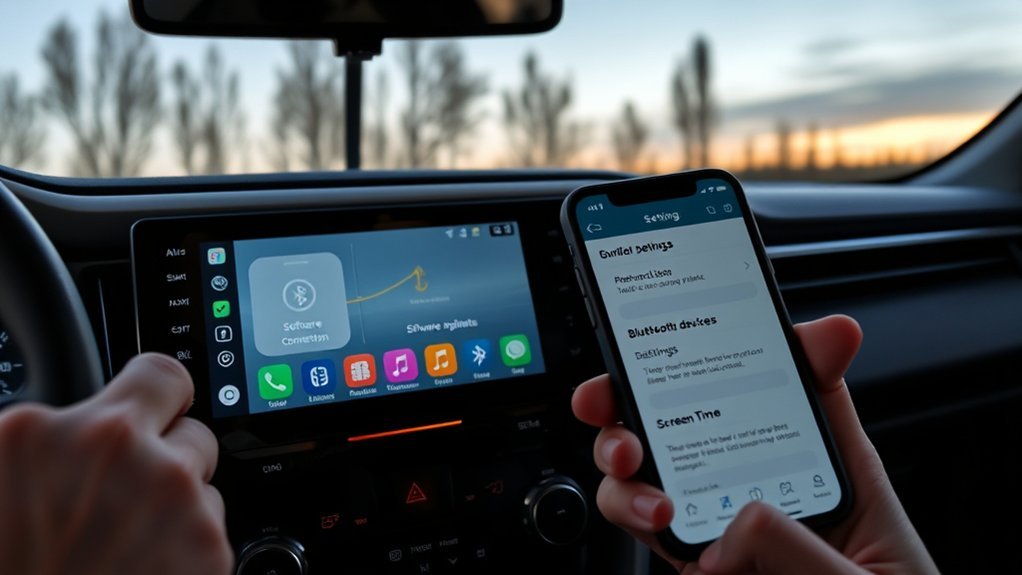
Because firmware mismatches, Screen Time restrictions, or leftover paired devices often masquerade as CarPlay failures, check each systematically: Start by confirming firmware updates for your RAV4’s infotainment—outdated system software commonly breaks device compatibility. Use Toyota’s settings menu or dealer tools to verify the build number and apply updates. Next, inspect your iPhone’s Screen Time: go to Settings > Screen Time > Content & Privacy Restrictions and ascertain CarPlay isn’t blocked; restrictive profiles can silently disable access. Remove stale Bluetooth pairings from the car’s paired-device list to eliminate address or priority conflicts that prevent a new CarPlay session. Restart both the phone and the head unit after changes to clear transient states. Finally, verify Siri settings on your iPhone—CarPlay depends on Siri for voice routing and approval prompts—enable “Listen for ‘Hey Siri’” and Allow Siri When Locked. These steps isolate software-level barriers so you can reclaim control of your in-car experience.
Contact Toyota or Apple : What Info to Collect First
When you call Toyota or Apple, have specific data at hand to speed diagnosis: your RAV4’s model year and VIN, the infotainment build number (if available), your iPhone model and iOS version, a concise list of steps you’ve already tried (cable type, Bluetooth resets, Siri settings, firmware checks), and exact error messages or observed behaviors (e.g., “CarPlay icon missing” or “connection drops after 30 seconds”).
Collecting the right facts proves vehicle compatibility quickly and prevents wasted steps. Note your iPhone settings (CarPlay allowed, Siri enabled, Screen Time restrictions off), the USB cable type and port used, paired-device list, and any recent iOS or infotainment updates. State the frequency and reproducibility of failure. Be firm and clear: you want the issue identified, not placated. Provide VIN for service-ticket lookup and infotainment build for firmware confirmation. This lets reps verify compatibility matrices and escalate to software teams when needed.
Collect key facts—iPhone settings, cable/port, paired devices, update history, failure frequency—so reps can verify compatibility and escalate.
- RAV4 model year + VIN
- Infotainment build/version
- iPhone model + iOS version
- Exact symptoms and steps tried
- USB cable type and iPhone settings
Frequently Asked Questions
Why Is My RAV4 Carplay Not Working?
Your CarPlay isn’t working because of CarPlay compatibility issues or Smartphone connection problems—check iOS and CarPlay settings, Screen Time restrictions, use an Apple-certified cable, clean connectors, and restart both phone and vehicle to regain control.
Why Is Apple Carplay Suddenly Not Working?
About 30% of users report disruptions after updates: you’re seeing Apple CarPlay fail because Apple updates, connection issues, vehicle settings, or USB compatibility can interrupt pairing; you’ll audit software, cables, permissions, and reset connections to reclaim control.
Conclusion
You’ve checked cables and ports, reset Bluetooth and Wi‑Fi, and ruled out paired‑device conflicts, yet CarPlay still won’t connect — frustrating tech meets simple fixes. Keep methodical: swap cables, test another iPhone, update your RAV4’s head unit and iOS, and reboot devices. If that fails, contact Toyota or Apple with firmware, head‑unit model, iOS version, and times of failures. You’ll either restore seamless CarPlay or get a clear next step fast.