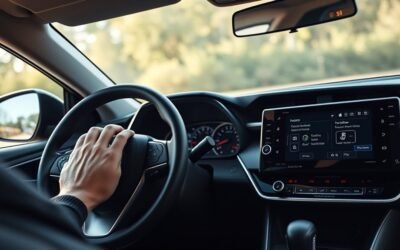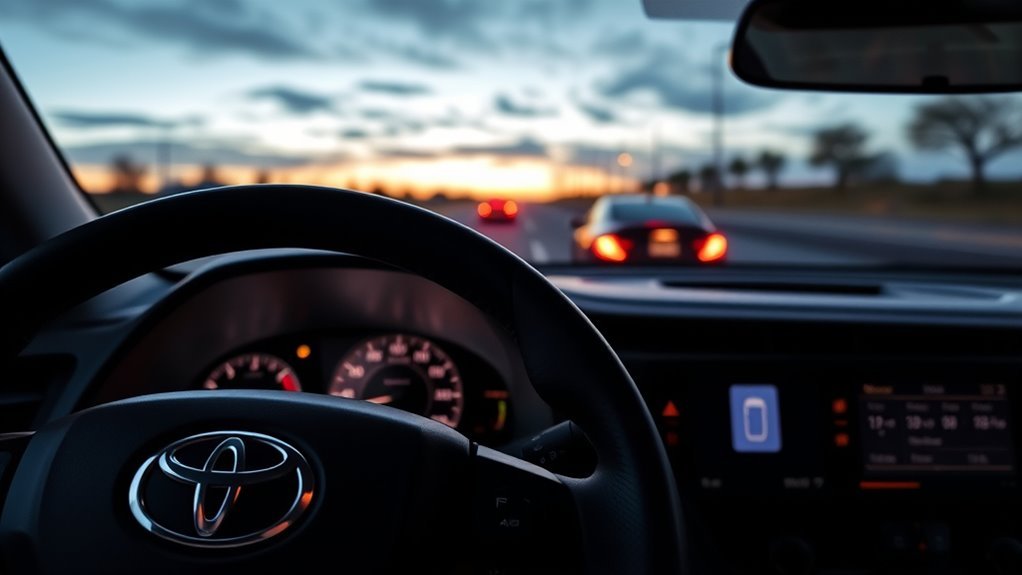
You’ll use Dynamic Radar Cruise Control (DRCC) on highways above 20 mph to hold speed and maintain a set gap using forward camera and radar. Confirm sensors are clean, set the Driving Assist switch to DRCC, accelerate to your desired speed, then engage. Adjust speed with the plus/minus controls and pick short/medium/long following distance. Brake or press cancel to override; resume returns the last speed. Continue for step‑by‑step setup, adjustments, and troubleshooting.
Quick Overview: What This Guide Covers
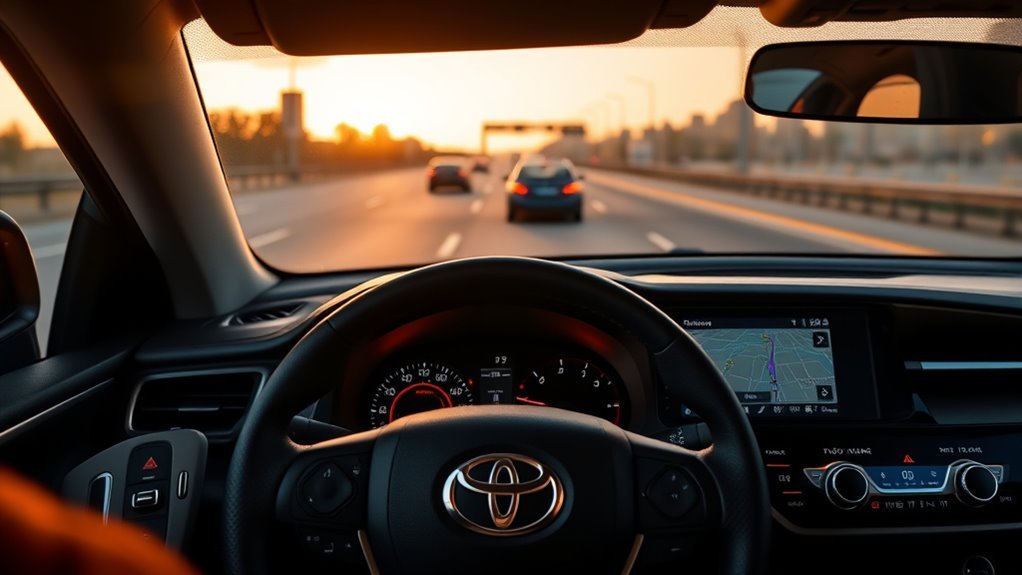
While you’re driving a RAV4, this guide shows how to use Dynamic Radar Cruise Control (DRCC) to set and adjust speed, keep a safe following distance, cancel or resume cruise with memory of your last set speed, and understand the system’s operational limits and sensors; it also points you to the Owner’s Manual and toyota.com/safety-sense for vehicle-specific details and updates. You’ll learn to engage DRCC with the Driving Assist mode select switch and fine-tune speed with the plus/minus buttons, preserving your last set speed when you cancel and resume. The system activates above 20 mph and relies on forward-facing camera and radar sensors to measure gaps and maintain pace, improving driving efficiency and offering valuable safety features. This overview equips you to use DRCC confidently, reduces dependence on constant manual control, and directs you to official resources for updates or model-specific nuances. Use the step-by-step sections that follow to take practical control and reclaim time and focus on the road.
When to Use DRCC and What It Does
Now that you know the basics of engaging and adjusting DRCC, let’s look at when to use it and what it actually does. Use DRCC on open roads and highways when speeds exceed 20 mph; it’s built to manage speed and spacing above that threshold. The system uses camera and radar sensors to track the vehicle ahead and maintain your preset following distance, delivering clear safety benefits by reducing close-following and sudden braking.
DRCC adapts automatically to traffic, switching between adaptive and conventional cruise modes as conditions change, so you stay in control without constant speed fiddling. You set speed via the Driving Assist mode select and fine-tune in 1 mph steps with the plus resume switch. If you brake or hit cancel, DRCC keeps the last speed in memory for quick resumption. For drivers seeking liberation from tedious speed management, DRCC boosts driving comfort while keeping you safer and more focused on the road.
Pre‑Drive Checks and DRCC Settings
Before you engage DRCC, confirm you’re traveling above 20 mph and clear any dirt or obstructions from the radar and camera lenses so the system can see properly. Start with a brief pre drive checklist: verify windshield and grille cleanliness, confirm no cargo blocks sensors, and ascertain the Driving Assist mode select switch functions. You’ll feel more confident and free when systems are reliable.
- Check exterior sensor areas for debris and perform routine radar sensor maintenance to keep detection sharp.
- Confirm the Driving Assist mode select switch is set to the DRCC position and review indicator lights.
- Make sure you understand how to resume and adjust speed using the plus/minus controls before relying on the system.
These concise checks let you claim control and minimize surprises. Maintain sensors regularly, keep the pre drive checklist habit, and engage DRCC only when conditions and equipment allow precise, liberated driving.
Set Speed With DRCC (Step‑by‑Step)
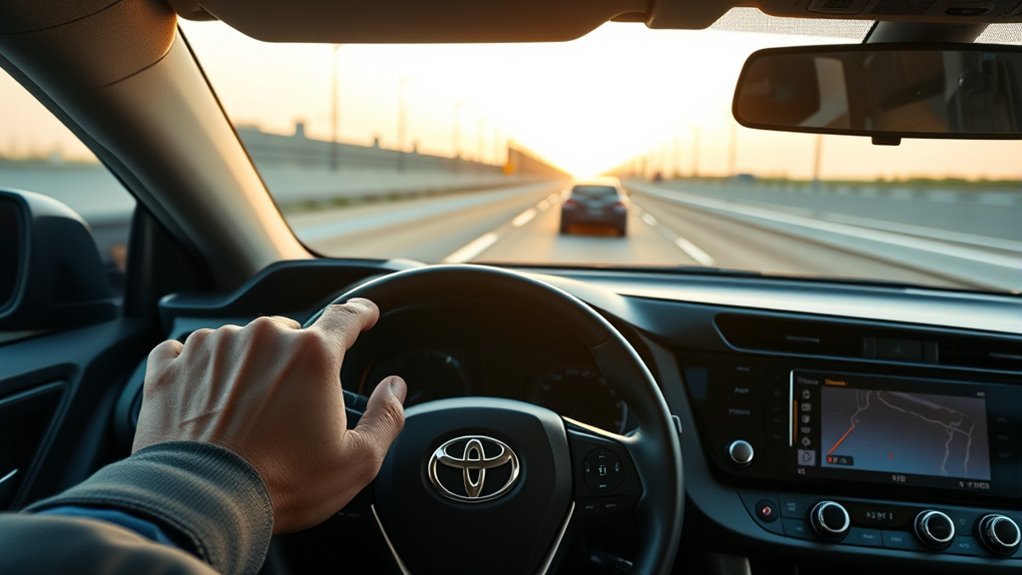
Having completed your pre‑drive checks, set your DRCC speed by accelerating to the desired speed and pressing the Driving Assist switch to engage the system; once engaged, you claim steady control and enjoy cruise control benefits and safety features that free you from constant speed policing. To increase speed, tap the plus/resume switch for 1 mph increments; hold it for larger jumps when you need more pace quickly. To reduce speed, press or hold the minus switch until you reach the comfortable limit. If you cancel by braking or using the cancel switch, the system keeps the last set speed in memory so you don’t lose your preferred setting. When you’re ready to return to that pace, press the plus/resume switch to resume the stored speed. These steps let you assert autonomy on open roads while relying on DRCC’s measured interventions. Use the controls deliberately and stay alert to road conditions and surrounding traffic.
Adjust Speed on the Fly (Plus/Minus and Hold)
If you need to tweak speed while DRCC is active, press the plus/resume switch to raise it by 1 mph or hold the plus for larger, continuous increases; press or hold the minus switch to reduce speed until you reach the desired pace. You’ll only be able to make these efficient adjustments when the vehicle is moving above 20 mph, since DRCC requires that threshold. The system remembers the last set speed after cancellation, so you can resume without reprogramming. Use these speed incrementing tips to stay fluid and free on the road.
Tweak DRCC with plus/minus taps or holds above 20 mph; cancel and resume restores your last speed.
- Press plus briefly to bump speed by 1 mph for fine control; hold plus for faster climbs when you want to break free of slower flow.
- Tap minus to drop 1 mph; hold minus for continuous reduction to quickly match traffic or regain calm.
- Rely on memory: cancel and resume to restore your last set speed, saving effort and keeping you moving with intent.
Follow Distance & Adaptive Behavior
You can choose from several follow distance settings on the multi-information display to set how much space you want in front of your RAV4. The DRCC uses camera and radar to maintain that gap automatically, slowing or accelerating for the vehicle ahead and stopping if traffic halts. In traffic you’ll notice it holds the selected distance and will resume driving when the car ahead moves, so stay ready to take control if conditions change.
Following Distance Settings
1 clear step to tailor DRCC behavior is choosing a following distance—typically short, medium, or long—through the multi-information display, and that setting tells the system how closely you want to trail the vehicle ahead. Use custom settings to match your comfort and prioritize safety features while asserting control. The sensors then adjust speed to maintain your chosen gap; if the car ahead slows or stops, DRCC brakes and can stop, resuming when traffic clears. You can always override by braking or accelerating.
- Short: closer gap for confident, liberated driving; monitor closely and be ready to intervene.
- Medium: balanced comfort and caution; good for mixed traffic.
- Long: maximum buffer for relaxed, safety-first travel.
Behavior In Traffic
When traffic varies, DRCC stays attentive and adjusts your speed to keep the preset following gap, using camera and radar to smoothly slow or accelerate as vehicles ahead change speed; set the following distance to short, medium, or long depending on how closely you want to trail others. You’ll rely on DRCC to read traffic patterns and react above 20 mph, ideal for highways and stop-and-go flow. Adjusting follow distance gives you control—closer for assertive progress, longer for breathing room. If a slower car appears, DRCC decelerates smoothly; it accelerates again when lanes clear. Apply brakes or hit cancel and the system pauses but keeps your last speed for quick resumption. Maintain driver awareness; stay ready to override for safety and freedom.
Cancel, Pause, and Resume DRCC
You can cancel DRCC instantly by pressing the brake pedal or the cancel switch, which keeps the last set speed in memory. The system will also pause automatically if it detects a slower vehicle ahead, holding a safe gap until the road clears. When you’re ready, hit the plus/resume switch to return to your previously set speed, or use the Driving Assist switch to turn cruise control off and clear the memory.
Canceling DRCC Quickly
Need to stop DRCC quickly? You can cancel DRCC instantly by pressing the brake pedal or the cancel switch. That deactivates the system but keeps the last set speed in memory — useful if you want control now but freedom to return to cruise later. Keep safety considerations front and center and follow basic driving tips: cancel promptly in unexpected traffic or hazards.
- Press brake pedal — immediate cancel; set speed saved.
- Press cancel switch — same result, hands-friendly.
- Use Driving Assist switch only to fully turn off DRCC and erase set speed.
Remember DRCC activates only above 20 mph. Canceling is your tool for quick, controlled liberation when the road demands your full attention.
Pausing And Resuming
If traffic or a hazard requires immediate control, pause DRCC by pressing the brake pedal or the cancel switch — the system stops active control but keeps your last set speed in memory so you can resume it quickly with the +/resume switch. Use these pausing techniques whenever you need instant manual control without losing your target speed. To resume, press the +/resume switch; the car returns to the stored speed and you can fine-tune with the + and − switches. Remember DRCC auto-cancels below 20 mph yet retains the last set speed. If you want to erase memory and shut the system off, use the Driving Assist switch. These resuming methods free you to reclaim speed control smoothly and confidently.
Troubleshooting Common DRCC Warnings and Issues
When the DRCC warning light comes on or the system cancels unexpectedly, check for sensor obstructions like dirt, ice, or debris and make sure you didn’t accidentally press the brake pedal, since even small particles or a brief brake input can disable the system. You’ll want to follow clear sensor maintenance tips and stay aware of environmental impacts that limit DRCC performance. Clean sensors gently, avoid sprays that could damage lenses, and store that habit as part of vehicle liberation—taking control of your safety tools.
If DRCC warns or cancels, gently clear sensors, avoid harsh sprays, and beware environmental limits to keep control.
- Wipe lenses and radar areas with a soft cloth; small particles can trigger warnings and reduce reliability.
- If heavy rain, fog, or snow affects operation, be ready to disengage DRCC and drive manually—environmental impacts can temporarily make the system unavailable.
- If warnings persist after cleaning and confirming no brake input, consult the owner’s manual or a Toyota dealer for professional diagnosis.
Model Differences & Owner’s Manual Resources
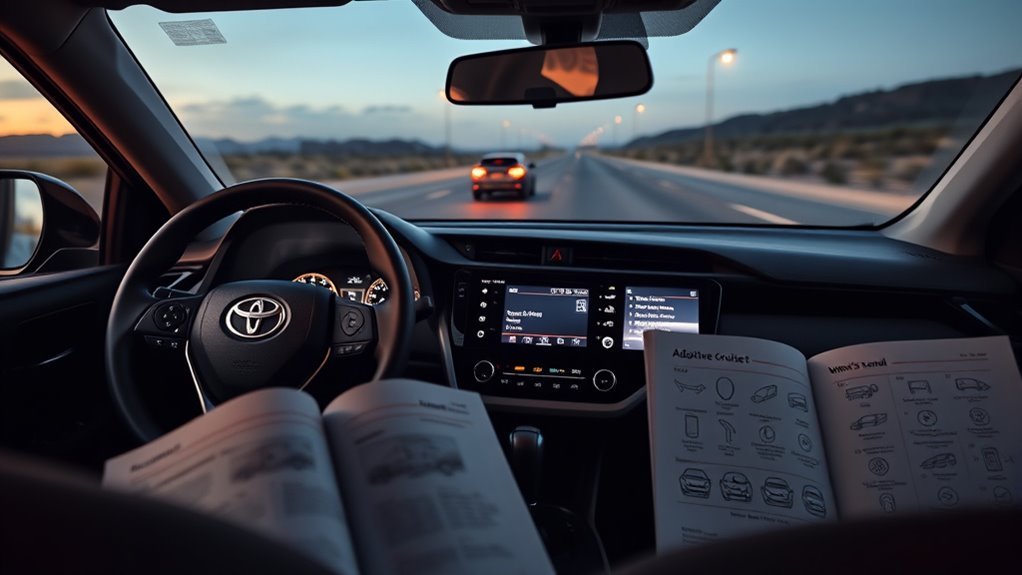
Although many RAV4s share the same Dynamic Radar Cruise Control basics, features and menu options can vary by model year and trim, so check your specific owner’s manual for exact instructions. You’ll encounter model variations in button layouts, available following-distance steps, and adaptive behaviors tied to Toyota Safety Sense packages. Consult the manual for exact DRCC procedures—setting speed, adjusting gap, and canceling—so you use the system confidently.
Use manual navigation to find the DRCC section: index, table of contents, or multi-information display chapter. The manual shows how to adjust DRCC via the display and offers troubleshooting tips when warnings appear. If you need more, visit toyota.com/safety-sense for model-specific resources and updates. By learning your RAV4’s exact configuration and practicing manual navigation, you free yourself from guesswork, maximize safety features, and confidently control your vehicle’s radar cruise functions.
Frequently Asked Questions
What Is Full Speed Range Dynamic Radar Cruise Control?
Full Speed Range Dynamic Radar Cruise Control is an adaptive cruise system that keeps your set speed and distance from vehicles, using adaptive technology benefits and safety features comparison to free you from constant speed adjustments.
Conclusion
So you’ve handed over speed control to DRCC — and survived. Ironically, the system’s calm, measured cadence will make you feel both smarter and oddly redundant. Use it where it shines: steady highways, attentive hands, occasional nudges. Do your checks, set speed, tweak following distance, and don’t treat it like autopilot. When it protests, listen. You’ll still be the one in charge — just with a technologically polite assistant reminding you not to tailgate.