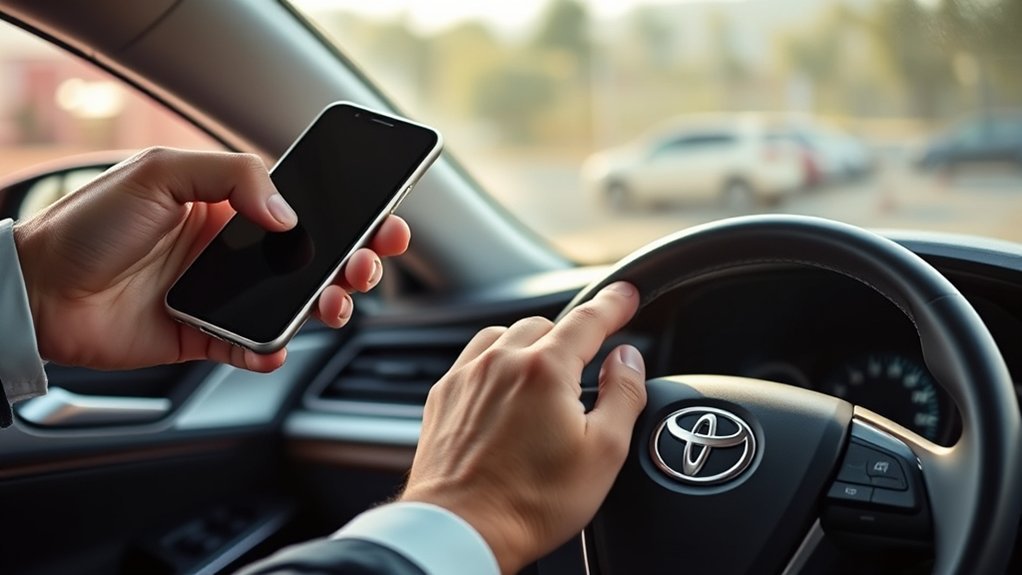
You can use a compatible smartphone as a Digital Key for a 2025 Toyota Camry when the vehicle is equipped with the feature and your Toyota Remote Connect with Digital Key trial or paid subscription is active. Setup happens in the Toyota app, then the phone connects to the Camry by Bluetooth so you can lock, unlock, and start the vehicle without pulling out the physical key fob.
Quick Answer
To use Digital Key on a 2025 Toyota Camry, confirm the car has Digital Key, activate Remote Connect with Digital Key in the Toyota app, keep your key fob and phone near the vehicle, follow the app’s pairing prompts, then test lock, unlock, and start before relying on the phone alone.
Key Takeaways
- Digital Key is not standard on every 2025 Camry; Toyota lists it as an optional package feature on the 2025 model year Remote Connect feature chart.
- You need the Toyota app, a Toyota account with the Camry’s VIN added, a verified smartphone number, Bluetooth enabled, and an active Remote Connect with Digital Key trial or subscription.
- Keep the Toyota app open or running in the background so the phone can connect to the vehicle at close range.
- Toyota confirms Digital Key can be shared with up to 7 other users through the Toyota app, but the receiving user still needs the Toyota app and setup approval.
- Always carry the physical Smart Key or key fob as a backup because phone battery, Bluetooth, app, cellular, GPS, or telematics issues can limit service.
At a Glance
| Time Required | About 10–15 minutes after your Toyota app account and subscription are ready |
| Difficulty | Easy to moderate |
| Tools Needed | Compatible smartphone, Toyota app, Camry VIN, physical key fob, Bluetooth, and data connection |
| Cost | Toyota app is free; Digital Key requires an active Remote Connect with Digital Key trial or paid subscription after any trial period |
How Digital Key Works on a 2025 Camry
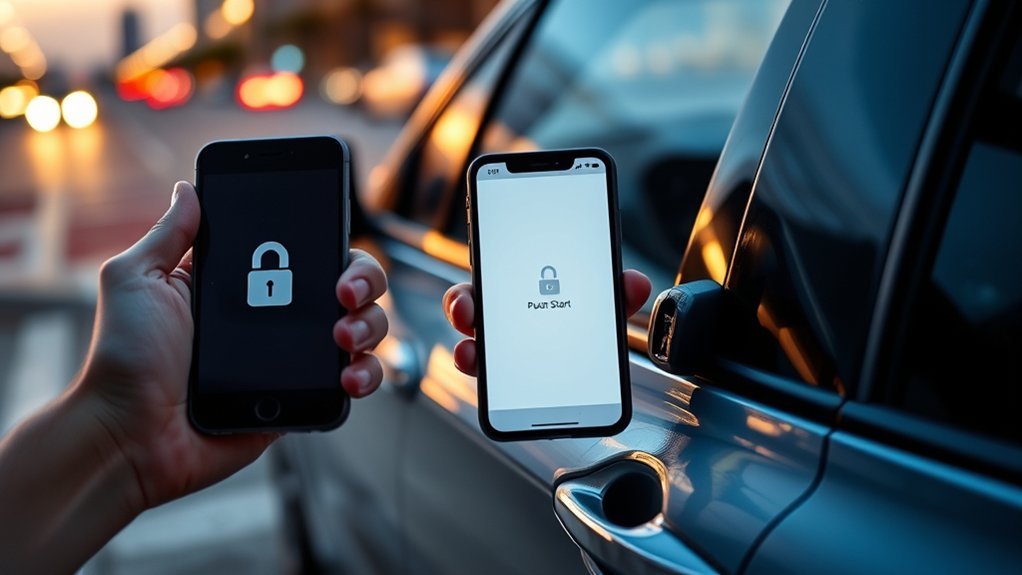
Toyota Digital Key lets a compatible smartphone act like a vehicle key for select Toyota models. On an equipped 2025 Camry, the Toyota app registers the phone to the vehicle through Bluetooth. When Bluetooth is on and the Toyota app is open or running in the background, the Camry can recognize the phone at close range for locking, unlocking, and starting.
Digital Key is different from basic Remote Connect commands. Remote commands use the Toyota app to send actions such as remote lock, unlock, or start over a data connection. Digital Key works as a close-range phone key, so the vehicle must detect the phone nearby before it allows key-style functions.
Note: Toyota’s 2025 Camry owner information says that with Digital Key alone, vehicle lights may not illuminate as you approach. Do not assume the feature failed just because the lights do not flash before you touch the handle or use the app.
Check Compatibility: 2025 Camry, Phone, and Subscription
Before pairing, confirm that your specific Camry is equipped with Digital Key. Toyota’s MY25 Remote Connect Features by Model document lists Digital Key as a Remote Connect feature for the Camry, but the symbol shown for Camry means it is an optional package feature and not available on every model.
You will also need these items ready:
- A Toyota app account with your Vehicle Identification Number (VIN) added.
- A verified smartphone number in the Toyota app.
- An active trial or paid subscription to Remote Connect with Digital Key.
- A compatible Bluetooth-enabled smartphone with the latest Toyota app installed.
- Bluetooth turned on and the Toyota app allowed to run in the background.
- Your physical Smart Key/key fob inside or near the vehicle for setup authentication.
Do not rely on unofficial phone model lists. Toyota says phone performance depends on software, coverage, and carrier, so the safest check is the Toyota app, your vehicle’s Digital Key menu, and the app store compatibility page for your current phone.
[Products Worth Considering]

This keyless entry remote replacement is designed for a wide range of Toyota, Scion, and Lexus-compatible vehicles, offering a convenient way to restore remote locking and unlocking functions. Each fob is pre-tested, comes with the battery and electronics already installed, and is ready to be programmed for supported standard-key vehicles. It is a practical replacement choice for drivers who need a reliable, compatible remote for everyday use.
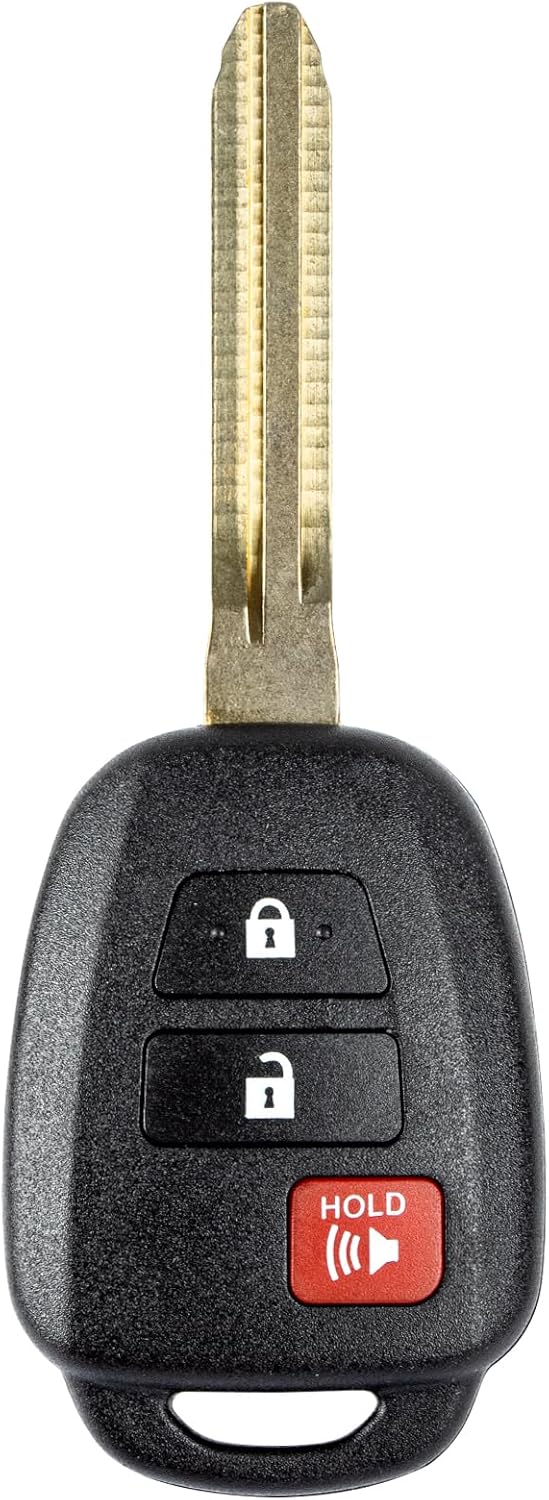
This replacement key fob is designed for select Toyota models and provides reliable keyless entry functionality with a factory-like fit and operation. It comes pre-tested with electronics and battery installed, making it a convenient solution when your original remote is lost, damaged, or worn out. Professional programming and cutting are required, and compatibility should be confirmed against the original remote and vehicle fitment details.
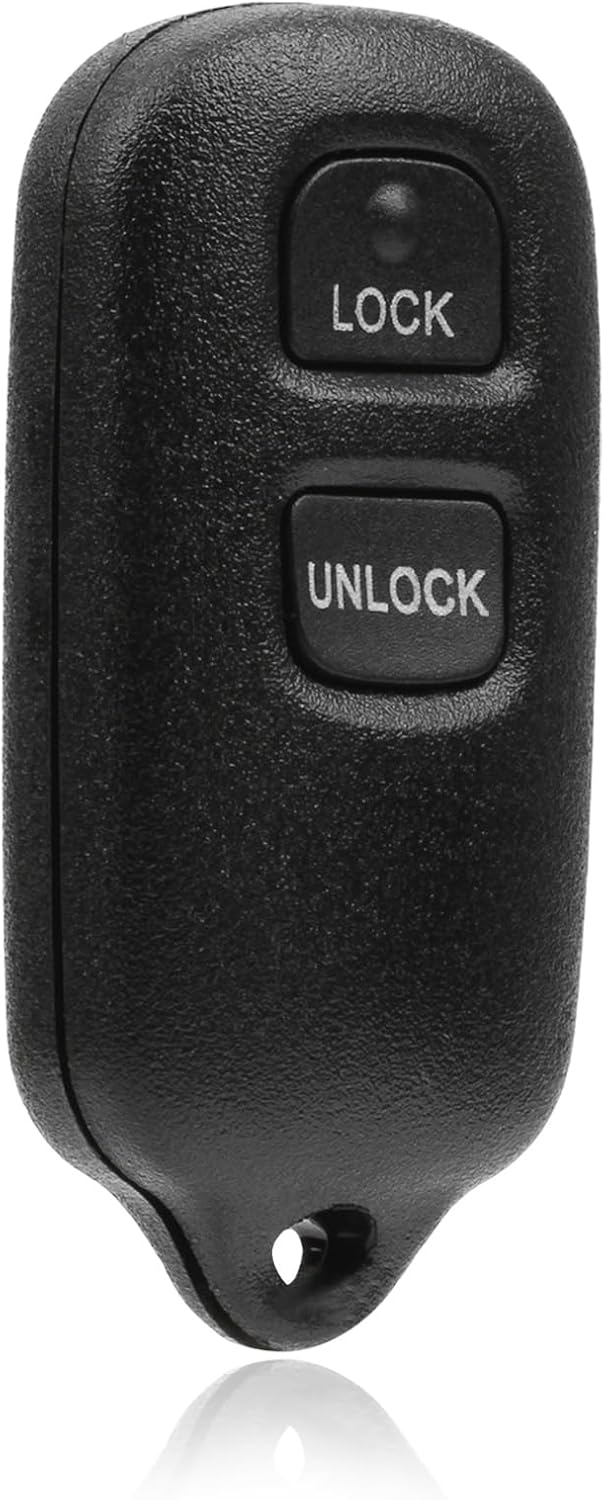
This USARemote key fob replacement provides convenient keyless entry for a wide range of Toyota and Scion vehicles. It is programmable, ready to use, and designed to help restore remote locking and unlocking functionality for compatible models. The compact black remote offers dependable everyday use for drivers needing a simple replacement solution.
Prepare: Remote Connect, Toyota App, and In-Car Prerequisites
Start with the official Toyota app. Sign in or create an account, add your Camry using the VIN, and activate Connected Services if the app asks you to do so. Toyota says Remote Connect can be activated through the Toyota app, and Digital Key requires an active Remote Connect with Digital Key trial or subscription.
Before you begin pairing, park safely, keep the vehicle in an area with a good mobile signal, and sit in or stand close to the Camry with the physical key fob available. Keep your phone unlocked, charged, and connected to Bluetooth. If the Toyota app requests permissions such as Bluetooth, notifications, or background activity, allow them so the app can complete setup and later detect the vehicle reliably.
Warning: Use remote start or Digital Key start only when you can confirm the vehicle’s surroundings are safe and local rules allow it. Never start the vehicle remotely in an enclosed space or when a child, pet, or vulnerable person is inside the vehicle.
[Products Worth Considering]

This keyless entry remote replacement is designed for select Toyota models and comes pre-tested with battery and electronics installed for ready-to-program convenience. It supports compatible part numbers and FCC IDs, making it a practical solution for replacing a lost or damaged fob. Programming and cutting by a qualified locksmith or dealership are required, and it is intended for regular key vehicles rather than push-start systems.

This replacement key fob set is designed for select Toyota RAV4 and XB models with regular key systems, offering lock, unlock, and panic functions in a convenient two-pack. Each remote comes pre-tested with battery and electronics installed, and it must be cut and programmed by a qualified dealer or locksmith for proper use. Built from durable materials and backed by warranty support, it provides a reliable solution when replacing worn or missing remotes.

【Custom Fit】The Phone Mount is specially designed for 2021-2024 Toyota Camry LE/Hybrid LE/SE/SE Nightshade/Hybrid SE (7-inch Screen Only). NOT Fit for Hybrid SE (9-inch)/Hybrid XLE/Hybrid XSE/TRD V6/XLE/XLE V6/XSE/XSE V6
Set Up: Register Your Camry and Pair Your Smartphone
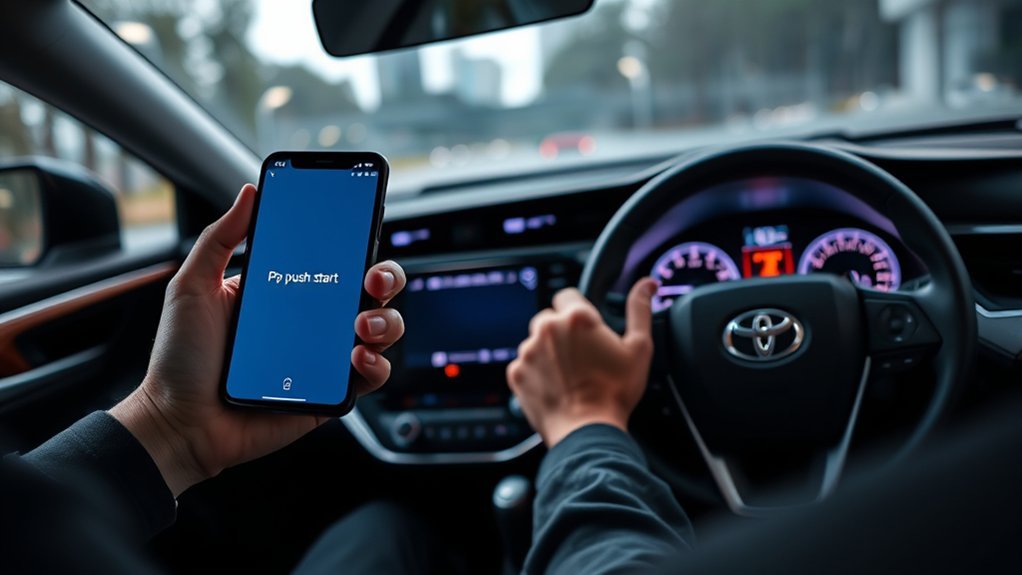
Exact screens can vary by Toyota app version, but the basic setup flow is consistent: add the vehicle, activate the service, pair the phone, and test the key functions. Follow the on-screen Toyota app prompts first if they differ from any general guide.
- Open the Toyota app. Sign in, choose your Camry, and confirm that Remote Connect with Digital Key is active.
- Open the Digital Key setup screen. Look for Digital Key, Set Up Digital Key, or a similar option in the vehicle dashboard or Connected Services area.
- Confirm your identity. The app may ask for account verification, phone number verification, biometric authentication, or another security step.
- Keep Bluetooth on. Digital Key pairing uses Bluetooth and is separate from ordinary Bluetooth audio pairing with the multimedia screen.
- Bring the key fob into the vehicle. Toyota setup guidance asks you to have the key fob and vehicle access available during setup.
- Follow the vehicle and phone prompts. Approve any PIN, pairing request, or confirmation shown by the phone or Camry display.
- Wait for the completion message. Do not close the app until it confirms setup is complete.
- Test before you leave. Confirm that lock, unlock, and start work while the phone is registered and Bluetooth is enabled.
Pro Tip: Do the first setup at home or at the dealership, not when you are in a hurry. Keep the physical key fob with you until Digital Key has worked several times in normal use.
[Products Worth Considering]

【Perfect Fit for Car Smart Keys】 – Customized Fit for 2025-2026 Camry,4 Runner 2019–2026 Venza, 2021–2023 RAV4 Prime, 2019–2026 Land Cruiser, 2018–2026 Fortuner, 2023–2026 Tacoma,Highlander, bZ4X,Corolla , 2022–2026 Tundra, 2016–2026 Hilux, and Mirai (4–5 button keys) – Specially designed to match the key fob of [Car Model/Year]. Even if the vehicle model and year are the same, key fob shapes may vary by configuration or trim. Compare your key fob with our product photos before purchasing

[Suitable For]: To guarantee you get the right key cover, pls check the second picture. This protector fits for (Reference Only):Toyota 2026 Rav4; 2026-2024 Grand Highlander; 2026-2022 Corolla Cross; 2026 2025 4Runner; 2026-2024 Land Cruiser; 2026 2025 Highlander; 2026 2025 Crown Signia; 2026-2023 Sequoia; 2026-2021 Venza, 4-Button key fob.
Use Digital Key: Lock, Unlock, and Start the Camry
After setup, keep Bluetooth on and leave the Toyota app open or running in the background. When the registered phone is close enough, the Camry can recognize it like a key. Toyota describes this as allowing lock, unlock, and start while the smartphone remains in your pocket or purse.
Locking and Unlocking
Approach the Camry with the registered phone and Bluetooth enabled. Depending on your vehicle settings and equipment, you may be able to unlock by using the door handle sensor, the Toyota app control, or the Digital Key connection at close range. If the vehicle does not respond, open the Toyota app, confirm Digital Key is active, and move the phone closer to the driver’s door.
To lock the Camry, use the door handle lock sensor, the Toyota app, or the lock command available for your setup. Always confirm the doors actually locked before walking away, especially in crowded parking lots or areas with weak service.
Starting the Vehicle
With the phone inside the cabin, press the brake pedal and push the Start button as you normally would. If the Camry recognizes the registered phone, it should authorize the vehicle to start. If it does not, check that Bluetooth is on, the Toyota app is running, the phone is not in low-power mode, and your Remote Connect with Digital Key service is active.
When Digital Key May Not Work
Digital Key depends on several pieces working together: the phone, Toyota app, Bluetooth, vehicle telematics, data connection, GPS signal, and Toyota Connected Services availability. Toyota notes that service can be limited or prevented when those systems are unavailable. A dead phone battery, aggressive battery-saver setting, expired subscription, app sign-out, or weak Bluetooth connection can all stop Digital Key from working smoothly.
Share and Manage Guest Digital Keys
Toyota says you can share up to 7 Digital Keys through the Toyota app. This is useful for a spouse, family member, trusted friend, or temporary driver, but it should be treated like handing over a real key.
Granting Guest Access
Open the Toyota app, go to the Digital Key area, and choose the share option shown for your vehicle. Enter the recipient’s mobile number or contact details and send the invite. Toyota’s invite process uses an SMS link that opens the Toyota app, where the recipient can accept or decline the Digital Key invitation. New Toyota app users must create an account before accepting.
The recipient should complete phone verification and Bluetooth pairing near the vehicle. Their phone must also meet compatibility requirements, and the Camry must be able to recognize the shared key before they rely on it.
Removing or Revoking a Shared Key
When access is no longer needed, return to the Digital Key management screen in the Toyota app and remove the shared user. This is the digital version of taking back a spare key. Review shared keys regularly so old drivers, sold-phone devices, or temporary guests do not keep access longer than intended.
Note: If your Toyota app shows extra controls such as access levels, activation codes, or expiration settings, use the most restrictive option that fits the situation. Availability of those controls can vary by region, vehicle, app version, and service plan.
Troubleshoot Digital Key: Bluetooth, App, Battery, and Connectivity Fixes
If Digital Key fails, work through the simple checks before deleting the key or calling support.
- Check Bluetooth. Turn Bluetooth off and back on, then move the phone closer to the driver’s door or cabin.
- Open the Toyota app. If the app was closed by the phone’s battery manager, reopen it and leave it running in the background.
- Check the subscription. Confirm Remote Connect with Digital Key is still active in the Toyota app.
- Charge the phone. Low-power mode can restrict background activity and Bluetooth behavior.
- Update the app. Install the latest Toyota app update and restart the phone.
- Check account status. Make sure you are signed in to the correct Toyota account and the Camry VIN is still attached.
- Test the physical key fob. If the fob also has problems, the issue may be with the vehicle battery, fob battery, or vehicle system rather than Digital Key.
- Delete and re-pair only after basic fixes. Removing Digital Key can also affect shared keys, so use this as a later step.
If the problem continues, contact Toyota support or your dealer. Toyota lists the Toyota Brand Engagement Center at 1-800-331-4331 for Digital Key assistance in the United States.
Safety, Limits, and Security Best Practices
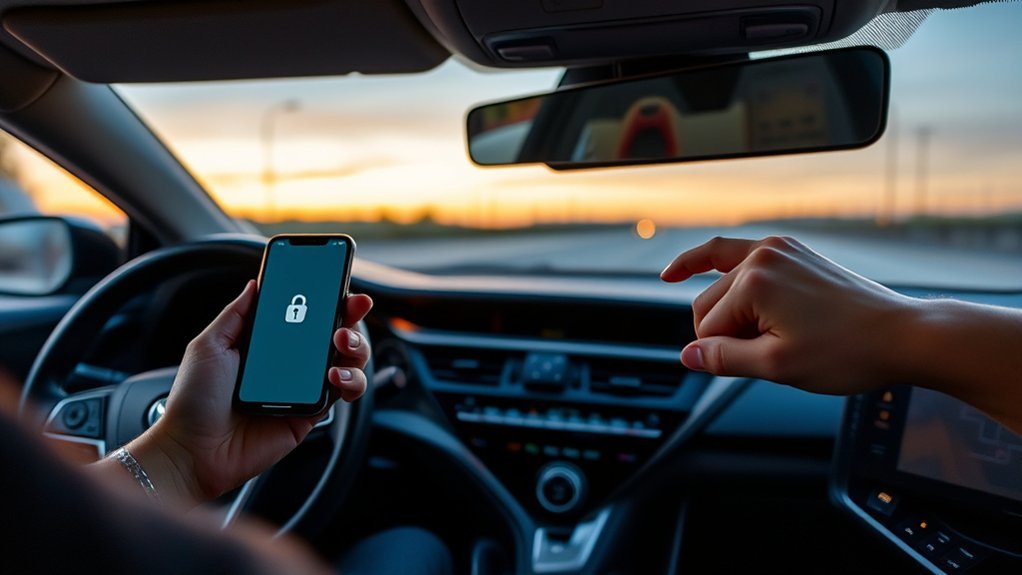
Digital Key is convenient, but it is still vehicle access. Protect it the same way you protect your physical key fob.
| Topic | Action | Benefit |
|---|---|---|
| Phone Security | Use a passcode, Face ID, fingerprint unlock, and account protection | Helps prevent vehicle access if your phone is lost |
| Battery | Keep the phone charged and avoid relying on a nearly dead device | Reduces lockout risk |
| Backup Key | Carry the physical key fob, especially on trips | Keeps you mobile if the phone or app fails |
| Shared Access | Review shared Digital Keys and remove old users | Keeps access limited to trusted drivers |
| Updates | Keep the Toyota app and phone software updated | Improves reliability and security |
Digital Key is best used as a convenient daily key, not your only key. A physical fob is still the safest backup when service, battery, or Bluetooth issues get in the way.
Frequently Asked Questions
How do I use my Toyota Digital Key?
Activate Remote Connect with Digital Key in the Toyota app, pair your compatible smartphone to the vehicle, keep Bluetooth on, and leave the Toyota app open or running in the background. Once set up, the phone can be recognized near the Camry for lock, unlock, and start functions.
Does the 2025 Toyota Camry have Digital Key?
Some 2025 Camry models can have Digital Key, but it is not available on every Camry. Toyota’s 2025 Remote Connect feature chart lists Camry Digital Key as an optional package feature. Check your window sticker, Toyota app, owner account, or dealer build details to confirm.
Does Toyota Digital Key work without a subscription?
No. Toyota states that Digital Key requires an active trial or paid subscription to Remote Connect with Digital Key. If the trial ends or the subscription is canceled, use the physical Smart Key/key fob as your backup.
Can I share my Camry Digital Key with another driver?
Yes. Toyota says Digital Key can be shared with up to 7 users through the Toyota app. The invited driver must accept the invitation, verify their phone, and complete setup before using the shared key.
Why is my Digital Key not unlocking the Camry?
The most common causes are Bluetooth being off, the Toyota app not running in the background, a low phone battery, an expired Remote Connect with Digital Key subscription, weak connectivity, or the phone being too far from the vehicle. Open the Toyota app, move closer, restart Bluetooth, and keep the physical key fob available.
Conclusion
Using Digital Key on a 2025 Toyota Camry is simple once the right pieces are in place: an equipped Camry, the Toyota app, a verified account, Bluetooth, the physical key fob for setup, and an active Remote Connect with Digital Key trial or subscription. Pair the phone through the app, test lock, unlock, and start, then keep the Toyota app running in the background for daily use. For the best experience, treat Digital Key as a convenient extra key and keep the physical fob nearby for backup.
Sources
- Toyota Support: What is Digital Key? — backs up how Digital Key uses the Toyota app, Bluetooth, and close-range phone recognition.
- Toyota Support: Conditions Needed Prior to Using Digital Key — backs up account, VIN, verified phone number, subscription, and app background requirements.
- Toyota Support: How Do I Get a Digital Key? — backs up Toyota app setup, Remote Connect with Digital Key subscription, and testing lock/start/lock functions.
- Toyota Support: Can I Share My Digital Key? — backs up sharing up to 7 Digital Keys through the Toyota app.
- Toyota MY25 Remote Connect Features by Model — backs up 2025 Camry Digital Key availability as an optional package feature and Toyota’s Connected Services limitations.
- Toyota App and Connected Services — backs up Remote Connect features, Toyota app registration, and app-based vehicle controls.