Setting up Android Auto in a Toyota Camry is usually simple, but the exact steps depend on your Camry’s model year, region, trim, and multimedia system. Before you connect, park the vehicle, check that your Android phone and Camry are compatible, and use a reliable USB data cable or a supported wireless connection.
Quick Answer
To set up Android Auto in a Toyota Camry, put the car in Park, confirm your phone runs Android 9.0 or newer, connect it with a high-quality USB data cable, and follow the prompts. For wireless Android Auto, use a compatible Camry multimedia system and an Android 11.0+ phone with Bluetooth, Wi-Fi, Location Services, and mobile data enabled.
Key Takeaways
- Android Auto requires a compatible Camry multimedia system; a USB port alone does not guarantee support.
- For wired Android Auto, use an Android phone running Android 9.0 or newer with an active data plan and a high-quality USB data cable.
- For wireless Android Auto, your phone and Camry must both support wireless projection, and your phone should have Bluetooth, Wi-Fi, Location Services, and mobile data turned on.
- Finish setup while parked before you start driving, then use voice controls whenever possible.
At a Glance
| Time Required | 5–10 minutes for first-time setup |
| Difficulty | Easy |
| Tools Needed | Android phone, Camry multimedia system, USB data cable for wired setup |
| Cost | Free, unless you need a replacement USB data cable |
Get Your Camry Ready for Connection
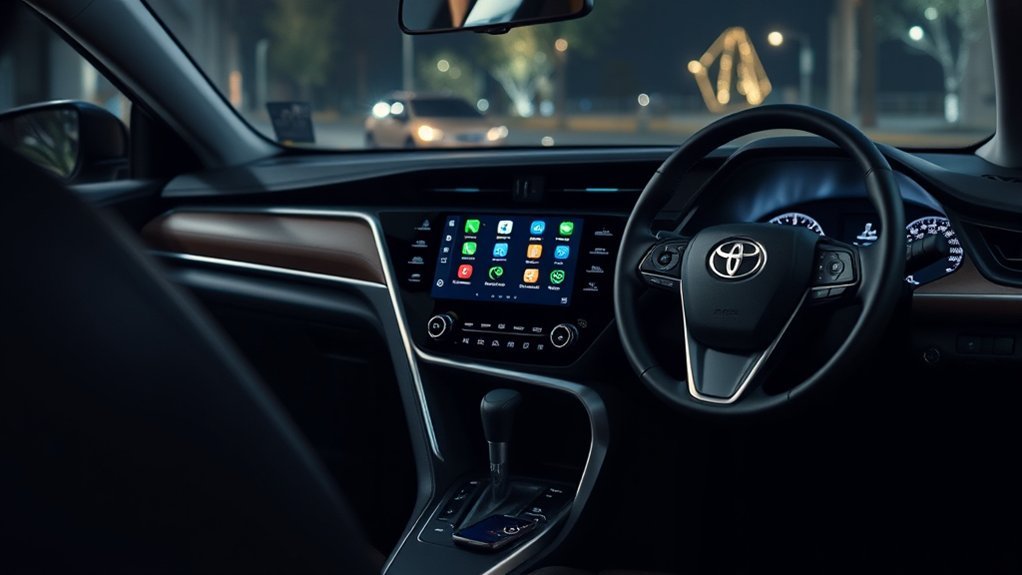
Start by putting your Camry in Park and turning on the multimedia system. Android Auto setup should be completed before you drive, not while the vehicle is moving. Google’s setup guidance also recommends allowing time for the first connection before starting your trip.
Warning: Do not troubleshoot Android Auto while driving. Park safely first, keep your attention on the road once you are moving, and follow all local hands-free and distracted-driving laws.
Next, check for multimedia software updates in your Camry’s settings menu if that option is available. Toyota menu names vary by model year, but newer systems commonly place phone settings under Settings, Bluetooth & Devices, or a similar device menu.
On your phone, turn on Bluetooth, Wi-Fi, Location Services, and mobile data. For wired setup, have a high-quality USB data cable ready. For wireless setup, keep the phone close to the Camry’s infotainment screen during the first pairing.
Verify Android Auto Compatibility
Before you spend time troubleshooting, confirm that both your Camry and phone support Android Auto. Google’s official Android Auto requirements list Android 9.0 or higher with an active data plan for Android Auto with a USB cable. For wireless Android Auto, Google lists a compatible Android phone with an active data plan and 5 GHz Wi-Fi support; wireless projection is compatible with any phone running Android 11.0 or newer.
Then confirm that your Camry supports Android Auto. Google’s Android Auto vehicle compatibility list lists Toyota models broadly, but exact support still depends on model year, region, trim, and the installed multimedia system. If your Camry is older or from a market with different equipment, check your owner’s manual or Toyota’s support site before assuming Android Auto is available.
Note: A USB port does not automatically mean your Camry supports Android Auto. Some USB ports are charge-only, and some older multimedia systems do not support Android Auto even if the phone charges when plugged in.
Android Auto is built into current Android phones, so you normally do not need to download a separate Android Auto app. If your phone or vehicle screen asks you to update Android Auto or Google Play services, follow the on-screen prompt before continuing.
[Products Worth Considering]
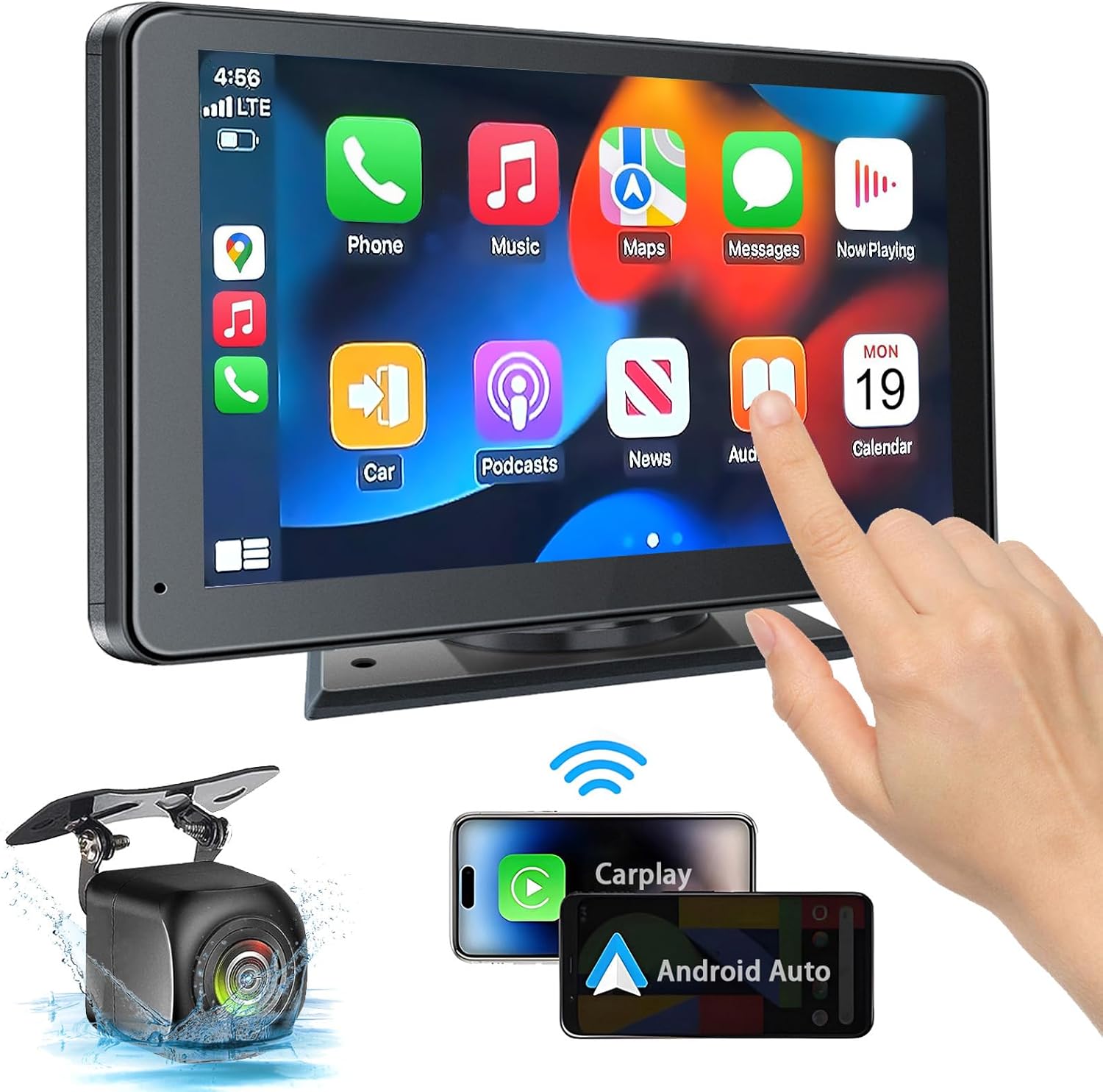
This portable car stereo adds wireless and wired Apple CarPlay and Android Auto to almost any vehicle, giving you easy access to navigation, calls, messages, and music with hands-free voice control. Its 7-inch HD touchscreen, Bluetooth 5.2, mirror link support, and multiple audio output options help create a flexible and safer in-car entertainment setup. The included backup camera and simple dashboard mounting make installation convenient for cars, trucks, RVs, and more.

This wireless CarPlay screen adds modern smartphone connectivity to almost any vehicle with easy plug-and-play installation. It supports Apple CarPlay and Android Auto, online maps, voice control, phone mirroring, and multiple audio output options for safer, more convenient driving. The included night vision backup camera and OTA updates help improve visibility, compatibility, and long-term performance.

This compact adapter upgrades compatible factory wired CarPlay or Android Auto systems to wireless convenience for both iPhone and Android users. It uses WiFi 6 and Bluetooth 5.4 for fast, stable connections with quick auto-connect startup and reliable voice, navigation, and music performance. Its mini plug-in design helps keep the dashboard tidy while supporting easy setup and broad vehicle compatibility.
Connect Your Android Phone via USB
A wired USB connection is the most reliable way to start, especially if this is the first time you are connecting your Android phone to your Toyota Camry.
- Put the Camry in Park and turn on the multimedia system.
- Use a high-quality USB data cable. Avoid charge-only cables, USB hubs, and cable extensions.
- Plug the cable into the Camry’s USB data port, then plug the other end into your phone.
- Unlock your phone and accept the Android Auto permissions for calls, messages, notifications, maps, and media.
- On the Camry screen, select Yes, Enable, or Android Auto if prompted.
- If Android Auto does not open automatically, tap the Android Auto icon on the Toyota multimedia display.
Toyota’s 2025 Camry owner information states that Android Auto can be used by connecting a smartphone to the multimedia system with a data USB cable, then following the guidance shown on the phone and vehicle screen.
Pro Tip: If Android Auto worked before and suddenly stopped, try a different short USB data cable first. Google recommends a high-quality cable, ideally under 3 feet or 1 meter, with no USB hub or extension.
Use Wireless Android Auto
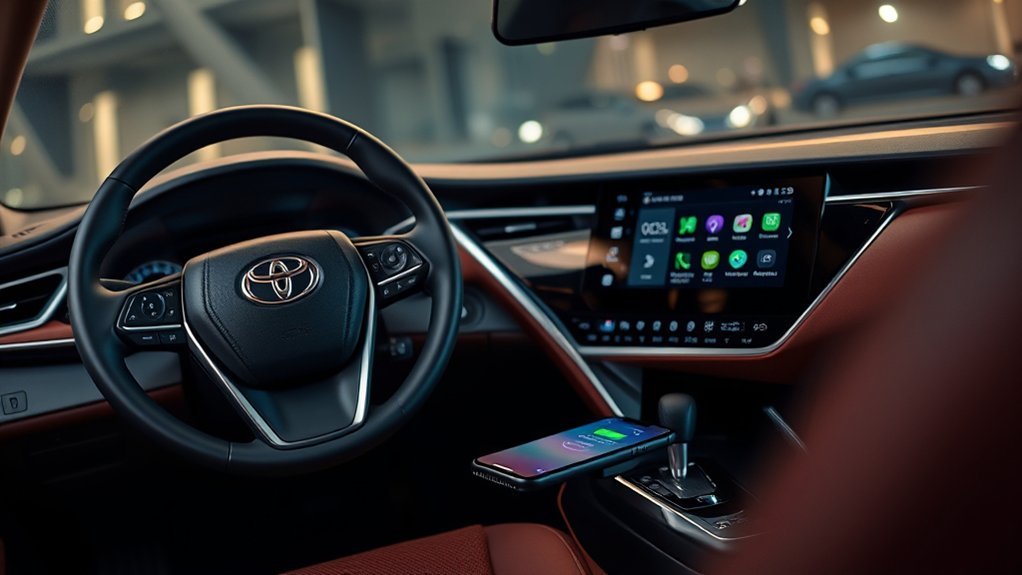
Wireless Android Auto is convenient, but it only works when both the phone and the Camry multimedia system support it. For best results during first-time setup, keep Bluetooth, Wi-Fi, Location Services, and mobile data turned on.
- Park the Camry and turn on the multimedia system.
- On your Android phone, open the Bluetooth menu and make sure Bluetooth is enabled.
- On the Camry display, open Settings and look for Bluetooth & Devices, Phone, or a similar device menu.
- Pair your phone with the Camry using the on-screen prompts.
- After pairing, select your phone on the Camry screen and turn Use for Android Auto to ON if that option appears.
- Follow any prompts on your phone and the Camry display. Android Auto should launch within a few seconds after pairing.
On newer Toyota multimedia systems, the “Use for Android Auto” setting may appear under the selected phone in the Bluetooth and device settings. If you do not see the wireless Android Auto option, your Camry may support wired Android Auto only, or the phone may not meet wireless requirements.
[Products Worth Considering]

This 2-in-1 wireless adapter converts factory wired CarPlay into a convenient wireless connection for compatible vehicles, making every drive simpler and more flexible. It supports quick auto-connect, easy phone switching, and stable audio and navigation performance for iPhone and Android Auto users. Designed for plug-and-play use, it helps reduce cable clutter while keeping calls, maps, and music running smoothly.
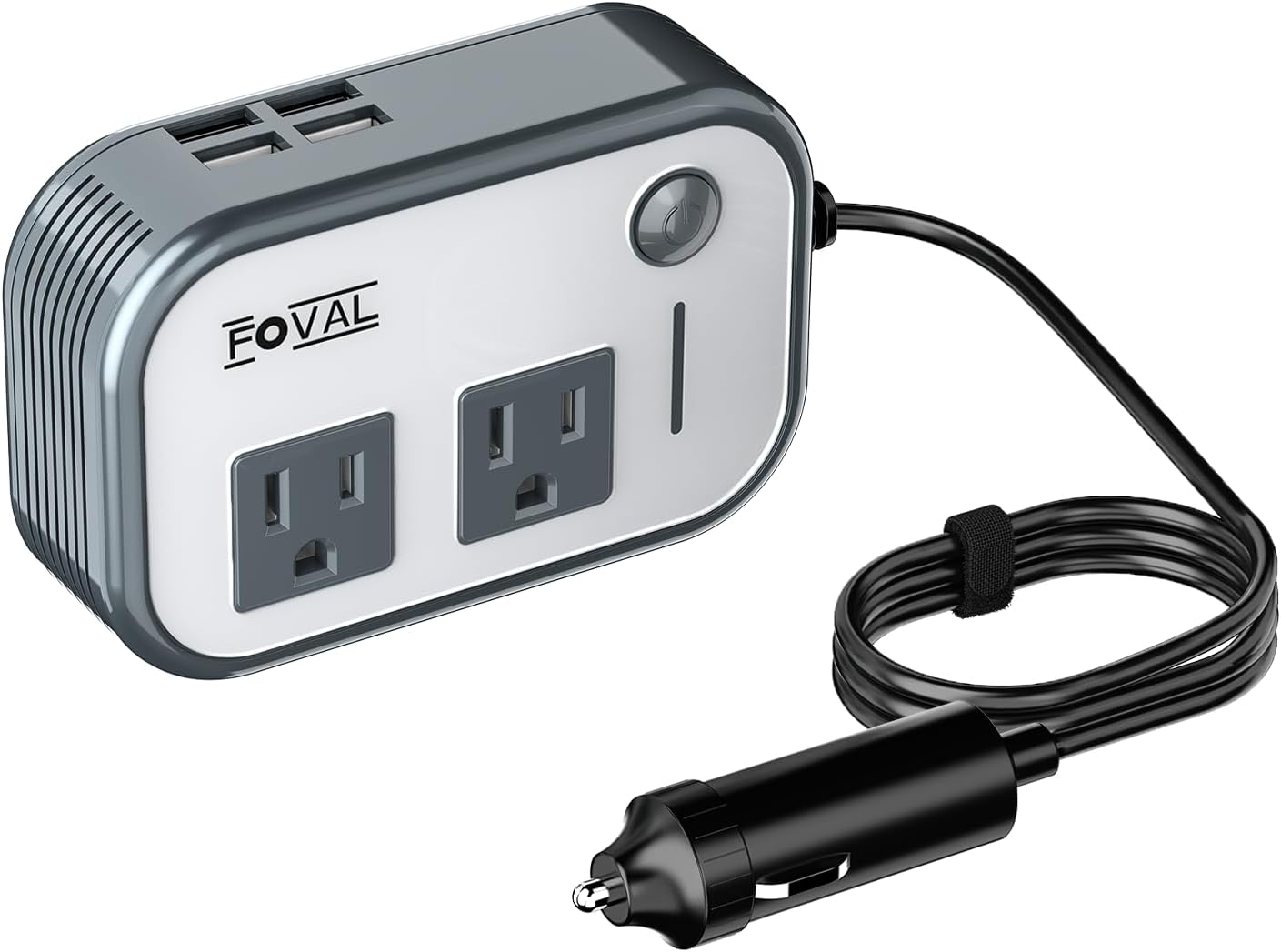
This compact car power inverter converts DC 12V vehicle power into AC 110V output for charging laptops, tablets, phones, and other everyday electronics on the go. It includes two AC sockets and four USB ports, plus built-in protection features and a smart cooling fan for safer, quieter operation. Its lightweight, travel-friendly design makes it a convenient power solution for road trips, commutes, and emergency use.

Teeran’s 2-in-1 wireless adapter turns compatible factory wired CarPlay or Android Auto systems into a cable-free experience for both iPhone and Android users. It offers fast setup, automatic reconnection, and full support for your vehicle’s original controls so navigation, music, calls, and voice assistants work seamlessly. Its compact flush-fit design helps reduce clutter, while built-in protection and broad compatibility make it a practical everyday upgrade.
Navigate the Android Auto Interface
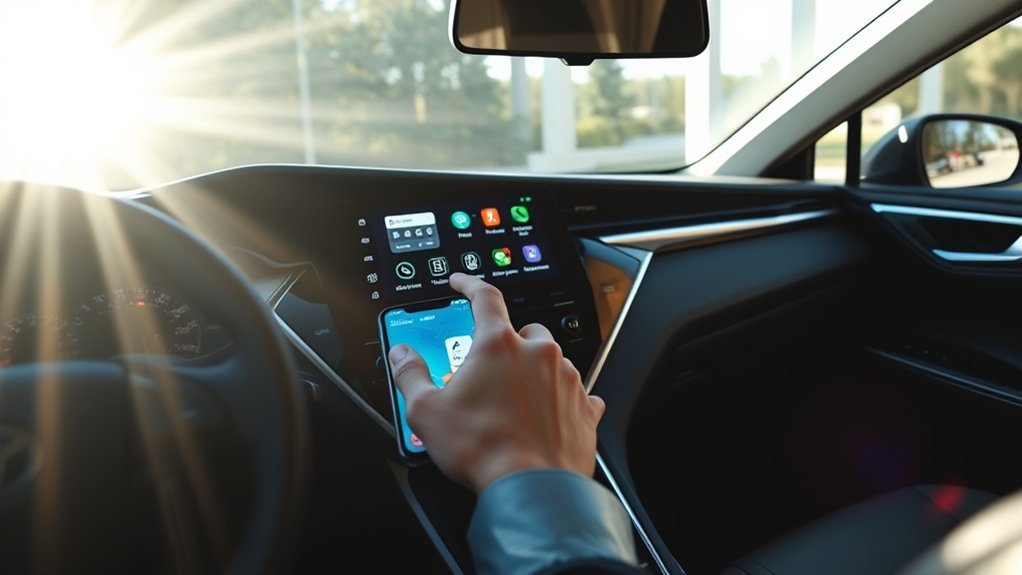
Once Android Auto is connected, the Camry display can show supported apps for navigation, calls, text messages, music, podcasts, and other media. Google describes Android Auto as a way to use apps on your car display so you can access maps, calls, text messages, and music while staying focused on driving.
Main Dashboard Features
The Android Auto dashboard is built for quick glances. You can open navigation, see turn-by-turn directions, switch media, respond to messages, and make calls without handling your phone. If the Toyota multimedia screen returns to the standard Toyota interface, tap the Android Auto icon to go back.
| Feature | What It Helps You Do |
|---|---|
| Navigation | Use Google Maps, Waze, or another supported navigation app for routes and traffic. |
| Calls and Messages | Make calls, hear message notifications, and respond using voice controls when supported. |
| Music and Media | Play music, podcasts, audiobooks, and other supported media apps through the Camry speakers. |
| Voice Control | Ask for directions, call a contact, or play audio without reaching for your phone. |
Accessing Apps Easily
Android Auto only shows apps that are designed to work safely on a vehicle display. That means you will not see every app from your phone. Navigation, audio, messaging, and calling apps are the most common categories.
To make access easier, open Android Auto settings on your phone and review the app launcher order. You can place the apps you use most often near the top so they are easier to find on the Camry screen.
Navigational Tools Overview
For navigation, open a supported map app such as Google Maps or Waze, enter your destination before driving, and start the route. During the drive, Android Auto can show turn-by-turn directions, estimated arrival time, lane guidance when available, and traffic-based route changes.
| Feature | Description |
|---|---|
| Voice Commands | Hands-free control for directions, calls, messages, and media |
| Traffic Updates | Real-time road information when supported by the navigation app |
| Notifications | Calls and messages shown in a driver-focused layout |
Troubleshooting Connection Issues
If Android Auto will not connect in your Toyota Camry, start with the basics: compatibility, cable, phone permissions, and the Camry’s device settings.
[Products Worth Considering]

This portable carplay screen brings wireless CarPlay and Android Auto to compatible vehicles, giving you easy access to navigation, calls, music, and messages without needing to plug in your phone every time. Its 7-inch HD touchscreen, mirror link support, and voice control make driving more convenient, while multiple audio output options and simple plug-and-play setup add everyday flexibility.
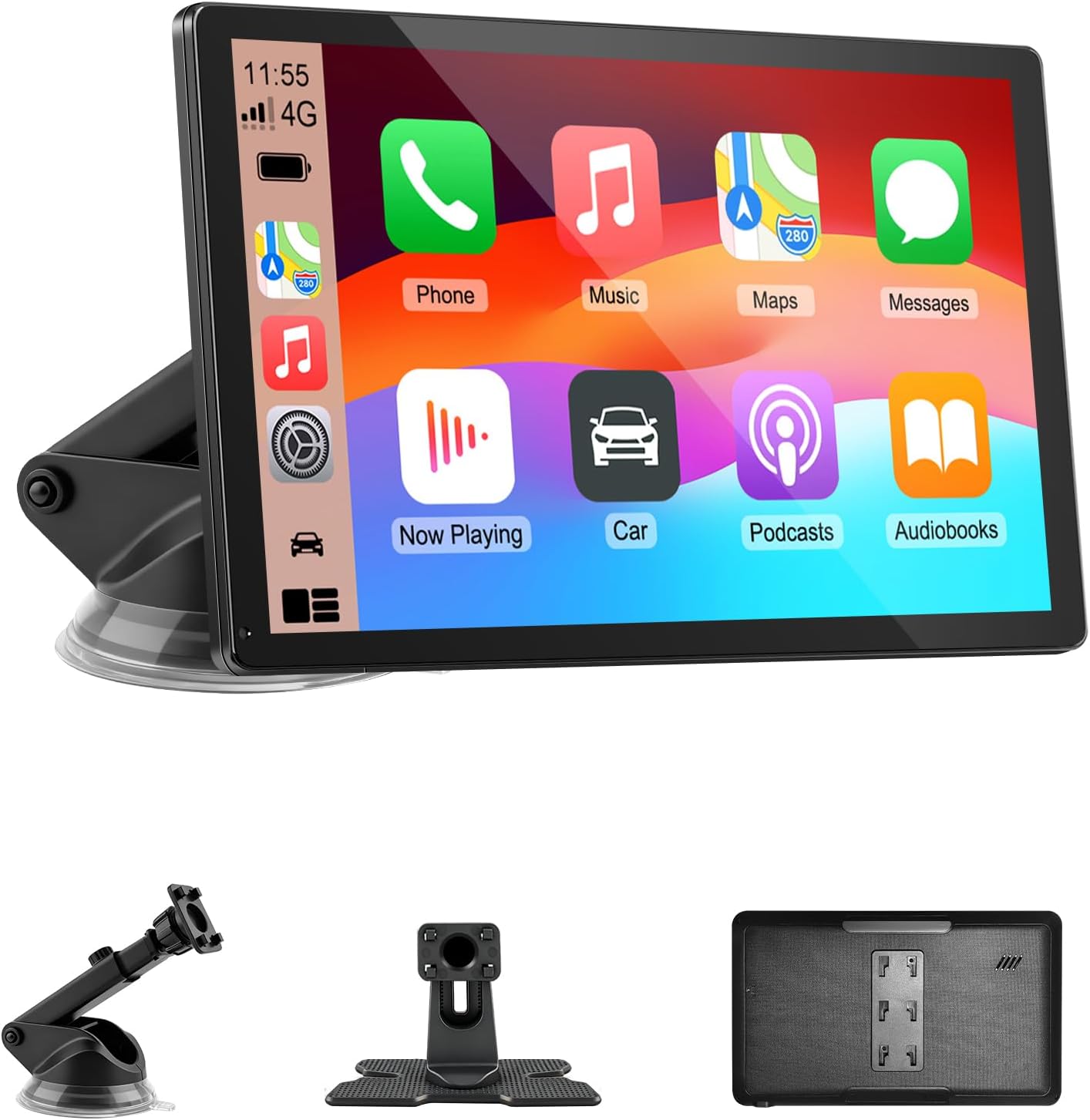
Upgrade your vehicle with this portable 9-inch touchscreen that brings wireless CarPlay and Android Auto to almost any car. It supports GPS navigation, voice control, hands-free calling, and multiple audio output options, making everyday driving safer and more convenient. With plug-and-play installation, mirror link support, and a bright HD display, it delivers a smart, flexible in-car entertainment and navigation solution.

This portable car stereo brings wireless Apple CarPlay and Android Auto to your vehicle for easier access to navigation, music, calls, and messages. The large HD touch screen supports mirror link and multiple audio output options, while voice control adds safer hands-free use on the road. An included backup camera and simple dashboard mount make installation quick and convenient without replacing your original radio.
If Android Auto Does Not Appear
- Confirm your Camry supports Android Auto for your model year, trim, and region.
- Confirm your phone runs Android 9.0 or newer and has an active data plan.
- Make sure Android Auto is turned on in the Camry’s infotainment settings if that option is available.
- Restart your phone and restart the Camry multimedia system.
- Try a different USB data cable and a different compatible USB port if your Camry has more than one.
Fix USB Cable and Port Problems
Not all USB cables transfer data reliably. If the phone charges but Android Auto does not start, the cable may be charge-only or damaged. Use the cable that came with your phone when possible, avoid USB hubs, and try a short replacement cable if the connection drops.
Reset Phone and Camry Pairing
If Android Auto previously worked but now fails, remove the old pairing and start fresh:
- On your phone, open Android Auto settings and remove or forget the previously connected Camry.
- On the Camry screen, open the Bluetooth or device settings and delete the phone from saved devices.
- Restart the phone and the multimedia system.
- Reconnect by USB first, then set up wireless Android Auto again if your Camry supports it.
Wireless Android Auto Keeps Disconnecting
Wireless Android Auto uses both Bluetooth and Wi-Fi. If it disconnects, keep the phone near the front cabin, turn off battery saver during setup, confirm Wi-Fi and Bluetooth are enabled, and remove anything that may interfere with the phone’s wireless signal. If wireless still fails, use the USB connection until you can check for phone, Google Play services, or Toyota multimedia updates.
Frequently Asked Questions
How do I connect Android Auto to my Toyota Camry?
Park the Camry, unlock your Android phone, connect it to the Camry’s USB data port with a high-quality cable, and follow the prompts on the phone and multimedia screen. If your Camry supports wireless Android Auto, pair the phone through Bluetooth and turn on “Use for Android Auto” for that device if the option appears.
How do I activate Android Auto on my car?
On a compatible Camry, Android Auto usually activates after you connect your phone by USB or complete wireless pairing. If it does not open automatically, tap the Android Auto icon on the Toyota multimedia screen and approve any permission prompts on your phone.
What Android version do I need for Android Auto?
For Android Auto with a USB cable, Google lists Android 9.0 or newer with an active data plan. For wireless Android Auto, Google lists a compatible Android phone with active data and 5 GHz Wi-Fi support; any phone running Android 11.0 or newer is compatible with wireless projection when the vehicle also supports it.
Why is my phone charging but Android Auto is not starting?
The most common cause is a charge-only or unreliable USB cable. Use a short, high-quality USB data cable, avoid hubs and extensions, unlock the phone, and check that Android Auto is enabled in the Camry’s multimedia settings.
Does every Toyota Camry have Android Auto?
No. Android Auto support depends on model year, market, trim, and multimedia system. Check your owner’s manual, Toyota support, or the official Android Auto compatibility list for your specific Camry.
Conclusion
Setting up Android Auto in your Toyota Camry is easiest when you start with the right basics: a compatible Camry, an Android 9.0+ phone for wired setup, a high-quality USB data cable, and a parked vehicle. For wireless Android Auto, confirm that both the Camry and phone support wireless projection, then pair through Bluetooth and enable Android Auto in the Toyota device settings. Once connected, you can use navigation, calls, messages, and music through a driver-focused display while keeping your phone out of your hands.
Sources
- Google Android Auto Help: Get started with Android Auto — Android Auto phone, cable, wireless, and compatibility requirements.
- Google Android Auto Help: Set up Android Auto — official wired and wireless setup steps, including parking before setup.
- Google Android Auto Help: My Android Auto app isn’t working — troubleshooting cable, compatibility, and infotainment issues.
- Android Auto Vehicle Compatibility — official compatibility list and vehicle support caveats.
- Toyota Support: How do I setup Android Auto? — Toyota’s official Android Auto setup overview.
- Toyota 2025 Camry Owner Information: Android Auto with USB — Camry-specific USB connection guidance.