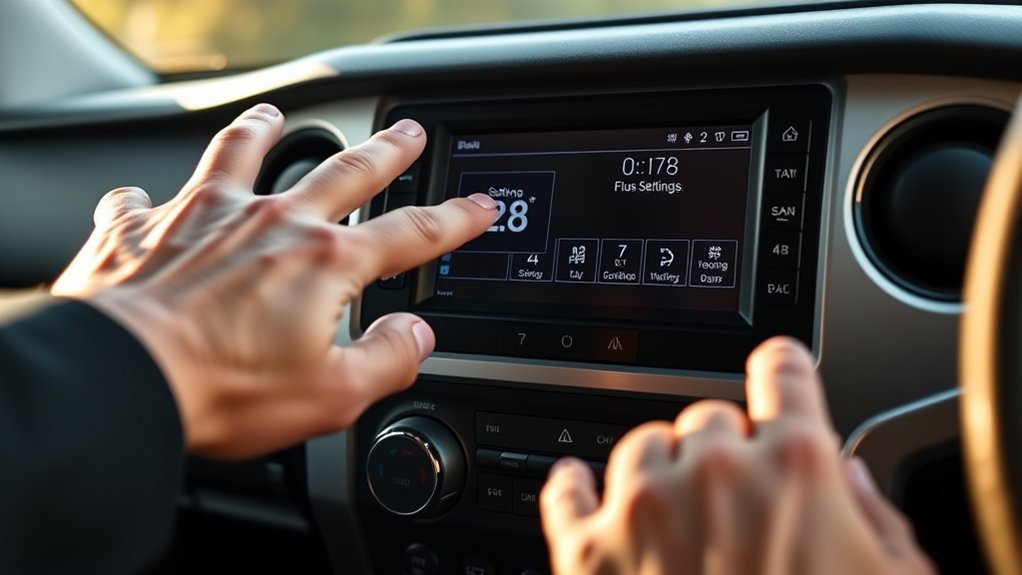
Setting the clock in a 2022 or newer Toyota Tundra is usually done from the infotainment screen, not from a separate dash button. The key is the Date & Time menu: from there you can use GPS time, turn GPS time off for manual control, choose the time zone, set daylight saving time, and switch between 12-hour and 24-hour display.
Quick Answer
To set the clock on a 2022+ Toyota Tundra, tap the gear icon on the infotainment screen, open General, then choose Date & Time. Leave Set date & time by GPS on for automatic time, or turn it off to set the time, time zone, and daylight saving option manually.
Key Takeaways
- Use Settings → General → Date & Time for the main clock controls.
- If manual time or time zone controls are grayed out, turn off Set date & time by GPS.
- Use 24-hour time to switch between 12-hour and 24-hour display.
- Set Daylight savings to Auto, On, or Off based on your location and whether your area observes daylight saving time.
- After a software update, recheck the clock settings because some settings may reset.
At a Glance
| Time Required | 1–3 minutes |
| Difficulty | Easy |
| Tools Needed | None |
| Cost | Free |
Warning: Park safely before changing infotainment settings. Toyota’s multimedia safety guidance warns drivers not to operate the system while driving because distraction can increase accident risk.
Note: Menu names can vary slightly by software version, region, subscription status, and trim. The steps below match the 2022+ Toyota Audio Multimedia layout used in the Tundra, but your screen may look a little different after updates.
Quick Steps to Set Your Toyota Tundra Clock

Use these steps when you only need to correct the time quickly:
- Start the Tundra or turn the vehicle to accessory mode.
- Tap the gear icon on the infotainment screen.
- Select General from the submenu.
- Open Date & Time.
- Leave Set date & time by GPS on for automatic time, or turn it off if you want to set the clock yourself.
- Adjust Time zone, Daylight savings, Set time manually, or 24-hour time as needed.
- Back out of the menu and check the clock at the top of the screen.
You can also tap the clock in the status bar on many Toyota multimedia screens to open the date and time settings directly.
Open the Settings Screen on a 2022+ Toyota Tundra
The main path is simple: tap the gear icon, choose General, then open Date & Time. Toyota’s multimedia manual describes this same route for changing time settings, display language, and other general multimedia settings.
| Screen | What to Tap | What It Does |
|---|---|---|
| Main menu | Gear icon | Opens multimedia settings |
| Settings submenu | General | Shows general system settings |
| General menu | Date & Time | Opens clock, time zone, daylight saving, and date format controls |
If the screen does not respond, lift your finger and try again. Toyota notes that gloves, fingernails, water, dirt, screen films, or touching the screen with another finger can affect touch response.
Change the Time Zone Step by Step
If your Tundra shows the right minutes but the wrong hour, the time zone is usually the first setting to check. This is common after travel, a software update, or a previous owner’s settings.
Accessing General Settings
- Tap the gear icon on the infotainment screen.
- Choose General.
- Select Date & Time.
- Find Set date & time by GPS.
If Set date & time by GPS is on, the system uses GPS information and map data to set the time automatically. If you want to choose the time zone yourself, turn that setting off first.
Selecting the Correct Time Zone
- In Date & Time, turn off Set date & time by GPS if manual controls are unavailable.
- Tap Time zone.
- Choose the correct zone for your location.
- Check the clock at the top of the screen after the change.
Pro Tip: If the clock is exactly one hour off, check Daylight savings before changing the time manually. If it is several hours off, check the time zone first.
Toggle Daylight Saving and Automatic Time Updates
The Tundra’s Date & Time menu includes two important automatic settings: Set date & time by GPS and Set time automatically. When these are enabled, the system can use GPS-based information instead of relying on manual entry.
Toggle Daylight Savings
To change the daylight saving setting:
- Go to Settings → General → Date & Time.
- Turn off Set date & time by GPS if the daylight saving control is unavailable.
- Select Daylight savings.
- Choose Auto, On, or Off.
- Check the displayed time.
| Setting | Best For |
|---|---|
| Auto | Most drivers in areas that observe daylight saving time |
| On | Forcing the clock to daylight saving time when needed |
| Off | Areas that do not observe daylight saving time, or when the clock is one hour fast |
Note: Not every location observes daylight saving time. In the United States, the U.S. Department of Transportation says Hawaii, most of Arizona, and several U.S. territories do not observe daylight saving time.
Use GPS or Automatic Time
For most drivers, the easiest setup is to let the Tundra set the time automatically.
- Open Settings → General → Date & Time.
- Turn on Set date & time by GPS.
- Use Set time automatically if shown on your screen.
- Confirm the time zone and daylight saving result on the clock display.
If the time is still wrong while GPS time is on, park in an open area where the vehicle has a better GPS signal, then recheck the clock after a few minutes.
Manually Override the Time
Manual time is useful if the automatic setting is unavailable, your GPS time is wrong, or you prefer to set the clock yourself.
| Action | Where to Go | Result |
|---|---|---|
| Turn off GPS date/time | Date & Time → Set date & time by GPS | Unlocks manual time and time zone controls |
| Turn off automatic time | Date & Time → Set time automatically | Allows manual clock entry |
| Set the clock | Date & Time → Set time manually | Lets you enter the correct hour and minute |
After setting the time manually, return to the main screen and confirm the clock is correct.
Switch Between 12-Hour and 24-Hour Displays
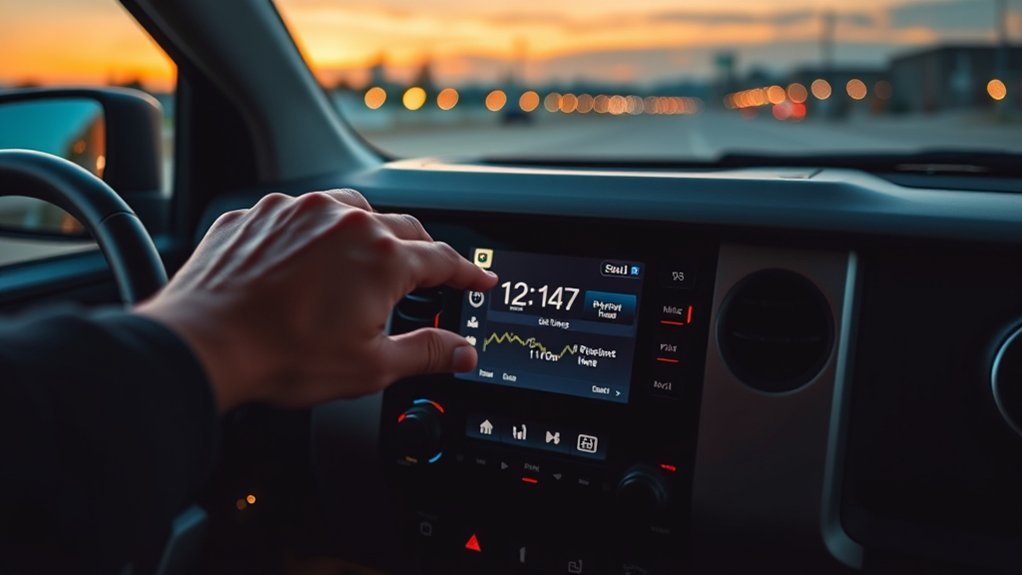
If you want the clock to show 13:00 instead of 1:00 PM, change the 24-hour time setting.
- Tap the gear icon.
- Open General.
- Choose Date & Time.
- Toggle 24-hour time on or off.
Turn 24-hour time on for military-style time. Turn it off for the standard 12-hour AM/PM format.
Set the Date Format and Correct Calendar Settings
The same Date & Time menu also controls how the date appears. This does not change the clock itself, but it helps keep the display consistent with your preferred regional format.
Date Display Options
To change the date display format:
- Open Settings → General → Date & Time.
- Scroll to the Date section.
- Select Format.
- Choose the layout you prefer, such as MM/DD/YYYY, DD/MM/YYYY, or YYYY/MM/DD.
Calendar Accuracy Settings
For the best date and calendar accuracy, keep Set date & time by GPS on unless you have a specific reason to use manual time. If you turn GPS time off, check the Time zone, Daylight savings, and Format settings together so the displayed time and date match your location.
Reset the Clock or Update Infotainment Software
If the clock keeps changing back, freezes, or shows the wrong time after you correct it, reset the settings first before assuming the infotainment system is faulty.
- Open Settings → General → Date & Time.
- Turn Set date & time by GPS off, then on again.
- Check Time zone and Daylight savings.
- If needed, turn off automatic time and use Set time manually.
- Turn the vehicle off, wait briefly, restart it, and check whether the setting was saved.
Toyota multimedia software updates may be available over-the-air on equipped vehicles, or by USB for eligible vehicles. Toyota’s owner update page explains that Audio Multimedia System Updates can be made through the vehicle display on equipped vehicles, while Toyota’s firmware update site covers USB update availability for eligible U.S. vehicles.
Note: After a software update, recheck Date & Time. Toyota’s multimedia manual notes that some settings may be reset depending on the update content.
[Products Worth Considering]

Restore responsive touch control to your Toyota navigation system with this 6.1-inch digitizer replacement designed for select Camry, Corolla, Prius C, and RAV4 models. It helps fix unresponsive, ghost-touch, and cracked-screen issues while matching OEM fitment for a straightforward repair and improved in-car usability.
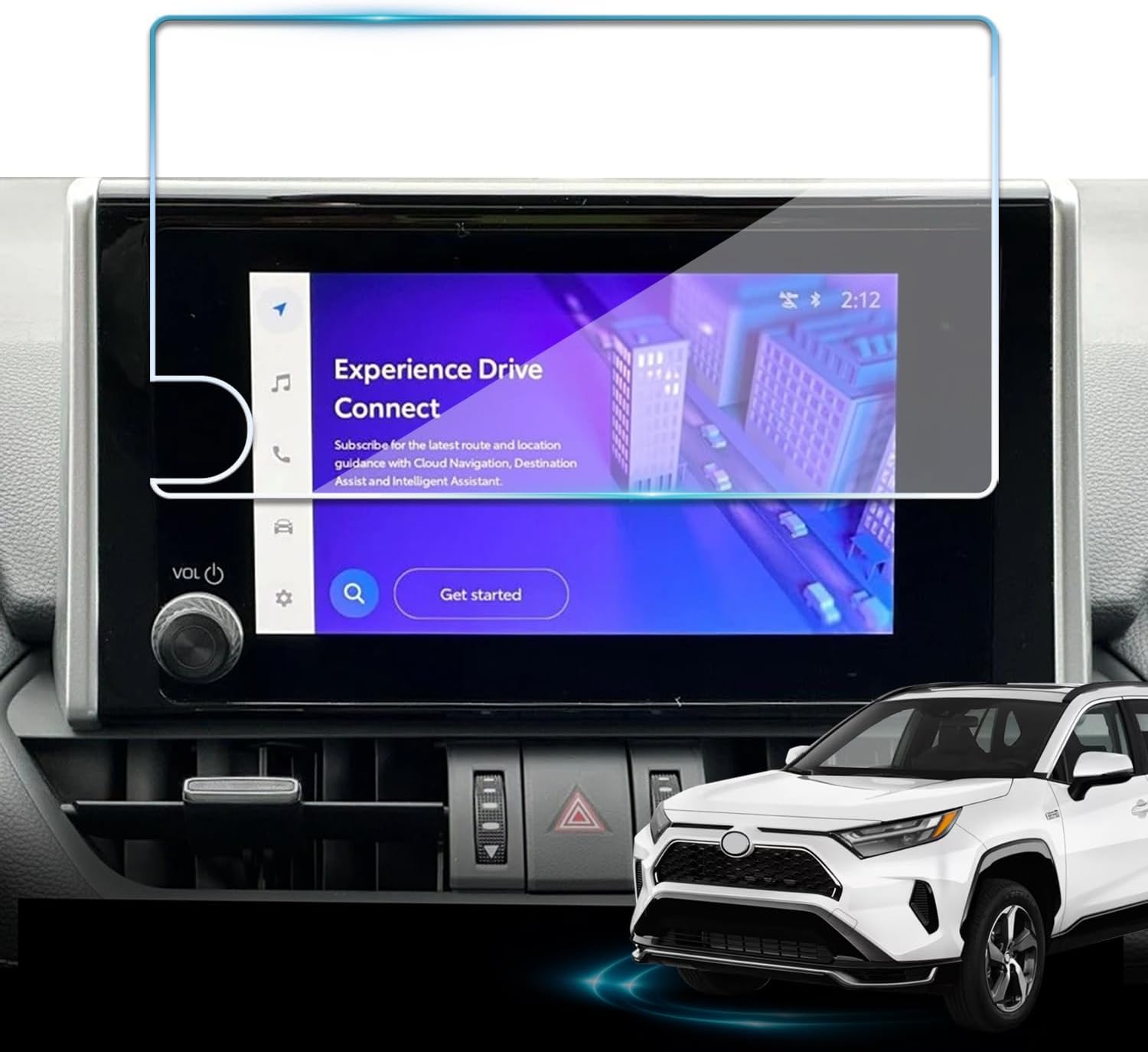
Protect your Toyota RAV4 infotainment display with this tempered glass screen protector designed for 2023-2025 LE, XLE, Adventure, XLE Premium, SE, and Woodland Edition models. It helps guard against scratches and fingerprints while preserving touch sensitivity and delivering a clear, low-glare viewing experience. Installation is quick and convenient with the included tools and guidance.

This steering clock spring is designed to restore reliable steering wheel controls across a wide range of Toyota models. It supports audio, cruise control, and other multifunction commands while matching OEM part numbers for confident replacement fitment. Built for dependable signal transfer and straightforward installation, it is an effective solution for repairing steering column control issues.
Troubleshoot: Clock Not Updating or Showing Wrong Time
Use this checklist to narrow down the cause:
| Problem | Likely Cause | What to Try |
|---|---|---|
| Clock is one hour off | Daylight saving setting is wrong | Set Daylight savings to Auto, On, or Off based on your area. |
| Clock is several hours off | Wrong time zone | Turn off GPS date/time if needed, then choose the correct Time zone. |
| Manual time is grayed out | Automatic GPS or automatic time is still on | Turn off Set date & time by GPS and Set time automatically. |
| Clock changes back after restart | GPS time or saved profile setting may be overriding manual time | Check GPS time, user profile settings, and software updates. |
| Touchscreen does not respond | Gloves, moisture, dirt, screen film, or temporary system lag | Clean the screen gently, remove gloves, try again, then restart the vehicle if needed. |
If the clock still will not stay correct, write down what happens: the wrong offset, whether it happens after every restart, whether GPS time is on, and whether any software update was recently installed.
[Products Worth Considering]

This mech-style heavy metal key fob cover is designed to protect compatible Toyota E-style smart keys with a precise 1:1 fit. Built with a durable zinc alloy frame and soft silicone buttons, it helps guard against daily wear while keeping full access to key functions. The set includes a metal keychain and screwdriver for easy installation, making it a practical upgrade for select Toyota models.

This auxiliary jack adapter restores a broken or missing AUX connection so you can stream audio from your device through your Toyota stereo system. It is designed for compatible Toyota models and uses an 8-pin connector for a direct plug-and-play replacement. Built for reliable audio transmission, it helps bring back clear in-car sound without complicated installation.

This windshield sun shade umbrella is designed for Toyota Tundra models from 2007 to 2026, helping block harsh sunlight and reduce interior heat buildup. Its reflective cooling coating and high-density fabric work together to protect dashboards, seats, and trim while keeping the cabin more comfortable. The umbrella-style design installs quickly, folds down easily, and stores neatly for everyday convenience.
When to Call Your Dealer or Toyota Support
Contact your Toyota dealer or Toyota Support if the clock still will not save the correct time after you have checked GPS time, time zone, daylight saving, manual time, and software updates.
Before calling, collect these details:
- Model year and trim
- Whether your Tundra has navigation or connected services
- Current software version, if shown
- Whether the clock is off by minutes, one hour, or several hours
- Whether the issue started after travel, battery service, or a software update
You can also check Toyota’s official support article on checking and performing multimedia system updates before scheduling a service visit.
[Products Worth Considering]

Keep your Toyota navigation system current with this SD card map update designed for select factory-installed GPS units. It provides updated coverage for the USA and Canada, including roads, points of interest, and key travel locations for smoother trip planning. Easy plug-and-play installation helps restore accurate guidance without complicated setup.

This anti-glare matte tempered glass screen protector is designed for compatible 2026 Toyota RAV4 and RAV4 Hybrid models with a 12.9-inch touchscreen. It helps reduce glare, resists scratches and fingerprints, and maintains responsive touch performance for a clearer, cleaner driving experience.
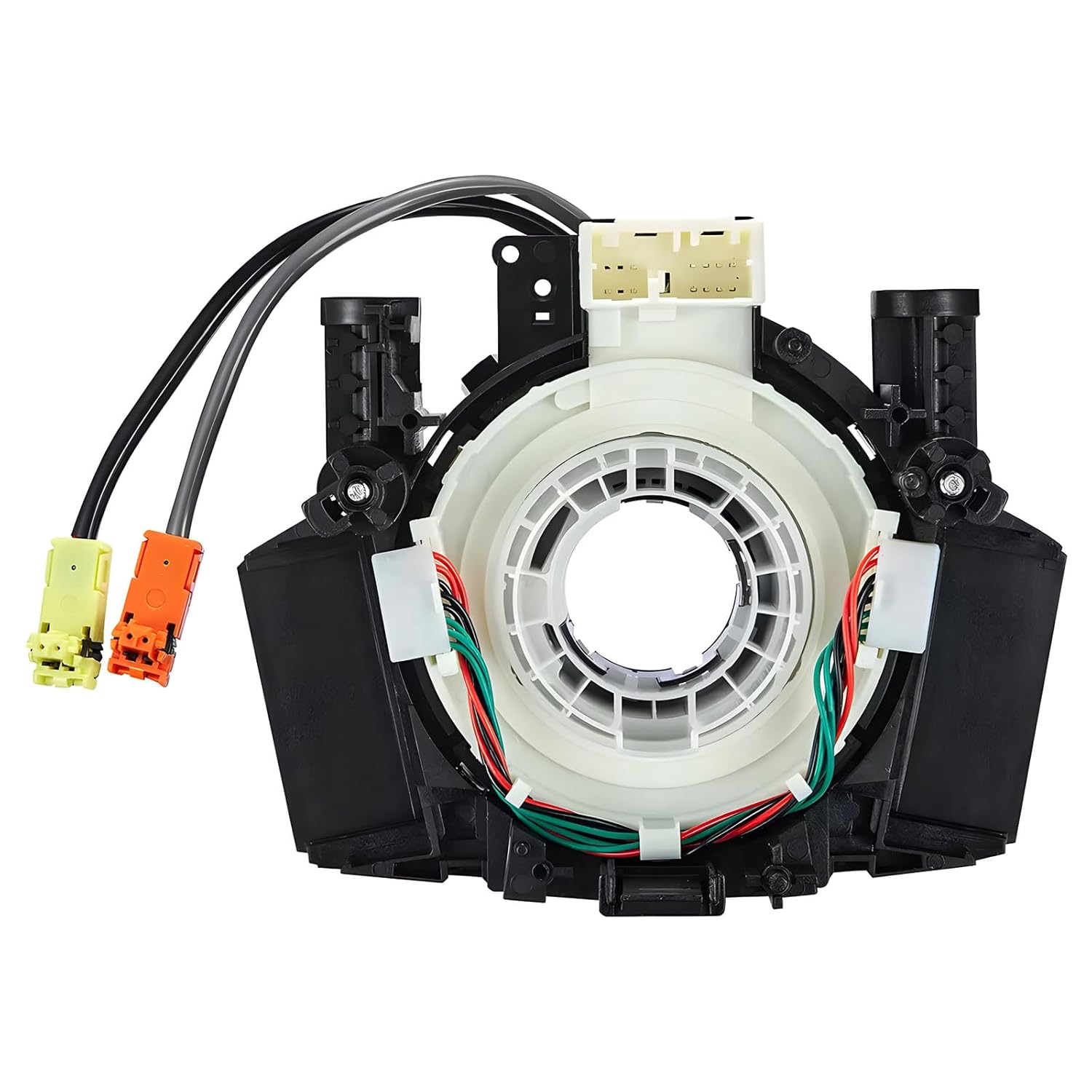
This steering clock spring assembly is an OEM-style replacement designed to restore steering wheel controls and related electronic functions in compatible Nissan vehicles. It supports audio, cruise control, and multi-function button operation while matching multiple factory part numbers for a reliable fit. Built for direct installation with vehicle-specific connectors, it helps return steering column electronics to proper working order.
Use the Clock With Navigation, Reminders, and Schedules
The Tundra’s clock is shown in the multimedia status area and can affect how confident you feel using time-based features such as estimated arrival times, reminders, and connected services. Before a long route or a day with scheduled stops, quickly confirm three things:
- Time zone: correct for your current location
- Daylight savings: correct for your region
- Time format: 12-hour or 24-hour display based on your preference
After traveling across time zones, check the clock before relying on arrival times or reminders. If automatic GPS time is enabled and the time still seems wrong, give the system a few minutes in an open area with good GPS reception.
Frequently Asked Questions
How do I adjust my Toyota Tundra clock settings?
Tap the gear icon on the infotainment screen, select General, then open Date & Time. From there, you can use GPS time, set the time manually, change the time zone, adjust daylight saving, and switch between 12-hour and 24-hour display.
Why is the manual time setting grayed out?
Manual time controls may be unavailable because Set date & time by GPS or Set time automatically is turned on. Turn the automatic setting off first, then use Set time manually.
Why is my Tundra clock one hour off?
A clock that is exactly one hour off is usually caused by the daylight saving setting. Open Date & Time and change Daylight savings to Auto, On, or Off based on your location.
How do I switch my Tundra clock to military time?
Open Settings → General → Date & Time, then turn on 24-hour time. Turn it off again if you want the regular 12-hour AM/PM display.
Can a Toyota software update fix clock problems?
It can help if the issue is related to multimedia software behavior, but it is not the first step. Check time zone, daylight saving, GPS time, and manual time settings first. Then check Toyota’s official update options if the problem continues.
Conclusion
To set your Toyota Tundra clock, start with Settings → General → Date & Time. Use GPS time for the easiest setup, or turn it off when you need manual control over the time, time zone, and daylight saving setting. If the clock is still wrong, check whether it is off by one hour, several hours, or only after restart—each symptom points to a different fix.
Sources
- Toyota 2022 Tundra Audio & Multimedia Owner’s Manual — Date & Time settings, GPS time, manual time, time zone, daylight saving, 24-hour time, date format, safety guidance, and software update notes.
- Toyota Owners: Audio Multimedia System Updates — official Toyota guidance on over-the-air and USB multimedia update options.
- Toyota Firmware Updates — USB update availability for eligible Toyota multimedia systems.
- Toyota Support: Check and Perform Multimedia System Updates — Toyota support guidance for checking multimedia software updates.
- U.S. Department of Transportation: Daylight Saving Time — official daylight saving time rules and exceptions.