To set the clock in your Toyota Camry, turn on the display, open Setup, and choose Clock Settings or Clock. Set the hour and minutes manually, then check daylight saving time, time zone, and the 12-hour or 24-hour format before you exit. Steps vary by generation — see the generation-specific section below if your screen doesn’t match. If your Camry has navigation or GPS-based auto time, turn that feature on only after confirming the time zone is correct.
Use this guide when your Camry clock is wrong after a battery disconnect, a road trip, daylight saving time, or a display reset. Menu wording can vary by model year, trim, and infotainment system — jump to your generation for the exact path, or use your owner’s manual if your screen still doesn’t match.
Quick Answer
To set the clock in your Toyota Camry, park safely, turn on the display, open Setup, and select Clock Settings. Use the hour and minute controls for manual time, or enable GPS/auto-adjust if your Camry supports it. If the time is exactly one hour off, check daylight saving time first. On some 2023+ models, a “Set date & time by GPS” option replaces the manual DST toggle — see the generation breakdown below.
Key Takeaways
- Use the Setup menu on the display screen to open Clock Settings.
- Check daylight saving time first if the clock is exactly one hour fast or slow.
- Set the time manually when GPS time does not match your location.
- Choose 12-hour or 24-hour time format to match your preference.
- Older Camrys (pre-2018) use a physical button near the stereo, not a touchscreen menu.
- Confirm the display after each change before you leave the menu.
Which Camry Clock Setting Should You Check First?
Start with the setting that matches the symptom you see. This saves time because most Camry clock problems come from one of three causes: a manual time mismatch, daylight saving time, or an incorrect time zone.
| Clock problem | First setting to check | Best fix |
|---|---|---|
| Time is exactly one hour off | Daylight saving time | Turn daylight saving time on or off based on your local rule. |
| Time changed after a road trip | Time zone or GPS auto-adjust | Select the correct time zone or turn GPS time off and set it manually. |
| Clock reset after battery work | Manual hour and minute setting | Reset the time, then confirm it still holds after the next restart. |
| Clock menu is missing or looks different | Generation-specific steps below, or owner’s manual | Older Camrys use a physical button, not a Setup menu — check your generation first. |
How to Access the Clock Settings in Your Toyota Camry

To access the clock settings in your Toyota Camry, park safely and turn on the vehicle display screen. Open the main menu and choose Setup. This menu usually holds display, audio, Bluetooth, phone, and clock options in one place.
Look for Clock Settings, Clock, or similar wording on the screen. Toyota menu names can vary by model year, trim, and infotainment system, so check your owner’s manual if your screen uses different wording — or check the generation guide below.
Inside the clock menu, adjust the time, daylight saving time, time zone, and time format when those options appear. After each change, return to the main display and confirm that the clock shows the correct time.
Before You Begin Setting the Camry Clock
You do not need tools to set the clock in most Toyota Camry models. You only need access to the vehicle display and enough battery power to use the screen.
- Estimated time: about 2 to 5 minutes
- What you need: the vehicle display screen and your current local time
- Optional help: your Toyota owner’s manual, or Toyota’s Manuals and Warranties page for your exact vehicle
Note: Some Camry trims use physical buttons near the display, while others use touchscreen menus. Do not adjust the clock while driving.
Clock Steps by Camry Generation
The right steps depend heavily on which infotainment system your Camry has. If the generic Setup → Clock path above doesn’t match your screen, find your generation here instead:
- 2012–2017 (XV50): There’s no Setup-menu clock on these models. The clock display sits above the air vent near the stereo, and you set it with a physical button on the left side of the display — hold it in to adjust the hour. Not sure which generation you have? See our Toyota Camry generations guide.
- 2018–2022 (XV70, Entune touchscreen): Press Menu, tap Setup, then Clock. Daylight Saving Time appears as a toggle near the top of that screen.
- 2023+ (Toyota Audio Multimedia / TAM): Open Setup and look for Clock. Some owners report a “Set date & time by GPS” (or “Set time automatically”) option on these models that replaces the manual DST toggle entirely — when it’s on, the car sets both time zone and time from GPS and the DST toggle doesn’t appear. `[VERIFY: exact model-year/trim cutoff for this change — confirm against your owner’s manual, since availability appears to vary by trim and connected-services status]`
For the full story on how these systems evolved, see our Toyota Camry history and evolution guide.
How to Set the Clock in Your Toyota Camry
Use these steps when the time looks wrong, the battery was disconnected, or the clock did not change after daylight saving time. If your screen uses different wording, check the generation-specific steps above, or follow the closest clock, setup, or general settings option.
- Turn on the display screen. Press the power button, switch the vehicle to accessory mode, or use the normal start mode needed to wake the display.
- Open the Setup menu. Tap or select Setup from the main menu on the display.
- Select Clock Settings. Choose the clock menu so you can adjust time, time zone, daylight saving time, and format options when available.
- Set the time manually. Use the hour and minute controls to match your current local time.
- Choose your time format. Select either a 12-hour or 24-hour display based on your preference.
- Save or confirm the setting. Exit the menu only after the display shows the correct time.
If your Camry includes GPS-based auto-adjust, enable it instead of setting the time by hand only when the time zone is correct. This feature works best when the vehicle can read its current location through the navigation or GPS system.
You can also toggle the daylight saving time adjustment on or off. Check this setting first if the clock appears exactly one hour ahead or behind your local time.
How to Turn On Daylight Saving Time
After you set the clock, check the daylight saving time setting. This option helps your Camry match local seasonal time changes in areas that observe daylight saving time.
Open the vehicle display menu, choose Setup, and then open Clock Settings. Find the daylight saving time option and switch it on if your area currently uses daylight saving time. If you don’t see this option at all, your Camry may use GPS-based auto time instead — see the generation-specific section above.
If your location does not use daylight saving time, leave the option off. After you change the setting, check the display again and make sure it matches your local time.
How to Enable GPS-Based Time Adjustments
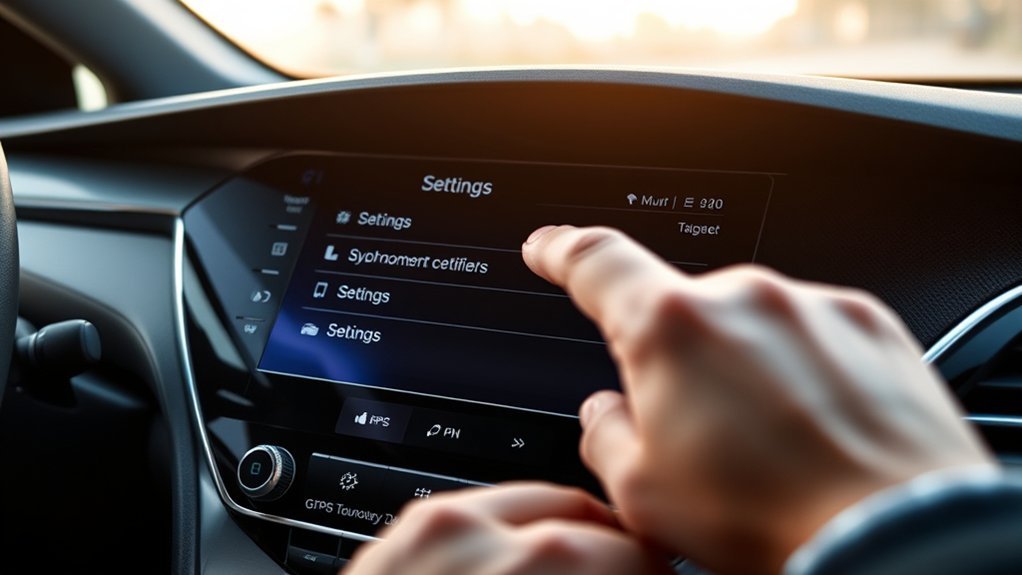
If you travel often or drive across time zones, GPS-based time adjustment can save you from resetting the clock by hand. When your Camry supports this feature, the system uses location data to help match the clock to your current area.
To activate it, open Setup, choose Clock Settings, and turn on the GPS, automatic time, or auto-adjust time option. Your exact menu wording may differ based on your model year and display system.
If the clock still shows the wrong time after GPS time is on, check the time zone, daylight saving time setting, and GPS signal. If the GPS setting keeps choosing the wrong time, turn it off and set the clock manually.
[Products Worth Considering]

Protect your Toyota RAV4 infotainment display with this tempered glass screen protector designed for 2023-2025 LE, XLE, Adventure, XLE Premium, SE, and Woodland Edition models. It helps guard against scratches and fingerprints while preserving touch sensitivity and delivering a clear, low-glare viewing experience. Installation is quick and convenient with the included tools and guidance.

This steering clock spring is designed to restore reliable steering wheel controls across a wide range of Toyota models. It supports audio, cruise control, and other multifunction commands while matching OEM part numbers for confident replacement fitment. Built for dependable signal transfer and straightforward installation, it is an effective solution for repairing steering column control issues.

This 12V bus bar set provides a reliable and organized way to distribute power for marine, automotive, and solar wiring systems. Built with tinned copper conductors, insulated ABS bases, and multiple terminal connections, it helps simplify installation while improving safety and reducing the risk of short circuits. The included covers, lugs, and terminals make it a practical solution for clean, durable battery wiring.
How to Customize Your Time Format and Time Zone
After you set the main clock, adjust the format and time zone so the display matches how you read time. These settings make the clock easier to use every day and help prevent small errors during travel.
Select Time Format
You can choose between a 12-hour or 24-hour format in the clock settings menu when your display supports both options. Open Setup, select Clock Settings, and look for the time format option.
Choose 12-hour time if you prefer AM and PM. Choose 24-hour time if you prefer military-style time or a format often used outside the United States.
Change Time Zone
To change the time zone, open the display menu and choose Setup. In Clock Settings, look for the current time zone and select the one that matches your location.
This step matters if you travel or if GPS time adjustment does not update the display correctly. A wrong time zone can make the clock look incorrect even when the minutes are right.
Adjust Daylight Saving Time
Open the Clock Settings menu and switch daylight saving time on or off as needed. Use this setting when your clock appears exactly one hour fast or slow.
If your Camry also uses automatic GPS-based time adjustment, the system may handle some time changes for you. Still, you should confirm the display after seasonal time changes or long trips.
Older vs. Newer Camry Clock Controls
Not every Camry uses the same clock controls. Some displays rely mostly on touchscreen menus, while other setups may use physical buttons near the screen or steering-wheel controls to move through settings — see the generation-specific steps above for the exact path by model year.
If you do not see Setup or Clock Settings, look for a general settings icon, a menu button, or a clock icon. If the audio system was replaced with an aftermarket unit, follow the instructions for that unit instead of the Toyota display steps.
[Products Worth Considering]

ANCEL BS200 is a permanently connected super capacitor jump starter that delivers fast starting assistance for vehicles with heavy cranking demands, including trucks, classics, and start/stop systems. Once installed, it stays ready without charging or maintenance and automatically helps every engine start while supporting battery health. A smart app adds real-time monitoring, alerts, and jump history so you can stay ahead of battery issues in any climate.

The VIOFO A229 Plus delivers sharp 2K front and rear recording with dual Sony STARVIS 2 sensors for improved night clarity, reduced noise, and better motion handling. HDR support helps preserve license plate detail and balanced exposure in challenging light, while voice control, quad-mode GPS, and fast 5GHz Wi-Fi make daily use simple. With multiple parking modes and a user-friendly interface, it is built to protect your vehicle on the road and while parked.

This plug-and-play AC button switch is designed to replace a faulty factory air conditioner switch in compatible Toyota vehicles. It installs easily without tools and is made to match the original part for a seamless fit and reliable operation. Built from durable ABS plastic, it offers a dependable replacement backed by warranty support and fitment guidance.
Setting the Clock: Common Problems and Solutions
When your Toyota Camry clock shows the wrong time, start with the simplest settings first. Check daylight saving time, time zone, and 12-hour or 24-hour format before you reset anything.
- The clock is one hour off: Turn daylight saving time on or off in Clock Settings.
- The clock changes after a trip: Check the time zone and GPS-based time adjustment setting.
- The clock resets after battery work: Set the time again and make sure the battery connections stay secure.
- The menu looks different: Check the generation-specific steps above, or use your owner’s manual, because Toyota display layouts vary across model years and trims.
- The auto-adjust feature does not work: Turn GPS time off and set the clock manually.
If the clock keeps losing time after you set it, your vehicle may have a weak 12-volt battery, display issue, or electrical fault. A Toyota service center or qualified technician can inspect the problem if simple settings do not fix it.
[Products Worth Considering]

This auxiliary jack adapter restores a broken or missing AUX connection so you can stream audio from your device through your Toyota stereo system. It is designed for compatible Toyota models and uses an 8-pin connector for a direct plug-and-play replacement. Built for reliable audio transmission, it helps bring back clear in-car sound without complicated installation.
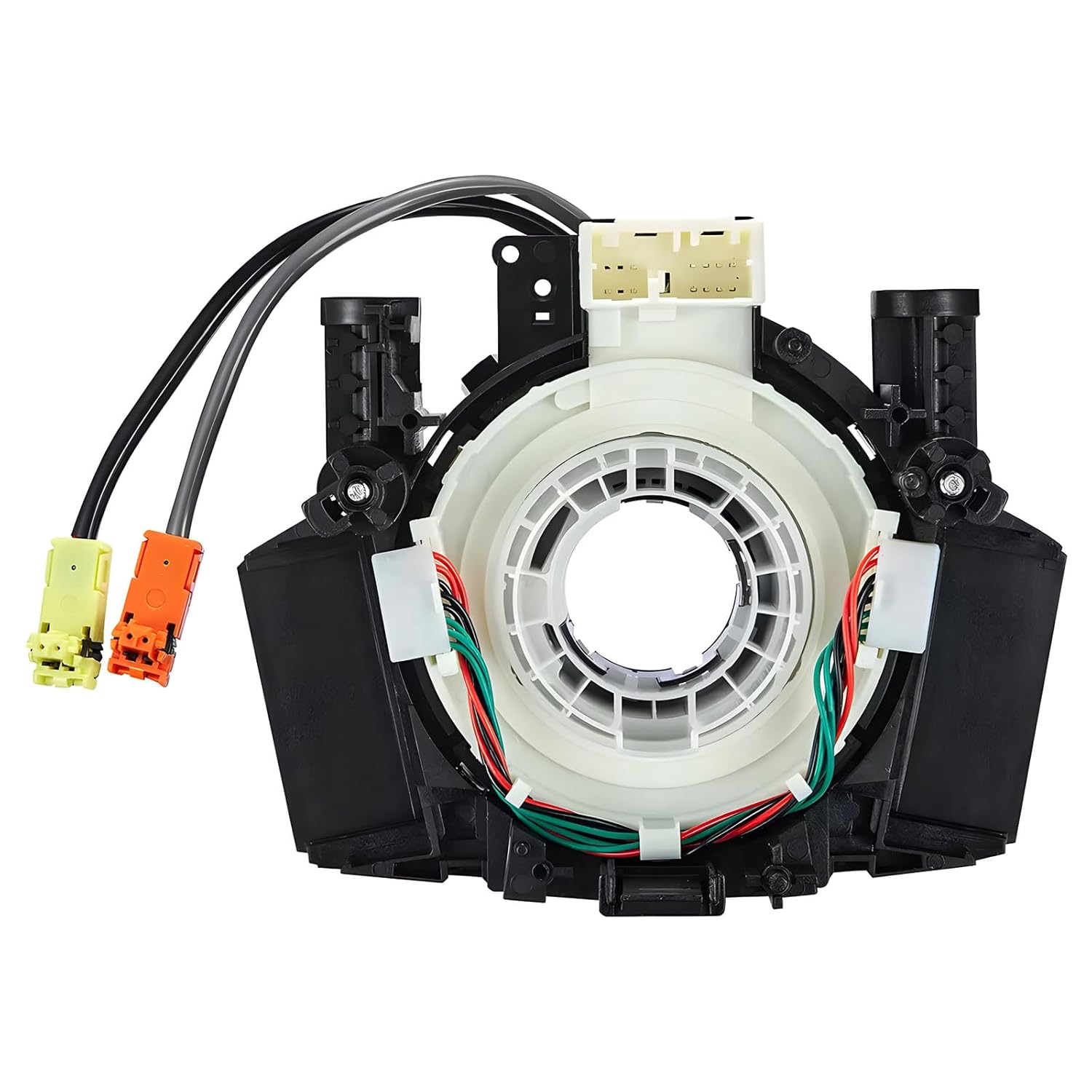
This steering clock spring assembly is an OEM-style replacement designed to restore steering wheel controls and related electronic functions in compatible Nissan vehicles. It supports audio, cruise control, and multi-function button operation while matching multiple factory part numbers for a reliable fit. Built for direct installation with vehicle-specific connectors, it helps return steering column electronics to proper working order.

This portable car stereo adds wireless Apple CarPlay and Android Auto to nearly any vehicle without replacing the factory head unit. The 7-inch HD touchscreen supports voice control, GPS navigation, mirror link, Bluetooth calling, and multiple audio output options for a safer, more connected drive. It also includes backup camera support and flexible mounting for easy installation and removal.
Frequently Asked Questions
Can I Set the Clock Without Starting the Engine?
Yes, you can usually set the clock without starting the engine. Switch the vehicle to accessory mode, turn on the display, and open the clock settings menu. Avoid leaving the display on for a long time if the 12-volt battery is weak.
Will the Clock Reset After a Battery Change?
Yes, the clock may reset after a battery change or battery disconnect. Set the time again after the repair, then confirm that the display keeps the correct time after the next restart.
How Do I Switch Between 12-Hour and 24-Hour Formats?
Open the clock settings menu from the display screen and find the time format option. Select 12-hour time for AM and PM or 24-hour time for a military-style display.
What if My Clock Keeps Losing Time?
If your clock keeps losing time, check the battery condition and the clock settings first. If the issue continues, ask a qualified technician to inspect the electrical system or display unit.
Why Is My Camry Clock One Hour Wrong?
A clock that is exactly one hour fast or slow usually points to the daylight saving time setting. Open Clock Settings and switch daylight saving time on or off based on your local rule.
What if I Cannot Find Clock Settings?
If you cannot find Clock Settings, check for a general settings icon, a menu button, or a clock icon on the display. Use the owner’s manual for your exact model year if the menu layout does not match this guide.
Do All Camry Models Have a Daylight Saving Time Toggle?
No. Some 2023 and newer Camry models with Toyota Audio Multimedia use a “Set date & time by GPS” option instead. When that’s turned on, the car sets its time zone and clock from GPS and the manual DST toggle doesn’t appear. `[VERIFY: exact model-year/trim cutoff]`
How Do I Know Which Infotainment System My Camry Has?
Check your model year against Entune (2018–2022) or Toyota Audio Multimedia (2023 and newer), or see our Toyota Camry generations guide to match your car to its generation and system.
Can I Adjust the Clock Using Voice Commands?
Some Toyota systems may support voice control for selected vehicle or multimedia settings, but clock-setting support varies by model year and trim. Use the display menu unless your owner’s manual lists a clock voice command. [VERIFY: confirm voice-command support for the target Camry model year]
Conclusion
Setting the clock in your Toyota Camry comes down to the Setup menu, Clock Settings, and a final check of the display — though the exact path depends on your generation, so check the generation-specific steps above if the general path doesn’t match your screen. Start with manual time, then adjust daylight saving time, time zone, and format as needed. If your Camry supports GPS time adjustment, turn it on only after confirming the time zone. If the clock keeps losing time after a reset, have the battery or display system checked.