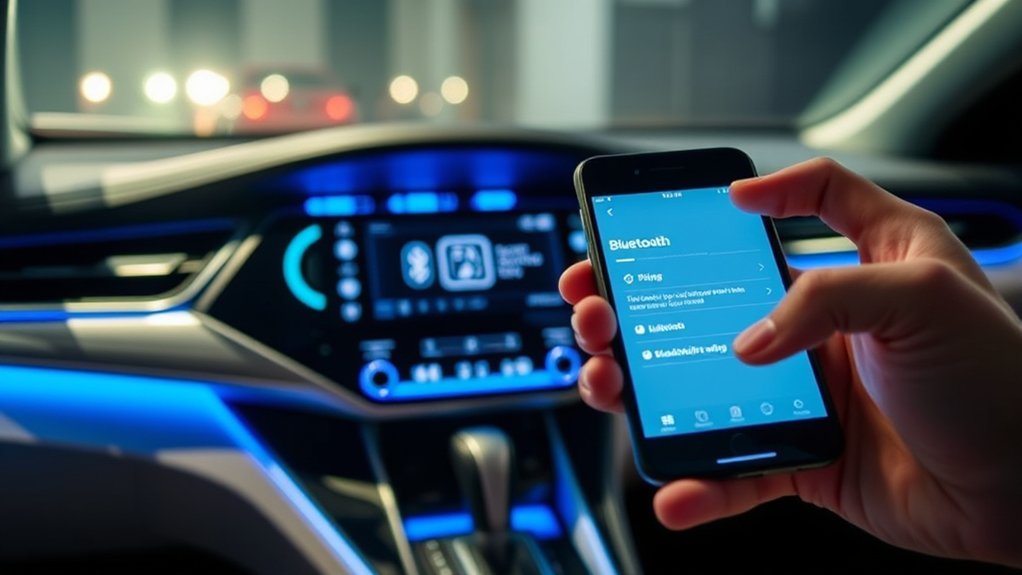
To pair your phone to your Toyota Camry’s Bluetooth, make sure the vehicle’s stationary and Bluetooth is enabled on both devices. Open the Camry’s Bluetooth menu and search for your phone. Confirm the matching six-digit code on both screens, then tap “Pair” on your phone and “OK” on the head unit. If you face issues, restart both devices and check for software updates. You can discover additional tips for a seamless connection experience.
Preparing Your Vehicle for Bluetooth Pairing
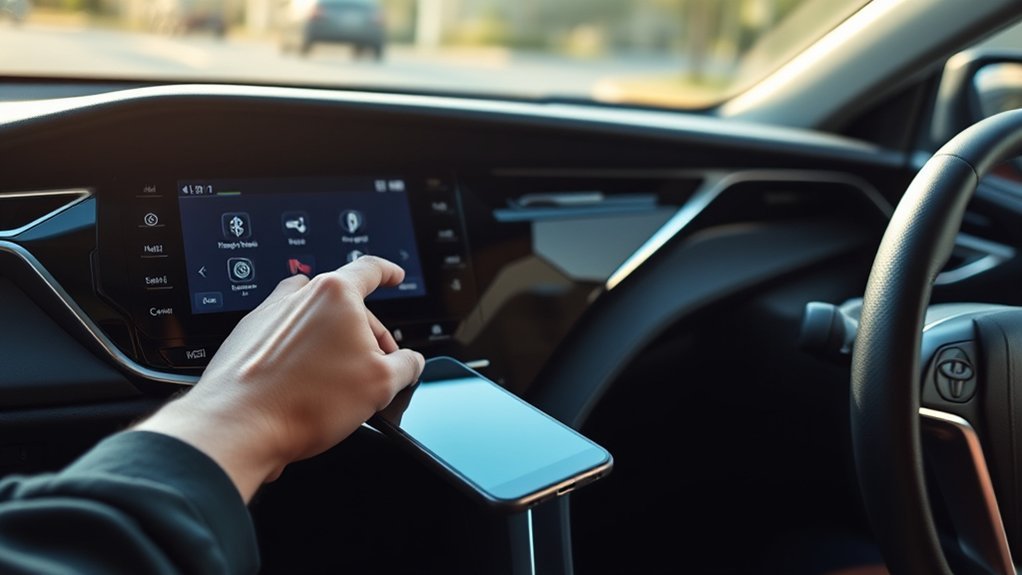
To begin the Bluetooth pairing process for your Toyota Camry, make certain your vehicle is stationary. This guarantees compliance with safety regulations and allows you to focus on the Bluetooth setup. First, link your Toyota app profile to your vehicle; this will provide pairing prompts directly on the head unit, enhancing your experience. Next, check your phone’s Bluetooth settings to confirm Bluetooth is enabled. This step is essential for your phone to be discovered by the vehicle.
Once your phone is ready, access the Bluetooth menu on your Camry and search for available devices. Select your phone from the list to initiate pairing. A six-digit code will appear on both your phone and the vehicle’s display. Make certain this code matches before proceeding with the connection. Following these steps guarantees ideal vehicle readiness for a seamless Bluetooth experience, allowing you to enjoy hands-free calls and audio streaming while driving.
Ensuring Your Phone Is Ready for Connection
After confirming your vehicle is ready for Bluetooth pairing, it’s time to prepare your phone for connection. First, navigate to your Bluetooth settings and toggle the Bluetooth option on. This step is essential for your phone to discover the Toyota Camry’s system. Next, verify your device compatibility; not all phones connect seamlessly with the Camry’s Bluetooth. If you encounter issues, restarting your phone can refresh its Bluetooth capabilities, often resolving connectivity problems.
Additionally, check for any software updates on your phone. Keeping your device updated guarantees peak performance and compatibility with the vehicle’s Bluetooth system. Finally, maintain a close connection range between your phone and the Camry during this process. This proximity helps facilitate a strong Bluetooth connection, paving the way for a smooth pairing experience.
Bluetooth Pairing: Step-By-Step Guide
Initiating the Bluetooth pairing process in your Toyota Camry is straightforward and essential for accessing hands-free features. First, verify your vehicle is stationary and that Bluetooth is enabled. Next, on your phone, navigate to Bluetooth settings, activate Bluetooth, and search for available devices. Look for your Camry in the list.
Once you find it, a six-digit code will appear on both your phone and the car’s head unit. Confirm that these codes match to verify Bluetooth security. Then, tap “Pair” on your phone and “OK” on the head unit to establish the connection. This step allows you to enjoy seamless audio quality through the car’s speakers.
If you encounter issues, check for software updates on both your phone and vehicle, verifying compatibility with the car’s Bluetooth system. Following these steps will enhance your driving experience with hands-free convenience and superior sound.
How to Troubleshoot Pairing Issues?
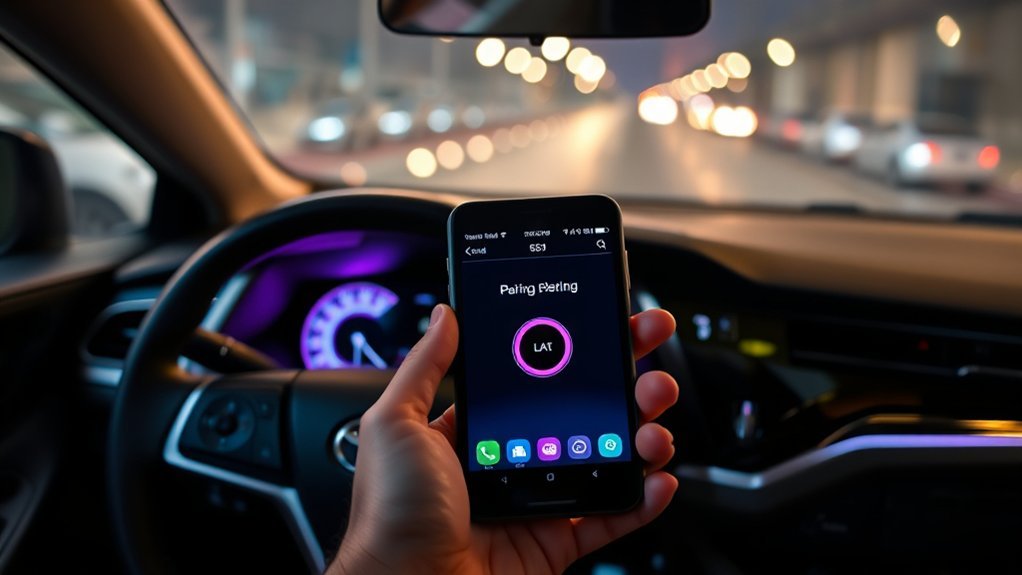
Even with the straightforward pairing process, you might face some challenges connecting your phone to your Toyota Camry’s Bluetooth. First, make certain your phone’s Bluetooth is enabled and that it’s within range. If issues persist, restart both your phone and the Camry’s infotainment system; this often resolves connectivity glitches. Check for compatibility, as some devices may not support the vehicle’s Bluetooth system.
Next, verify that you’ve installed any available software updates on both your phone and the infotainment system to eliminate potential bugs. If you encounter common pairing errors, consider possible Bluetooth interference solutions, such as turning off other nearby Bluetooth devices. Finally, consult your vehicle’s manual for model-specific troubleshooting steps. By following these guidelines, you’ll enhance your chances of a successful connection.
Activating Apple CarPlay
To activate Apple CarPlay in your Toyota Camry, you’ll first need to guarantee your iPhone is properly connected via Bluetooth. Once paired, the system will prompt you to enable CarPlay, allowing you to access compatible apps right on your touchscreen. If you face any connection issues, restarting both your iPhone and the infotainment system can often resolve them.
Initial Setup Requirements
Activating Apple CarPlay in your Toyota Camry requires a few simple steps to guarantee a seamless connection. First, make certain your iPhone is connected via Bluetooth to the vehicle, which also maintains Bluetooth security for your data. Once the connection is established, the system will automatically prompt you to enable Apple CarPlay. Simply tap “Yes” on the prompt to initiate access, allowing your iPhone’s interface to appear on the touchscreen. This setup ensures device compatibility, enabling eligible apps like navigation, music, and messaging to be mirrored on the display. For peak performance, make sure your iPhone’s software is up to date, ensuring a smooth and efficient experience while driving.
2. Connecting Your iPhone
Start by ensuring your iPhone’s Bluetooth is turned on and the vehicle is stationary. Once that’s set, pair your iPhone with the Camry’s Bluetooth system. After pairing, a prompt will appear asking if you want to enable Apple CarPlay; tap “Yes” to initiate the connection. Make sure your iPhone is compatible with CarPlay to access its features. Eligible apps from your iPhone will display on the Camry’s touchscreen, giving you quick access to navigation, music, and more. This integration allows you to use your iPhone seamlessly while driving, enhancing your experience. If you encounter issues, a quick restart of both your iPhone and the vehicle’s system may resolve any connectivity hiccups. Enjoy the freedom of hands-free functionality!
3. Troubleshooting Connection Issues
If you encounter issues activating Apple CarPlay after connecting your iPhone to your Toyota Camry’s Bluetooth, there are several steps you can take to troubleshoot the problem. First, make sure your iPhone is connected to the vehicle’s Bluetooth, as CarPlay activates automatically afterwards. Check that your iPhone’s iOS is updated, since outdated software can lead to device compatibility issues. Next, confirm that CarPlay is enabled by going to Settings > General > CarPlay and selecting your vehicle. If you still face difficulties, restarting both your iPhone and the infotainment system can resolve Bluetooth interference or temporary glitches. Finally, consult your vehicle manual for specific troubleshooting steps regarding Apple CarPlay connectivity if the issue persists.
Activating Android Auto
To activate Android Auto in your Toyota Camry, you’ll need to guarantee your phone is compatible and connected via Bluetooth while the vehicle is stationary. Once connected, the system will prompt you to enable Android Auto, and you can easily initiate the process. If you run into connection issues, restarting both your phone and the vehicle’s system is a good troubleshooting step.
System Compatibility Requirements
Activating Android Auto in your Toyota Camry requires meeting specific system compatibility requirements. To guarantee seamless integration, perform these compatibility checks:
| Requirement | Details | Notes |
|---|---|---|
| Android Version | Android 5.0 (Lollipop) or higher | Check your device settings |
| Android Auto App | Must be installed | Not pre-installed on all devices |
| Bluetooth Connection | Phone must connect to the vehicle’s Bluetooth | Essential for activation |
| Infotainment Software | Updated to the latest version | Check for updates regularly |
| USB Cable | May be required for initial connection | Confirm based on model/year |
Step-by-Step Activation Process
Connecting your phone to Toyota Camry’s Android Auto is a straightforward process that enhances your driving experience. First, make sure your phone is connected via Bluetooth, which offers seamless access to calls and music. Once connected, your vehicle’s system will prompt you to enable Android Auto; just tap “Yes” to proceed. After activation, eligible apps from your Android device will appear on the Camry’s touchscreen, making navigation and control effortless. To enjoy these Bluetooth benefits fully, confirm your Android device is compatible and updated to the latest software version. User experiences show that smooth connectivity greatly improves driving convenience, so if issues arise, simply restart both devices and check your Bluetooth settings for a quick fix.
Troubleshooting Connection Issues
Even with a successful Bluetooth connection, you might still face some issues when activating Android Auto in your Toyota Camry. First, verify your Android device passes compatibility checks with the vehicle’s system. If you encounter connection stability problems, restart both your device and the infotainment system. Make sure Bluetooth is enabled on your phone and that it’s within range to reduce Bluetooth interference. If you see a prompt on the display, tap “Yes” to enable Android Auto access. Should problems persist, consult your vehicle’s manual for specific troubleshooting steps. Checking for device updates on both your Android device and the Camry can also resolve lingering issues. Stay connected and enjoy your drive!
Best Practices for Bluetooth Maintenance
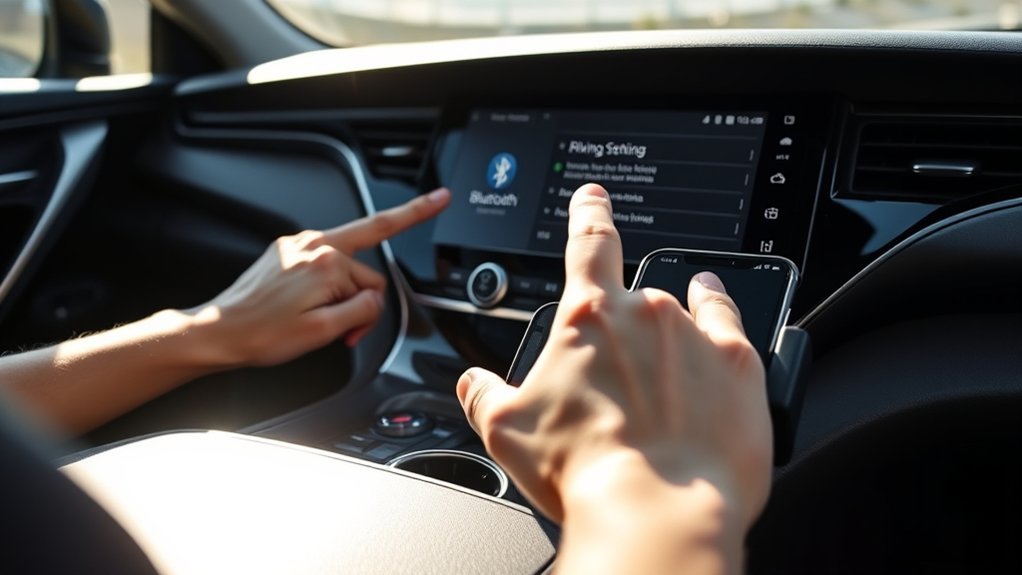
To guarantee a seamless Bluetooth experience in your Toyota Camry, it’s essential to follow some best maintenance practices. Regularly check for Bluetooth updates on both your phone and the Camry to enhance device compatibility and performance. Keep your phone’s Bluetooth settings enabled and within connection range to maintain a stable link while driving. Periodically restart both your phone and the car’s infotainment system; this can resolve connectivity issues and refresh Bluetooth connections.
Additionally, clear any old or unused Bluetooth connections from your phone to prevent potential pairing conflicts. Signal interference from other devices can disrupt your connection, so try to minimize nearby electronic clutter. Finally, consult your Toyota Camry’s manual for specific troubleshooting steps and tailored best practices to optimize your Bluetooth experience. By implementing these regular maintenance tips, you’ll enjoy a smoother, more reliable connection every time you hit the road.
Tips for a Smooth Bluetooth Experience
Ensuring a smooth Bluetooth experience in your Toyota Camry can greatly enhance your driving enjoyment. Start by making sure your vehicle is stationary during the setup process; this helps avoid interruptions. Confirm that your phone’s Bluetooth is enabled and within range for a successful connection. If you run into issues, restart both your phone and the vehicle’s system—this often resolves common connectivity problems.
Regularly check for software updates on your phone to maintain device compatibility with your Camry’s Bluetooth system. This not only boosts connection stability but also enhances audio quality. Additionally, prioritize Bluetooth security by ensuring that only trusted devices connect to your system. If persistent problems arise, refer to your vehicle’s manual for tailored troubleshooting steps. Following these tips will help you achieve a seamless Bluetooth experience, allowing you to focus on the road ahead while enjoying your favorite tunes or hands-free calls.
Frequently Asked Questions
How Do I Connect My Bluetooth to My Toyota Camry?
To connect your Bluetooth to your Toyota Camry, access your phone’s Bluetooth settings, verify device compatibility, select the Camry, and confirm the pairing code. This enables audio streaming and efficient device management for seamless integration.
How to Put Toyota Into Pairing Mode?
To initiate the pairing process, you’ll want to guarantee your Toyota’s Bluetooth settings are ready. Simply keep the vehicle stationary, then follow the prompts on the head unit to activate pairing mode.
Conclusion
By following these steps, you’ll have your phone connected to your Toyota Camry’s Bluetooth in no time. Enjoy hands-free calling and seamless music streaming like you’re living in a sci-fi movie where everything just works perfectly. Remember to keep your software updated and maintain a clear connection for the best experience. With a little practice, you’ll be a Bluetooth pairing pro, making every drive smoother and more enjoyable!