Restart your iPhone and Tundra head unit, confirm Siri and CarPlay are enabled, and use the original Apple USB cable for wired connections. Unpair other Bluetooth devices, verify CarPlay is authorized in Settings > General > CarPlay, and install the latest iOS and infotainment firmware. If drops persist, disconnect the negative battery briefly, perform a factory reset of the head unit, then re-pair and test mic performance. Continue for structured diagnostics and dealer-prep steps.
Quick Fixes for CarPlay Disconnects Now
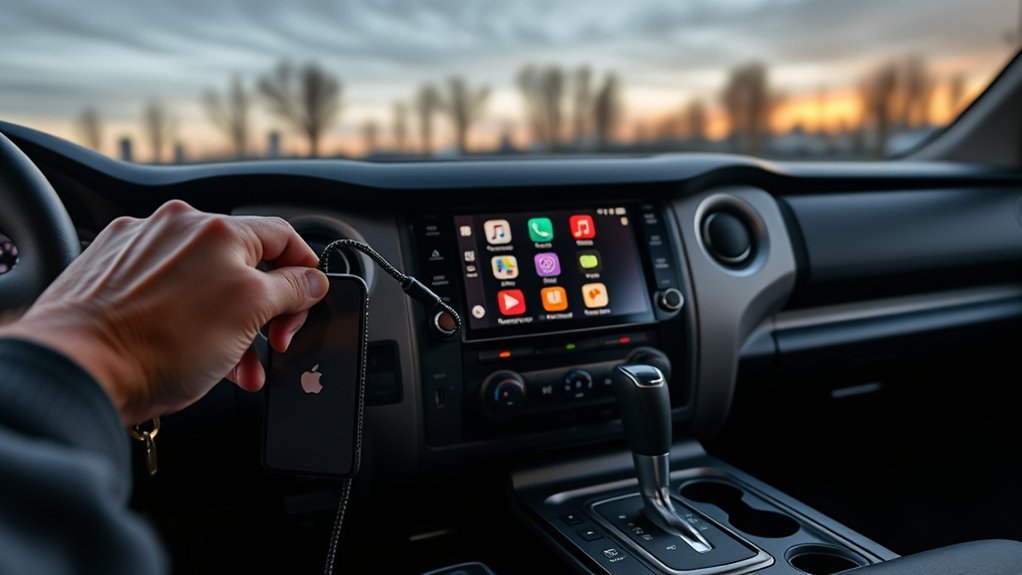
Start with the basics: restart your iPhone and make sure Siri is enabled, since a reboot clears transient glitches and Siri is required for CarPlay to function properly. After that, isolate the problem: unpair other devices to eliminate Bluetooth interference that can trigger CarPlay drops. Check for Apple updates on your phone and apply them; outdated iOS often worsens Connectivity issues with vehicle systems. On the Tundra, verify and install the latest head unit firmware so Tundra features and CarPlay remain compatible. If intermittent disconnects persist, perform a factory reset of the car’s infotainment screen to remove corrupt settings that block stable connections. You’ll keep logs of symptoms while testing each change so you can reverse or escalate precisely. This practical sequence frees you from guesswork: restart, remove competing devices, update both phone and truck, then reset the screen—each step targets a common root cause and restores reliable CarPlay behavior.
Check Phone & CarPlay Settings : Siri, Bluetooth, Cables
1 simple checklist will catch most CarPlay setup problems: confirm Siri is enabled on your iPhone, verify CarPlay is allowed under Settings > General > CarPlay, and make certain the Tundra is listed and authorized on that menu; then check Bluetooth pairing on both devices and disconnect any other paired gadgets that could cause interference. Inspect Siri settings to guarantee voice activation and Listen for “Hey Siri” are on—CarPlay depends on system voice access. Address Bluetooth issues by removing unused pairings, toggling Bluetooth off/on, and confirming the Tundra shows as connected. For wired CarPlay, use the original Apple charging cable; low-quality third-party leads often break data paths even if they charge. In CarPlay permissions, revoke and re-authorize the vehicle if authorization seems stale. If you want control and freedom from repeated drops, you’ll enforce these checks methodically: verify permissions, eliminate Bluetooth conflicts, and trust authentic charging cables to keep the connection stable.
Restart and Reset Your Tundra’s Infotainment System
If your Tundra’s CarPlay keeps dropping despite checking phone and cable settings, reboot the infotainment system by disconnecting the negative battery terminal for a few minutes to clear temporary faults—be aware this will erase volatile system states and force you to re-pair your iPhone via Bluetooth. Perform this battery disconnect safely: turn ignition off, remove key, wait two to five minutes, then reconnect and restart the vehicle. This infotainment reboot often clears glitches that software resets don’t touch.
If problems persist, use the system’s factory reset in settings to restore defaults — note this erases personal data and paired devices. After any reboot or factory reset, re-pair your iPhone, enable Siri, and verify CarPlay permissions. Check for infotainment software updates and install vendor-provided patches; updates frequently resolve protocol or stability issues. These steps give you control over the system state and remove vendor lock-in caused by transient faults, helping you reclaim reliable CarPlay connectivity.
Diagnose Mic and Wireless CarPlay Drops Step-by-Step
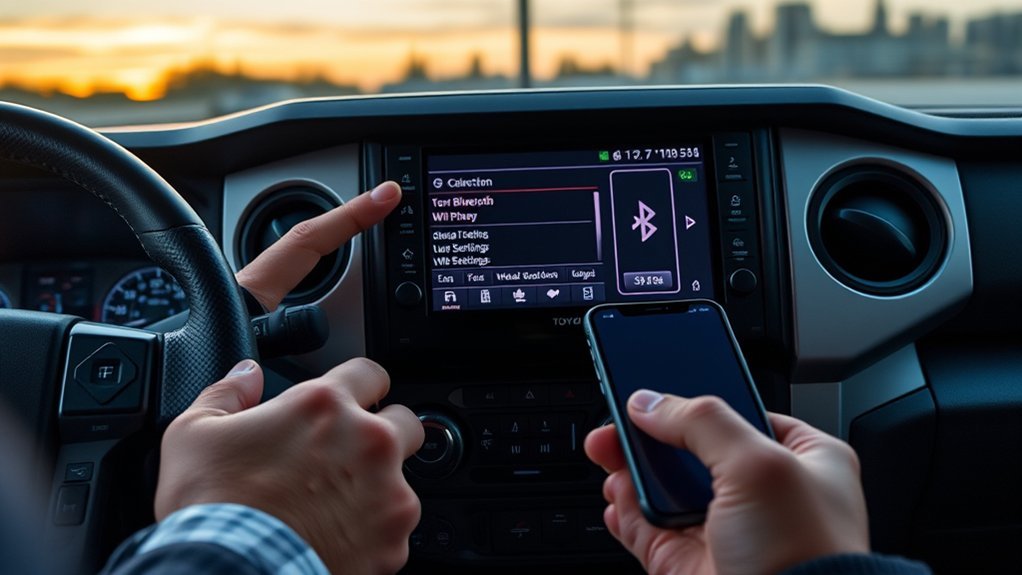
After you’ve tried rebooting or a factory reset, focus on isolating the microphone and wireless CarPlay failure with a methodical checklist so you can reproduce the fault and gather useful info for troubleshooting or for the dealer. Begin by confirming Siri and CarPlay permissions on your iPhone; if Siri fails, CarPlay audio can drop. Unpair all other Bluetooth devices, then pair only your phone to eliminate interference affecting wireless connectivity. Make a controlled test call and record time-to-failure; many reports show mic issues after 1–2 minutes. If the mic cuts out, perform microphone troubleshooting: check physical mic connections and run diagnostics if your Tundra offers them. Next, cycle the vehicle power and, if needed, perform the battery-negative disconnect reboot some users reported as successful. Log firmware and iOS versions, timestamps, and exact behavior. Repeat tests after any change to verify improvement. This disciplined approach frees you to act decisively and document persistent faults for escalation.
When to Visit the Dealer and What to Document
Anyone encountering recurring CarPlay drops should take the car to the dealer once you’ve reproduced the fault consistently and documented attempts to fix it; this signals a legitimate hardware or firmware issue beyond DIY fixes. For the dealer visit, bring a concise packet: incident log with timestamps, call durations, whether multiple iPhones exhibited the same drop, and vehicle model year. Include recent iPhone/software updates and any head unit firmware changes. Use documentation tips: record reboot/reset attempts, menu paths used, and exact error messages or unusual behaviors (screenshots or short video clips work best). Add community forum links that show trend data or similar failures to strengthen your case. At the dealership, present this evidence clearly and insist on diagnostic reports and technician notes. That forces accountability, speeds troubleshooting, and preserves your right to escalation or warranty remedies if the root cause proves systemic.
Frequently Asked Questions
Why Does My Toyota Keep Disconnecting From Carplay?
Your Toyota keeps disconnecting due to CarPlay issues like microphone faults, iPhone–Toyota connectivity mismatches, paired-device conflicts, or firmware bugs; you should reboot systems, remove extra pairings, update software, and push dealerships for lasting fixes.
Conclusion
So your Tundra keeps ghosting CarPlay — welcome to the club. You’ve toggled Siri, swapped cables, rebooted the head unit and phone, and even lectured Bluetooth into submission, yet it still plays hide-and-seek. If the mic or wireless link’s flaky, document drop times, try a firmware rollback, then see the dealer with logs. Do this, and you’ll either fix it or have enough evidence to blame someone else convincingly.