To adjust the following distance on your Camry’s Dynamic Radar Cruise Control (DRCC), first, activate the system by cruising over 20 mph. Then, use the Vehicle-to-Vehicle Distance switch to select between close, medium, or far settings. The close setting works well for heavy traffic, while far is better for highways. Remember, you can easily cancel or resume DRCC anytime. Stick around to uncover more tips and features to enhance your driving experience!
Understanding Dynamic Radar Cruise Control in Your Camry
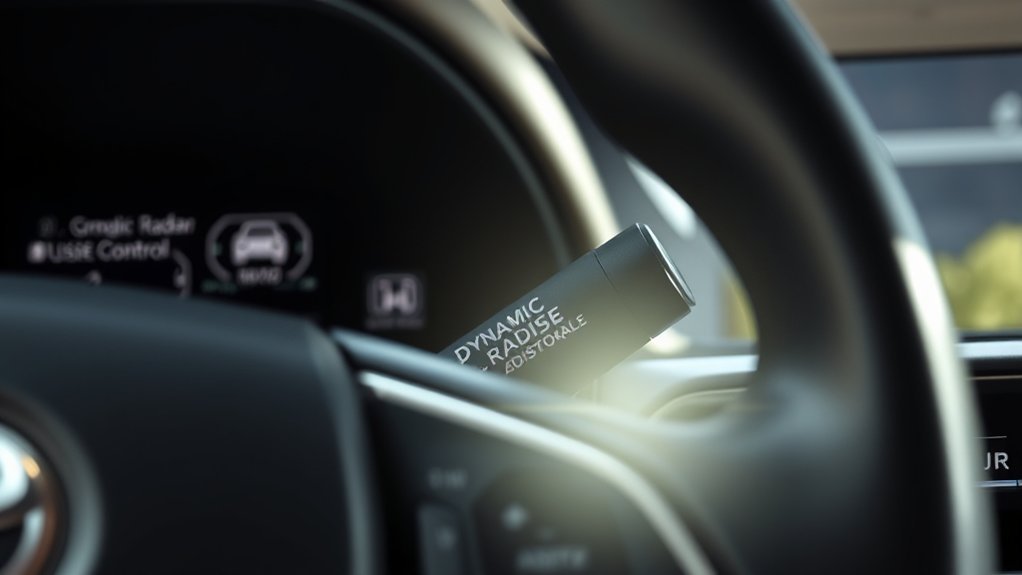
Dynamic Radar Cruise Control (DRCC) is a game changer for your driving experience in the Camry. This innovative system uses advanced sensor technology, including camera and radar, to maintain a safe following distance from the vehicle ahead. By adjusting the Vehicle-to-Vehicle Distance switch, you can customize how close or far you want to be, enhancing your comfort and safety on the highway.
With DRCC, you can easily fine-tune your speed using the plus or minus switches, ensuring a smooth drive that adapts to traffic conditions. If you need to cancel the cruise control, just tap the brake pedal or press the cancel switch. The system remembers your last set speed, making it simple to resume when you’re ready. Embrace the liberation of stress-free driving with DRCC’s cutting-edge safety features, allowing you to focus more on enjoying the journey.
Activating DRCC
Once you’re ready to take advantage of DRCC, activating the system is a straightforward process. First, make sure your vehicle is cruising above 20 mph. Then, toggle the Driving Assist mode select switch to turn on the DRCC. After activation, set your desired speed by accelerating and pressing the Driving Assist switch. You’ll enjoy DRCC benefits like reduced driver fatigue and enhanced convenience, but remember, the system has limitations. It’s designed to assist, not replace your attention.
To maintain a safe distance from the vehicle ahead, adjust the Vehicle-to-Vehicle Distance switch accordingly. If you need to cancel DRCC, just press the brake pedal or the cancel switch; your last set speed will be saved for later use.
| Action | Description |
|---|---|
| Activate DRCC | Toggle Driving Assist mode switch |
| Set Desired Speed | Accelerate, then press Driving Assist switch |
| Cancel DRCC | Press brake pedal or cancel switch |
How to Adjust Following Distance
To adjust the following distance in your Camry’s Dynamic Radar Cruise Control, you’ll use the Vehicle-to-Vehicle Distance switch. This lets you choose how closely you want to follow the vehicle ahead, enhancing safety in various traffic situations. Understanding these settings can help you drive more confidently and responsibly.
Understanding Following Distance Settings
Adjusting the following distance in your Toyota Camry is essential for maintaining safety and comfort while driving. The Dynamic Radar Cruise Control (DRCC) lets you set your following distance to near, medium, or far using the Vehicle-to-Vehicle Distance switch. This flexibility is key, as it allows you to adapt based on traffic conditions. The importance of following distance can’t be overstated; it guarantees you have enough space to react if the vehicle ahead slows or stops. Plus, with adaptive cruise benefits, your Camry automatically adjusts speed to maintain that distance, enhancing your driving experience. By understanding and adjusting these settings, you empower yourself to drive more safely and confidently in varying situations.
Adjusting Distance With Switch
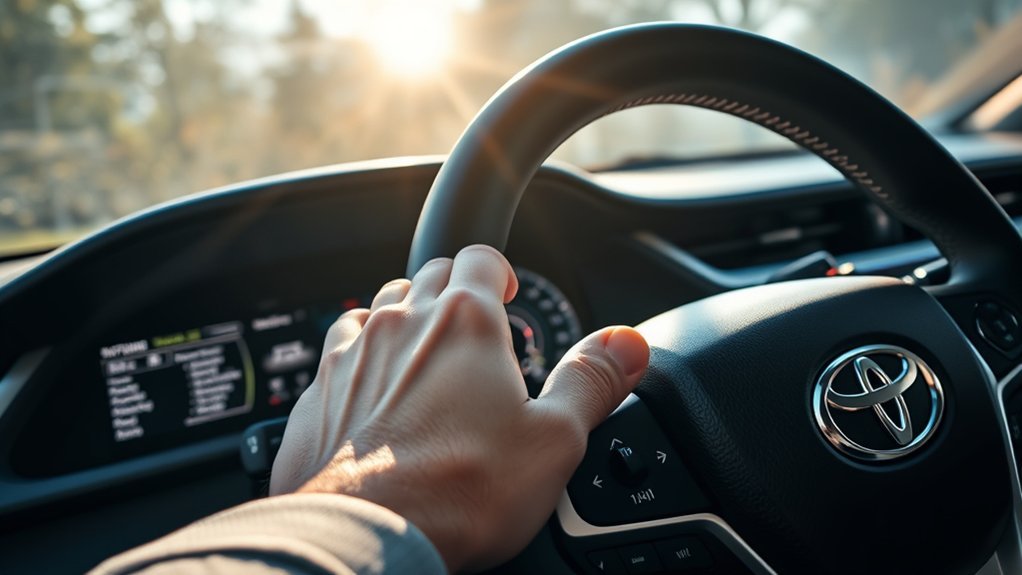
Maintaining the right following distance is essential for safe driving, and adjusting it in your Toyota Camry is a straightforward process. To personalize your distance flexibility, use the Vehicle-to-Vehicle Distance switch on your steering wheel. Pressing the switch allows you to select from three levels of following distance, adapting to various driving conditions.
Here’s a quick overview of the distance settings:
| Level | Distance Setting | Best For |
|---|---|---|
| 1 | Close | Heavy traffic |
| 2 | Medium | Normal conditions |
| 3 | Far | Highway driving |
Once you set it, the Dynamic Radar Cruise Control will maintain your chosen distance as long as you’re going over 20 mph, enhancing your safety and responsiveness on the road.
Tips for Safe Driving
While driving, keeping a safe following distance is vital for your safety and that of others on the road. Here are some tips to enhance your traffic awareness and guarantee a secure driving experience:
- Use the Vehicle-to-Vehicle Distance switch to adjust your following distance.
- Choose a distance that feels comfortable based on your speed and driving conditions.
- Regularly check your following distance settings to adapt to changing traffic.
- Remember that maintaining a safe following distance is key, especially over 20 mph.
- Consult your Owner’s Manual for specific adjustments as features may vary.
How to Adjust Speed Settings in DRCC
Adjusting the speed settings in your Camry’s Dynamic Radar Cruise Control (DRCC) is straightforward. Just use the plus and minus switches to fine-tune your speed, and holding either switch lets you make larger adjustments. Plus, if you need to cancel your cruise control, you can easily resume your last set speed with a quick press of the plus resume switch, keeping your drive smooth and hassle-free.
Adjusting Speed Settings
To fine-tune your speed settings in the Dynamic Radar Cruise Control (DRCC), simply use the plus and minus switches on your steering wheel. These adjustments give you full control over your driving experience, enhancing your cruise control functionality. Here’s how to make effective speed adjustments:
- Press the plus switch to increase speed by about one mph.
- Hold the plus switch for larger speed increments.
- Use the minus switch to decrease speed.
- Your last set speed is saved, even if you hit the brake.
- To resume, just press the plus resume switch; remember, turning off cruise control erases the memory.
Embrace the freedom of adjusting your speed effortlessly while enjoying the ride!
Using Plus And Minus
Fine-tuning your speed settings in the Dynamic Radar Cruise Control (DRCC) is straightforward with the plus and minus switches on your steering wheel. To increase your adaptive speed, simply press the plus switch; each press raises your set speed by about one mph. If you need a larger adjustment, hold the plus switch down. Conversely, to decrease your speed, press the minus switch until you reach your desired pace. Holding it down will speed up the process. These controls work seamlessly in both DRCC and conventional cruise modes, giving you full control over your distance control. Remember, your last set speed stays in memory, so you can easily pick up where you left off when needed.
Resuming Last Set Speed
Resuming your last set speed in the Dynamic Radar Cruise Control (DRCC) system is a breeze. With a simple press of the plus resume switch, you can quickly get back to cruising. Thanks to memory retention, your set speed is saved even after you cancel the cruise control.
Here’s how to make the most of it:
- Press the plus resume switch after canceling to resume speed.
- Adjust vehicle-to-vehicle distance anytime using the Distance switch.
- Make speed adjustments in one mph increments with a quick press.
- Hold the switch down for larger speed changes.
- Remember, turning off cruise control with the Driving Assist switch erases your memory.
Enjoy effortless driving with these tips!
Canceling and Resuming DRCC
When you’re driving with Dynamic Radar Cruise Control (DRCC) activated, you might need to cancel it for various reasons. To do so, simply press the brake pedal or the cancel switch. This action deactivates the cruise control functionality but keeps your last set speed stored in system memory, allowing for easy resumption later. If you want to return to that speed, just hit the plus resume switch after canceling.
However, if you wish to completely turn off the cruise control system, press the Driving Assist switch while the system is set. Keep in mind that doing this erases the memory of the previously set speed. Staying aware of how to cancel and resume DRCC is essential for safe driving practices, enabling you to maintain control and adapt to changing road conditions effortlessly. Always prioritize your comfort and safety while enjoying the freedom of adaptive cruise control.
Troubleshooting DRCC
Troubleshooting DRCC can be straightforward if you know what to look for. If you’re facing cruise control issues, here are some key points to take into account:
- Check sensor maintenance: Confirm the camera and radar sensors are clean and unobstructed.
- Speed matters: The system may deactivate below approximately 20 mph, so be ready to reactivate it.
- Memory loss: If the cruise control fails to resume the last set speed, make certain the system wasn’t turned off completely; this erases speed memory.
- Owner’s Manual: Consult your manual for specific troubleshooting tips tailored to your vehicle model.
- Distance settings: Don’t forget to use the Vehicle-to-Vehicle Distance switch to adjust following distances as needed.
How to Drive Safely With DRCC
Driving safely with Dynamic Radar Cruise Control (DRCC) may seem intimidating at first, but understanding its features can greatly enhance your experience on the road. To guarantee safe driving, familiarize yourself with how to adjust the following distance using the Vehicle-to-Vehicle Distance switch. This allows you to maintain ideal traffic awareness by selecting your preferred distance from the car ahead.
| Feature | Action |
|---|---|
| Activate DRCC | Select Driving Assist mode |
| Adjust following distance | Use Vehicle-to-Vehicle Distance switch |
| Cancel DRCC | Press brake pedal or cancel switch |
Frequently Asked Questions
How Do You Adjust the Distance on Adaptive Cruise Control?
To adjust the distance on adaptive cruise control, just press the Vehicle-to-Vehicle Distance switch. This guarantees ideal safety considerations and enhances your driving comfort, letting you maintain a suitable gap from vehicles ahead.
How Do You Calibrate Adaptive Cruise Control?
To calibrate adaptive cruise control, activate the system and drive above 20 mph. Confirm the sensor alignment is correct by maneuvering through varied traffic, allowing the system to adjust for peak performance. Check your Owner’s Manual for specifics.
Is Distance Control Adaptive Cruise Control?
Yes, distance control is part of adaptive cruise control. These adaptive settings enhance safety features by automatically adjusting your speed to maintain a safe following distance, making your driving experience more secure and stress-free.
Conclusion
In the grand dance of the open road, mastering your Camry’s adaptive cruise control not only enhances your driving experience but keeps you and your loved ones safe. With a few simple adjustments, you can glide smoothly, maintaining a comfortable buffer with the car ahead. Embrace the technology that supports your journey, allowing you to focus on the joy of driving while your Camry takes care of the details. So, buckle up and enjoy the ride!