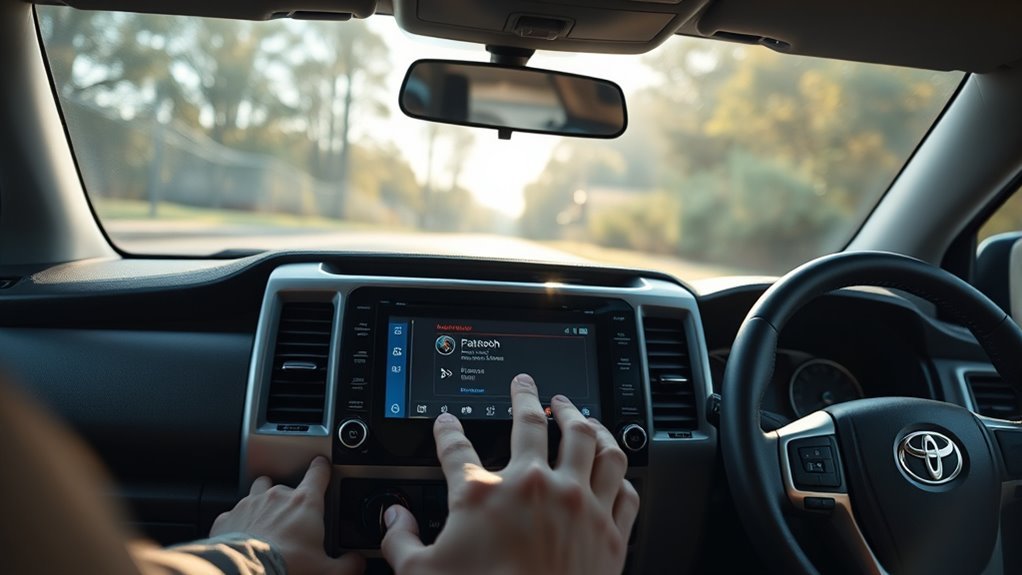
Turn on Bluetooth on your phone and the 4Runner, put the vehicle in Park with the engine running, then open Entune > Settings > Bluetooth and enable pairing mode. On your phone select the 4Runner, confirm the matching PIN on both screens, and allow phone, audio, and notification permissions. If it won’t appear, restart Bluetooth, clear old pairings on both devices, or reset the head unit; continue below for step‑by‑step pairing, troubleshooting, and dealer options.
Prepare Your Phone for 4Runner Bluetooth Pairing
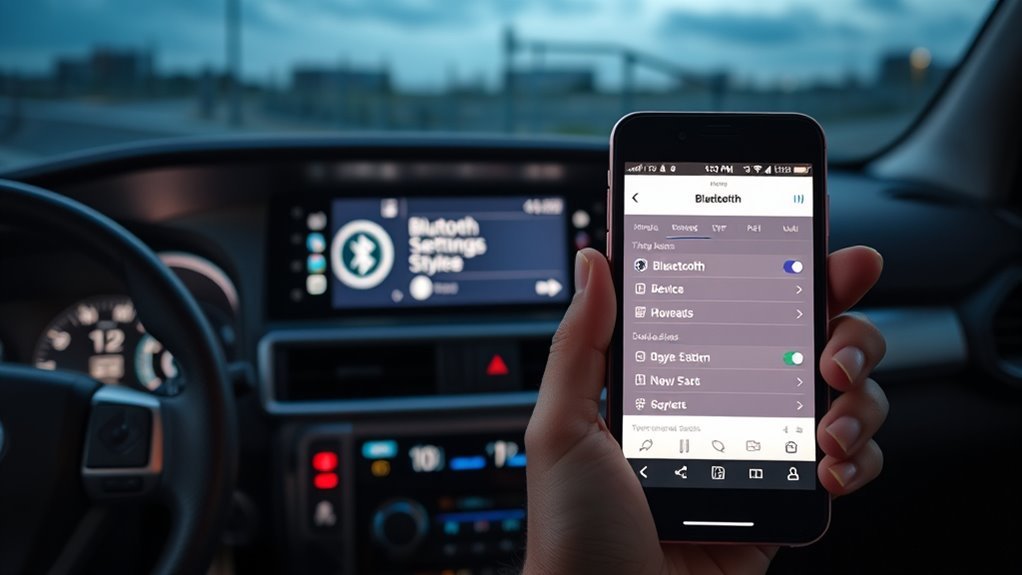
Before you pair, make sure your phone’s Bluetooth is turned on and set to discoverable so the 4Runner can find it. Open your phone’s Bluetooth settings, confirm discoverability, and remove old pairings that could clash with the 4Runner. You’ll want a clean slate: delete previous Toyota entries and any unused devices on both phone and infotainment to avoid interference.
Verify device compatibility by checking your phone’s software is up to date; outdated OS builds often block modern infotainment protocols. If your model has known limits, note them before you proceed so you’re not stalled mid-setup. Keep the phone near the center console during discovery to maintain a stable radio link.
If the 4Runner won’t list your phone, restart Bluetooth on both devices and re-open Bluetooth settings. As a last step, consider resetting the infotainment’s Bluetooth cache or contacting your dealer for firmware updates—don’t accept a preventable barrier to seamless control.
Quick: Pair Bluetooth on Your Toyota 4Runner (Step-by-Step)
Have your phone charged and Bluetooth enabled, and make sure the 4Runner is in Park with the engine running. Go to Entune > Settings > Bluetooth and turn Bluetooth on, then put the system in pairing mode while your phone searches for devices. When your phone finds the 4Runner, select it and confirm the matching PIN on both screens to complete the connection.
Prepare Your Devices
Activate Bluetooth compatibility on your smartphone and set it to discoverable. On the 4Runner, go to Entune > Bluetooth > Add New Device so both ends are ready. Keep screens accessible and notifications allowed; you’ll confirm codes when prompted.
| Action | Where | Why |
|---|---|---|
| Activate Bluetooth | Phone device settings | Allows discovery |
| Add New Device | 4Runner Entune Bluetooth | Initiates search |
| Allow Notifications | Phone Bluetooth settings | Enables features |
Select your phone on the 4Runner’s list when it appears. Don’t start pairing yet; just verify both devices show each other. This prep frees you to proceed quickly, confirm the code, and maintain a steady connection without distractions.
Start Pairing Mode
Now that both devices are ready, start pairing by turning on the 4Runner and tapping Setup on the infotainment home screen. Navigate to Bluetooth, select Add New Device, and put the system into discoverable mode so your phone can find it. On your phone, enable Bluetooth, scan for devices, and choose the 4Runner entry. When a PIN appears on both screens, verify the numbers match and accept the request on each device. This activates essential Bluetooth features—hands-free calling, audio streaming, and contact access—so you reclaim control of your drive. Pairing benefits include seamless connectivity and safer, liberated travel. If pairing fails, retry the steps, confirm phones aren’t connected elsewhere, and restart both devices before repeating.
Confirm Connection Settings
1. After selecting your 4Runner on your phone and confirming the pairing code, open the Entune Bluetooth settings to confirm connection settings. Make sure audio, phone, and notification permissions are enabled so calls and alerts route through the infotainment. Check device compatibility if features like phonebook or media don’t appear; some phones limit profiles.
If you run into issues, perform connection troubleshooting: toggle Bluetooth off/on on both devices, remove the 4Runner from your phone’s paired list, and re-initiate “Add Device” on Entune. Restarting your phone or the vehicle’s system often clears glitches. Once settings are confirmed and working, test a call and media playback. Keep pairing info current so you stay free to move and connect without barriers.
Fix Common Pairing Hiccups (Codes, Hidden Devices, iPhone Quirks)
If pairing fails, check for hidden paired devices on both the 4Runner and your iPhone and delete any old or unused entries. Reset the 4Runner’s Bluetooth and re-pair if you see code errors to clear stalled connections. For iPhones, make sure Bluetooth is on and disable or re-enable auto-connect for the 4Runner to force a fresh handshake.
Hidden Paired Devices
When your 4Runner or iPhone acts like it won’t pair, clear out old Bluetooth entries on both devices and make sure the Entune system is in pairing (discoverable) mode; lingering, hidden connections are a common cause of failed or automatic pair attempts. Delete unused pairings on the Entune menu and in your phone’s Bluetooth list. Check for Entune firmware updates to avoid Device compatibility issues. If pairing still fails, perform a system reset to purge hidden paired devices. Manually search for the vehicle from your phone while Entune is discoverable. Use these Bluetooth management tips to regain control and prevent automatic or ghost connections.
| Action | Result |
|---|---|
| Delete old entries | Removes conflicts |
| Enable pairing | Makes discoverable |
| Update Entune | Improves compatibility |
| Reset system | Clears hidden devices |
| Manual search | Initiates fresh pair |
iPhone Auto-Connect Fix
After clearing hidden pairings on both the Entune system and your iPhone, focus on steps that stop spontaneous reconnections: update both devices to the latest software, remove any remaining old Bluetooth entries, then restart the iPhone and the 4Runner’s infotainment unit. Next, enable Bluetooth visibility on your iPhone and set the 4Runner to discoverable mode. In iPhone settings adjustments, forget unused devices and confirm only one active profile remains on the vehicle. If you face persistent Bluetooth connectivity issues, perform a factory reset of the infotainment system to purge hidden devices and cached pairings. After reset, pair anew: select the 4Runner on your iPhone, confirm codes, and test auto-connect while driving. This frees you from repeated pairing friction.
Fix Media Playback & Notification Updates on Entune
Start by confirming both your phone and Entune are running the latest software, then reboot each device to clear temporary Bluetooth faults. Check Bluetooth settings on both ends: disable battery savers and guarantee media playback is allowed for the paired device. If playback stalls after 3–5 songs, stop and restart audio from your phone while watching Entune’s source; this forces reinitialization of the A2DP stream. For notification issues, enable app notifications and media audio in the phone’s Bluetooth profile, then toggle notifications off/on to push updates. If calls and alerts only work during active music, pause playback briefly to let the system accept control channel updates, then resume. With iPhones, re-pair if profiles don’t fully load: forget device on phone, remove from Entune, then pair again. Regularly revisit Bluetooth profiles and keep firmware current to reclaim control and maintain reliable media playback and notification updates.
Reset or Update Entune: When to Re-Pair vs. Update Firmware
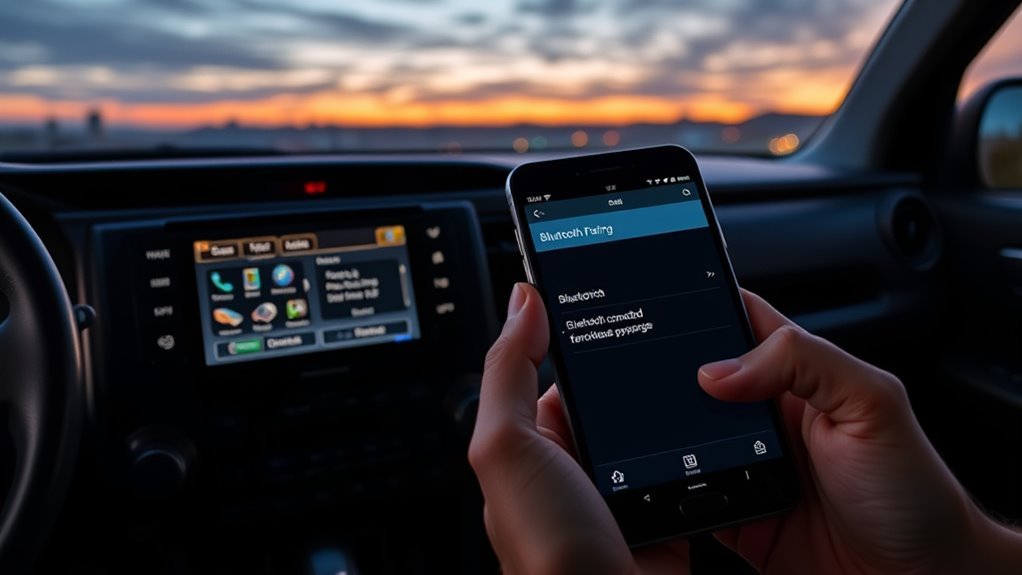
If persistent Bluetooth problems keep occurring despite correct settings, reset or update Entune before re-pairing to isolate whether the issue is system firmware or just a bad pairing. First, perform an Entune Reset from the settings menu to clear cached pairings and minor glitches; this often restores Bluetooth Stability without extra steps. Next, check for a Firmware Update via Toyota’s site or Entune’s update utility; apply updates to improve Device Compatibility and resolve known bugs reported for older phones like Samsung S7 and legacy iPhones. After resetting or updating, verify Bluetooth settings on both the head unit and your phone, then re-pair devices deliberately: delete old profiles, initiate discoverable mode, and confirm audio and notification permissions. If the connection immediately stabilizes after an update, the problem was firmware — if not, a fresh pairing usually fixes residual link issues. These steps free you from trial-and-error and keep your system interoperable and reliable.
When to Get Dealer Help and What They’ll Check
When persistent Bluetooth problems continue despite resets and updates, take the 4Runner to your dealer so technicians can diagnose compatibility and configuration issues you can’t fix yourself. You should seek dealer troubleshooting when you’ve run standard steps—erase devices, reboot phone and head unit, and install Entune updates—but pairing or auto-pairing still fails. At the dealership they’ll execute targeted diagnostics: run compatibility checks between Entune firmware and your phone OS, inspect Bluetooth profiles, and verify settings on both vehicle and device. Technicians will attempt a controlled re-pair using known-good test devices to isolate whether the fault is the head unit, your phone, or a specific combination. If they find firmware gaps or hardware faults, they can apply OEM updates, reflash modules, or recommend repairs. Follow their instructions for post-repair verification and request documentation of actions taken so you can confirm restored freedom to connect without repeated troubleshooting at home.
Frequently Asked Questions
Why Won’t My Toyota Let Me Connect to Bluetooth?
Your Toyota won’t let you connect because Device compatibility, Bluetooth interference, or missing Firmware updates are blocking pairing; perform Connection troubleshooting: delete old profiles, reboot phone and head unit, re-pair, and consult dealer if problems persist.
How to Reset 4runner Bluetooth?
You’ll reset it now—like rebooting the universe! Access Infotainment settings, delete all paired devices, restart the system, remove the 4Runner from your phone, re-enable Bluetooth, then retry pairing for Bluetooth troubleshooting and renewed liberation.
Conclusion
You’ve prepped your phone, followed the step-by-step pairing, and tried the usual fixes; if Bluetooth still won’t connect, don’t sweat it—treat Entune like any finicky appliance: reset, update, then re-pair. If problems persist, get dealer help so they can check firmware, antenna connections, and system logs. With methodical steps and timely updates, you’ll have stable calls and media again—just be patient and systematic, and the system will cooperate.