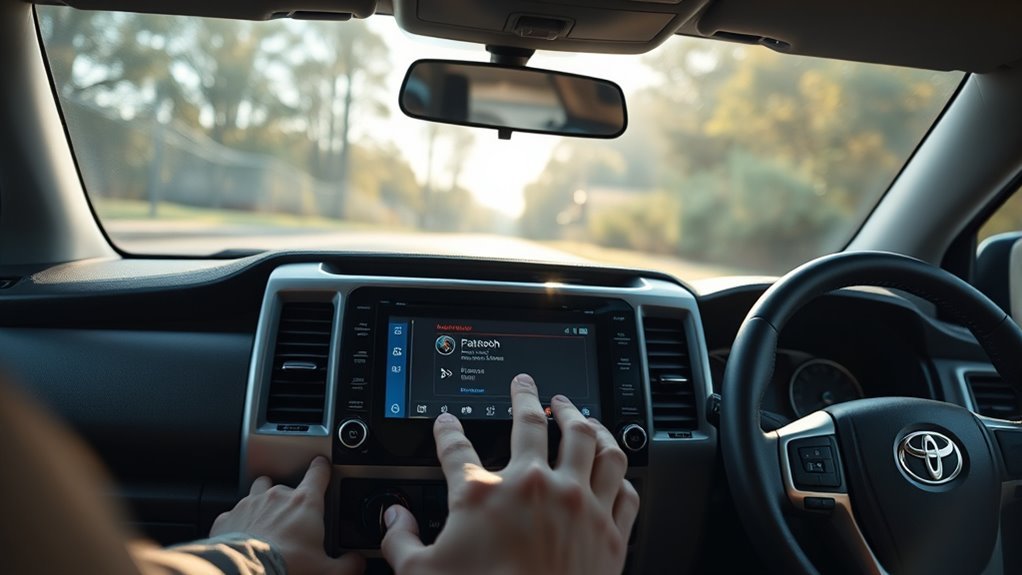
To connect Bluetooth to a Toyota 4Runner, park safely, turn on Bluetooth on your phone, open the vehicle’s Bluetooth device menu, select the add-device option, and confirm the same PIN on both screens. Then allow the permissions you need for calls, music, contacts, and notifications. Menu names vary by model year and multimedia system, so use the screen-based paths below instead of assuming every 4Runner has the same setup.
Last updated: July 14, 2026 · Reviewed for accuracy · [VERIFY: add the real author name and relevant credentials in the CMS byline]
Quick Answer
To connect Bluetooth to a Toyota 4Runner, park safely, turn Bluetooth on your phone, then open the 4Runner multimedia menu and choose the Bluetooth device setup option. Select Add Device or Add New Device, choose your phone or Toyota system from the list, confirm the matching PIN, and allow phone, audio, contacts, and notification permissions.
Key Takeaways
- Use the Bluetooth setup path that matches your system: older Entune-style menus often use Menu > Setup > Bluetooth > Add Device, while newer Toyota Audio Multimedia systems may use Settings > Bluetooth & Devices.
- If pairing fails, delete the old Toyota/4Runner pairing from both the phone and the vehicle, then restart both devices and pair again.
- If calls work but music or texts do not, check the phone’s Bluetooth permissions for calls, media audio, contacts, and notifications.
- Only set up or troubleshoot Bluetooth while parked. Toyota instructs drivers not to attempt Bluetooth pairing while driving.
At a Glance
| Time Required | 3–10 minutes for normal pairing; 10–20 minutes if you need to delete old pairings and restart devices |
| Difficulty | Easy |
| Tools Needed | Your phone, the 4Runner key, and access to the infotainment screen |
| Cost | Free, unless a dealer update or repair is needed |
Warning: Do not pair, reset, or troubleshoot Bluetooth while driving. Park in a safe place first, keep the vehicle in Park, and only use the screen when it is safe to do so. For general distracted-driving safety, review the NHTSA distracted driving guidance.
Prepare Your Phone for 4Runner Bluetooth Pairing
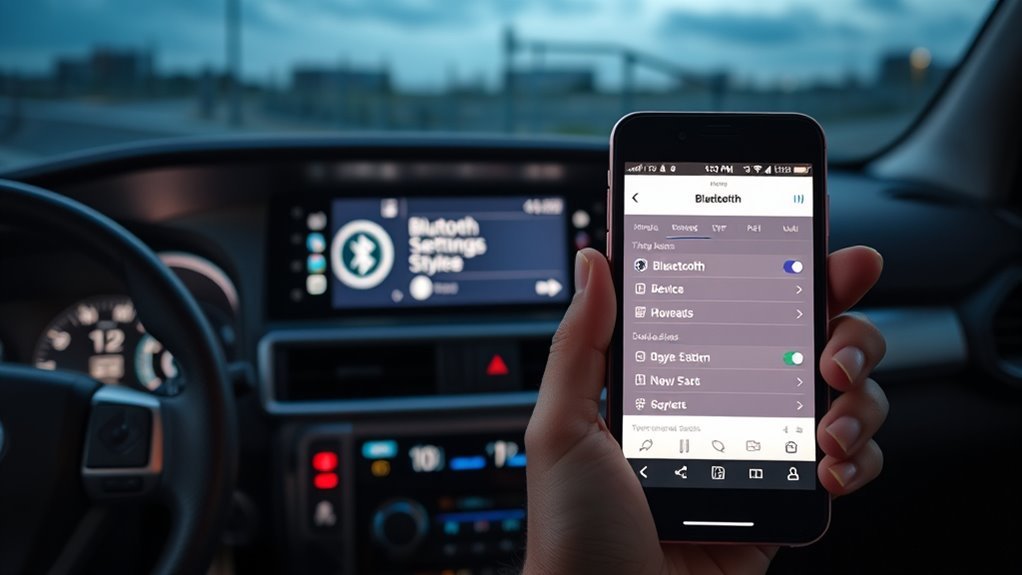
Start with the phone because old saved connections, disabled Bluetooth settings, and missing permissions are common places to check. Keep the phone close to the center console, unlock it, and leave the Bluetooth settings screen open while the 4Runner searches.
- Turn Bluetooth on.
- Make sure the phone is not already connected to another car, headset, or speaker.
- Delete old entries named Toyota, 4Runner, or HandsFree if you paired before and the connection no longer works.
- Update the phone’s operating system when practical, especially if the issue started after a major iOS or Android update.
- Be ready to approve prompts for contacts, calls, media audio, messages, and notifications.
For iPhone, open Settings > Bluetooth, turn Bluetooth on, and tap the information icon next to an old Toyota entry if you need to choose Forget This Device. Apple recommends keeping Bluetooth devices close, restarting the accessory, unpairing, placing it back in discovery mode, and trying again when a Bluetooth accessory will not connect.
For Android, open Settings > Connected devices or Bluetooth. Google’s Android Help recommends turning Bluetooth off and on, confirming the devices are paired and connected, restarting devices, and forgetting old car pairings when the phone cannot pair with a car.
Note: Phone menus vary by brand and software version. iPhone, Samsung Galaxy, Google Pixel, and other Android phones may use slightly different wording, but the reset idea is the same: forget the old Toyota connection and create a fresh pair.
Which Toyota 4Runner Bluetooth Menu Should You Use?
Toyota 4Runner Bluetooth menus are not identical across every model year. Toyota’s general Bluetooth support starts with Menu > Setup on systems with a faceplate Menu button. Newer Toyota Audio Multimedia screens group paired phones under a Bluetooth and devices area. Match the instructions to the words shown on your screen, then use the owner’s manual for your exact year if the labels differ.
| If your screen says Menu / Setup | Try Menu > Setup > Bluetooth > Add Device. |
| If your screen says Settings / Bluetooth & Devices | Open Settings > Bluetooth & Devices, then choose the on-screen option to add or register a device. |
| If your menu names do not match | Use the Bluetooth, Devices, Phone, or Connections menu in your owner’s manual or Toyota digital manual for your exact year. |
How Do You Connect Bluetooth to a Toyota 4Runner?
Use this as the main pairing sequence. It works for most 4Runner Bluetooth setups, even if your screen labels are slightly different.
[Products Worth Considering]

Upgrade your Toyota 4Runner with these heavy duty roof rack cross bars designed for raised side rails and secure cargo transport. The aluminum construction, anti-theft locking system, and tie-down loops help keep gear stable on the road while the low-profile design helps reduce wind noise. Easy to install with no drilling required, they provide a durable and convenient solution for road trips, hauling, and outdoor adventures.

This metal replacement center console latch is designed to restore secure closing performance for a wide range of Toyota and Scion vehicles. Built as an upgraded metal part, it helps solve broken latch issues and provides a more durable alternative to the original component. It is compatible with many popular models and includes the needed screws and screwdriver for installation.
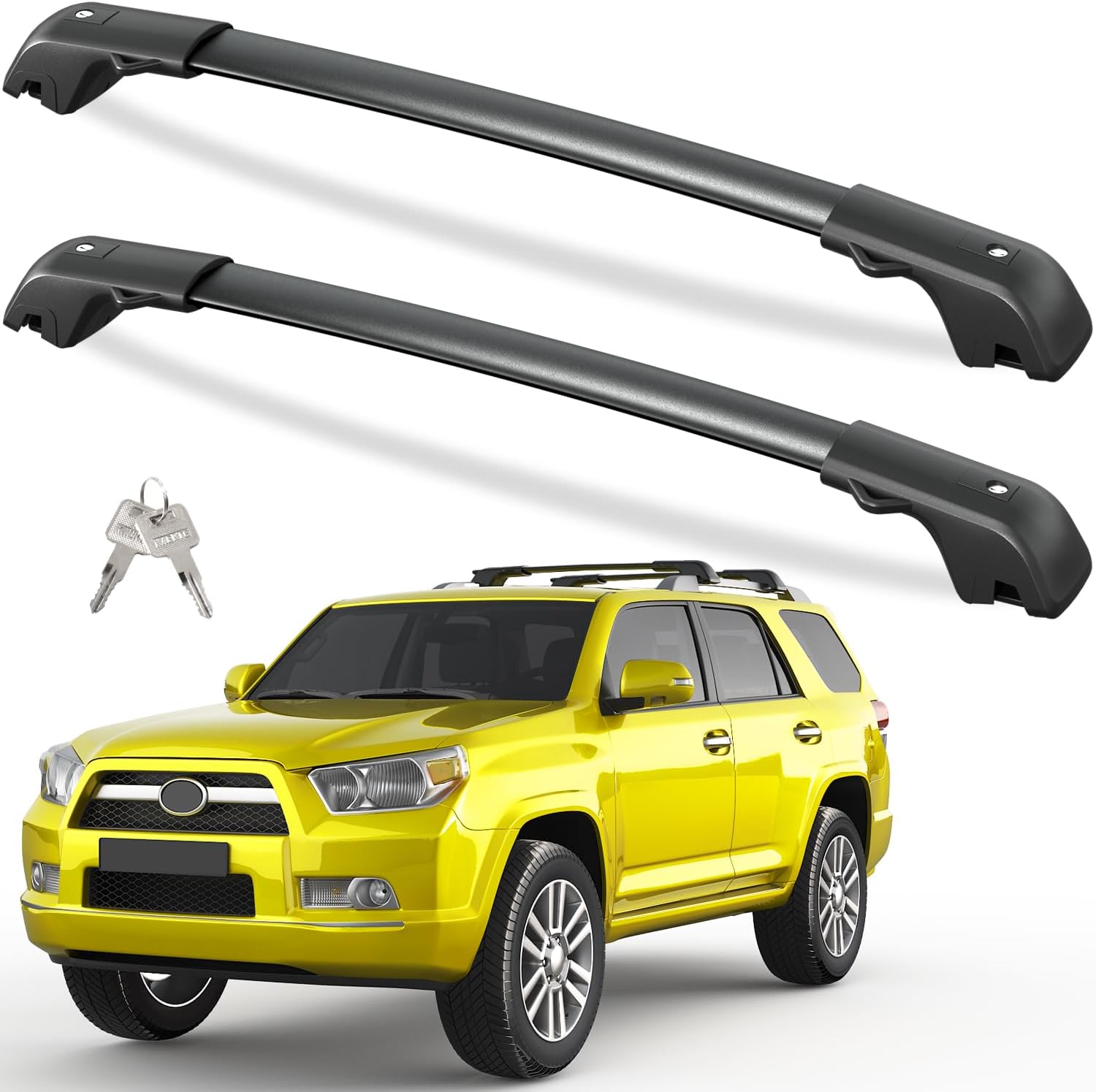
Designed specifically for Toyota 4Runner models with side roof rails, these lockable cross bars provide a secure and practical way to carry luggage, ladders, and other cargo. The aluminum construction, anti-theft metal lock, and tie-down loops add durability and confidence, while the low-profile design helps reduce wind noise during travel. Easy to install and backed by a 12-month warranty, they offer a dependable upgrade over standard crossbars.
1. Park and Turn the System On
Park safely, keep the vehicle in Park, and turn on the multimedia screen. You may need the vehicle in accessory mode or fully on, depending on your model year and system.
2. Open Bluetooth Setup on the 4Runner
On many Toyota systems, press Menu, tap Setup, choose Bluetooth, then select Add Device. On newer Toyota Audio Multimedia systems, open Settings, choose Bluetooth & Devices, then select the option shown for adding or registering a device.
3. Search From Your Phone or From the 4Runner
Depending on the multimedia system, the 4Runner may search for your phone or the phone may search for the vehicle. Keep the phone’s Bluetooth screen open. Select your phone on the 4Runner, or select the Toyota or 4Runner entry on the phone, when the device name appears.
4. Confirm the PIN on Both Screens
When a PIN or pairing code appears, compare the number on the phone and the 4Runner screen. If the codes match, accept the pairing request on both devices. If the numbers do not match, cancel and start again.
5. Allow Phone, Audio, Contacts, and Notifications
Approve the prompts you want to use. For full Bluetooth function, allow phone calls, media audio, contacts, and notifications or messages when your phone asks. If you deny a permission, pairing may still complete, but calls, music, phonebook access, or text alerts may not work.
6. Test Before You Drive
Place a short test call, play audio, and check the 4Runner source menu. On the next startup, confirm that the phone reconnects without repeating the pairing process. Connection behavior can vary by phone, multimedia software, and the priority of other saved devices.
Pro Tip: If more than one saved phone is in the vehicle, the 4Runner may connect to the last-used or priority device first. Disconnect nearby saved phones while you pair the one you want.
Is the Phone or the 4Runner Causing the Bluetooth Problem?
Use the pattern below to decide what to check first. These are starting points, not a final diagnosis, because the same symptom can have more than one cause.
| Only one phone fails, but another phone connects | Check the failing phone first. Forget the Toyota connection, restart the phone, confirm Bluetooth permissions, and pair again. |
| Several known-good phones fail | Check the 4Runner first. Clear unused phones, restart the multimedia system, check for an eligible software update, and seek dealer help if the Bluetooth menu is missing or frozen. |
| Calls work, but music does not | Check Media Audio on Android or the Toyota device settings on the phone, then select Bluetooth as the 4Runner audio source. |
| The phone appears, but the PIN never completes | Cancel the attempt, delete the saved connection from both devices, keep other Bluetooth devices disconnected, and start a clean pairing session. |
Fix Common Pairing Hiccups: Codes, Hidden Devices, and iPhone Quirks
If the 4Runner will not find your phone, the pairing code fails, or the connection drops right away, do a clean re-pair. The important part is deleting the old connection from both sides, not just one side.
[Products Worth Considering]

This wireless CarPlay adapter upgrades compatible factory wired CarPlay or Android Auto systems with wireless connectivity and built-in entertainment apps. Enjoy navigation, calls, music, and hands-free control through Apple CarPlay, plus streaming from popular video platforms when connected to a hotspot. It also supports USB media playback and an HD media port for rear-seat entertainment on road trips and daily drives.
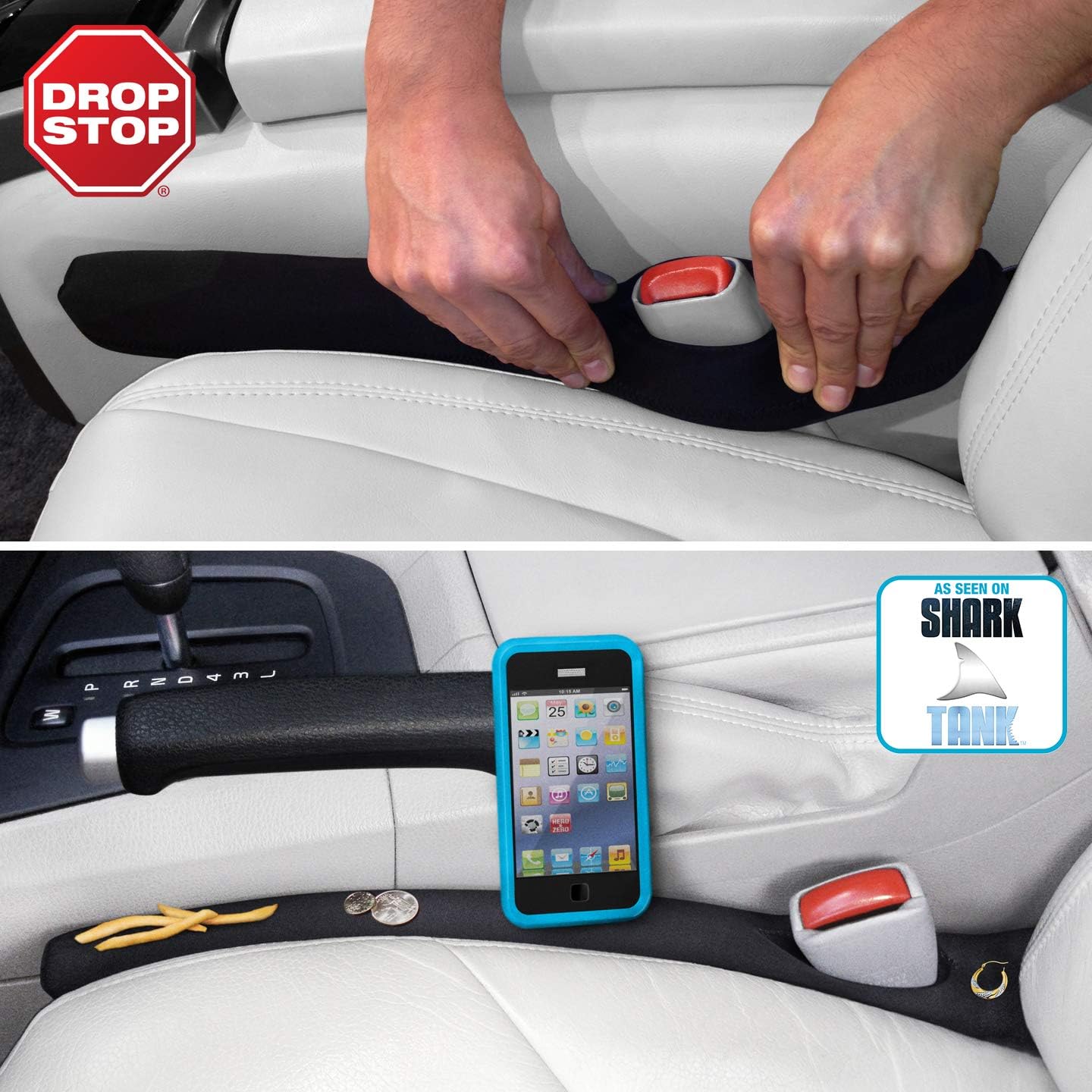
Drop Stop helps block the gap between your car seat and center console to keep phones, keys, and other small items from falling out of reach. Designed to move with the seat and fit most vehicles, it provides consistent coverage around the seat belt catch without constant readjustment. This set includes two gap fillers plus bonus accessories to help improve comfort and reduce distractions while driving.
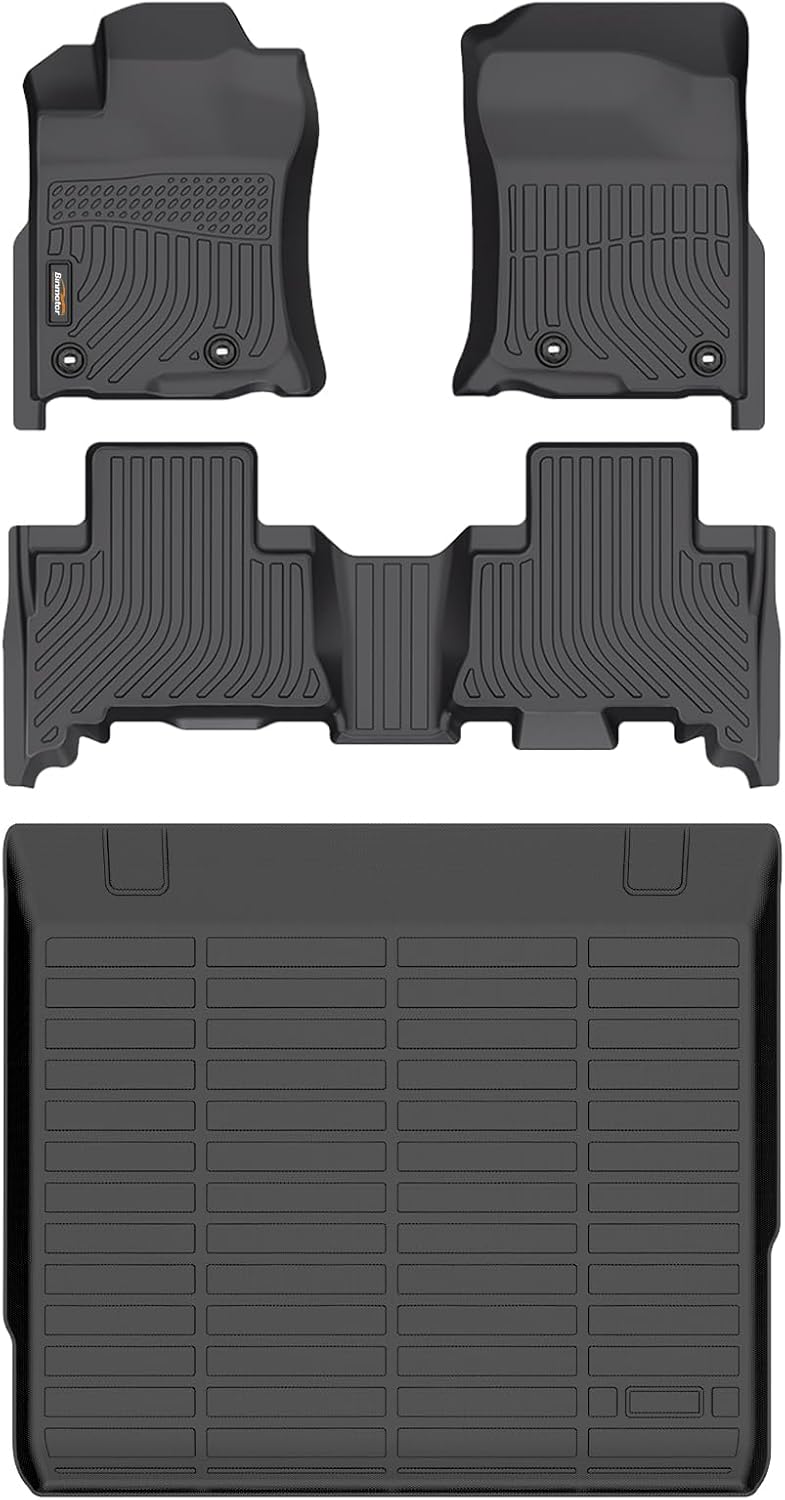
These custom-fit floor mats and cargo liner are designed for select Toyota 4Runner models and provide full-coverage protection for your interior. Made from durable TPE material with raised edges and non-slip buckles, they help contain dirt, spills, snow, and debris while staying securely in place. The waterproof design is easy to clean, making them a practical all-weather upgrade for everyday driving.
Delete Old Pairings From the 4Runner
- Open the 4Runner Bluetooth or Devices menu.
- Select the old phone entry.
- Choose Remove, Delete, Forget, or Unpair This Device.
- Repeat for unused phones if the saved-device list is full or cluttered.
- Restart the multimedia system or turn the vehicle off and back on before pairing again.
Delete the 4Runner From Your Phone
On iPhone, go to Settings > Bluetooth, tap the information icon next to the Toyota/4Runner entry, then tap Forget This Device. On Android, open the saved Bluetooth device list, tap the gear or settings icon next to the Toyota/4Runner entry, then tap Forget or Unpair.
Pair Again From a Clean Start
After deleting both sides, turn Bluetooth off and on, restart the phone, and repeat the pairing steps. If the problem began after an iOS or Android update, a clean re-pair is a low-risk first step before you reset the vehicle’s multimedia system.
Fix Media Playback, Calls, Contacts, and Notification Updates
Sometimes Bluetooth is paired, but only part of it works. Use the symptom to find the setting to check.
| Calls work, but music does not | Open the phone’s Bluetooth settings for the Toyota connection and make sure Media Audio or audio streaming is enabled. Then select Bluetooth as the audio source on the 4Runner. |
| Music works, but calls do not | Make sure the Bluetooth profile is set for phone and audio, not audio-only. Re-pair if the phone never asked for call permission. |
| Contacts do not show | Allow contact sharing on the phone. On iPhone, check the Bluetooth device details; on Android, check permissions for contacts and phone access. |
| Text alerts do not appear | Enable notifications for the Bluetooth connection and confirm message notifications are allowed on the phone. Some phones, apps, carriers, or privacy settings may limit message display. |
| Phone pairs, then disconnects | Restart the phone, delete old pairings on both sides, check for phone and Toyota multimedia updates, and pair again with other nearby Bluetooth devices disconnected. |
| Bluetooth shows connected, but no sound plays | Raise the volume on both the phone and the 4Runner, pause other connected audio devices, confirm Media Audio is enabled, and reselect Bluetooth as the vehicle’s audio source. |
If audio still behaves strangely, switch the 4Runner to another audio source, pause playback on the phone, then return to Bluetooth audio. If that does not help, do a full forget-and-re-pair cycle.
Reset or Update the 4Runner Multimedia System: When to Re-Pair vs. Update Software
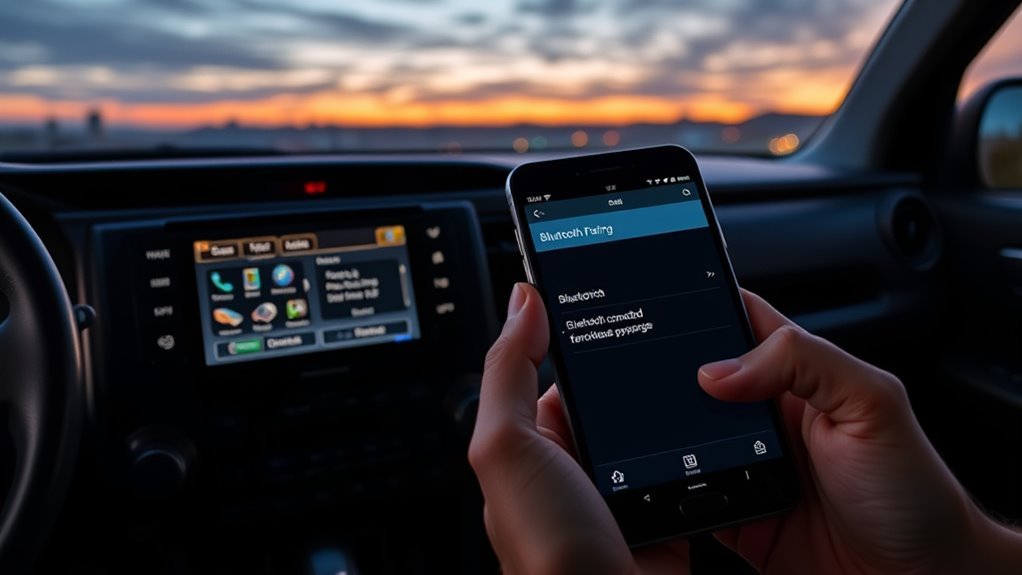
Re-pair first when the problem affects only one phone. Update or reset the multimedia system when several phones fail, menus freeze, Bluetooth disappears from the source list, or the issue started after a system change.
[Products Worth Considering]
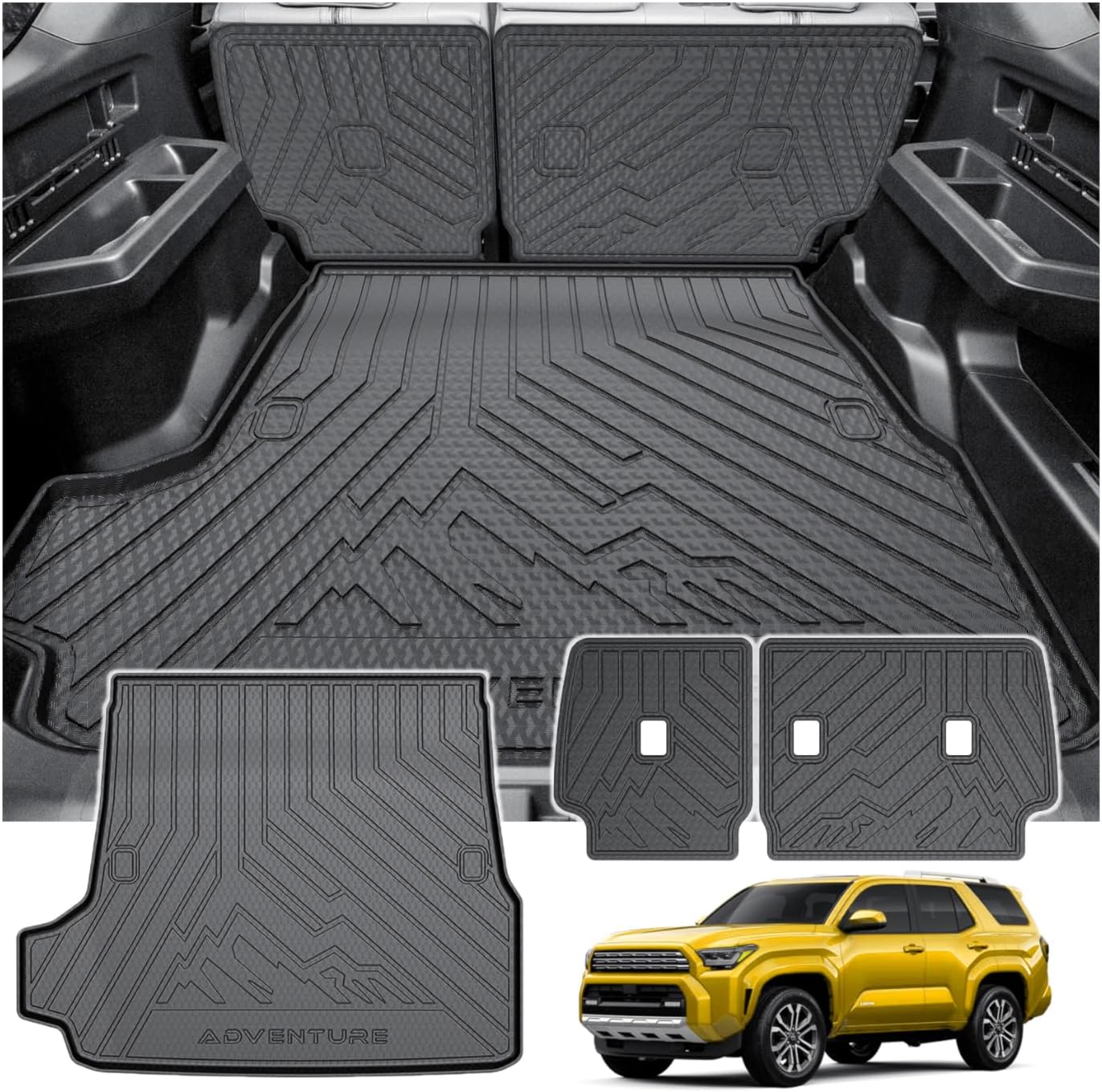
This custom-fit cargo mat is designed for 2025-2026 Toyota 4Runner gas models with 5 seats, offering full coverage for the trunk and back seat area. Made from durable TPE material with raised edges, it helps protect against mud, spills, dust, and everyday wear while staying easy to remove and clean.

These heavy-duty running board side steps are designed to improve access to your Toyota Tundra without reducing ground clearance. Built for Double Cab and CrewMax front door applications, they offer practical convenience for everyday entry, roof loading, and off-road use. The durable iron construction and easy no-drill installation make them a reliable upgrade for rugged driving.

This auxiliary jack adapter restores a broken or missing AUX connection so you can stream audio from your device through your Toyota stereo system. It is designed for compatible Toyota models and uses an 8-pin connector for a direct plug-and-play replacement. Built for reliable audio transmission, it helps bring back clear in-car sound without complicated installation.
Re-Pair When One Phone Has the Problem
Delete the 4Runner from the phone, delete the phone from the 4Runner, restart both, and pair again. This fixes most bad handshakes, stale permissions, and old Bluetooth profiles.
Check for Toyota Multimedia Updates
Toyota periodically releases multimedia software updates. Depending on the vehicle and system, updates may be available over the air, through a USB download, or through a Toyota dealer. Start with the Toyota Audio Multimedia System Updates page and the Toyota software update portal. Toyota states that the public download portal is for eligible U.S.-market vehicles, so owners elsewhere should use their regional Toyota support channel.
Use a System Reset Carefully
A reset can clear saved phones and settings, so use it after basic pairing steps fail. Look for reset options in the system settings menu or follow the owner’s manual for your exact model year. After the reset, pair only one phone first and test calls and audio before adding more devices.
Note: Do not assume every 4Runner uses the same update method. Some systems support over-the-air updates, some require USB updates, and some issues are best handled by a dealer.
When to Get Dealer Help and What They’ll Check
Get dealer help if Bluetooth still fails after you have deleted old pairings, restarted the phone and vehicle system, checked phone permissions, and looked for available updates. Dealer service is also the right move if the screen freezes, Bluetooth options are missing, the microphone does not work on any phone, or multiple known-good phones fail to pair.
A Toyota dealer can check whether the vehicle has an eligible multimedia update, confirm compatibility, inspect the multimedia unit for faults, and test pairing with a known-good device. Bring your phone, note your phone model and software version, and explain exactly what works and what fails: calls, music, contacts, text alerts, auto-connect, or pairing discovery.
Frequently Asked Questions
Why won’t my Toyota 4Runner connect to Bluetooth?
The most common causes are old saved pairings, Bluetooth being connected to another device, denied phone permissions, outdated phone software, or a multimedia system that needs a restart or update. Delete the pairing from both the phone and the 4Runner, restart both devices, then pair again while parked.
How do I reset 4Runner Bluetooth?
Open the 4Runner Bluetooth or Devices menu, select the saved phone, and choose Remove, Delete, Forget, or Unpair. Then remove the Toyota/4Runner entry from your phone’s Bluetooth settings. Restart the phone and multimedia system, then pair again from a clean start.
Why does my 4Runner Bluetooth connect for calls but not music?
The phone may be connected as phone-only instead of phone and audio, or media audio may be disabled in the phone’s Bluetooth settings. Open the Bluetooth details for the Toyota connection and enable media audio, then select Bluetooth as the 4Runner audio source.
Why do my contacts or text messages not show on the 4Runner screen?
The phone probably did not grant contact or notification permissions. Check the Toyota/4Runner Bluetooth device details on your phone and allow contacts, calls, messages, and notifications where available. Some phones, apps, and privacy settings limit what the vehicle can display.
Can I pair Bluetooth while driving?
No. Park safely before pairing or troubleshooting. Pairing requires looking at screens, confirming prompts, and changing settings, which can distract from driving.
Where is the Bluetooth menu on a Toyota 4Runner?
On many systems, press Menu, then open Setup > Bluetooth. On newer Toyota Audio Multimedia screens, look under Settings > Bluetooth & Devices. If neither path matches, use the multimedia owner’s manual for your exact model year.
Why does my 4Runner Bluetooth keep disconnecting?
Competing saved devices, stale pairing data, disabled phone or media permissions, or multimedia software problems can interrupt the connection. Disconnect nearby saved devices, delete the pairing from both sides, restart the phone and vehicle system, then pair again.
Conclusion
Start with a clean pairing before you reset anything: park safely, remove the old Toyota connection from both devices, restart the phone and multimedia system, pair again, and approve the permissions you need. If only one phone fails, focus on that phone. If several phones fail or the Bluetooth menu freezes or disappears, check Toyota’s update options or ask a dealer to inspect the multimedia system.
Sources
- Toyota Support: How do I pair my smartphone to my vehicle via Bluetooth? — backs the basic Menu, Setup, Bluetooth, Add Device pairing flow.
- Toyota 2025 4Runner Digital Manual: Registering a Bluetooth device — backs newer 4Runner Toyota Audio Multimedia Bluetooth registration guidance.
- Toyota Audio Multimedia and Connected Services — backs Toyota Bluetooth feature context and the warning not to pair while driving.
- Toyota Owners: Audio Multimedia System Updates — backs over-the-air, USB, and dealer software update options.
- Google Android Help: Fix Bluetooth problems on Android — backs Android troubleshooting steps for car Bluetooth pairing.
- Apple Support: If a Bluetooth accessory won’t connect to your iPhone or iPad — backs iPhone Bluetooth troubleshooting steps.
- NHTSA: Distracted Driving — backs the safety warning to complete pairing and troubleshooting while parked.