
To set up Toyota Remote Connect on your Camry, download the Toyota app from the App Store or Google Play Store. Create an account, verify your email, and accept the terms for connected services. Add your vehicle by entering the VIN or scanning it with your camera. After entering the authorization code from your email into the app and your car’s Entune system, you’ll enjoy features like remote start and health reports. Discover more about managing your vehicle effectively.
How to Download the Toyota App for Your Camry
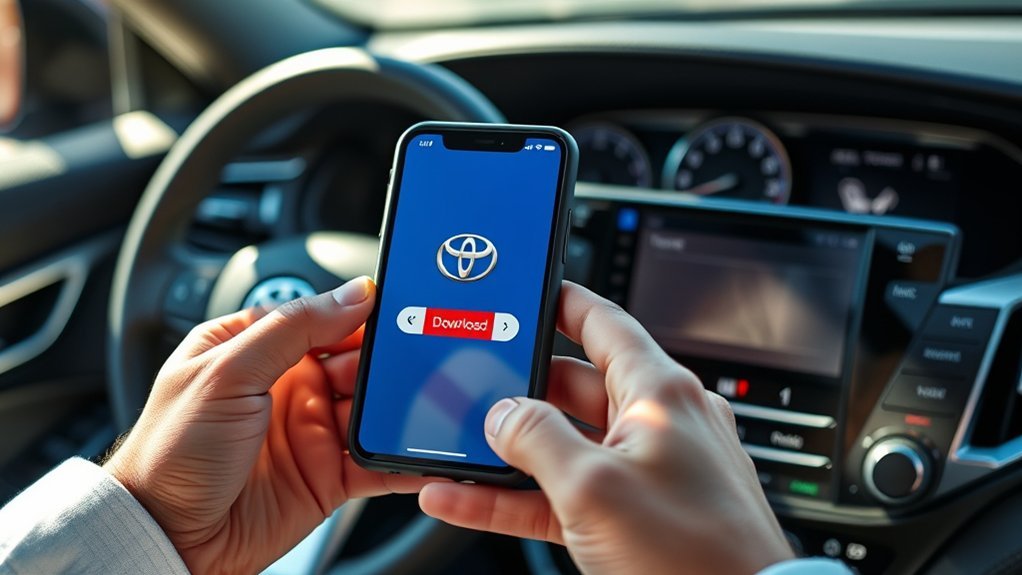
To get started with Toyota Remote Connect, you’ll first need to download the Toyota app for your Camry. Open the App Store or Google Play Store on your smartphone, and search for “Toyota.” Once you find the app, hit download. A stable internet connection is essential for a smooth setup.
After downloading, create a user account using your email address or Apple ID to access the app features. If your Camry isn’t listed, select the “Add Vehicle” option. You can enter your VIN number manually or scan it using your phone’s camera for convenience.
Verify your vehicle details once entered. For easier identification within the app’s user interface, consider giving your Camry a nickname. With these steps complete, you’re now ready to explore the powerful features Toyota Remote Connect offers, all designed to enhance your driving experience.
Steps to Create Your Toyota Account
To create your Toyota account, start by downloading the Toyota app from the App Store or Google Play Store. Next, enter your account information, including your email address or Apple ID. Don’t forget to verify your email address to complete the setup process.
Download Toyota App First
Start by downloading the Toyota app from the App Store or Google Play Store to kick off your Toyota Remote Connect setup. Once the installation process is complete, open the app and create your account using your email address or Apple ID. If your vehicle isn’t listed, select the “Add Vehicle” option. You can enter your VIN manually or use the camera to scan it for convenience. After adding your vehicle, verify the details and consider giving it a nickname for easy identification. Don’t forget to accept the terms for connected services and data sharing during registration to enable full functionality. With these steps, you’re on your way to enjoying the freedom of Toyota Remote Connect!
Enter Account Information
After successfully downloading the Toyota app and adding your vehicle, it’s time to set up your account. Start by using your email address or Apple ID to create a new account—make sure you have access to your email for verification later. If prompted, enter your vehicle’s VIN number manually or scan it using the app’s camera feature for convenience. Next, review and accept the terms of use and data sharing agreements to proceed with setting up your connected services. This step is essential for account security. After you complete registration, check your email for an authorization code; you’ll need it for further setup within the app. You’re now one step closer to fully utilizing your Toyota Remote Connect!
Verify Your Email Address
Verify your email address to activate your Toyota account and access the full potential of Remote Connect. After creating your account through the Toyota app, check your inbox for the email verification link. This step is vital for account security, ensuring only you can access your information.
Make sure the email you provided is valid and accessible, as it’s essential for future communications and account recovery. If you don’t see the verification email, don’t forget to check your spam or junk folder; it might have been misdirected. Once you click the verification link, you can log in to the Toyota app and start configuring your vehicle for Remote Connect services. Embrace the freedom of connectivity!
How to Add Your Vehicle Using VIN or Camera
Adding your vehicle to the Toyota app is a straightforward process that enhances your remote connection experience. Start by selecting the “Add Vehicle” option if no vehicle is listed in your account. You can either enter your vehicle’s VIN number manually or use the camera feature for VIN scanning. The VIN is usually found on the driver’s side dashboard or inside the driver’s side door frame.
After entering or scanning the VIN, verify the vehicle details in the app to confirm they’re accurate. Once confirmed, you can choose a vehicle nickname for easier identification.
| Step | Action | Notes |
|---|---|---|
| Select “Add Vehicle” | Open the app | If no vehicle is listed |
| Enter/Scan VIN | Use camera or type | Find VIN on dashboard/frame |
| Confirm & Nickname | Verify details | Personalize your experience |
This simple setup gets you ready to maximize your Toyota Remote Connect features!
What to Know About Your Toyota Connected Services Trial
When you purchase or lease a new Toyota, you typically get a trial of Toyota Connected Services that lasts one to three years, depending on your vehicle. During this trial duration, you can enjoy various trial features like remote start, lock, open, and access to vehicle health reports. However, keep in mind that service limitations may apply, and a good cellular connection and GPS signal are essential for peak functionality.
Once your trial ends, you’ll need to explore subscription options to maintain access. During setup, you’ll have the chance to accept or decline specific terms related to data privacy and connected services. This empowers you to customize your user experience based on your preferences. Embrace the setup benefits of Toyota Connected Services, and enjoy the freedom and convenience they provide while you navigate the open road.
Accepting the Terms for Remote Services
Before you can fully enjoy Toyota Remote Connect, you’ll need to accept the terms for connected services. This includes giving consent for data sharing, which is essential for activating the features. Take a moment to read the terms carefully to understand how your information will be used and what services you’ll have access to.
Understanding Service Terms
To access Toyota Remote Connect, you’ll need to accept the terms of service, which detail how your data will be shared and used. It’s essential to understand these service terms to guarantee you’re comfortable with their data policies. Here’s what to keep in mind:
- The trial period typically lasts one to three years, depending on your vehicle.
- You must consent to data collection for features to work effectively.
- Review the terms carefully; some features are optional, while others are mandatory.
- After the trial, you’ll require a paid subscription to maintain access.
Being informed about these subscription options empowers you to make the best decision for your connected driving experience.
Data Sharing Consent
Accepting the terms for Toyota Remote Connect is essential, as it directly impacts how your vehicle’s data is shared and utilized. By reviewing the specific terms of use, you’ll understand how your data—like vehicle performance and location—is collected and shared. While you can decline certain data-sharing features, accepting the core terms is vital for full functionality. Consider the consent implications closely, as data privacy is paramount; know that charges may apply during usage. The trial period typically lasts one to three years, after which a paid subscription is required to maintain access to services. Make an informed choice, balancing the benefits of connectivity with your comfort concerning personal data sharing.
How to Receive and Enter the Authorization Code
Once you’ve set up the Toyota app, check your email for the authorization code needed to complete your Remote Connect setup for your Camry. Make sure the email address linked to your Toyota account is correct; this guarantees you receive the authorization code promptly.
To proceed, follow these steps:
- Navigate to the Entune system in your Camry.
- Select “Remote Connect Authorization” to initiate the verification process.
- Enter the received authorization code into the app.
- Refresh the Toyota app to access updated vehicle information and remote functionalities.
Verifying Your Vehicle’s Connected Services Setup
To verify your vehicle’s Connected Services setup, start by checking your email for the authorization code you received after app setup. Next, head to the Entune system in your Camry and select “Remote Connect Authorization” to enter that code. Once you successfully input the code, refresh the Toyota app to confirm your vehicle’s connectivity and access features like remote start and lock.
Vehicle Setup Confirmation
Verify your vehicle’s connected services setup by first confirming it’s added to the Toyota app. You can do this by entering your VIN or using your camera for accurate vehicle identification.
Next, check your email for the authorization code needed to complete the Remote Connect setup. Follow these steps for successful verification:
- Navigate to the Entune system in your Camry.
- Select “Remote Connect Authorization” and enter the authorization code.
- Refresh the Toyota app post-authorization to access remote features.
- Confirm you have a good cellular signal and GPS connection throughout the process.
Once confirmed, you’ll access functionalities like remote start, lock, release, and vehicle health reports, empowering your driving experience.
Service Functionality Check
Before diving into the specifics of your Toyota Remote Connect‘s service functionality, verify you’ve registered and signed into the Toyota app with your email or Apple ID. Next, add your Camry by entering the VIN or scanning it, then look for an authorization code sent to your email. To complete the setup, navigate to the Entune system in your Camry, select “Remote Connect Authorization,” and enter the received code. This step confirms successful linkage. Afterward, refresh the Toyota app to access features like remote start, lock, open, and vehicle health reports. Make sure you have a strong cellular signal and GPS connection during these checks to maintain service reliability and identify any potential feature limitations.
Accessing Remote Features in the Toyota App
Once you’ve downloaded the Toyota app and created your account, accessing the Remote Connect features is straightforward. Follow these steps to enhance your user experience and enjoy the app convenience:
- Add your Camry by entering the VIN or scanning it with your camera.
- Check your email for the authorization code needed for Remote Connect activation.
- In your Camry, navigate to the Entune system, select “Remote Connect Authorization,” and enter the code.
- Refresh the Toyota app to access remote features like remote start, lock, release, and view vehicle health reports.
To make the most of these feature benefits, guarantee you have a strong cellular signal and GPS connection, reducing any connectivity issues. Always be mindful of security measures to protect your vehicle. If you encounter any difficulties, user support is readily available to guide you through app navigation. Enjoy the liberation that comes with Remote Connect!
Managing Your Vehicle’s Health Reports
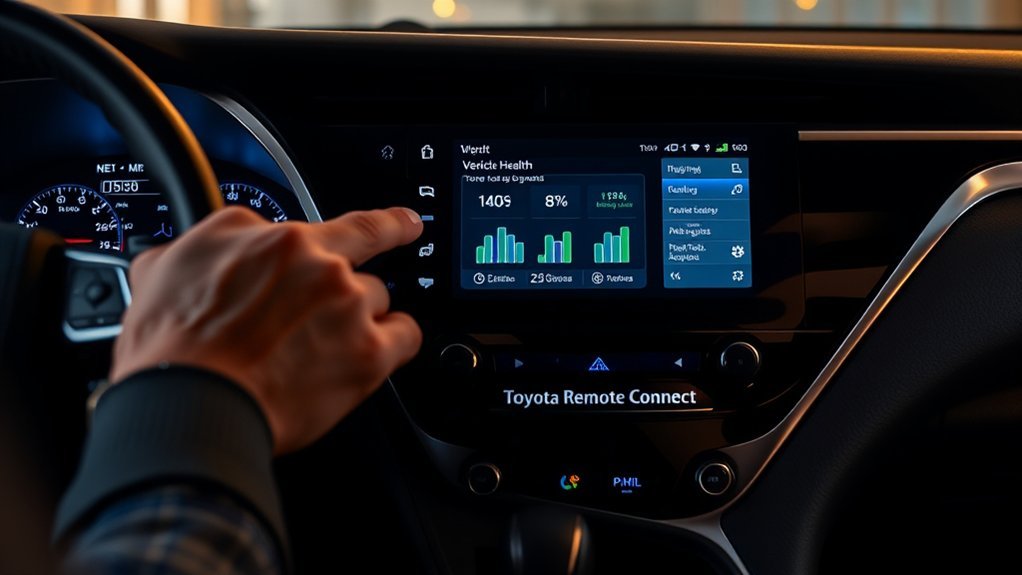
With your Camry fully connected through the Toyota app, managing your vehicle’s health reports becomes a seamless experience. You can easily access detailed insights into key metrics like engine status and battery health right from your phone. The health report benefits you by keeping you informed about your Camry’s overall condition and any service requirements.
The app also sends you timely maintenance reminders, helping you tackle issues before they escalate. By regularly checking these reports, you enhance your vehicle’s longevity and performance. If you notice anything concerning, you can schedule service appointments directly through the app, streamlining your maintenance process for ultimate convenience.
Stay proactive—monitor your health reports frequently to guarantee your Camry remains in top shape. Embrace the freedom that comes from knowing your vehicle is running smoothly and efficiently, giving you peace of mind on every drive.
Tips for Troubleshooting Common Setup Issues
Troubleshooting setup issues for Toyota Remote Connect can be straightforward if you follow a few essential steps. Start by addressing common errors that may arise during the setup process. Here are some key troubleshooting steps:
Troubleshooting Toyota Remote Connect setup is simple with essential steps to resolve common errors effectively.
- Connectivity Checks: Confirm your vehicle has a stable cellular connection and GPS signal.
- Software Updates: Verify that your vehicle’s Entune system software is up to date to avoid compatibility issues.
- Email Verification: If you don’t receive the authorization code, check your email for correctness and look in your spam folder.
- Account Issues: Double-check that your registration in the Toyota app is complete, as incomplete steps can block access to Remote Connect features.
If you still face issues, restart both your smartphone and the vehicle’s infotainment system to resolve minor connectivity problems. Following these setup solutions can lead you to a smooth Remote Connect experience.
Frequently Asked Questions
How Much Is Toyota Remote Connect per Month?
Toyota Remote Connect typically costs around $8 per month after the trial. This subscription activates feature benefits like remote start and vehicle status checks. Always check local pricing and manage your subscription via the Toyota app.
Does the Toyota Camry Have Remote Connect?
Yes, your Toyota Camry includes Remote Connect, letting you enjoy the freedom of remote access. Imagine starting your car from the warmth of your home—this feature simplifies daily routines while enhancing your driving experience.
Conclusion
Now that you’ve set up Toyota Remote Connect on your Camry, you can easily access features like remote lock/unlock and vehicle status. This technology enhances your driving experience and keeps you connected. Remember to explore the app for vehicle health reports and troubleshooting tips. If you encounter any issues, don’t hesitate to refer back to the setup steps. With everything in place, you’re ready to enjoy your Camry’s modern conveniences. Safe driving!



[…] will find compatibility on select 2022 and later RAV4 models, so check your model year and trim. Toyota designed Remote Connect to give you remote control over core functions through the Toyota app. A 6-digit PIN protects every […]