
Your Camry clock can drift, reset after a battery disconnect, or show the wrong time after a trip. You can fix most clock issues from the display screen in a few minutes. This guide shows you how to set the time, choose a time format, adjust daylight saving time, and use GPS-based time updates when your Camry supports them.
Quick Answer
To set the clock in your Toyota Camry, turn on the display, open the Setup menu, and choose Clock Settings. From there, set the time manually or turn on GPS-based time adjustment if your model includes it. Check daylight saving time, time zone, and the 12-hour or 24-hour format before you leave the menu.
Key Takeaways
- Use the Setup menu on the display screen to open Clock Settings.
- Set the time manually if GPS time does not match your location.
- Turn daylight saving time on or off based on your local rules.
- Choose 12-hour or 24-hour time format to match your preference.
- Check the display after each change to make sure the clock shows the correct time.
How to Access the Clock Settings in Your Toyota Camry

To access the clock settings in your Toyota Camry, turn on the vehicle’s display screen. Open the main menu and choose the “Setup” option. This menu gives you several display and vehicle settings you can adjust from one place.
Look for “Clock Settings” or a similar clock option on the screen. Menu names can vary by model year, trim, and infotainment system, so check your owner’s manual if your screen uses different wording.
Inside the clock menu, you can set the correct time and date, change the daylight saving time setting, and choose your preferred time format. After each change, confirm that the time displays correctly on the screen.
Before You Begin Setting the Camry Clock
You do not need tools to set the clock in most Toyota Camry models. You only need access to the vehicle display and enough battery power to use the screen.
- Estimated time: about 2 to 5 minutes
- What you need: the vehicle display screen and your current local time
- Optional help: your Toyota owner’s manual if your menu layout differs
Note: Some Camry trims use buttons near the display, while others use touchscreen menus.
How to Set the Clock in Your Toyota Camry
Setting the clock in your Toyota Camry takes only a few steps. Use this process when the time looks wrong, the battery was disconnected, or the clock did not change after daylight saving time.
- Turn on the display screen. Press the power button or switch the vehicle to accessory mode so the screen turns on.
- Open the Setup menu. Tap or select “Setup” from the main menu on the display.
- Select Clock Settings. Choose the clock menu so you can adjust time, date, time zone, and format options.
- Set the time manually. Use the hour and minute controls to match your current local time.
- Choose your time format. Select either a 12-hour or 24-hour display based on your preference.
- Save or confirm the setting. Exit the menu only after the display shows the correct time.
If your Camry includes GPS-based auto-adjust, you can enable it instead of setting the time by hand. This feature works best when the vehicle can read its current location through the navigation or GPS system.
You can also toggle the daylight saving time adjustment on or off. Check this setting if the clock appears one hour ahead or behind your local time.
How to Turn On Daylight Saving Time
After you set the clock, check the daylight saving time setting. This option helps your Camry match local seasonal time changes in areas that observe daylight saving time.
Open the vehicle’s display menu, choose Setup, and then open clock settings. Find the daylight saving time option and switch it on if your area uses it.
If your location does not use daylight saving time, leave the option off. After you change the setting, check the display again and make sure it matches your local time.
How to Enable GPS-Based Time Adjustments
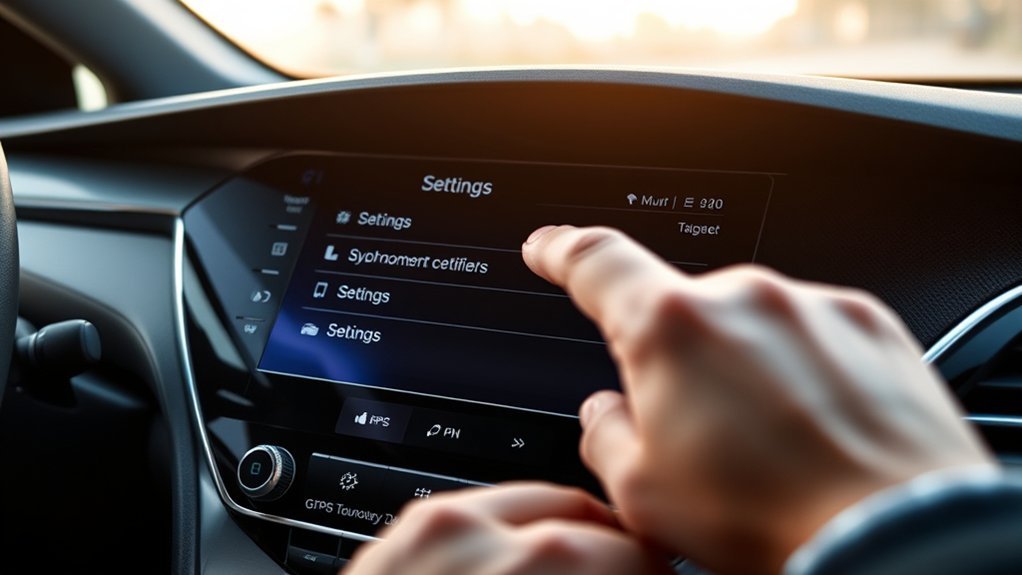
If you travel often or drive across time zones, GPS-based time adjustment can save you from resetting the clock by hand. When your Camry supports this feature, the system uses location data to help match the clock to your current area.
To activate it, open Setup, choose Clock Settings, and turn on the GPS or auto-adjust time option. Your exact menu wording may differ based on your model year and display system.
Once you turn it on, the system can help with time zone changes during long trips. If the clock still shows the wrong time, check the time zone, daylight saving time setting, and GPS signal.
How to Customize Your Time Format and Time Zone
After you set the main clock, adjust the format and time zone so the display matches how you read time. These settings make the clock easier to use every day.
Select Time Format
You can choose between a 12-hour or 24-hour format in the clock settings menu. Open Setup, select Clock Settings, and look for the time format option.
Choose 12-hour time if you prefer AM and PM. Choose 24-hour time if you prefer military-style time or a format often used outside the United States.
Change Time Zone
To change the time zone, open the display menu and choose Setup. In clock settings, look for the current time zone and select the one that matches your location.
This step matters if you travel or if GPS time adjustment does not update the display correctly. A wrong time zone can make the clock look incorrect even when the minutes are right.
Adjust Daylight Saving Time
Open the clock settings menu and switch daylight saving time on or off as needed. Use this setting when your clock appears exactly one hour fast or slow.
If your Camry also uses automatic GPS-based time adjustment, the system may handle some time changes for you. Still, you should confirm the display after seasonal time changes or long trips.
Setting the Clock: Common Problems and Solutions
When your Toyota Camry’s clock shows the wrong time, start with the simplest settings first. Check daylight saving time, time zone, and 12-hour or 24-hour format before you reset anything.
- The clock is one hour off: Turn daylight saving time on or off in Clock Settings.
- The clock changes after a trip: Check the time zone and GPS-based time adjustment setting.
- The clock resets after battery work: Set the time again and make sure the battery connections stay secure.
- The menu looks different: Use your owner’s manual because Toyota changed display layouts across model years and trims.
- The auto-adjust feature does not work: Turn GPS time off and set the clock manually.
If the clock keeps losing time after you set it, your vehicle may have a weak battery, display issue, or electrical fault. A Toyota service center or qualified technician can inspect the problem if simple settings do not fix it.
Frequently Asked Questions
Can I Set the Clock Without Starting the Engine?
Yes, you can usually set the clock without starting the engine. Switch the vehicle to accessory mode, turn on the display, and open the clock settings menu.
Will the Clock Reset After a Battery Change?
Yes, the clock may reset after a battery change or battery disconnect. Set the time again after the repair, then confirm that the display keeps the correct time.
How Do I Switch Between 12-Hour and 24-Hour Formats?
Open the clock settings menu from the display screen and find the time format option. Select 12-hour time for AM and PM or 24-hour time for a military-style display.
What if My Clock Keeps Losing Time?
If your clock keeps losing time, check the battery condition and the clock settings first. If the issue continues, ask a qualified technician to inspect the electrical system or display unit.
Can I Adjust the Clock Using Voice Commands?
Some Toyota systems may support voice commands for certain settings, but availability depends on your model year and trim. If voice control does not work, use the display menu to adjust the clock manually.
Conclusion
Setting the clock in your Toyota Camry comes down to the Setup menu, Clock Settings, and a final check of the display. Start with manual time, then adjust daylight saving time, time zone, and format as needed. If your Camry supports GPS time adjustment, turn it on for easier travel between time zones. Once the time looks right, you can drive without second-guessing the clock.