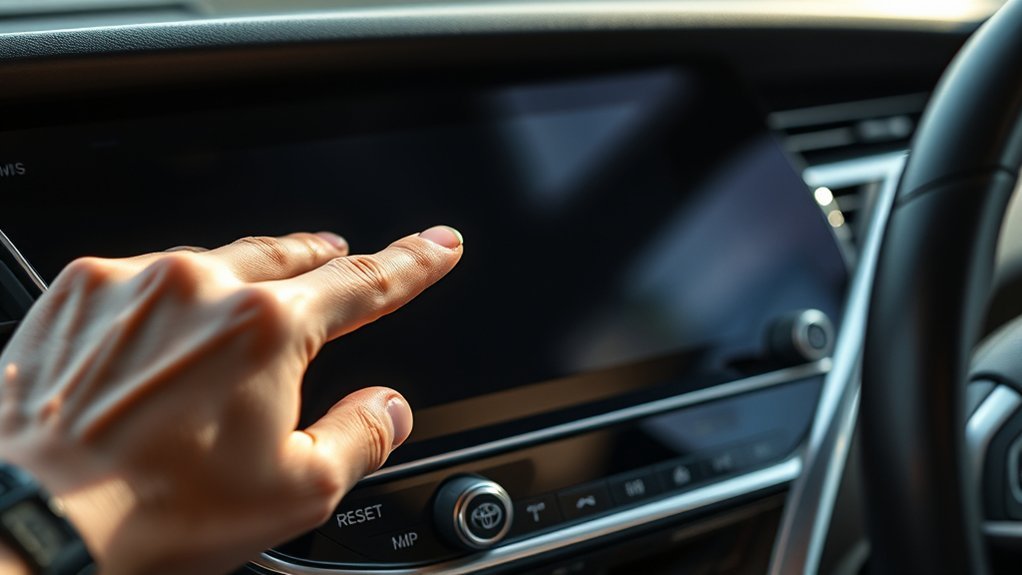
If your Toyota Camry infotainment screen freezes, Bluetooth will not connect, or the audio controls lag, start with the least-destructive reset first. A quick reboot can clear a temporary software glitch, while a full Toyota Audio Multimedia system reset should be saved for persistent problems because it can remove profiles, preferences, favorites, and paired-device information.
Quick Answer
To reset a 2025 Toyota Camry infotainment system, park first, then hold the power/volume button until the screen restarts for a soft reboot. For a deeper reset, use Settings > Info & Security > System reset > Reset where available. Back up favorites and profile details before confirming.
Key Takeaways
- Use a quick reboot first because it normally restarts the screen without erasing saved settings.
- Use a profile reset when only your driver preferences, radio favorites, or navigation preferences need a clean start.
- Use a full system reset only for persistent problems or ownership changes because it can remove user profiles and personal data.
- After any deeper reset, expect to reconnect Bluetooth, Apple CarPlay, Android Auto, Toyota app features, and connected services if equipped.
At a Glance
| Time Required | 1–2 minutes for a reboot; 5–10 minutes for reset and re-pairing |
| Difficulty | Easy |
| Tools Needed | None, but keep your phone and Toyota account login nearby |
| Cost | $0 unless dealer diagnosis or repair is needed |
Warning: Do not reset, pair a phone, or change infotainment settings while driving. Park in a safe place, shift to Park, and keep your attention off the screen until the vehicle is stopped.
Choose the Right Reset Before You Start
“Reset” can mean several different things in a Toyota Camry. Choosing the right one helps you fix the problem without erasing more than necessary.
| Reset Type | Best For | Likely Data Impact |
|---|---|---|
| Quick reboot | Frozen screen, lag, minor audio or Bluetooth glitches | Usually does not erase saved data |
| Profile settings reset | Bad preferences, radio favorites, navigation preferences, notification settings | Resets personal display/profile settings to default |
| Full system reset | Persistent software issues, selling the car, removing old owner data | Can remove users, personal data, profiles, and original settings |
| Delete driver profile | Removing one saved driver from the multimedia system | Deletes the selected profile and may let you forget linked Bluetooth devices |
For the new-generation Toyota Audio Multimedia system used in recent Toyota models, Toyota’s Audio Multimedia Change of Ownership Guide lists the full system reset path as Settings > Info & security > System reset > Reset. Toyota also lists a separate profile settings reset under Settings > Personal info > Reset settings.
How to Perform a Quick Reboot for Temporary Glitches
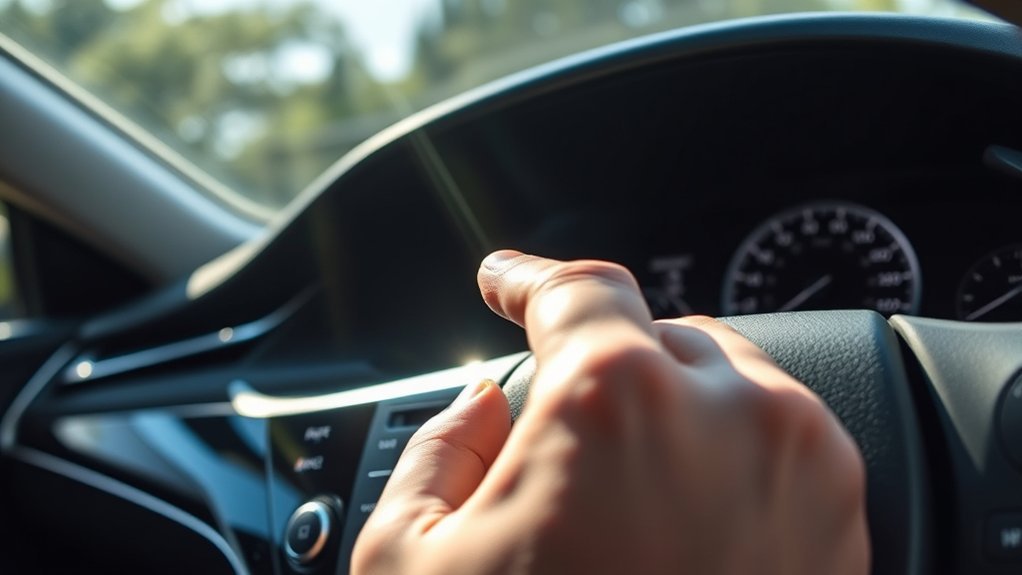
If the screen is slow, the audio menu freezes, or Bluetooth briefly drops, try a quick reboot before using any reset menu. This restarts the infotainment display and can clear temporary memory without deleting your radio presets, profile, or paired phones.
- Park the Camry safely and keep the vehicle in Park.
- Keep the ignition on or the hybrid system in Ready mode so the multimedia screen has power.
- Press and hold the power/volume button for about 5–10 seconds, or until the display turns off and begins restarting.
- Wait for the Toyota logo or home screen to return.
- Test the feature that was acting up, such as Bluetooth, audio, navigation, or Apple CarPlay.
Pro Tip: If the problem happens only with one phone, restart the phone too. Then delete the Camry from the phone’s Bluetooth list and re-pair it before doing a full system reset.
How to Safely Factory Reset Your Infotainment System
A full system reset is the deepest in-vehicle reset. Use it when a quick reboot does not fix repeated freezing, profile errors, connected-service issues, or when you need to clear personal data before selling or transferring the vehicle.
Warning: A full system reset can remove users, personal data, and saved settings. Toyota’s ownership guide also notes that if the Primary Driver is deleted, replaced, or a system reset is completed, active trials or subscriptions may be canceled and enrollment may be required again.
- Park safely and keep the vehicle powered on.
- Open Settings on the Toyota Audio Multimedia display.
- Scroll the left-side menu and select Info & Security if shown.
- On the right-side submenu, choose System reset.
- Select Reset to confirm.
- Wait for the system to restart, then follow the on-screen setup prompts.
Use the full system reset only after a quick reboot and basic phone-pairing fixes fail. It is more like preparing the multimedia system for a fresh owner than simply refreshing a frozen screen.
Menu wording can vary by software version, region, and audio package. If your Camry does not show Info & Security or System reset, check the 2025 Camry Hybrid interactive owner’s manual or contact Toyota support before using unrelated reset options.
How to Reset Only Your Driver Profile Settings
If the infotainment system works but your personal settings are messy, start with a profile settings reset instead of a full system reset. Toyota’s support guidance for user profiles lists this path for resetting personalized preferences back to factory default:
- Open Settings.
- Select Personal info.
- Scroll down on the right side of the multimedia display.
- Select Reset settings.
- Tap Reset to confirm.
This profile reset is meant for personal display settings. Toyota’s change-of-ownership guide lists settings such as navigation preferences, music streaming preferences, radio favorites, and vehicle/notification settings as items that can be reset to default.
Note: If you are selling the vehicle, returning a lease, or removing a previous owner, use the full system reset or Primary Driver removal process instead of only resetting profile preferences.
How to Back Up Your Data Before a Reset
There is not one universal in-car export button that saves every Toyota Audio Multimedia profile setting. Before you reset, make a quick record of anything you would hate to rebuild later.
| Backup Step | What to Save |
|---|---|
| Write down or photograph favorites | Radio presets, favorite destinations, saved home/work locations, audio settings |
| Check your phone | Your phone contacts and Apple CarPlay/Android Auto apps remain on the phone, but the vehicle pairing may need to be rebuilt |
| Confirm Toyota account access | Toyota app login, connected-services enrollment, Drive Connect or Remote Connect status if equipped |
| Record problem details | Photos or notes about error messages, blank screens, failed pairing, restart loops, or update prompts |
Saving these details first makes it much easier to restore your preferences after the reset or explain the issue to a Toyota dealer if the reset does not fix it.
What Gets Erased and What Usually Stays
The exact result depends on whether you choose a quick reboot, profile settings reset, or full system reset. Use this as a practical guide before you tap Reset.
| Item | Quick Reboot | Profile Reset | Full System Reset |
|---|---|---|---|
| Radio favorites | Usually stays | May reset | May be erased |
| Navigation preferences | Usually stays | May reset | May be erased |
| Bluetooth pairings | Usually stays | Usually stays unless profile/device is removed | Expect to re-pair |
| Toyota app / connected services | Usually stays | Usually stays | May require re-enrollment or sign-in |
| Phone contacts and apps | Stay on your phone | Stay on your phone | Stay on your phone, but vehicle access may need setup again |
Overview of the Infotainment System’s Key Functions
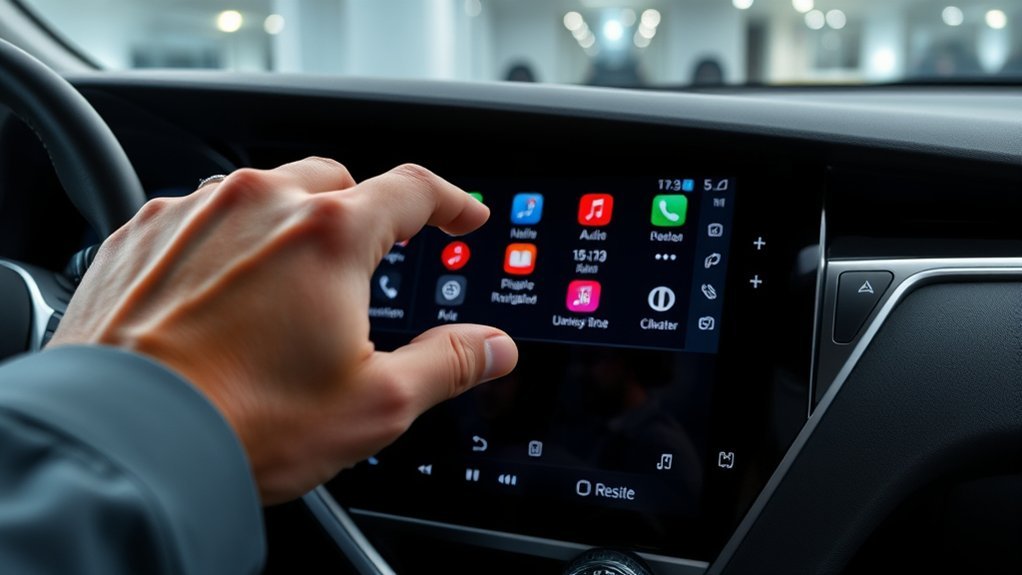
The 2025 Toyota Camry uses Toyota Audio Multimedia, with an available 12.3-inch touchscreen on some trims. Toyota lists wireless Apple CarPlay and wireless Android Auto compatibility, and its Connected Services page describes features such as Bluetooth, available Drive Connect, Cloud Navigation, Wi-Fi Connect, and Toyota app services where equipped.
- Navigation and connected guidance: Available Drive Connect and Cloud Navigation can provide connected navigation features, depending on trim, trial status, and subscription.
- Smartphone integration: Wireless Apple CarPlay and wireless Android Auto let compatible phones display supported apps on the multimedia screen.
- Bluetooth: Bluetooth supports hands-free calling and audio streaming after your phone is paired.
- Audio settings: You can adjust audio balance, fade, tone, favorites, and sources from the multimedia menus.
- Toyota app and connected services: Remote Connect, Service Connect, Wi-Fi Connect, and other services may require Toyota account setup, trial activation, or a paid subscription.
For official feature availability, check Toyota’s 2025 Camry eBrochure and Toyota Audio Multimedia and Connected Services page. Features can vary by trim, package, market, and subscription status.
How to Reconnect Bluetooth, Apple CarPlay, and Android Auto After a Reset
After a full reset, treat your Camry like a new vehicle setup. Reconnecting from both the car and phone sides prevents most pairing loops.
- On your phone, open Bluetooth settings and forget/delete the old Camry connection.
- If Apple CarPlay or Android Auto still lists the Camry, remove that old vehicle profile from the phone as well.
- Restart the phone.
- On the Camry display, open the phone or Bluetooth menu and choose the option to add a device.
- Pair the phone again and confirm that the code on the phone matches the code on the Toyota display.
- Approve contacts, messages, and audio permissions only if you want those features available in the car.
- Open Apple CarPlay or Android Auto and follow the on-screen prompts.
- Test calls, music, maps, and voice commands before driving away.
Note: Toyota’s Connected Services page says Apple CarPlay, Android Auto, and Bluetooth setup should be done while stopped. Do the full pairing process before you start driving.
Troubleshooting If the Reset Does Not Work
If the screen still freezes or your phone still will not connect, work through this checklist before scheduling service.
- Try another phone: If only one phone fails, the problem may be the phone’s Bluetooth, operating system, or saved CarPlay/Android Auto profile.
- Update the phone: Install the latest iOS or Android update, then restart the phone before pairing again.
- Check cables: If you use a USB connection for charging or media, try a high-quality cable and inspect the USB port for debris or looseness.
- Remove old pairings: Delete the Camry from the phone and delete the phone from the Camry, then pair from scratch.
- Check Toyota app access: Make sure you can sign into the Toyota app if connected services are part of the problem.
- Install available updates: If the display shows a software update prompt, follow Toyota’s instructions and keep the vehicle powered as directed.
- Document the issue: Record the date, conditions, error message, phone model, and what steps you tried.
Avoid disconnecting the 12-volt battery, pulling fuses, or forcing hidden service menus unless your owner’s manual or a Toyota technician specifically directs you to do so. Those steps can create extra warning messages or diagnostic issues.
When to Contact a Toyota Dealer for Persistent Issues
Contact a Toyota dealer or Toyota support if the infotainment system remains unresponsive after a quick reboot and full reset, if the screen repeatedly restarts on its own, if the backup camera or safety-related display behavior is affected, or if connected services will not enroll after a reset.
Bring a short issue log to the service visit. Include your Camry’s model year and trim, phone model, phone software version, whether the issue happens with Bluetooth or wired USB, any update messages, and the exact reset steps you already tried. This helps the technician separate a phone-pairing problem from a multimedia software, subscription, wiring, or hardware problem.
Frequently Asked Questions
Will resetting affect my Bluetooth connections or paired devices?
A quick reboot usually should not erase paired devices. A full system reset or driver-profile deletion can remove Bluetooth pairings, and you should expect to re-pair your phone afterward. If your reset menu gives you an option to forget linked Bluetooth devices, read the confirmation screen carefully before tapping Delete or Reset.
Can I reset the system without losing my navigation data?
Yes, if you only do a quick reboot. A profile settings reset can reset navigation preferences, and a full system reset can remove personal data and saved settings. Before using a deeper reset, write down or photograph favorite destinations, home/work settings, and any route preferences you want to restore later.
How often should I reboot the infotainment system?
There is no need to reboot on a fixed schedule. Reboot it when the screen freezes, audio controls lag, Bluetooth drops, or the display behaves oddly. If you need to reboot often, document the pattern and check with a Toyota dealer because repeated freezing can point to a software, phone-compatibility, or hardware issue.
Is there a way to restore factory settings remotely?
A full multimedia system reset is done from the vehicle’s display. Toyota’s ownership guidance also describes Toyota app steps for removing a vehicle or handling driver-profile changes, but that is not the same as pressing the in-vehicle System reset button. Use the vehicle screen for the full reset when available.
What if my infotainment system does not respond to the reset?
Park safely, turn the vehicle off, open and close the driver door, wait a minute, then restart the vehicle and try the quick reboot again. If the display stays blank, keeps restarting, or will not accept touch input, stop trying repeated resets and contact a Toyota dealer for diagnosis.
Will a reset cancel Toyota connected-services trials or subscriptions?
It can. Toyota’s change-of-ownership guide notes that if the Primary Driver is deleted, replaced, or a system reset is completed, active trials or subscriptions may be canceled and enrollment may be required again. Confirm your Toyota app login and connected-service status before doing a full reset.
Should I disconnect the 12-volt battery to reset the screen?
Do not use a 12-volt battery disconnect as your first reset method. Start with the quick reboot and Toyota’s on-screen reset menus. Disconnecting the battery can create extra warning messages or require system relearns, so it is better left to the owner’s manual instructions or a Toyota technician.
Conclusion
Resetting a Toyota Camry infotainment system is easiest when you match the reset to the problem. Use a quick reboot for minor glitches, a profile settings reset for messy personal preferences, and a full system reset only when the issue persists or you need to clear owner data. Back up your favorites first, reconnect your phone afterward, and contact a Toyota dealer if the screen remains frozen, blank, or unreliable after the reset.
Sources
- Toyota Audio Multimedia Change of Ownership Guide — official system reset, profile reset, driver-profile deletion, and connected-services enrollment notes.
- Toyota Support: Reset User Profile Preferences — official path for resetting personalized profile settings.
- 2025 Toyota Camry Hybrid Interactive Owner’s Manual — model-specific owner manual reference for controls and multimedia guidance.
- Toyota Audio Multimedia and Connected Services — official information on Bluetooth, Apple CarPlay, Android Auto, Drive Connect, Wi-Fi Connect, and Toyota app services.
- 2025 Toyota Camry eBrochure — official Toyota feature reference for the 2025 Camry multimedia system.
- NHTSA Distracted Driving — safety guidance supporting the recommendation to park before using infotainment settings.