How to Delete a Bluetooth Device From a Toyota Camry
What’s in This Article
Deleting the wrong phone from your Camry can cut off calls, music, and contact access at the wrong time. The fix takes about two minutes, but the menu path changes by model year and multimedia system. This guide shows you both common Toyota paths, explains what gets removed, and helps you fix Bluetooth problems after deletion.
Quick Answer
To delete a Bluetooth device from a Toyota Camry, open the multimedia settings, go to Bluetooth or Bluetooth & Devices, select the phone or audio device, and choose Remove Device or Forget. Confirm the action on the screen. On many older Camry systems, the path is Menu > Setup > Bluetooth > Remove Device. On newer Toyota Audio Multimedia systems, the path is Settings > Bluetooth & Devices > select device > Forget.
Key Takeaways
- Park your Camry before you change Bluetooth or phone settings.
- Use Remove Device on older systems or Forget on newer Toyota Audio Multimedia systems.
- Delete the Camry from your phone too if pairing problems continue.
- Pair the phone again if you want calls, contacts, audio, or apps to connect later.
- Use a full multimedia reset only when normal Bluetooth fixes don’t work.
Before You Delete a Bluetooth Device
Plan on about two minutes for the basic removal process. You only need your Camry parked, the multimedia screen turned on, and the phone or device name you want to remove.
Warning: Park in a safe place before you use the touchscreen, pair a phone, or reset the multimedia system.
Your exact menu labels may differ. Toyota’s older support path uses Menu, Setup, Bluetooth, and Remove Device. Newer Toyota Audio Multimedia manuals use Settings, Bluetooth & Devices, the device name, and Forget.
Accessing the Bluetooth Menu in Your Camry
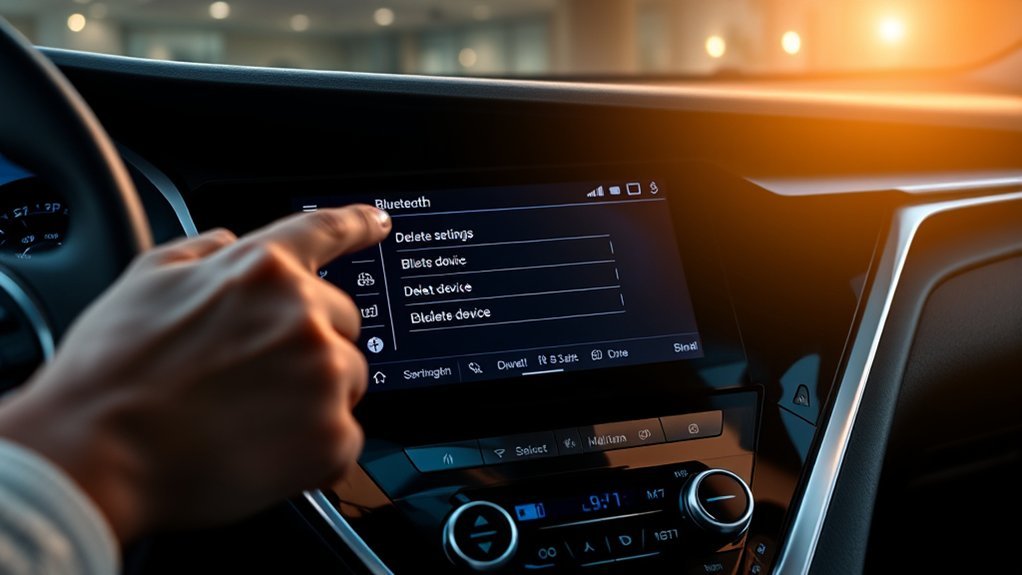
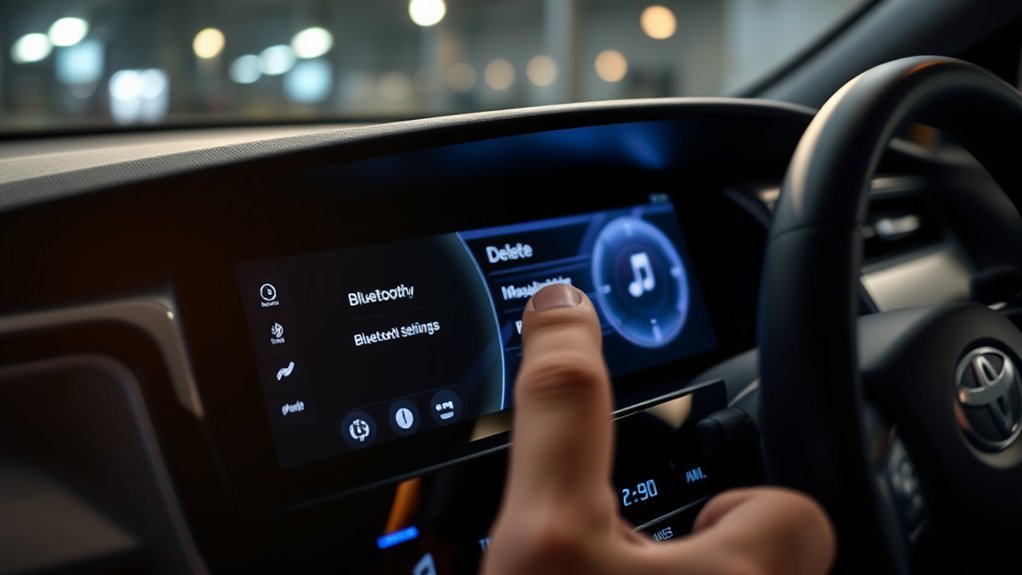
Start on the main multimedia screen. On many Camry models with the older interface, press the “Menu” button, select “Setup,” then choose “Bluetooth.” This screen lets you view paired phones and audio devices.
On newer Toyota Audio Multimedia systems, tap the settings icon, choose “Bluetooth & Devices,” and select the device from the list. Some systems may show “Manage devices” before you select a phone. Use the wording on your screen and match the device name carefully.
| Camry Multimedia System | Common Menu Path | Final Button |
|---|---|---|
| Older Toyota multimedia or Entune-style interface | Menu > Setup > Bluetooth | Remove Device |
| Newer Toyota Audio Multimedia interface | Settings > Bluetooth & Devices > select device | Forget |
Steps to Remove a Bluetooth Device
Follow these steps when your Camry shows the older Menu and Setup layout. If your screen shows Bluetooth & Devices instead, use the newer path in the table above.
- Press “Menu” on the multimedia system.
- Select “Setup.”
- Choose “Bluetooth.”
- Tap “Remove Device.”
- Select the phone or Bluetooth audio device you want to delete.
- Confirm the removal when the screen asks you to approve it.
After you confirm, check the paired-device list again. The removed phone should no longer appear in the list. If it still appears, try the removal one more time after you turn the phone’s Bluetooth off and on.
Only remove a device when you recognize its name. This helps you avoid deleting the wrong driver’s phone.
If your phone still tries to connect, open the Bluetooth settings on the phone and forget the Camry there too. This gives both devices a clean pairing record.
What Happens After You Delete a Device?
After you delete a Bluetooth device from your Camry, the multimedia system stops recognizing that phone or audio device as a trusted connection. Your Camry will not connect to it on its own until you pair it again.
Device Connection Status
The removed device should disappear from the paired-device list. Other paired phones and audio devices should keep working unless you remove them too.
If the deleted phone sits inside the car, your Camry may still find it during a new device search. That does not mean the old pairing remains. You still need to pair the phone again and approve the prompts on both screens.
Data Privacy Assurance
Deleting a device helps protect your privacy when you sell the car, share it, or stop using an old phone. The system removes the saved pairing record and related phone access, such as contact and call features tied to that device.
| Action Taken | Result |
|---|---|
| Delete or forget the device | Removes the saved pairing record |
| Pair the device again later | Creates a new connection request |
| Remove the car from your phone | Stops the phone from using the old car record |
| Reset the multimedia system | Clears broader user settings and paired devices |
Troubleshooting Common Bluetooth Issues
If your Camry still will not connect after you delete a device, start with the simple checks first. Confirm that Bluetooth stays turned on, move the phone close to the screen, and restart your phone before you reset the car system.
Connection Problems
Connection problems often come from old pairing records, weak phone settings, or software mismatch. Work through these fixes in order.
| Issue | Solution | Notes |
|---|---|---|
| Device not in pairing mode | Turn pairing mode on | Check the device manual |
| Old pairing record remains | Forget the Camry on your phone | Then pair it again |
| Outdated phone software | Update the phone operating system | Compatibility may improve |
| Too many active connections | Disconnect another phone first | Some systems limit active devices |
| Device out of range | Move the phone closer | Keep it near the front seats |
Newer Toyota manuals also note that a device may not delete on the first try, depending on its status. Try again after a short pause if the first attempt fails.
Audio Quality Issues
Poor audio can come from a low phone battery, weak signal, old pairing data, or an app issue. Charge your phone, close unused audio apps, and reconnect the Bluetooth device.
If sound still cuts out, delete the pairing from both the Camry and the phone. Then pair the phone again and test calls before you start driving.
Pro tip: Rename your phone before pairing if several drivers use the same Camry.
Multimedia Features Beyond Bluetooth
Bluetooth handles hands-free calls and audio, but many Camry models also support Apple CarPlay and Android Auto. These features can show supported maps, calls, messages, music, and voice controls on the car display when your phone and vehicle support them.
Some Camry trims and model years also support Toyota Connected Services features through the Toyota app. Digital Key only works on certain equipped vehicles and usually needs a compatible phone plus an active Remote Connect trial or subscription.
Note: Features vary by model year, trim, region, phone, and subscription status.
Check your owner’s manual or Toyota account if a feature does not appear on your screen. A missing menu often means your vehicle, trim, region, or phone does not support that feature.
How to Reset Your Multimedia System
Use a reset only after normal Bluetooth fixes fail. A full reset can remove paired devices, user settings, profile data, and saved preferences, so write down anything you may need later.
Start on the multimedia screen, open “Setup” or “Settings,” and look for general or personal settings. Choose the reset option, read the on-screen warning, and confirm only when you want to clear saved user information.
After the reset finishes, the system should return to the main screen. Pair your phone again, approve the prompts, and test calls, contacts, and audio before your next drive.
Frequently Asked Questions
How do I delete Bluetooth devices on my Toyota Camry?
Open the Bluetooth settings in your Camry, choose the device you want to remove, and confirm Remove Device or Forget. The exact label depends on your multimedia system.
Why does my Camry show Forget instead of Remove Device?
Newer Toyota Audio Multimedia systems often use “Forget” for deleting a registered Bluetooth device. Older systems often use “Remove Device.” Both options remove the saved pairing.
Do I need to delete the Camry from my phone too?
You should delete the Camry from your phone if pairing keeps failing or the phone keeps trying to reconnect. Open your phone’s Bluetooth list, select the Toyota entry, and choose Forget or Unpair.
Will deleting a Bluetooth device remove my contacts?
Deleting the device removes the saved connection and phone access tied to that device in the multimedia system. Your contacts remain on your phone unless you delete them there.
Why can’t I delete a Bluetooth device from my Camry?
Your Camry may block deletion during certain phone activity, or the device may fail to delete on the first try. End active calls, park safely, turn the phone’s Bluetooth off and on, then try again.
Safety Disclaimer: This article gives general information only. Park safely before you use the multimedia screen, and follow your owner’s manual and local traffic laws.
Conclusion
You can remove a Bluetooth device from your Camry by opening Bluetooth settings, choosing the device, and confirming Remove Device or Forget. If the phone still causes trouble, delete the Toyota entry from the phone and pair it again from a clean state.
Use a full multimedia reset only when normal removal and re-pairing do not fix the issue. A clean Bluetooth list makes your Camry easier to share, sell, and use every day.
References
- How do I disconnect my phone from Bluetooth?, Toyota Customer Service
- How do I delete a paired Bluetooth device from my vehicle?, Toyota Customer Service
- Toyota Multimedia Owner’s Manual, Toyota, 2022
- Toyota App and Connected Services, Toyota
- What is Digital Key?, Toyota Customer Service
- CarPlay Available Models, Apple
- Android Auto Vehicle Compatibility, Google