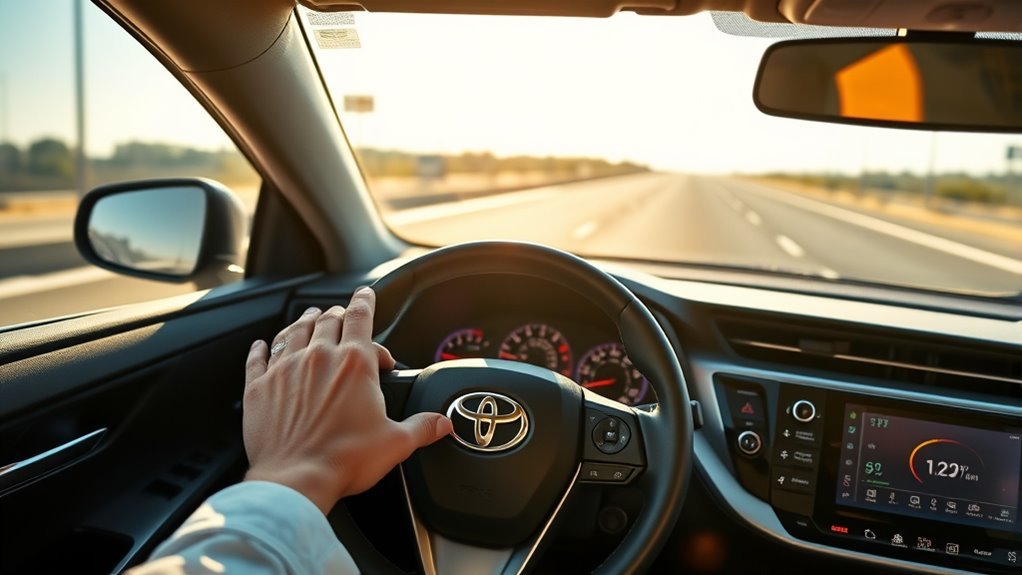
Toyota RAV4 Lane Tracing Assist (LTA) can reduce steering workload on clearly marked roads, but it is still a driver-assistance feature—not self-driving. Use this guide to turn LTA on or off, enable lane centering, adjust sensitivity, read the dashboard indicators, and fix the most common problems when the system will not engage.
Quick Answer
To turn on RAV4 Lane Tracing Assist, press the LTA steering-wheel switch, then confirm the LTA indicator appears on the multi-information display. For lane centering, open the LTA settings menu, turn Lane Center on, and use Dynamic Radar Cruise Control when the road has visible lane markers.
Key Takeaways
- LTA helps warn about lane departure and can provide gentle steering support, but the driver must keep hands on the wheel and stay alert.
- Lane centering works best when Dynamic Radar Cruise Control is active and the vehicle can detect clear lane markers or a preceding vehicle.
- Use the multi-information display to adjust Lane Center, sway warning, and alert sensitivity; exact menu names vary by model year and trim.
- Poor lane markings, heavy rain, snow, fog, glare, dirty sensors, sharp curves, and construction zones can limit or disable LTA.
At a Glance
| Time Required | 2–5 minutes |
| Difficulty | Easy |
| Tools Needed | None; use the steering-wheel controls and multi-information display |
| Cost | Free |
Warning: LTA is not a substitute for safe driving. Toyota and NHTSA both emphasize that driver-assistance features require an attentive driver who remains responsible for steering, braking, accelerating, and monitoring the road.
What RAV4 Lane Tracing Assist Actually Does
Lane Tracing Assist is part of Toyota’s driver-assistance technology. On equipped RAV4 models, it can help with three related functions: lane departure warning, gentle steering assist, and lane-centering support when the required conditions are met. Toyota describes LTA as a feature that uses lane lines and/or preceding vehicles to help keep the vehicle centered when Dynamic Radar Cruise Control is enabled and lane markers are detected.
That distinction matters. Turning LTA on does not mean the RAV4 will steer itself in every situation. The system can pause, reduce assistance, or fail to operate when it cannot clearly read the road. Always treat LTA as support for an alert driver, not as hands-free driving.
[Products Worth Considering]

The Autovir windscreen shade offers full windshield coverage for Toyota RAV4 models from 2019 to 2026, blocking up to 99.95% of UV rays and reducing interior heat. Its multi‑layer reflective material provides SPF 100 and UPF 80+ protection while keeping the dashboard, seats, and steering wheel cooler. The foldable design installs quickly and stores conveniently in the glove box, and reinforced stitching ensures long‑lasting durability for daily use.

Protect your Toyota RAV4 interior with this custom‑fit windshield sun shade that blocks 99% of harmful UV rays and reduces cabin heat. The mirror cut‑out ensures a seamless fit without gaps, while durable 240T polyester and bendable wire keep it sturdy through repeated use. Foldable and stored in a convenient pouch, it offers easy installation and removal for everyday comfort.
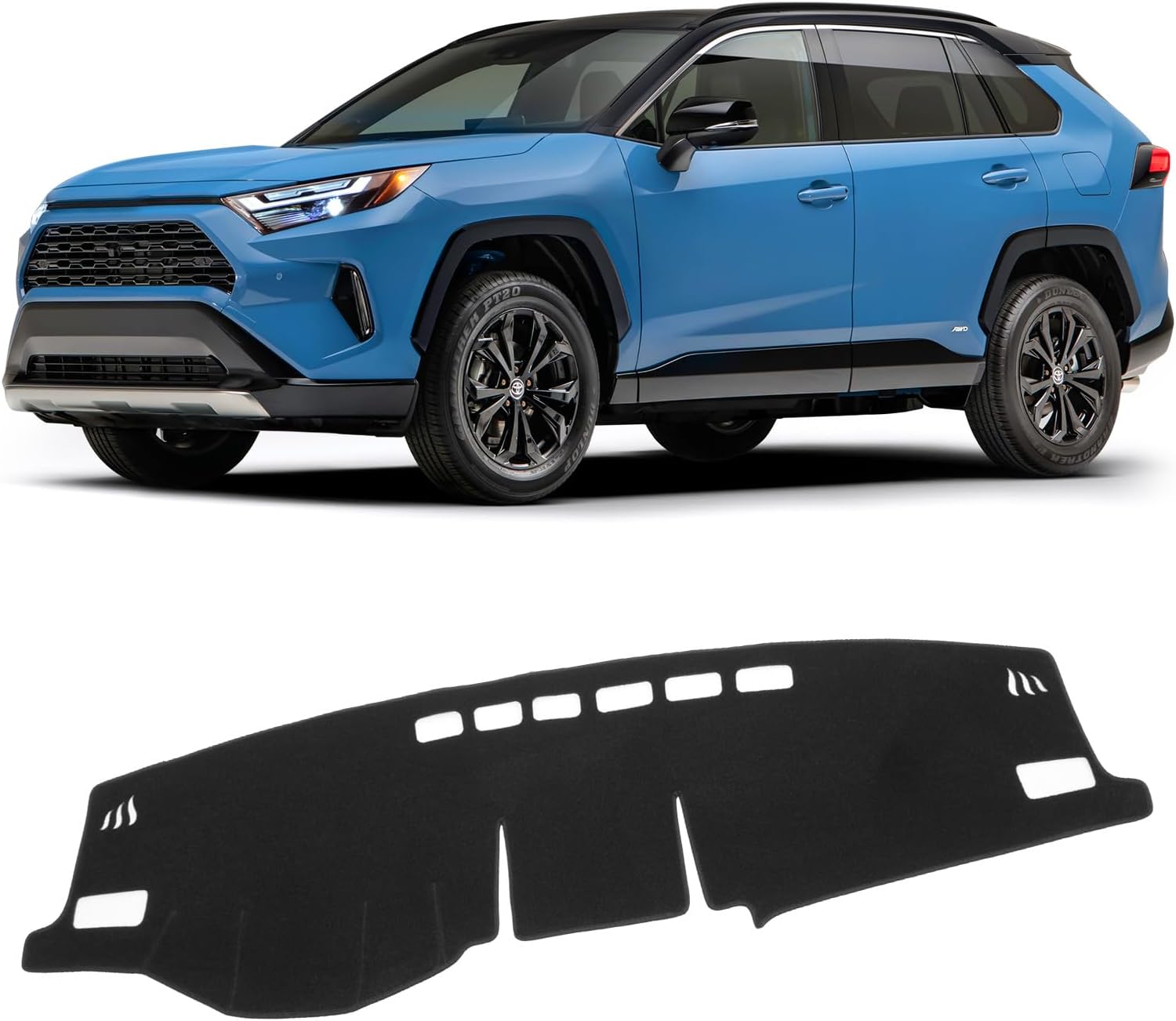
The KUST Black Dashboard Cover Mat offers a custom, eco‑friendly fit for Toyota RAV4 models from 2019 to 2025, protecting the dash from UV damage, scratches, and glare. Made from post‑consumer recycled polyester with a silicone anti‑slip underside, it stays soft, breathable, and odorless while securely adhering to the surface. Installation is quick and reversible, and the foldable design allows easy storage when not in use.
Turn Lane Tracing Assist (LTA) On or Off
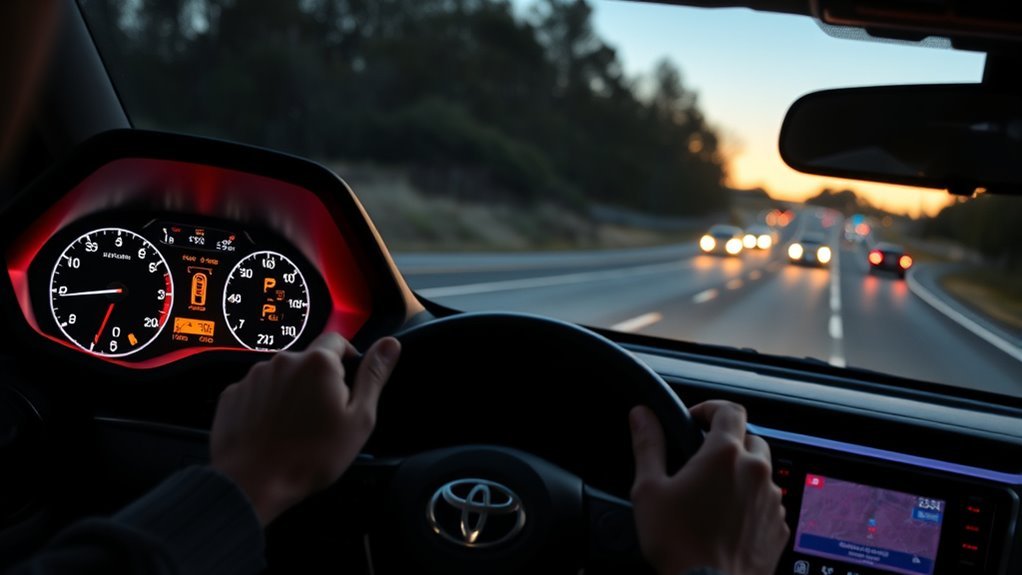
On many Toyota RAV4 models, the LTA switch is on the steering wheel. Press the switch to turn Lane Tracing Assist on or off, then check the multi-information display for the LTA indicator. The exact icon and button layout can vary by model year, market, and display type, so use the owner’s manual for your specific RAV4 if the button is not where you expect it.
When LTA is on, the display may show lane lines, a steering-assist icon, or an LTA status indicator. When the system is unavailable, those indicators may disappear, turn gray, or show a warning message. Do not rely on the feature unless the display confirms that the system is ready and you are driving in suitable conditions.
Note: Some RAV4 settings remain in the last selected state after the vehicle is restarted, while other driver-assistance settings may reset after software updates or service. Check the display before every drive.
[Products Worth Considering]

The TPXSIUE passenger storage organizer mat provides a custom‑fit, non‑slip silicone tray that keeps items secure and the console tidy. It slides into the grab‑handle slot without tools, protecting the interior from scratches and rattles while offering easy access to pens, gum, and other essentials. Designed for RAV4 models from 2019 to 2024, it delivers a perfect OEM‑like fit and enhances vehicle organization.

Upgrade your RAV4 interior with a sleek, retractable 4‑port USB hub that adds vibrant RGB lighting and fast charging for phones, tablets, and accessories. The intelligent retractable cables keep the console tidy while the snap‑in design ensures easy installation. Compatible with 2020‑2025 RAV4 models, it blends modern tech with a clean aesthetic.
Enable LTA Lane-Centering and Steering Assist Step by Step
Use this process on a safe, straight road or while parked before you drive. Menu labels differ slightly between the 7-inch and 12.3-inch displays, but the basic path is similar: open the settings menu, choose the LTA settings, turn Lane Center on if available, and confirm the indicator on the display.
Access LTA Settings
- Use the steering-wheel directional buttons to open the multi-information display menu.
- Go to the settings or driver-assistance tab.
- Select LTA or Lane Tracing Assist.
- Press and hold OK if your display requires it to open the detailed settings screen.
- Review the available settings, such as Lane Center, sensitivity, sway warning, or lane departure alert options.
| Setting | What It Controls | Best Use |
|---|---|---|
| Lane Center | Helps the vehicle stay near the center of the lane when conditions allow | Highway driving with clear lane markers and DRCC active |
| Sensitivity | Changes how early or strongly alerts may occur | Fine-tuning for comfort and road conditions |
| Sway Warning | Alerts if the vehicle appears to wander within the lane | Long highway drives or fatigue-prone conditions |
Toggle Lane Centering
After opening the LTA settings screen, select Lane Center and switch it on. Lane centering is the feature most drivers notice because it can help keep the RAV4 near the middle of the lane instead of only warning after a lane departure begins.
For lane centering to work properly, Dynamic Radar Cruise Control or Full-Speed Range Dynamic Radar Cruise Control usually needs to be operating, and the vehicle must be able to detect clear lane markers or a preceding vehicle. If cruise control is off, lane centering may not provide the same support even though other LTA warnings remain available.
Adjust Steering Sensitivity
Open the LTA settings screen and look for the sensitivity option. Depending on your model year, the choices may appear as High, Standard, Low or Higher, Normal, Lower. Start with the standard setting, then adjust one step at a time.
- Choose a higher setting if warnings feel too late on clear, well-marked highways.
- Choose a lower setting if alerts feel too frequent in narrow lanes, urban traffic, or areas with inconsistent lane markings.
- Test each change on a familiar road while keeping both hands ready to steer.
Pro Tip: Make only one adjustment at a time. If you change Lane Center, sway warning, and sensitivity together, it becomes harder to know which setting changed the way the RAV4 feels.
Access LTA Settings on the 12.3-Inch Display
If your RAV4 has the 12.3-inch multi-information display, use the steering-wheel controls to move through the display tabs until you reach the settings or driver-assistance menu. Select LTA, then press OK or press and hold OK if your model requires a long press.
From that screen, turn Lane Center on or off, adjust sensitivity, and review sway warning settings. The display should update immediately after each change. Before using the feature on the road, confirm that the LTA indicator is visible and that the lane-line graphics show the system is reading the lane.
Access LTA Settings on the 7-Inch Display

If your RAV4 has the 7-inch multi-information display, use the left and right steering-wheel arrows to reach the settings tab. Then use the up and down controls to highlight LTA. Press OK to select it, or press and hold OK if the detailed settings screen does not open right away.
Accessing the Settings Menu
- Park safely or use the controls before you begin driving.
- Press the steering-wheel arrows until the settings tab appears.
- Select LTA or the lane-assist icon.
- Open the detailed settings screen and review Lane Center, sensitivity, and sway warning options.
Adjusting Sensitivity Levels
Use the sensitivity setting to fine-tune alerts. A higher sensitivity setting can provide earlier warnings, while a lower setting can reduce interruptions when lane markings are inconsistent. The best setting is the one that supports your driving without distracting you.
Toggling Sway Warning
Sway warning is usually adjusted from the LTA settings menu rather than with a separate physical button. Turn it on if you want the vehicle to alert you when it detects wandering within the lane. Turn it off only if the warnings are distracting and you understand the tradeoff.
Adjust LTA Sensitivity and Recommended Settings
The best LTA setting depends on the road. Use higher sensitivity on smooth highways with bright, consistent lane lines. Use a lower or standard setting on narrow roads, construction areas, or streets where old and new lane markings overlap.
| Road Condition | Suggested Setting | Why |
|---|---|---|
| Clear highway lanes | Standard or High | Earlier feedback can feel more stable during longer drives |
| City streets | Standard or Low | Reduces unnecessary alerts around frequent turns and lane changes |
| Construction zones | Manual control | Temporary markings can confuse lane-detection systems |
| Rain, fog, snow, or glare | Manual control | The camera may not read lane markings reliably |
Do not chase a “perfect” setting. LTA is designed to assist, not replace, your steering decisions. If the vehicle feels like it is fighting you or drifting toward one side, reduce reliance on the system and inspect the road, lane markings, tire pressure, and windshield camera area.
Toggle and Set LTA Sway Warning
Sway warning alerts you when the vehicle appears to wander within the lane. This can be helpful on long drives because it adds another cue that your steering may be becoming less steady. To adjust it, open the LTA settings menu and look for Sway Warning or a similar label.
Toggle Sway Warning
- Open the multi-information display settings menu.
- Select LTA.
- Find Sway Warning and switch it on or off.
- Confirm the setting on the display before driving.
Adjust Sway Warning Sensitivity
If your RAV4 allows sway sensitivity adjustment, choose a higher setting for earlier alerts and a lower setting for fewer interruptions. Keep the feature on if you do frequent highway driving, late-night driving, or long-distance trips where fatigue can build gradually.
How to Tell If LTA Is Active: Visual Indicators
LTA status is shown through the instrument cluster or multi-information display. Learn these cues before depending on the system.
If the lane lines or LTA indicator are not shown as active, assume the system is not helping you steer.
- LTA indicator: Confirms the feature is switched on or available.
- Lane-line graphics: Show whether the camera is detecting the lane. Dim or missing lane lines usually mean reduced assistance.
- Steering-assist icon: Appears when the vehicle is providing steering support.
- Warning messages: Messages such as “LTA unavailable” or “Hold steering wheel” mean you need to take full control immediately.
When LTA Will and Won’t Intervene: Road, Traffic, and Weather

LTA works best on roads with clear white or yellow lane markings, moderate curves, good lighting, and predictable traffic. It may also use a preceding vehicle as a reference when Dynamic Radar Cruise Control is active, depending on the model and conditions.
LTA may not intervene, or may stop assisting, in these situations:
- Lane markings are faded, missing, covered, or hard to distinguish from the pavement.
- There are temporary construction markings, cones, barriers, or overlapping old lane lines.
- Rain, snow, fog, dust, glare, or low sun affects the camera’s view.
- The windshield area in front of the camera is dirty, fogged, iced over, or blocked.
- The road has sharp curves, steep slopes, uneven pavement, or unusual lane widths.
- The driver uses a turn signal, changes lanes, or applies strong steering input.
- The driver removes hands from the steering wheel or ignores takeover prompts.
- Vehicle speed, cruise-control status, or other operating requirements are not met.
Warning: Construction zones and temporary lane markings are among the worst conditions for lane-centering systems. Keep manual control and be ready for LTA to misread the lane or disengage.
Troubleshoot LTA: Common Problems and Quick Fixes
If Lane Tracing Assist seems unresponsive, start with the simple checks before assuming something is broken.
| Problem | Likely Cause | Quick Fix |
|---|---|---|
| LTA indicator is off | System is switched off | Press the LTA switch or turn it on in the settings menu |
| Lane Center will not work | DRCC is not active or lane markers are not detected | Turn on cruise control where safe and drive on a clearly marked road |
| System keeps canceling | Poor weather, road markings, or driver input | Take manual control and try again in better conditions |
| Warning says camera blocked | Dirty windshield or obstructed camera area | Clean the windshield near the camera and remove ice, fog, stickers, or debris |
| Steering feels uneven | Road crown, wind, tire pressure, alignment, or lane detection issue | Check tire pressure, reduce reliance on LTA, and schedule service if it persists |
- Check activation: Confirm the LTA switch is on and the display shows the system as available.
- Check the road: Look for clear lane markings and avoid testing on curves, ramps, or construction zones.
- Clean the camera area: Wipe the windshield in front of the camera and remove anything blocking the view.
- Check DRCC: For lane centering, make sure Dynamic Radar Cruise Control is active where safe to use.
- Review settings: Make sure Lane Center and sway warning are set the way you want.
- Get diagnostics: If warnings remain after cleaning and restarting, have a Toyota dealer or qualified technician inspect the system.
Tips to Improve LTA Performance and Driving Safety
Good LTA performance starts with clear visibility and realistic expectations. Use the system on the type of road it was designed for: divided highways and well-marked roads with predictable lane lines.
- Keep the windshield clean, especially the area around the forward-facing camera.
- Do not place stickers, dash accessories, or devices where they can interfere with sensors or the camera.
- Keep tires properly inflated and maintain wheel alignment.
- Use Lane Center mainly on clear highways, not in construction zones or tight urban lanes.
- Keep both hands ready to steer, even when the system feels smooth.
- Read the owner’s manual for your exact RAV4 model year because menus and operating conditions can change.
Note: Roof cargo, windshield accessories, repairs near the camera, or front-end damage can affect driver-assistance systems. If LTA behaves differently after any of these changes, have the vehicle inspected.
Frequently Asked Questions
Does LTA work with Adaptive Cruise Control or Dynamic Radar Cruise Control?
Yes. Toyota’s lane-centering support is designed to work when Dynamic Radar Cruise Control or Full-Speed Range Dynamic Radar Cruise Control is active and the vehicle detects lane markers or a preceding vehicle. You still need to steer, supervise the road, and be ready to take over.
Can LTA operate while towing a trailer or carrying roof cargo?
Do not rely heavily on LTA while towing or carrying roof cargo. Towing changes vehicle behavior, and roof cargo or accessories can create visibility, stability, or sensor concerns. Check your owner’s manual and keep full manual control whenever the vehicle load changes.
Will LTA work on roads with temporary lane markings or construction zones?
It may not work reliably. Temporary lane markings, cones, barriers, covered lines, and overlapping old markings can confuse the camera. In construction zones, treat LTA as unavailable and steer manually.
How does LTA interact with lane changes and blind spot monitoring?
LTA is designed to assist with lane keeping, not to make lane changes for you. When you use the turn signal or steer into another lane, LTA assistance may pause or reduce. Blind Spot Monitor is a separate system that can warn you about vehicles in the blind spot, but you remain responsible for checking mirrors and surroundings.
Are software updates required to improve LTA performance?
Not usually for basic operation. LTA depends mostly on road markings, camera visibility, radar performance, settings, and safe driving conditions. If Toyota releases a software update or service campaign for your vehicle, install it through an authorized service process.
Why does my RAV4 say “Hold Steering Wheel” when LTA is on?
The system is reminding you that LTA requires driver input and supervision. Keep your hands on the wheel and be ready to steer. If the warning continues even when you are holding the wheel, take full control and have the system checked if the message appears repeatedly.
Conclusion
RAV4 Lane Tracing Assist is most useful when you understand exactly what it can and cannot do. Turn it on with the steering-wheel switch, enable Lane Center in the settings menu if your model has it, use Dynamic Radar Cruise Control where appropriate, and confirm the display indicators before relying on assistance.
For the best results, use LTA on clear, well-marked roads, keep the windshield and sensors clean, and adjust sensitivity gradually. If the system drifts, disengages, or shows warning messages, take manual control first, then troubleshoot the road conditions, settings, and sensor visibility.
Sources
- Toyota Safety Sense — explains Lane Tracing Assist, Dynamic Radar Cruise Control, and driver-assistance limitations.
- 2025 Toyota RAV4 Driving Support Systems Owner’s Manual Excerpt — supports LTA operation, lane-centering behavior, warnings, and operating conditions.
- 2025 Toyota RAV4 Hybrid Driving Support Systems Owner’s Manual Excerpt — supports RAV4 Hybrid LTA functions and system limitations.
- Toyota Safety Sense 4.0 Overview — supports current Toyota LTA descriptions, DRCC dependency, and driver-responsibility disclosures.
- NHTSA Driver Assistance Technologies — supports the safety note that driver-assistance systems require a fully engaged driver.