Last updated: September 1, 2026 · [VERIFY: add the real author or qualified editorial reviewer]
To turn on Toyota RAV4 Lane Tracing Assist, press the LTA switch on the steering wheel and confirm that the LTA indicator appears on the multi-information display. For active lane centering, turn on Lane Center in the LTA settings and operate Dynamic Radar Cruise Control in vehicle-to-vehicle distance mode.
The detailed controls, menu options, indicator colors, and operating conditions in this guide are verified against the 2025 U.S.-market RAV4 and RAV4 Hybrid manuals. Toyota confirms that the redesigned 2026 RAV4 uses Toyota Safety Sense 4.0 and still links Lane Tracing Assist with Dynamic Radar Cruise Control, but its interface is different. The step-by-step menu directions below therefore remain scoped to the 2025 models.
Quick Answer
On a 2025 RAV4, press the LTA steering-wheel switch. A white LTA indicator means the system is on. A green indicator means steering assistance is active. To use lane centering, set Lane Center to ON and engage Full-Speed Range Dynamic Radar Cruise Control in vehicle-to-vehicle distance mode on a suitable road. The 2025 LTA menu also includes separate Sensitivity and Sway Sensitivity settings for warnings; neither setting changes lane-centering steering force.
Key Takeaways
- LTA can warn about lane departure, provide brief steering support, and help center the RAV4 when the required conditions are met.
- Lane centering on the 2025 RAV4 requires LTA, Lane Center, and Full-Speed Range Dynamic Radar Cruise Control to be active.
- A white LTA indicator means the system is operating; green means steering assistance is active; flashing orange indicates a lane-departure alert.
- Toyota advises turning LTA off in unsuitable conditions, including construction zones, slippery or snow-covered roads, and trailer towing.
- The 2025 LTA menu includes Sensitivity for Lane Departure Alert and Sway Sensitivity for Sway Warning; neither is a lane-centering steering-force control.
- The 2026 RAV4 uses Toyota Safety Sense 4.0 and a newer interface, so the 2025 menu walkthrough should not be assumed to match it.
At a Glance
| Time Required | 2–5 minutes |
| Difficulty | Easy |
| Tools Needed | None; use the steering-wheel controls and multi-information display |
| Cost | Free |
| Verified Scope | 2025 U.S.-market RAV4 and RAV4 Hybrid controls; 2026 behavior noted separately |
Warning: LTA is driver assistance, not self-driving. NHTSA explains that the driver remains responsible for monitoring the road and controlling the vehicle, even when steering and speed assistance operate together.
What Toyota RAV4 Lane Tracing Assist Actually Does
Lane Tracing Assist is a group of related driver-support functions, not a single hands-free steering mode. On the 2025 RAV4, LTA can monitor lane lines or a visible road edge, warn about an unintended departure, apply limited steering assistance, detect vehicle sway, and help maintain lane position while Full-Speed Range Dynamic Radar Cruise Control is operating.
The distinction between those functions explains why the LTA indicator can be on even when the vehicle is not actively centering itself. In Toyota terminology, Lane Departure Alert, short steering assist, Sway Warning, and Lane Center are related functions within LTA; Lane Center is the continuous centering function tied to DRCC.
| Function | What It Does | Does It Require DRCC? |
|---|---|---|
| Lane Departure Alert | Warns when the RAV4 may leave a detected lane or road course | No |
| Steering Assist | Applies small, brief steering input to help avoid a lane departure | No, but operating conditions must be met |
| Sway Warning | Warns when the vehicle appears to wander within its lane | No |
| Lane Centering | Provides ongoing steering assistance to help maintain lane position | Yes, on the 2025 RAV4 |
Toyota states that lane centering on the 2025 RAV4 is linked to Full-Speed Range Dynamic Radar Cruise Control. When cruise control is not operating in vehicle-to-vehicle distance mode, the lane-centering function does not operate.
How to Turn Toyota RAV4 Lane Tracing Assist (LTA) On or Off
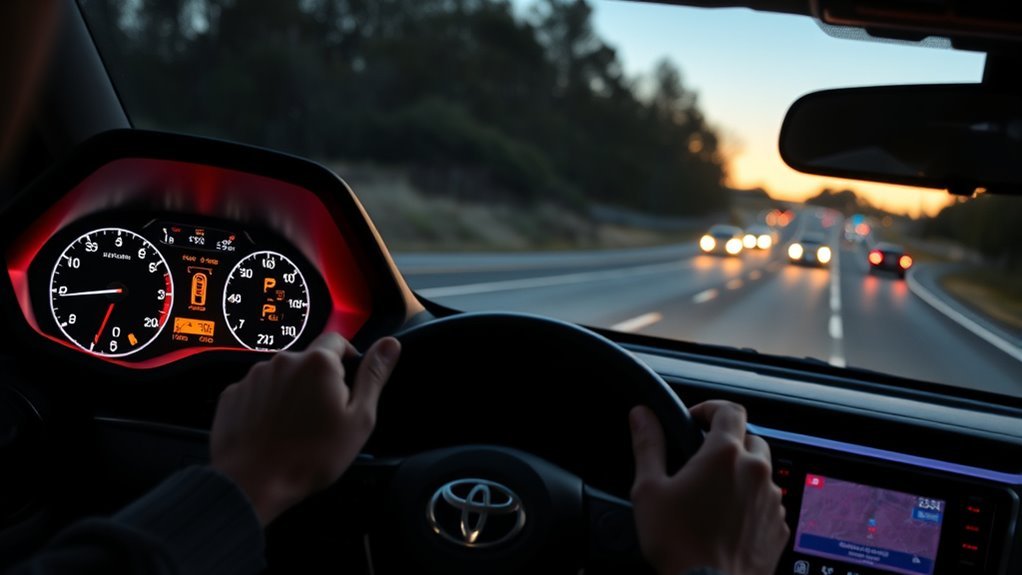
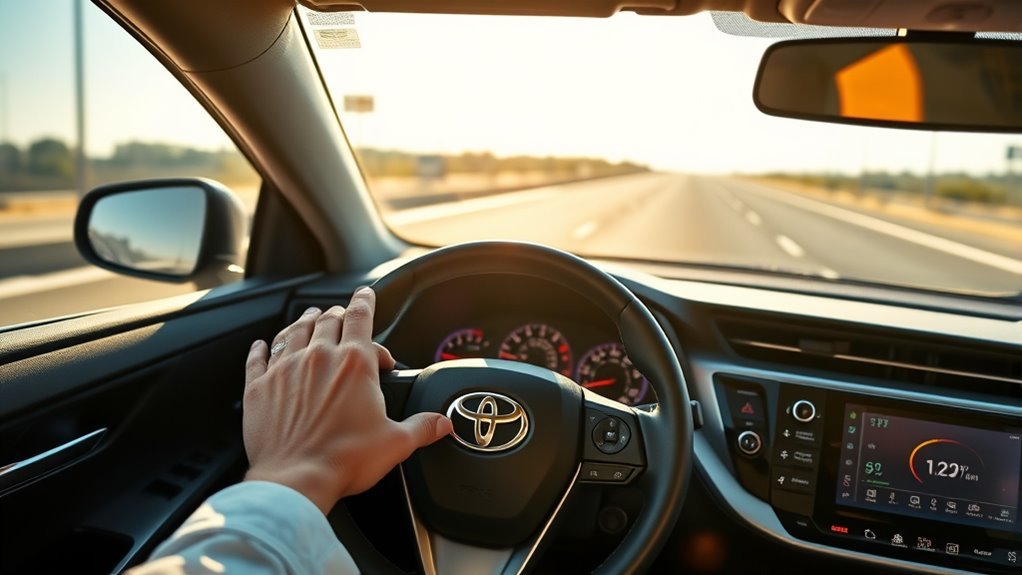
On the 2025 RAV4, the LTA switch is on the steering wheel. Press it once to turn the system on. The LTA indicator illuminates, and the multi-information display shows a confirmation message. Press the switch again to turn LTA off.
- Start the vehicle and locate the LTA switch on the steering wheel.
- Press the switch once.
- Confirm that the LTA indicator and activation message appear.
- Press the same switch again whenever you need to turn the system off.
Turning LTA on does not guarantee immediate steering assistance. White indicates that the system is operating or standing by. The indicator changes to green only when steering assistance is actively operating.
Note: On the 2025 RAV4, the selected LTA on/off state remains the same the next time the engine is started. Other model years may behave differently, so confirm the indicator before driving.
Enable LTA Lane Centering and Steering Assist Step by Step
Complete menu changes while parked. You can then verify active lane centering on a suitable road without intentionally drifting or testing the system’s limits.
- Turn LTA on: Press the LTA steering-wheel switch and confirm that the indicator appears.
- Open the LTA settings: Use the steering-wheel controls to reach the driver-assistance settings on the multi-information display.
- Enable Lane Center: Set Lane Center to ON.
- Engage radar cruise control: Operate Full-Speed Range Dynamic Radar Cruise Control in vehicle-to-vehicle distance mode where it is safe and legal.
- Check lane detection: Confirm that the lane graphics show recognized lane lines or that the follow-up cruising display appears behind a preceding vehicle.
- Confirm active steering: On the 2025 display, a green LTA indicator means steering assistance is operating.
[Products Worth Considering]
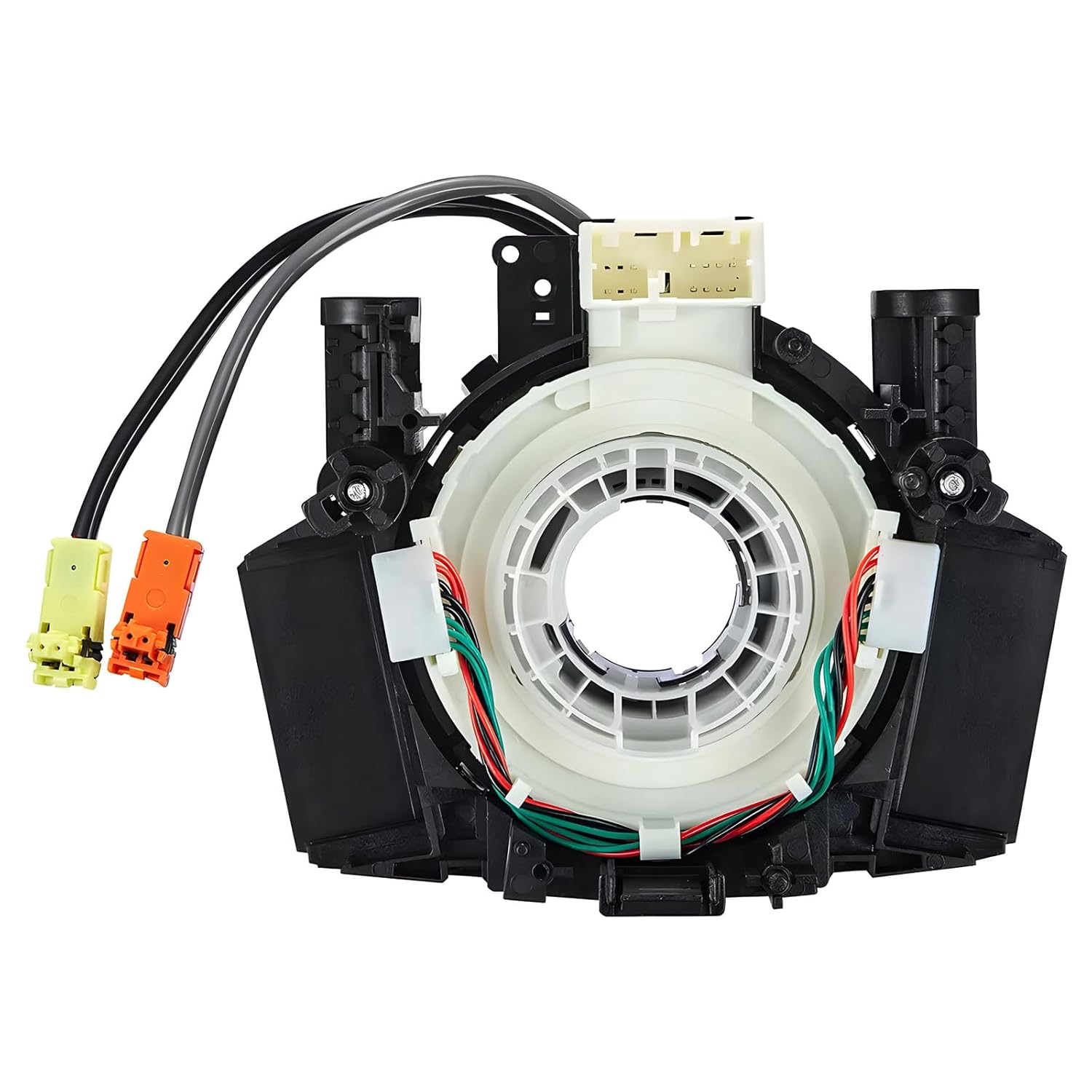
This steering clock spring assembly is an OEM-style replacement designed to restore steering wheel controls and related electronic functions in compatible Nissan vehicles. It supports audio, cruise control, and multi-function button operation while matching multiple factory part numbers for a reliable fit. Built for direct installation with vehicle-specific connectors, it helps return steering column electronics to proper working order.

This frameless convex blind spot mirror helps expand your field of view for safer lane changes, passing, and merging. The HD glass design offers a clear, wide-angle rear view, while the swivel mount supports flexible positioning for cars, SUVs, trucks, vans, and RVs. Easy to install and built for all-weather use, it is a practical upgrade for everyday driving confidence.

This steering clock spring is designed to restore reliable steering wheel controls across a wide range of Toyota models. It supports audio, cruise control, and other multifunction commands while matching OEM part numbers for confident replacement fitment. Built for dependable signal transfer and straightforward installation, it is an effective solution for repairing steering column control issues.
Access LTA Settings
Use the steering-wheel directional controls to open the multi-information display settings. Select the driver-assistance or vehicle-settings area, then open the LTA options shown for your model.
The 2025 RAV4 settings menu includes Lane Center, Sensitivity, Sway Warning, and Sway Sensitivity. Sensitivity changes the Lane Departure Alert sensitivity, while Sway Sensitivity changes the vehicle-sway warning sensitivity. Exact icon placement and button presses may differ between the 7-inch and 12.3-inch displays.
| Setting | What It Controls | Important Condition |
|---|---|---|
| LTA Main Switch | Turns the overall LTA system on or off | The indicator must appear before any LTA function can operate |
| Lane Center | Allows lane-centering support when the operating conditions are met | DRCC must be operating in vehicle-to-vehicle distance mode |
| Sensitivity | Adjusts Lane Departure Alert sensitivity | It does not change lane-centering steering force |
| Sway Warning | Enables warnings when the vehicle appears to wander within the lane | The 2025 function normally operates at about 32 mph or above |
| Sway Sensitivity | Adjusts vehicle-sway warning sensitivity | It affects the warning behavior, not lane-centering steering force |
Toggle Lane Centering
Open the LTA settings and set Lane Center to ON. The setting alone does not activate steering. The 2025 system also requires LTA to be on, Full-Speed Range Dynamic Radar Cruise Control to be operating in vehicle-to-vehicle distance mode, and the lane-centering operating conditions to be satisfied.
The system normally uses detected lane lines. In slow traffic where lane lines are difficult to see, it may use the position of a preceding vehicle as a reference. The follow-up cruising display indicates when that type of assistance is operating.
Can You Adjust LTA Steering Sensitivity?
You can adjust two LTA sensitivity settings on a 2025 RAV4, but neither changes lane-centering steering force. Sensitivity adjusts the Lane Departure Alert sensitivity, while Sway Sensitivity adjusts the vehicle-sway warning sensitivity. Lane Center itself is an on/off setting.
Change only the settings listed in the owner’s manual for your exact model year and market. If the RAV4 feels as though it is pulling unexpectedly, take full control rather than trying to correct steering behavior with a warning-sensitivity setting.
Pro Tip: Change only one confirmed option at a time. After changing Lane Center, Sensitivity, Sway Warning, or Sway Sensitivity, verify the new status on a familiar road while remaining ready to steer.
Access LTA Settings on the 12.3-Inch Display
On a 2025 RAV4 with the 12.3-inch multi-information display, use the steering-wheel controls to reach the settings display and select LTA. The LTA menu can include Lane Center, Sensitivity, Sway Warning, and Sway Sensitivity. The larger display changes the graphic layout, but the main status colors remain the same: white for operating or standby, green for active steering assistance, and flashing orange for a lane-departure alert.
Confirm the setting by returning to the driving-support display. Both outside lane boundaries shown around the vehicle indicate lane-centering steering support. One displayed side indicates short-duration steering assist for that side.
Access LTA Settings on the 7-Inch Display

On a 2025 RAV4 with the 7-inch multi-information display, use the steering-wheel arrows to move to the settings area. Open the LTA options shown on the display and review Lane Center, Sensitivity, Sway Warning, and Sway Sensitivity.
Accessing the Settings Menu
- Park the RAV4 before changing driver-assistance settings.
- Use the steering-wheel arrows to open the multi-information display settings.
- Select the driver-assistance or vehicle-settings area.
- Select LTA or the matching lane-assistance icon.
- Review the Lane Center, Sensitivity, Sway Warning, and Sway Sensitivity settings shown for your vehicle.
- Return to the driving-support display and confirm the LTA status.
How to Adjust LTA Sensitivity on a 2025 RAV4
Open the LTA settings while parked. Use Sensitivity to change Lane Departure Alert sensitivity and Sway Sensitivity to change vehicle-sway warning sensitivity. These settings change when warnings are triggered; they do not adjust the strength of Lane Center steering assistance.
The most important troubleshooting checks are whether LTA is on, Lane Center is enabled, DRCC is operating in the correct mode, and the display shows that the vehicle recognizes the lane.
Toggling Sway Warning
Sway Warning is controlled through the LTA settings. Turn it on to allow the system to warn when it detects repeated wandering within a lane. On the 2025 RAV4, the function normally requires a vehicle speed of about 32 mph or more, a lane around 9.8 feet or wider, and no detected system malfunction.
Recommended LTA Use by Road Condition
Warning sensitivity does not override LTA operating conditions. Road markings, weather, speed, lane width, driver input, and DRCC status can determine whether assistance is available, so use the following road-condition guide rather than expecting one sensitivity choice to make LTA work everywhere.
| Road Condition | Recommended Approach | Reason |
|---|---|---|
| Clear highway with visible lane lines | LTA on; Lane Center on; DRCC used where appropriate | These conditions give the camera a clear lane reference |
| Slow traffic behind a clearly detected vehicle | Use only when the follow-up cruising display confirms detection | The system may follow a preceding vehicle when lane lines are difficult to see |
| Temporary or overlapping construction markings | Turn LTA off and steer manually | Toyota lists temporary lanes and construction zones as unsuitable conditions |
| Slippery, icy, or snow-covered road | Turn LTA off | Toyota lists these surfaces as unsuitable for LTA |
| Heavy rain, fog, dust, glare, or poor lane visibility | Use manual control and expect cancellation | The camera may not recognize lane lines or road boundaries |
| Trailer towing or emergency towing | Turn LTA off | Toyota identifies towing as unsuitable for LTA on the 2025 RAV4 |
Always override the system when its steering does not match the road. Driver steering input takes priority over LTA assistance.
[Products Worth Considering]

Armor All Extreme Wheel and Tire Cleaner is a powerful spray designed to cut through stubborn dirt, grease, tar, and brake dust on wheels and tires. It is safe for use on factory and aftermarket finishes, including alloy, steel, chrome, and plastic wheel trims, while its fast-acting formula works in just seconds. The deep-cleansing action helps reach hard-to-clean areas and leaves wheels looking clean and shiny.

This dash clock spring replacement is designed for a wide range of Toyota vehicles and helps restore reliable steering wheel control functions. It supports audio controls, cruise control, and other multi-function commands while using vehicle-specific connectors for easier installation. Built with durable materials and OEM-referenced part compatibility, it is a practical solution for repairing steering wheel signal issues.

These round blind spot mirrors add a wider viewing angle to help improve lane changes, passing, and everyday driving safety. The frameless convex HD glass design offers a slim, clear rear view while the adjustable swivel mount makes positioning quick and easy. Compatible with cars, SUVs, vans, and trucks, this two-pack is a simple upgrade for reducing blind spots.
Toggle and Set LTA Sway Warning
Sway Warning is separate from lane centering. It watches for wandering within a lane and can display a rest recommendation when it detects repeated sway. It does not determine whether the RAV4 is safe to continue driving.
Toggle Sway Warning
- Open the multi-information display settings while parked.
- Select the LTA settings.
- Find Sway Warning.
- Set it to ON or OFF.
- Return to the driving display and confirm the saved setting.
What Changes Sway Warning Behavior?
The full 2025 RAV4 settings menu confirms both a Sway Warning on/off control and a separate Sway Sensitivity setting. Vehicle speed, lane width, road condition, steering behavior, and system availability can still affect whether a warning appears.
How to Tell If LTA Is Active: Visual Indicators
On a 2025 RAV4, the LTA indicator color and lane graphics show different system states. Do not assume steering assistance is active merely because the main LTA switch is on.
White means LTA is operating or ready. Green means steering assistance is active. Flashing orange means the lane-departure alert is operating.
| Display Cue | 2025 RAV4 Meaning | Driver Response |
|---|---|---|
| White LTA indicator | LTA is operating or standing by | Continue steering and check whether lane boundaries are recognized |
| Green LTA indicator | Steering assist or lane centering is actively operating | Keep holding the wheel and monitor the road |
| Flashing orange indicator | Lane Departure Alert is operating | Check the surroundings and correct the vehicle’s path |
| Both outside lane boundaries shown | Lane-centering steering support is operating | Continue supervising and steering as needed |
| One outside lane boundary shown | Short-duration steering assist is operating on that side | Do not mistake it for continuous lane centering |
| Lane graphics dark, missing, or inactive | The system cannot recognize the lane or is temporarily canceled | Use full manual control |
| Follow-up cruising display | Lane centering is using the position of a preceding vehicle | Watch the lead vehicle and surrounding traffic closely |
When LTA Will and Won’t Intervene: Road, Traffic, and Weather

The following thresholds come from the 2025 U.S.-market RAV4 manual. Other model years may use different operating ranges.
| Function | Key 2025 Operating Conditions |
|---|---|
| Lane Departure Alert | LTA on; about 32 mph or faster; detected lane or road course; lane about 9.8 feet or wider; no sharp curve or malfunction |
| Steering Assist | Lane Departure Alert conditions met; no strong lane-change steering input; stability and braking systems not intervening |
| Sway Warning | Sway Warning on; about 32 mph or faster; lane about 9.8 feet or wider; no system malfunction |
| Lane Centering | LTA on; Lane Center on; DRCC operating in vehicle-to-vehicle distance mode; recognized lane lines or preceding vehicle; lane about 10 to 13 feet wide |
LTA may stop assisting or operate poorly in the following situations:
- Lane markings are faded, missing, cracked, covered, or difficult to distinguish.
- Temporary construction markings, cones, barriers, or old overlapping lines are present.
- Rain, snow, fog, dust, glare, low sun, or sudden lighting changes affect the camera.
- The windshield in front of the camera is dirty, fogged, iced over, damaged, or blocked.
- The road has sharp curves, steep slopes, rough pavement, unusual lane widths, merges, or intersections.
- Shadows, repair seams, curbs, guardrails, or reflective objects resemble lane markings.
- The driver signals a lane change or applies steering force consistent with changing lanes.
- The vehicle has low tire pressure, excessively worn tires, mismatched tires, chains, or a spare tire fitted.
- The driver ignores the hold-steering-wheel warning.
- ABS, stability control, traction control, or the pre-collision system is actively intervening.
Warning: Toyota advises turning LTA off on temporary lanes, in construction zones, on slippery or snow-covered roads, and while towing. Do not intentionally drift toward a lane line to test whether the system will respond.
Troubleshoot LTA: Common Problems and Quick Fixes
Read the exact dashboard message before cleaning sensors or scheduling service. Toyota assigns different actions to temporary unavailability, excessive speed, and a detected malfunction.
| Problem or Message | Likely Explanation | Action |
|---|---|---|
| No LTA indicator | LTA is switched off | Press the LTA steering-wheel switch and confirm the activation message |
| White indicator but no centering | LTA is on, but lane-centering conditions are not met | Check Lane Center, DRCC vehicle-distance mode, lane recognition, road shape, and driver input |
| Lane graphics are dark or missing | Lane lines or the road course are not recognized, or the function is temporarily canceled | Steer manually and continue only when road conditions are suitable |
| “LTA Unavailable” | A sensor-related condition has temporarily canceled the system | Turn LTA off, wait briefly, then turn it on again; seek service if the warning remains |
| “LTA Unavailable at Current Speed” | Vehicle speed exceeds the function’s operating range | Slow down safely |
| “LTA Malfunction Visit Your Dealer” | The system may not be operating correctly | Do not rely on LTA; arrange inspection by a Toyota dealer |
| Camera or driving-support system unavailable | Dirt, moisture, ice, obstruction, glare, or extreme camera temperature | Clear the windshield, use the defogger, remove obstructions, and allow the camera area to return to a normal temperature |
| Steering feels uneven or pulls | Road crown, crosswind, tire condition, pressure, alignment, or inconsistent lane recognition | Take manual control, check the tires, and arrange inspection if the behavior continues without LTA |
| Repeated “Hold Steering Wheel” warning | The system does not detect adequate driver steering input or needs more driver control on a curve | Hold and actively control the wheel; stop relying on LTA if the warning persists |
- Read the status: Identify the indicator color, lane graphics, and exact warning text.
- Confirm activation: Check that LTA and Lane Center are enabled.
- Confirm DRCC mode: Lane centering requires vehicle-to-vehicle distance control on the 2025 RAV4.
- Check the road: Avoid diagnosing LTA on ramps, sharp curves, construction lanes, or poorly marked streets.
- Clear the camera view: Clean and defog the windshield area in front of the camera without touching the camera lens.
- Check the vehicle: Correct low tire pressure and inspect visibly worn, mismatched, or damaged tires.
- Restart only when appropriate: For “LTA Unavailable,” switch LTA off, wait, and turn it back on.
- Get service when required: Treat “LTA Malfunction Visit Your Dealer” as a service warning, not a road-marking problem.
[Products Worth Considering]

The Masoll M13 Tire Pressure Monitoring System helps monitor tire pressure for sedans, SUVs, pickup trucks, RVs, and travel trailers with four tires. It features automatic reference pressure calibration, alerting you when pressure changes fall outside the set range, while solar charging and auto wake-up support convenient everyday use. With precise pressure detection, an easy-to-read color LCD, and adaptive backlighting, it is designed to improve driving safety and help protect tire life.

This custom steering wheel cover is designed to fit Toyota RAV4 models across multiple years and trim levels, helping refresh the interior while adding protection to your steering wheel. Made for a comfortable grip with anti-slip support, it installs easily without tools and can help improve driving comfort and control.

These custom-fit mud flaps are designed for Toyota RAV4 and RAV4 Hybrid models across multiple years to help protect your vehicle from snow, salt, sand, rocks, and road debris. Made from durable black ABS plastic, they offer strong resistance to wear, cold, and aging while helping keep your lower body panels cleaner. The set includes front and rear splash guards for a complete exterior protection upgrade.
Tips to Improve LTA Performance and Driving Safety
- Keep the outside windshield clean in front of the forward-facing camera.
- Use the defogger when condensation or ice blocks the camera area.
- Do not place stickers, window tint, accessories, or devices in front of the camera.
- Make sure long roof-mounted objects do not obstruct the camera’s forward view.
- Maintain the specified tire size, tire pressure, tread condition, and wheel alignment.
- Use lane centering mainly on predictable roads with clearly detectable lane boundaries.
- Turn LTA off when Toyota identifies the road or vehicle condition as unsuitable.
- Keep both hands on the wheel and remain ready to override every steering input.
- Arrange camera or radar calibration after relevant windshield, bumper, grille, or sensor repairs.
- Read the owner’s manual for the exact model year, drivetrain, market, and display fitted to your RAV4.
2025 vs. 2026 RAV4 Lane Tracing Assist
The core purpose of LTA remains similar, but the 2026 RAV4 is a redesigned generation. Use the 2025 instructions in this guide only for the verified 2025 controls and display behavior.
| Model Year | Verified LTA Context | What This Means for Setup |
|---|---|---|
| 2025 RAV4 / RAV4 Hybrid | Toyota Safety Sense 2.5; lane centering works with Full-Speed Range DRCC in vehicle-to-vehicle distance mode | Use the switch, settings, indicator colors, and troubleshooting steps in this guide |
| 2026 RAV4 | Toyota Safety Sense 4.0 on the redesigned RAV4; Toyota still describes LTA as using lane lines and/or a preceding vehicle while DRCC is enabled | Do not assume the 2025 menu path or screenshots match the newer interface |
2026 model note: Toyota confirms that the redesigned 2026 RAV4 uses Toyota Safety Sense 4.0 and the Arene software platform. LTA remains linked with Dynamic Radar Cruise Control, but this article does not reuse the 2025 menu path as a 2026 setup procedure.
Frequently Asked Questions
Does RAV4 Lane Tracing Assist work without cruise control?
Some LTA functions can work without cruise control. On the 2025 RAV4, Lane Departure Alert and short-duration steering assist do not require DRCC. Continuous lane centering does require Full-Speed Range Dynamic Radar Cruise Control to operate in vehicle-to-vehicle distance mode.
Why is LTA on but my RAV4 is not centering itself?
A white LTA indicator means the system is on, not that lane-centering steering is active. Check that Lane Center is on, DRCC is operating in vehicle-to-vehicle distance mode, lane lines or a preceding vehicle are recognized, the road is not sharply curved, and no other operating condition has canceled assistance.
How do I turn RAV4 Lane Tracing Assist off?
Press the LTA switch on the steering wheel. On the 2025 RAV4, pressing the switch again turns the system off, and the selected on/off state remains the same after the engine is restarted.
What do the white, green, and orange LTA indicators mean?
On the 2025 RAV4, white means LTA is operating or standing by. Green means steering assist or lane centering is actively operating. A flashing orange indicator means the Lane Departure Alert function is operating.
Can RAV4 LTA follow another vehicle when lane lines are not visible?
It can under limited conditions. When DRCC and lane centering are operating, the 2025 system may monitor a preceding vehicle in slow traffic when lane lines are difficult to see. The follow-up cruising display indicates that the vehicle ahead is being used as a reference.
Can I use LTA while towing a trailer?
Toyota lists trailer towing and emergency towing as unsuitable conditions for LTA in the 2025 RAV4 manual. Turn LTA off and maintain full manual control while towing.
Why does my RAV4 say “Hold Steering Wheel” when my hands are on it?
LTA looks for meaningful driver steering input, not only hand contact. The warning can also appear when more driver control is needed on a curve. Actively control the wheel and take full manual control if the warning continues.
How do I adjust LTA sensitivity on a 2025 RAV4?
Open the LTA settings while parked. Use Sensitivity to adjust Lane Departure Alert sensitivity and Sway Sensitivity to adjust vehicle-sway warning sensitivity. Neither setting changes the strength of lane-centering steering assistance.
What does “LTA Unavailable” mean on a 2025 RAV4?
Toyota uses this message when LTA has been temporarily canceled because of a malfunction in a sensor other than the front camera. Turn LTA off, wait briefly, and turn it back on. If the message remains, do not rely on LTA and have the vehicle inspected.
Are the 2026 RAV4 LTA controls the same as the 2025 controls?
No. The 2026 RAV4 is a redesigned generation with Toyota Safety Sense 4.0 and a newer software interface. Toyota still describes LTA as working with DRCC to use lane lines and/or a preceding vehicle for centering support, but the 2025 menu walkthrough in this guide should not be treated as a 2026 button-by-button procedure.
Conclusion
On a 2025 Toyota RAV4, press the steering-wheel LTA switch to turn the system on. Set Lane Center to ON, operate Full-Speed Range Dynamic Radar Cruise Control in vehicle-to-vehicle distance mode, and look for a green indicator before concluding that steering assistance is active.
When LTA does not engage, check the indicator color, lane graphics, DRCC mode, road markings, camera view, tire condition, and exact dashboard message. Turn the system off in unsuitable conditions, and arrange service when the display reports an LTA malfunction.
Sources
- 2025 Toyota RAV4 Driving Support Systems Owner’s Manual Excerpt — supports LTA functions, activation, indicator colors, operating conditions, warnings, towing restrictions, and troubleshooting messages.
- 2025 Toyota RAV4 Hybrid Driving Support Systems Owner’s Manual Excerpt — supports the equivalent RAV4 Hybrid LTA functions and limitations.
- 2025 Toyota RAV4 Owner’s Manual (OM0R063U) — supports the LTA customization menu, including Lane Center, Sensitivity, Sway Warning, and Sway Sensitivity.
- 2025 Toyota RAV4 Hybrid Digital Owner’s Manual: Multi-Information Display — confirms the same four LTA settings in the RAV4 Hybrid settings display.
- Toyota: The Next Adventure Begins, 2026 RAV4 — confirms that the redesigned 2026 RAV4 uses Toyota Safety Sense 4.0 and the Arene software platform.
- Toyota Safety Sense 4.0 Overview — explains current LTA operation and its relationship with lane detection and Dynamic Radar Cruise Control.
- NHTSA Driver Assistance Technologies — explains that the driver remains responsible for monitoring and controlling the vehicle while assistance systems operate.