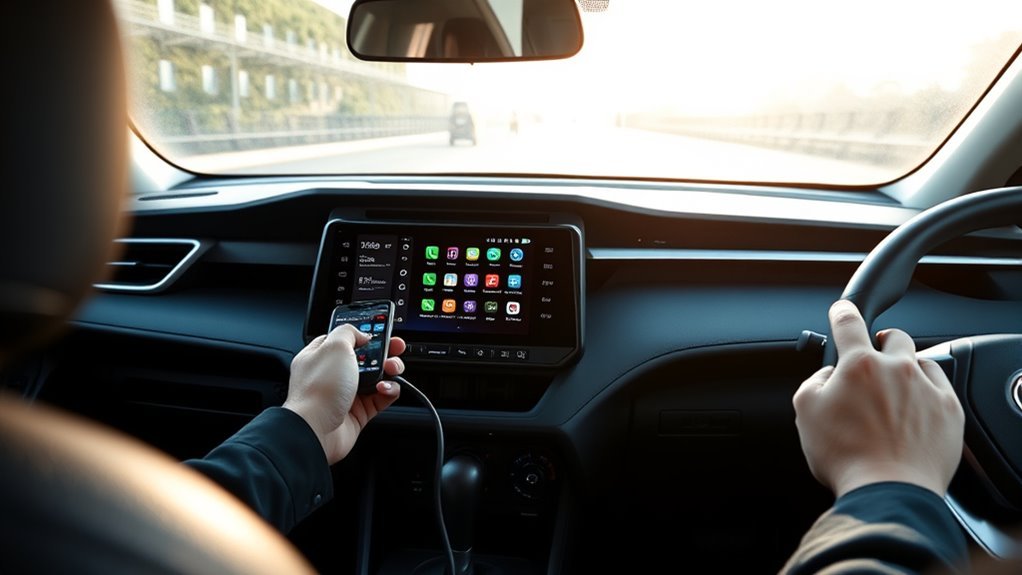
Plug your Android phone into the RAV4’s USB media port with a good data cable, make sure it’s running Android 9+ (or install the Android Auto app), and grant the app permissions when prompted. Tap “On” on the Toyota screen to launch Android Auto, use the touchscreen or steering‑wheel controls for Maps, calls, and music, and prefer USB for stability. If something’s off, restart devices and try another cable — keep going to see step‑by‑step setup and troubleshooting.
Quick Answer: Set Up Android Auto in a RAV4
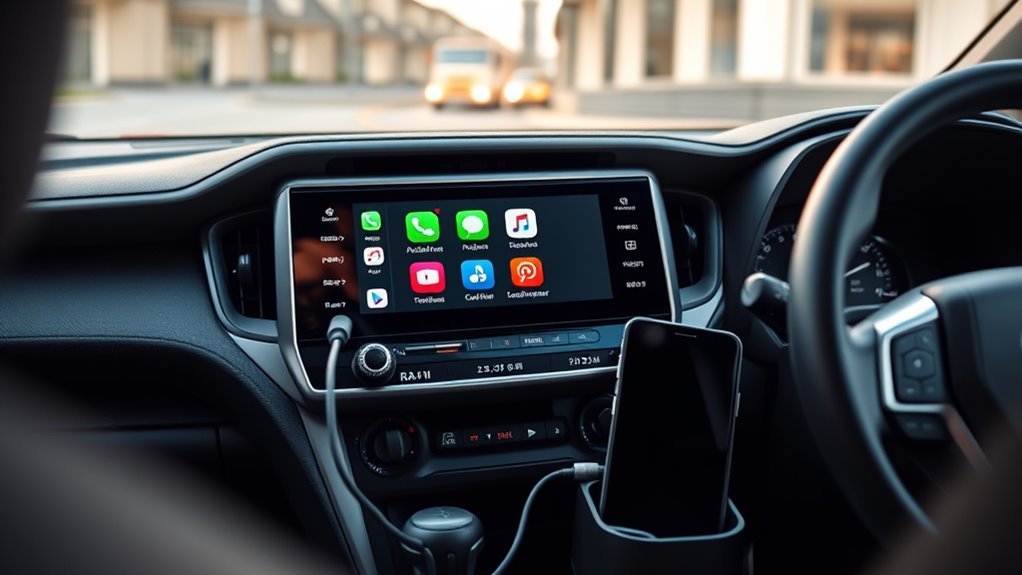
Plug your phone into the RAV4’s USB media port with a compatible cable, make sure it’s running Android 9+ (or install the Android Auto app from Google Play if it’s older), then follow the on‑screen prompts to grant permissions; when the app launches, tap “On” on the RAV4’s display to start using Google Maps, music, and other Android Auto features. You’ll get hands‑free control quickly: the app opens on your device, you allow the permissions it requests, and the RAV4’s touchscreen becomes your command center. Use durable USB cables to keep the connection stable and avoid interruptions while driving. If you value freedom from distraction, keep Android updates current so the interface stays secure and responsive. Once active, navigate with Google Maps, control audio, and access compatible apps from the dash without fumbling your phone. This setup frees you to focus on the road while still accessing essential apps and media.
Check Compatibility: Android Version, Head Unit, and USB Port
Before you try connecting, confirm your phone, RAV4 head unit, and USB port all meet Android Auto requirements so you don’t hit a compatibility snag. Start by checking your Android version — devices need Android 9 or newer; if yours runs an older release, grab the Android Auto app from Google Play and update the OS if possible. Next, verify the Head unit: most RAV4 models from 2017 onward support Android Auto, but confirm via your owner’s manual or the manufacturer website to see if a firmware update or dealer service is needed.
Inspect the vehicle’s USB media port visually and functionally — use a known-good cable and test another device to guarantee power and data pass through. On your phone, enable Android Auto permissions (contacts, location, etc.) so the system can operate. These checks keep you autonomous: you’ll avoid wasted time, dependency on shop visits, and the frustration of a connection that won’t cooperate.
[Products Worth Considering]

The Pigenius windshield sunshade protects your Tundra's interior from heat and UV damage while keeping the cabin cool. Its accordion design folds easily for storage and quick setup, and the triple‑laminate construction provides durable, reflective protection. Ideal for long trips and daily commutes, it guards dashboards, seats, and steering wheels from sun‑related wear.
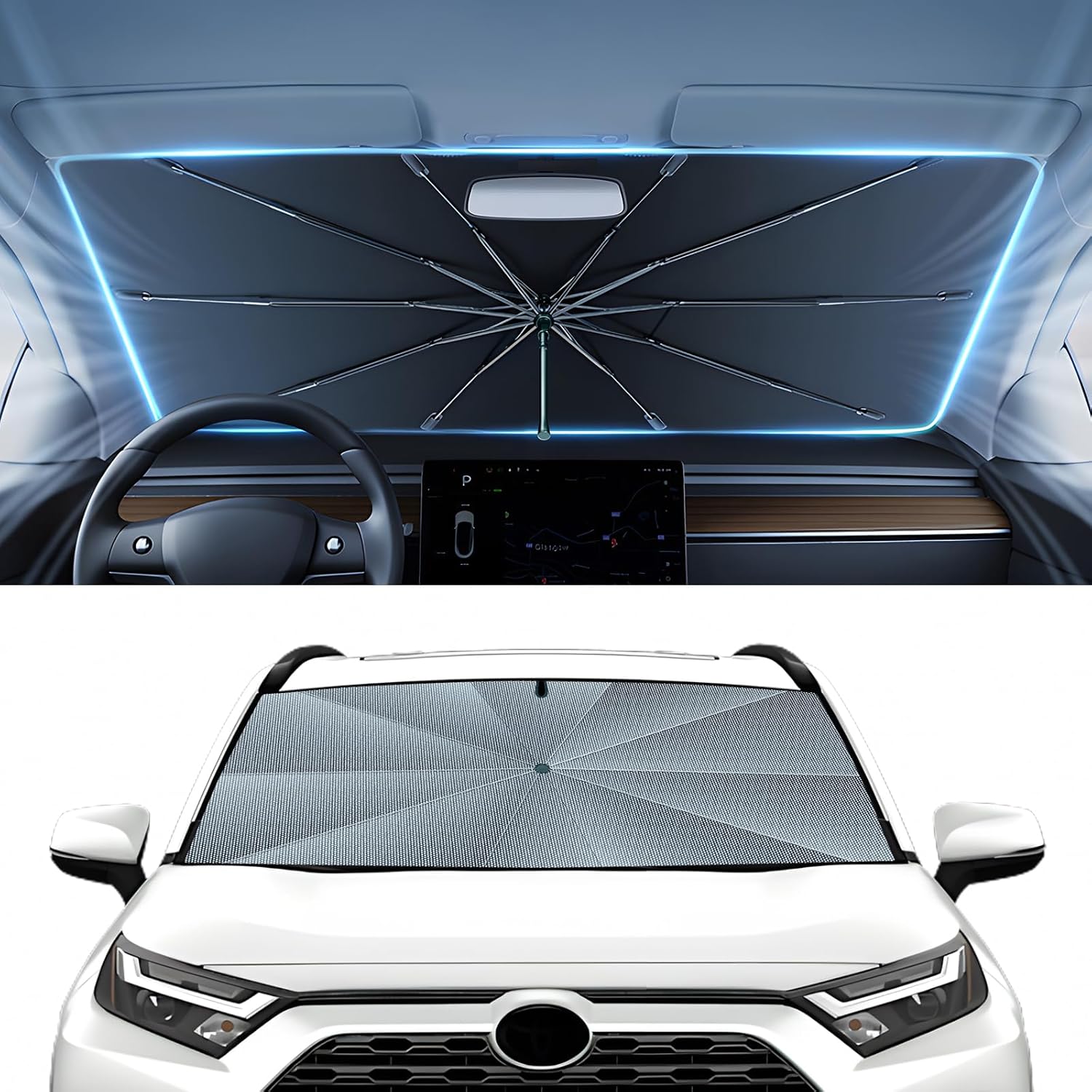
The Autorder windshield sun shade umbrella provides full coverage for Toyota RAV4 models from 2019 to 2026, blocking heat and UV rays with its advanced ice crystal material. Its ten reinforced skeletons and anti‑puncture edges ensure durability and stability, while the effortless umbrella‑style deployment and compact storage bag make it convenient for everyday use. Keep your car interior cool and protected from sun damage with this easy‑setup, high‑performance sunshade.

The KDOWES front windshield sun shade offers a custom fit for Toyota RAV4 SUVs, featuring a double‑layer heat shield that blocks up to 99% of solar rays and reduces interior temperature by up to 40°F. Reinforced steel rings and Velcro fasteners ensure easy installation and a secure fit, while the foldable cartilage steel ring allows convenient storage. This high‑quality, reflective fabric protects upholstery, dashboard, and electronics from UV damage, keeping the cabin cool and comfortable.
Set Up Android Auto in Your RAV4: Step‑by‑Step
Start by connecting your Android device to the RAV4’s USB media port to trigger the Android Auto setup; if your phone runs Android 9 or older, install the Android Auto app from Google Play first. Next, follow the on‑screen prompts on your phone to grant permissions for notifications, location, and access to contacts and media. When the car’s display prompts you, tap “On” to finalize Vehicle integration. Use the RAV4 touchscreen to open Google Maps, Phone, and Music — these core Android features streamline navigation, calls, and audio without digging through your device.
As you set up, opt into voice controls to keep hands free; this boosts Safety enhancements and preserves control. Confirm defaults so apps launch reliably and test a short route to validate User experience. If connection drops, try a different USB cable or port and restart both devices. This concise, liberated setup gets you immediate access to integrated apps while maintaining focus on safe, empowered driving.
[Products Worth Considering]

Protect your Toyota RAV4 interior with this custom‑fit windshield sun shade that blocks 99% of harmful UV rays and reduces cabin heat. The mirror cut‑out ensures a seamless fit without gaps, while durable 240T polyester and bendable wire keep it sturdy through repeated use. Foldable and stored in a convenient pouch, it offers easy installation and removal for everyday comfort.

The Autovir windscreen shade offers full windshield coverage for Toyota RAV4 models from 2019 to 2026, blocking up to 99.95% of UV rays and reducing interior heat. Its multi‑layer reflective material provides SPF 100 and UPF 80+ protection while keeping the dashboard, seats, and steering wheel cooler. The foldable design installs quickly and stores conveniently in the glove box, and reinforced stitching ensures long‑lasting durability for daily use.
Launch and Control Android Auto From the RAV4 Screen
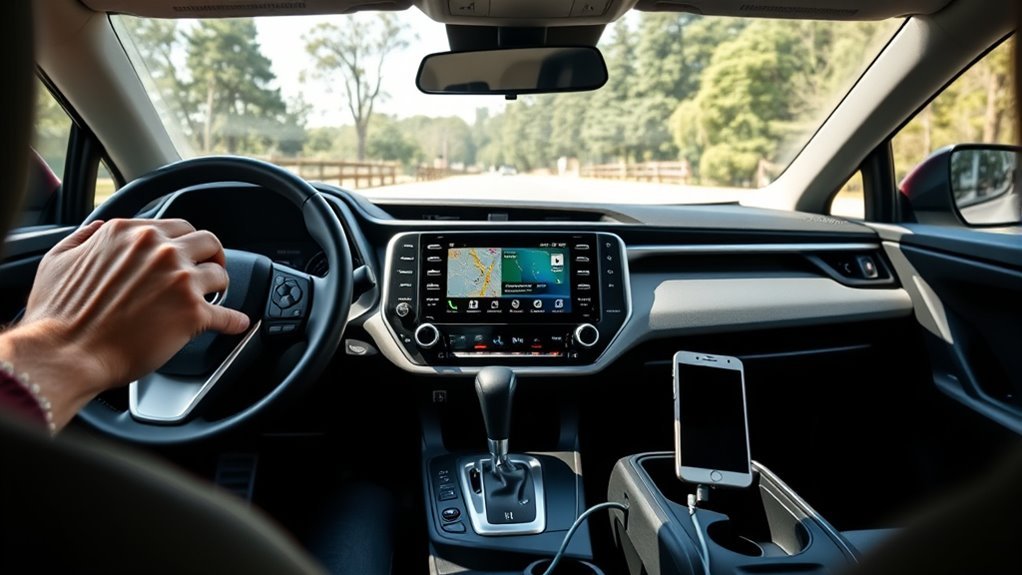
Once your Android device is plugged in the RAV4, Android Auto will launch on the multimedia display and you’ll tap “On” to activate it. Use the touchscreen to open apps like Maps, Phone, and Music and control playback, navigation, and calls without reaching for your phone. Tap the exit icon anytime to return to the standard multimedia interface.
Accessing Android Auto
1. To access Android Auto, plug your Android device into the RAV4’s USB media port — the phone will auto-launch Android Auto and the car’s display will prompt you to tap “On.” Enjoy Android benefits like streamlined navigation features and hands-free Voice commands that free you from distractions. The touchscreen shows Google Maps, Phone, Music, and other compatible apps for a smooth user experience.
If you hit Connectivity issues, check the cable and phone permissions, then reconnect. Use the Home or Menu button anytime to return to the main screen or switch back to native multimedia. To exit Android Auto, tap the exit icon; you’ll immediately regain control of the vehicle’s standard interface and preserve app compatibility.
Using Touchscreen Controls
Plug your phone into the RAV4’s USB media port and tap “On” when the Android Auto prompt appears on the touchscreen to launch the system; the display will then present app icons like Google Maps, Phone, and Music that you can tap to control navigation, calls, and audio directly from the vehicle screen. Use clear touchscreen gestures—tap, swipe, and pinch—to move between apps and reveal controls. The interface responsiveness is solid, so quick gestures register reliably; if something lags, pause and retry the gesture. The home/menu button returns you to vehicle functions when you need freedom from the phone ecosystem. Practice basic taps and swipes before driving so you can command navigation and calls confidently, reducing distraction and reclaiming control of your commute.
Exiting To Multimedia
If you want to leave Android Auto and return to the RAV4’s standard multimedia display, just tap the “Exit” icon on the screen or press the vehicle’s home/menu button to switch back instantly. You’ll regain full control of your multimedia settings and see the system prompt to activate Android Auto again whenever you want. Use these exiting options to break free from the app layer and manage audio, vehicle apps, or display preferences directly. The Android Auto interface stays minimal to reduce distraction, so switching is quick and safe. To reconnect, plug your Android device into the USB media port and accept the prompt. Follow these steps to maintain freedom over navigation and media without losing focus.
Customize Controls and App Shortcuts for Safer Driving
Customize your Android Auto layout by arranging home screen icons so your most-used apps are one tap away. Set up quick-access app shortcuts and map common functions to steering wheel controls for faster, hands-on operation. Use Google Assistant and notification settings to keep interactions voice-first and minimize distractions while driving.
Quick-Access App Shortcuts
One or two well-placed shortcuts can cut fumbling and keep your eyes on the road: Android Auto lets you choose which apps appear on the home screen, rearrange icons by pressing and dragging, and prioritize favorites in Settings so your most-used navigation and audio tools are always front and center. Set up app organization by selecting the apps you use most—maps, podcasts, messaging—and pinning them to the top row. Press and hold any icon, then drag it to the position that feels natural. In Settings, mark priorities so updates keep your layout intact. Assign voice commands to launch apps hands-free; say the command and the system opens the app without your hands leaving the wheel. Keep Android Auto updated for new shortcut features.
Customize Steering Wheel Controls
Take control of your RAV4’s steering wheel buttons to launch navigation, voice commands, and media without taking your eyes off the road: open the vehicle settings, locate the steering wheel or button customization menu, and assign specific functions—like Google Maps, your preferred music app, or the assistant button—to the physical controls. Use steering wheel customization to map shortcuts that free you from fumbling with the touchscreen. Assign voice command assignment to a dedicated button so you trigger Google Assistant instantly. After mapping, test each button to confirm behavior and tweak as needed. Review settings periodically to match new app features. 1. Prioritize essential apps (navigation, music, calls). 2. Assign assistant/voice shortcuts. 3. Test and update regularly.
Arrange Home Screen Icons
Place your most-used apps where your eyes and thumb naturally go by tapping and holding an icon on the Android Auto home screen to enter edit mode, then drag up to six app shortcuts—like Google Maps, your preferred music service, and calls—into the top positions for faster, safer access. You’ll need the vehicle in park and a USB connection to your phone to enable customization. Prioritize navigation and communication to minimize distractions, and revisit your home screen organization as habits change. This app icon arrangement gives you quick, liberated control over driving tasks while keeping focus on the road.
| Action | Tip |
|---|---|
| Enter edit mode | Tap & hold icon |
| Limit | Up to 6 icons |
| Safety | Park + USB |
| Review | Update regularly |
Troubleshooting Android Auto in a RAV4 and Where to Get Help
If Android Auto won’t launch, first confirm your phone is securely plugged into the RAV4’s USB media port and that you’ve granted any prompts or permissions on the device. Then run basic troubleshooting: restart your phone and the infotainment system, check Android version (Android 9+), and verify app compatibility and updates.
- Restart both phone and head unit to clear transient connectivity problems.
- Verify device settings, USB cable, and that apps are supported and updated.
- Install Android Auto from Google Play on older devices and reauthorize permissions.
These quick fixes address common issues and reflect real user experiences—often a reboot or cable swap frees you. If problems persist, consult support resources at toyota.com/audio-multimedia and android.com/auto for detailed guides and troubleshooting tips. You deserve tech that liberates your drive; use these steps to reclaim control and get Android Auto working reliably in your RAV4.
Frequently Asked Questions
Why Won’t My Android Auto Connect to My Toyota?
Your Android Auto won’t connect because of connection issues like outdated OS, faulty USB cable, disabled Android Auto, or Bluetooth conflicts; use these troubleshooting tips: update Android, swap cables, enable Android Auto in settings, restart device and car.
How Do I Get Android Auto to Show on My Car Screen?
Plug your phone via USB connection, grant Android permissions when prompted, tap “On” on the car display, and use the touchscreen to open Android Auto. If it still won’t appear, reboot phone and retry the USB connection.
Conclusion
Android Auto makes driving smarter and safer—about 70% of newer cars support it—so setting it up in your RAV4 is worth a few minutes. Confirm compatibility, plug a USB-C (or USB-A) cable into the proper port, grant permissions on your phone, then tap Android Auto on the RAV4’s screen. Customize shortcuts and voice controls for minimal distraction. If issues pop up, reboot devices, try a different cable, or consult Toyota support for swift fixes.