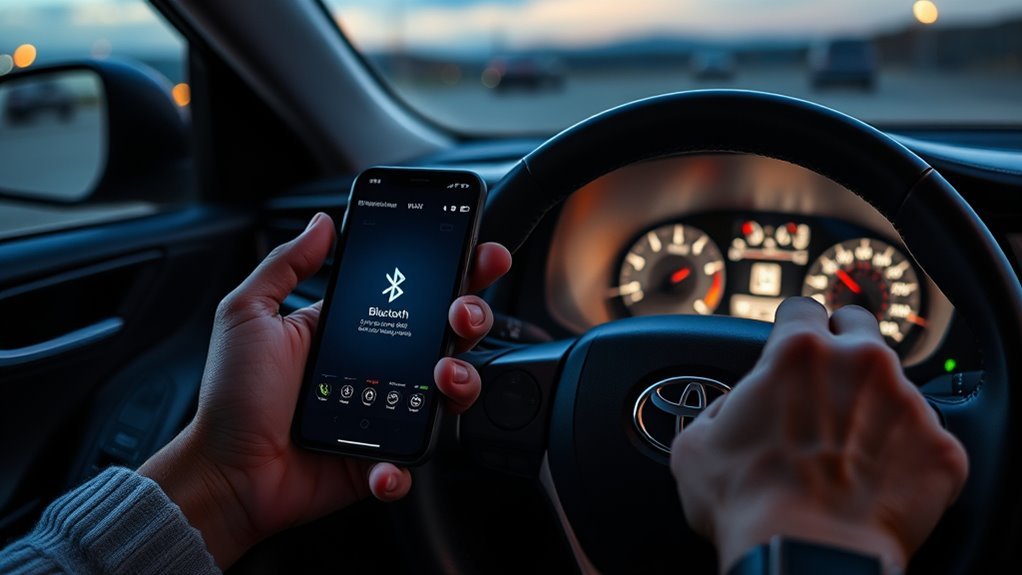
Start by restarting your phone and the RAV4’s infotainment system. Enable Bluetooth and visibility on both devices, then delete old pairings from each. Move to an open area, turn off nearby Bluetooth or Wi‑Fi gadgets, and hold your phone close to the head unit. Re-pair following the car’s menu prompts and confirm PINs. If “Bluetooth initializing” appears, soft-reset the infotainment and update your phone and vehicle software. If it still fails, continue reading for advanced resets and dealer diagnostics.
Quick Answer
- Restart everything: Power down your phone and the RAV4’s infotainment system to clear temporary glitches.
- Clear old connections: Delete past Bluetooth pairings from both the car and your phone’s settings.
- Reduce interference: Turn off other nearby Bluetooth gadgets and move to an open area.
- Re-pair: Keep your phone close to the screen and follow the car’s on-screen prompts.
- Soft reset: If you get stuck on the “Bluetooth initializing” screen, turn the vehicle off for five minutes.
Quick Fixes to Try First
Start with the basics. Restart both your phone and the RAV4 to clear temporary bugs. Make sure Bluetooth is enabled and discoverable on your phone, and delete any old or unused device entries from both the phone and the vehicle.
Next, follow a strict sequence: remove the vehicle from your phone’s Bluetooth list, clear the phone from the car’s system, and reinitiate pairing using the steering wheel button or touchscreen. Keep your phone near the car’s display during pairing to ensure a strong signal. Check your phone’s Bluetooth settings for permissions (like phonebook access and audio) before pairing. If it still fails to connect, note the exact symptoms—such as no discoverability or failed authentication. This methodical approach helps you figure out if the problem is a setting, local interference, or a stubborn stored connection.
Confirm RAV4 Bluetooth Compatibility and Update Your Phone
Before you try to pair again, confirm your devices are compatible and fully updated. Check the RAV4 owner’s manual for supported phones, install the latest OS updates on your device, and make sure Bluetooth is turned on.
Follow this process to restore seamless connectivity:
- Verify supported devices: Check the manual for compatible phones. If your model isn’t listed, some features might not work correctly.
- Update phone software: Install the latest carrier and OS updates. Reboot, enable Bluetooth, and set your phone to discoverable. Updating your phone often fixes underlying connection bugs.
- Troubleshoot persistent faults: If pairing still fails, reset your phone’s network settings and cycle the car’s power. This restores a clean slate for pairing.
Remove Old Devices From Your Phone and RAV4
When problems continue, remove old devices from both systems to prevent connection conflicts. Open your phone’s Bluetooth settings, find the RAV4, and select “Forget” or “Remove.” Do the same for any old wireless accessories. On the RAV4, open the Bluetooth menu and delete devices you no longer use.
Keep your paired list short to reduce errors. After clearing the lists, reboot your phone and the car to clear their memory caches. Make it a habit to remove stale profiles. This simple maintenance stops ghost connections from interrupting your audio and improves the odds of a successful connection.
Pair Your 2017–2024 RAV4 via Bluetooth
A simple sequence will get your phone paired to a 2017–2024 RAV4. Enable Bluetooth and discoverable mode on your phone, and clear any old vehicle entries. Then, go to the RAV4’s Bluetooth menu, select Add New Device, and start the process. Follow the on-screen prompts, confirm any PINs, and test the connection by playing audio or making a call.
- On your phone: enable Bluetooth, set it to discoverable, and remove outdated vehicle connections.
- On the RAV4: navigate to Settings → Bluetooth → Add New Device, start discovery, and select your phone.
- Confirm the matching PINs on both screens, accept the prompts, and test the audio through the car speakers.
Take your time and wait until both device lists are clear before trying again.
Fix “Bluetooth Is Initializing” With Soft Resets
If a “Bluetooth is initializing” message won’t go away, try a soft reset to clear corrupted data. Start by simply turning the vehicle off and waiting at least five minutes. This drains residual power and often clears temporary bugs.
If the message stays, disconnect the car battery for about ten minutes to force a deeper reset. This can resolve software-level errors. After reconnecting power, reset the Bluetooth settings in the infotainment menu to wipe out bad configurations. Finally, remove the RAV4 from your phone, turn the phone’s Bluetooth off, and try re-pairing.
Fix Drops, No Audio, or Limited Phone Features
To stop connection drops, pair with your phone near the display and confirm Bluetooth is active on both sides. If audio is missing, clear old pairings, make sure the correct audio profile is selected, and update your phone’s software. Restart both devices.
Stop Connection Drops
If your RAV4 drops calls or loses audio, update the car’s infotainment software and your phone’s OS. Clear out old pairings to cut down on interference. Keep your phone near the screen while pairing and restart both devices to clear faults. If the drops keep happening, reset the car’s Bluetooth settings and re-pair.
Restore Audio Playback
You can usually fix missing audio by checking your settings. Make sure both the RAV4 and your phone have Bluetooth enabled and set for media output. Delete old pairings to stop conflicts and check for software updates. Keep your phone close to the screen while pairing. If it still fails, reset your phone’s network settings.
| Step | Action | Result |
|---|---|---|
| 1 | Enable Bluetooth on both devices | Connection available |
| 2 | Set media/audio output | Audio routed correctly |
| 3 | Delete old pairings | Reduces conflicts |
| 4 | Update software | Improves stability |
| 5 | Re-pair close to display | Restores reliable playback |
Reenable Phone Features
If phone features are missing, verify Bluetooth is on and restart both devices. Check your phone’s visibility settings so the car can find it. Remove old pairings to avoid connection conflicts.
- Confirm settings, enable visibility, and restart both devices.
- Delete old pairings on the phone and RAV4, then re-pair.
- Update your phone’s OS to ensure compatibility and retest your calls.
Reduce Interference: What to Turn Off and Where to Pair
Turn off nearby wireless headphones and extra phones so your RAV4 doesn’t compete for the signal. Try to pair your phone in an open area away from thick walls or heavy Wi-Fi traffic. Keep your phone close to the head unit while pairing.
Turn Off Nearby Devices
Power down nearby tablets, headphones, and other phones. This clears the radio environment so your primary phone can connect easily.
- Turn off extra Bluetooth devices and temporarily disable your phone’s Wi‑Fi.
- Delete old pairings on your phone and the RAV4.
- Hold your phone close to the car display and start pairing.
Move To Open Area
Bluetooth signals are sensitive to physical barriers and competing frequencies. Park in an open, quiet spot—like an empty parking lot—before pairing. Turn off nearby electronics to reduce interference. Keep your phone near the dashboard, make sure it is discoverable, and start the pairing process. This speeds up the connection and prevents failures.
Avoid Crowded Bluetooth Channels
Once you are in a clear spot, power off any remaining mobile hotspots or wireless gadgets. Controlling local interference greatly improves connection stability.
- Restart your phone’s Bluetooth and the RAV4 infotainment system.
- Forget unused pairings on both devices.
- Make sure only one phone is trying to pair at a time.
Check and Install RAV4 Infotainment Updates
Regularly update your RAV4’s infotainment software to keep Bluetooth stable. Updates often fix known bugs and improve compatibility with newer phones. Check Toyota’s official site or contact your dealership for the latest downloads.
Before updating, read your owner’s manual and follow the instructions carefully. Back up your radio presets if needed, and make sure your car battery is sufficiently charged. Apply updates via USB or have the dealer install them. Never interrupt an update while it is running.
After it finishes, test the Bluetooth pairing and audio. If problems remain, write down the firmware version and exact symptoms to share with Toyota support.
When to Try Hardware Resets and What They Involve
If your RAV4 still won’t connect after trying software updates, a hardware reset might be necessary. This restores the system to its factory state and clears deep glitches. Note that a hardware reset will erase your personalized settings and radio presets.
- Turn the vehicle off, disconnect the negative battery cable for about 10 minutes, and reconnect it.
- Reboot the system, make your phone discoverable, and try pairing again.
- If it still fails, you may need a professional to inspect the wiring or internal modules.
Persistent failures after a hard reset usually point to a physical hardware problem.
What to Tell Your Dealer and What to Expect During Diagnostics
If you need to visit the dealership, bring a clear list of the symptoms. Tell them exactly when the issue happens (e.g., during calls or while playing music) and what troubleshooting steps you have already tried. Provide your phone model, OS version, and any specific error messages you see on the screen.
Bring your phone and its charging cable so the technicians can test it directly. Ask the service advisor how they will keep you updated and what diagnostic fees to expect. They will likely reset the unit, check software versions, and attempt to recreate the problem. Clarify any costs upfront so there are no surprises.
Frequently Asked Questions
Why Is My RAV4 Not Connecting to Bluetooth?
Your RAV4 might struggle to connect due to outdated software, interference, or too many saved devices. Reboot both systems, delete old pairings, check for updates, and try pairing again.
Why Is My Toyota Bluetooth Not Connecting?
Connection issues usually stem from local interference or outdated firmware. Check for software updates, remove conflicting devices from your Bluetooth list, and restart both your phone and the car.
How to Fix Toyota Entune/Audio Multimedia Bluetooth Issues?
You can fix most Toyota Bluetooth issues by putting your phone in discoverable mode, deleting old pairings, and restarting both devices. Keep your system updated and perform a factory reset if the problem won’t go away.
How Do I Fix the Bluetooth Pairing Problem?
Start by checking for software updates on both your phone and the vehicle, as outdated firmware is the most common culprit. Next, verify your phone is fully compatible, delete any old connections, and restart both devices before attempting to pair again.
Conclusion
Troubleshooting Bluetooth problems doesn’t have to be a headache. Start with the simplest fixes: restart your devices, clear out the digital clutter of old connections, and keep your software updated. While a hard reset might be necessary for stubborn glitches, these baseline steps will solve the vast majority of pairing issues. When all else fails, your local Toyota dealership has the diagnostic tools to get your audio system back on track and your commute back to normal.