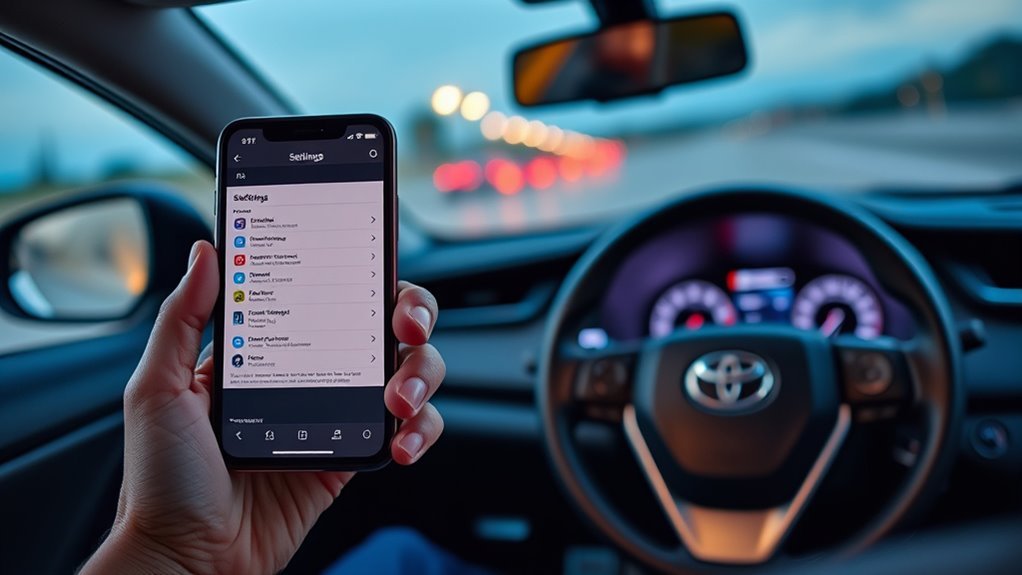
You can pair your phone to a Toyota RAV4 quickly: enable Bluetooth on your phone, start the RAV4 multimedia system, then go Menu → Setup → Bluetooth → Add Device (or press the talk button and say “phone setup” then “pair phone”). Make your phone discoverable and keep it near the screen, accept the pairing prompt and confirm the passkey on both devices. Test calls and media, set the priority device, and continue for detailed steps and troubleshooting.
Quick Answer: Pair Phone to Toyota RAV4 in 3 Steps
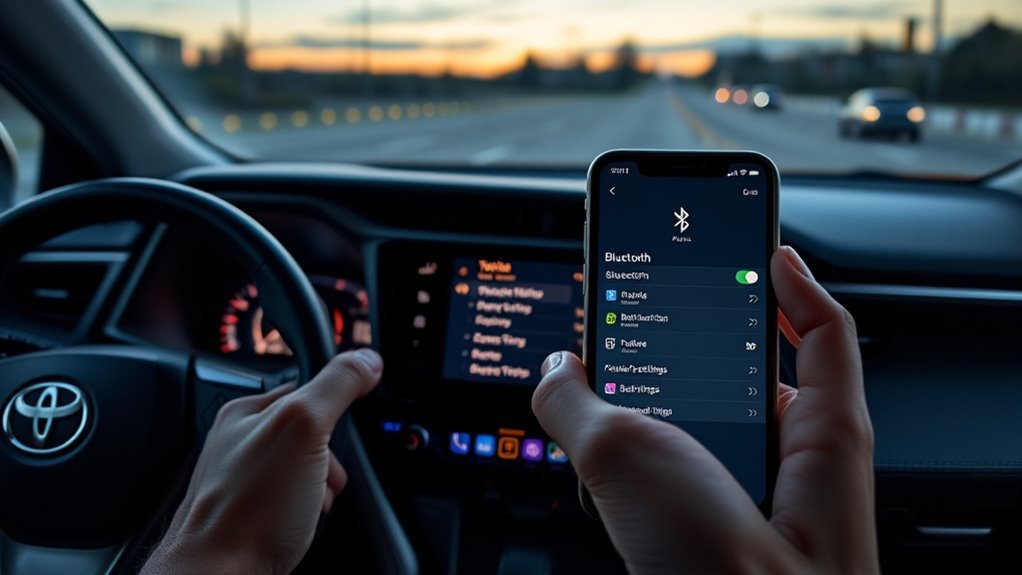
1 simple routine gets your phone paired to a Toyota RAV4: turn on the RAV4’s multimedia system and open Setup → Bluetooth → Add Device, make your phone discoverable in its Bluetooth settings (or use the voice command: press the talk button and say “phone setup” then “pair phone”), then select your phone on the RAV4’s display and confirm any passkey to complete the connection. Follow three compact steps: enable pairing on the RAV4, make your phone discoverable, then confirm the passkey shown on both devices. You’ll validate Bluetooth security by accepting the matching code, preventing rogue connections. After pairing, test hands-free calling and audio to confirm the user experience meets expectations; any failure signals you to repeat pairing or reboot devices. This approach keeps control in your hands—efficient, technical, and focused on liberation through dependable connectivity. You’re not stuck with confusing menus or weak links; you reclaim mobility and secure, consistent in-car communication.
Prepare Your Phone and RAV4 for Bluetooth Pairing
Before you start pairing, make certain your phone’s Bluetooth is on and discoverable, then start the RAV4, press Menu on the multimedia system, and navigate to Setup → Bluetooth → Add Device. Now prepare both devices for a clean connection: open your smartphone settings, confirm Bluetooth connectivity is enabled, and set the device to visible/discoverable. Disable other active Bluetooth connections or airplane-mode toggles that might block discovery.
Keep your phone within a foot of the multimedia screen to avoid signal drops during negotiation. Close unnecessary apps that may interrupt pairing notifications. On the RAV4, make sure the multimedia system is awake and not in a sleep or update mode; you want immediate response to discovery requests.
This setup reduces friction and preserves your control—freeing you from repetitive retries. Once both ends are discoverable and proximate, you’ll be ready to follow on-screen prompts to finalize pairing promptly and securely.
Pair From the Multimedia Screen (Menu > Setup > Bluetooth)
Tap Menu on the multimedia screen, select Setup, then choose Bluetooth and Add Device to begin pairing. You’ll see prompts guiding you through discovery — make your phone discoverable, then confirm the system finds it. Verify device compatibility before accepting; some older phones use legacy profiles that won’t support hands-free features. When the RAV4 displays a passkey, confirm it matches the code on your phone and accept on both devices to complete the bond.
Prioritize Bluetooth security by rejecting unknown pairing requests and disabling visibility after pairing. Once paired, test call audio and media playback to verify hands-free controls and microphone routing work as expected. If features are limited, revisit the Setup menu to adjust phone priority, audio permissions, or delete and re-add the device. This method gives you direct control over connections, preserves your privacy, and guarantees the car-phone link serves your independence on the road.
Use Voice Commands to Pair: “Phone Setup” → “Pair Phone
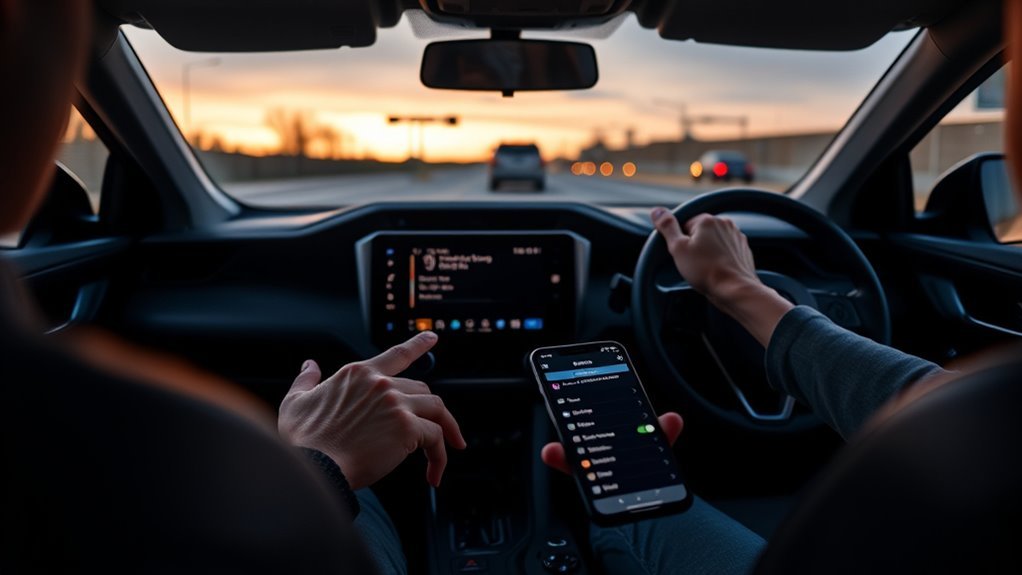
If you prefer hands-free setup instead of using the multimedia menu, press the talk button and say “phone setup” to open the Bluetooth options, then say “pair phone” to start discovery. You’ll use voice recognition to navigate without touching controls, keeping focus and asserting control over your environment. Say commands clearly; the system confirms entry and begins searching for devices.
| Step | Command | Result |
|---|---|---|
| 1 | Press talk | Wake voice system |
| 2 | “Phone setup” | Open Bluetooth menu |
| 3 | “Pair phone” | Begin pairing discovery |
Keep your phone discoverable while the vehicle searches. Respond to prompts on the display to accept pairing and set a passkey if requested—this enforces Bluetooth security. After pairing, test calls and media to verify hands-free function. This approach liberates you from menus, reduces distraction, and secures connections through explicit confirmation and passkey handling.
Make Your Phone Discoverable and Confirm the Passkey
Turn on Bluetooth and set your phone to discoverable so the RAV4 can see it. When the multimedia display shows a passkey, verify the numbers match exactly on both your phone and the car. Tap OK/Pair on your phone to confirm and complete the secure connection, and recheck Bluetooth settings if the codes don’t match.
Make Phone Discoverable
Make your phone discoverable by opening its Bluetooth settings and enabling visibility so the RAV4’s multimedia system can find it; if your phone doesn’t auto-enter discoverable mode, select the explicit “Make Discoverable” or “Visible” option in the Bluetooth menu. Keep the phone within about 10 meters of the vehicle and disable any airplane mode or restrictive profiles that block connections. Confirm your phone model supports the RAV4’s Bluetooth profiles to avoid device compatibility issues. Prioritize Bluetooth security: use the shortest practical discoverable window and turn visibility off after pairing to minimize exposure. If discovery fails, toggle Bluetooth off and on, restart the phone, or remove old pairings on the car system to restore a clean handshake.
Verify Passkey Match
While your phone is discoverable, watch both the RAV4’s screen and your phone for the displayed passkey and confirm the numbers match before accepting the pairing request. You’re performing passkey verification to guarantee a secure connection and prevent unauthorized pairing. If the digits align, proceed; if they don’t, cancel and restart to avoid a faulty link.
- Compare the exact numeric code on the RAV4 display and your phone.
- If codes differ, abort pairing immediately and retry.
- Once matched, accept the pairing prompt on your phone to finalize passkey verification.
- After pairing, test with a hands-free call to validate the secure connection.
This method keeps you in control, eliminates guesswork, and preserves your digital freedom.
Confirm And Connect
Before you attempt pairing, guarantee your phone’s Bluetooth is on and set to discoverable so the RAV4 can detect it. Put the car in pairing mode, then watch the multimedia screen and your phone simultaneously. When the passkey appears on both devices, confirm they match to enforce Bluetooth security; reject any mismatch. If you want a custom code, press the talk button and say “set Pass Key” to define it. After confirmation, accept the connection on both the phone and the RAV4 — a notification will indicate successful pairing. Finally, test hands-free calling and audio routing to validate functionality. This precise sequence protects your device, improves user experience, and gives you control over who connects to your vehicle.
Name, List, and Manage Paired Phones in the RAV4
If you want easy access to calls and media, name your phone when pairing and keep the multimedia system’s Phone > Bluetooth list tidy so you can quickly identify and manage devices. Use clear, distinctive names and confirm the label using the talk button during pairing. Make your phone discoverable before starting; the system will detect it and let you assign a name. These pairing tips reduce confusion when multiple devices are present.
Name your phone while pairing, use clear labels, and keep the Phone > Bluetooth list tidy for quick, reliable access.
- View paired phones: Phone > Bluetooth in the multimedia system
- Rename a device: select the entry, choose “change name,” confirm with talk button
- Remove a device: select the entry, choose “delete” to free slots and avoid conflicts
- Regular maintenance: review the list regularly if you switch phones often
You control device management: rename to assert ownership, delete unused entries to optimize performance, and keep discoverability on only while pairing. Be deliberate—trim the list to stay free and connected.
What Bluetooth Modes Do: Calls, Audio, and Contacts
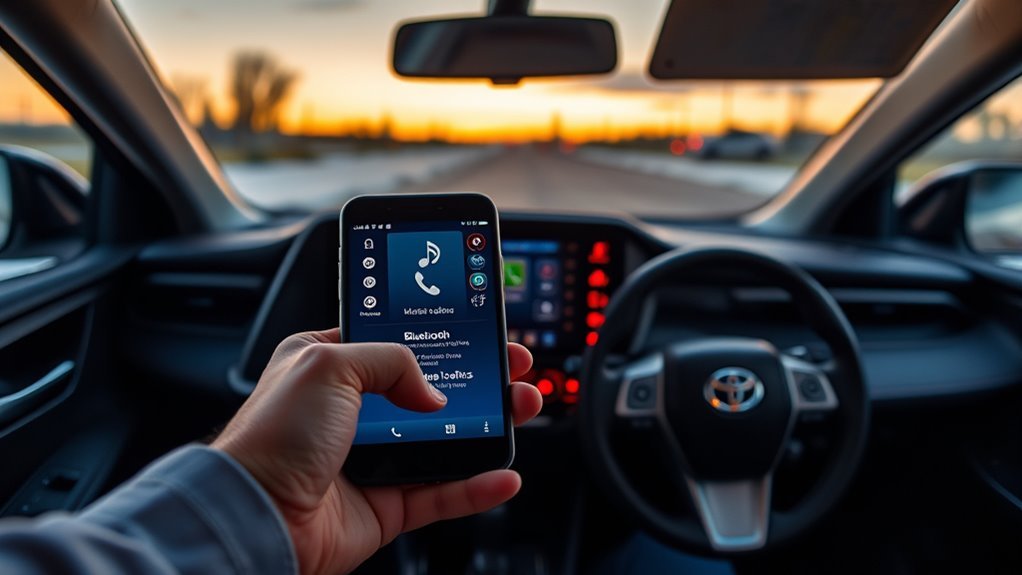
When you pair your phone, you’ll enable separate Bluetooth modes for call handling, media audio, and contacts syncing. Calls mode routes incoming and outgoing calls through the RAV4’s mic and speakers so you can use hands-free controls. Media audio streams music and other media to the car, while contacts mode lets the head unit read and dial entries from your phonebook.
Call Handling Basics
Understand how the RAV4’s Bluetooth handles calls, audio, and contacts so you can use it efficiently and safely. You’ll use hands-free calling to keep focus on the road; the system routes voice to the car mic and speakers, which affects call quality and can expose privacy concerns if contacts sync automatically. You can initiate calls via touchscreen or voice commands and switch between paired phones when supported.
- Enable hands-free calling to avoid manual phone handling.
- Sync contacts selectively to control data shared with the vehicle.
- Use voice commands to place calls and reduce distraction.
- Monitor which device is active when multiple phones are paired.
Configure permissions, test mic/speaker levels, and revoke contact access when you want control and freedom.
Media Audio Streaming
Now that you’ve got call handling set up, let’s look at how Bluetooth manages media and contacts so you can control audio, calls, and address book access separately. You’ll use two primary Bluetooth profiles: HFP for hands-free calls and A2DP for media audio streaming. Enable A2DP on your phone and select the RAV4 as the audio output to stream music or podcasts; this maximizes audio quality but won’t route microphone audio. Device compatibility matters—older phones may support calls but not high-quality A2DP, so verify your phone’s Bluetooth profiles. Keep your phone discoverable during initial pairing so the RAV4 can detect and negotiate profiles. Once paired, toggle media or call priorities in the vehicle settings to assert control and maintain your driving autonomy.
Contacts And Syncing
Although Bluetooth primarily handles calls and audio, it also syncs your phone’s contacts so you can dial by name or use voice commands; enable contact sharing on your phone and set it to discoverable during pairing so the RAV4 can import the address book. You’ll get hands-free calling, audio streaming, and an integrated contact list, but be aware of sync limitations: models and OS versions may cap entries. Organize contacts before syncing to maintain clarity and quick voice access. Use the car’s interface to verify imported names and remove duplicates.
- Confirm phone discoverable and contact sharing enabled
- Review sync limitations for your phone model and OS
- Clean up contact organization on your device first
- Use voice commands to test imported entries
Reconnect, Set Priority Phone, and Auto‑Connect Tips
Start by turning on your phone’s Bluetooth and switching the RAV4’s multimedia system to Bluetooth mode so the two devices can find each other; then open the vehicle’s Bluetooth settings, choose your phone as the priority device to enable automatic pairing, and confirm your phone is set to be discoverable and previously paired for seamless auto-connect. For reconnection, wake the phone and the multimedia screen; the RAV4 should auto-initiate pairing with the priority device. Use the system’s Bluetooth security options to restrict new device additions and maintain connection stability by limiting active devices. If multiple phones exist, use voice commands like “list phones” to set priority or manually select the primary device in settings. Keep both your phone OS and the RAV4 multimedia firmware current to reduce compatibility gaps and improve auto-connect reliability. These steps give you practical control and preserve autonomy over which device connects first without compromising secure, stable hands-free use.
Troubleshooting: Common Pairing Failures and Quick Fixes
If your RAV4 won’t pair with your phone, begin by confirming basic connectivity: make sure Bluetooth is on, your phone is discoverable, and no other device is actively connected. Check range and visibility first — being too far or hidden causes connection interference. Verify the pass key shown on the car matches your phone before accepting.
- Restart both your smartphone and the car’s multimedia system to clear transient faults.
- Ascertain your phone is within range and discoverable; multiple active connections can block pairing.
- Confirm your phone’s software is current to avoid device compatibility problems with Bluetooth protocols.
- If pairing fails repeatedly, remove old Bluetooth entries on both phone and car, then retry.
You’re aiming for quick, reliable liberation from tech friction. Use systematic steps: confirm basics, restart, update, clear stale pairings, and reattempt. These practical actions resolve most common pairing failures without needing dealer help.
Compatibility, Software Updates, and Where to Get Help
When checking Bluetooth issues, confirm your phone is listed as compatible with your RAV4 and that both devices are running the latest firmware and OS versions; outdated software is the most common source of pairing failures. Verify Bluetooth compatibility by reviewing your phone maker’s specs against Toyota’s requirements. Update your phone’s OS and apps before pairing—smartphone updates often resolve stack, codec, and security mismatches that block connections. Keep your RAV4’s head unit firmware current via Toyota service or official downloads.
If pairing still fails, use troubleshooting resources: Toyota’s support site (toyotaaudioandconnectedservicessupport.com) has step-by-step guides and FAQs. Check that cellular coverage isn’t interfering during setup. Use logs or error codes if available and note exact symptoms.
Tap community support—owner forums and RAV4 groups share real-world fixes and firmware-version notes. You’re reclaiming control: combine official troubleshooting resources with peer-tested solutions to restore reliable Bluetooth performance quickly.
Frequently Asked Questions
How Do I Connect My Bluetooth to My Toyota RAV4?
Turn on your RAV4, open Bluetooth settings on both devices, select Add Device, confirm device compatibility, accept pairing prompts, name your phone, and test hands-free controls so you’re liberated from cables and interruptions.
How to Put Toyota in Pairing Mode?
Turn on the multimedia system, press Menu, open Setup, select Bluetooth settings, then Add Device to enable pairing mode. You’ll check device compatibility on your phone, follow prompts, and free yourself from wired constraints.
Why Won’t My Phone Connect to My RAV4?
Like a locked gate, your RAV4 won’t connect because of Bluetooth issues, phone compatibility mismatches, or outdated software: perform connection troubleshooting, update firmware and OS, restart devices, and remove conflicting paired devices to regain freedom.
Conclusion
So you’ve survived the Bluetooth ritual—congrats. Now that your phone and RAV4 are begrudgingly paired, don’t act surprised when calls route correctly and music behaves. Keep Bluetooth on, set your priority phone, and let the car remember you like you remember your PIN: barely. If it forgets, update software, toggle settings, or perform the ancient reboot. Repeat as needed until harmony—or at least functional hands‑free chaos—ensues.