Updating Hyundai Sonata display audio software is straightforward once you identify the exact infotainment system in your car. For a U.S.-market Sonata, the key is to use Hyundai’s package for your VIN or vehicle type, then prepare the USB exactly as that package requires. Display Audio and navigation systems do not always use the same files or update method.
Quick Answer
To update a U.S.-market Hyundai Sonata, first identify whether it has Display Audio or a navigation/ccNC system. Download the exact package Hyundai lists for the VIN or vehicle type, prepare the USB exactly as instructed, then run Update from Setup > General > SW Info/Update. Do not interrupt power or remove the USB during installation.
Last checked: October 5, 2026. Dates and figures were verified against official sources.
At a Glance
| Time Required | About 10–15 minutes for Hyundai’s current Display Audio installation, plus download and USB preparation time |
| Tools Needed | A computer with internet access and a compatible empty USB drive |
Identify Your Sonata’s Software Requirements Before Updating
)
First determine whether your Sonata uses Display Audio without factory navigation or a navigation-based infotainment system. Hyundai maintains separate procedures for these systems, so using the wrong package can prevent the update from starting.
Open your infotainment settings and go to Setup > General > SW Info/Update to record the installed software version. Then use Hyundai’s official infotainment update search and enter the VIN or select the exact vehicle type.
Hyundai’s current U.S. software-version list shows an important model-year difference. As checked October 5, 2026, Sonata Display Audio entries are still listed with a June 2024 update, while newer Sonata models use navigation or ccNC software entries.
| U.S. Sonata | Current Hyundai Listing | What It Means |
|---|---|---|
| 2016–17 Sonata | Display Audio: LF.USA.0000.V108.221007 | Use the Display Audio path only if your installed unit matches the eligible system. |
| 2018–19 Sonata | Display Audio: LFFL.USA.SOP.V108.221011 | Display Audio and navigation versions are listed separately. |
| 2020–22 Sonata | Display Audio: DN8.USA.D2V.003.200.240318 | These cars may have a Display Audio package or a separate navigation package depending on equipment. |
| 2023–26 Sonata | Current U.S. table lists navigation software rather than a Display Audio entry | Use Hyundai’s navigation/infotainment update path instead of forcing a Display Audio package. |
Hybrid and plug-in hybrid versions can have their own software identifiers, so do not assume a package for a gasoline Sonata is interchangeable. The VIN or exact vehicle-type search is the safest way to select the correct download.
Prepare Your USB Drive for the Update
The correct USB setup depends on the update package Hyundai gives you. This is where the original process can become confusing because Hyundai’s current Display Audio documentation shows more than one valid file layout.
Hyundai’s current Display Audio user guide says FAT16, FAT32, NTFS, and exFAT can be supported, while its removable-media table recommends an 8GB or 16GB USB drive formatted as exFAT. However, Hyundai’s June 2024 Display Audio release specifically recommends FAT32 and a single-partition USB drive.
| Package Type | What Goes on the USB |
|---|---|
| Package containing enc_system_package and enc_d2vsystem_package files | Copy the two ZIP files to the USB root. Do not extract those two package files. |
| Package whose instructions call for a DAUDIO folder | Extract the downloaded archive, then copy the DAUDIO folder to the top level of the USB drive. |
Do not apply one file rule to every Sonata. Follow the instructions displayed for the exact package Hyundai supplies for your vehicle.
Warning: Formatting a USB drive deletes its existing data. Back up anything you need before formatting it. During the vehicle update, keep the vehicle running as Hyundai instructs and do not remove the USB or switch off the ignition before the update finishes.
[Products Worth Considering]

These custom-fit TPE floor mats are designed for Hyundai Sonata and Kia Optima models, delivering precise coverage with high-edge protection to help trap spills, dirt, and everyday messes. Built for all-weather durability, they offer anti-slip stability, odorless construction, and easy cleanup while helping preserve your vehicle's original carpet.

This filter combo is designed for Hyundai Sonata gas models from 2015 to 2019, including non-hybrid 2.4L vehicles, and replaces both the engine and cabin air filters in one convenient set. It helps improve engine airflow while also refreshing the cabin environment with activated carbon odor control and high-efficiency particle filtration for cleaner, quieter driving.
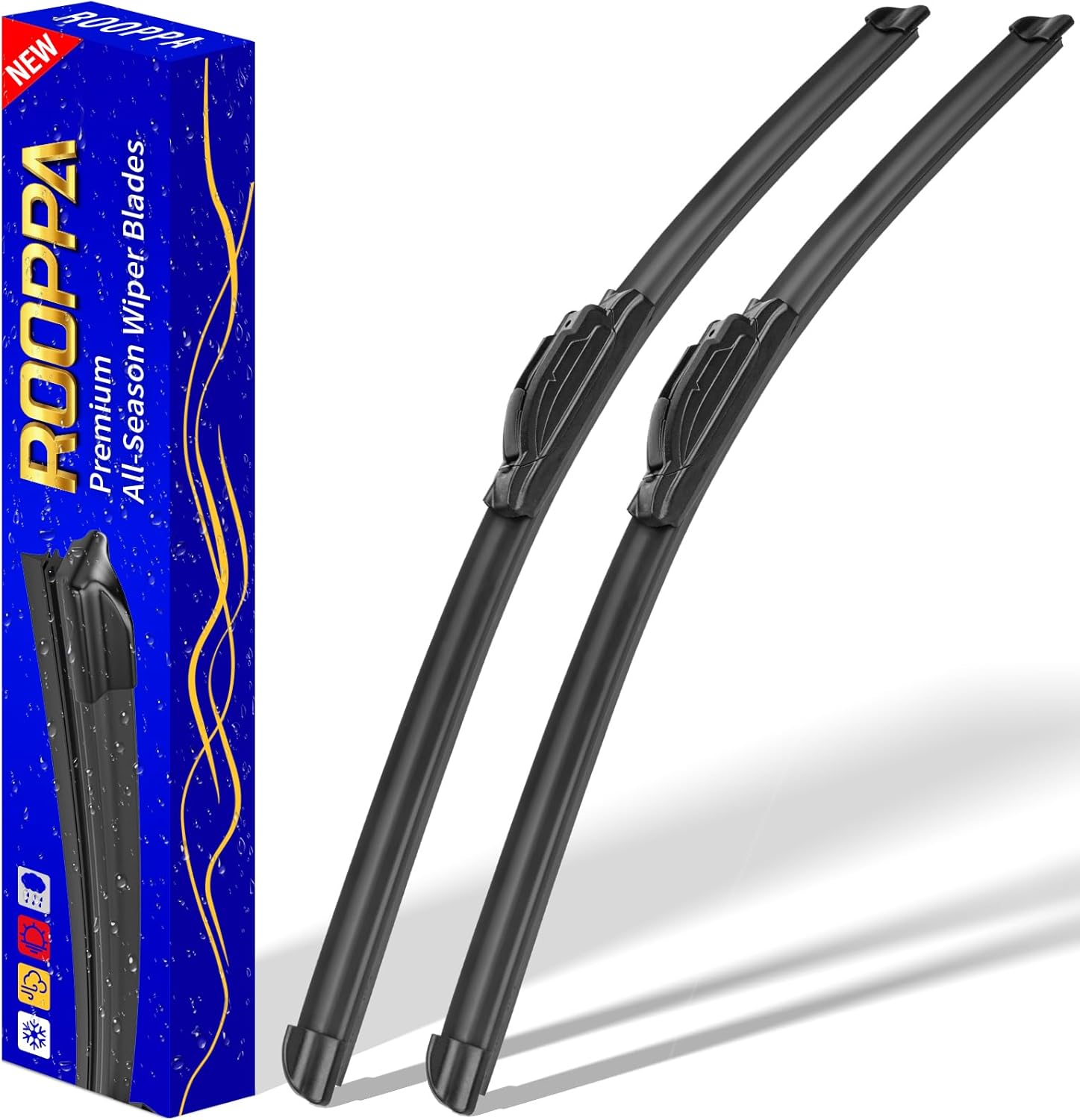
These front windshield wiper blades are designed as a direct replacement for compatible Hyundai models, helping restore clear visibility in rain and road grime. The hard-molded frame and stronger spring support smooth, reliable wiping performance, while the easy plug-and-play installation makes replacement simple. Included as a two-piece set, they are built for dependable everyday use with a one-year warranty for added confidence.
Download the Correct Hyundai Sonata Update
Download only the software Hyundai identifies for your exact vehicle. A package meant for another model year or infotainment system may not install, even if the files look similar.
- Record the installed version. Open Setup > General > SW Info/Update in the Sonata.
- Search by VIN or vehicle type. Select the exact Sonata configuration on Hyundai’s U.S. update site.
- Review the release information. Confirm that the update applies to your system before downloading it.
- Download every file Hyundai provides. Hyundai notes that some updates contain multiple downloads that should be downloaded in order.
- Prepare the files exactly as instructed. Keep the two enc package ZIP files compressed when that format is supplied, or extract the archive when Hyundai’s instructions call for a DAUDIO folder.
For reference, Hyundai’s June 2024 Display Audio software release lists improvements for Display Audio Gen2V wireless phone projection and Display Audio Gen1 with Bluelink. Hyundai also warns against using modified or unofficial update files.
Do not assume that an older Display Audio download is correct for a newer Sonata. Hyundai’s current table lists 2023–26 Sonata models under navigation software, and its navigation and infotainment update guide uses a different download process and removable-media requirements.
Install Your Hyundai Sonata Display Audio Software Update
)
Once the correct files are on the USB, the current Hyundai Display Audio procedure takes about 10–15 minutes in the vehicle. Keep the engine running and leave the USB connected until Hyundai reports that the process is complete.
- Start the vehicle. Keep it running throughout the update as Hyundai instructs.
- Insert the prepared USB drive. Use the vehicle’s USB data port.
- Continue if No Supported Files appears. Hyundai’s current guide says this pop-up can appear after inserting the update USB and is normal.
- Open the update menu. Go to All Menus > Setup > General > SW Info/Update.
- Select Update. When the confirmation window appears, select Yes.
- Leave the system alone while it installs. Do not remove the USB or shut off the vehicle during the 10–15 minute process.
- Verify the result. Return to the software-information screen after completion and compare the installed version with the version Hyundai supplied.
Some newer Sonata infotainment systems also receive newer software releases. Hyundai’s July 2026 software update lists 2020–22, 2023, and 2024–26 Sonata and Sonata Hybrid models among the applicable vehicles, but that release belongs to Hyundai’s navigation/infotainment update stream rather than the older Display Audio download listing.
What to Do If Your Update Fails?
Start by identifying exactly where the process stops. A No Supported Files message immediately after inserting the USB is not automatically a failure; Hyundai’s current Display Audio guide says that message can be normal before you manually open SW Info/Update and select Update.
If the Update button does not find the software
Recheck the package before changing anything else. Confirm the model year, infotainment type, and installed software version, then make sure you downloaded the file returned by Hyundai for that exact vehicle.
Next, inspect the USB root. If your package contains the two enc_system_package_... and enc_d2vsystem_package_... files, those ZIP files should remain compressed. If your package instructions require a DAUDIO folder, the downloaded archive must be extracted first.
If the Sonata does not recognize the USB drive
Reformat the drive using the file system specified for the package you downloaded, then copy the update files again. Hyundai’s current guide recommends an 8GB or 16GB exFAT USB for its general Display Audio removable-media specification, while the June 2024 Display Audio release specifically recommends FAT32 and a single partition.
If the USB still is not detected, try another compatible USB drive. Hyundai notes that some USB memory devices may not operate properly even when formatted correctly.
If you downloaded Display Audio files for a newer Sonata
Check the current Hyundai software list again. As of October 5, 2026, 2023–26 Sonata entries are listed under navigation software rather than Display Audio. Using an older Display Audio package on one of these systems is not the correct update path.
If the update was interrupted
Do not repeatedly disconnect the battery, pull the USB, or cycle the ignition while an update is actively processing. Hyundai warns that interrupting power or removing the USB during installation can cause problems with the infotainment system.
If the screen no longer reaches the normal menus or the update cannot be restarted through SW Info/Update, stop experimenting with unrelated packages and contact Hyundai support or a Hyundai dealer with your VIN and the software version you were attempting to install.
Key Takeaways
- Sonata Display Audio and navigation/ccNC systems use different update packages, so identify the infotainment type before downloading anything.
- Hyundai documents two Display Audio file layouts: some packages keep two ZIP files intact, while others require an extracted DAUDIO folder.
- A No Supported Files pop-up after inserting the update USB can be normal; open SW Info/Update and select Update before assuming the USB failed.
- Hyundai’s current U.S. software table lists Display Audio entries through the 2020–22 Sonata, while 2023–26 Sonata entries appear under navigation software.
Frequently Asked Questions
How do I update my Sonata screen?
Update your Sonata screen by first identifying the installed infotainment system and downloading the matching Hyundai software package. Prepare the USB according to that package, insert it in the vehicle, then open Setup > General > SW Info/Update and select Update.
How do I update Hyundai Sonata firmware?
Update Hyundai Sonata firmware only with the package Hyundai lists for your VIN or exact vehicle type. Display Audio and navigation systems use different files, so confirm the installed software version and system type before copying anything to the USB drive.
Should I unzip the Hyundai Display Audio update?
Whether you unzip the update depends on the package Hyundai supplies. Packages containing enc_system_package and enc_d2vsystem_package ZIP files keep those two files compressed, while another Hyundai workflow requires extracting the download and placing the DAUDIO folder at the USB root.
Why does Hyundai show No Supported Files after I insert the USB?
No Supported Files can be a normal message during Hyundai’s Display Audio update procedure. Hyundai instructs you to continue to All Menus > Setup > General > SW Info/Update and select Update before treating the message as an update failure.
Can I use a Display Audio update on a 2023–26 Sonata?
Do not assume a Display Audio package is correct for a 2023–26 Sonata. Hyundai’s U.S. software table checked October 5, 2026 lists those Sonata model years under navigation software, so use the VIN or vehicle-type search to obtain the correct infotainment update.
Conclusion
A successful Hyundai Sonata display audio update depends more on choosing the correct package than on the installation itself. Confirm the infotainment type and software version first, follow Hyundai’s exact USB and file-layout instructions, and remember that No Supported Files can be normal. Once the update begins, keep the vehicle running and leave the USB connected until installation finishes.
Sources
- Hyundai Infotainment Software Update: VIN and vehicle-type software search.
- Hyundai Display Audio User Guide: USB requirements, file layouts, menu path, normal No Supported Files message, and 10–15 minute installation procedure.
- Hyundai Latest Software Versions: current Sonata Display Audio and navigation software listings.
- Hyundai Display Audio Software Update: June 2024 Display Audio release details, FAT32 guidance, and update precautions.
- Hyundai Infotainment User Guide: navigation-system update procedure and removable-media requirements.
- Hyundai July 2026 Software Update: current applicable Sonata model years and infotainment improvements.